Deploy, pause and set autonomy
Pause and resume an agent, change how far it goes on its own, and duplicate an agent and deploy the copy.
You decide how much an agent does without a person: whether it only drafts (Shadow), waits for approval on every reply (Approval) or sends on its own within its rules (Autonomous). You can pause it on every channel at once, and start it again whenever you're ready.
- Who can use it: Owners and admins, or anyone whose role can deploy and pause agents. Changing the level on the Settings tab needs permission to edit agents, and duplicating needs permission to create them. Without these, Pause, Resume, Deploy and Duplicate are left out of the menus, and a Resume or Deploy main button is disabled. See Roles and permissions.
- Before you start: Nothing. For what each level means, see Autonomy levels.
Pause an agent
Pausing stops the agent on every channel: its live flows stop picking up new conversations. It's reversible.
Choose Pause
On the agent's page, click ⋯ (More actions), then Pause. You can also pause from the ⋯ menu on its card on the Agents page.
Confirm
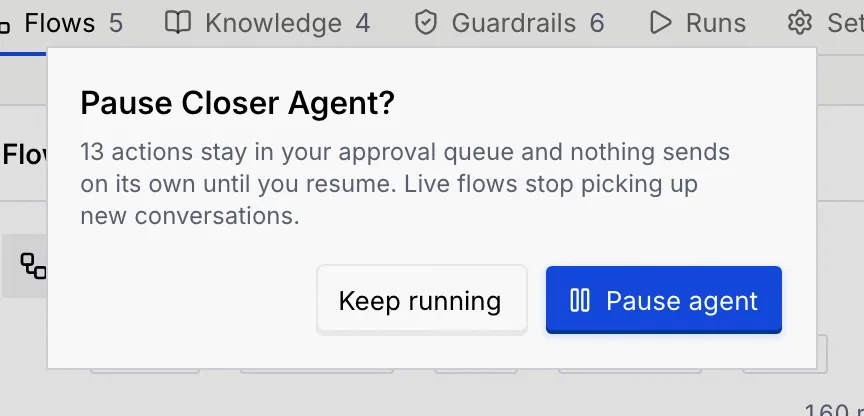
The dialog says what pausing means for this agent. Actions already waiting for approval stay in your queue.
| Level | What the dialog says |
|---|---|
| Shadow | It stops drafting in shadow until you resume. Nothing was being sent, so no customer notices. |
| Approval | Its waiting actions stay in your approval queue. Live flows stop picking up new conversations until you resume. |
| Autonomous | Its waiting actions stay in your approval queue and nothing sends on its own until you resume. Live flows stop picking up new conversations. |
Click Pause agent, or Keep running (Keep drafting for a shadow agent) to cancel.
Check it's paused
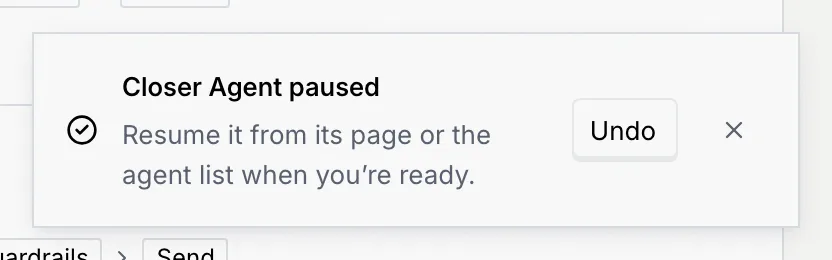
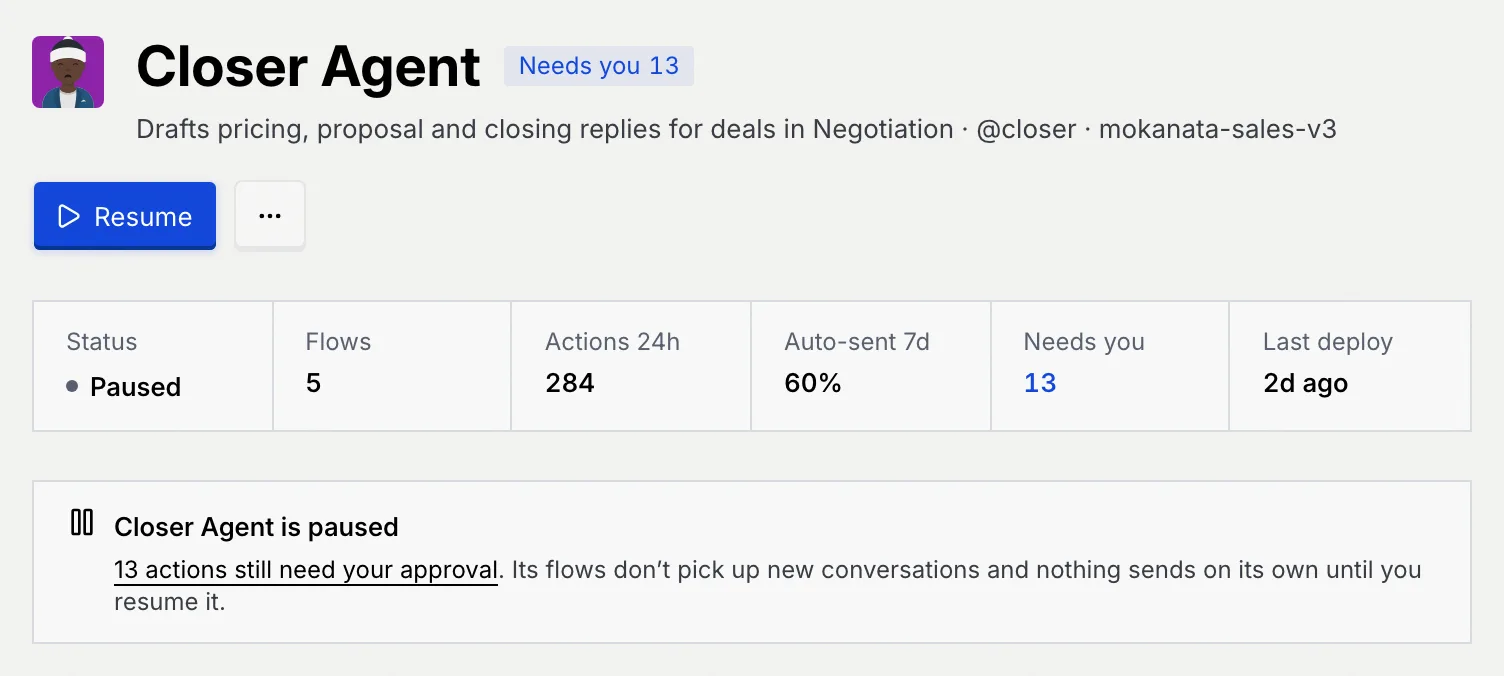
A message confirms it, with Undo if you paused by mistake. The agent's status changes to Paused, Resume becomes the main button, and a notice explains what the pause means.
Pause one flow instead
To stop a single flow and leave the rest of the agent running, use Pause flow on the Flows tab. See Manage an agent's flows.
Resume an agent
Click Resume
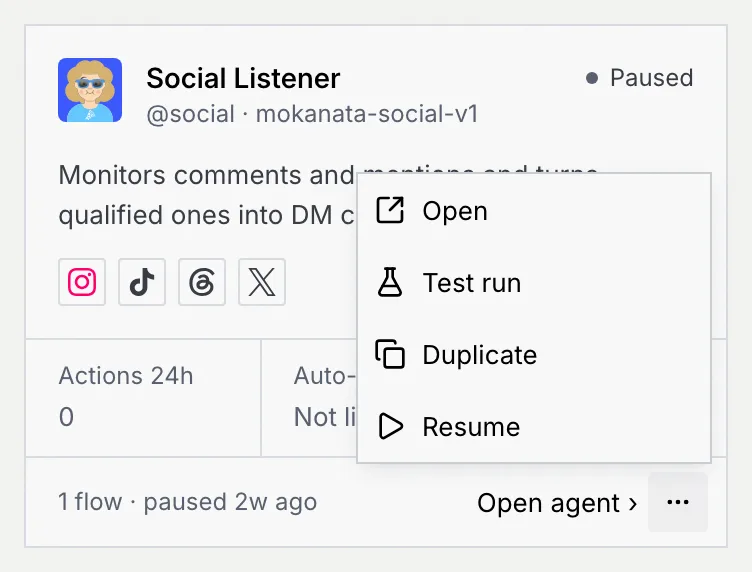
On the agent's page, click Resume. On the Agents page, click ⋯ on a paused agent's card or row, then Resume. There's no dialog: it resumes at once.
Check it's running
A message such as Closer Agent resumed confirms it, with Undo. Live flows pick up new conversations again, and flows that were paused along with the agent go live again. An agent in shadow goes back to drafting; nothing sends.
Change the autonomy level
Open the Autonomy panel
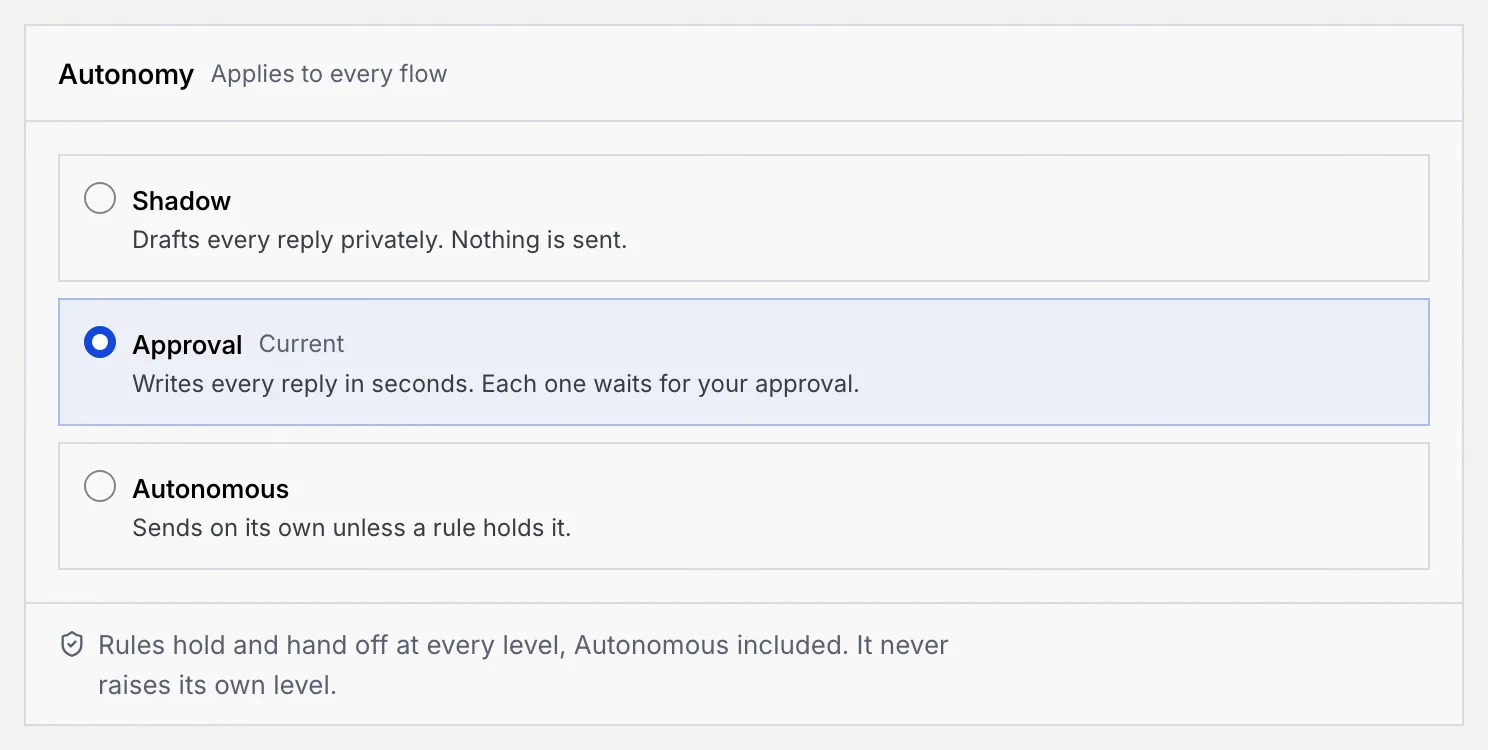
On the agent's page, click the Settings tab. The Autonomy panel applies to every flow of the agent; the current level is marked Current.
Pick a level and save
Choose Shadow, Approval or Autonomous. A bar appears at the bottom of the page: click Save settings, or Discard to go back. The bar follows you if you switch tabs, so you don't lose the change.

Confirm a move to Autonomous
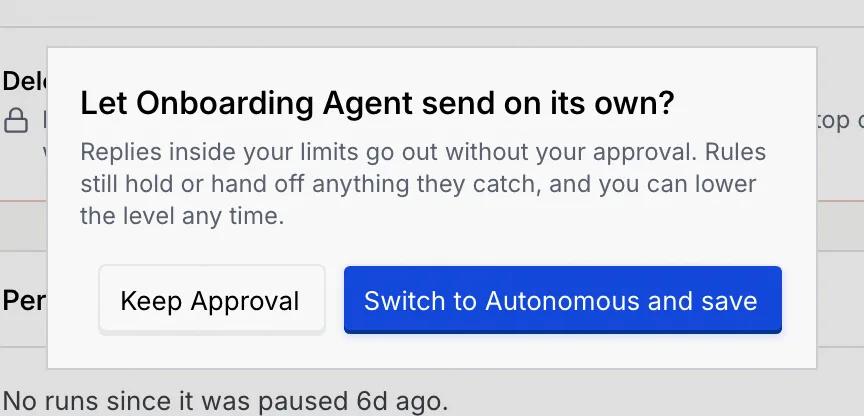
Raising the level to Autonomous asks first: replies inside your limits will go out without your approval. Click Switch to Autonomous and save, or Keep Approval (or your current level) to stay where you are. Lowering the level saves straight away.
A message confirms the new level, with Undo: for example, "It's in Approval now. Writes every reply in seconds. Each one waits for your approval."
Rules apply at every level
Guardrails still hold, hand off or block anything they catch, even when an agent is Autonomous, and an agent never raises its own level. See Guardrails and rules.
Duplicate and deploy a copy
A copy lets you try a change, such as a different level or channel, without touching the original.
Duplicate the agent
On the agent's page, click ⋯, then Duplicate (or use Duplicate in its menu on the Agents page). The copy is named "Closer Agent copy" (then "copy 2", and so on) with a matching handle such as @closer-copy. It has the same channels, knowledge, rules and limits, its flows are copied as unpublished drafts, and it's set to start in shadow. From the agent's page, you go straight to the copy. A message confirms it, with Undo.
Adjust it before it goes live
The copy's page shows Draft and a notice that nothing runs until you deploy it. Change anything you like on its tabs first. The Deploy dialog starts on the level set on its Settings tab, where the Autonomy panel says "Applies once it's deployed"; you can also pick another level in the dialog.
Deploy it
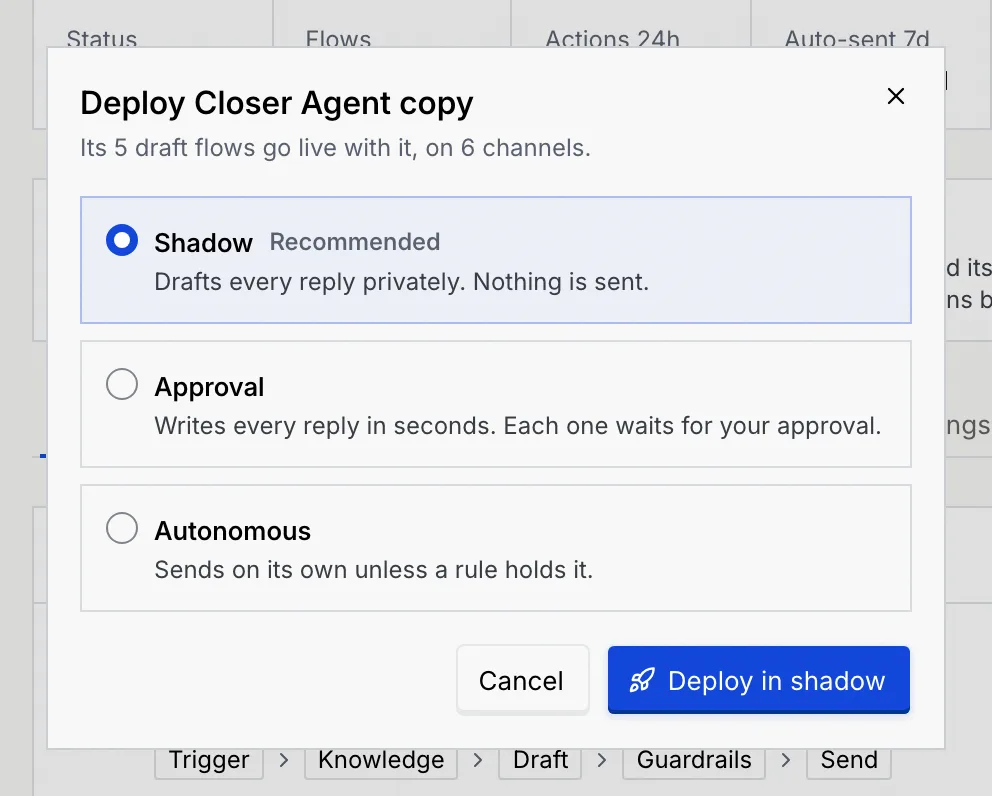
Click Deploy (or press D). You can also choose Deploy from the copy's menu on the Agents page. The dialog says how many draft flows go live with it and on how many channels. Under Deploy in, pick:
- Shadow (recommended): drafts every reply privately. Nothing is sent.
- Approval: writes every reply in seconds. Each one waits for your approval.
- Autonomous: sends on its own unless a rule holds it.
Then click Deploy in shadow, Go live in Approval or Go live in Autonomous.
Check the result
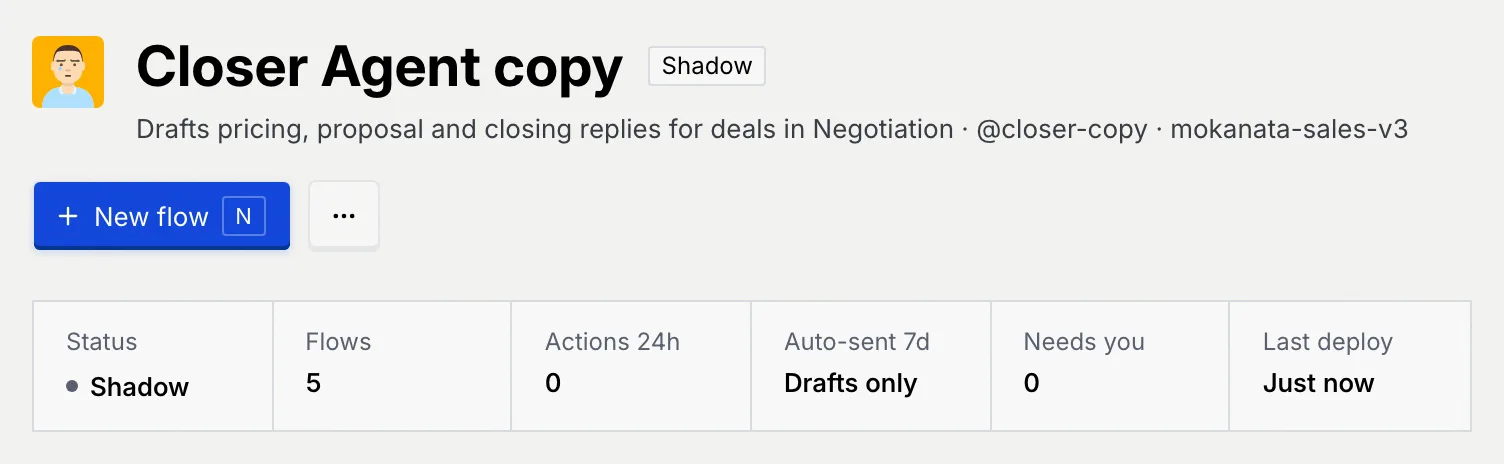
A message such as Closer Agent copy is in shadow confirms it and says what that means: it drafts privately and sends nothing. The page now shows its status, and New flow replaces Deploy.
To create an agent from scratch instead, see Create an agent. To delete a copy you don't need, see Agent settings.
Troubleshooting
The change didn't go through, so the agent is back the way it was. Click Try again in the message. If your role changed in the meantime, the message says what your role can't do.
Your role can't deploy and pause agents. Ask an owner or admin. Drafts can't be paused: deploy them first.
Undo makes the opposite change, so it can fail the same way. The message reads "Couldn't undo" with the action; make the change again by hand.