Auto-approve rules and auto-send
Let confident agent replies go out without waiting for you, with a review window to stop them and guardrails that always hold.
An auto-approve rule lets an agent's routine replies skip the approval queue: replies from a chosen agent, above a confidence you pick, on the channels you pick. A rule can send at once, or after a review window during which the draft counts down and anyone can stop it. Drafts a guardrail holds for a person, such as replies with legal terms or deals above $100K, always wait, whatever the rules say.
- Who can use it: Creating, pausing and removing rules needs Manage auto-approve rules (Owner and Admin by default). Other roles can open the rules read-only, with a View only notice. Stopping and resuming a countdown on a draft needs Approve agent drafts (Owner, Admin and Member by default). See Roles and permissions.
- Before you start: At least one agent that drafts replies for approval. See Deploy, pause and set autonomy.
Open the rules
In the Command center, click Auto-approve rules at the top of the approval queue. The number on it is how many rules you have.

The dialog lists each rule with its agent, what it does in three sentences, how many replies it sent today and how many waiting drafts match it.
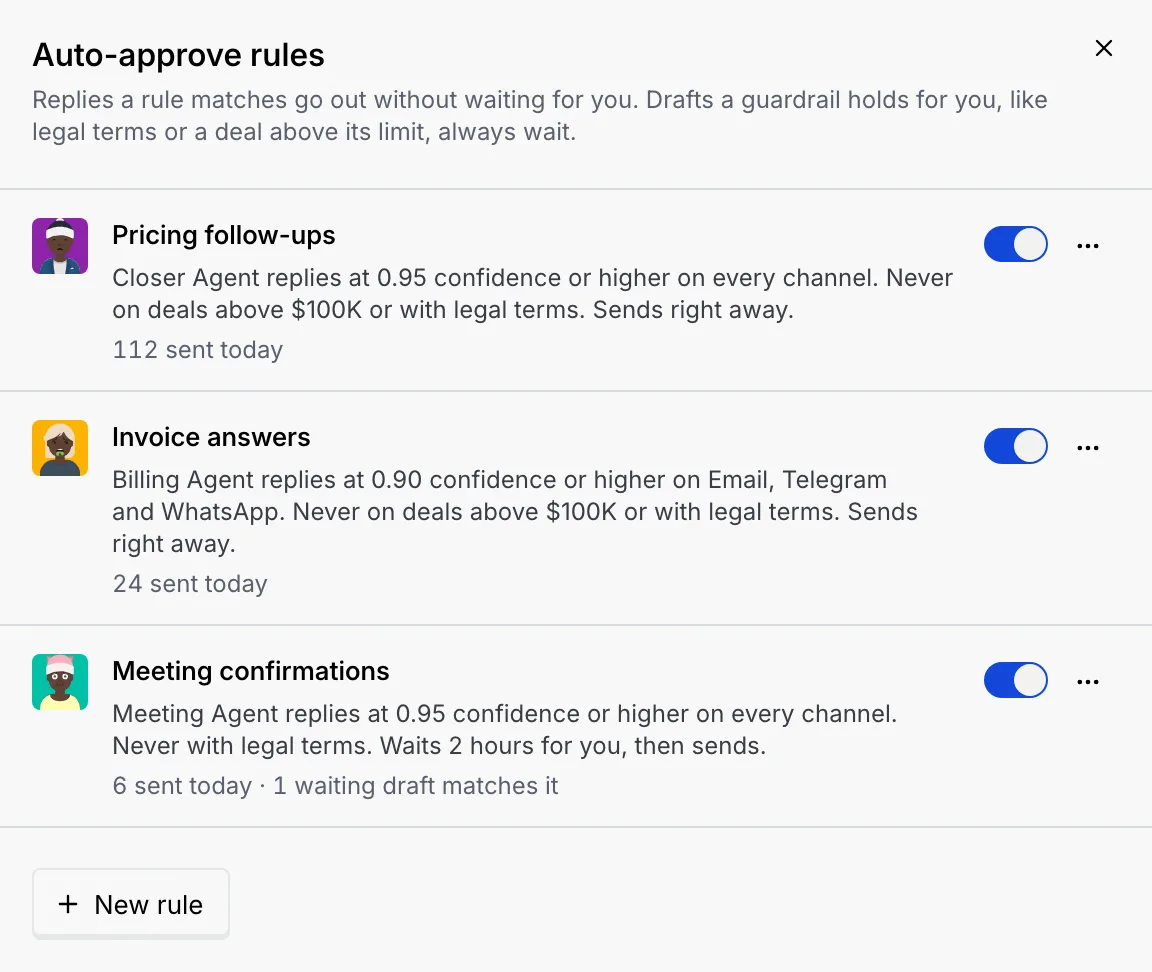
You can also open the rules from Manage rules on the queue's Auto-sent today tab. With no rules yet, the dialog says No rules yet: every draft waits for you until you add one.
Create a rule
Start a new rule
In the rules dialog, click New rule.
Fill in the rule
| Field | What to choose |
|---|---|
| Name | A name the queue can show when the rule sends a reply, such as "Closer replies under $100K" (up to 60 characters). |
| Replies from | The agent whose replies the rule covers. |
| With confidence | The lowest confidence it sends: 0.80, 0.85, 0.90 or 0.95 or higher. |
| On channels | The channels it sends on, all of them to start with. Clear all (or Select all) changes every box at once; pick at least one. |
| Never send | On deals above $100K and With legal terms in the reply, both on by default. |
| When it sends | Send right away, or after a 5-minute, 30-minute or 2-hour review window. |
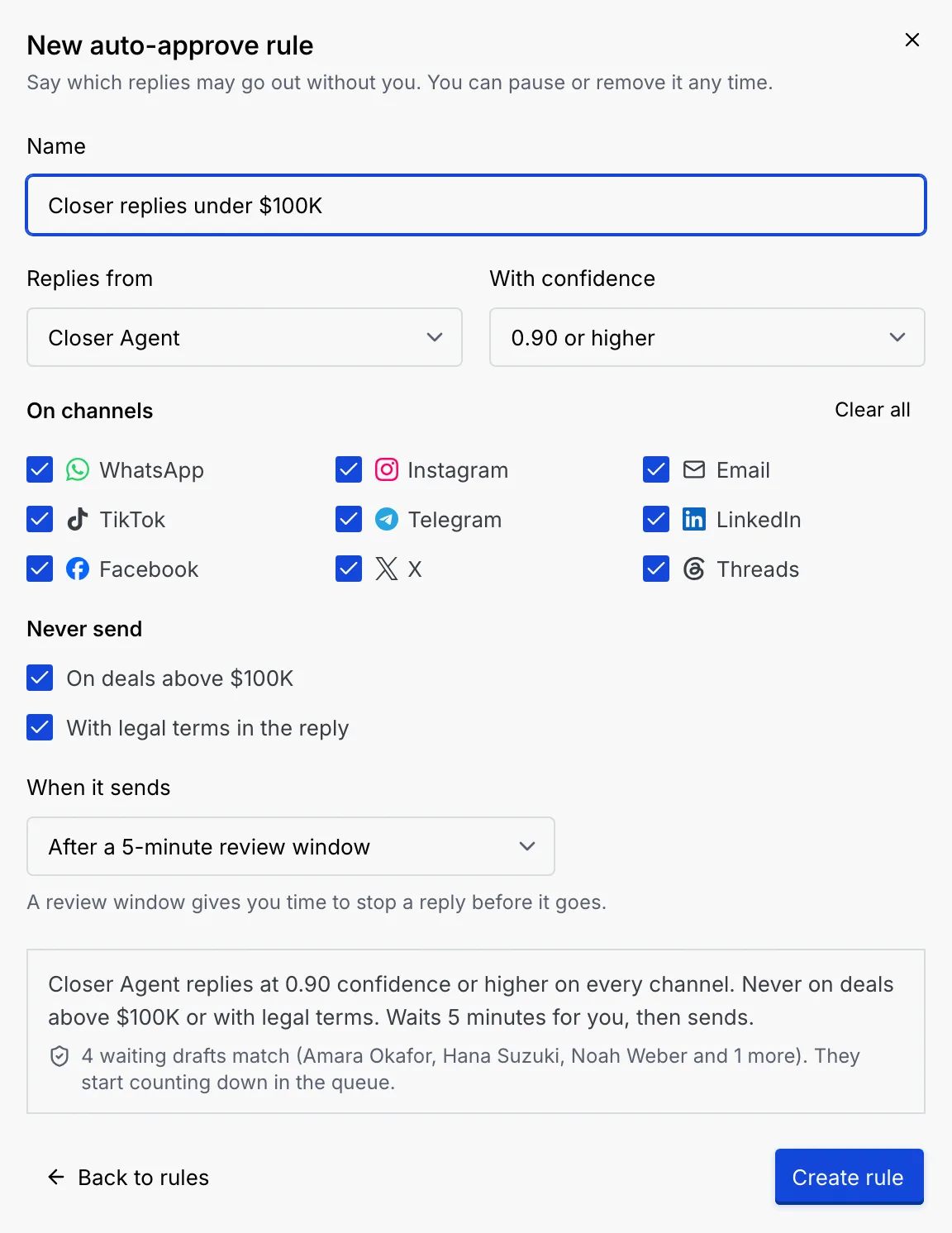
The form asks you to name the rule ("Name the rule so the queue can say which one sent a reply.") and to pick at least one channel.
Turning off a Never send box only changes what new drafts may skip: drafts a guardrail already holds for you still wait.
Check what it will do
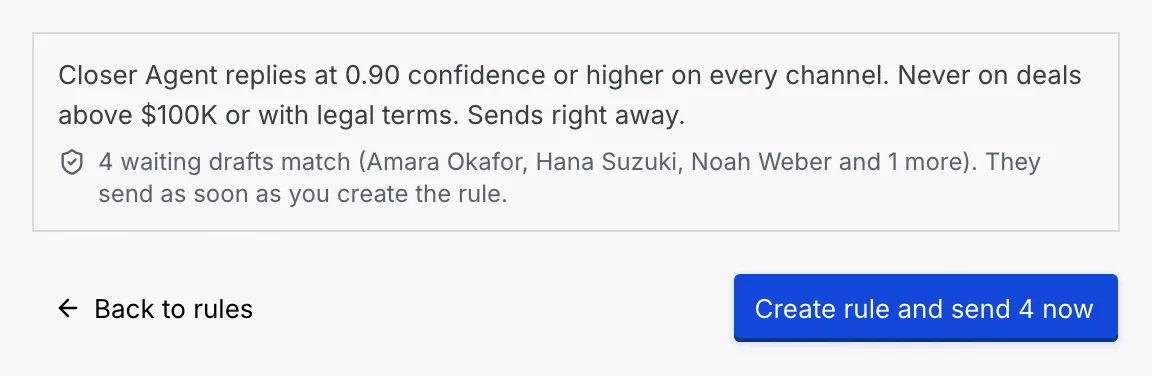
What this rule does repeats the rule in plain words and lists the drafts waiting now that it would match, for example "4 waiting drafts match (Amara Okafor, Hana Suzuki, Noah Weber and 1 more). They start counting down in the queue." With Send right away, those drafts send as soon as you create the rule, and the button says so: Create rule and send n now.
Create it
Click Create rule. A notice in the dialog says Created "name" and what happened: it applies to new drafts from now on, or matching drafts count down in the queue, or matching replies went out. Undo removes the rule; replies already sent stay sent.
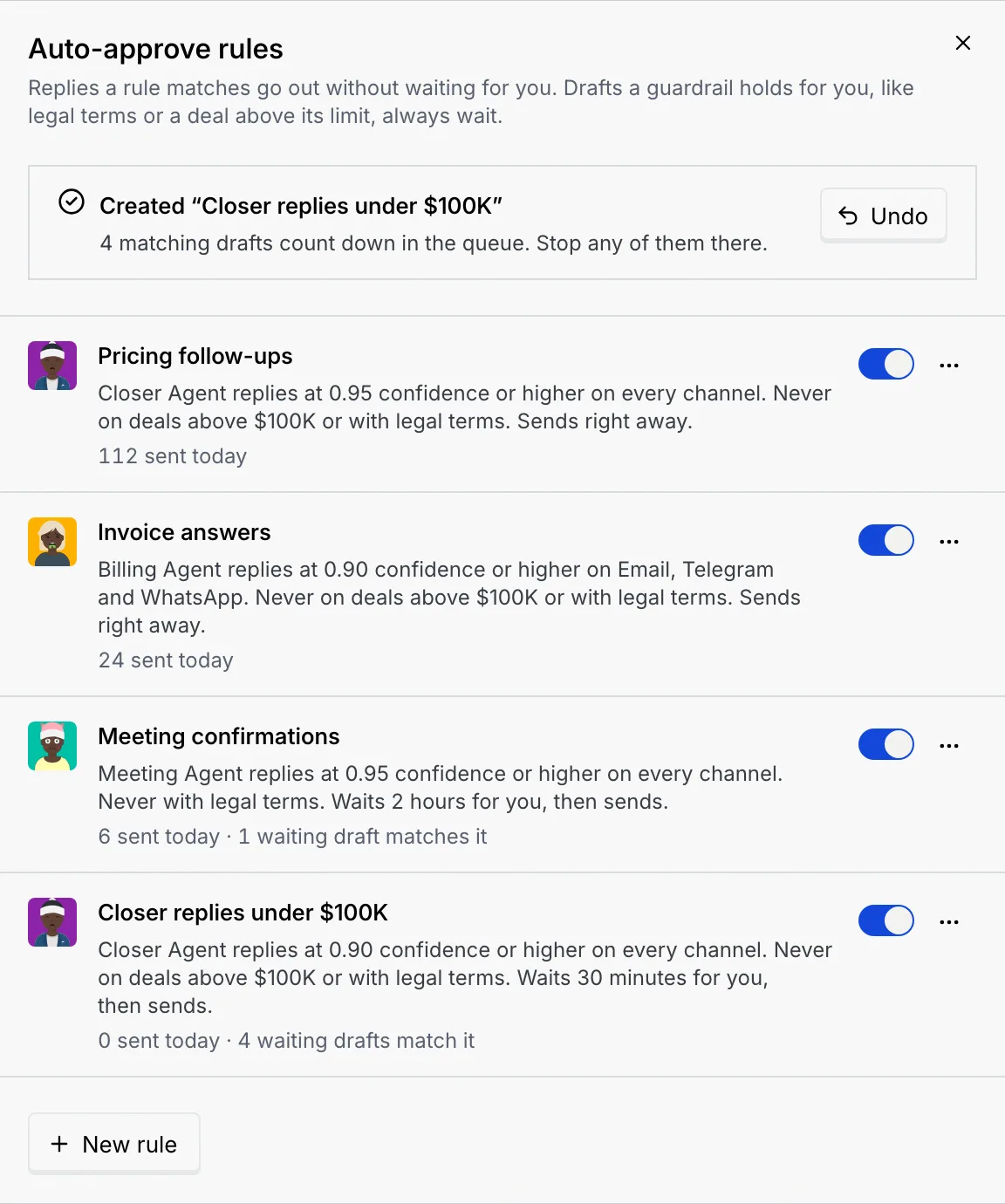
Back to rules returns to the list. If you leave with the form filled in, it asks Discard this rule?.
Pause, turn on or remove a rule
- Pause a rule: turn off its switch. It shows Paused, and drafts it would send wait for you instead. Turn the switch back on to resume it.
- Remove a rule: open its … menu, choose Remove rule and confirm. Drafts it would have sent wait for you.
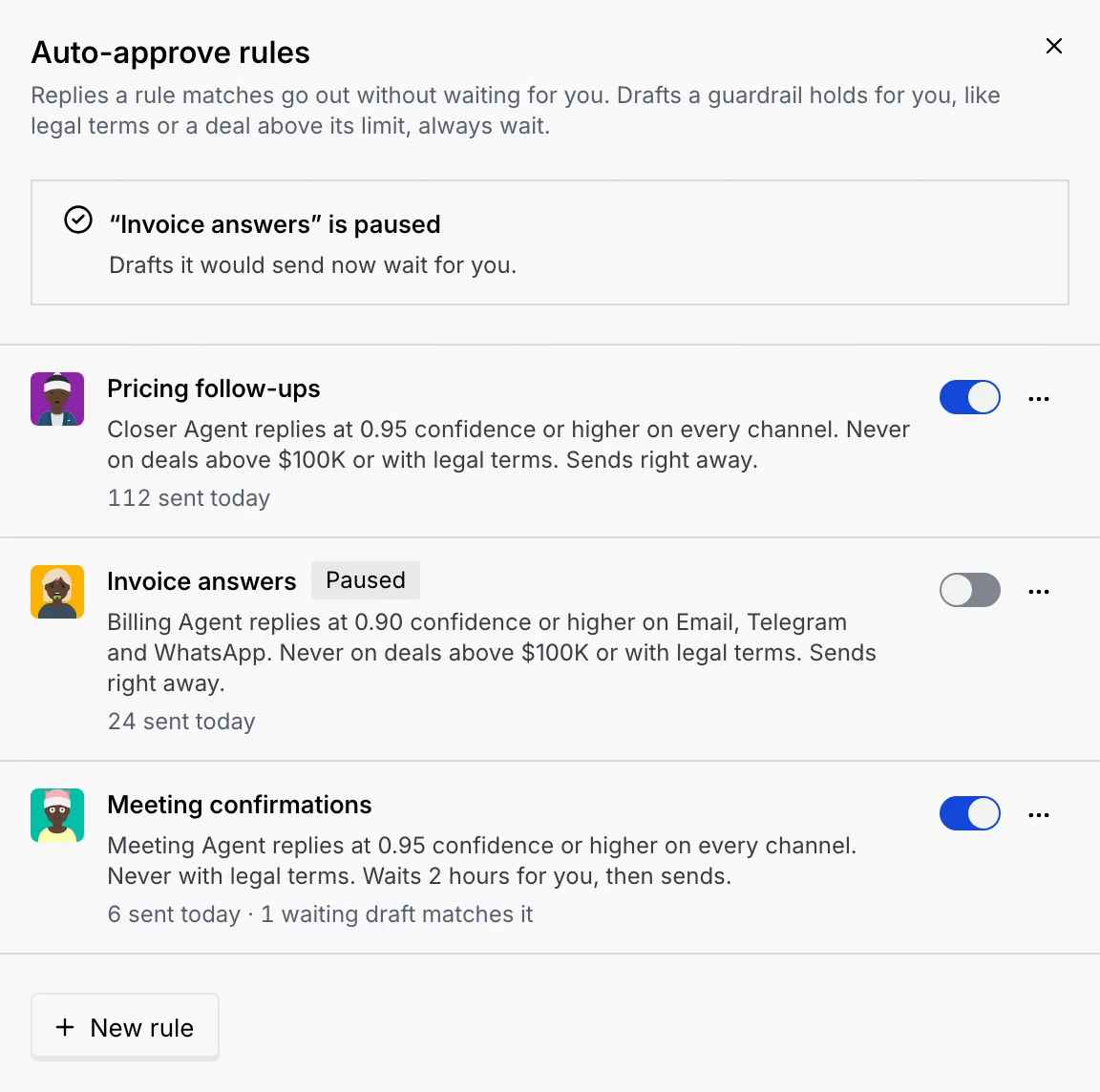
Each change shows a notice at the top of the dialog, such as "Invoice answers" is paused. After removing a rule, Undo on the notice brings it back; if a change fails, Retry tries again. A notice that still offers Undo when you close the dialog follows you out to the corner of the page.
How auto-send works
- An agent writes a draft. If a guardrail holds it (legal terms, a deal above $100K, a lead routed to you), it waits for a person and no rule can send it.
- Otherwise, the first rule in the list that fits the draft takes it: a rule that's on, for the draft's agent and channel, at or below the draft's confidence, and (with On deals above $100K ticked) for a deal of $100K or less. Rules apply to replies only, never to escalations or CRM updates.
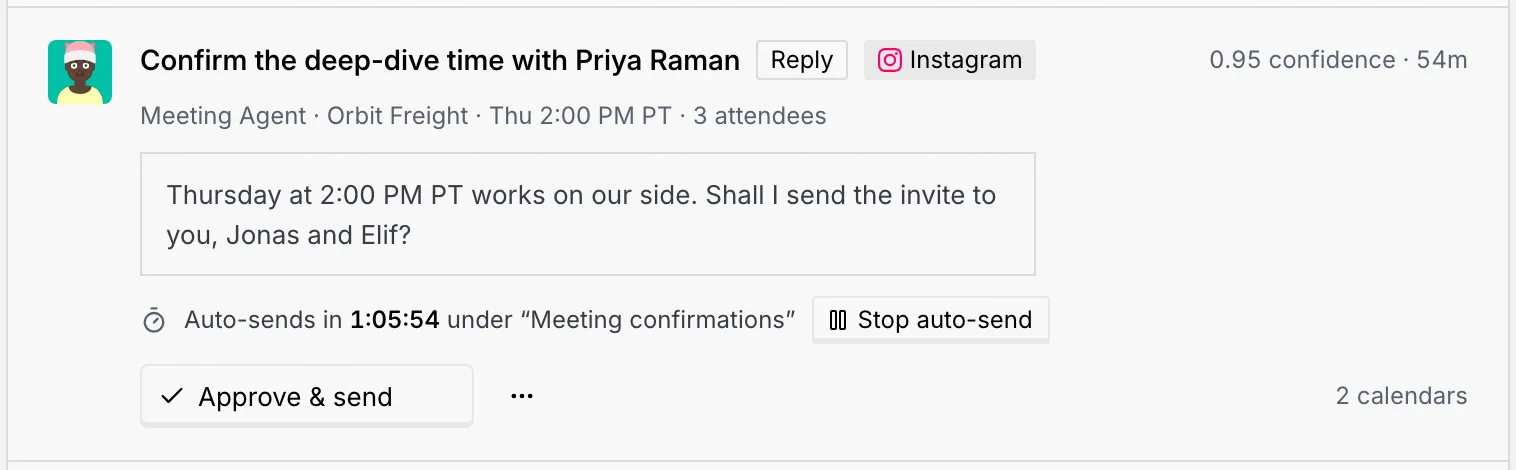
- A rule that sends right away sends the reply at once. A rule with a review window starts a countdown on the draft, visible in the queue and in the thread.
- When the countdown ends, the reply goes out. Its footer in the thread says Auto-sent under followed by the rule's name, a notice tells you which agent sent it to whom, and the queue's Auto-sent today tab counts it.
Stop or resume a countdown
Stop it
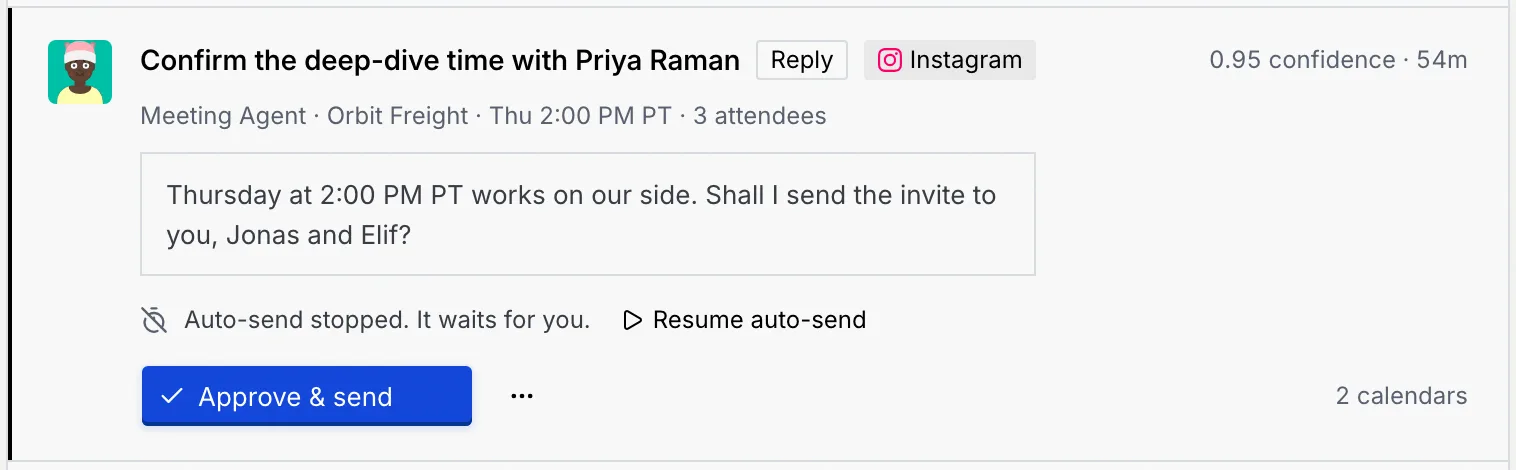
On the card in the queue, or on the draft in the thread, click Stop auto-send. The draft now waits for you: "Auto-send stopped. It waits for you." Undo on the notice resumes the countdown.
Resume it
Click Resume auto-send. The countdown picks up where it stopped, with at least a minute left.
A countdown also stops when someone edits the draft ("You edited it, so it waits for you to send it."), asks the agent for a different draft, or opens it in Edit draft (it resumes if they close the editor without saving). A draft that comes back to the queue, after a snooze or an Undo, gets a fresh review window.
Turn auto-send off for one account
To keep every draft for one company waiting for a person, whatever the rules say, open one of its threads in the inbox and turn off Auto-send replies under $100K under Autonomy on this account in the details column.
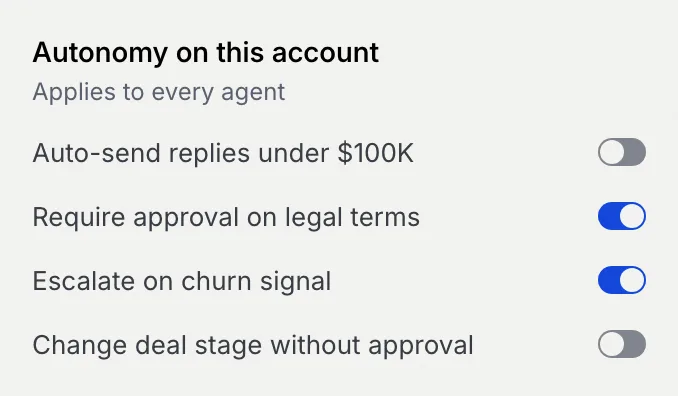
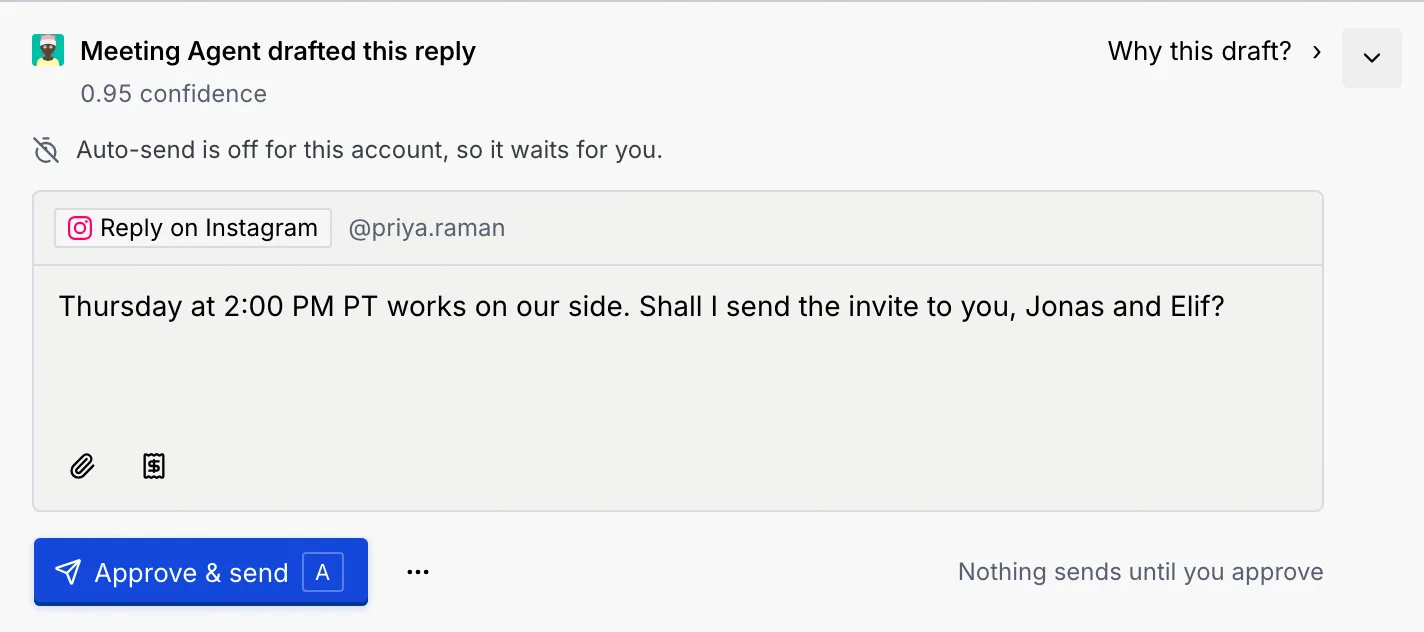
Drafts for that account then show "Auto-send is off for this account, so it waits for you." Turn the switch back on to let rules send them again. See Contact details beside the thread.
Troubleshooting
Check whether a guardrail holds the draft (Held for you: on the card), whether its confidence is below the rule's, whether the rule covers the draft's channel and agent, whether the rule is paused, and whether auto-send is off for that account. Edited drafts also wait for you.
The dialog shows Couldn't create the rule with the reason; no replies were sent. Click Retry.
Your role can view rules but not manage them. An owner or admin can give it Manage auto-approve rules in Settings → Members & roles.