Snooze, resolve and reopen
Close out a conversation when it's done, set one aside for an hour, and bring either back.
When a conversation needs nothing more, resolve it so it leaves your working views. When it needs nothing right now, snooze it. Both set aside anything that was waiting for your approval on the thread, and both can be undone.
- Who can use it: Roles with Resolve and reopen (Owner, Admin and Member by default). The items aren't in a Viewer's menus, and the Reopen and Unsnooze buttons are greyed out with the reason. See Roles and permissions.
- Before you start: Open the thread in the inbox.
Resolve a thread
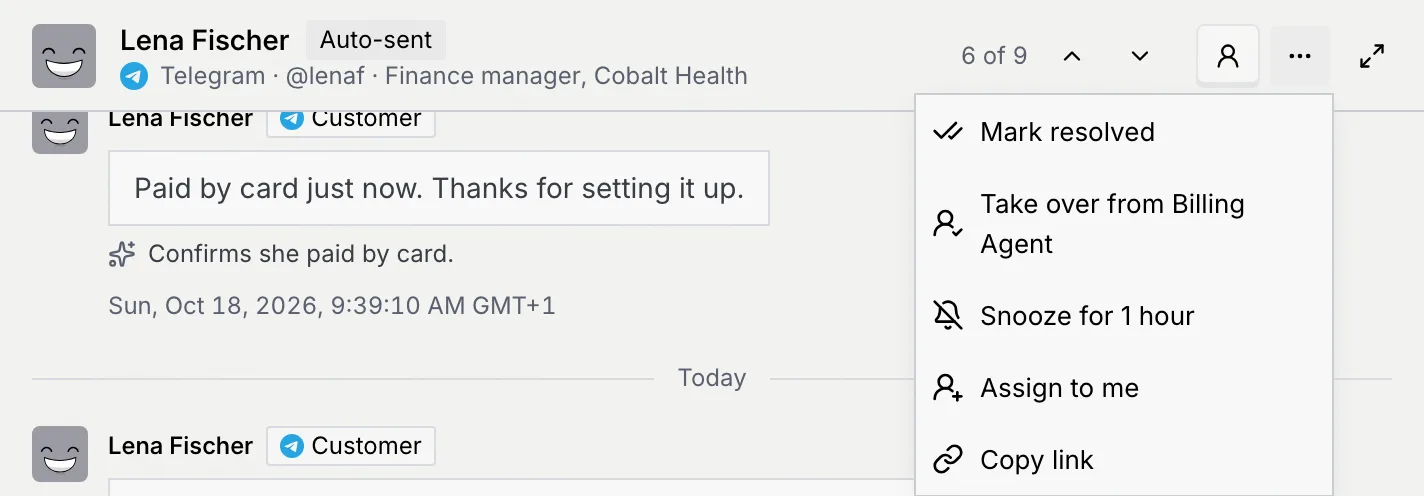
Mark it resolved
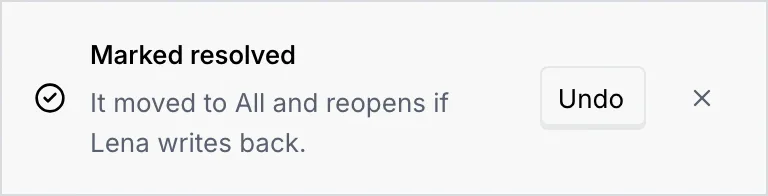
Choose Mark resolved. A notice says Marked resolved: "It moved to All and reopens if Lena writes back." Undo on the notice reopens it.
Find it later
The bottom of the thread says You resolved this thread, and the thread is marked Resolved. It leaves Needs you and Agent working and stays on All.


If a draft, escalation or suggested update was waiting on the thread, resolving sets it aside: it leaves Needs you and the Command center's queue. The notice then says "It moved to All. Reopen it to bring back what was waiting for your approval."
Reopen a thread
Open the resolved thread (on All) and click Reopen at the bottom, or choose More → Reopen thread. A notice says Thread reopened. The thread goes back to the state it was in before, and anything that was waiting for your approval comes back with it.
As its status says, a resolved thread also reopens on its own if the contact writes back.
Snooze a thread for an hour
Snooze it
In the thread's header, click More (…) → Snooze for 1 hour. The thread leaves every view of the inbox, and the next thread in the list opens.
Check the notice
A notice says Snoozed for 1 hour: the contact "comes back to your inbox in an hour, or sooner with a new message." Click Undo on it to bring the thread back right away.
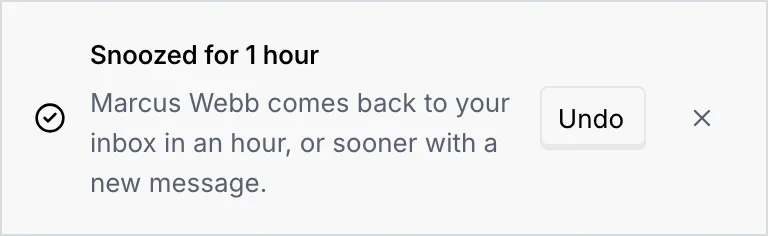
Like resolving, snoozing sets aside anything that was waiting for your approval on the thread. Snooze for 1 hour isn't offered on a resolved thread.
Unsnooze a thread
While a thread is snoozed it doesn't show in any view, so open it from its link: copy the link first (More → Copy link) if you expect to need it before the hour is up.
Open the snoozed thread
Open the thread's link. The bottom of the thread says Snoozed for 1 hour: "It's hidden from your inbox and comes back sooner if Marcus writes again."

Bring it back
Click Unsnooze. A notice says Back in your inbox, and anything set aside comes back to Needs you.
Snooze or resolve: which one
| Snooze | Resolve | |
|---|---|---|
| Where the thread goes | Out of every view | Out of Needs you and Agent working, still on All |
| How you bring it back | Unsnooze, or Undo on the notice | Reopen or Reopen thread, or Undo on the notice |
| Approvals waiting on it | Set aside until it comes back | Set aside until it's reopened |
| Label | None | Resolved |
Snoozing a queue item in the Command center works on that one item, not the whole thread. See Triage the approval queue.
Troubleshooting
Snoozed threads don't appear in any view, including All and search. Open the thread's link (for example one you saved with Copy link, or from your browser history), then click Unsnooze.
Your role doesn't have Resolve and reopen. Ask an owner or admin to change it in Settings → Members & roles.
Nothing changed. Click Retry on the notice.
Next steps
Take over, hand back and handoffs
Decide who answers a conversation, an agent or you, by taking over, handing back or accepting an agent's handoff.
Contact details beside the thread
The contact, their deal, channels, ad source, the agent's reasoning, its recent work and the account's autonomy, next to the conversation.