Reading a conversation
What a thread shows, from messages, senders and delivery to agent runs, files, payment links and ad referrals.
A thread holds everything said with one contact on one channel: their messages, what agents and teammates sent, what each agent did behind the scenes, and events such as handoffs. This page explains what you see in it.
- Who can use it: Anyone who can open the thread, which takes View conversations on the thread's channel (every built-in role). Copying a message or its link works for everyone. Reply and Reply with AI on a message need a role that can reply on that channel, and Try this step again needs Retry agent steps (Owner, Admin and Member by default, not Viewer). See Roles and permissions.
- Before you start: Open a thread from the inbox.
The thread header

From left to right:
- The contact's name, which opens their contact record, with the thread's state (for example Needs you) and, once you've taken the thread, Assigned to you.
- The channel, the address you're writing to, and their job title and company, for example "WhatsApp · +1 415 555 0182 · VP Revenue, Larkspur Analytics".
- A sentiment chip (Positive, Neutral, Mixed or Negative) once an AI summary of the conversation is ready. Hover or focus it for the score and the reason. This needs an AI provider connected to your workspace.
- Where you are in the list (2 of 9), with Previous thread and Next thread.
- Open record (the person icon) to open the contact's record.
- More (…) for what you can do with the whole thread.
- Full screen. See Make room for the conversation.
On narrower screens, the state and position move out of the header to save room.
Act on the whole thread
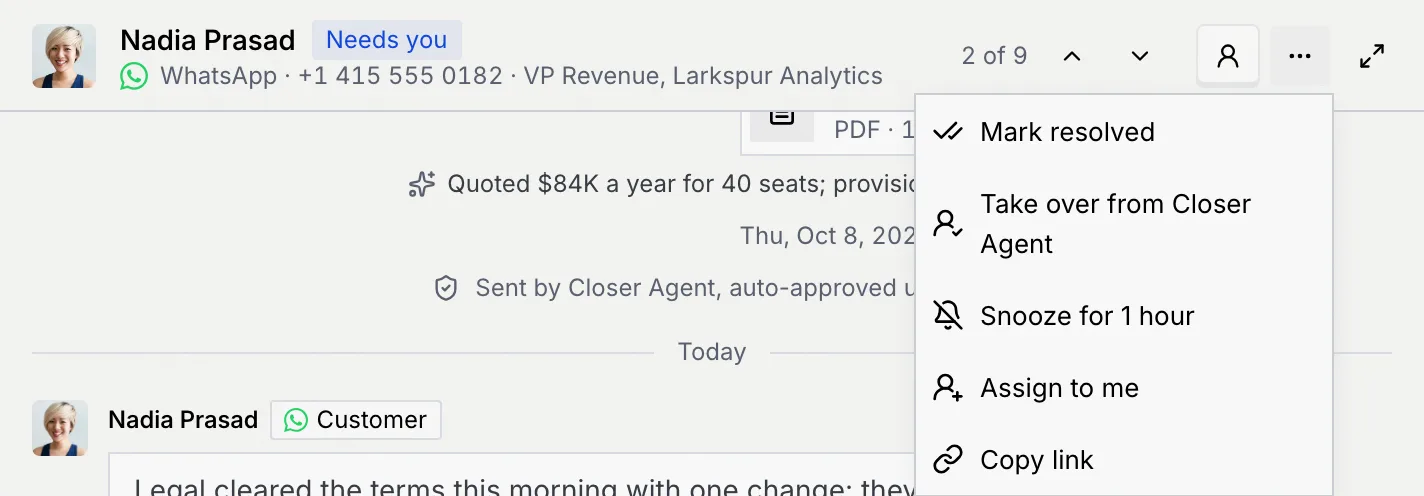
Pick an action
| Item | What it does | Shown when |
|---|---|---|
| Mark resolved / Reopen thread | Closes the thread, or opens it again. See Snooze, resolve and reopen. | Your role can resolve threads |
| Take over from an agent | Stops the agent and makes the thread yours. See Take over, hand back and handoffs. | An agent runs the thread and it isn't escalated or resolved |
| Hand back to an agent | Lets the agent reply again. | You run the thread |
| Snooze for 1 hour | Hides the thread from the inbox. | The thread isn't resolved or snoozed |
| Assign to me / Unassign me | Sends you a notification for every reply. | Your role can assign threads |
| Copy link | Copies the thread's address. | Always |
| Details | Opens the contact's details as a panel. | The screen is narrower than 1280 pixels, or you're in full screen |
Items your role can't use don't appear.
Messages and who sent them
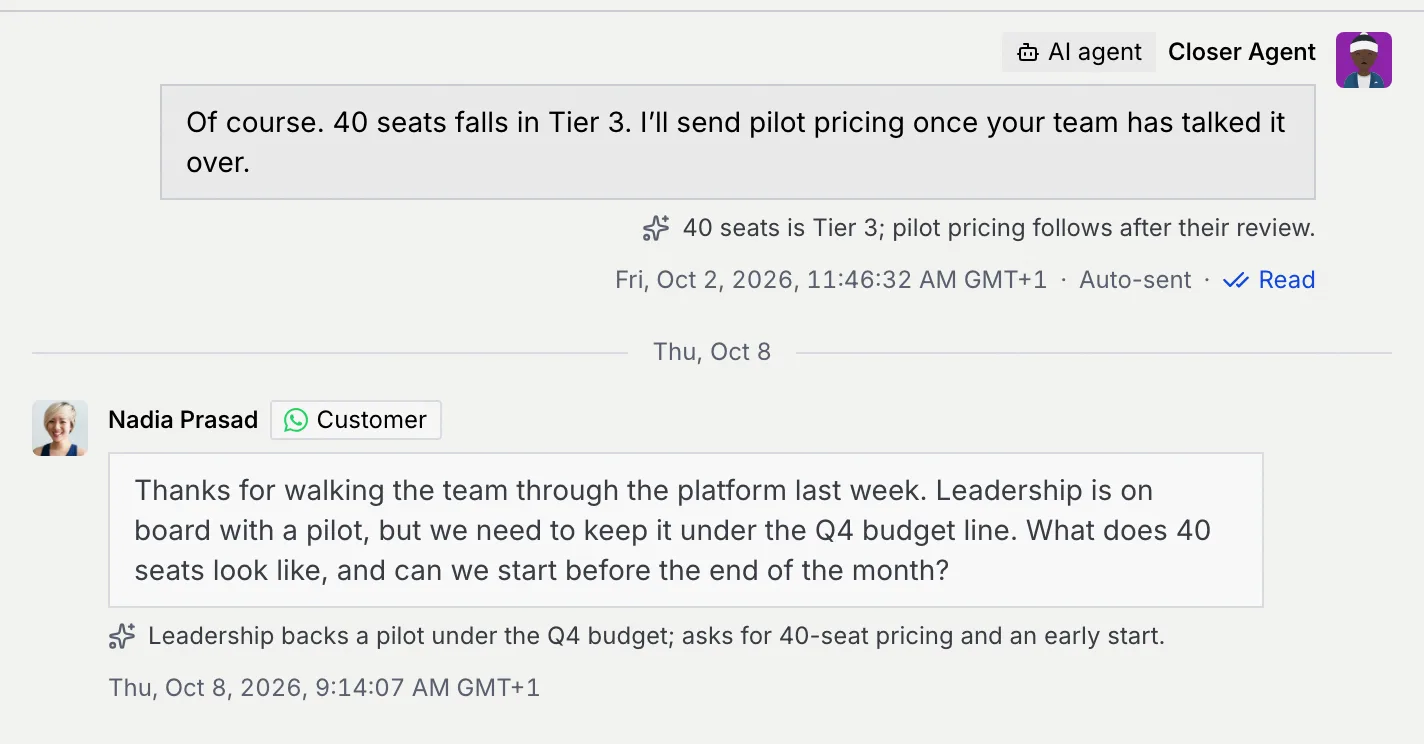
- Customers are on the left, in an outlined bubble. AI agents are on the right in a grey bubble, and you and your teammates are on the right in a tinted bubble.
- Each message has its sender's name, which opens their contact record or agent page, and a chip saying who they are: Customer (with the channel's icon), AI agent, You or Teammate. A follow-up from the same sender within ten minutes sits right under the previous one, without the name.
- Dividers mark each day. Today reads as is.
- Older messages are folded away. Click Show n earlier messages at the top of the thread to load them.
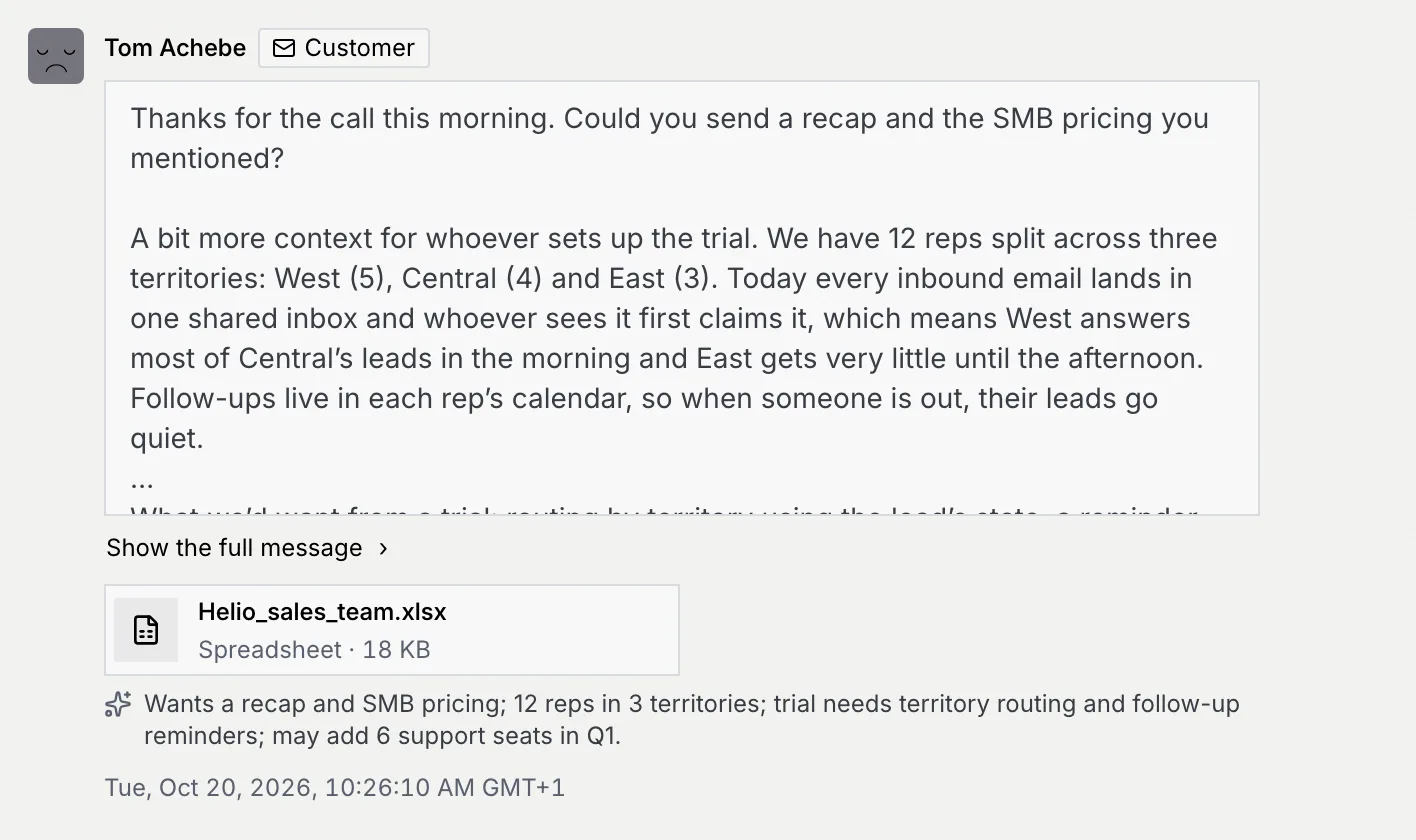
- Messages over about 700 characters fold to ten lines. Click Show the full message to read the rest, and Show less to fold it again.
- Links in a message open in a new tab.
- Centred lines between messages are events, such as "Churn Watch escalated this thread to you · 10:56 AM" or "You took over from Triage Agent · now". They aren't sent to the contact.
Under each message
Each message ends with a footer: the full date and time it was sent ("Time not recorded" when the channel didn't give one), then, for messages your side sent, how it was sent and whether it arrived.
| How it was sent | Meaning |
|---|---|
| Auto-sent | An agent sent it on its own. |
| Auto-sent under "rule" | An agent's draft went out under an auto-approve rule. |
| Approved by you | You approved the agent's draft as it was. |
| Edited and approved by you | You changed the agent's draft, then approved it. |
| Approved in the Command center | Someone approved the draft from the approval queue. |
| Template · name | You sent an approved WhatsApp template. |
Delivery shows as Sending, Sent, Delivered, Read (in blue) or Not delivered (in red). See Conversation states for the full reference.
A line with a shield under an agent's message says why it could go out on its own, for example "Sent by Closer Agent, auto-approved under the pricing rule (under $100K)".
When your workspace has an AI provider connected, a one-line summary of each message appears under it, with the provider and model it came from. While it's written you see Summarizing this message; if it fails, Couldn't summarize this message. with Try again. Without a provider, new messages say No summary: no AI provider is connected.
Copy, quote or link to a message
Show the message's actions
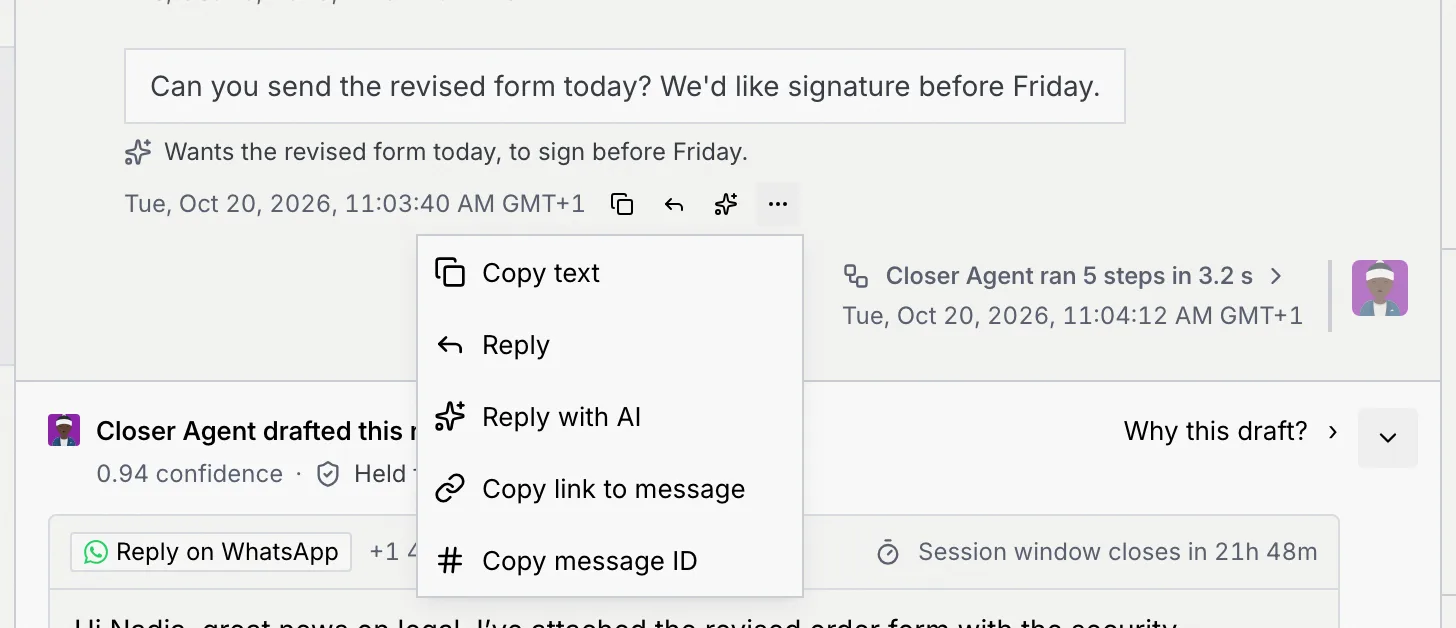
Hover over a message, or move focus to it with the keyboard. On a touch screen the actions are always shown. You get Copy, Reply (when you can write in this thread), Reply with AI (on customer messages) and More actions.
Open More actions
Click the … next to the message for every action:
- Copy text copies the message.
- Reply quotes the message in your reply. See Quote a message.
- Reply with AI has the agent answer this message in your reply box. See Let an agent write your reply.
- Copy link to message copies a link that opens this thread at this message, even when it's in older history.
- Copy message ID copies the message's ID, for support requests or the API.
When someone opens a link to a message, the thread scrolls to it and highlights it for a moment. If the message isn't in the thread any more, a notice says That message isn't in this thread and the thread opens at its newest message.
See what an agent did
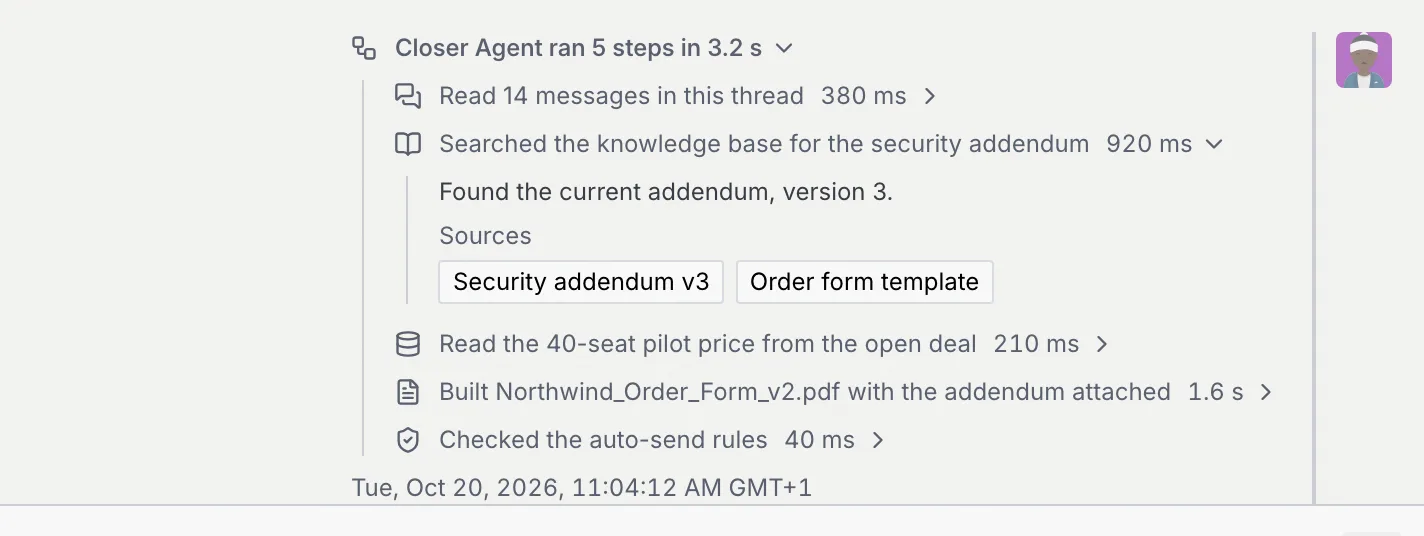
Before an agent's message or draft, a line sums up the work the agent did to write it, for example Closer Agent ran 5 steps in 3.2 s. It can also read … is working: step 4 of 4, … couldn't finish 1 of 3 steps or … hasn't started yet.
Open the run
Click the line. Each step shows what the agent used (the thread, a record, a web search, a file), what it did, and how long it took. A run opens by itself while a step is running or has failed.
There's no log of an agent's runs across all threads yet: the Runs tab on an agent's page is coming soon.
Retry a failed agent step
When a step fails, the run opens on its own and the failed step says what went wrong.
Read the error
The failed step is marked in red with the reason, for example that a link the customer shared has expired.
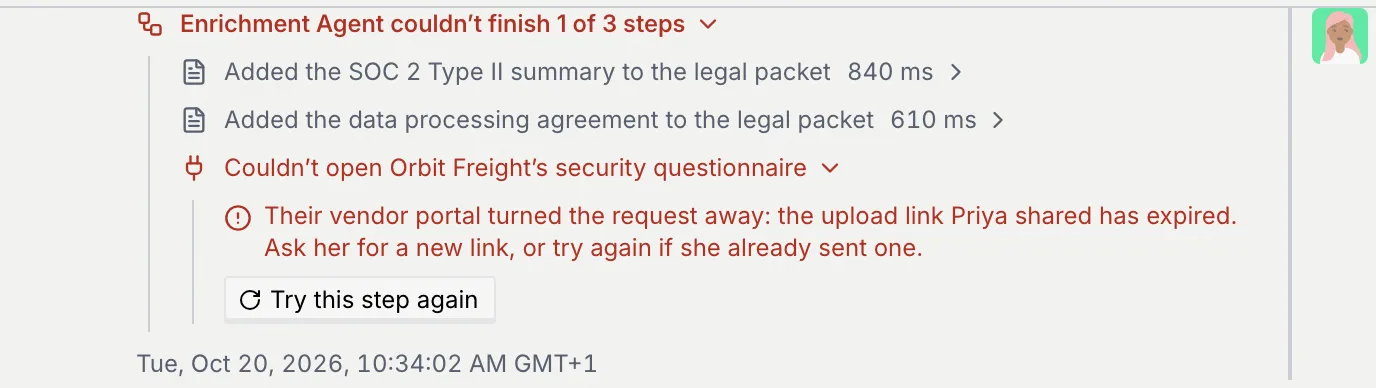
Try it again
If the problem is fixed (for example, the customer sent a new link), click Try this step again. While it runs, the button reads Trying this step again. If it fails again, the step shows the new error.
Files and images
- Documents show as a card with the file name, type and size. Download appears when the file is stored in Mokanata.
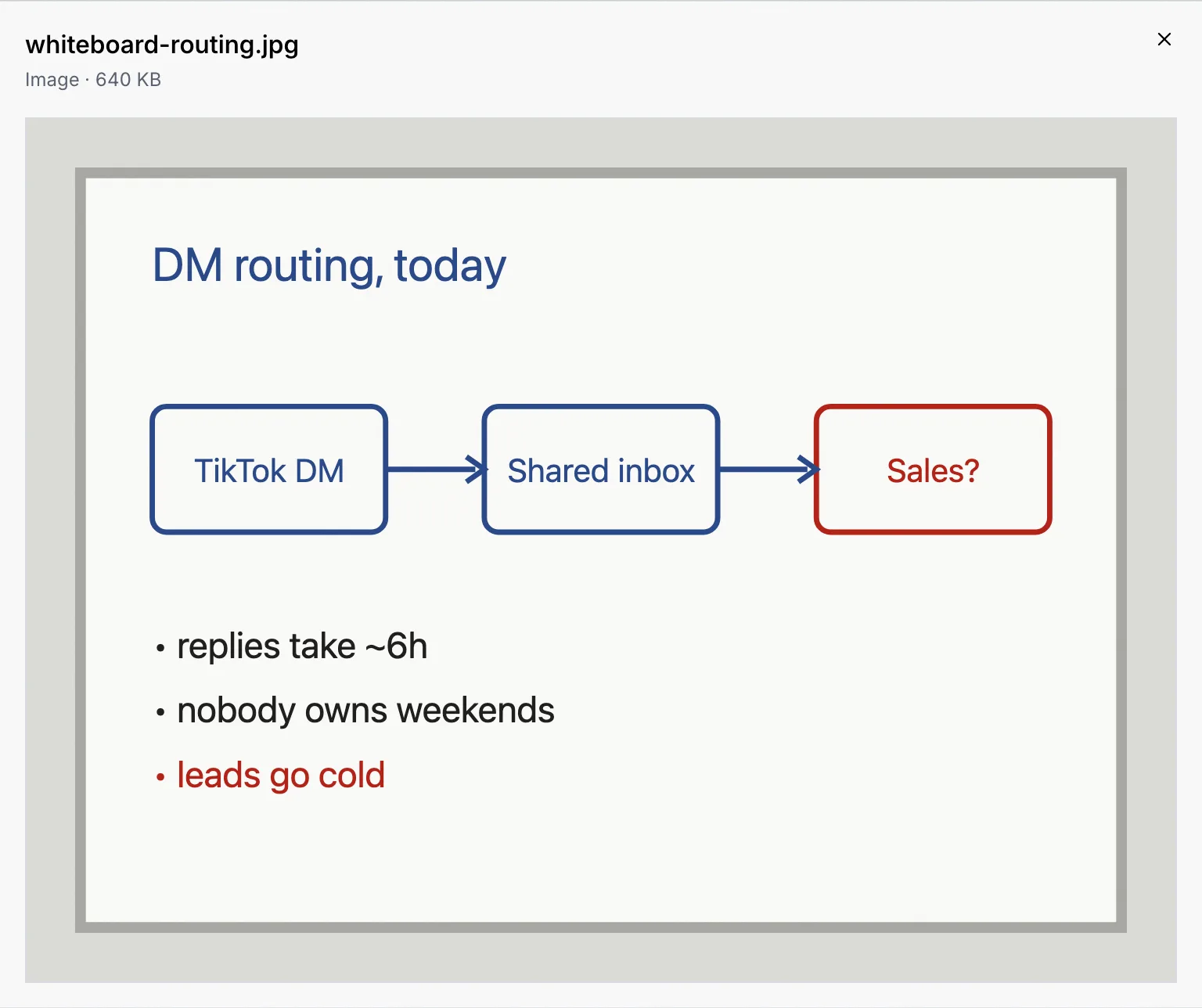
- Images show in the message. Click one to open it full size, with its name and size. If an image can't load, for example because the channel's link to it has expired, you see Couldn't load file name with Try again.
Payment links
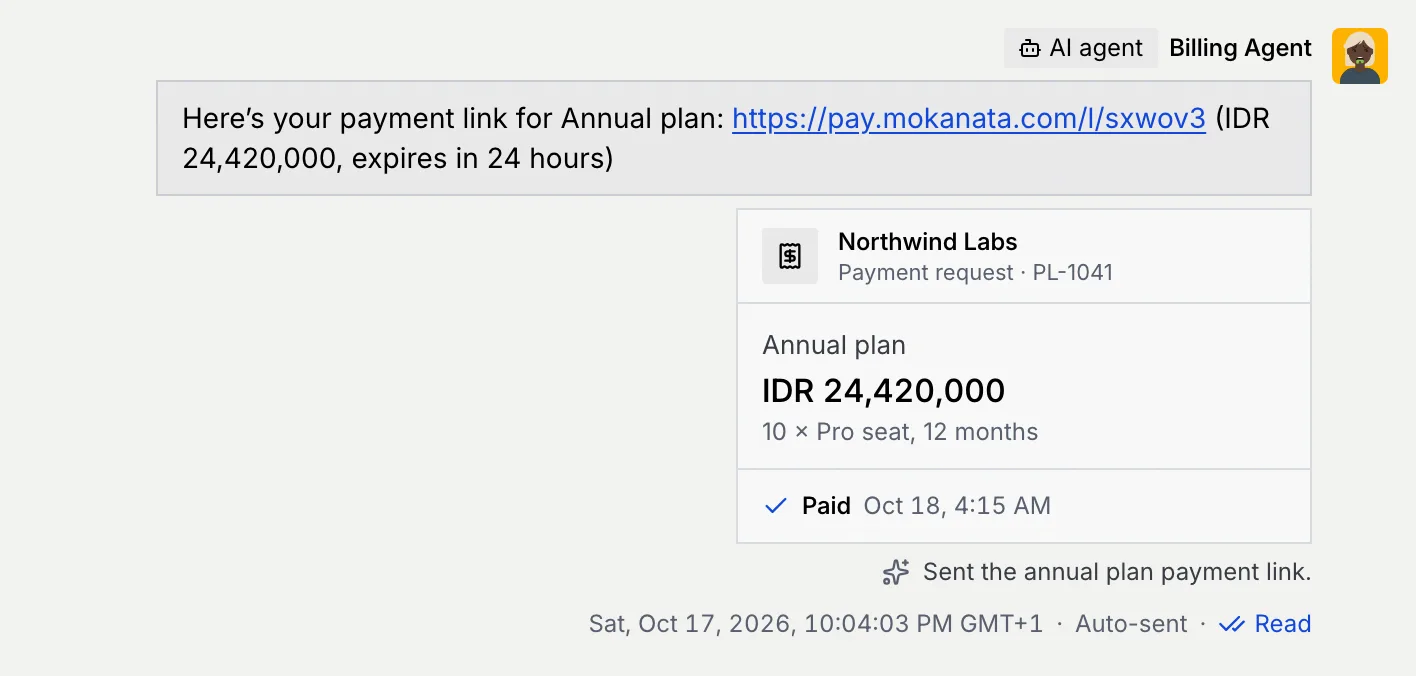
When a message contains a payment link made in Mokanata, a card under it shows the request: its number, what it's for, the amount and whether it's waiting, Paid, expired or cancelled. The card updates when the payment does. See Manage payment links.
Conversations that started from an ad
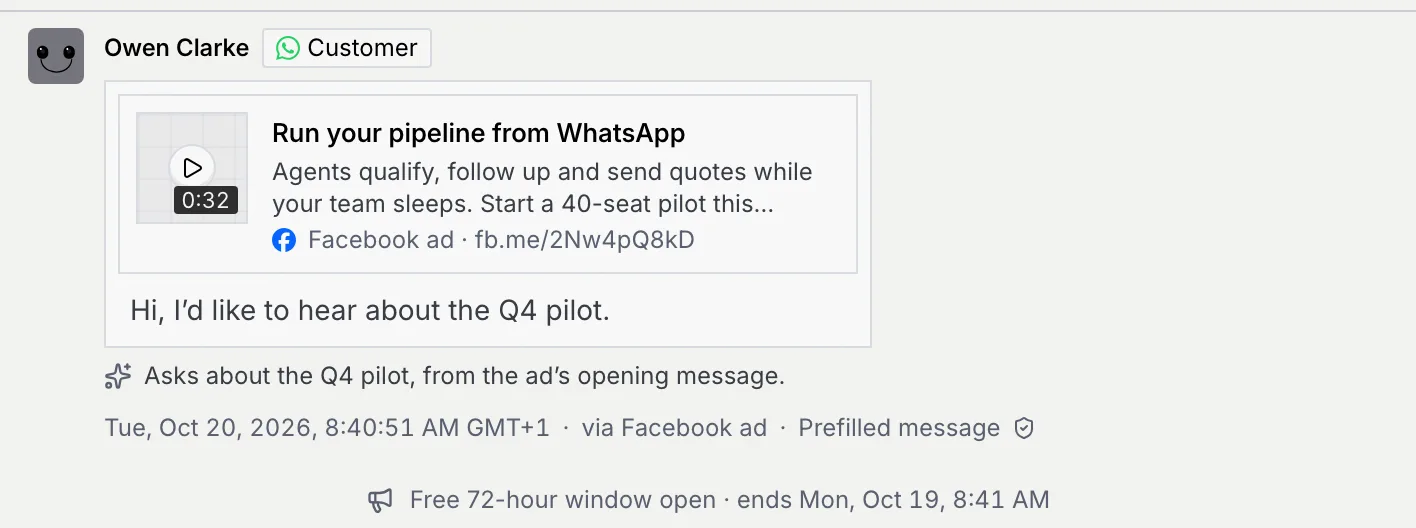
When a contact writes after clicking a click-to-WhatsApp ad on Facebook or Instagram, Meta sends the ad with their first message. Mokanata doesn't read it yet, so what follows shows only in the sample workspace's conversations.
There, the first message carries the ad: its image or video, headline and text. The footer adds via Facebook ad (or Instagram), and Prefilled message when they sent the ad's ready-made text.
Below it, a marker tracks the free 72-hour window Meta opens for ad conversations: Free 72-hour window open · ends date, then Free 72-hour window ended.
When that first message is folded into earlier history, a strip at the top of the thread names the ad, and First message jumps to it. The thread's row in the list carries Facebook ad or Instagram ad, and the details column shows the ad under Source. See Click-to-WhatsApp ads.
Messages that weren't delivered
A message that didn't arrive is marked Not delivered, with the channel's reason and error code under it.
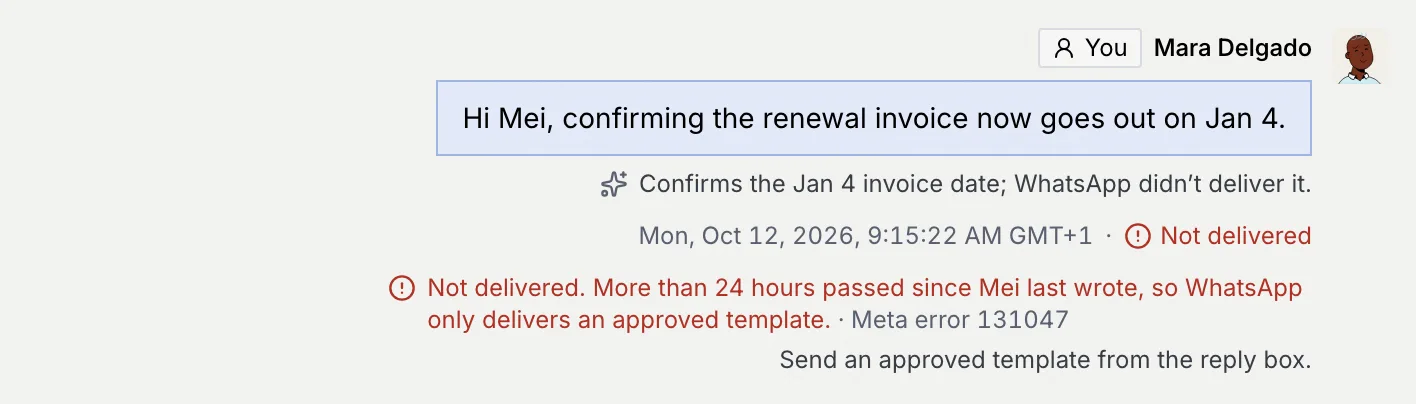
On WhatsApp, the usual reason is that the customer hasn't written in the last 24 hours. Send an approved template from the reply box instead; see Send a template when the window has closed.
When you're offline
If your connection drops, a banner says You're offline: replies and approvals can't be sent until you reconnect, and what you write stays in the reply box. Agents keep working in the meantime.
Troubleshooting
The channel's link to the file may have expired or be temporarily unavailable. Click Try again. If it still doesn't load, ask the contact to send it again.
The message was deleted, or the link belongs to another conversation (for example one that was merged). The thread opens at its newest message instead.
The button shows only on steps that can be run again, and only for roles with Retry agent steps. Ask an owner or admin to add it to your role in Settings → Members & roles.