Roles and permissions
What the Owner, Admin, Member and Viewer roles can do, how to create, edit, duplicate and delete custom roles, and every permission.
Every person in a workspace has one role. A role is two things: an access level, which decides whether someone can change workspace settings, and a set of permissions, which decides what they can do in the product, from replying in the inbox to deleting boards. Roles also decide which channel accounts people work in.
- Who can use it: Owners and admins, and custom roles with Admin access, create and edit roles. Everyone else can open the Roles tab and each role's page to read what it allows.
- Before you start: Nothing. To give a role to someone, see Members and invites.
How roles work
Mokanata has four built-in roles. You can't rename or delete them, but you can change the permissions of Admin, Member and Viewer.
| Role | Access level | Who it's for | Permissions | Channel access out of the box |
|---|---|---|---|---|
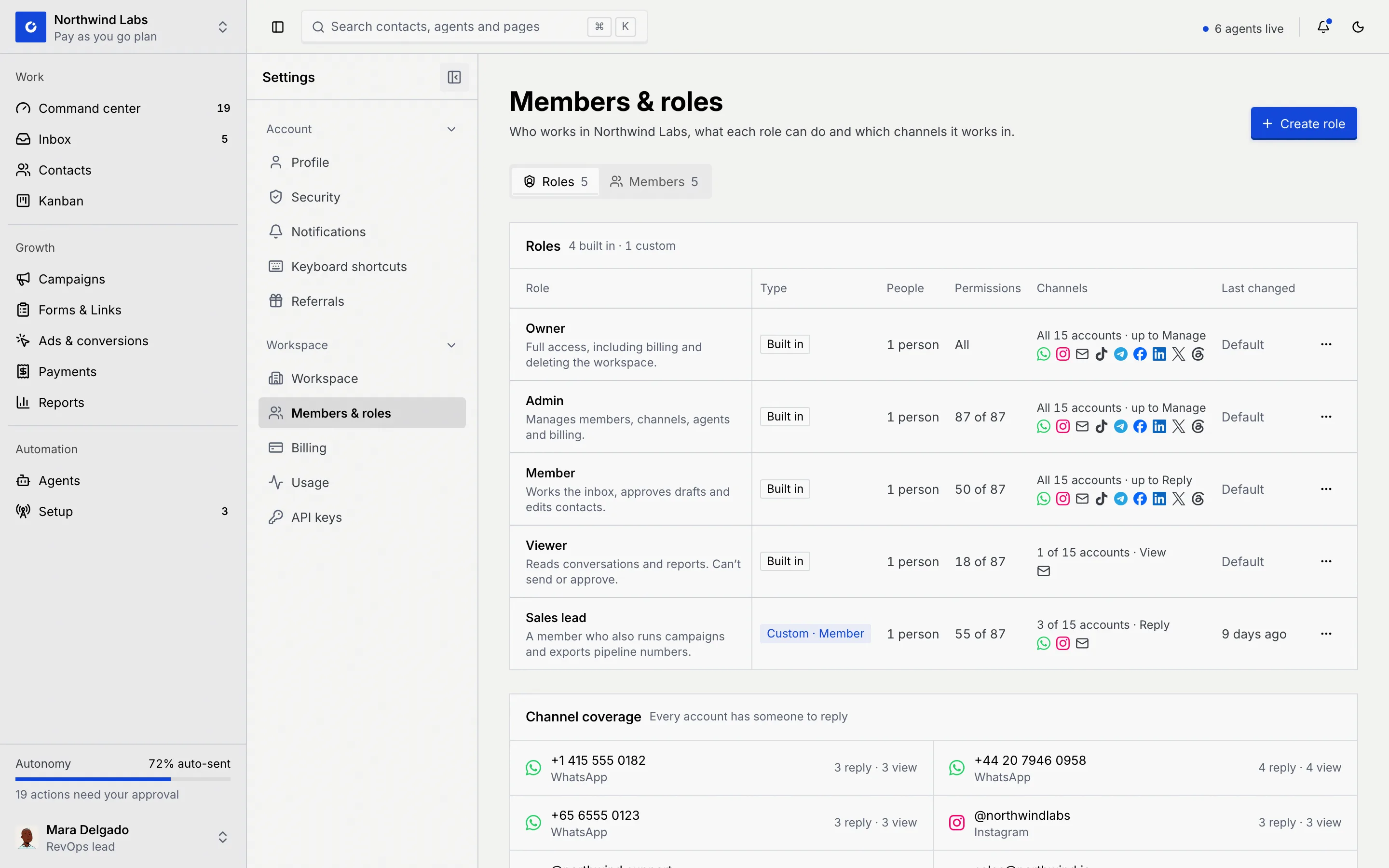
| Owner | Owner | Full access, including billing and deleting the workspace. One per workspace. | All, always | Every account, up to Manage. Can't be changed. |
| Admin | Admin | Manages members, channels, agents and billing. | All 87, plus the 7 that come with Admin access | Every account, up to Manage |
| Member | Member | Works the inbox, approves drafts and edits contacts. | 50 of 87 | Every account, up to Reply |
| Viewer | Viewer | Reads conversations and reports. Can't send or approve. | 18 of 87 | Every account, up to View |
A custom role is built on the Admin, Member or Viewer access level and has its own name, description, permissions and channel access. A workspace can have up to 20 custom roles.
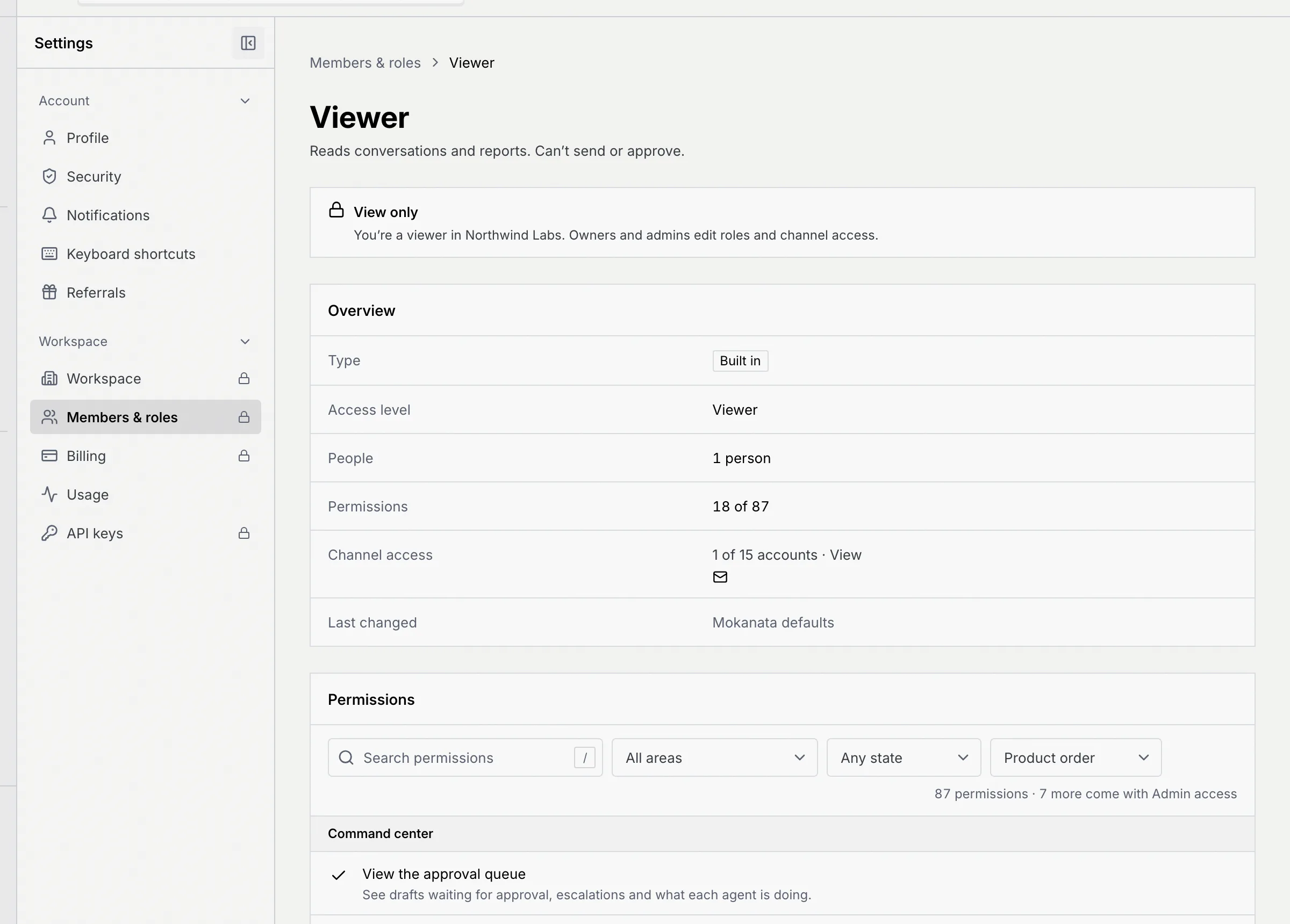
The access level decides who can change workspace settings: people on Owner or Admin access (including custom roles with Admin access) can change Workspace, Members & roles, Billing and API keys. People on Member or Viewer access see those pages read-only, with a View only notice and a lock icon in the settings menu.
A few rules always apply, whatever the permissions say:
- Only the owner can delete the workspace or transfer ownership, and the owner can't leave or be removed (see Danger zone).
- Admins can't change or remove other admins, and nobody can change their own role.
- Owners and admins always have the 7 permissions marked Comes with Admin access, and no other role can be given them: changing the data model, connecting databases, editing workspace settings, managing members and roles, managing billing, exporting usage and managing API keys.
When your role doesn't allow something, the button is turned off and says why, for example "Your role, Viewer, can't … An owner or admin can change this in Settings → Members & roles."
See the roles
Open the Roles tab
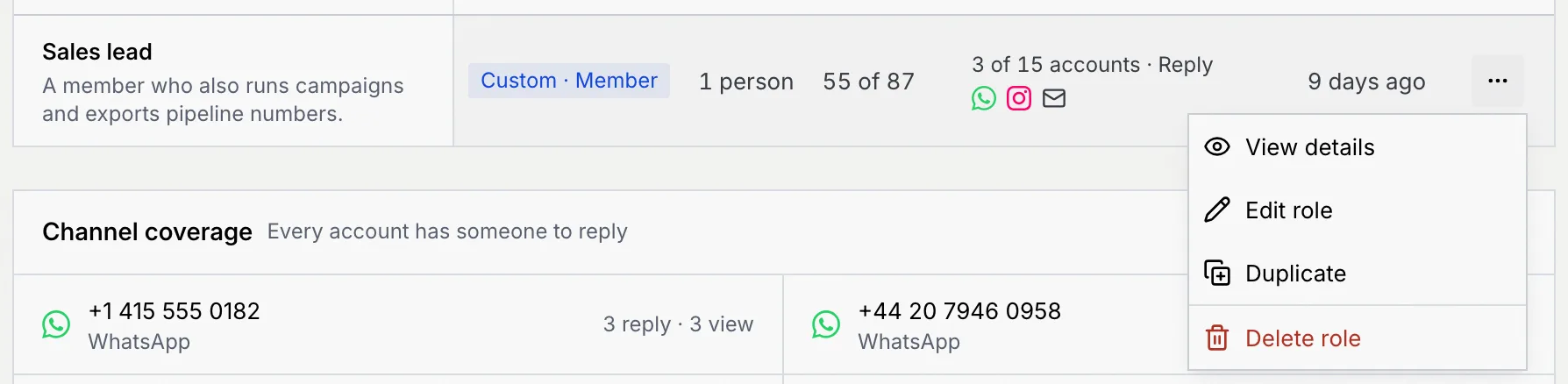
Open Settings and choose Members & roles. The Roles tab is the first tab. Each row shows the role and its description, its Type (Built in, or Custom · Member and so on, plus Edited for a built-in role whose permissions were changed), how many People have it, how many Permissions it has, its Channels and when it was Last changed (Default for an untouched built-in role).
Channel coverage, under the table, shows who can reply on each connected account; see Channel access.
Open a role
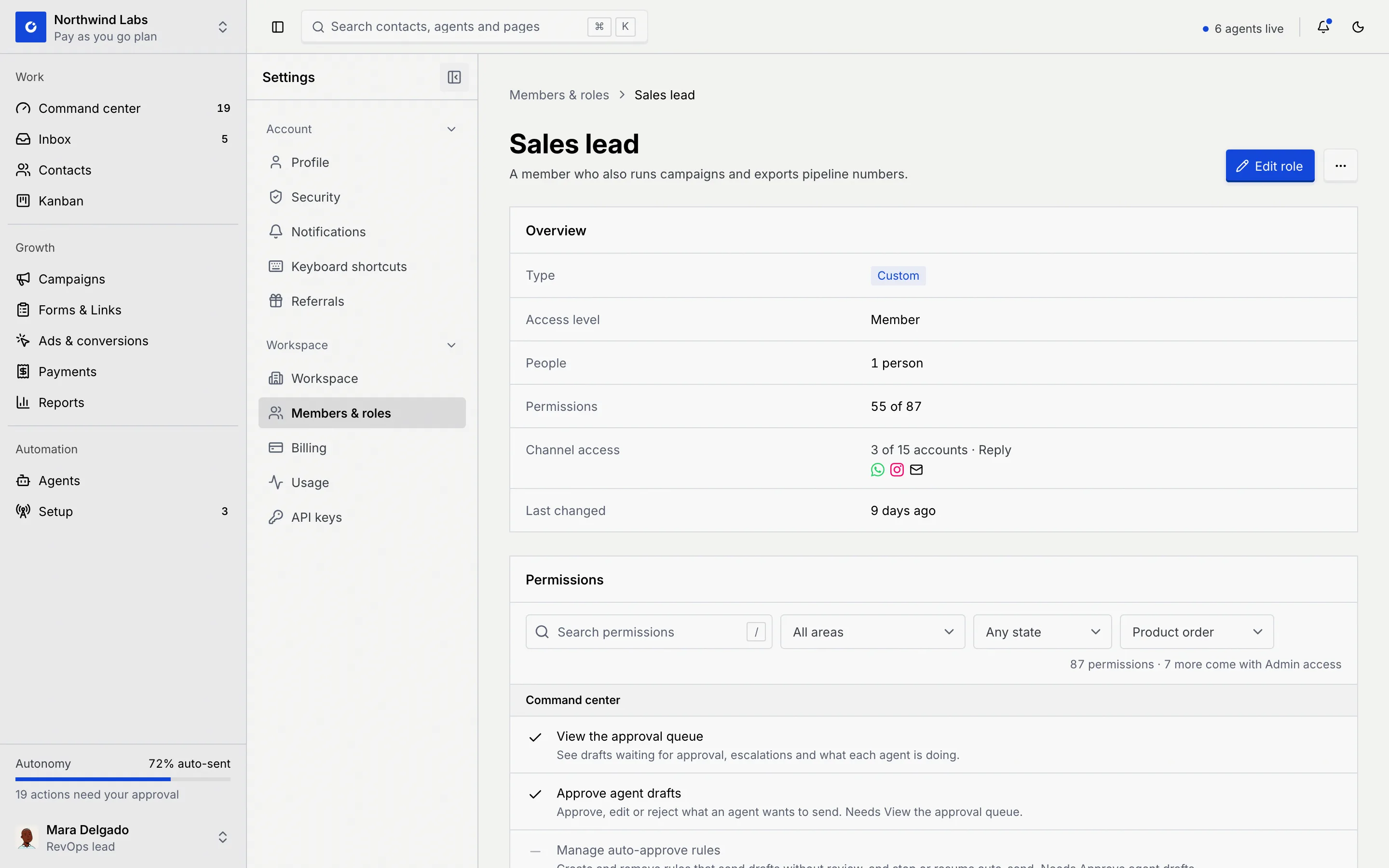
Click a role to open its page. Overview sums it up: Type, Access level, People, Permissions, Channel access and Last changed. Below it are Permissions, Channel access and People with this role.
Find a permission
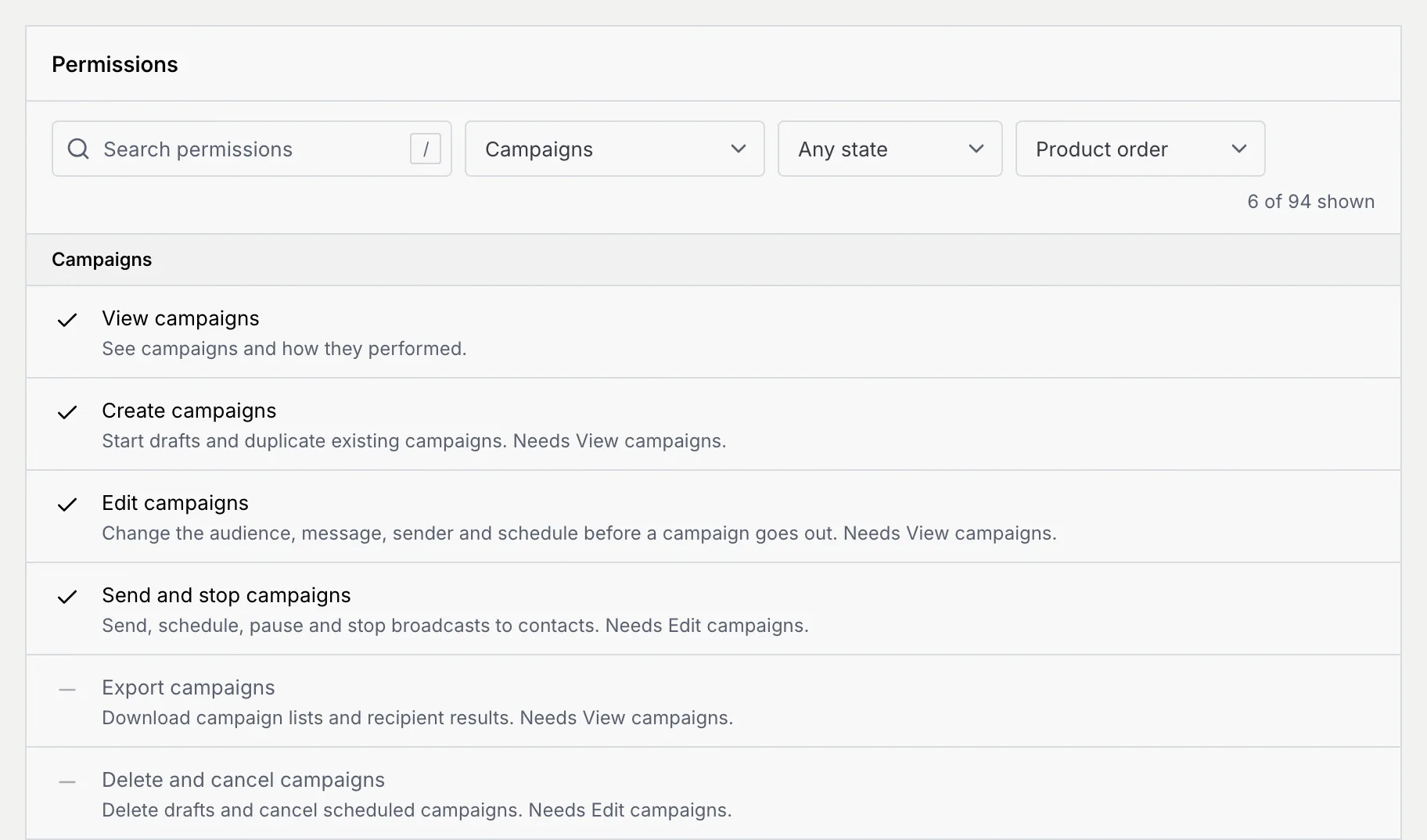
In Permissions, a check mark means the role has the permission and a dash means it doesn't. To narrow the list, type in Search permissions (press / to jump there), pick an area in All areas, choose Allowed or Not allowed in Any state, or sort by Product order, Name, A to Z or On first. Each permission says what it allows and which other permission it needs. The line under the filters counts them, like 87 permissions · 7 more come with Admin access, or how many are shown. When nothing matches, click Clear filters.
Create a role
Start a new role
On the Roles tab, click Create role.
Fill in the details
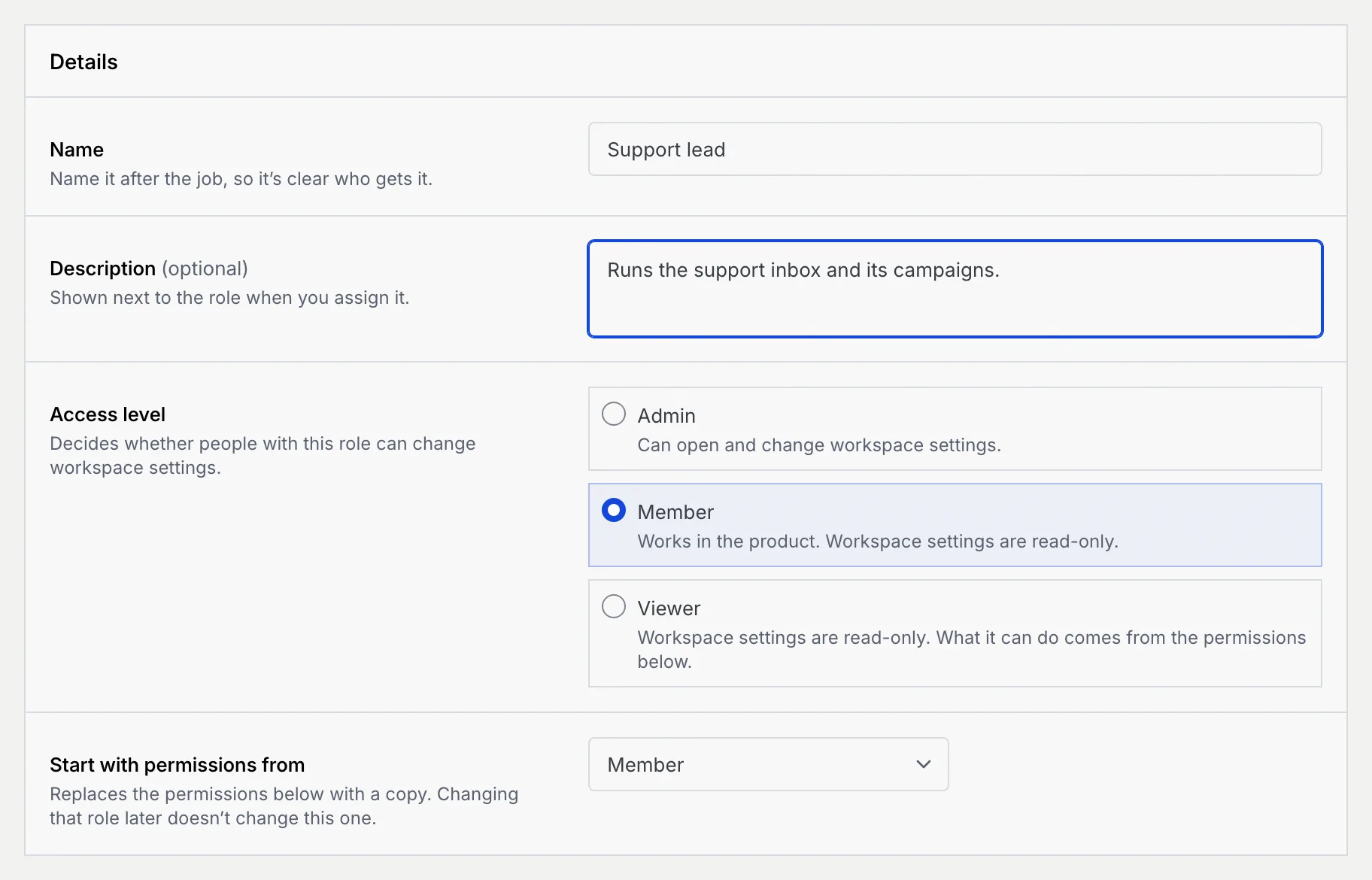
In Details:
- Name: name it after the job, like Sales lead. 2 to 40 characters, and different from every other role's name.
- Description (optional): shown next to the role when you assign it. Up to 140 characters.
- Access level: Admin (can open and change workspace settings), Member (works in the product; workspace settings are read-only) or Viewer (workspace settings are read-only; what it can do comes from the permissions below).
- Start with permissions from: copies another role's permissions as a starting point. Changing that role later doesn't change this one.
Choose the permissions
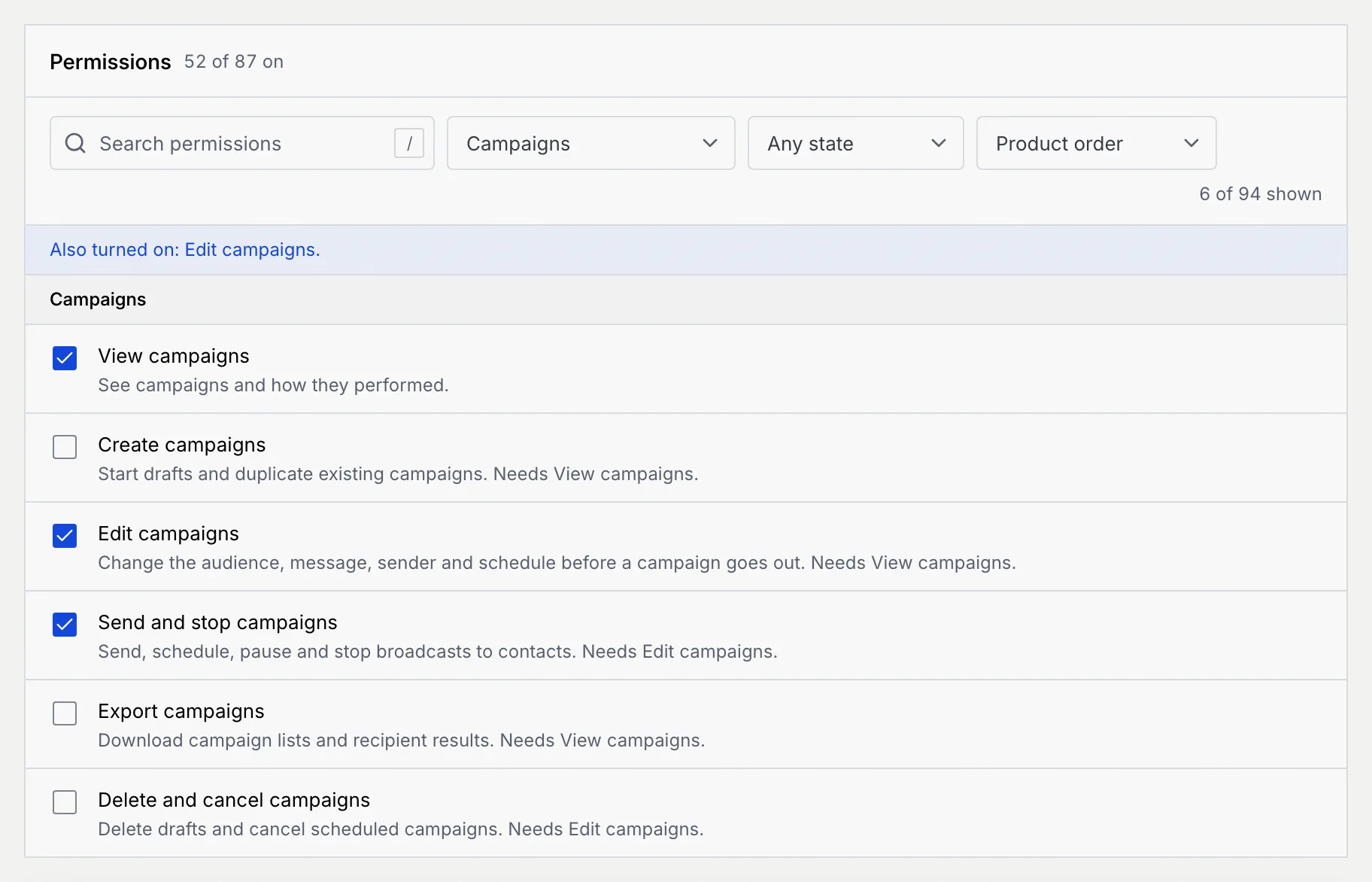
Tick the permissions the role should have. The count at the top shows how many of 87 are on. Some permissions need another one: turning on Send and stop campaigns also turns on Edit campaigns, and turning a permission off also turns off the ones that need it. A note under the filters says what changed along with your click, like Also turned on: Edit campaigns.
The 7 permissions that come with Admin access are greyed out: they follow the access level.
Choose the channel accounts
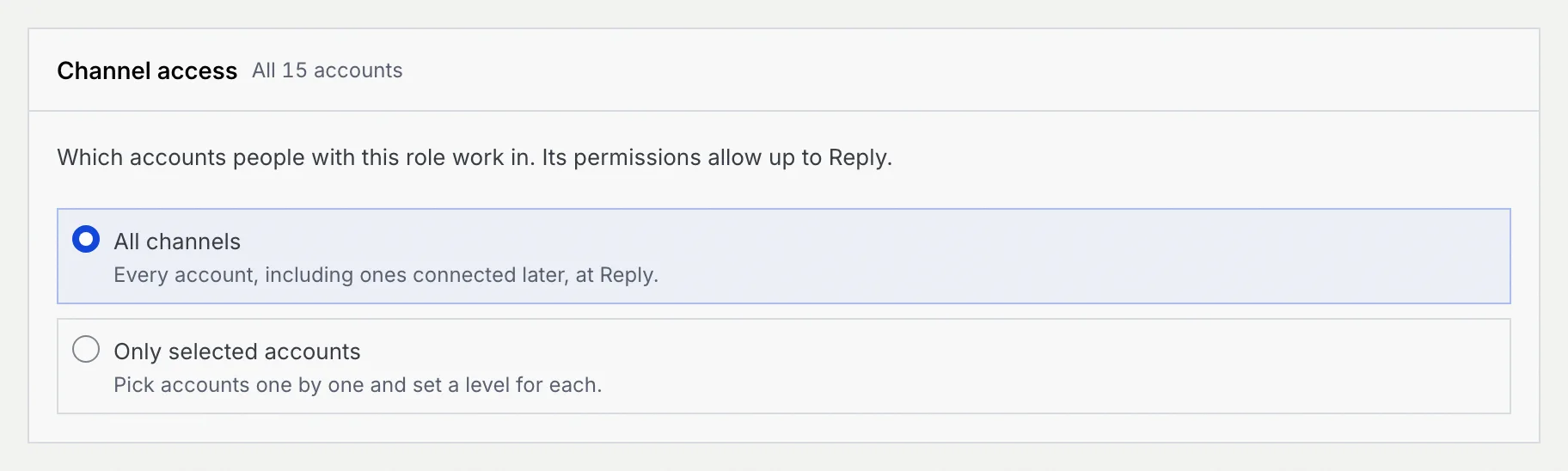
In Channel access, pick All channels (every account, including ones connected later) or Only selected accounts, and a level for each. The role's permissions cap the level; see Channel access.
Create it
Click Create role in the bar at the bottom (or Cancel to drop it). You see … created and land on the new role's page. Give it to people on the Members tab.
Nothing is created until you click Create role: if you leave the page first, Mokanata asks whether to discard the role.
An admin creating an Admin role
If you're an admin, a new role with Admin access starts with every channel account and you can't narrow it: only the owner can change channel access for admin roles.
Duplicate a role
To start from an existing role, open its ⋯ menu on the Roles tab (or on its page) and choose Duplicate. The form opens as Duplicate … with the name "… copy", the same access level and a copy of its permissions. Rename it, adjust it and click Create role. Duplicating the Owner role starts on Admin access.
Edit a role
Open the editor
On the role's page, click Edit role, or choose Edit role from the role's ⋯ menu on the Roles tab. The page reads Edit …: changes apply to everyone with the role as soon as you save. Built-in roles keep their name and description; duplicate one to get a copy you can rename.
Change permissions
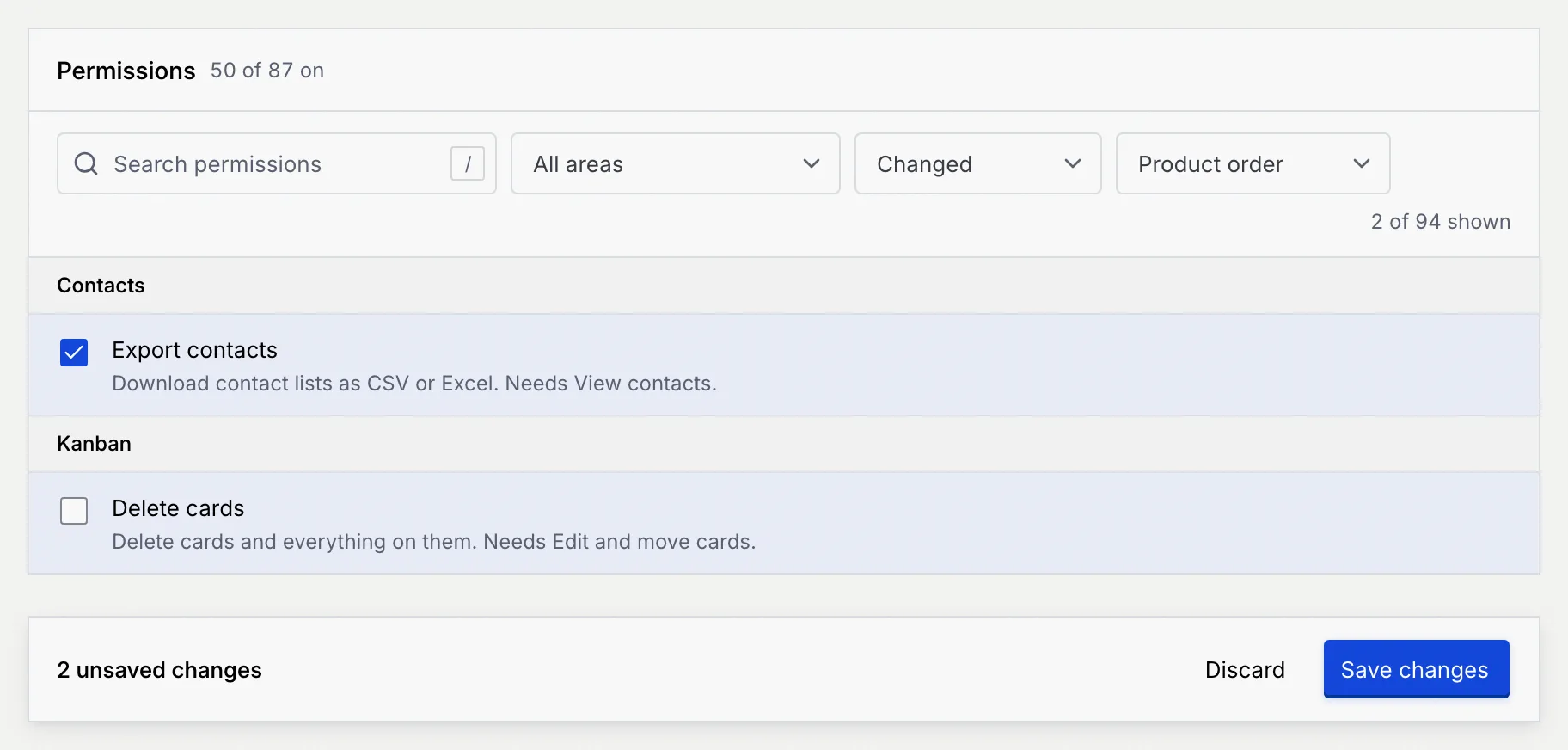
Tick or untick permissions. Changed rows are tinted, and the state filter gets a Changed option that shows only what you changed.
Save
Click Save changes in the bar at the bottom. You see … saved: changes apply to everyone with the role right away. Click Discard to drop your edits.
The Owner role can't be edited: the owner always has every permission.
Reset a built-in role
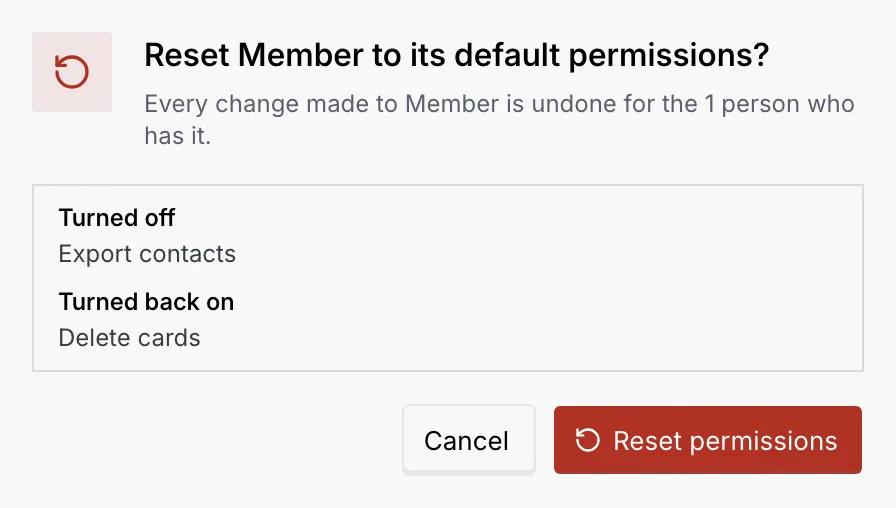
A built-in role whose permissions were changed shows Edited. To undo every change, open its ⋯ menu and choose Reset to defaults. The confirmation lists what gets Turned off and Turned back on; click Reset permissions.
Delete a custom role
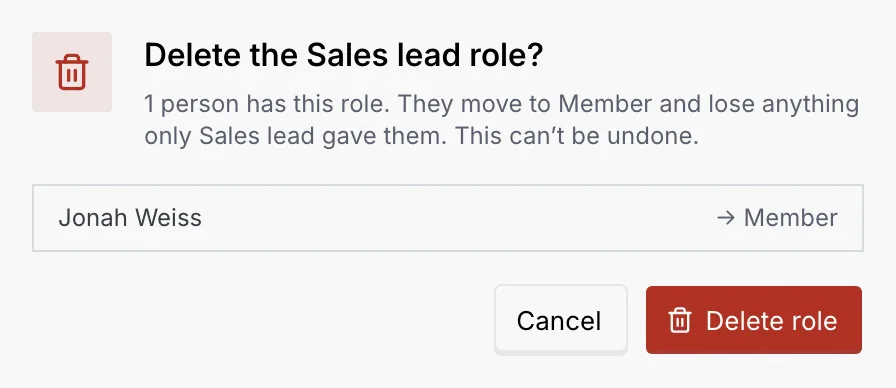
Open the custom role's ⋯ menu and choose Delete role. If people have the role, the confirmation lists them: they move to the built-in role of the same access level (a custom Member role's people become Members) and lose anything only the custom role gave them. Click Delete role. This can't be undone. Built-in roles can't be deleted.
What members and viewers see
Members and viewers can open the Roles tab and any role's page, with a View only notice: "Owners and admins edit roles and channel access." They see no Create role, Edit role or ⋯ menus. If they open a link to the role editor, it says Can't create roles or Can't edit this role, with a button back.
Permission reference
The tables list every permission, grouped as the sidebar is. Needs is the permission it turns on with it. Member and Viewer show the built-in roles' defaults; Owner and Admin have every permission. A dash (–) marks the permissions that come with Admin access, which no Member or Viewer role can have.
Work
Command center
| Permission | What it allows | Needs | Member | Viewer |
|---|---|---|---|---|
| View the approval queue | See drafts waiting for approval, escalations and what each agent is doing. | Yes | Yes | |
| Approve agent drafts | Approve, edit or reject what an agent wants to send. | View the approval queue | Yes | No |
| Manage auto-approve rules | Create and remove rules that send drafts without review, and stop or resume auto-send. | Approve agent drafts | No | No |
Inbox
| Permission | What it allows | Needs | Member | Viewer |
|---|---|---|---|---|
| View conversations | Read threads on the channels they can access. | Yes | Yes | |
| Reply and send | Write replies and send drafts as themselves. | View conversations | Yes | No |
| Assign and reassign | Move conversations between people and agents. | View conversations | Yes | No |
| Take over from agents | Pause an agent on a conversation and reply in its place. | Reply and send | Yes | No |
| Resolve and reopen | Mark conversations resolved, snooze them or reopen them. | View conversations | Yes | No |
| Retry agent steps | Run a failed step of an agent’s work on a conversation again. | View conversations | Yes | No |
| Reply with AI | Have an agent write the answer to a customer’s message into their reply, to review before sending. | Reply and send | Yes | No |
Contacts
| Permission | What it allows | Needs | Member | Viewer |
|---|---|---|---|---|
| View contacts | Open contact records and their history. | Yes | Yes | |
| Create contacts | Add contacts one at a time. | View contacts | Yes | No |
| Edit contacts | Change fields, stages and owners, and log activity. | View contacts | Yes | No |
| Import contacts | Bring in contacts from a CSV file. | Create contacts | No | No |
| Merge duplicates | Combine two records for the same person into one. | Edit contacts | No | No |
| Export contacts | Download contact lists as CSV or Excel. | View contacts | No | No |
| Delete contacts | Delete records and their conversation history. | Edit contacts | No | No |
Kanban
| Permission | What it allows | Needs | Member | Viewer |
|---|---|---|---|---|
| View boards | See the boards they’re a member of and the cards on them they’re allowed to see. Owners and admins see every board. | Yes | Yes | |
| Add cards | Add tasks, posts, leads and campaigns to a board, including from a contact’s record. | View boards | Yes | No |
| Edit and move cards | Change a card’s fields, checklist and linked contacts, and move it between statuses. | View boards | Yes | No |
| Comment on cards | Write comments on cards for the team. | View boards | Yes | No |
| Schedule and publish posts | Schedule social posts, publish them now or take them off the schedule. | Edit and move cards | Yes | No |
| Save board views | Save filters, sorting and grouping as a view on a board, and rename or remove saved views. | View boards | Yes | No |
| Delete cards | Delete cards and everything on them. | Edit and move cards | Yes | No |
| Manage boards | Create boards, rename them and add, edit, reorder or remove their statuses. | Edit and move cards | Yes | No |
| Manage board members | On boards they run as project manager: add and remove people, set their board roles and choose who sees which cards. | Manage boards | Yes | No |
| Share public links | On boards they run as project manager: create, reset and turn off view-only links to the whole board or to single cards, for people outside the workspace. | Manage boards | Yes | No |
| Delete boards | Delete a board with all of its cards. | Manage boards | No | No |
Growth
Campaigns
| Permission | What it allows | Needs | Member | Viewer |
|---|---|---|---|---|
| View campaigns | See campaigns and how they performed. | Yes | Yes | |
| Create campaigns | Start drafts and duplicate existing campaigns. | View campaigns | No | No |
| Edit campaigns | Change the audience, message, sender and schedule before a campaign goes out. | View campaigns | No | No |
| Send and stop campaigns | Send, schedule, pause and stop broadcasts to contacts. | Edit campaigns | No | No |
| Export campaigns | Download campaign lists and recipient results. | View campaigns | No | No |
| Delete and cancel campaigns | Delete drafts and cancel scheduled campaigns. | Edit campaigns | No | No |
Message templates
| Permission | What it allows | Needs | Member | Viewer |
|---|---|---|---|---|
| View templates | See WhatsApp message templates and their review status. | Yes | Yes | |
| Create templates | Write templates and submit them to Meta for review. | View templates | No | No |
| Edit templates | Change templates and submit new versions for review. | View templates | No | No |
| Delete templates | Delete templates campaigns and agents no longer use. | Edit templates | No | No |
Forms & Links
| Permission | What it allows | Needs | Member | Viewer |
|---|---|---|---|---|
| View forms | See forms, their links and how many people answered. | Yes | Yes | |
| Create forms | Build new forms and duplicate existing ones. | View forms | Yes | No |
| Edit forms | Change questions, settings, the custom link and payment steps. | View forms | Yes | No |
| Open and close forms | Start or stop accepting responses. | Edit forms | Yes | No |
| Delete forms | Delete forms along with their responses. | Edit forms | No | No |
| View responses | Read what people submitted, including payment status. | View forms | Yes | Yes |
| Export responses | Download responses as CSV or Excel. | View responses | No | No |
| Delete responses | Delete individual responses or many at once. | View responses | No | No |
| View short links | See short links, their QR codes and how many people clicked or scanned them. | View forms | Yes | Yes |
| Create short links | Make short links to web pages or forms, with a custom ending. | View short links | Yes | No |
| Edit short links | Change where a link goes, its ending and end date, and pause or resume it. | View short links | Yes | No |
| Delete short links | Delete short links and reset their click counts. | Edit short links | No | No |
| View link in bio pages | See link in bio pages, their QR codes and how many people viewed and tapped them. | View forms | Yes | Yes |
| Create link in bio pages | Make new link in bio pages and duplicate existing ones. | View link in bio pages | Yes | No |
| Edit link in bio pages | Change a page’s profile, blocks, schedule, address and theme, and show, hide or reorder its blocks. | View link in bio pages | Yes | No |
| Publish link in bio pages | Put pages live and take them down. | Edit link in bio pages | Yes | No |
| Delete link in bio pages | Delete pages along with their views and taps. | Edit link in bio pages | No | No |
Ads and conversions
| Permission | What it allows | Needs | Member | Viewer |
|---|---|---|---|---|
| View ads and conversions | See ad performance, click-to-WhatsApp ads and the conversion event log. | Yes | Yes | |
| Edit conversion events | Choose which stages send conversions back, and pause or resume sending. | View ads and conversions | No | No |
| Connect ad platforms | Connect and disconnect ad accounts and destinations, and send test events. | View ads and conversions | No | No |
Tracking tags
| Permission | What it allows | Needs | Member | Viewer |
|---|---|---|---|---|
| View tracking tags | See the pixels and analytics tags on public forms and short links, and the events they send. | Yes | Yes | |
| Install tracking tags | Add a pixel or analytics tag to public forms and short links. | View tracking tags | No | No |
| Edit tracking tags | Change a tag’s ID, where it loads and its events, pause or resume it, and clear the recent events list. | View tracking tags | No | No |
| Remove tracking tags | Remove tags so they stop loading for visitors. | Edit tracking tags | No | No |
| Change consent settings | Choose whether visitors are asked before tags load, and whether Global Privacy Control is respected. | View tracking tags | No | No |
Payments
| Permission | What it allows | Needs | Member | Viewer |
|---|---|---|---|---|
| View payments | See payment links, what was paid and the product catalog. | Yes | Yes | |
| Create payment links | Make links and send them to contacts. | View payments | Yes | No |
| Manage payment links | Resend links, change when they expire and mark them paid. | View payments | Yes | No |
| Cancel payment links | Stop a link from being paid. | Manage payment links | No | No |
| Refund payments | Send money back for a paid link. | Manage payment links | No | No |
| Manage the product catalog | Add products, change prices and archive what you no longer sell. | View payments | No | No |
| Manage gateways | Manage the static QRIS accounts and payment defaults, and connect payment gateways once they're available (coming soon). | View payments | No | No |
Reports
| Permission | What it allows | Needs | Member | Viewer |
|---|---|---|---|---|
| View reports | Open dashboards and analytics. | Yes | Yes | |
| Export reports | Download charts and tables. | View reports | No | No |
Automation, Setup and the workspace
Agents
| Permission | What it allows | Needs | Member | Viewer |
|---|---|---|---|---|
| View agents | See agents, their flows and their runs. | Yes | Yes | |
| Create agents | Set up new agents and duplicate existing ones. | View agents | No | No |
| Edit agents | Change instructions, flows, knowledge and guardrails. | View agents | No | No |
| Test agents | Run test conversations and simulations without contacting anyone. | View agents | Yes | No |
| Deploy and pause agents | Publish flow versions, put an agent live on a channel, or stop it. | Edit agents | No | No |
| Delete agents | Delete agents along with their flows and run history. | Edit agents | No | No |
Channels
| Permission | What it allows | Needs | Member | Viewer |
|---|---|---|---|---|
| View channels | See connected accounts and their health. | Yes | Yes | |
| Edit channel settings | Change routing and away messages for each account (and, once it's available, customise the website chat widget). | View channels | No | No |
| Connect and disconnect | Connect accounts and numbers, reconnect them, rotate tokens or disconnect them. | Edit channel settings | No | No |
Integrations
| Permission | What it allows | Needs | Member | Viewer |
|---|---|---|---|---|
| View integrations | See which apps are connected and whether they’re working. | Yes | Yes | |
| Connect and remove apps | Connect apps with a key or sign-in, test them and remove them. | View integrations | No | No |
Custom objects
| Permission | What it allows | Needs | Member | Viewer |
|---|---|---|---|---|
| View records | Open custom objects and their records. | Yes | Yes | |
| Create records | Add records to any custom object. | View records | Yes | No |
| Edit records | Change fields and link or unlink related records. | View records | Yes | No |
| Delete records | Delete records and their links to other records. | Edit records | Yes | No |
| Change the data model | Create, edit and delete objects, fields and relations. Comes with Admin access. | – | – | |
| Connect databases | Connect a Postgres database, pick which tables and rows sync, and pause or remove the sync. Comes with Admin access. | – | – |
Workspace administration
| Permission | What it allows | Needs | Member | Viewer |
|---|---|---|---|---|
| Edit workspace settings | Change the workspace name, logo, domain, language and region. Comes with Admin access. | – | – | |
| Manage members and roles | Invite and remove people, change roles and channel access. Comes with Admin access. | – | – | |
| Manage billing | Change the plan and payment method, redeem credit codes and choose who gets billing email. Comes with Admin access. | – | – | |
| Export usage | Download the charts and tables on the Usage page. Comes with Admin access. | – | – | |
| Manage API keys | Create and revoke keys (coming soon). Comes with Admin access. | – | – |
Troubleshooting
Permissions say what a role can do; channel access says where. Check the role's channel access: with Only selected accounts, people see conversations only on the accounts listed.
It either comes with Admin access (it follows the access level), or you're looking at the Owner role, which always has everything. To take settings access away from someone, give them a role on Member or Viewer access.
A workspace can have up to 20 custom roles. Delete one you don't use, or reuse an existing role.
The role was deleted, or the link is wrong. Click Back to roles to see the roles in the workspace.
Yes. Each role has its own address, /settings/roles/ followed by the role's ID, with /edit for its editor and ?dialog=channels to open its channel access. /settings/roles/new starts a new role, and adding ?from= with a role's ID duplicates that role.
Role names are unique, ignoring capitals. Pick a different name.