Usage
See agent actions and what they cost for any date range, which agents did the work and on which channels, and what your plan includes.
Usage shows what the workspace has used: how many agent actions your agents took (what Pay as you go bills) and what they cost, for the current billing period or any range you pick. At the bottom, Plan allowances compares what your plan includes with what the workspace has now.
- Who can use it: Everyone in the workspace can read it. Only owners and admins (and custom roles with Admin access) can export its charts and tables.
- Before you start: Nothing.
Open Usage
Open Settings and choose Usage in the Workspace group, or click See agent actions and limits for this period on Billing.
The page opens on the current billing period so far. The line under the title says the range and what it's compared with, like "Oct 2 – Oct 20, 2026, compared with the previous 19 days." On Pay as you go it adds when this period's actions are invoiced.
The four numbers at the top:
| Number | What it counts |
|---|---|
| Agent actions | A reply an agent sends (you approved it, or a rule sent it) or a record change you approve. Each counts once. Drafts nobody sent aren't actions. |
| Cost (Pay as you go) | What those actions cost at $0.01 each. |
| Free actions this period (Free) | How many of Free's 100 agent actions a month are used, like 42 of 100. Once they're used up, agents keep drafting and a person sends. |
| Next invoice | On Pay as you go, about what the next invoice comes to and when. On Free, None: Free isn't billed. |
| Agents at work | How many agents took actions in the range. |
Under Agent actions, Cost and Agents at work, Mokanata compares the range with the same number of days just before, like +12% vs previous period, No change vs previous period or New vs previous period.
Pick a date range
Open the date picker
Click the date range at the top right.
Choose a preset or draw a range
Click a preset: This billing period, Last billing period, Last 7 days, Last 30 days, Last 90 days or All history. Or click a start and an end day on the calendar and click Apply. Usage goes back to the start of your first billing period, up to today.
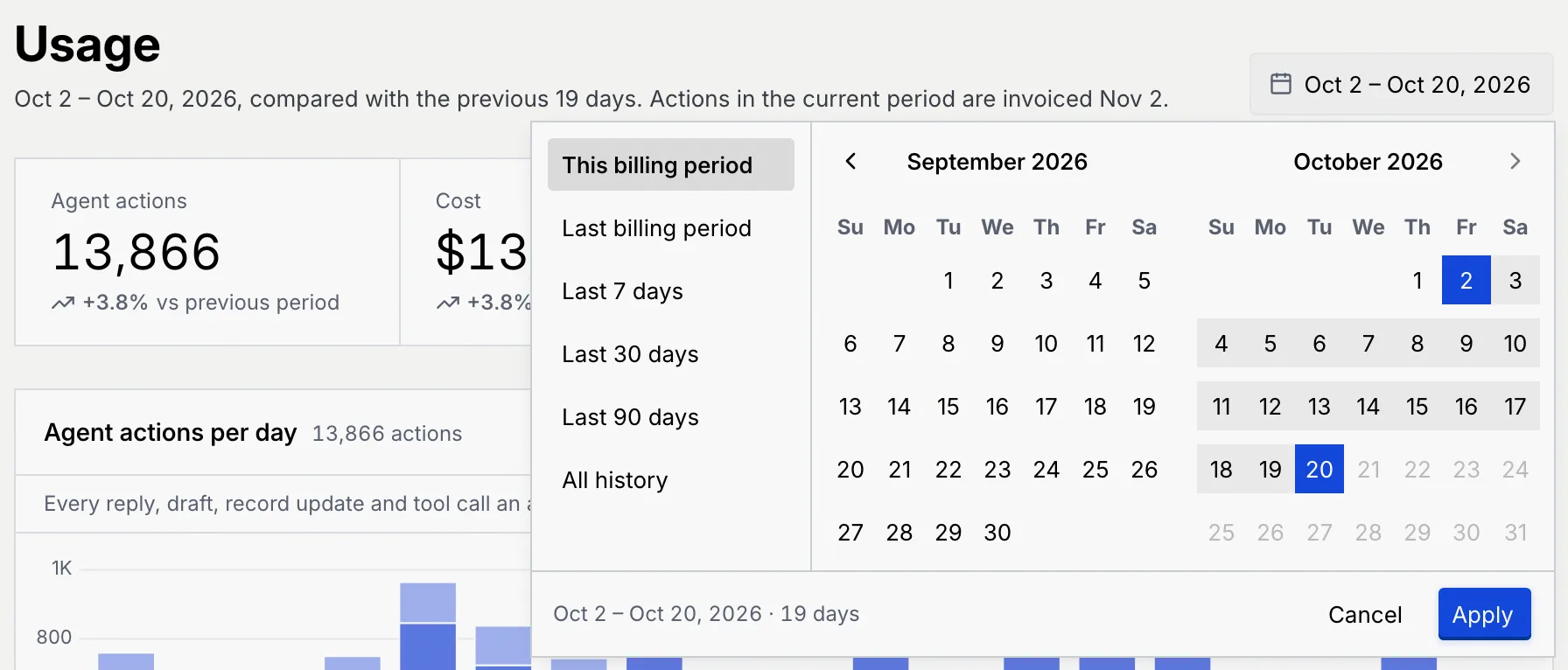
The range is part of the page's address, so you can bookmark it or send the link to a teammate.
Read the charts
| Chart | What it shows |
|---|---|
| Agent actions per day (or week or month) | Actions split into Replies approved, Auto-sent and Record updates, with the busiest day. |
| Actions by agent | Which agents did the work, busiest first, with each one's share (and cost, on Pay as you go). |
| Actions by channel | Where the conversations agents acted in came from. Record updates outside a conversation aren't counted here. |
Ranges up to 35 days show one bar per day, up to 120 days one per week, and longer ranges one per month. The line under each chart sums it up.
To see the numbers, click the table button in a chart's header. Click the chart button to go back.
Export a chart
Click the download button in a chart's header and pick PNG or JPG for an image of the chart, or CSV or Excel (.xlsx) for its data. Each file is named with its date range, so exports from different months don't overwrite each other.
Members and viewers see the export button turned off, with Only workspace owners and admins can export usage.

Check your plan allowances
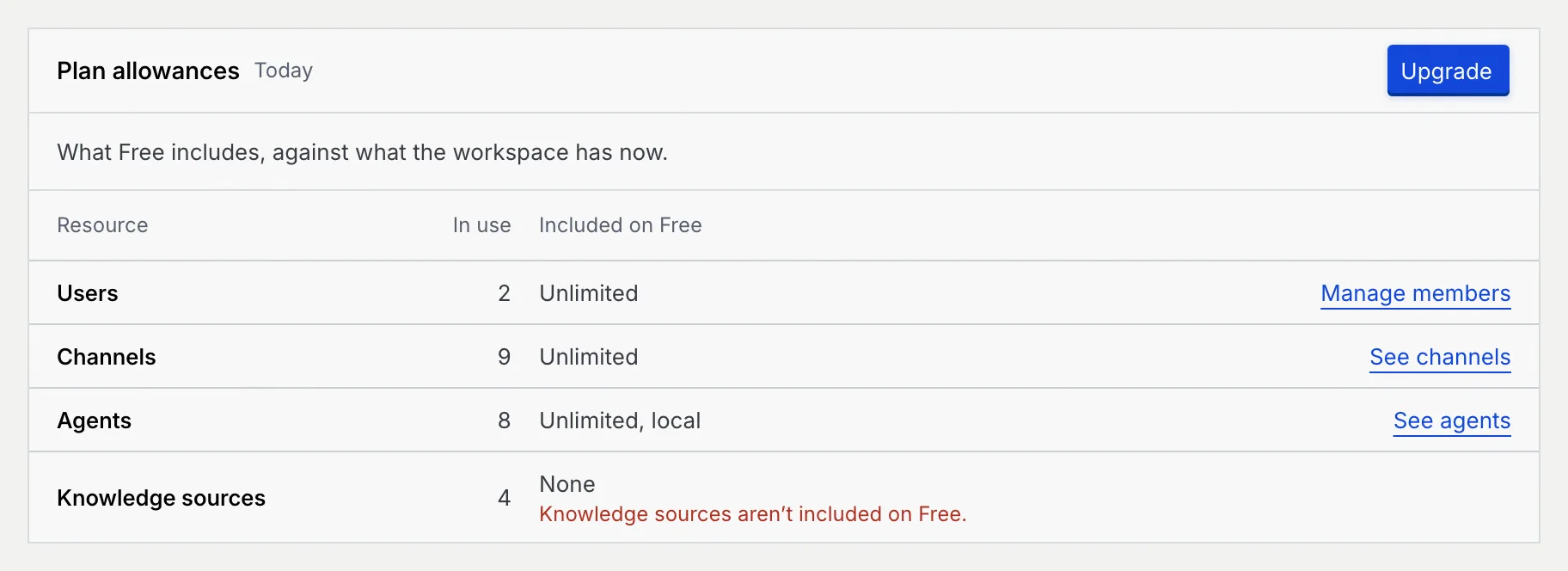
Plan allowances, at the bottom, compares what your plan includes with what the workspace has today: Users, Channels, Agents and Knowledge sources. Links take you to the members list, Setup and Agents. Owners and admins also get Change plan (or Upgrade on Free), which opens the plan dialog on Billing.
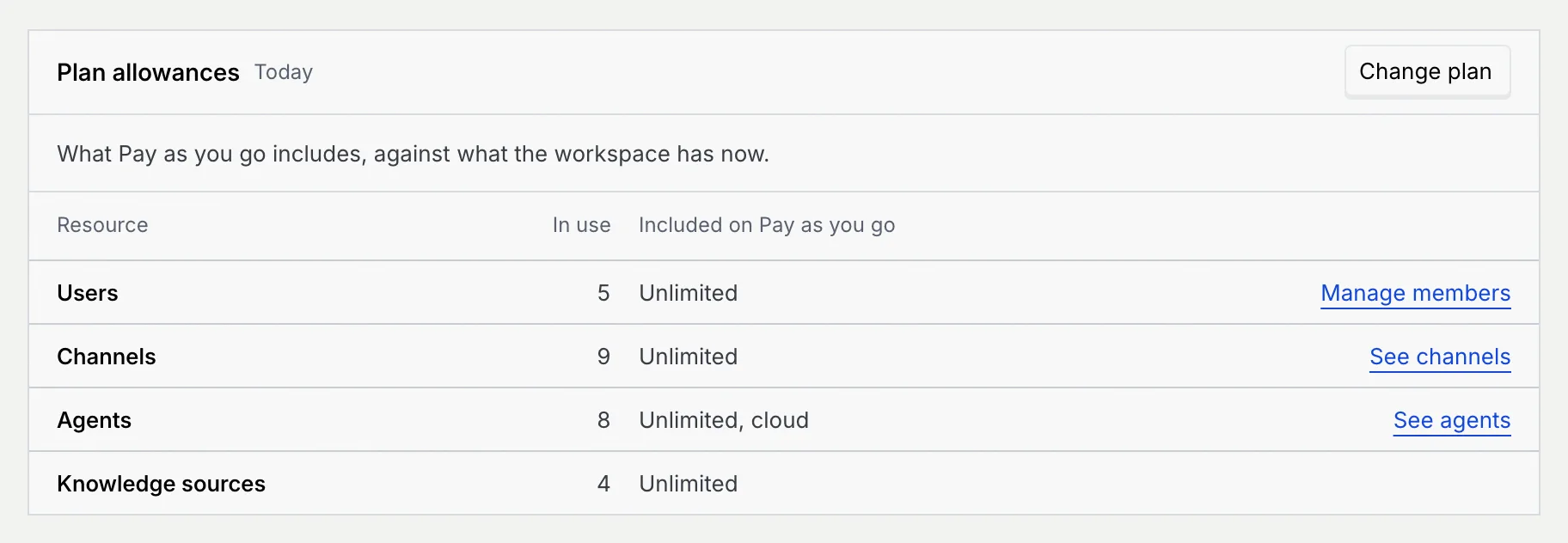
When the workspace uses something its plan doesn't include, the row says so in red, like Knowledge sources aren't included on Free.
Troubleshooting
The workspace is on Free, which doesn't bill actions: its agents take up to 100 actions a month, and after that they keep drafting and a person sends. On Pay as you go, each action costs $0.01, with no cap.
Usage starts with your first billing period. Choose All history to see everything.
Only owners and admins can export usage. Ask one of them, or see Roles and permissions.