Billing and plans
Compare plans and switch, add or update the payment card, redeem credit codes, choose who gets billing email and download receipts.
Billing shows the workspace's plan and what this period costs so far, and is where owners and admins change the plan, keep a card on file, redeem credit codes, choose who gets billing email and download receipts. Mokanata bills in US dollars, once a month, on the day of the month the workspace was created.
- Who can use it: Owners and admins, and custom roles with Admin access. Members and viewers see only the Plan panel (see What members and viewers see).
- Before you start: To move to a paid plan, a credit or debit card.
Plans
Neither plan charges for people, channels or agents. Pay as you go bills each agent action, once a month.
| Free | Pay as you go | |
|---|---|---|
| Price | $0 forever | $0.01 per agent action, billed monthly |
| For | Trying Mokanata's agents on your own channels | Teams whose agents work around the clock, billed only for what they do |
| Users | Unlimited | Unlimited |
| Channels | Unlimited | Unlimited |
| Agents | Unlimited | Unlimited |
| Agent actions | 100 a month, not billed; after that, agents keep drafting and a person sends | Every agent action at $0.01, with no cap |
| Knowledge sources | None | Knowledge sources your agents answer from |
| Includes | Shadow + approval modes · Guardrail builder + auto-approve rules · Community support | Shadow + approval modes · Guardrail builder + auto-approve rules · Customer support |
An agent action is a reply an agent sends (you approved it, or a rule sent it) or a record change you approve. Drafts nobody sent aren't actions. The AI behind an action is included in its price. On Free, once the workspace has used its 100 actions for the period, replies stop going out on their own until the next period: agents keep drafting, and a person can still approve and send them. See Usage for the count so far.
Open Billing
Open Settings and choose Billing in the Workspace group. You can also click See billing in About this workspace on the Workspace page.
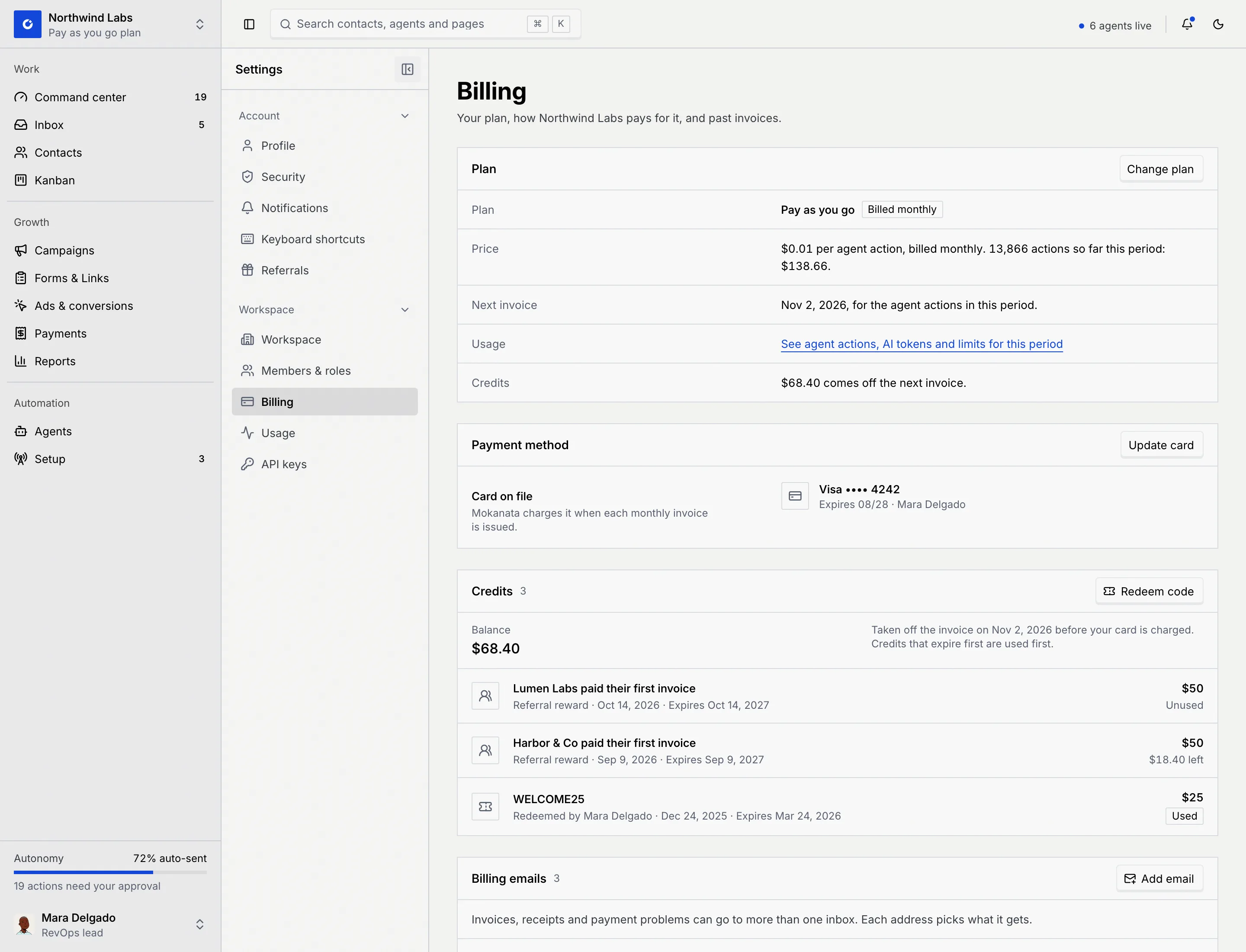
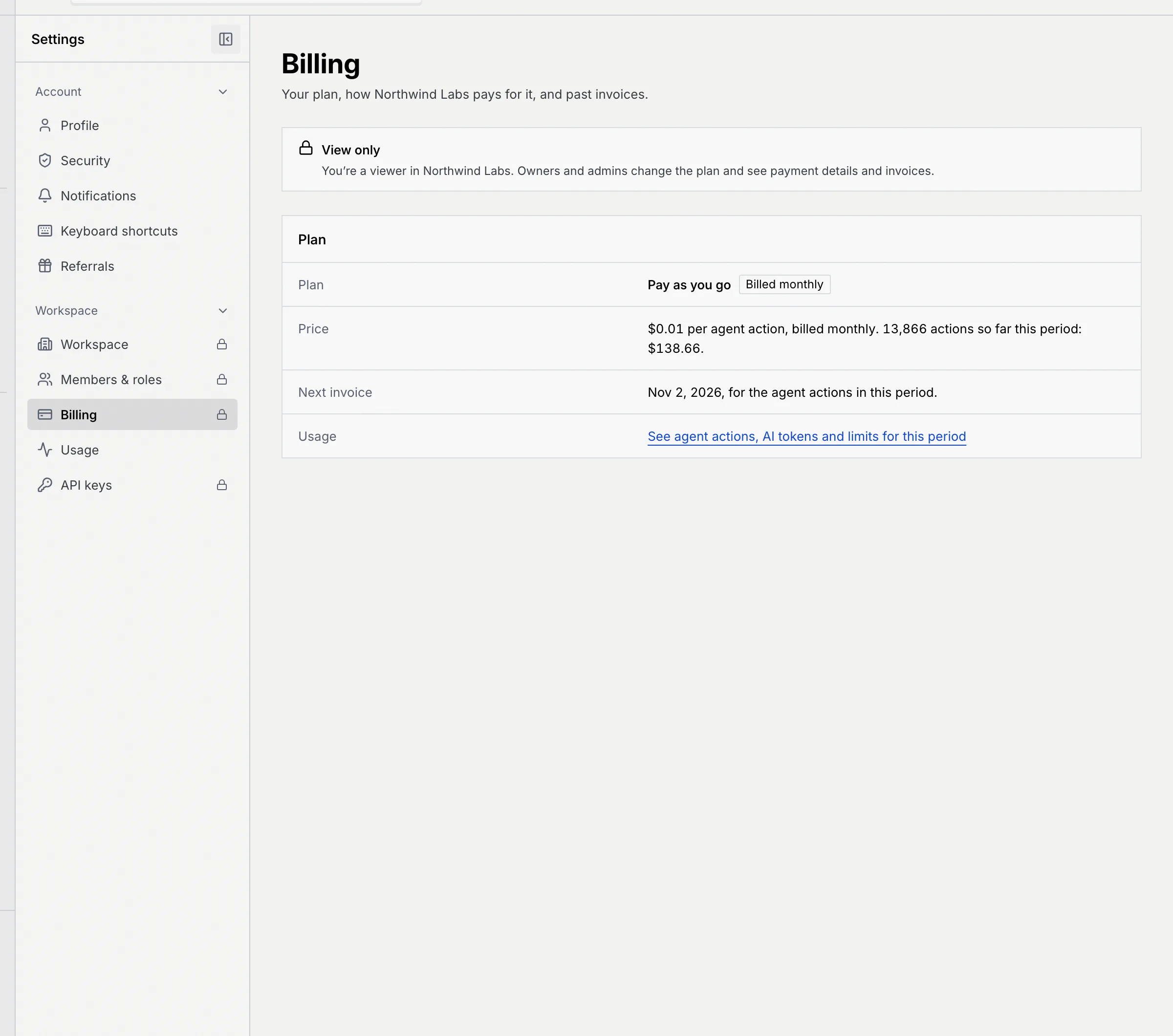
The Plan panel shows:
- Plan, with Billed monthly on a paid plan.
- Price: on Pay as you go, the actions so far this period and what they cost; on Free, $0 forever.
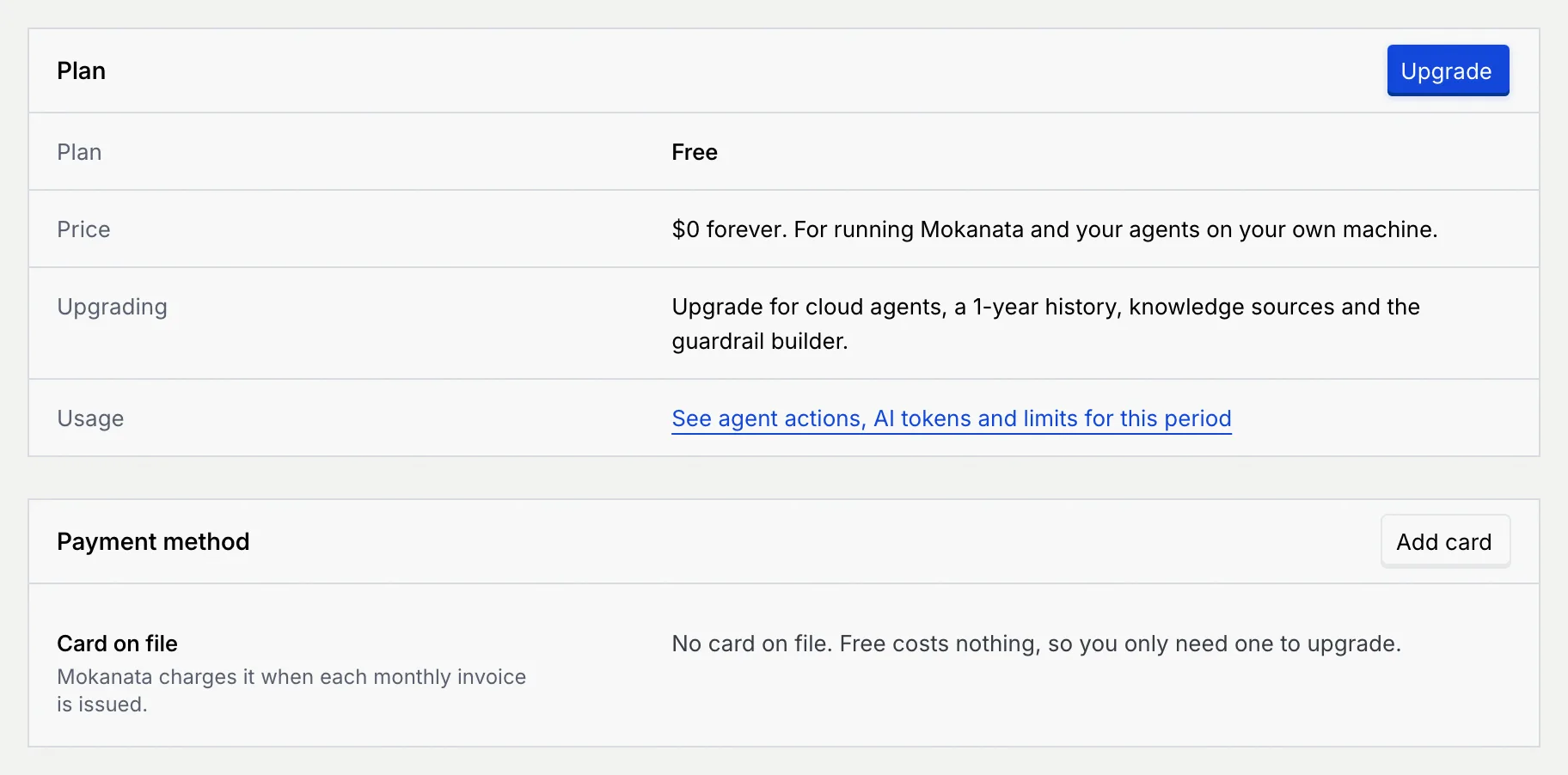
- Next invoice (paid plans): the date of the next invoice, for the agent actions in this period. On Free, Upgrading says what Pay as you go adds.
- Usage: a link to Usage.
- Credits: how much credit comes off the next invoice, when you have some.
Change your plan
Open Change plan
In Plan, click Change plan (or Upgrade on Free).
Pick a plan
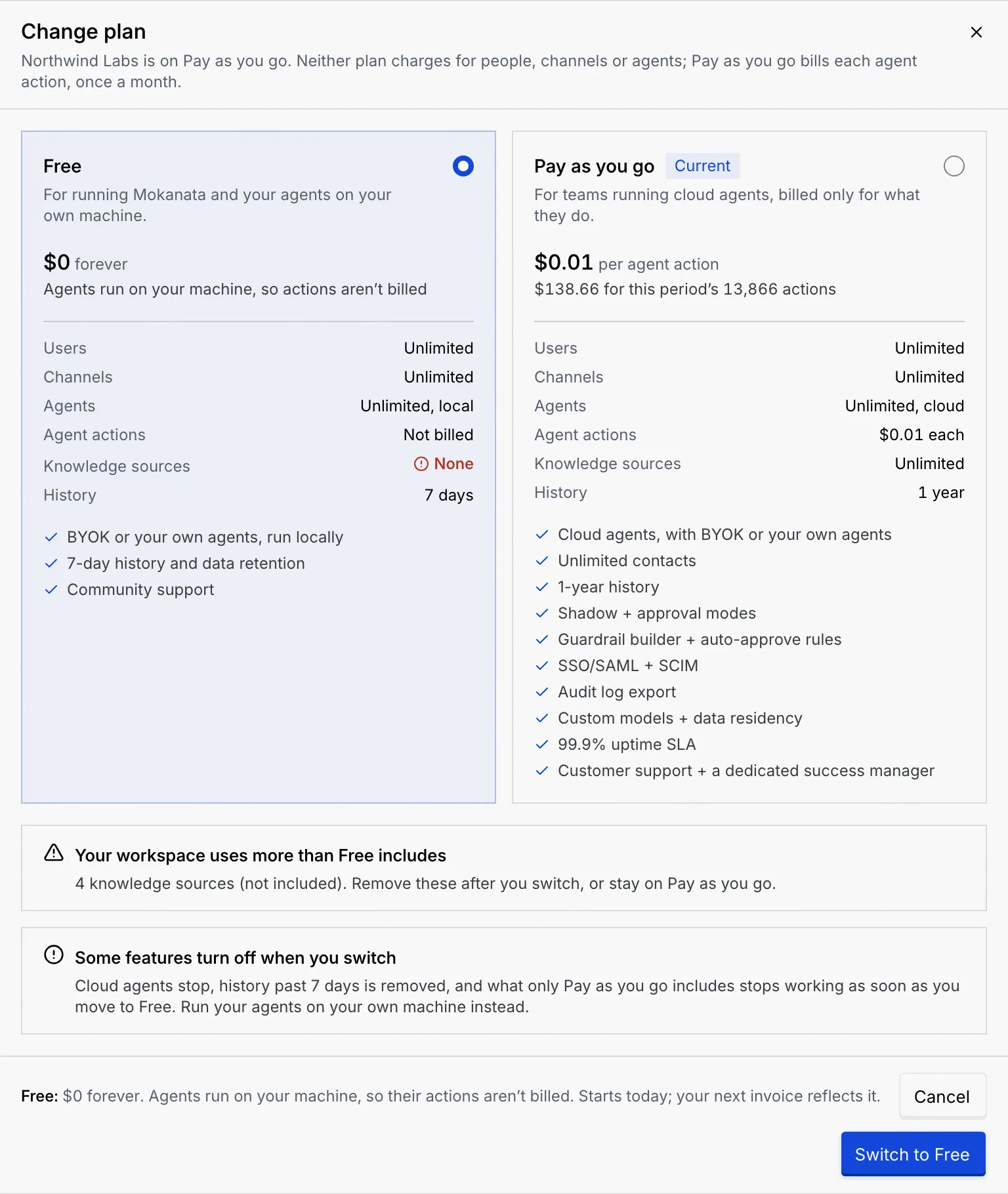
The dialog compares both plans, with Current on yours and what this period's actions would cost on each. Click the plan you want. Before you switch, the dialog warns you about what changes:
- Your workspace uses more than … includes: something you use now isn't included on the new plan, for example knowledge sources on Free. Remove them after you switch, or stay where you are.
- Some features turn off when you switch: the dialog lists what stops on the new plan, as soon as you switch.
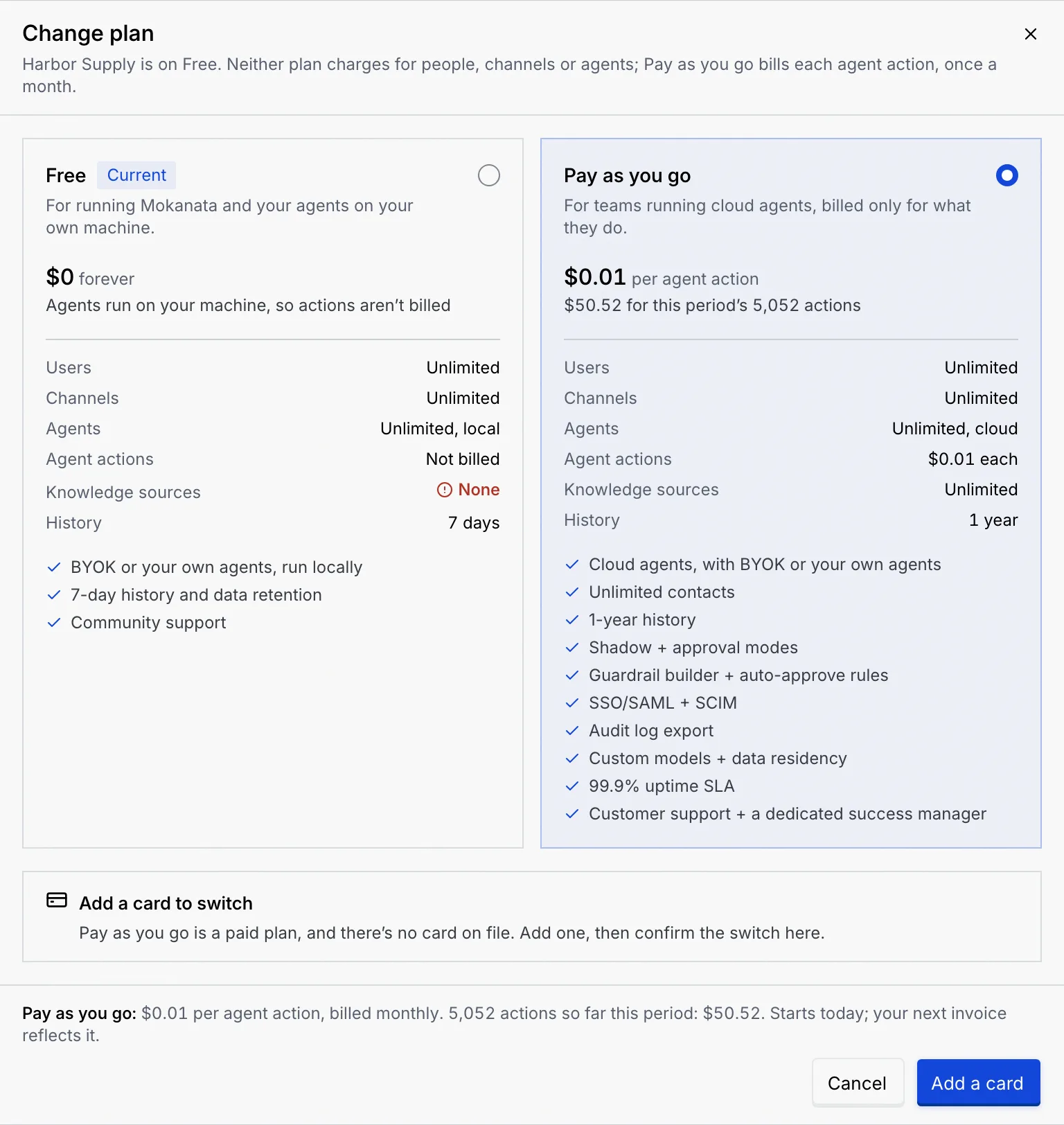
- Add a card to switch: Pay as you go needs a card on file.
Confirm
The footer sums up the new price; the change starts today and your next invoice reflects it. Click Switch to …. You see … is on … with the new price. While your current plan is selected, the footer says Pick a plan to see what it costs. and the only button is Close.
Upgrade from Free without a card
On Free with no card on file, choosing Pay as you go shows Add a card to switch, and the button reads Add a card. Click it, fill in the card form and click Save card: you're taken back to Change plan with Pay as you go still selected. Click Switch to Pay as you go to finish.
Add or update the card
Open the card form
In Payment method, click Add card (or Update card when there's one on file). The card pays for your agent actions, from the next invoice on.
Enter the card
Fill in Name on card, Card number (Mokanata shows the card brand under it), Expiry as MM / YY and Security code (3 digits, or 4 on the front for American Express). Click Save card.
You see … ending … saved. Payment method now shows the brand, last four digits, expiry and name. Mokanata keeps only the card type, last four digits and expiry, and charges the card when each monthly invoice is issued.
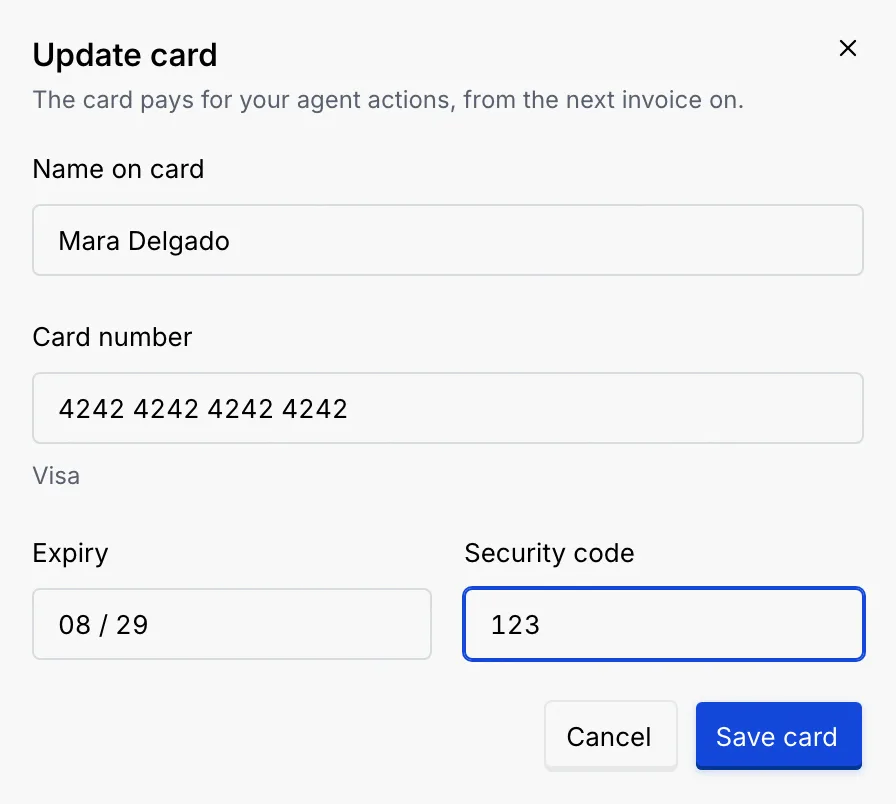
If a field is wrong, it says how to fix it, for example This card number isn't valid. Check for a mistyped digit. or This card has expired. Use a card that's still valid. If the card isn't saved, the dialog keeps what you typed so you can try again.
Credits
Credit comes off your invoices before your card is charged. You get it in two ways: by redeeming a promo or partner code, or from referrals, when a team you referred pays its first invoice. There's no way to buy credit.
Credits shows the Balance, when it's taken off (the date of the next invoice), and each credit you got: where it came from (a code, a referral reward, or from Mokanata), when, when it expires, and how much is left (Unused, … left, or Used and Expired badges). A code can also be a discount, shown as a percentage off a number of invoices. Credits that expire first are used first.
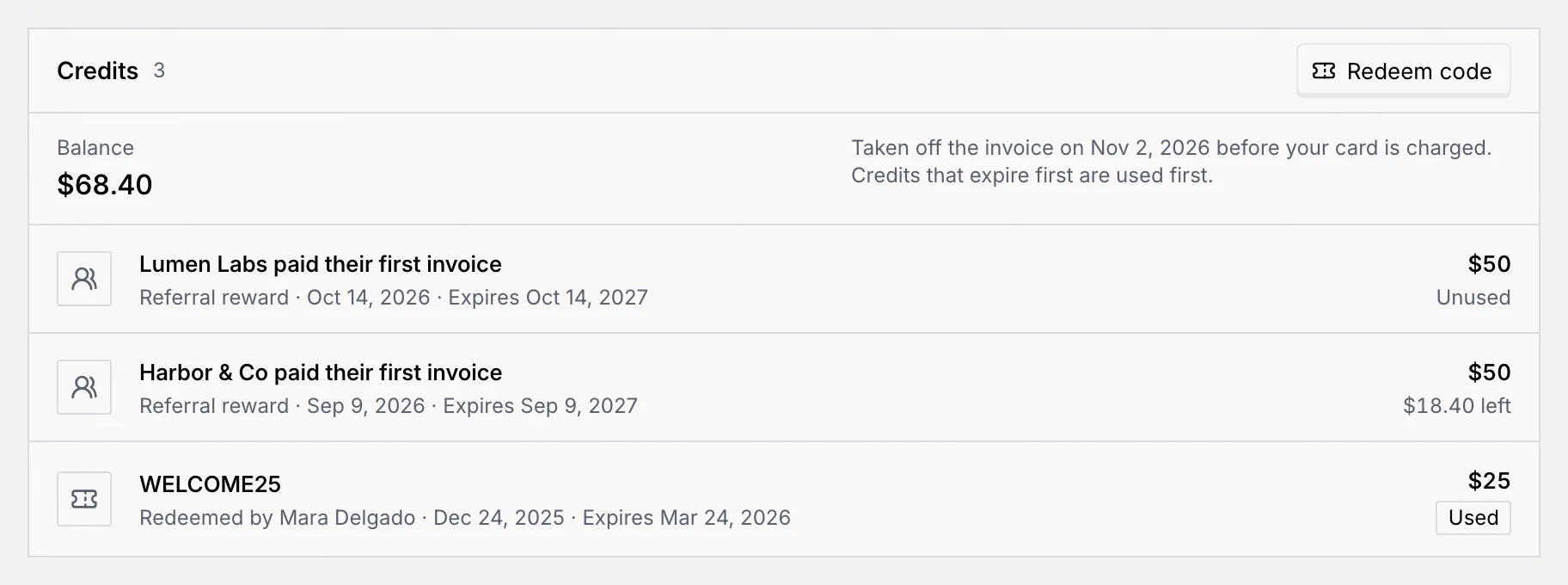
With no credits yet, the panel says No credits yet and offers Get your referral link.
Redeem a code
Enter the code
In Credits, click Redeem code and type the code in Code. Capitals, spaces and dashes don't matter, and a code is at most 40 characters. Click Redeem.
If a partner sent you a link like /settings/billing?dialog=redeem&code=…, opening it fills in the code for you.
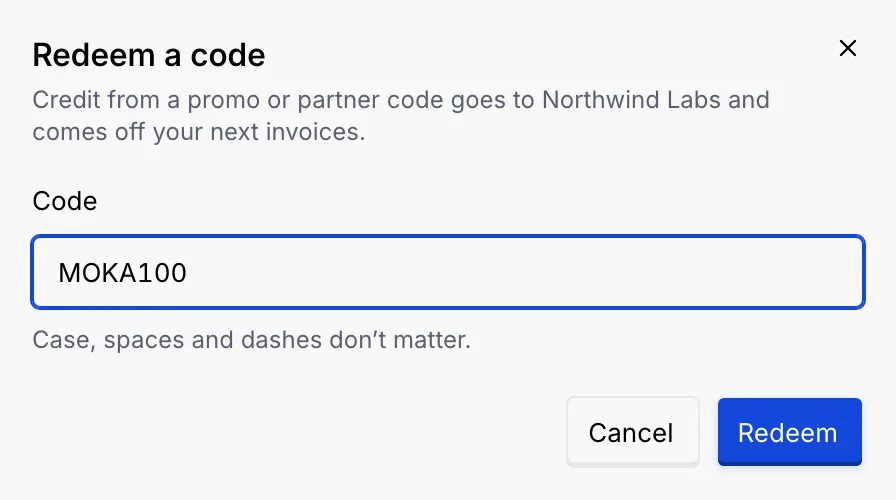
Check what you got
The dialog confirms the credit added to the workspace, with the Code, the Credit (or Discount), the date to Use it by and the New balance. Click Done.
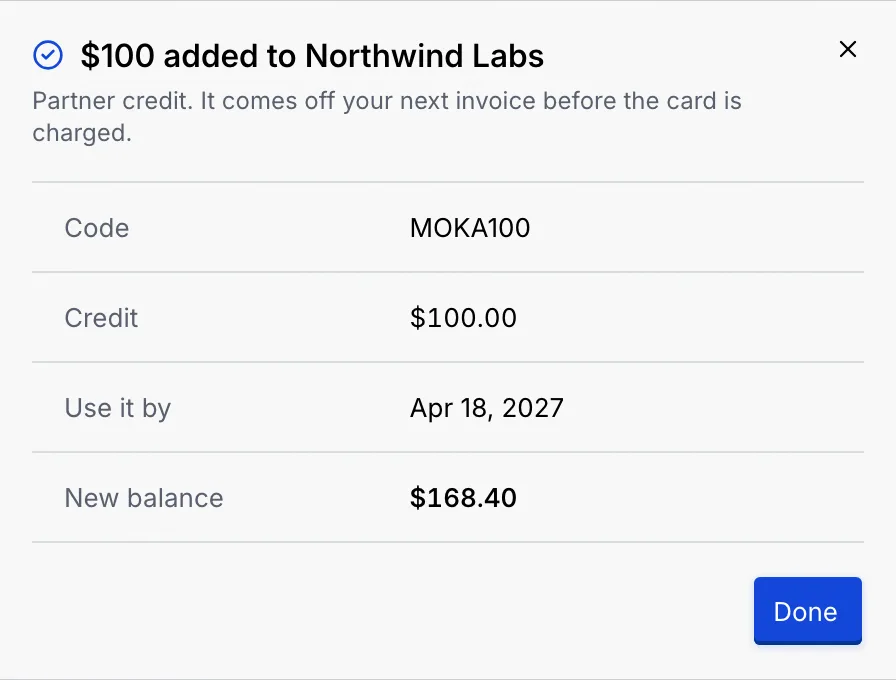
If the code can't be redeemed, the dialog says why:
| Message | What it means |
|---|---|
| This code isn't valid. Check it for typos and try again. | The code doesn't exist. |
| This code has expired and can't be redeemed anymore. / This code is no longer active, so it can't be redeemed. | The offer ended. |
| This workspace already redeemed this code. Each code works once. | Each code works once per workspace. |
| This code has been redeemed as many times as it allows. | The code ran out. |
| This code is for workspaces on … Change plan first, then redeem it. | The code only works on another plan. |
Billing emails
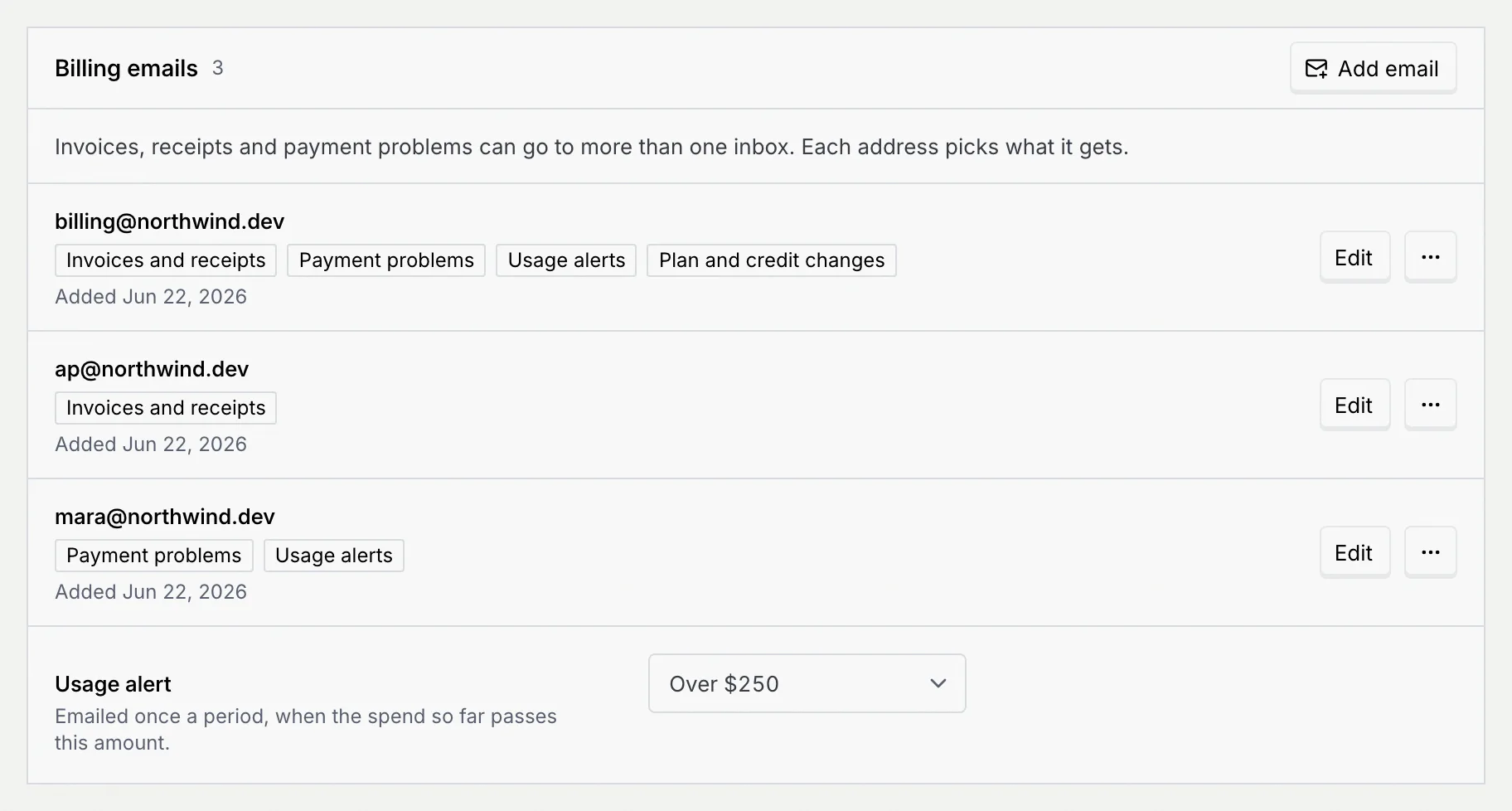
Invoices, receipts and payment problems are meant to go to more than one inbox, such as your finance team or accounts payable. Each address picks what it gets.
Saved, not sent yet
Mokanata saves this list and the usage alert, but doesn't send billing email to it yet, and Send test email doesn't send one.
Add or edit an address
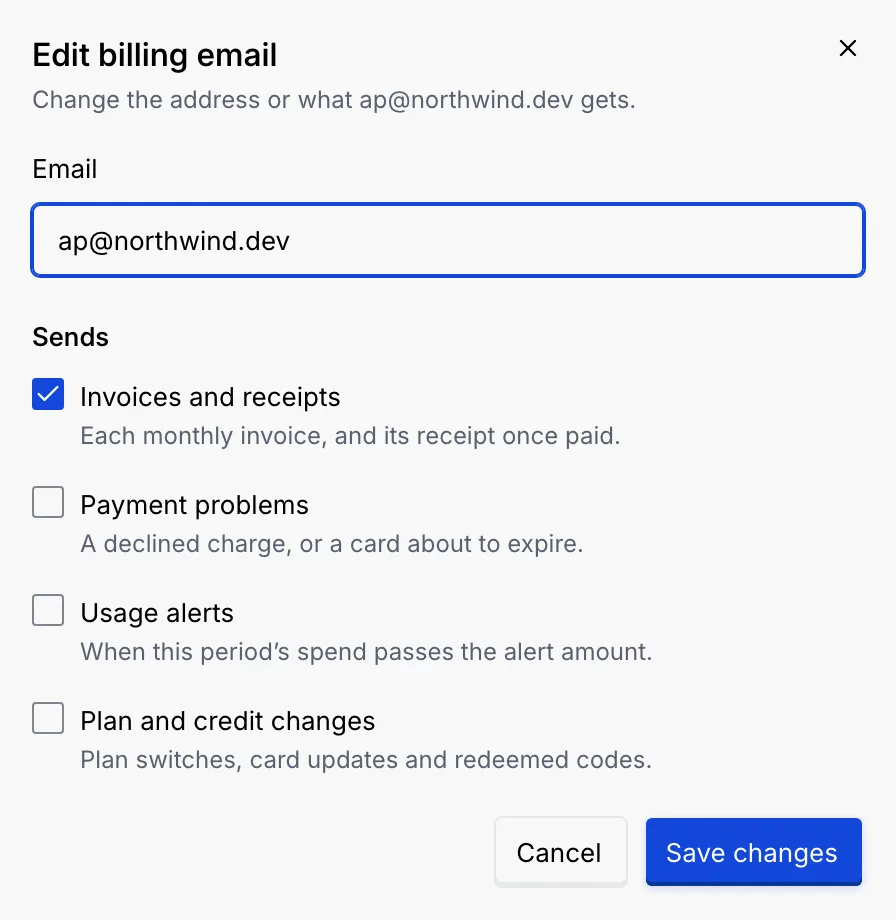
Click Add email, or Edit on an address. Type the Email and tick what it Sends:
- Invoices and receipts: each monthly invoice, and its receipt once paid.
- Payment problems: a declined charge, or a card about to expire.
- Usage alerts: when this period's spend passes the alert amount.
- Plan and credit changes: plan switches, card updates and redeemed codes.
New addresses start with the first two, and each address needs at least one (Pick at least one kind of email.). An address that's already on the list says This address already gets billing email. Click Add email or Save changes. You can have up to 10 addresses.
Set the usage alert
Under the addresses, pick a Usage alert: Off, or Over $50 up to Over $2,500. Addresses with Usage alerts ticked are meant to get one email a period when the spend so far passes that amount; Mokanata saves the setting but doesn’t send the alert yet. It saves right away.
From an address's ⋯ menu, Send test email checks that it arrives (look in spam if it doesn't), and Remove stops billing email to it. Remove isn't offered when there's only one address, and at least one address has to keep getting invoices and receipts, and one payment problems.
Invoices and receipts
Invoices lists every invoice with its Date, number (like INV-2026-0012), Amount and Status (Paid). Search by number, date, amount or card, filter by Year, and sort by Date, Invoice or Amount. Click Download on a row for its receipt, a text file with the invoice number, date, who was billed, the plan, the agent actions charged, the total and the card used.
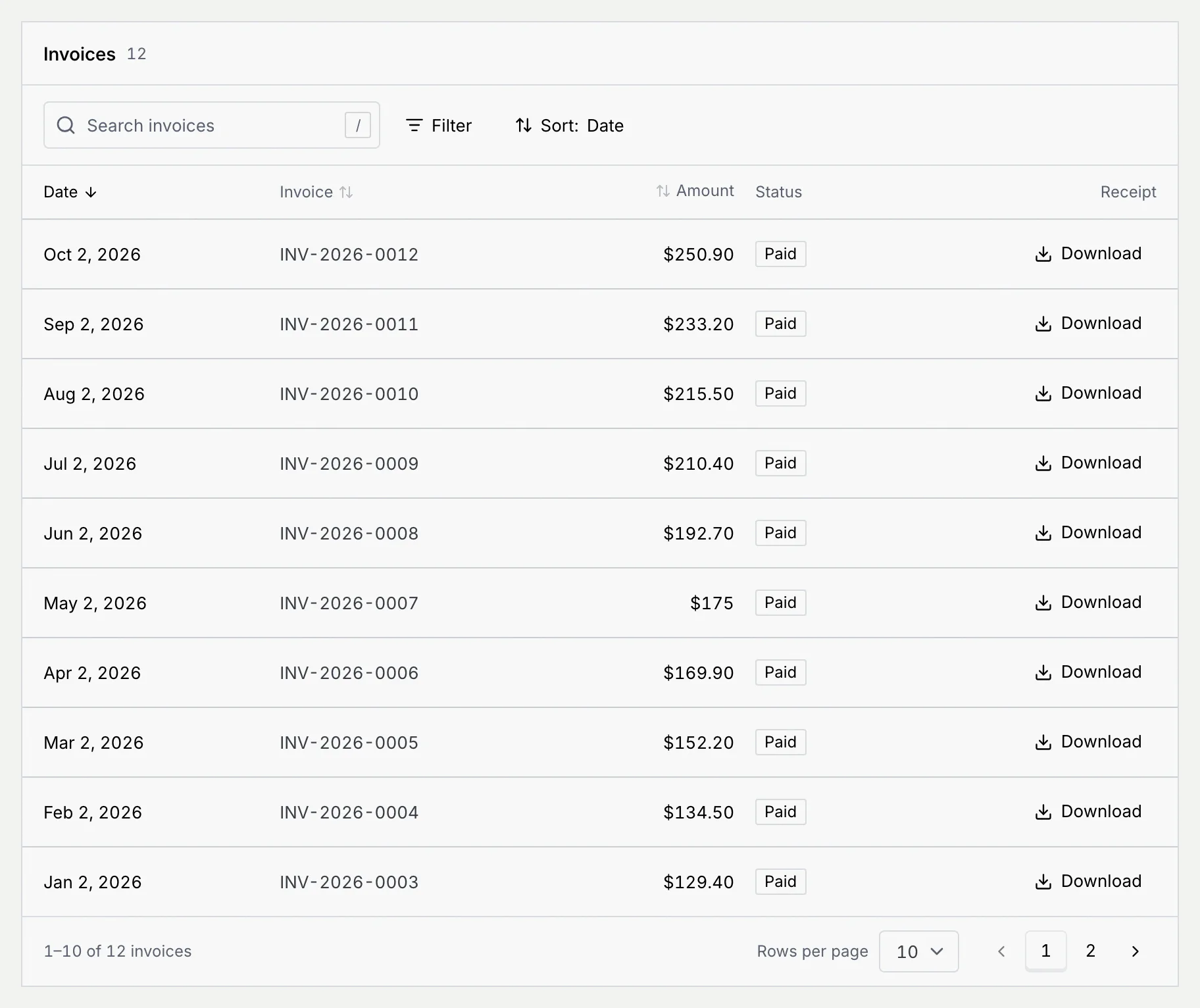
A new workspace shows No invoices yet: the first appears after your first paid month. When a search finds nothing, try the invoice number, like INV-2026-0012, or clear the filters.
What members and viewers see
Members and viewers see the Plan panel and a View only notice: owners and admins change the plan and see payment details and invoices. The card, credits, billing emails and invoices are hidden.
Troubleshooting
Paid plans need a card on file. Click Add a card in the dialog, save the card, then click Switch to Pay as you go.
Add their address under Billing emails with Invoices and receipts ticked. They don't need to be a member of the workspace.
Yes. Add ?dialog=plan to the Billing page's address (/settings/billing) to open Change plan (with &plan=payg or &plan=free to preselect a plan), ?dialog=card for the card form, ?dialog=redeem to redeem a code and ?dialog=email to add a billing email. Back in your browser closes the dialog. These open for owners and admins only.
No. Credit comes from promo or partner codes and from referral rewards. See Referrals.
Mokanata's invoices are always in US dollars. The workspace currency in Language and region changes how deal values and reports read, not what you're billed.