Keyboard shortcuts
Every keyboard shortcut in Mokanata, the go-to keys and page search, and how to change, remove or reset the keys.
Mokanata has a keyboard shortcut for searching, for jumping to each page and for the most common actions on a page. You can change the keys for any of them, remove the ones you don't want, and turn off the shortcuts that are a single letter.
- Who can use it: Everyone. Your keys are your own: changes apply only to you, in this browser.
- Before you start: Nothing.
⌘ or Ctrl
This page shows Mac keys. On Windows and Linux, press Ctrl where you see ⌘, and Alt where you see ⌥. Mokanata shows each key the way your computer writes it.
See every shortcut
Press ? anywhere in Mokanata, or search for "keyboard shortcuts" with ⌘ K. The Keyboard shortcuts dialog lists every shortcut with the keys you use now, grouped by where it works. Shortcuts you removed show No shortcut.
Scroll to the bottom of the dialog and click Change shortcuts to open the settings page where you change them.
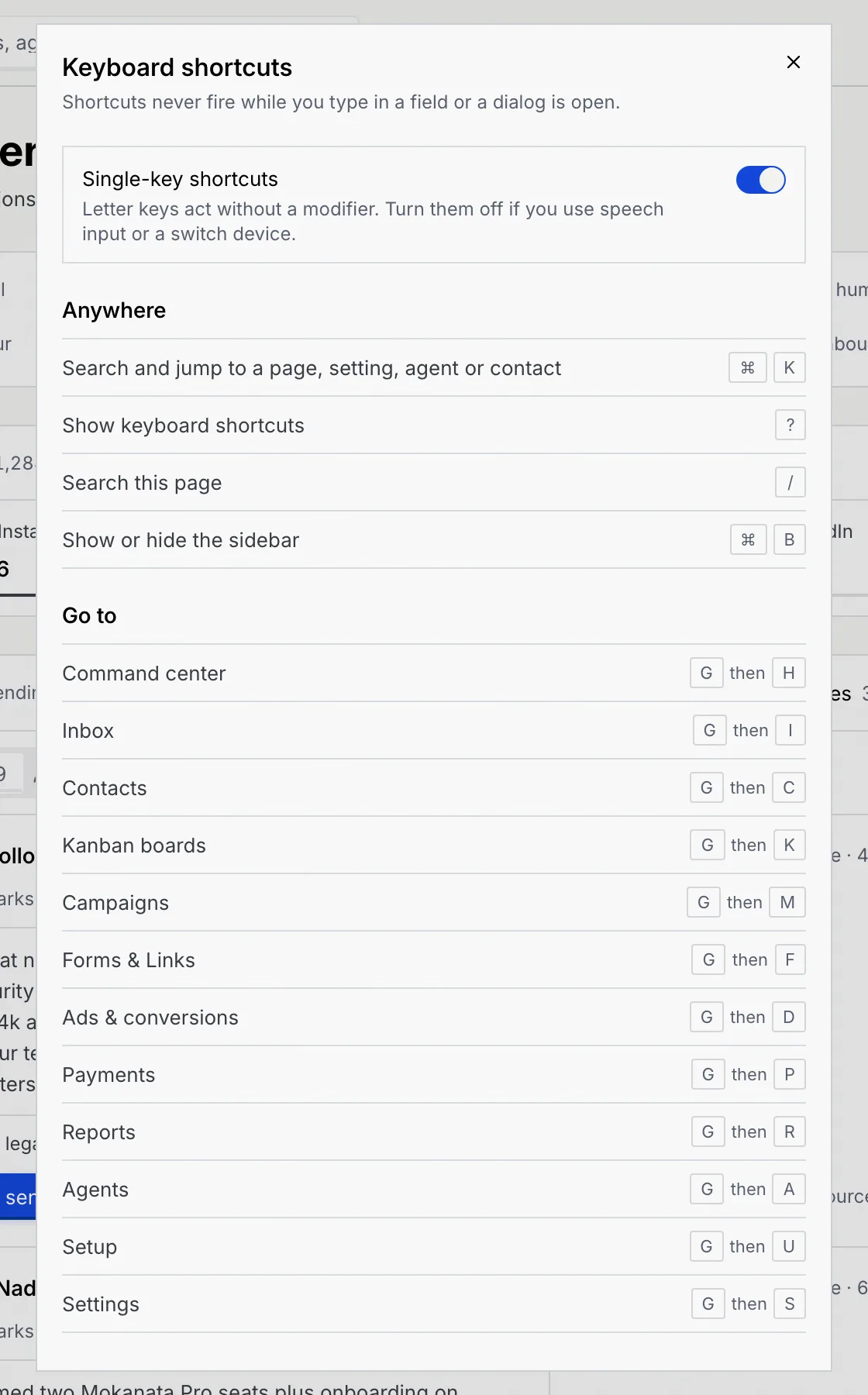
Shortcuts never fire while you type in a field. Apart from ⌘ K, they also wait while a dialog or menu is open.
Shortcut reference
These are the default keys. Shortcuts for a page only work on that page, so the same key can do different things on different pages (N creates something new on most of them).
Anywhere
| Shortcut | Keys |
|---|---|
| Search and jump to a page, setting, agent or contact | ⌘ K |
| Show keyboard shortcuts | ? |
| Search this page | / |
| Show or hide the sidebar | ⌘ B |
Go to
Press G, let go, then press the second key. The sidebar shows each page's keys when you point at it.
| Page | Keys |
|---|---|
| Command center | G then H |
| Inbox | G then I |
| Contacts | G then C |
| Kanban boards | G then K |
| Campaigns | G then M |
| Forms & Links | G then F |
| Ads & conversions | G then D |
| Payments | G then P |
| Reports | G then R |
| Agents | G then A |
| Setup | G then U |
| Settings | G then S |
Command center
Approving and editing act on the card that has focus. J and K are chosen for where they sit on the keyboard, side by side under your right hand: on another keyboard layout, use the keys in the same place.
| Shortcut | Keys |
|---|---|
| Next card in the queue | J |
| Previous card | K |
| Approve the focused card | A |
| Edit the focused draft, or open its thread or record | E |
Inbox
Approving and editing act on the open thread while focus is inside it.
| Shortcut | Keys |
|---|---|
| Open the next thread | J |
| Open the previous thread | K |
| Approve & send the draft, or accept the handoff | A |
| Edit the draft | E |
| Reply: go to the reply field | R |
| Full screen: the thread alone, without the sidebar, list and details | F |
| Send or approve from a reply field (can't be changed) | ⌘ Enter |
| Leave a field or full screen; on a phone, back to the thread list (can't be changed) | Esc |
Contacts
| Shortcut | Keys |
|---|---|
| New contact | N |
| Log activity on the open contact | L |
| Review what the contact is waiting on | R |
Kanban
| Shortcut | Keys |
|---|---|
| Add a card to the first status, or a new board | N |
| Move the open card to the next status | M |
Campaigns
| Shortcut | Keys |
|---|---|
| New campaign (on Campaigns) | N |
| New message template (on Message templates) | N |
Forms & Links
| Shortcut | Keys |
|---|---|
| New form (on Forms) | N |
| New short link (on Short links) | N |
| New link in bio page (on Link in bio) | N |
Payments
| Shortcut | Keys |
|---|---|
| New payment link | N |
Agents
| Shortcut | Keys |
|---|---|
| New agent (on Agents) | N |
| Test run the open agent | T |
| New flow on the open agent | N |
| Deploy a draft agent | D |
Flow builder
Moving and removing act on the focused step.
| Shortcut | Keys |
|---|---|
| Test run | T |
| Publish | P |
| Undo | ⌘ Z |
| Redo | ⌘ ⇧ Z |
| Move the focused step up | ⌥ ↑ |
| Move the focused step down | ⌥ ↓ |
| Remove the focused step | Delete |
| Remove the step, like Delete (can't be changed) | Backspace |
| Clear the selection (can't be changed) | Esc |
| Pan the canvas (can't be changed) | Space + drag |
| Zoom the canvas (can't be changed) | ⌘ + scroll |
Undo, redo and moving a step repeat while you hold the keys.
Setup
| Shortcut | Keys |
|---|---|
| Connect a channel (on the Channels tab) | C |
| Add on the open Setup tab: a new object, ad platform, pixel or custom API | N |
| New record in the open object | N |
The keys marked "can't be changed" belong to a field or a gesture. They're listed in the ? dialog but not on the settings page.
Search the page you're on
Press / to jump to the search field of the page you're on, such as the thread list in the inbox, the contacts table or a board's cards. Whatever is in the field is selected, so you can type a new search straight away. On a wide screen, search fields show a / at their end while they're empty. On a page without a search field, the key does nothing.
To search across Mokanata instead, press ⌘ K. See Search and jump with ⌘K.
Change a shortcut
Open Keyboard shortcuts
Go to Settings → Keyboard shortcuts, or click Change shortcuts in the ? dialog. One panel per group lists each shortcut with its current keys.
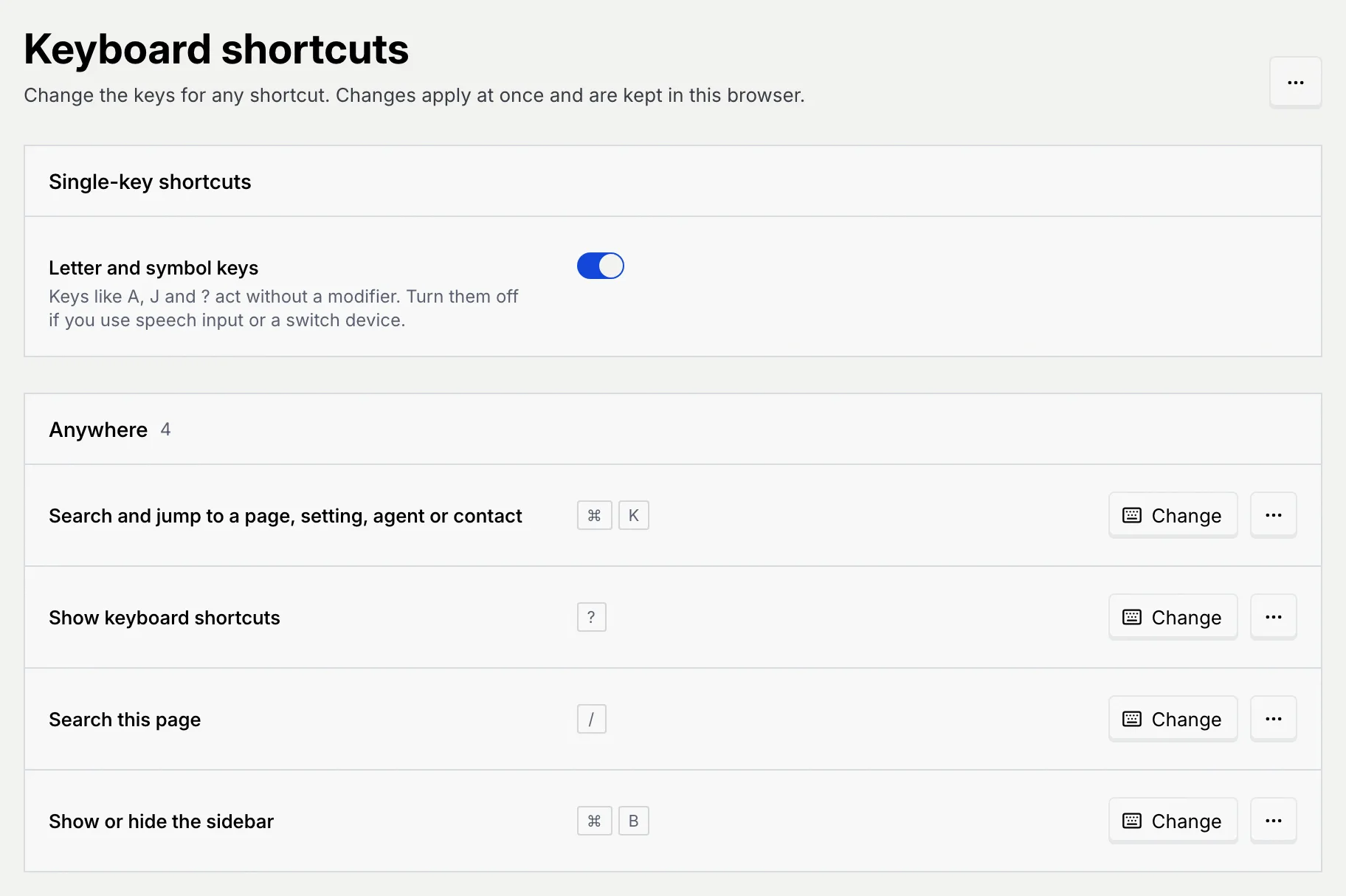
Click Change
Click Change on the shortcut's row. The row says Press the new keys and the button becomes Cancel.
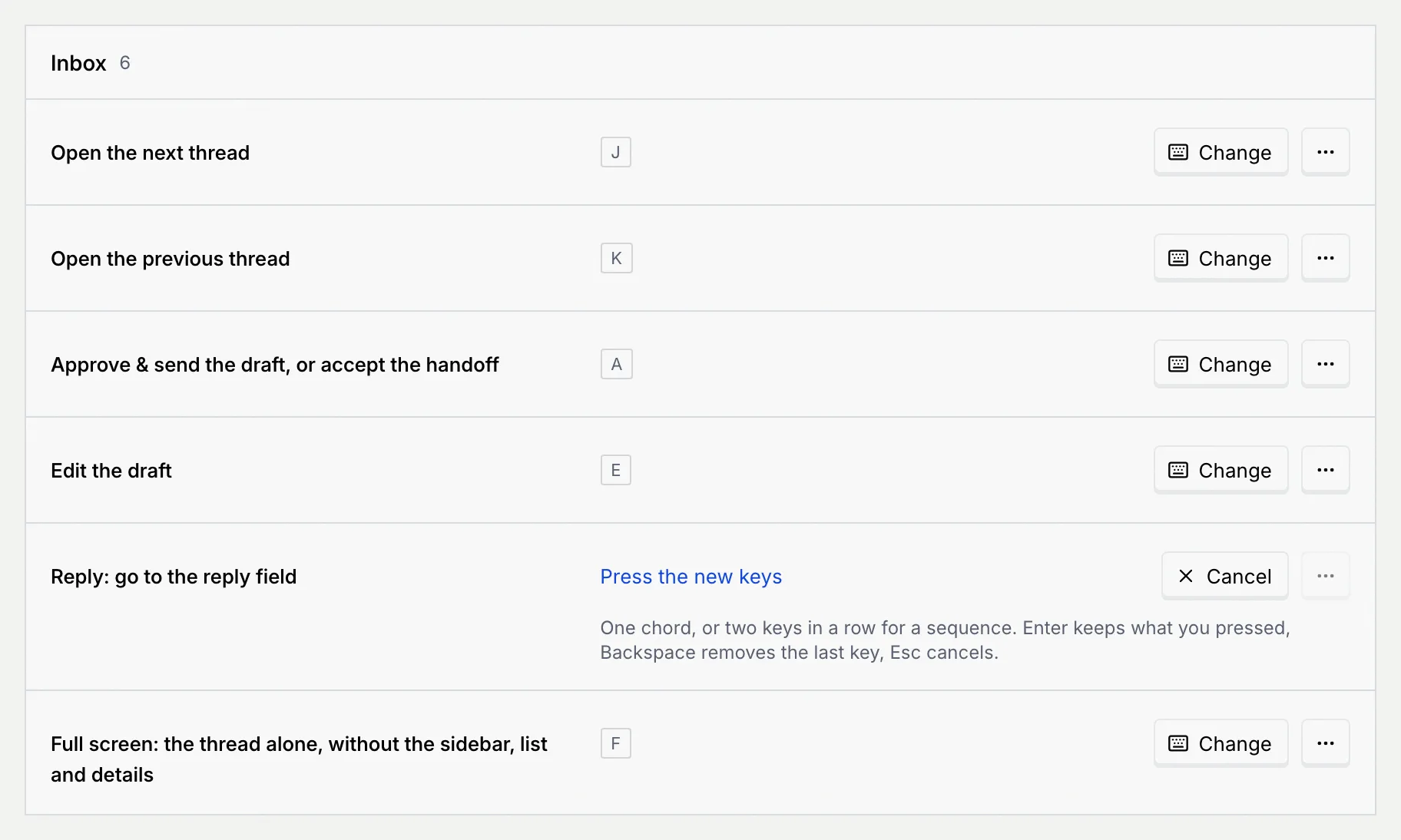
Press the new keys
Press one key or combination, such as W or ⌘ J, or two in a row for a sequence, like the go-to keys. While you record:
- Pause, or press Enter, to keep what you pressed.
- Backspace removes the last key.
- Esc cancels and keeps the old keys.
If another shortcut already uses those keys where this one works, Mokanata says which and asks you to Pick other keys. Nothing changes until you pick keys that are free.
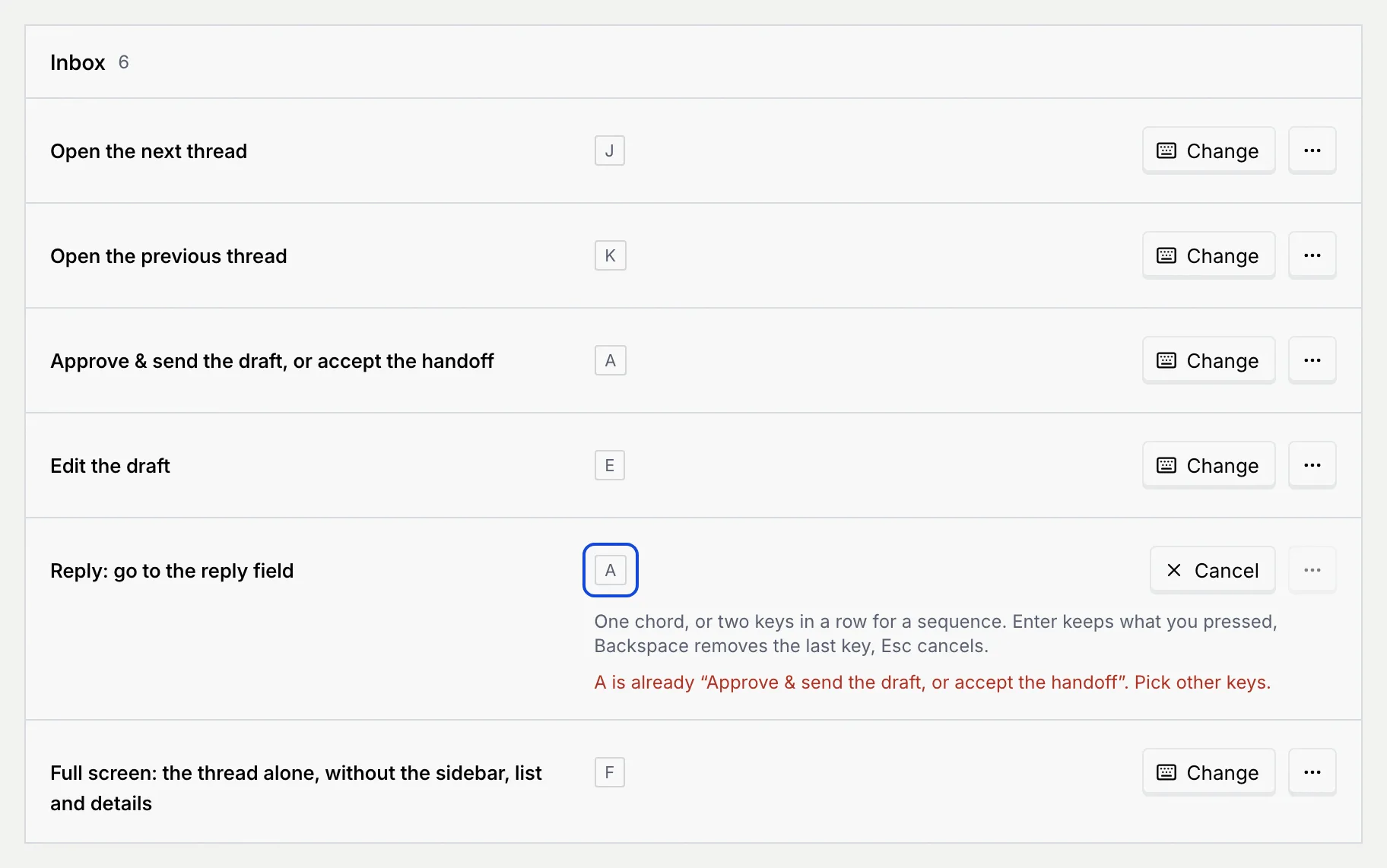
Use the new keys
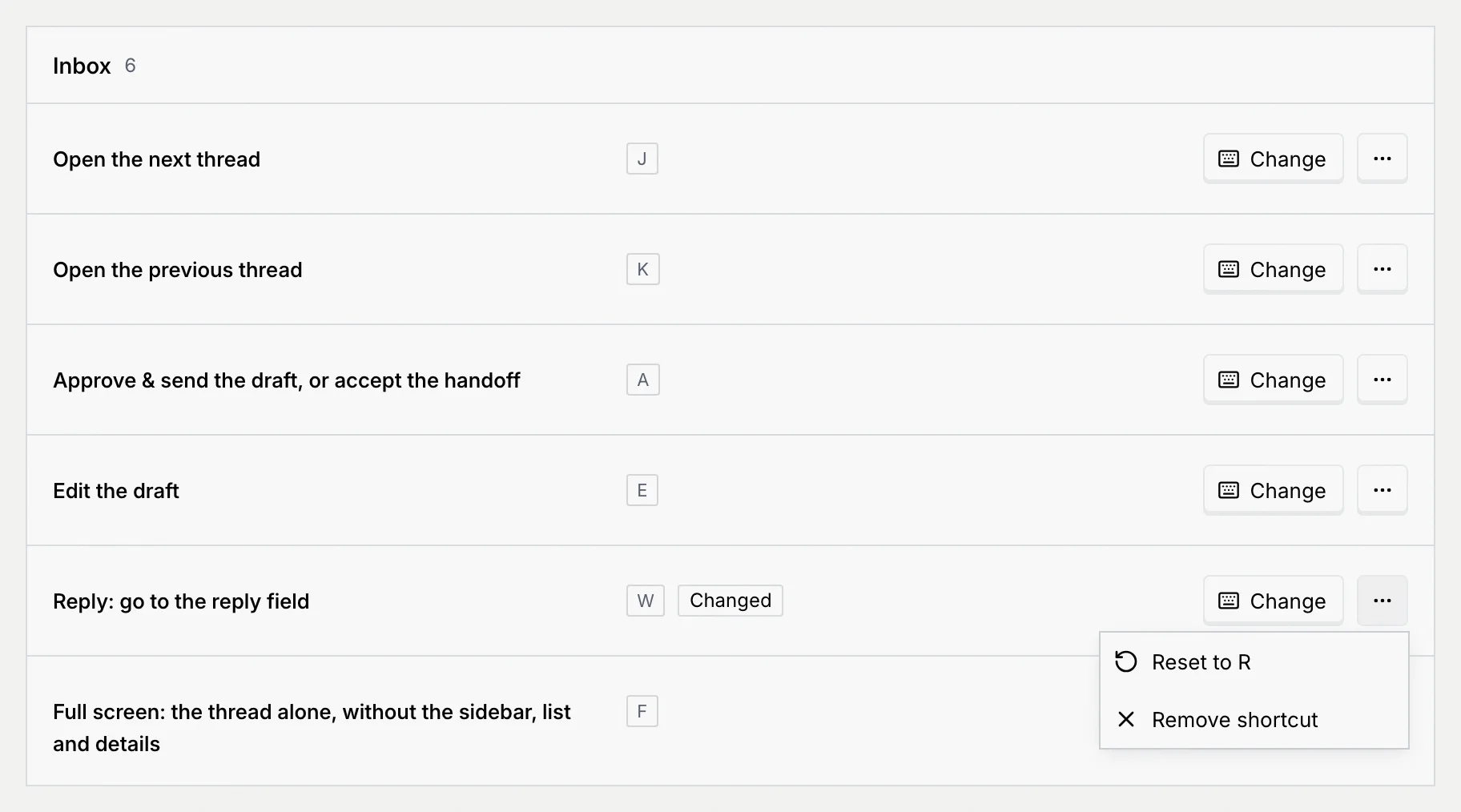
The new keys work straight away and the row is marked Changed. They're kept in this browser, so set them again on another computer or browser.
Reset or remove a shortcut
Click the ⋯ menu on the shortcut's row:
- Reset to followed by the default keys puts the default back. It's only available on a shortcut you changed.
- Remove shortcut leaves it without keys. It shows No shortcut until you set new keys with Change or reset it.
Reset every shortcut
Open the page menu
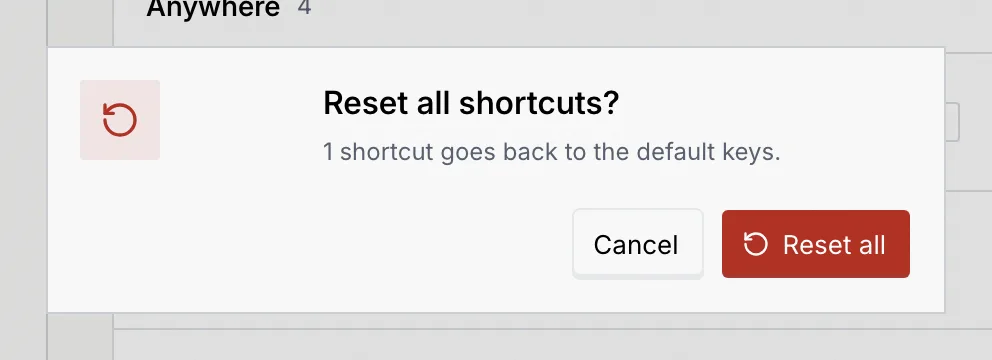
On Keyboard shortcuts, click the ⋯ menu next to the page title and choose Reset all shortcuts. It's only available once you've changed something.
Turn off single-key shortcuts
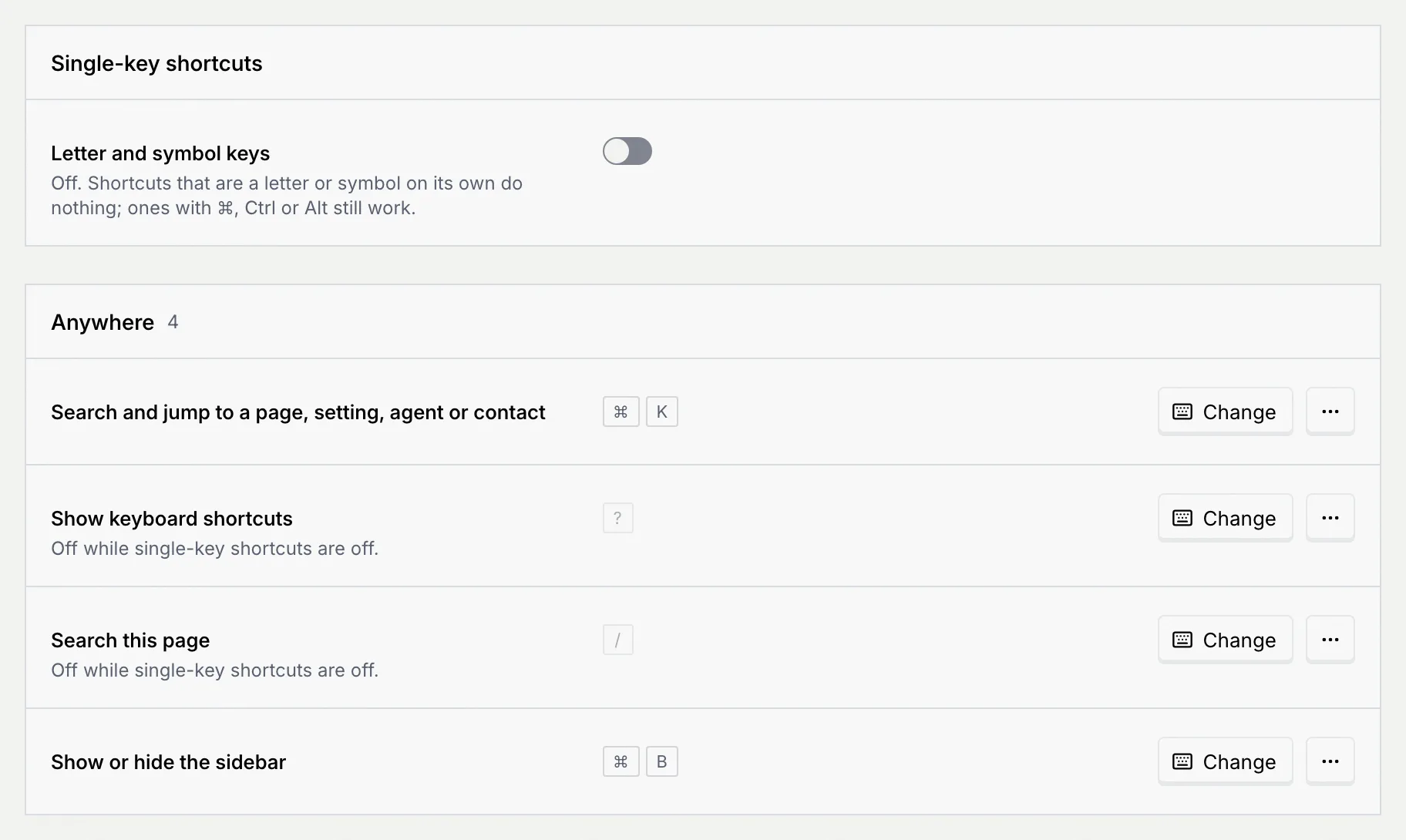
Shortcuts that are a letter or symbol on its own, like A, J, ? and the G sequences, can get in the way if you use speech input or a switch device. Turn them off in any of these places; it's the same setting:
- Settings → Keyboard shortcuts → Letter and symbol keys
- the Single-key shortcuts switch in the ? dialog
- Single-key shortcuts in the account menu at the bottom of the sidebar
While they're off, shortcuts with ⌘, Ctrl or Alt still work, and so does Esc. The settings page marks the others Off while single-key shortcuts are off, and the ? dialog marks them Off. To keep one of them, change it to keys with a modifier, such as ⌘ /.
Troubleshooting
Check that you're not typing in a field and no dialog or menu is open, that you're on the page the shortcut belongs to, and that single-key shortcuts are on if it's a single letter. If you removed the shortcut, it shows No shortcut: set new keys or reset it.
Two shortcuts that work in the same place can't share keys. A key on its own also can't be the first key of a sequence, so G alone is taken by the go-to keys. Pick other keys, or change the other shortcut first.
On keyboards with an AltGr key, combinations with it type characters, so they can't be shortcuts. Use Ctrl or Alt instead.
Changed keys are kept in the browser you set them in. In another browser, on another computer, or after clearing the browser's site data, set them again.