Search and jump with ⌘K
Open any page, setting, agent or contact from the command palette, run quick actions, and search the page you're on with the / key.
The command palette is the fastest way around Mokanata: press ⌘ K, type a few letters and press Enter. To search within a page instead, such as your contacts, press /.
- Who can use it: Everyone. The palette only offers actions your role can take: New agent needs permission to create agents and Invite people needs permission to manage members, so they're missing for roles without them.
- Before you start: Nothing.
Open the command palette
Press ⌘K
Press ⌘ K on a Mac or Ctrl K on Windows and Linux, from any page, even with a dialog open. Or click Search contacts, agents and pages in the top bar. Press the same keys again, or Esc, to close it.
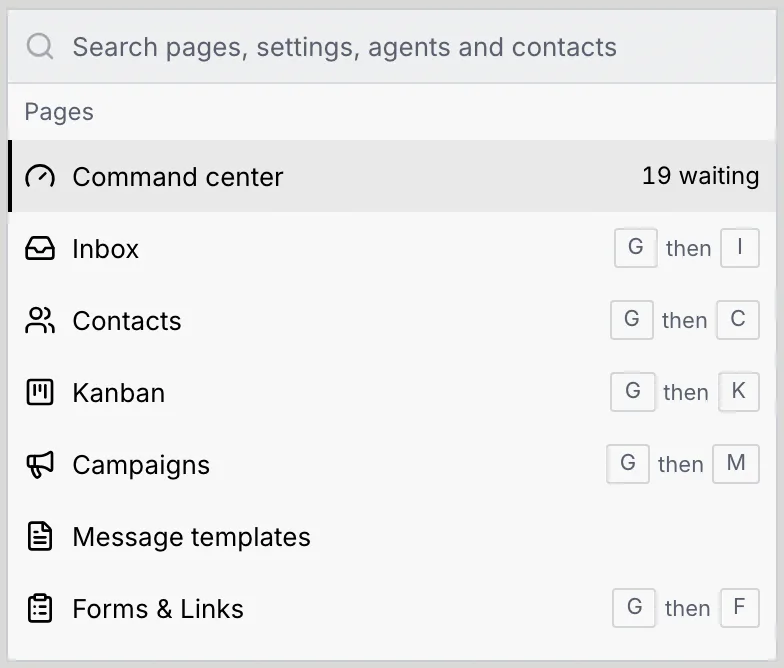
Before you type, the palette lists everything in groups: Pages, Actions, Settings, Agents and Contacts. Pages show their go-to shortcut (for example G then I for the Inbox), and the Command center shows how many drafts are waiting.
Type what you're looking for
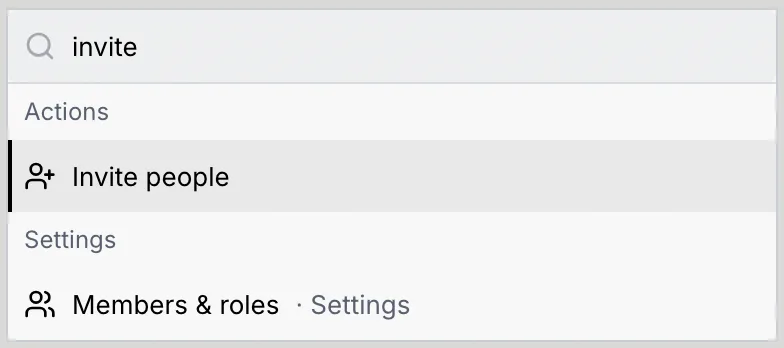
Type the start of any word in a name: "rep" finds Reports, "short" finds Short links, "invite" finds Invite people. The group with the best match moves to the top. Use ↑ and ↓ to move through the results.
Press Enter to go
Press Enter or click a result to open it. The palette closes and the page opens.
What you can find
| Group | What's in it |
|---|---|
| Pages | Every page in the sidebar, plus Message templates, Short links and Link in bio. |
| Actions | New agent, Invite people, Switch to dark theme (or light) and Keyboard shortcuts. |
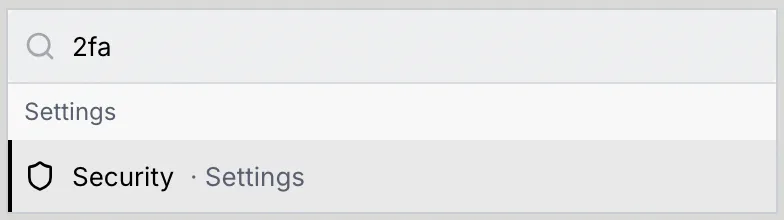
| Settings | Every settings page, shown as for example "Security · Settings": Profile, Security, Notifications, Keyboard shortcuts, Workspace, Language & region, Members & roles, Billing, Usage, API keys and Danger zone. |
| Agents | Every agent in the workspace, by name or handle. |
| Contacts | Every contact, with their company. |
Results also match common words for things, so you don't need to know what a page is called. A few examples:
| Type | To find |
|---|---|
| home, approvals, queue | Command center |
| integrations, channels, connect | Setup |
| passkeys, authenticator, sessions | Security settings |
| team, invite, permissions | Members & roles settings |
| delete, leave, transfer | Danger zone |
| plan, invoices | Billing settings |
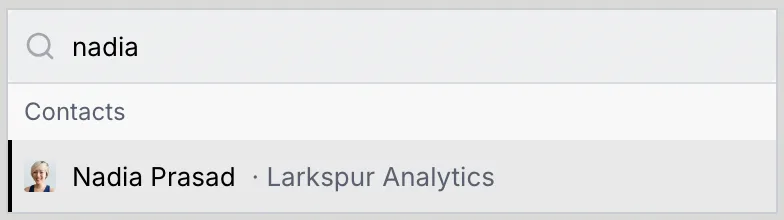
To open a contact or an agent, type their name:
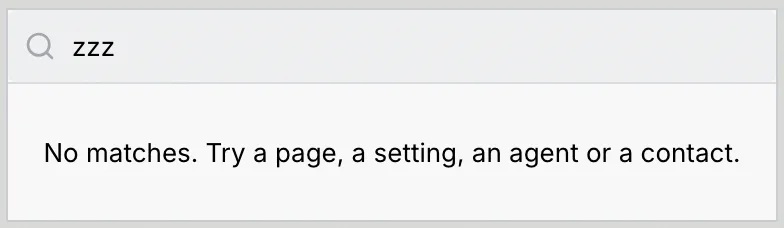
When nothing matches, the palette says "No matches. Try a page, a setting, an agent or a contact."
Search the page you're on
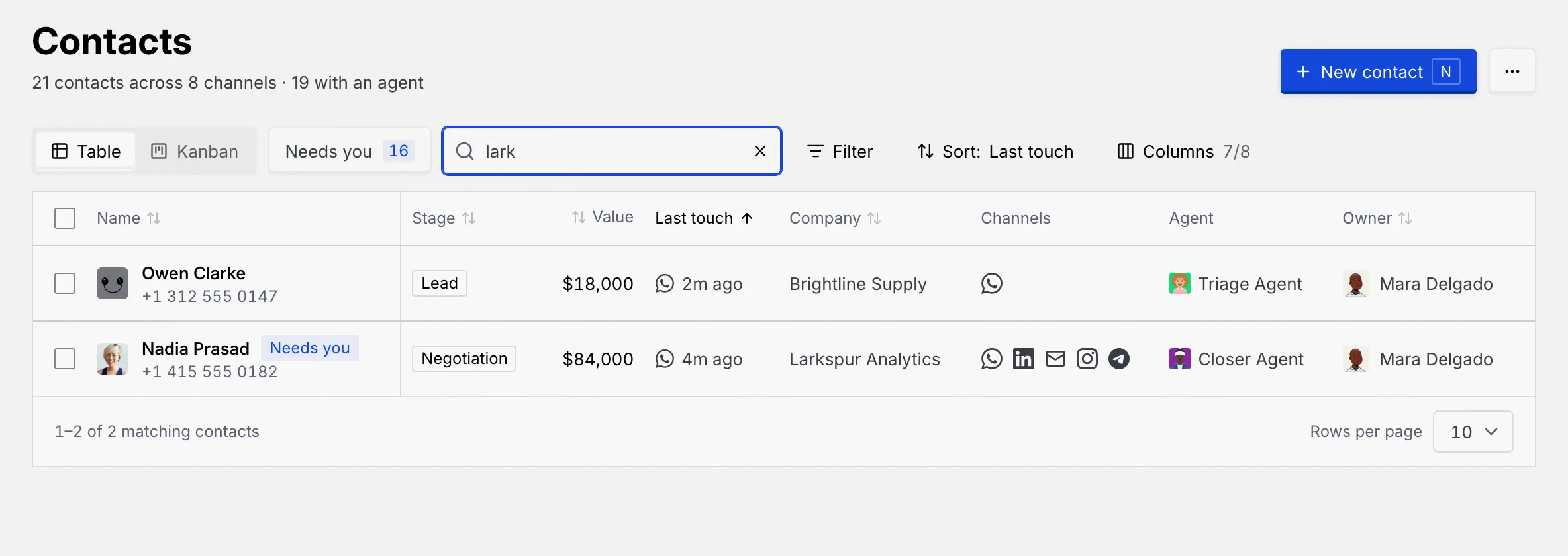
Lists such as the inbox, contacts, kanban boards and cards, campaigns, forms and links have their own search field. The / key jumps to it from anywhere on the page.
Press /
While you're not typing in a field, press /. The page's search field takes focus and selects what's in it, so you can start a new search right away. An empty search field shows the / key at its end as a reminder.

Type to filter
The list narrows as you type. Clear the field with its × button to see everything again.
On a page without a search field, / does nothing. If you've turned single-key shortcuts off, / is off too; click the search field instead (see Keyboard shortcuts).