Log in
Sign in with a passkey, Google or an emailed link, confirm with your authenticator or a recovery code, add a second account, and log out.
Log in to get back to your workspace. You can use a passkey, your Google account or a one-time link Mokanata emails you; there are no passwords. After logging in you land on the Command center, or on the page you were trying to open.
- Who can use it: Anyone with a Mokanata account. Signing in with a new address creates one (see Create your account).
- Before you start: A device with your passkey, or your email inbox or Google account plus your authenticator app.
Open the log-in page
Go to app.mokanata.com. When you're logged out, it opens the log-in page. The way you signed in last time on this browser is marked Last used, so you can pick it again.
If you opened a link to a page in Mokanata while logged out, you're taken to that page once you're in. Otherwise you land on the Command center of the workspace you used most recently.
Log in with a passkey
A passkey signs you in in one step: it's two factors on its own (your device and your fingerprint, face or screen lock), so Mokanata doesn't ask for a code afterwards.
Pick your passkey
Click the email field: your browser offers the passkeys it has saved for Mokanata (autofill). Choose yours. You can also click the passkey button on the log-in page.
Confirm on your device
Use your fingerprint, face, screen lock or security key when your device asks. You're signed in.
To use a passkey from your phone on a computer, choose the option to use another device in the browser's passkey dialog and scan the QR code with your phone.
Log in with Google
This option appears only where the workspace operator has set up Google sign-in; if you don't see Continue with Google on the login page, use a link or a passkey instead.
Click Continue with Google and choose your Google account. If your Mokanata account uses that Google address, you go on to the two-step check. If no account uses it yet, Mokanata creates one (see Create your account).
If you close Google's window without choosing, the page says "Google sign-in was cancelled. Nothing was changed."
Log in with a link sent by email
Ask for a link
Type your Email and ask for a sign-in link. For safety, the page says the same whether or not the address has an account; an address without one gets an account on its first sign-in.
Open the link
Open the email Your Mokanata sign-in link on the device you want to log in on, and click the link. It works once and expires in 15 minutes; asking for a new one replaces the older link, so use the newest email. Then go on to the two-step check.
Confirm it's you
After Google or an email link, Mokanata asks for a second step. Use whichever you have at hand:
- Authenticator app: type the 6-digit code your app shows for Mokanata. Codes change every 30 seconds, and the one that just changed still works.
- Code by email (after Google only): ask Mokanata to email you a code, then type it in. After an email link Mokanata doesn't offer this, because your email already got you this far.
- Passkey: choose Use a passkey to confirm with your device instead.
- Recovery code: type one of the recovery codes you saved when you set up your authenticator (they look like
abcd-1234). Each one works once.
The step lasts 10 minutes; after that, start the sign-in again. After 5 wrong codes in 5 minutes, Mokanata asks you to wait before trying again.
Signing in with a passkey skips this step.
Add another account
You can be signed in to up to 5 Mokanata accounts in the same browser, for example a work and a personal one.
Open your account menu
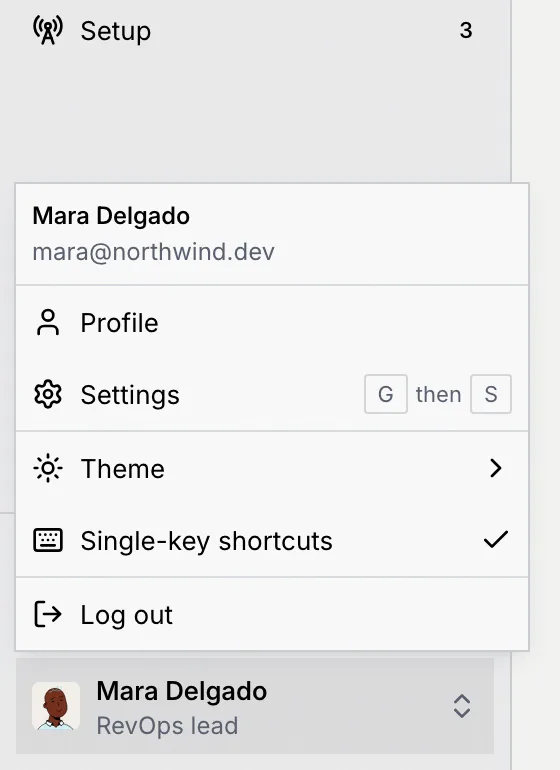
At the bottom of the sidebar, click your name. The menu lists the accounts signed in on this browser.
Add or switch
Choose Add another account and log in with the other account as usual. Afterwards, pick an account in the same menu to switch to it.
Log out
At the bottom of the sidebar, click your name, then Log out. This signs every account out of this browser. To sign out only the account you're using, choose Sign out of this account in the same menu; the others stay signed in.
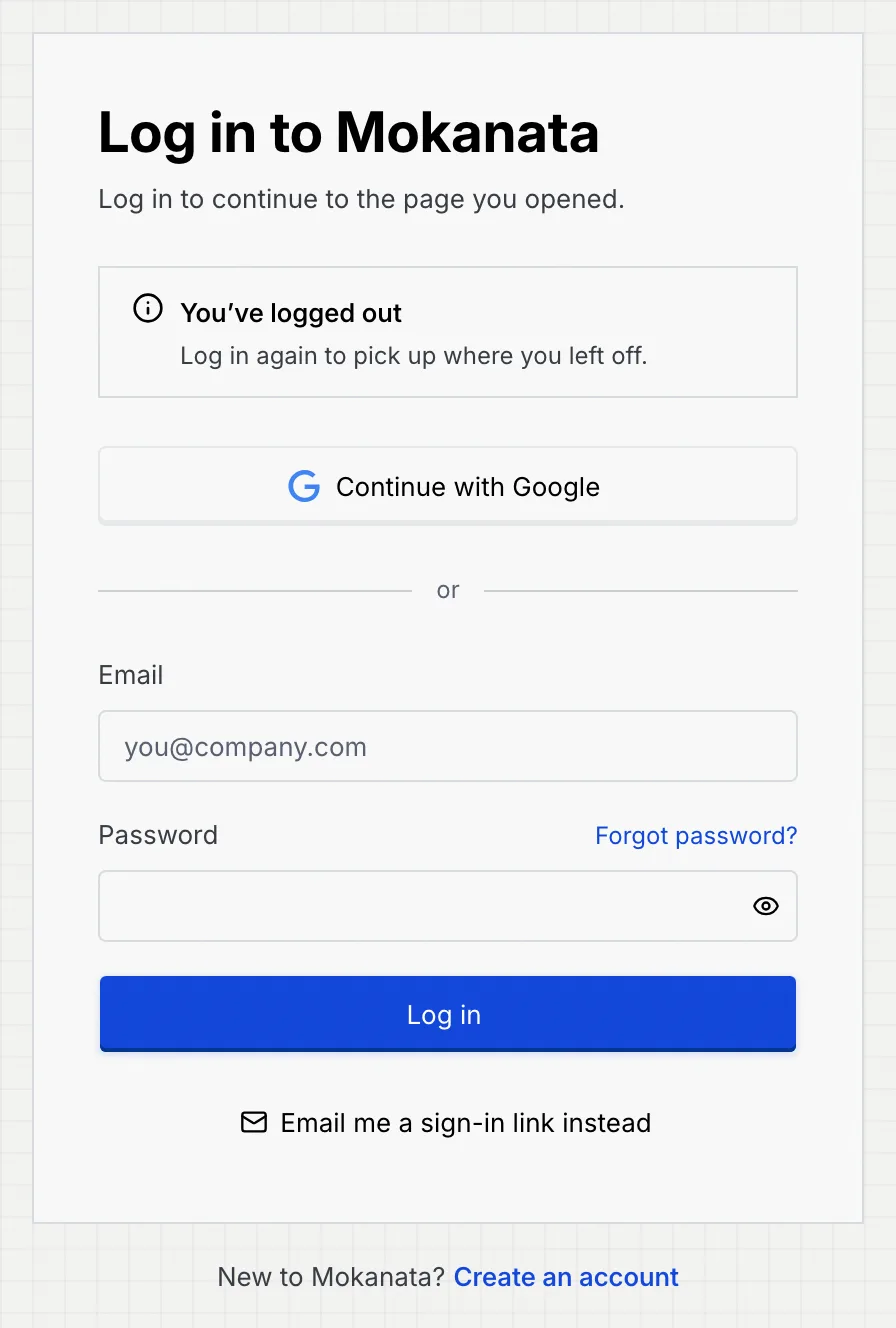
The log-in page then says You've logged out. When you log in again from this page, Mokanata takes you back to the page you were on.
Why you were logged out
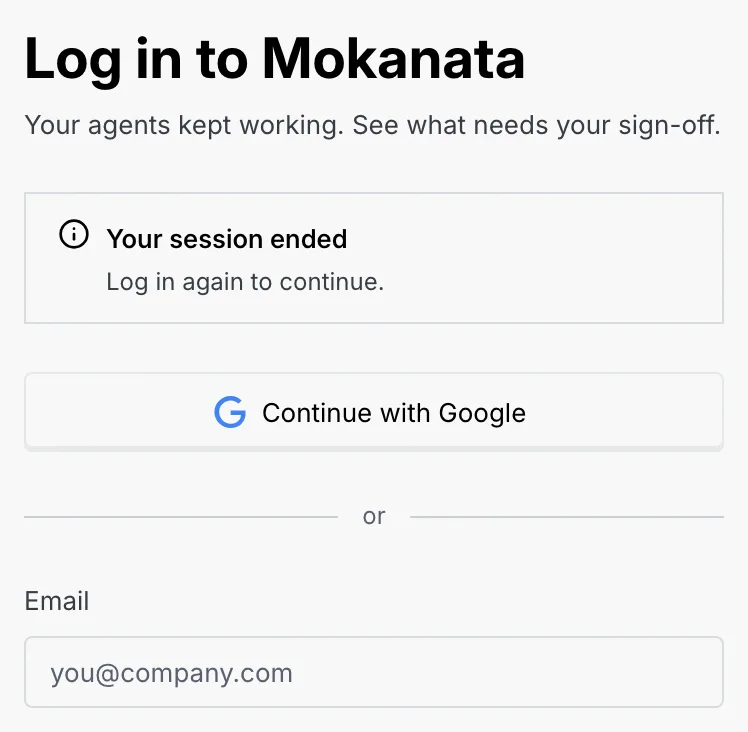
You stay logged in on a device for 30 days. When Mokanata logs you out for another reason, the log-in page says why.
| Notice | What happened |
|---|---|
| Your session ended | Your 30 days ran out, or this device was signed out from the Where you're signed in panel in Settings → Security. Log in again to continue. |
| You've logged out | You logged out, in this tab or another one. |
| Your account was deleted | You deleted your account from the Danger zone. You can create a new one any time. |
Troubleshooting
Mokanata no longer uses passwords. Log in with an email link or Google, and set up an authenticator app and a passkey when Mokanata asks. Next time, use your passkey.
On the two-step check, use a recovery code or a passkey (after Google you can also ask for a code by email). See Sign-in and link problems.
Check that the app shows the Mokanata entry for this email address and that your phone's clock is set automatically, then type the code that's on screen now.
The passkey lives on another device or in another password manager. Use the browser's option to sign in with another device, or log in with an email link or Google. See Lost a passkey.