Leave, transfer or delete
Leave a workspace, hand ownership to someone else, delete a workspace or delete your account from the Danger zone.
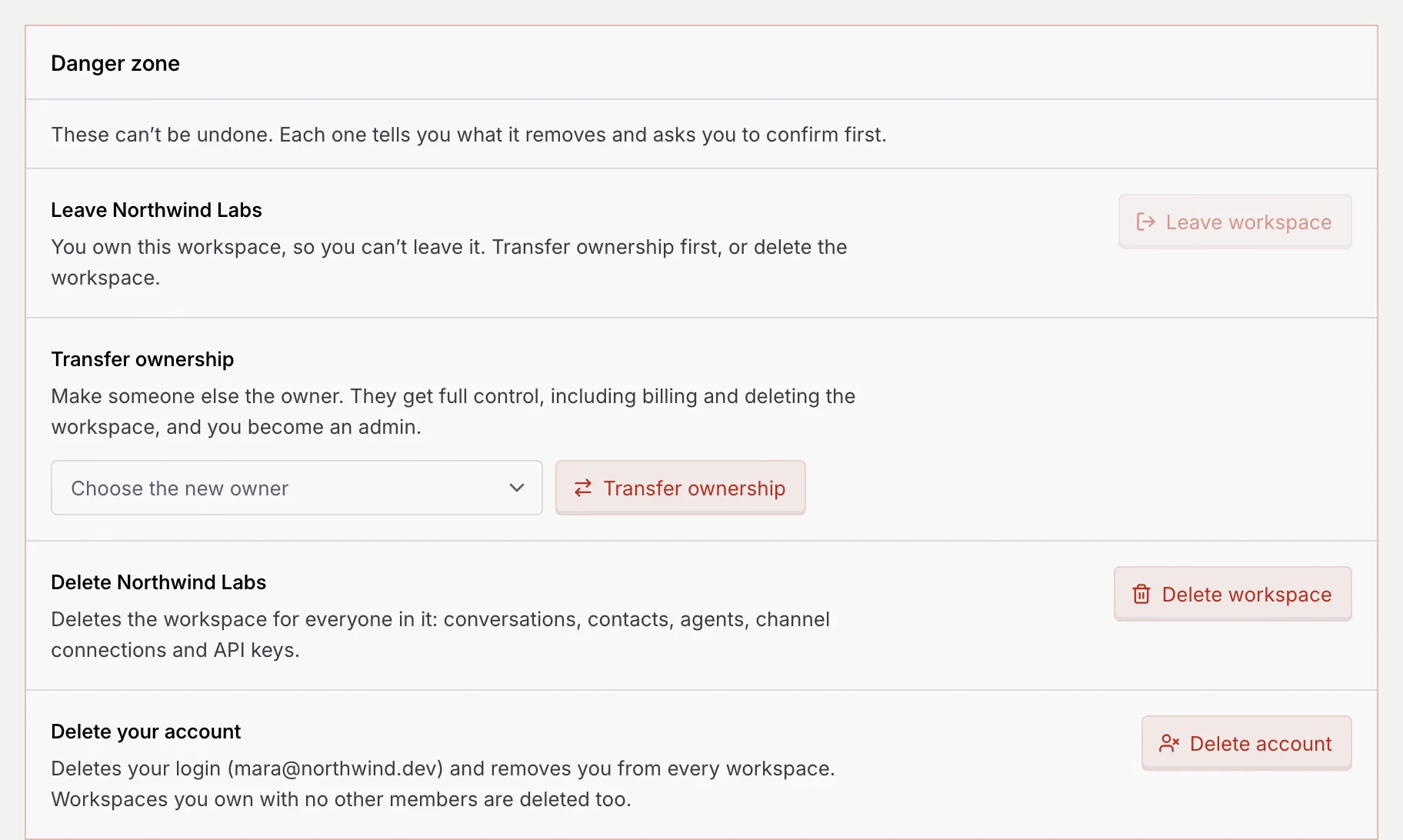
The Danger zone is the last panel of the Security page. It holds the actions that can't be undone: leaving a workspace, transferring ownership, deleting the workspace and deleting your account. Each one says what it removes and asks you to confirm first.
- Who can use it: Everyone can delete their own account. Admins, members and viewers can leave the workspace they're in; the owner can't leave until they transfer ownership or delete it. Only the owner can transfer ownership or delete the workspace: everyone else sees Transfer ownership or delete the workspace with "Only the owner of … can do these" and their role.
- Before you start: The Danger zone acts on the workspace you're in. To act on another workspace, switch to it first from the workspace menu at the top of the sidebar.
Open the Danger zone
Go to Settings → Security and scroll to the bottom, or press ⌘ K (Ctrl K on Windows and Linux) and search for "danger zone". What you see depends on your role in the workspace.
The owner sees Leave turned off with the reason, then Transfer ownership, Delete the workspace and Delete your account.
Leave a workspace
Click Leave workspace
In Leave followed by the workspace name, click Leave workspace. If you own the workspace the button is off: transfer ownership or delete the workspace instead.
Confirm
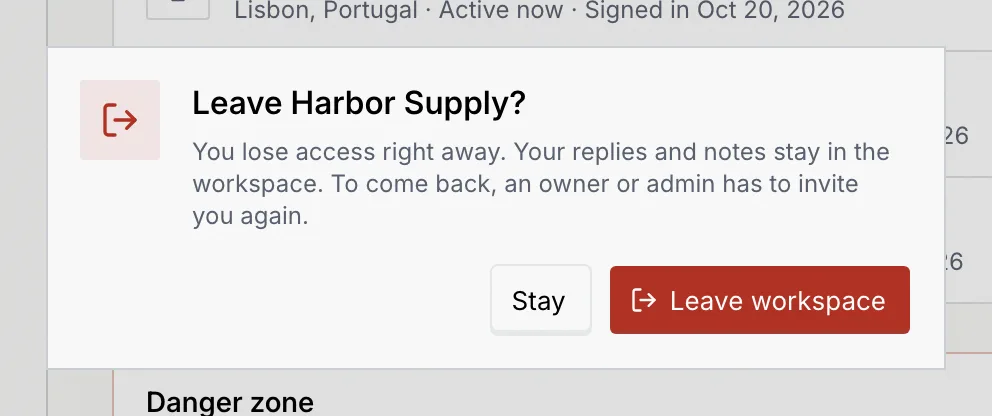
The dialog asks Leave the workspace. Click Leave workspace, or Stay to keep your access.
You lose access right away. Your replies and notes stay in the workspace. To come back, an owner or admin has to invite you again.
Carry on in your other workspace
If you belong to another workspace, Mokanata opens its Command center and says You're in that workspace now. If that was your only workspace, Mokanata takes you to the first step of setup, where you can create a workspace of your own or accept an invite.
Transfer ownership
Only the owner can do this. The new owner gets full control, including billing and deleting the workspace, and you become an admin.
Choose the new owner
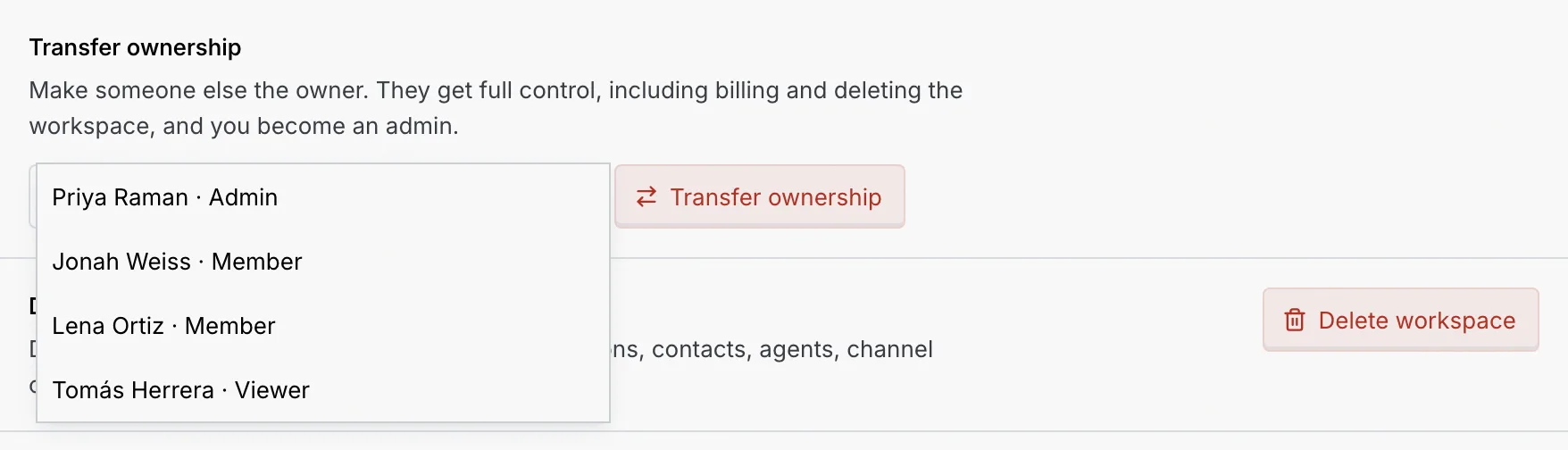
In Transfer ownership, open Choose the new owner and pick a member. Each name shows their current role. Then click Transfer ownership.
If you click Transfer ownership without choosing anyone, Mokanata asks you to Choose who becomes the owner. If you're the only member, the panel says ownership can only go to a current member, with a link to Invite someone.
Confirm
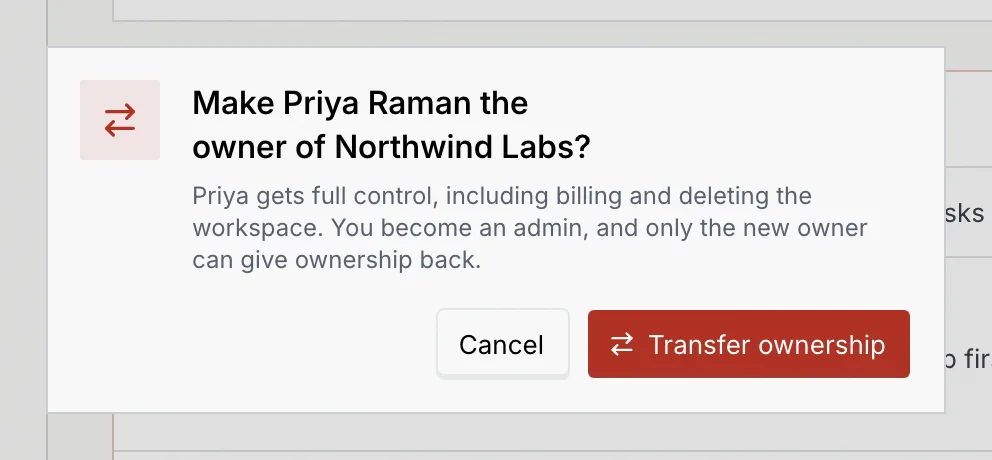
The dialog asks Make the person the owner of the workspace. Click Transfer ownership to hand it over, or Cancel.
You see that the person now owns the workspace. You're an admin from now on, and only the new owner can give ownership back.
Delete the workspace
Only the owner can do this. Deleting removes the workspace for everyone in it: every conversation, contact, agent and channel connection.
Click Delete workspace
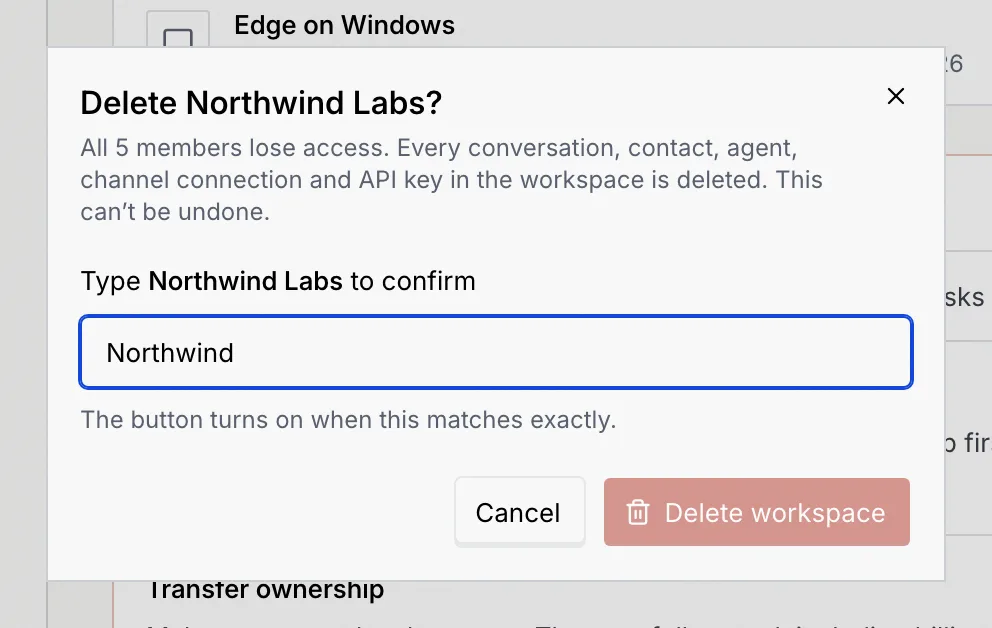
In Delete followed by the workspace name, click Delete workspace. The dialog says how many members lose access.
Type the workspace name
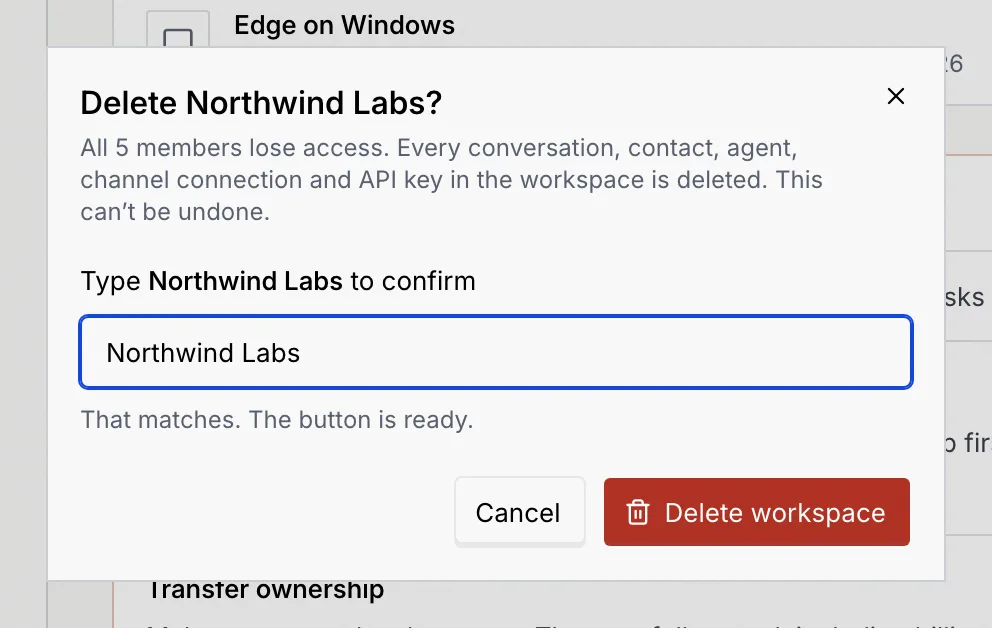
Type the workspace's name exactly as shown in Type … to confirm. The Delete workspace button stays off until the name matches; the hint under the field changes to That matches. The button is ready. Then type the current code from your authenticator app (see Confirm destructive actions).
Delete
Click Delete workspace. If you belong to another workspace, Mokanata opens it; otherwise it takes you to setup to create a new one or join one from an invite.
This can't be undone
A deleted workspace can't be restored. Everyone in it loses access at once, and they're moved to another workspace of theirs if they have one. If you only want to step back, transfer ownership instead.
Delete your account
Deleting your account deletes your login and removes you from every workspace. Messages you sent stay in each workspace's history. Workspaces you own with no other members are deleted too.
Hand over your workspaces first
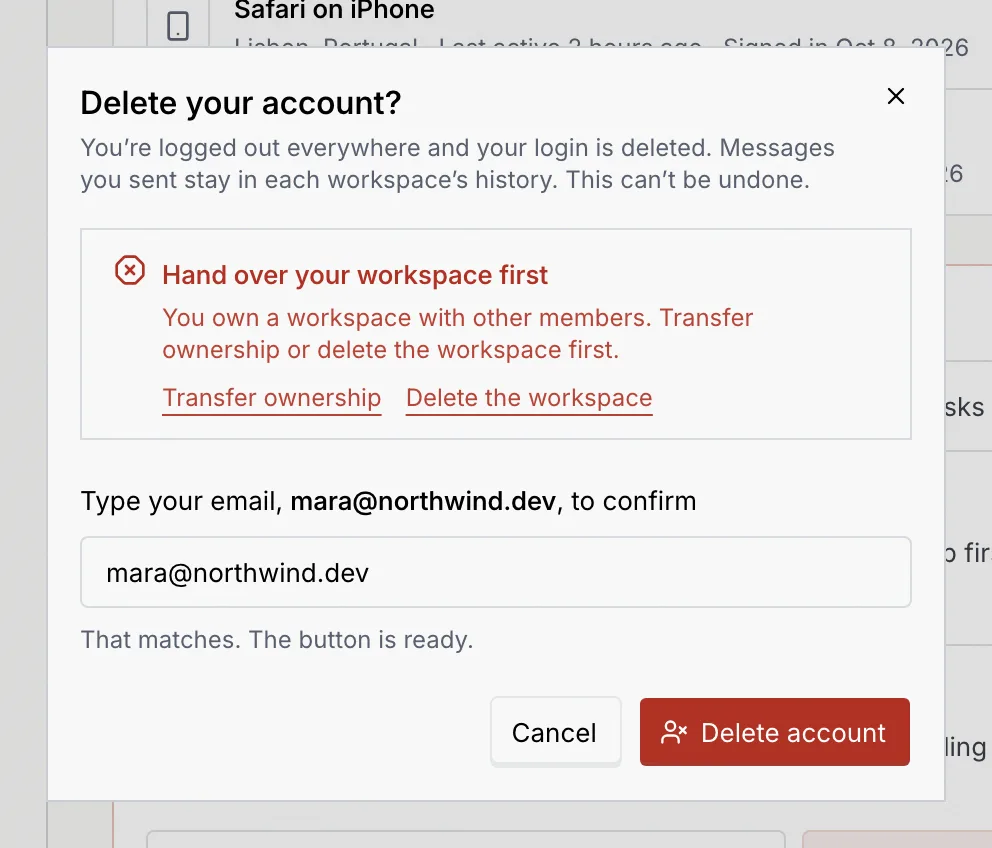
If you own a workspace that has other members, transfer ownership or delete it first. Otherwise, once you type your email and click Delete account, Mokanata stops with Hand over your workspace first, with links to Transfer ownership and Delete the workspace.
Type your email
In Delete your account, click Delete account. Type your login email in Type your email, … to confirm (capital letters don't matter). The Delete account button turns on when it matches. Then type the current code from your authenticator app (see Confirm destructive actions).
Delete
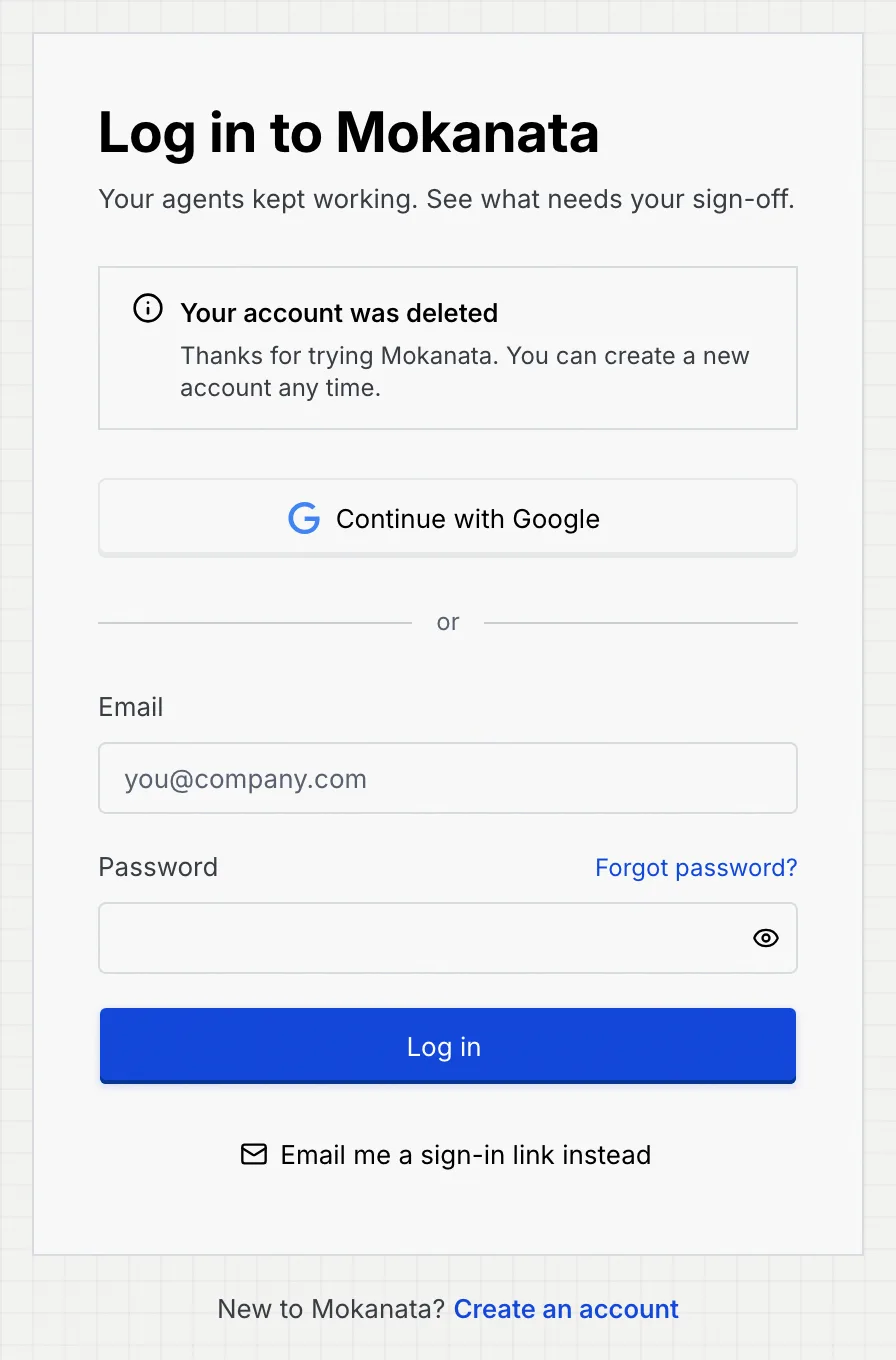
Click Delete account. You're logged out on every device and the login page says Your account was deleted. You can create a new account with the same email at any time.
Troubleshooting
You own the workspace, and an owner can't leave it. Transfer ownership to another member first, then leave, or delete the workspace.
Only the workspace owner sees them. Ask the owner, whose name is on the Members tab of Members & roles, to do it or to transfer ownership to you.
The text has to match exactly. For a workspace, type its name with the same capitals and spaces as shown in the dialog. For your account, type your full login email.
Something went wrong and nothing was removed. The message in the dialog says why. Check your connection and try again.
Next steps
Passkeys, authenticator and devices
Add, rename and remove passkeys, make new recovery codes or reset your authenticator app, and sign out devices you don't use.
Notifications
Choose which alerts reach you by email, push or in the app, pause them during quiet hours, and set when the weekly digest arrives.