Notifications
Choose which alerts reach you by email, push or in the app, pause them during quiet hours, and set when the weekly digest arrives.
Notifications decide what Mokanata tells you about and where, so the alerts that need you stand out. Your choices are yours alone: each teammate sets their own, and they apply in every workspace you belong to.
Coming soon
Mokanata saves these choices, but doesn't send alerts by email or push, collect them under the bell, or send the weekly digest yet. Until it does, drafts that wait for you are in the Command center, and channel alerts are on the Setup page.
- Who can use it: Everyone, for their own alerts.
- Before you start: Quiet hours and the digest follow the time zone on your profile. Check it's right first.
Choose your alerts
Open Notifications
Go to Settings → Notifications. The Alerts panel lists each kind of alert, with a checkbox for each way it can reach you.
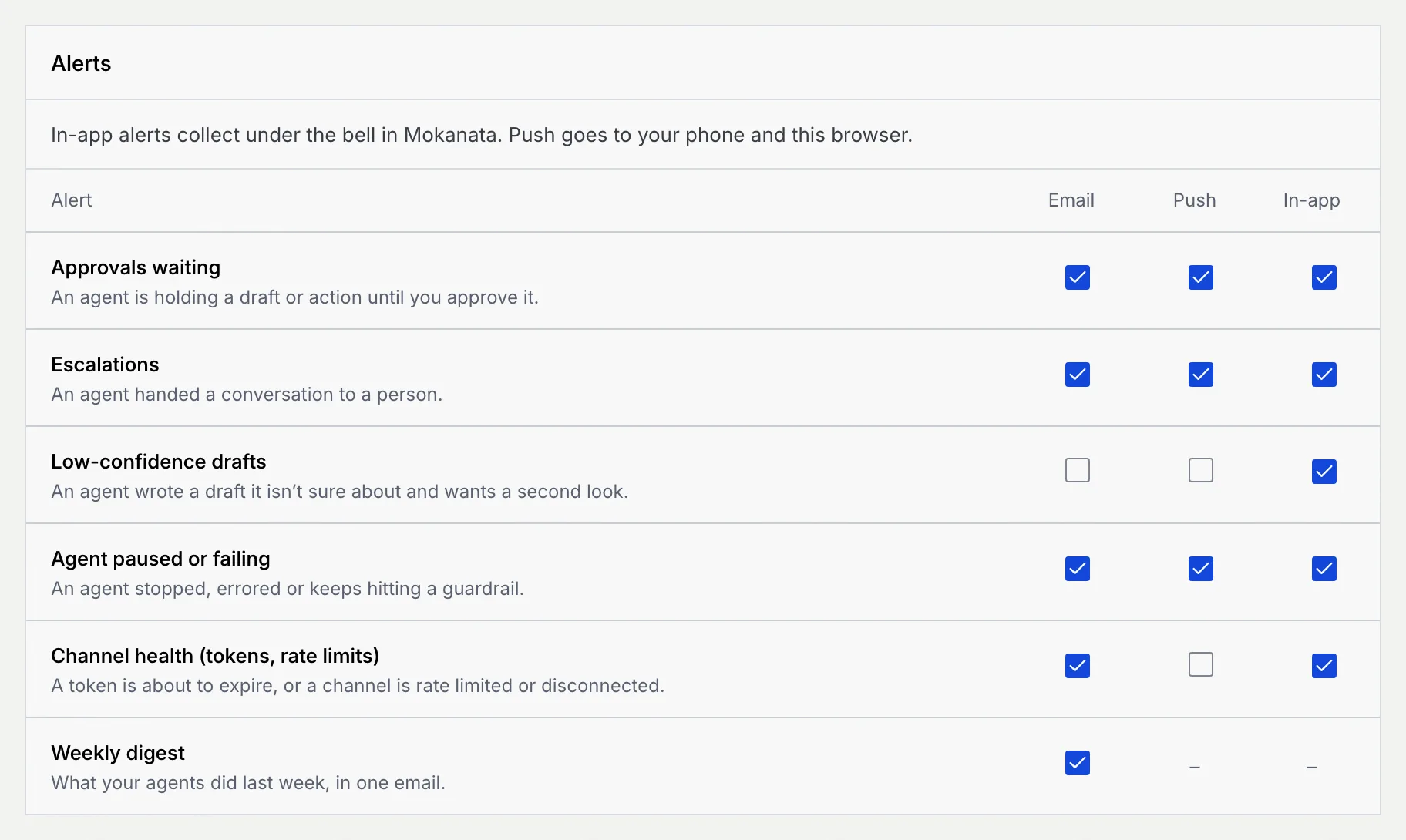
Tick where each alert goes
- Email goes to your login email.
- Push goes to your phone and this browser.
- In-app is meant for the bell at the top of Mokanata, which has no notifications feed yet.
| Alert | When it fires | Starts on |
|---|---|---|
| Approvals waiting | An agent is holding a draft or action until you approve it. | Email, Push, In-app |
| Escalations | An agent handed a conversation to a person. | Email, Push, In-app |
| Low-confidence drafts | An agent wrote a draft it isn't sure about and wants a second look. | In-app |
| Agent paused or failing | An agent stopped, errored or keeps hitting a guardrail. | Email, Push, In-app |
| Channel health (tokens, rate limits) | A token is about to expire, or a channel is rate limited or disconnected. | Email, In-app |
| Weekly digest | What your agents did last week, in one email. | Email (it only comes by email) |
Save
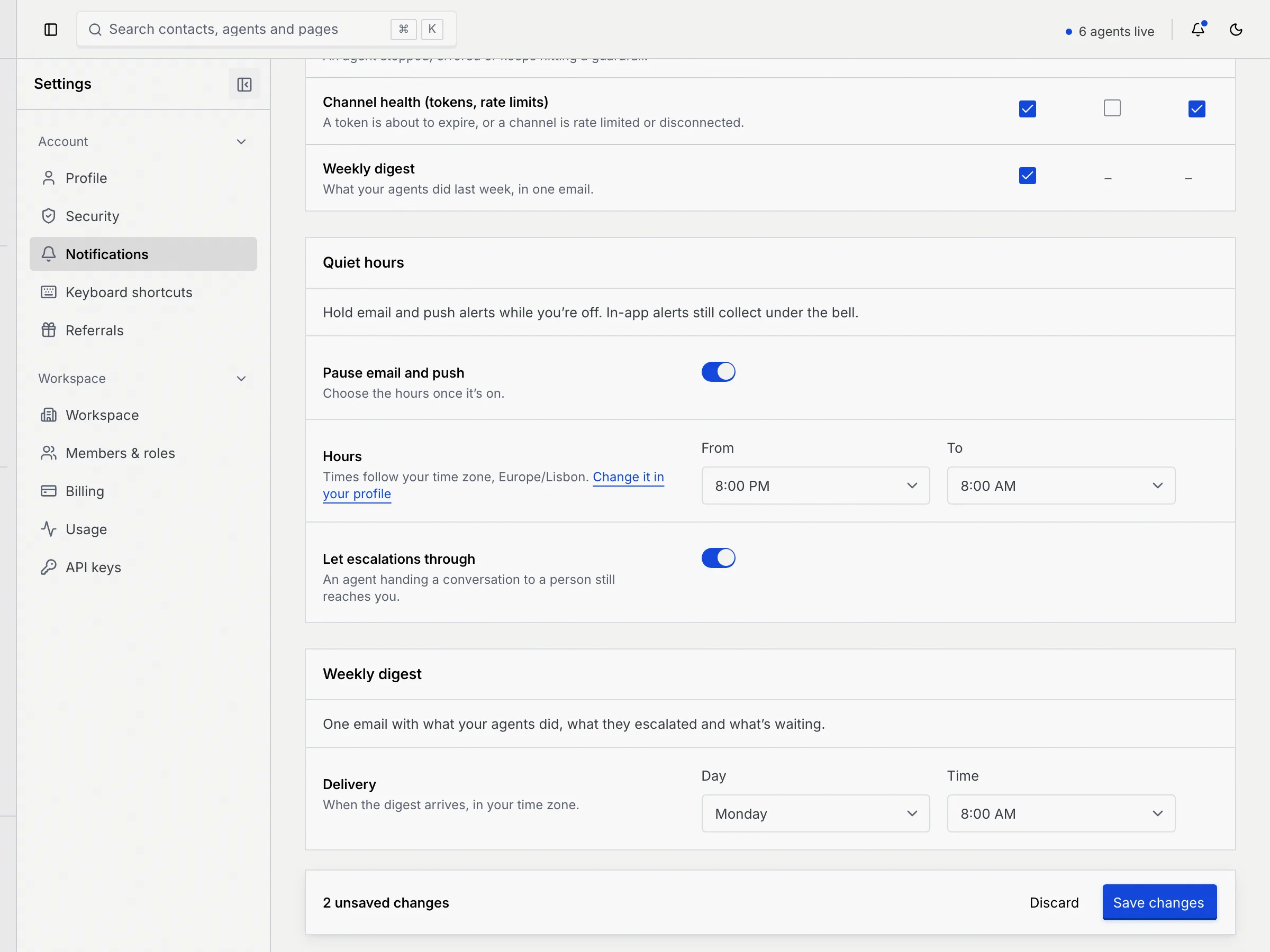
A bar at the bottom of the page counts your changes. Click Save changes; you see Notification settings saved. Click Discard to go back to what's saved. If you leave the page before saving, Mokanata asks Discard unsaved changes? first.
Set quiet hours
Quiet hours are meant to hold email and push alerts while you're off, once Mokanata sends them.
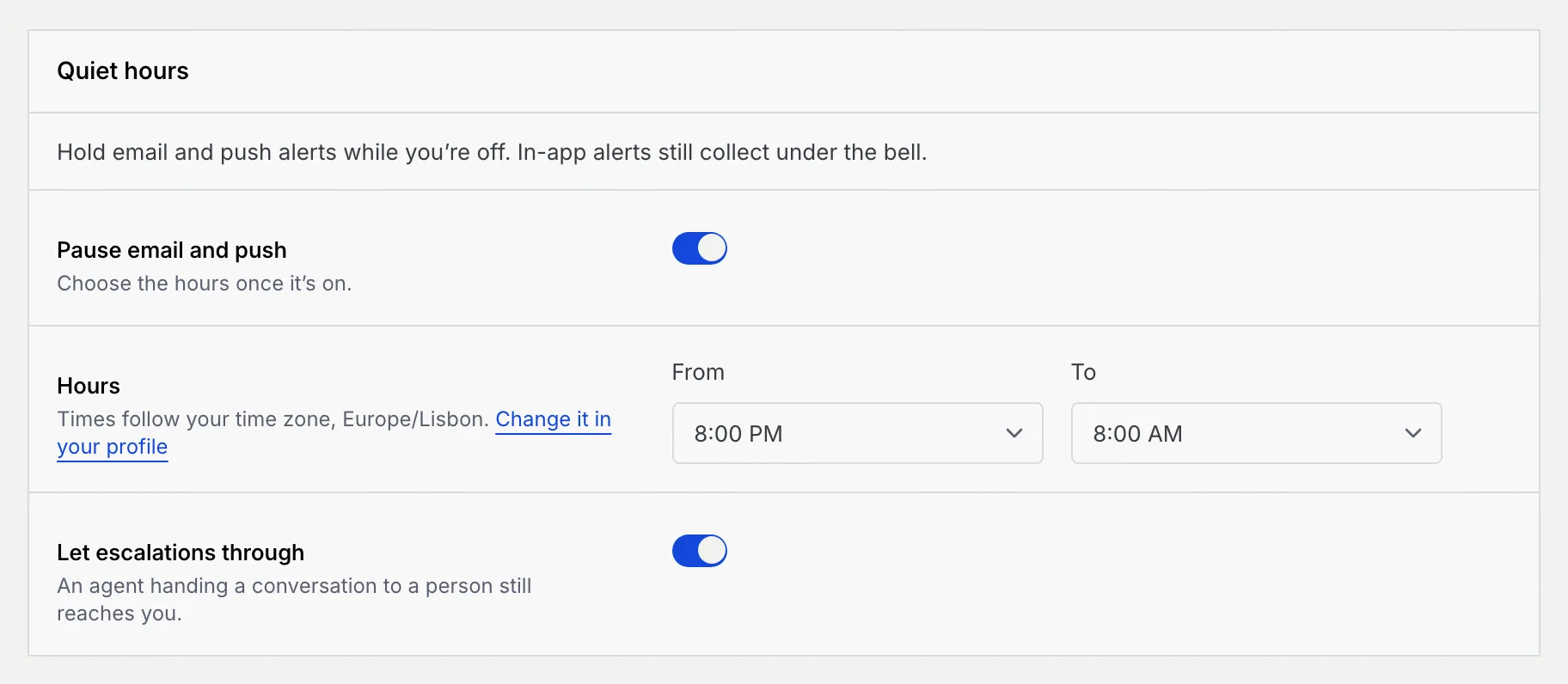
Turn on Pause email and push
In Quiet hours, switch on Pause email and push. The Hours and Let escalations through settings appear.
Choose the hours
Pick From and To, in half hours. They start at 8:00 PM to 8:00 AM, and can run past midnight. The times follow your time zone, shown under Hours; Change it in your profile takes you to your profile if it's wrong.
The start and end can't be the same time.
Decide about escalations
Let escalations through is on to start with: an agent handing a conversation to a person still reaches you during quiet hours. Switch it off to hold escalations too.
Save
Click Save changes in the bar at the bottom.
Choose when the weekly digest arrives
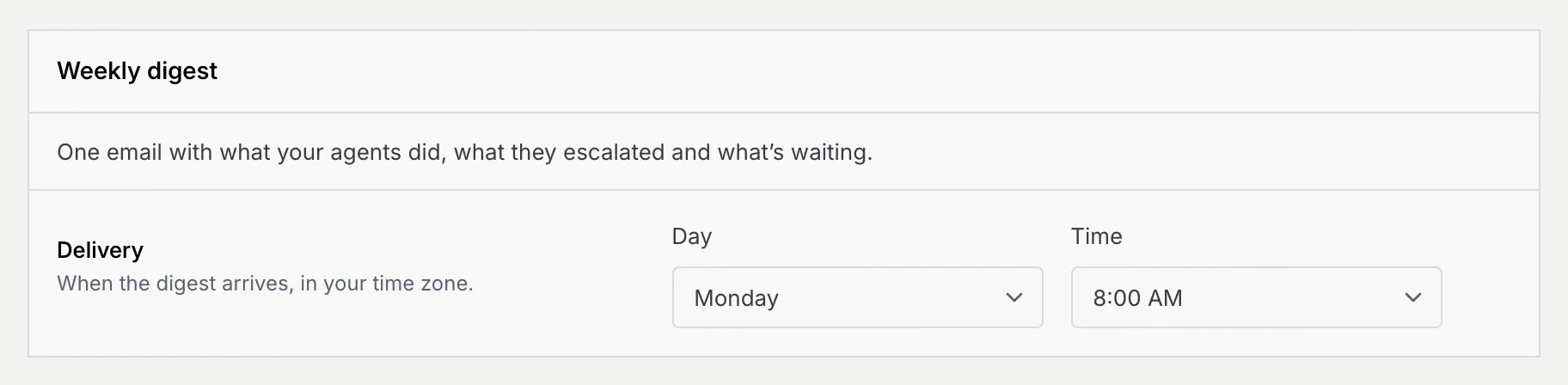
The weekly digest is meant to be one email with what your agents did, what they escalated and what's waiting. Mokanata saves when you want it, but doesn't send it yet.
Pick the day and time
In Weekly digest, choose a Day and a Time (on the hour, in your time zone). It starts on Monday at 8:00 AM.
Save
Click Save changes in the bar at the bottom.
To stop the digest, untick Weekly digest in the Email column under Alerts. The panel then says the digest is off; tick it again to choose when it arrives.

Times show in 12-hour or 24-hour form, following the workspace's language and region.
Troubleshooting
Quiet hours need a start and an end that differ. Change From or To, then save.
Mokanata couldn't save them, for example because the connection dropped. Your changes stay on the page: click Retry in the message or Save changes again.