Settings overview
Where settings live in Mokanata, the Account and Workspace sections, and which ones your role can change.
Settings holds everything about you (your profile, sign-in security, alerts, shortcuts and referrals) and everything about the workspace you're in (its name, members, billing and usage; API keys are coming soon). Each section is its own page, listed in the settings menu beside it.
- Who can use it: Everyone. The Account sections are yours and always editable. The Workspace sections change what everyone in the workspace sees, so only owners and admins change them; members and viewers can open them to read, with a View only notice.
- Before you start: Nothing.
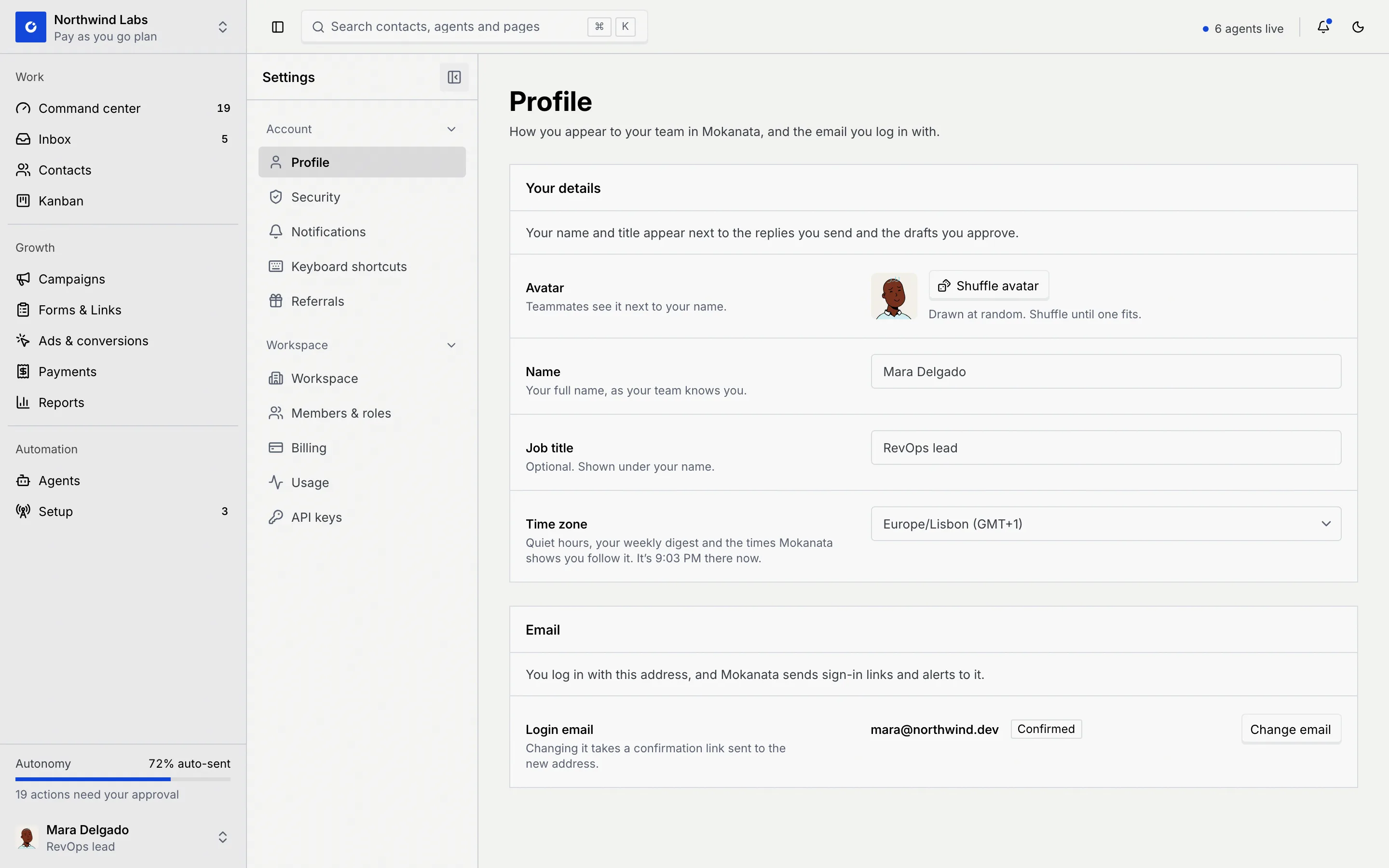
Open settings
Use the account menu
At the bottom of the sidebar, click your name. Choose Profile to go straight to your profile, or Settings to open the settings, which start on Profile too.
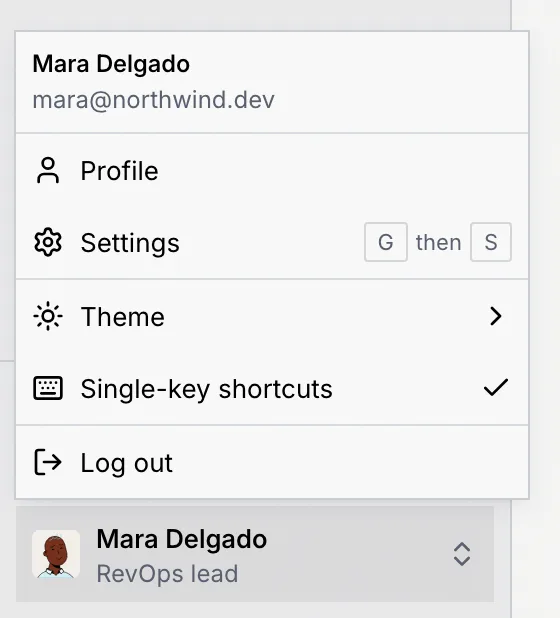
Or press G then S
Anywhere in Mokanata, press G and then S to open settings. See Keyboard shortcuts for every go-to key.
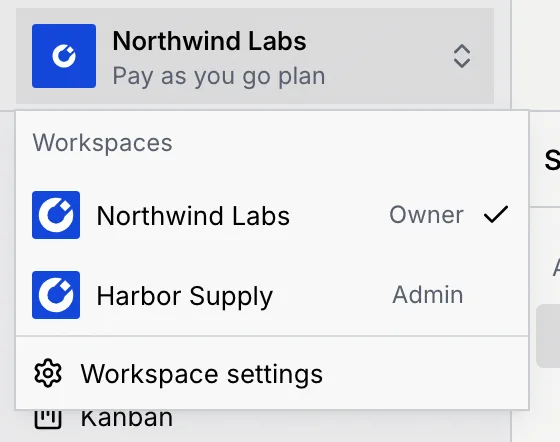
Go to the workspace settings
To change the workspace itself, click the workspace name at the top of the sidebar and choose Workspace settings. It opens the Workspace page.
Or search for a section
Press ⌘ K (Ctrl K on Windows and Linux) and type the section's name, such as "security" or "billing". Settings results read "Profile · Settings", "Danger zone · Settings" and so on. Language & region and Danger zone jump straight to their part of the page. Referrals isn't in the search yet: open it from the settings menu.
Find your way around the settings menu
The settings menu has two groups.
| Group | Section | What it holds |
|---|---|---|
| Account | Profile | Your name, job title, avatar, time zone and login email. |
| Account | Security | Your passkeys, authenticator app, signed-in devices and the Danger zone. |
| Account | Notifications | Which alerts you want by email, push or in the app, quiet hours and the weekly digest (saved; not sent yet). |
| Account | Keyboard shortcuts | Every shortcut, and the keys you've changed. |
| Account | Referrals | Your referral link, the people you referred and the credit they earned. |
| Workspace | Workspace | The workspace name, address, team size and logo, plus custom domains and language and region. |
| Workspace | Members & roles | Members and invites, roles and permissions and channel access. |
| Workspace | Billing | The plan, payment card, invoices, credits and billing emails. |
| Workspace | Usage | Agent actions, AI tokens and messages for any date range. |
| Workspace | API keys | Coming soon. Keys for code and AI assistants; nothing uses them yet. |
On a wide screen the menu sits to the left of the page:
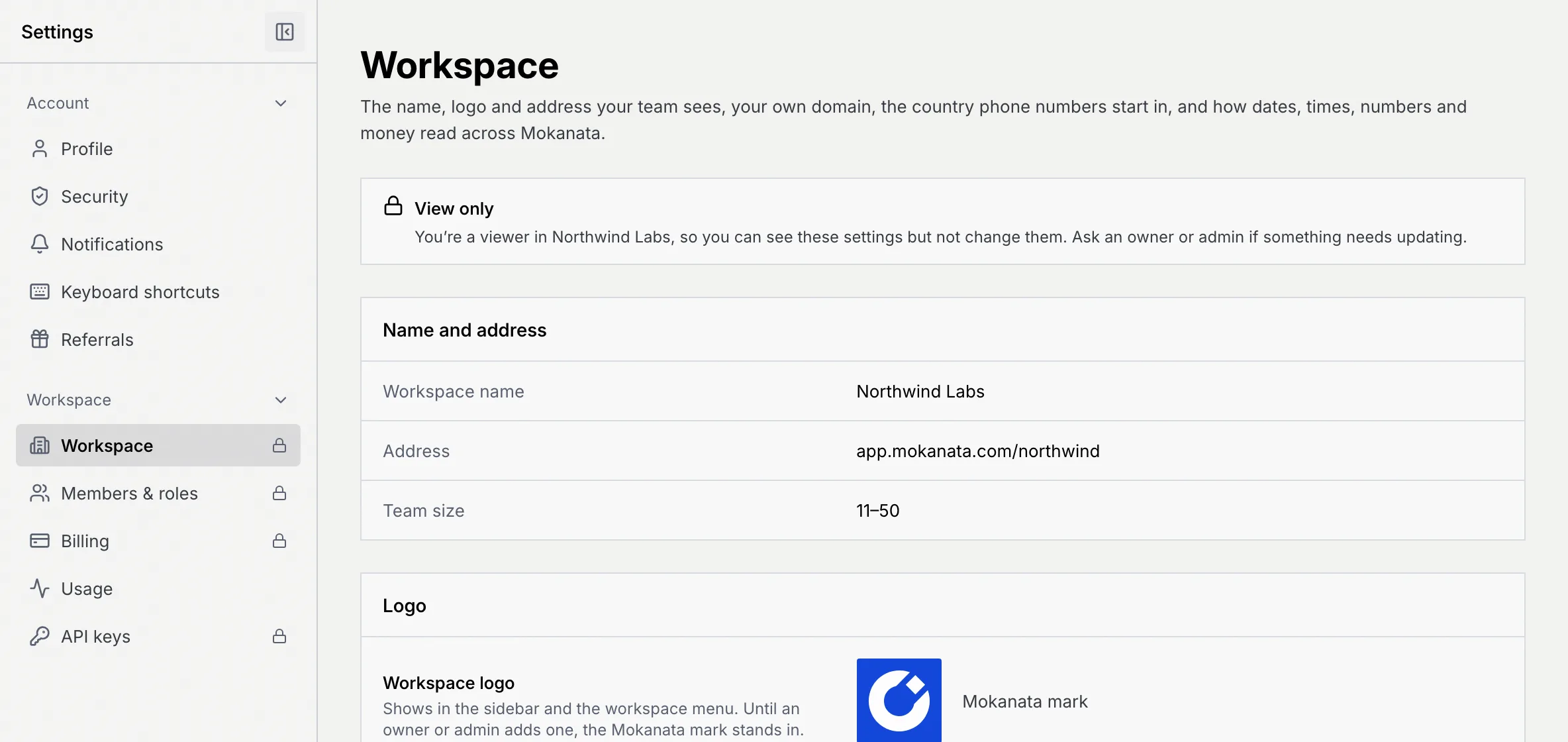
- Click Account or Workspace to fold that group away. A folded group shows how many sections it holds, such as "Workspace · 5".
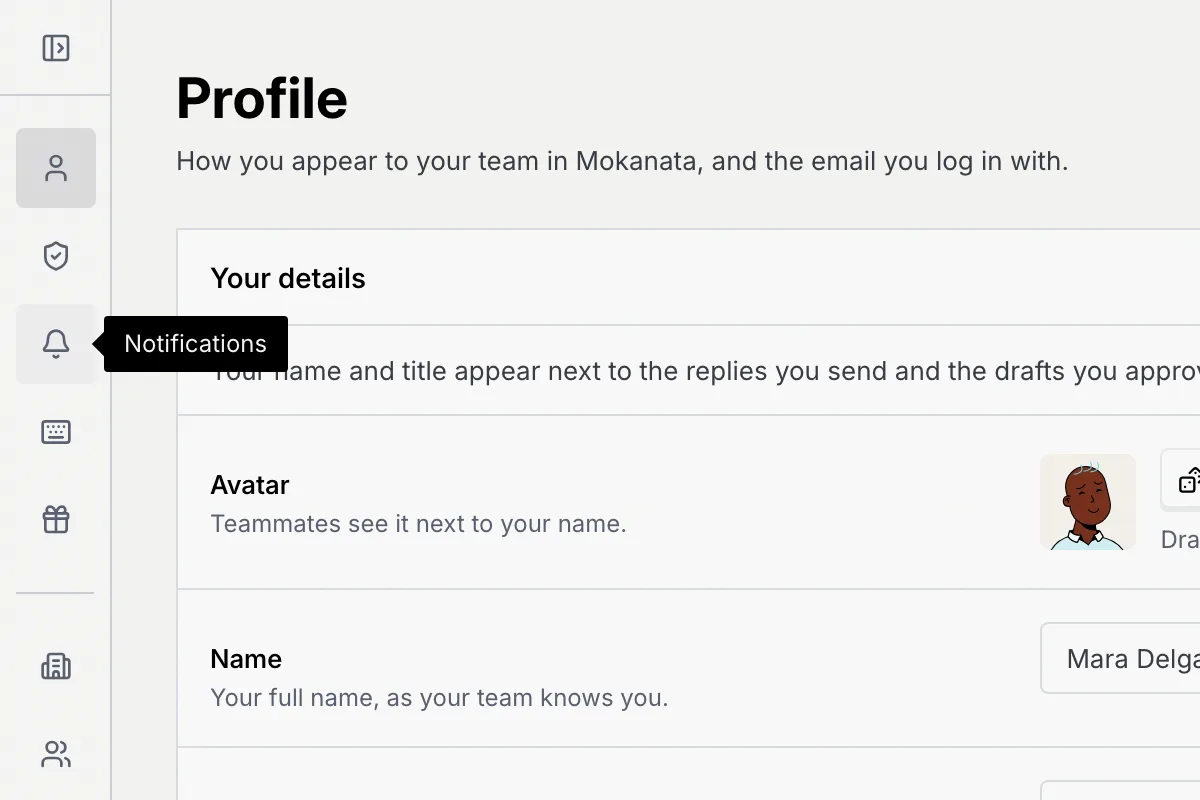
- Click the panel button next to Settings to collapse the menu to a narrow rail of icons. Point at an icon to see its name, and click the button again to expand it.
Mokanata remembers both choices in this browser.
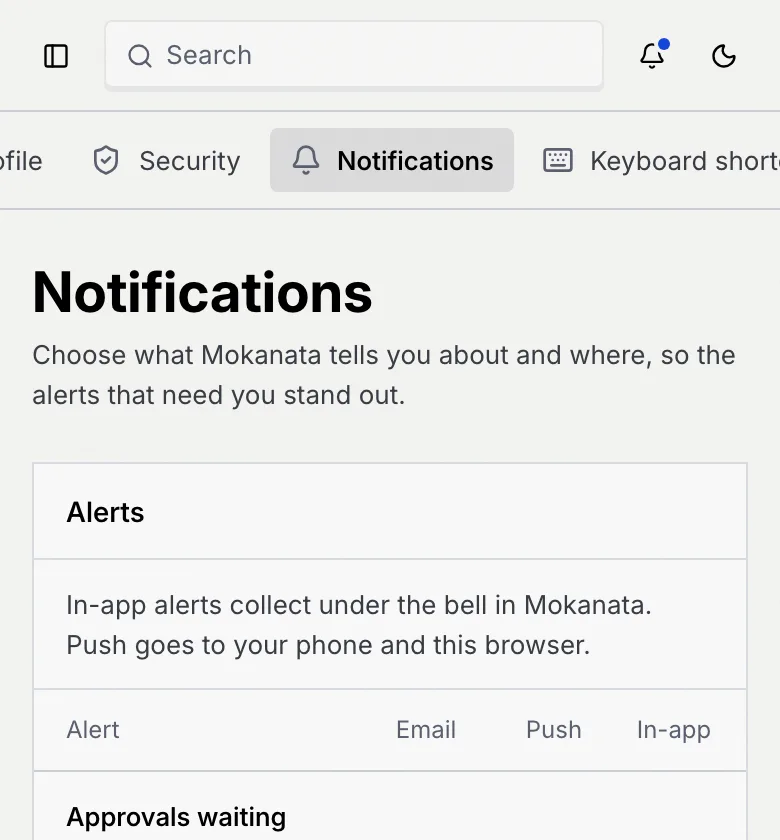
On a phone or a narrow window, the sections become one row above the page. Swipe it sideways; the section you're on stays in view.
What your role can change
Your role in the workspace decides whether you can change the Workspace sections. The Account sections are always yours to change, whatever your role.
| Section | Owner | Admin | Member | Viewer |
|---|---|---|---|---|
| Profile, Security, Notifications, Keyboard shortcuts, Referrals | Change | Change | Change | Change |
| Workspace, Members & roles, Billing | Change | Change | View only | View only |
| Usage | Read and export | Read and export | Read | Read |
| Danger zone: leave the workspace | No (transfer ownership first) | Yes | Yes | Yes |
| Danger zone: transfer ownership, delete the workspace | Yes | No | No | No |
| Danger zone: delete your account | Yes | Yes | Yes | Yes |
A custom role follows the access level it's built on: a custom role on Admin access changes workspace settings, one on Member or Viewer access reads them. See Roles and permissions.
If you can't change a workspace section, it shows a lock in the settings menu. It still opens, and a View only notice under the title says your role and who to ask. The page shows the settings as plain facts instead of fields.
Save your changes
Pages with a form, such as Profile and Notifications, don't save as you type. When you change something, a bar appears at the bottom of the page with how many changes are waiting, Discard and Save changes. Pressing Enter in a field saves too.
If you go to another page before saving, Mokanata asks Discard unsaved changes?. Choose Keep editing to go back, or Discard and leave to lose the changes. If you reload or close the tab instead, your browser asks whether to leave.
Some settings save the moment you change them instead, such as keyboard shortcuts, the workspace logo and custom domains. Each guide says which.
Old settings links
Some settings moved. Bookmarks to the old addresses still work and take you to the new place.
| Old address | Opens |
|---|---|
/settings | Profile |
/settings/members | Members & roles, on the Members tab |
/settings/channel-access | Members & roles |
/settings/language-region | Workspace, at Language and region |
/settings/danger-zone | Security, at the Danger zone |
A few dialogs have an address of their own, so you can share a link that opens them, and your browser's Back button closes them, such as inviting referrals by email (/settings/referrals?dialog=invite).
Troubleshooting
The address doesn't match a settings section, often because of a typo or an old link. Pick a section from the settings menu, or click Open your profile.
Your role reads workspace settings but can't change them. Ask an owner or admin in your workspace to make the change, or to give you a role with Admin access. See Roles and permissions.
Mokanata couldn't fetch that part of the page. When the message ends with "Mokanata can't be reached", check your connection. Then click Try again. If the whole page says This page didn't load or You're offline, click Try again there.
When a save fails, the message says what didn't save and why. If the connection or Mokanata was the problem, it has a Retry button that stays until you use it. Too many attempts means you tried something too often in a short time: wait the time it shows, then try again. A message that only owners and admins can change something means your role reads that setting but can't change it.
Referrals isn't in the search yet. Open settings and choose Referrals in the Account group.