Pipeline and account reports
Follow conversations through your sales funnel, see where deals come from and why they're lost, and check the health of your customer accounts.
The Pipeline tab of Reports follows conversations from first message to paid order: how many qualify, get a quote and pay, which channels and lead sources win most, how long deals take and why they're lost. The Accounts tab shows your customer accounts as they stand today: what each pays you every month and whether it's growing.
- Who can use it: Everyone in the workspace can open these reports. Downloading a chart or its data needs Export reports (owners and admins by default); see Tables and exports.
- Before you start: The Pipeline tab fills in as conversations move through your deal stages. To pick dates, see Reports.
Open the Pipeline report
Go to the Pipeline tab
In the sidebar, click Reports, then the Pipeline tab. Set the dates with the date button at the top right.
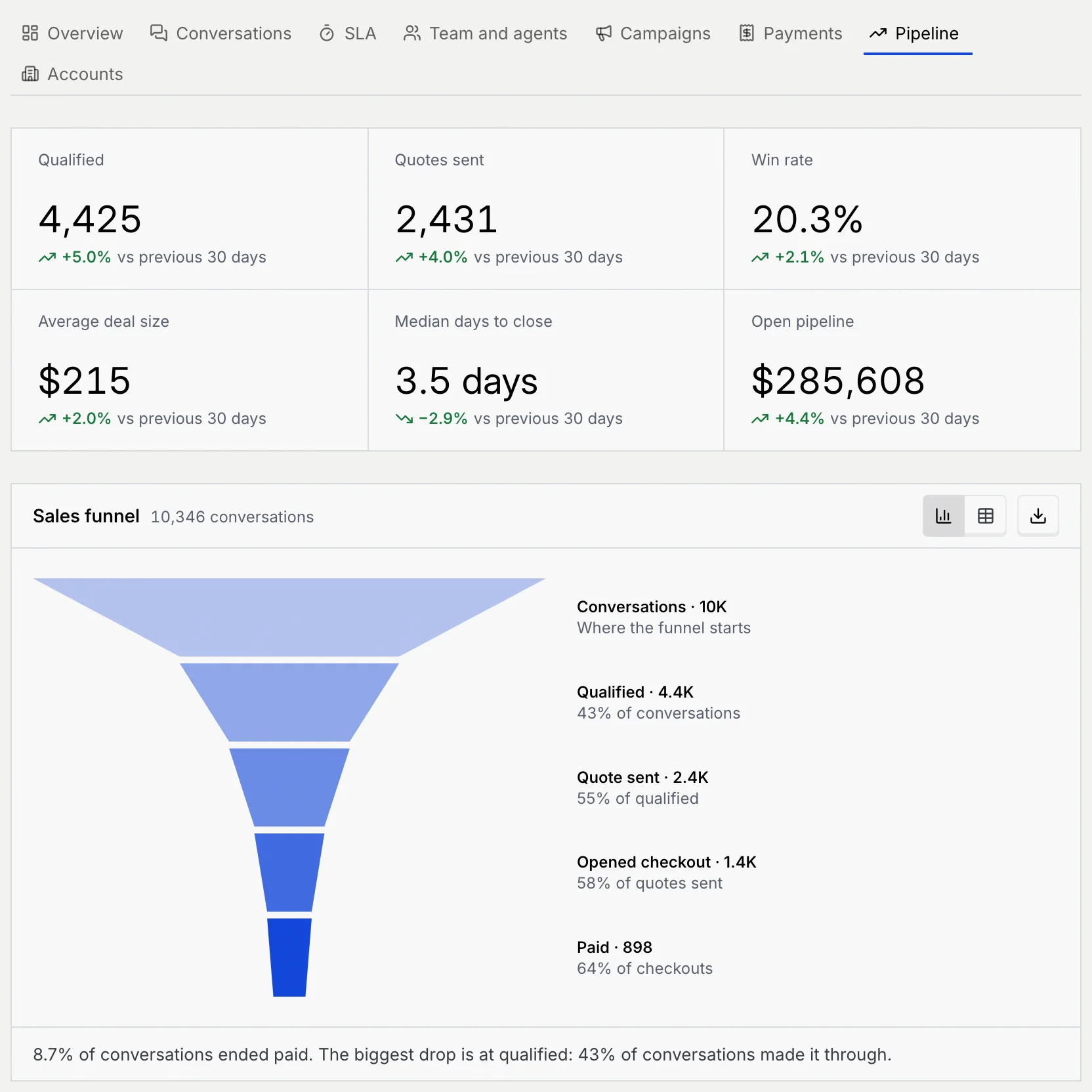
| Key number | What it counts |
|---|---|
| Qualified | Conversations that qualified as a deal in the range |
| Quotes sent | Deals that got a quote |
| Win rate | Paid deals out of qualified ones |
| Average deal size | Revenue divided by paid deals, in your workspace currency |
| Median days to close | The median days from qualified to paid. Lower is better. |
| Open pipeline | The value of qualified deals from the range that are still open, in your workspace currency |
Read the Pipeline report
Sales funnel
The funnel shows each stage a conversation can reach: Conversations, Qualified, Quote sent, Opened checkout and Paid. Beside each band, its count and the share that made it from the stage before, for example "55% of qualified". The line under the chart names the step with the biggest drop. Point at a band to see its count, its share of the step before and its share of all conversations.
Conversation flow
Conversation flow follows every conversation in three columns: where it came from (Click-to-WhatsApp ads, Organic inbound, Broadcast campaigns or Referrals), who handled it (Handled by agents or Handled by your team), and how it ended (Paid, Still open or No sale). The wider a band, the more conversations took that path.
Point at a band to see how many conversations took it and what share of the column before it they are; point at a block to see its total and its share of all conversations.
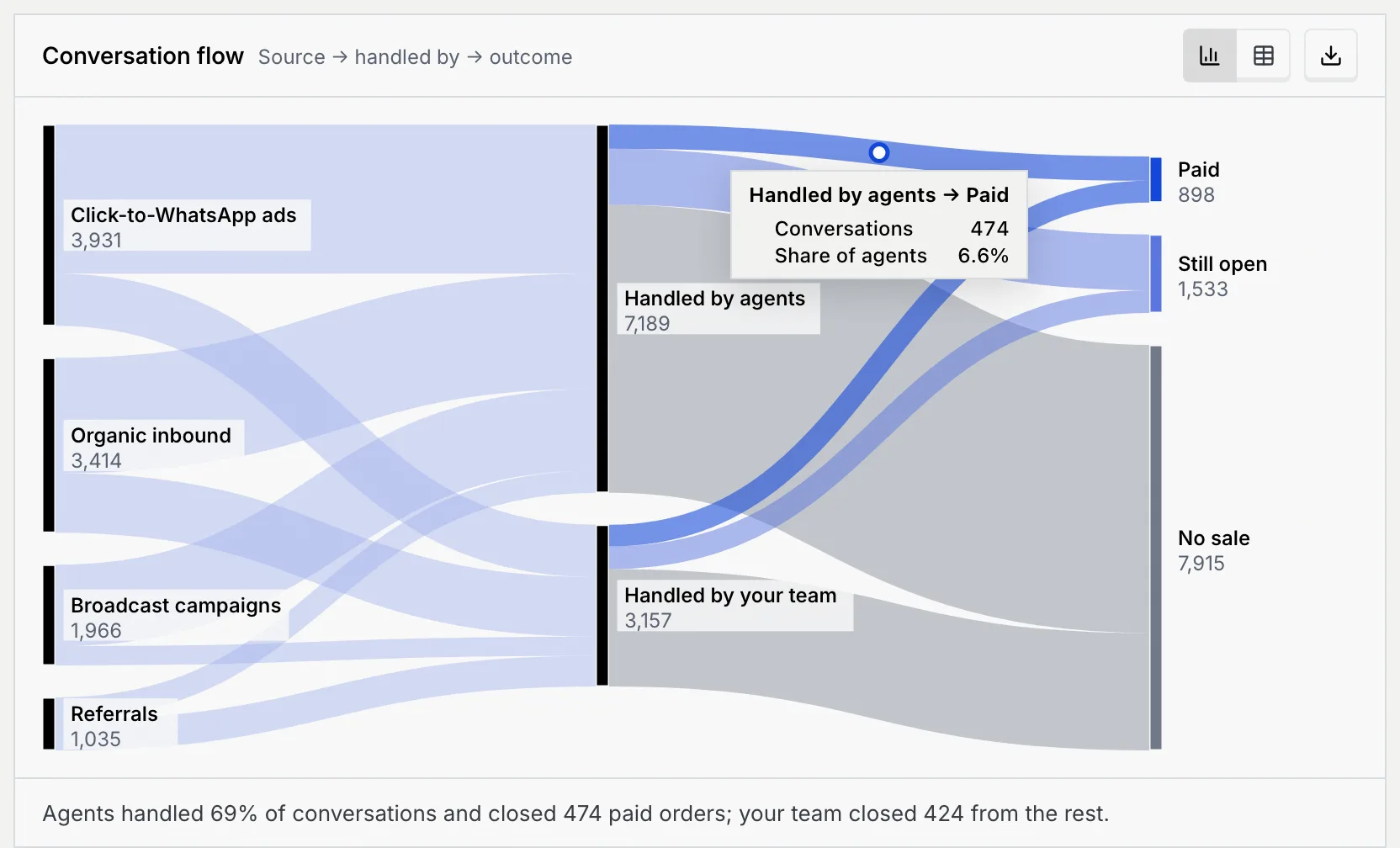
The table lists every band as a row (From, To, Conversations and Share of “from”).
Win rates, time to close and lost deals
| Chart | What it shows | How to read it |
|---|---|---|
| Win rate by channel | Paid deals out of qualified ones on each channel, best first | The dashed line is your overall win rate. The table adds the qualified and paid deals behind each rate. |
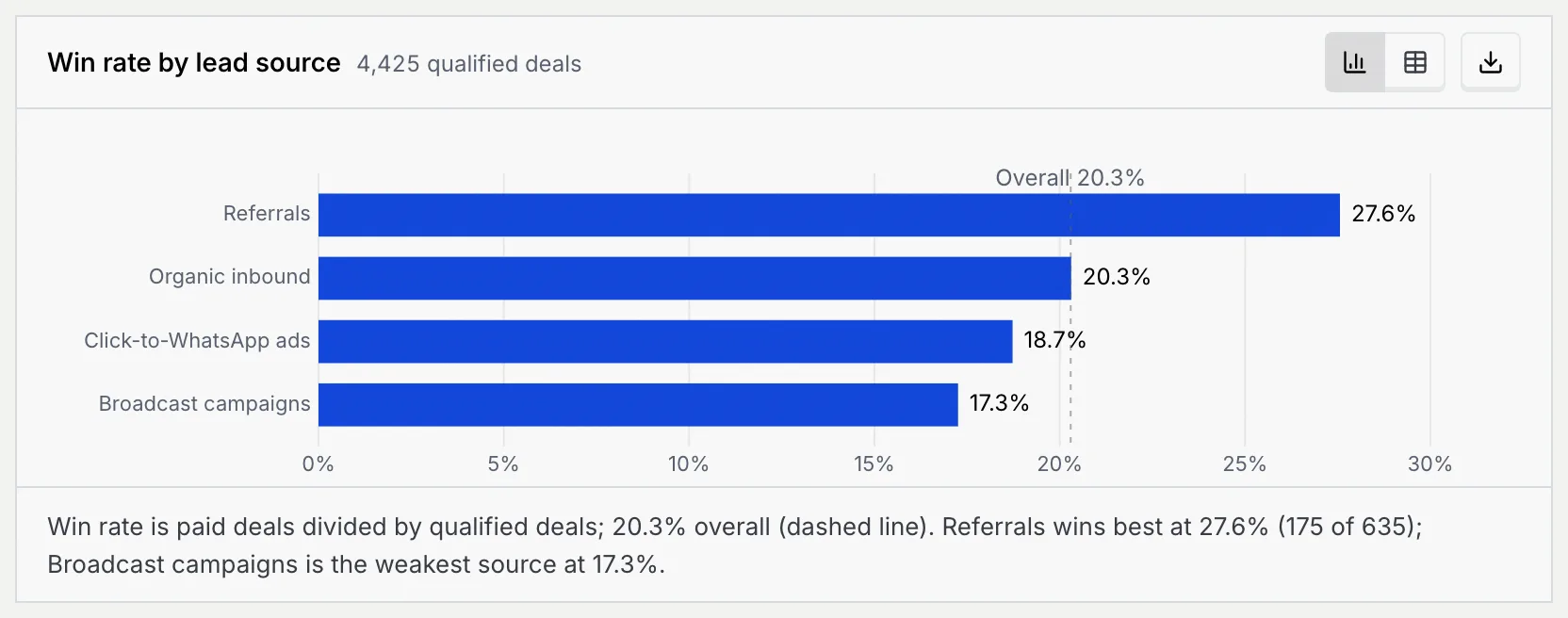
| Win rate by lead source | The same for each lead source | Shows which way in brings the deals most likely to pay. |
| Days to close | Paid deals by days from qualified to paid: Same day, 1–3 days, 4–7 days, 8–14 days, 15–30 days and 30+ days | The summary gives the median and the share that closed within a week. |
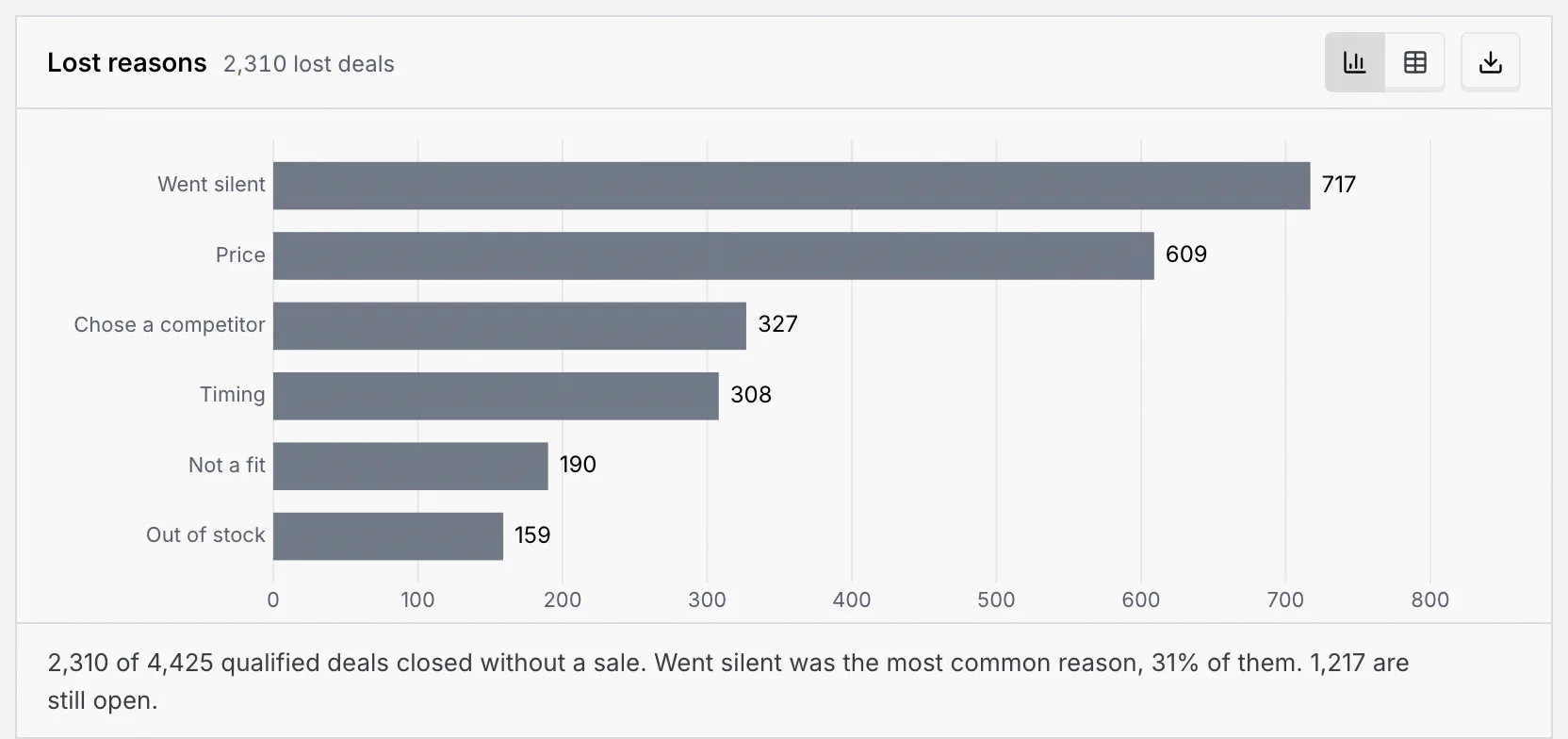
| Lost reasons | Qualified deals that closed without a sale, by reason: Went silent, Price, Chose a competitor, Timing, Not a fit and Out of stock | The summary names the most common reason and how many qualified deals are still open. The table adds each reason's share. |
| Pipeline stage movement over time | Four lines per period: Qualified, Quote sent, Opened checkout and Paid | Each stage is a subset of the one before, so the lines are drawn separately rather than stacked. |
Open the Accounts report
Go to the Accounts tab
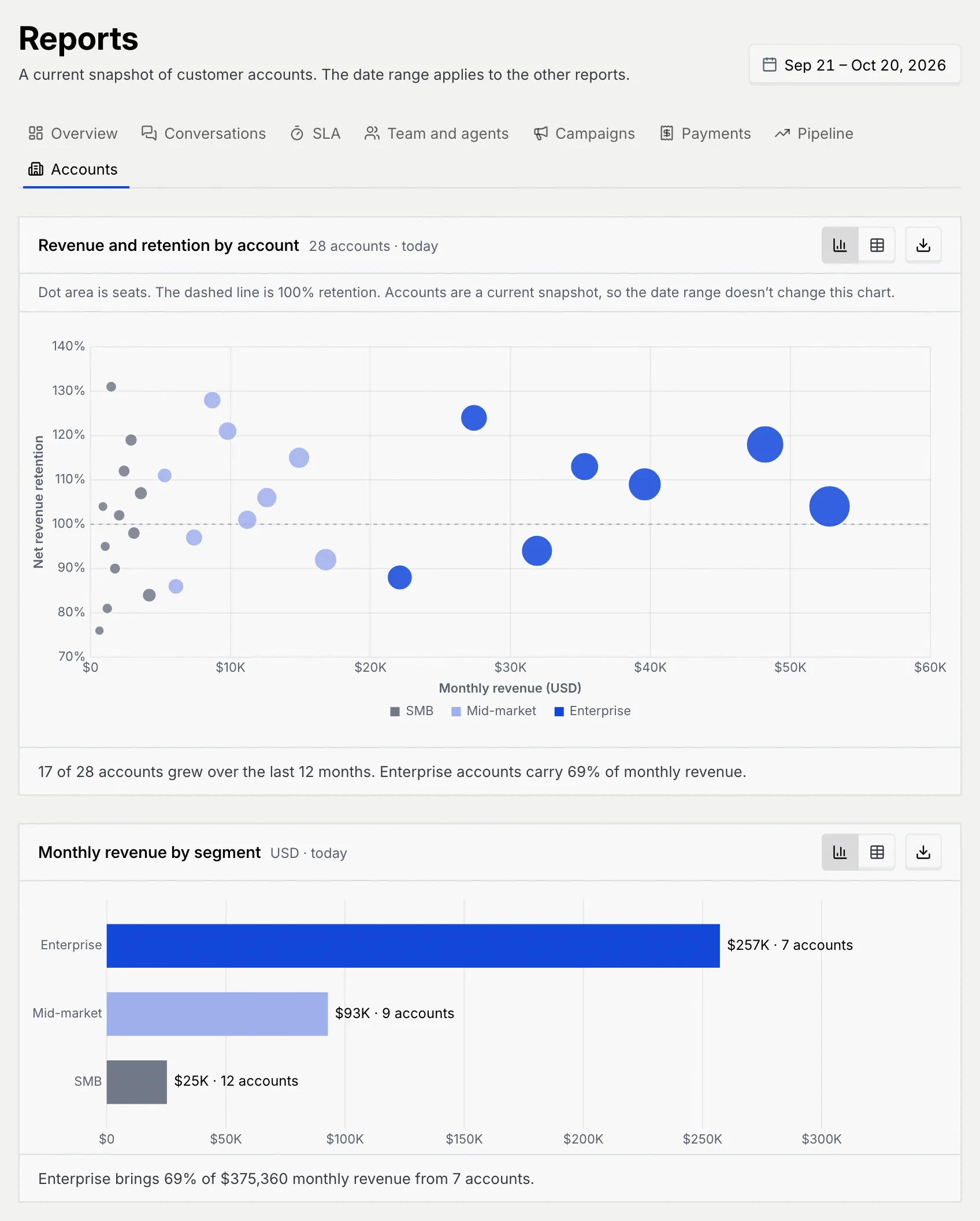
In Reports, click the Accounts tab. The line under the title changes to "A current snapshot of customer accounts. The date range applies to the other reports." The date button stays, but it doesn't change anything on this tab.
Look at one account
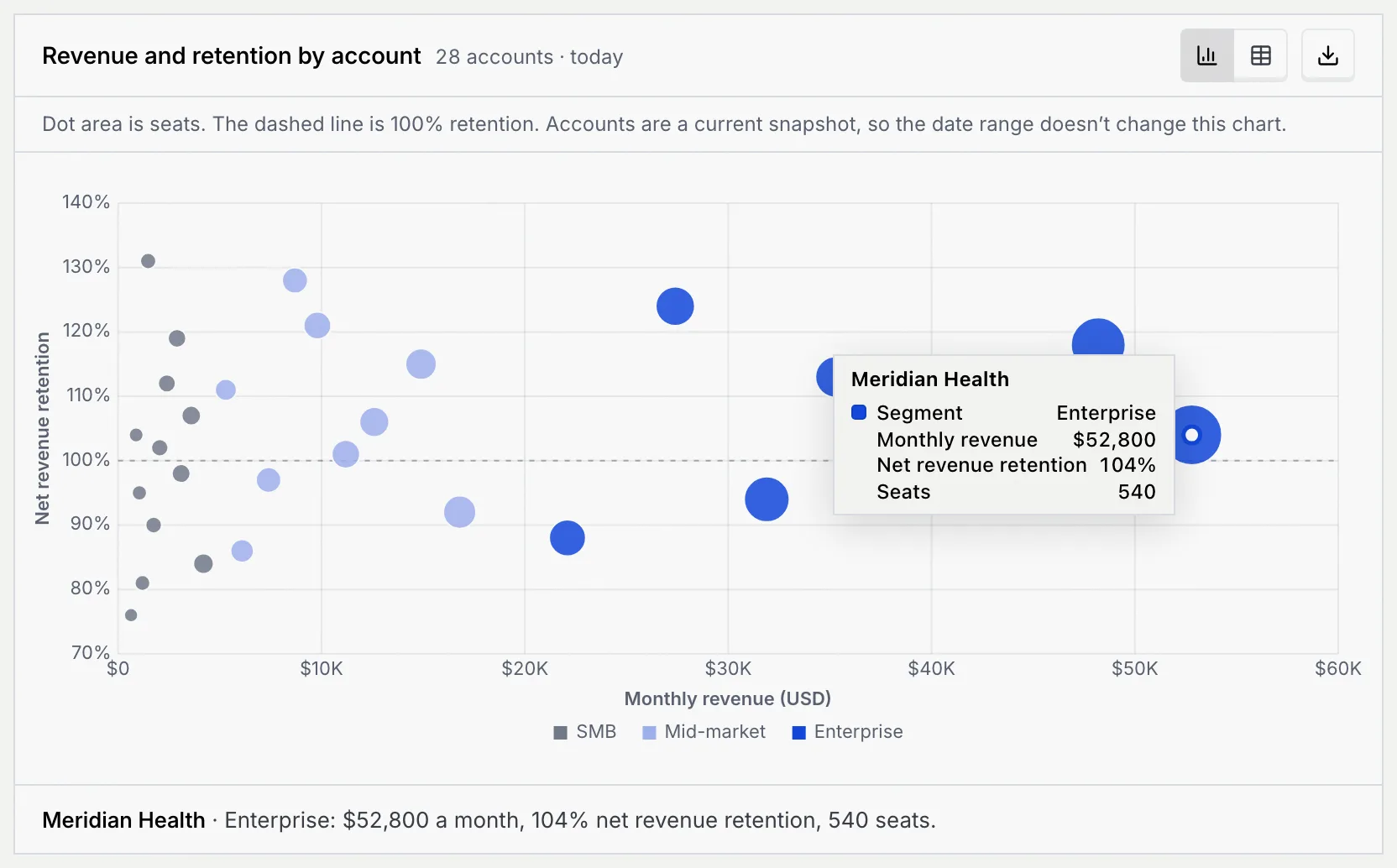
On Revenue and retention by account, point at a dot, or press Tab to focus the chart and move between accounts with the arrow keys. A tooltip shows the account's segment, monthly revenue, net revenue retention and seats, and the line under the chart repeats them.
| Chart | What it shows | How to read it |
|---|---|---|
| Revenue and retention by account | A dot per account: monthly revenue across, net revenue retention up. Dot size is seats; colour is the segment (SMB, Mid-market, Enterprise). | Dots above the dashed 100% line are accounts that grew over the last 12 months; dots below it shrank. Big dots far right are your largest accounts. |
| Monthly revenue by segment | Monthly revenue for each segment, with its number of accounts | The summary gives the biggest segment's share of monthly revenue. The table adds seats and net revenue retention per segment. |
Files downloaded from the Accounts tab have no dates in their names, because the tab always shows today.
Troubleshooting
It's a snapshot of your accounts as of today. The date range applies to every other tab.
Both count conversations that ended in a paid order in the same range, so they match.