Tables and exports
Switch any report chart to a sortable table, and download it as a PNG or JPG image, or its data as CSV or Excel.
Every chart in Reports has the same numbers behind it as a table. Switch to the table to read exact values and sort them, and download the chart as an image for a slide or its data as a spreadsheet.
- Who can use it: Everyone who can open Reports can switch charts to tables and sort them. Downloading needs the Export reports permission: owners and admins have it; members and viewers see the Export button greyed out, with the reason. See Who can export.
- Before you start: Nothing.
See a chart as a table
Switch to Table
In the chart's header, click Table (the grid icon next to Chart). The chart is replaced by a table of the same rows, often with extra columns: Revenue by channel, for example, adds Paid orders and Average order (USD). Money columns name your workspace currency.
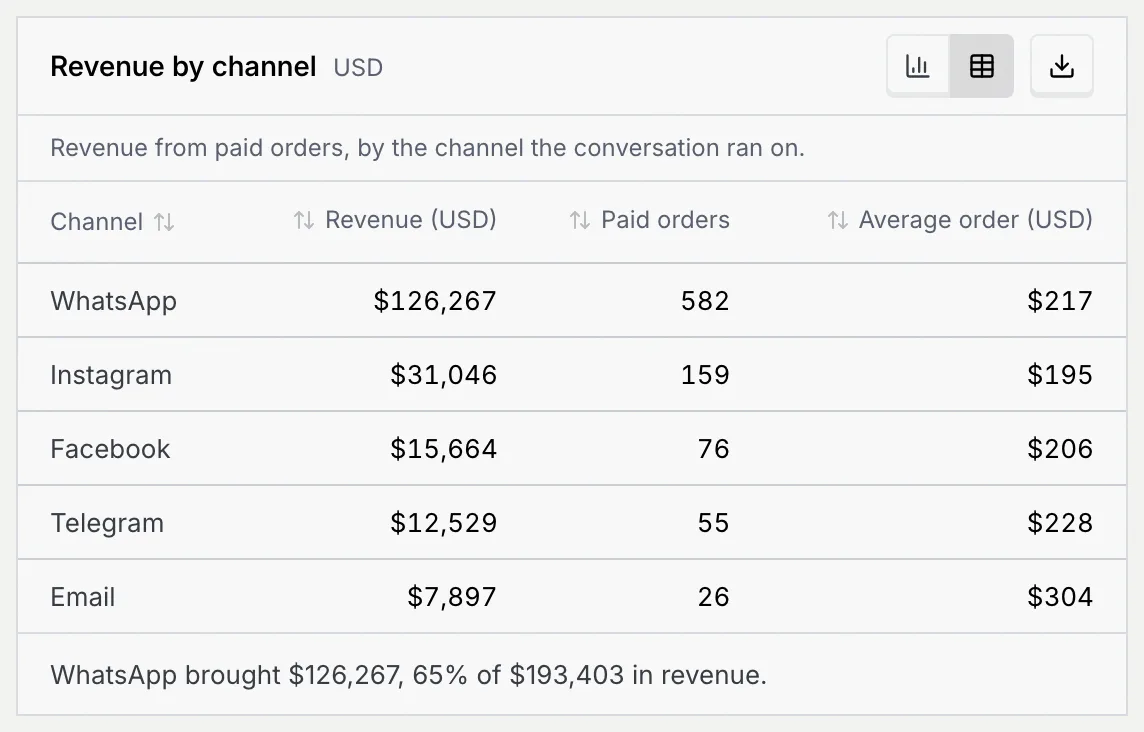
Long tables, such as a daily chart over 90 days, scroll inside the panel with the header row pinned. When a chart has nothing to show for the range, its table reads No data to show.
Sort it
Click a column header to sort by it. An arrow beside the header shows the order.
| Column | First click | Second click | Third click |
|---|---|---|---|
| Numbers | Highest first | Lowest first | Back to the chart's order |
| Text, such as names | A to Z | Z to A | Back to the chart's order |
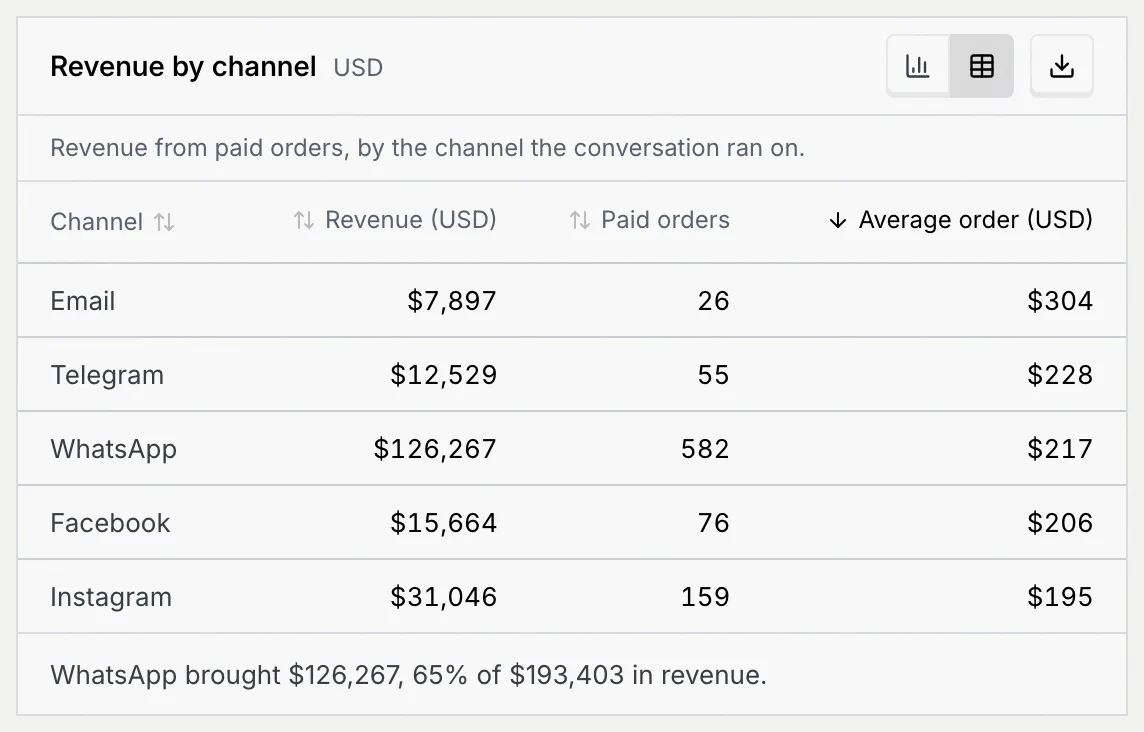
Switch back to the chart
Click Chart (the bar chart icon). Each panel keeps its view while you stay on the tab; switching tabs shows every panel as a chart again.
Download a chart or its data
Open the Export menu
In the chart's header, click Export (the download icon at the right). The menu offers the chart as an image or its rows as data, and says how many rows the data holds, for example Data · 5 rows.
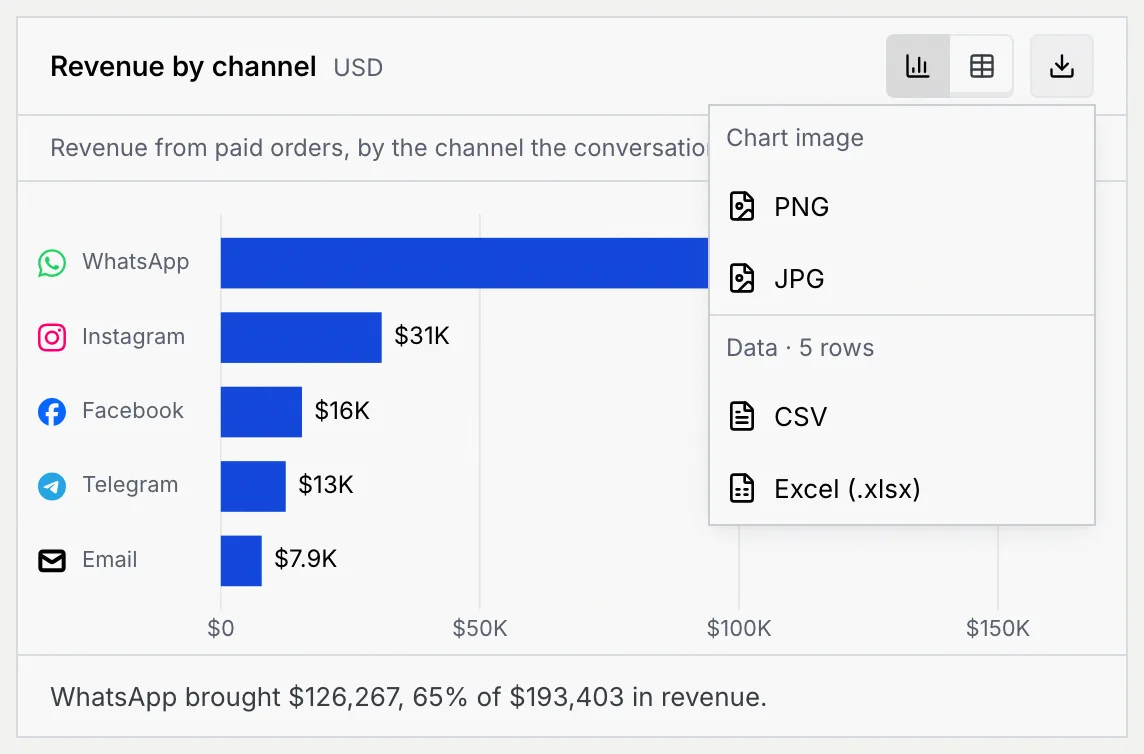
Pick a format
Click PNG, JPG, CSV or Excel (.xlsx). The file downloads straight away and a message confirms it, with the file name.
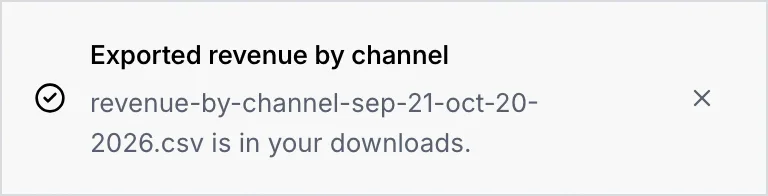
What each format holds
| Format | What you get |
|---|---|
| PNG | The chart as an image at twice screen resolution, on the panel's own background. Good for slides and documents. |
| JPG | The same image as a smaller JPG file. |
| CSV | The table's rows with a header row, as plain text that any spreadsheet or BI tool opens. |
| Excel (.xlsx) | The same rows in an Excel workbook, on one sheet named after the chart, with the header row frozen. |
- Images always show the chart, even when you export from the table view. In dark mode, the image keeps the dark background you see.
- Data files hold full numbers, not the shortened labels on the chart: $65K on a bar is 65473 in the file. Rates are fractions (0.1045 for 10.4%), so you can format them as percentages in your spreadsheet. Money is in your workspace currency, named in the column header, for example Revenue (USD).
- File names are the chart's name and the date range, for example
revenue-over-time-sep-21-oct-20-2026.pngfor the Revenue chart. Files from the Accounts tab have no dates, because that tab is a snapshot of today:accounts-revenue-and-retention.xlsx.
Who can export
Downloading charts and data needs the Export reports permission.
| Role | Open reports and switch to tables | Export |
|---|---|---|
| Owner | Yes | Yes |
| Admin | Yes | Yes |
| Member | Yes | No |
| Viewer | Yes | No |
| Custom roles | Yes | When the role has Export reports |
Without the permission, the Export button stays on every chart but is greyed out. Point at it, or move to it with Tab, to read why: "Your role, Member, can’t export reports. An owner or admin can change this in Settings → Members & roles." You can still switch any chart to a table and read every number.
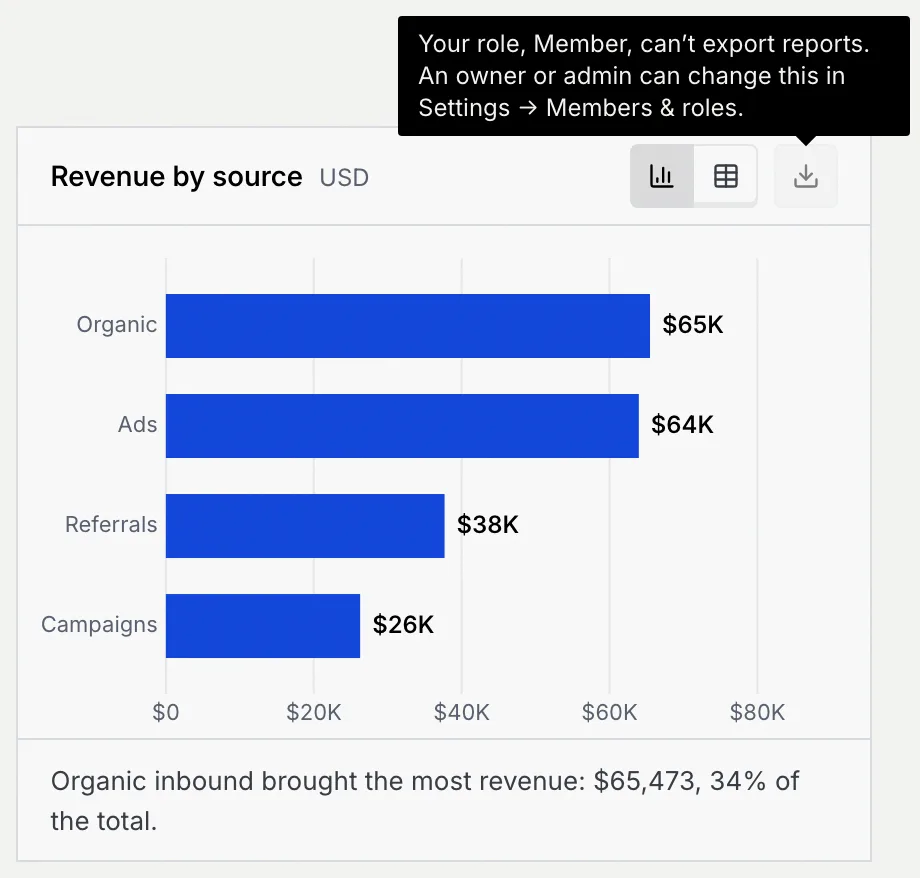
To let a teammate export, an owner or admin gives their role Export reports (under Reports) in Roles and permissions, or moves them to a role that has it in Members and invites.
Troubleshooting
Your role doesn't have Export reports. Ask an owner or admin; see Who can export.
The chart image couldn't be drawn. Try again, or download the same numbers with CSV or Excel (.xlsx) instead.
The chart shortens values ($65K, 10.4%), while the file keeps the full figures (65473, 0.1045). They're the same numbers.
You sorted a column. Click the same header until the arrow disappears to go back to the chart's order.