Conversation and SLA reports
Volume, replies, response times, close reasons and busy hours by channel, plus SLA compliance, breaches and backlog.
The Conversations and SLA tabs of Reports show how much your customers write, how fast and how well you answer, and where conversations end up. Use them to staff the busy hours, spot a channel that's falling behind and check you're keeping your reply and resolution promises.
- Who can use it: Everyone in the workspace can open these reports. Downloading a chart or its data needs Export reports (owners and admins by default); see Tables and exports.
- Before you start: At least one connected channel. To pick dates and read the headline numbers, see Reports.
Open the Conversations report
Go to the Conversations tab
In the sidebar, click Reports, then the Conversations tab. Set the dates with the date button at the top right. The tab opens with six key numbers and Conversations by channel.
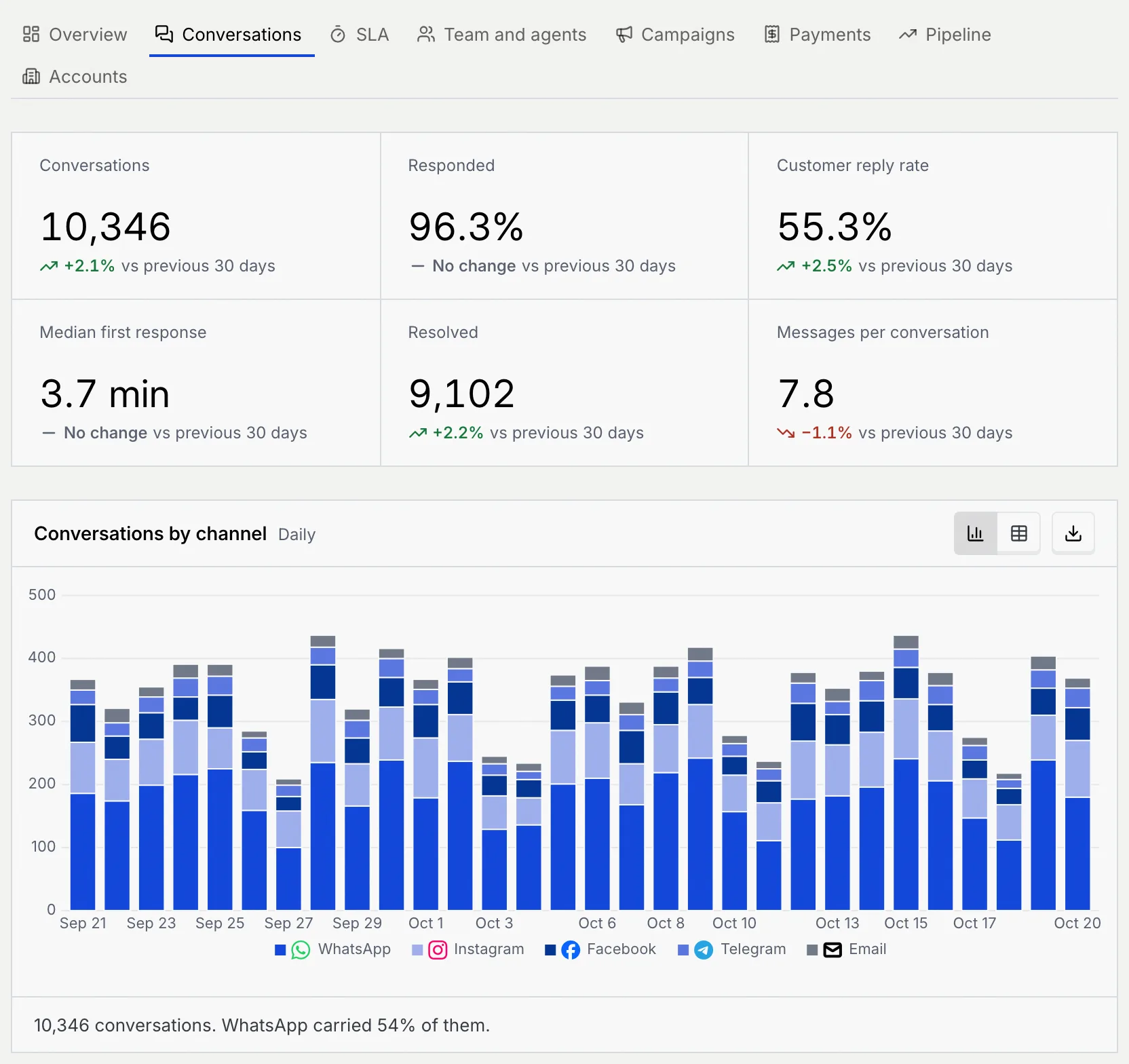
| Key number | What it counts |
|---|---|
| Conversations | Conversations started in the range |
| Responded | Of active conversations (the customer sent at least one message), the share you replied to |
| Customer reply rate | Of conversations where you sent the first message, the share where the customer replied |
| Median first response | The median time to your first reply. Lower is better. |
| Resolved | Conversations resolved in the range |
| Messages per conversation | The average number of messages in a new conversation, both sides counted |
Read the Conversations report
Volume and replies
| Chart | What it shows | How to read it |
|---|---|---|
| Conversations by channel | New conversations per period, stacked by channel (the sample workspace shows sample channels; WhatsApp, Messenger and Instagram go live once Mokanata's Meta app is approved, and more are coming soon) | The height of each bar is the day's (or week's) total; the summary says which channel carried the most. The table adds a Total column. |
| Active vs responded conversations | Two lines: Active (the customer sent at least one message in the period) and Responded (you replied) | The gap between the lines is conversations nobody answered. The table adds Unanswered and Responded rate. |
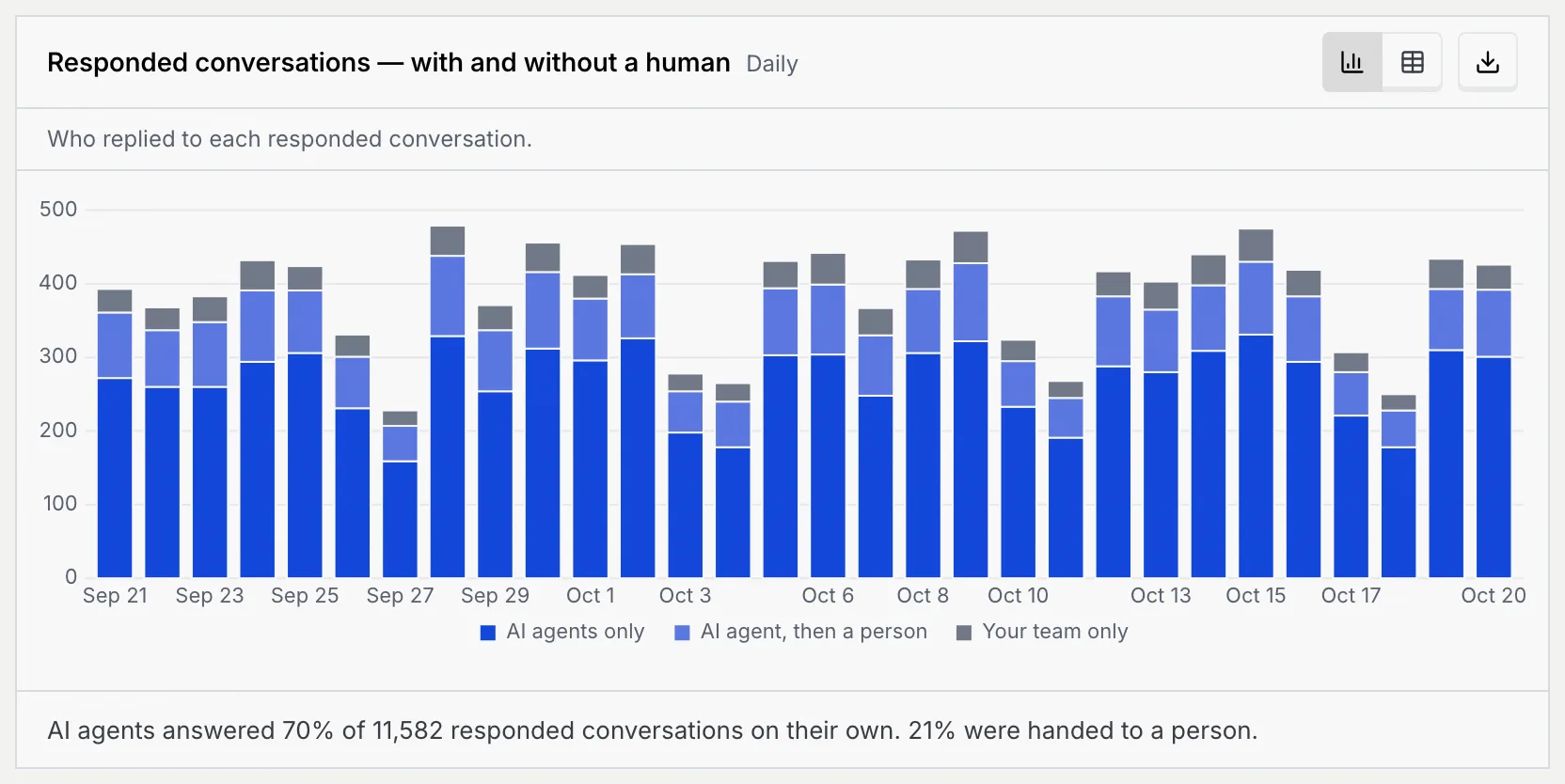
| Responded conversations — with and without a human | Who replied to each responded conversation: AI agents only, AI agent, then a person, or Your team only | A growing AI agents only share means agents handle more without help. The middle band is conversations an agent handed to a person. |
How conversations close
| Chart | What it shows | How to read it |
|---|---|---|
| Resolved by agents and people | Resolved conversations per period, stacked: Resolved by agents and Resolved by your team | The table adds Agent share, the agents' part of each period. |
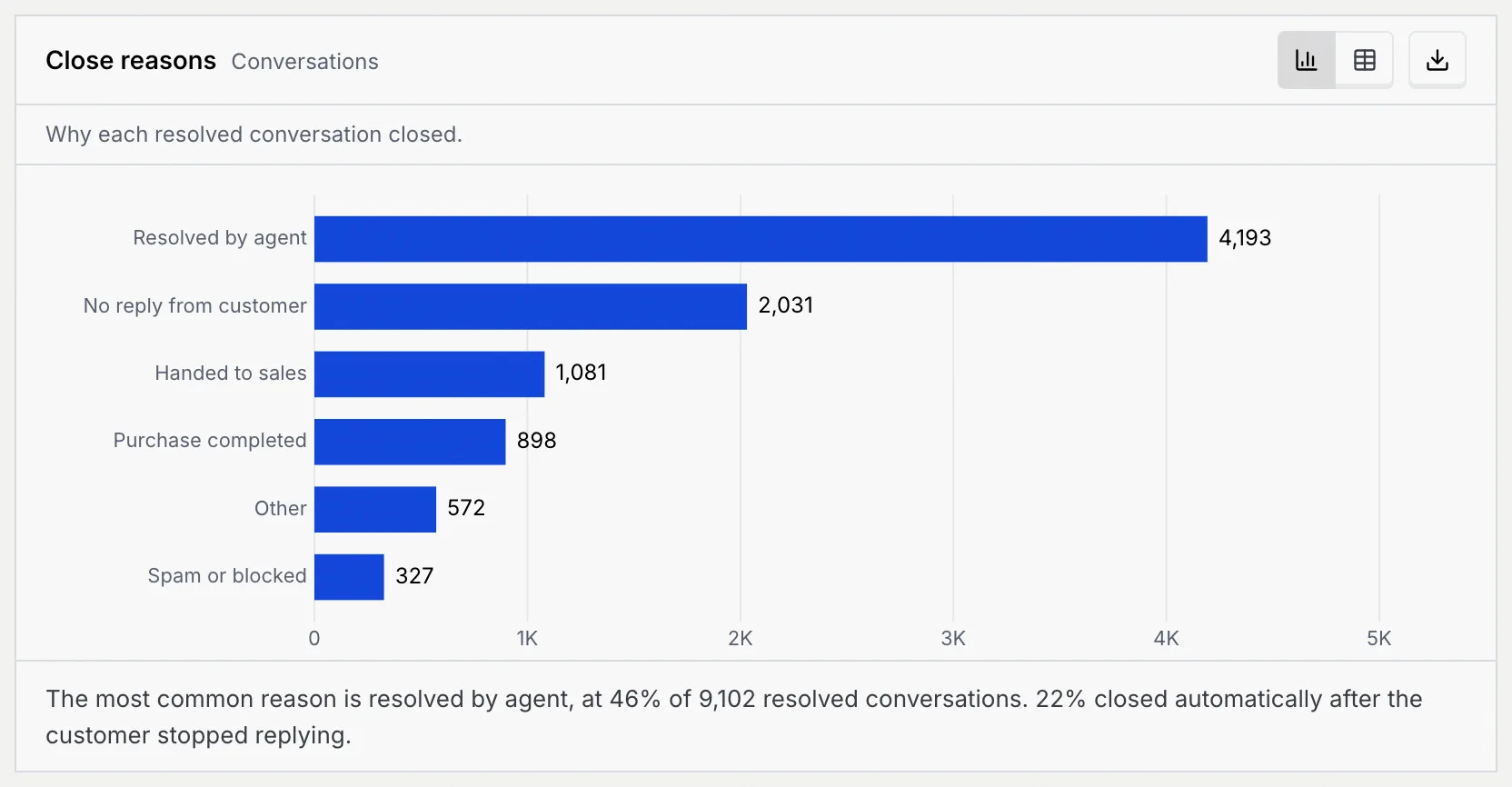
| Close reasons | Why each resolved conversation closed: Resolved by agent, Purchase completed, Handed to sales, No reply from customer, Spam or blocked and Other | No reply from customer counts conversations that closed automatically after the customer stopped replying. The table adds each reason's Share of resolved. |
Speed and replies by channel
| Chart | What it shows | How to read it |
|---|---|---|
| First response by channel | The median time to your first reply on each channel, fastest first | The dashed Median line is your overall median: bars that pass it are slower than average. The table adds each channel's conversations. |
| Reply rate by channel | Of conversations where you sent the first message, the share where the customer replied, highest first | The dashed line is your overall rate. The table adds We messaged first and Customer replied. |
Busy hours
| Chart | What it shows | How to read it |
|---|---|---|
| Conversations closed | Resolved conversations in the range, by the weekday and hour they closed | Each cell is one hour of one weekday; darker cells hold more (see the Fewer to More scale). |
| New conversations by hour | When customers start conversations, by weekday and hour, across every channel | The darkest cells are when you need the most people or agents on hand. The summary names the busiest hour. |
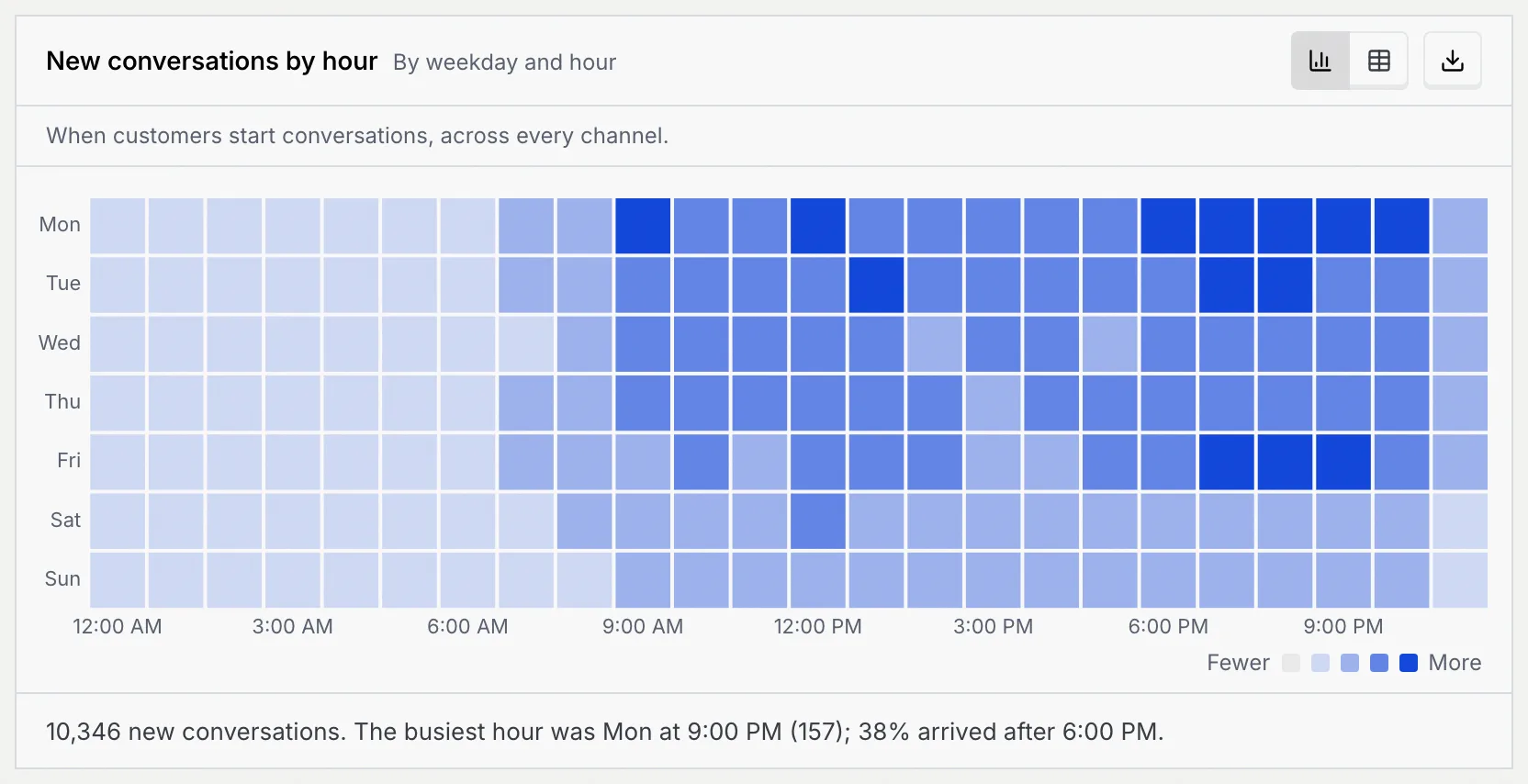
Point at a cell to see its count. The table and downloaded data list every weekday and hour, 168 rows in all.
Length and outcomes
| Chart | What it shows | How to read it |
|---|---|---|
| Messages per conversation | New conversations grouped by how many messages they took, both sides counted: 1–2, 3–5, 6–10, 11–20 and 21+ | Most conversations should fall in the short groups. The table adds each group's share. |
| Conversation outcomes by channel | Where each channel's conversations stand at the end of the range: Resolved, Still open or Unanswered, busiest channel first | The summary names the channel that leaves the most conversations unanswered. The table adds the Unanswered rate. |
Open the SLA report
Go to the SLA tab
In Reports, click the SLA tab. It measures every new conversation against fixed service clocks and shows how often you met them.
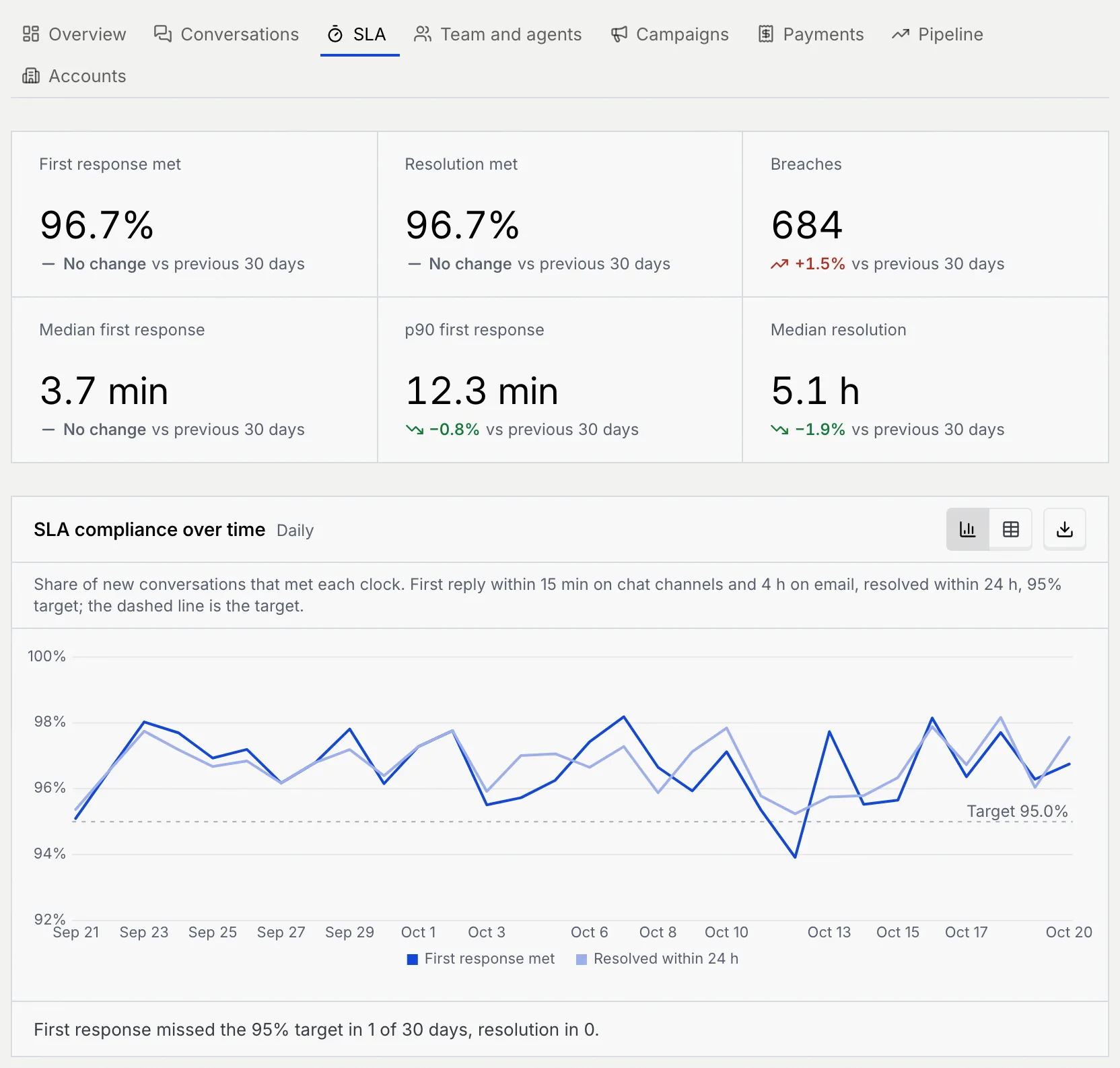
The SLA report uses these clocks:
| Clock | Met when |
|---|---|
| First reply on chat channels (every channel except email) | Someone replies within 15 minutes |
| First reply on email | Someone replies within 4 hours |
| Resolution | The conversation is resolved within 24 hours |
| Compliance target | 95% of conversations meet each clock |
| Pickup after an AI agent's handoff | A teammate picks it up within 15 minutes |
| Key number | What it counts |
|---|---|
| First response met | The share of new conversations whose first reply met its clock |
| Resolution met | The share resolved within 24 hours |
| Breaches | Conversations that missed the first reply clock or the resolution clock. Lower is better. |
| Median first response | The median time to the first reply. Lower is better. |
| p90 first response | The time 9 in 10 first replies beat: a view of your slowest replies. Lower is better. |
| Median resolution | The median time to resolve a conversation. Lower is better. |
Read the SLA report
| Chart | What it shows | How to read it |
|---|---|---|
| SLA compliance over time | Per period, the share of new conversations that met each clock: First response met and Resolved within 24 h | Points under the dashed 95% target missed it; the summary counts how many periods did. The table adds conversations and breaches per period. |
| Breaches by channel | Conversations that missed a clock on each channel, split into First response and Resolution, most first | Big channels have the most breaches; the table's Breach rate shows which channel breaches most often for its size. |
| First response time distribution | First replies grouped by time to reply (under 1 min up to over 4 h), split into AI agents and Your team | Replies past 15 min miss the chat clock; past 4 h they miss the email clock. |
| Resolution time by priority | The median hours to resolve Urgent, High, Normal and Low conversations | The dashed line is the 24-hour clock. The table adds the p90 hours, the conversations and the share resolved within 24 hours for each priority. |
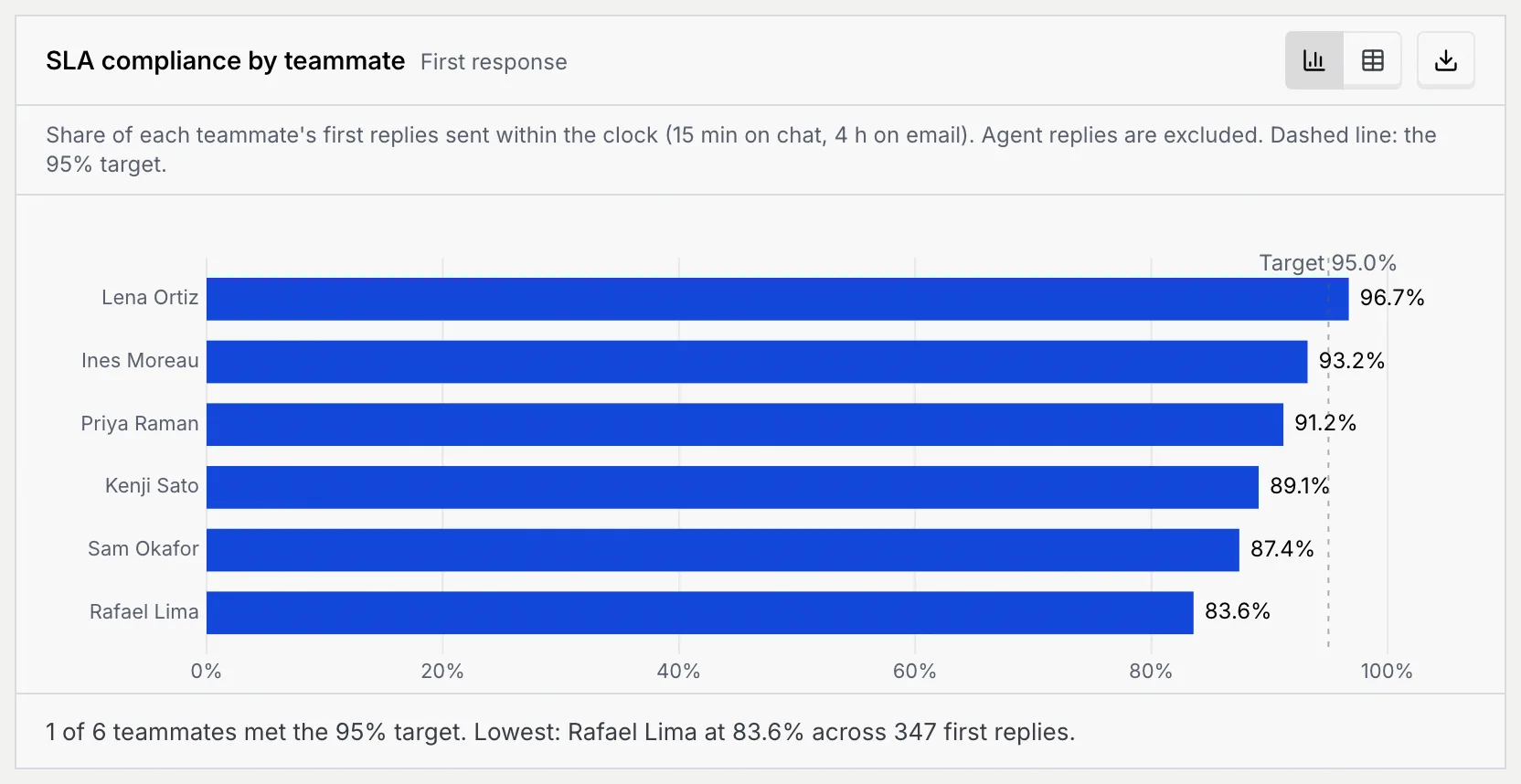
| SLA compliance by teammate | The share of each teammate's first replies sent within the clock, against the dashed 95% target | Agent replies are left out, so this is your people only. The table adds first replies and breaches per teammate. |
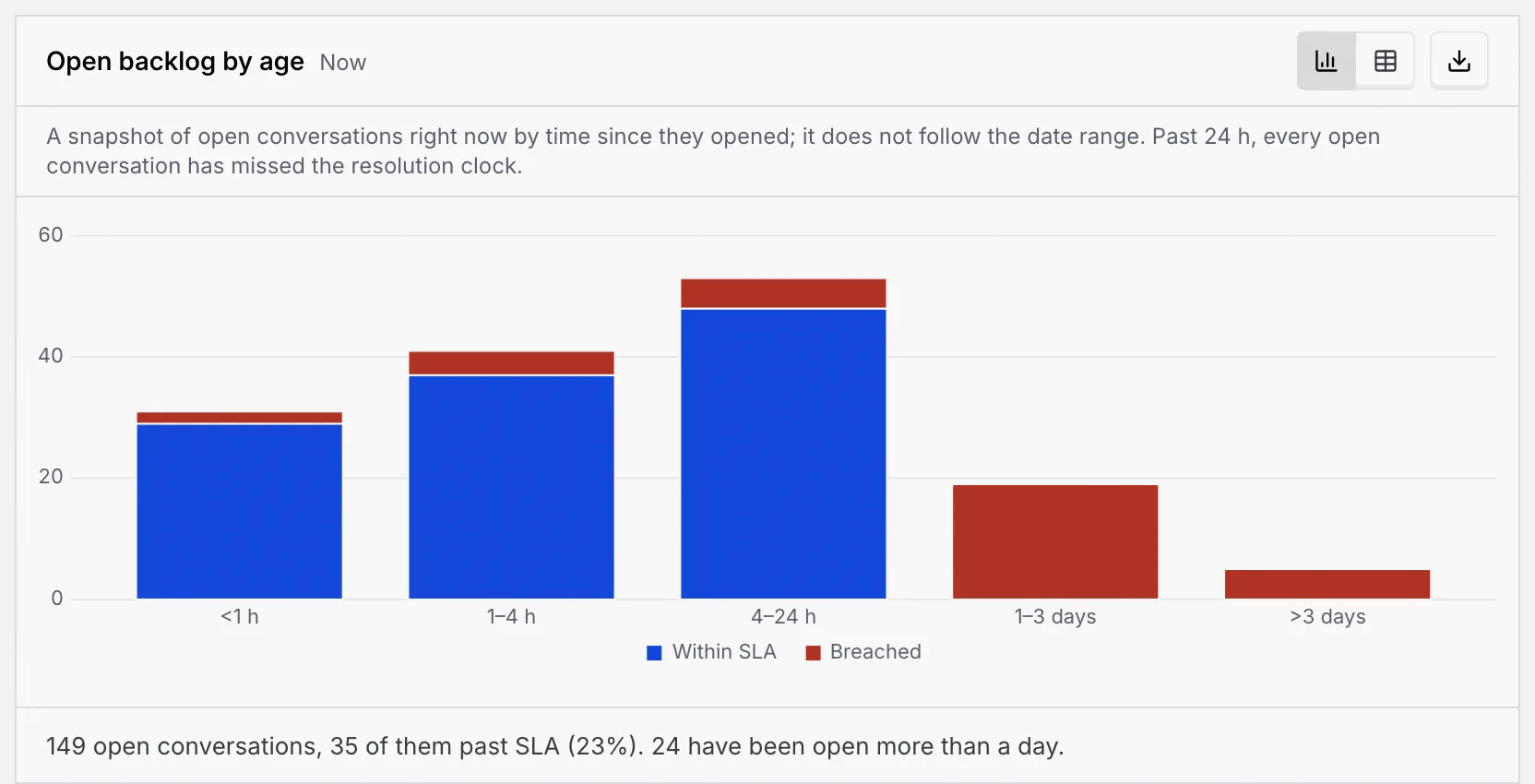
| Open backlog by age | Conversations open right now, by how long ago they opened (under 1 h up to over 3 days), split into Within SLA and Breached | This chart ignores the date range. Anything open more than 24 hours has missed the resolution clock. |
| Escalations past SLA | Conversations an AI agent handed to your team per period, split into Picked up within 15 min and Picked up late | The table adds the Late share of each period. |
| Breaches by hour of day | First response breaches by the weekday and hour the conversation arrived, in workspace time | Dark cells are the hours with the most late first replies: a sign to add cover then. |
Open backlog follows today
Open backlog by age is a snapshot of the conversations open right now, so it doesn't follow the dates you pick. To work through it, open the inbox and resolve or snooze what's waiting.
Troubleshooting
Breaches counts conversations that missed either clock: the first reply or the 24-hour resolution. Breaches by hour of day counts first response breaches only.
It shows the conversations open right now, whatever range you pick.
Breaches by channel draws the number of breaches, which is highest on your busiest channel. Switch to Table and sort by Breach rate to compare channels by size.
Next steps
Team and AI agent reports
See which agents and teammates resolve, hand off and satisfy customers.
Snooze, resolve and reopen
Close conversations so they count as resolved.
Take over and hand back
Pick up conversations an AI agent hands to your team.
Tables and exports
See any chart as a table and download it.