# Tables and exports (/docs/reports/report-exports)
Every chart in Reports has the same numbers behind it as a table. Switch to the table to read exact values and sort them, and download the chart as an image for a slide or its data as a spreadsheet.
- **Who can use it:** Everyone who can open Reports can switch charts to tables and sort them. Downloading needs the **Export reports** permission: owners and admins have it; members and viewers see the **Export** button greyed out, with the reason. See [Who can export](#who-can-export).
- **Before you start:** Nothing.
## See a chart as a table [#see-a-chart-as-a-table]
### Switch to Table [#switch-to-table]
In the chart's header, click **Table** (the grid icon next to **Chart**). The chart is replaced by a table of the same rows, often with extra columns: **Revenue by channel**, for example, adds **Paid orders** and **Average order (USD)**. Money columns name your workspace currency.
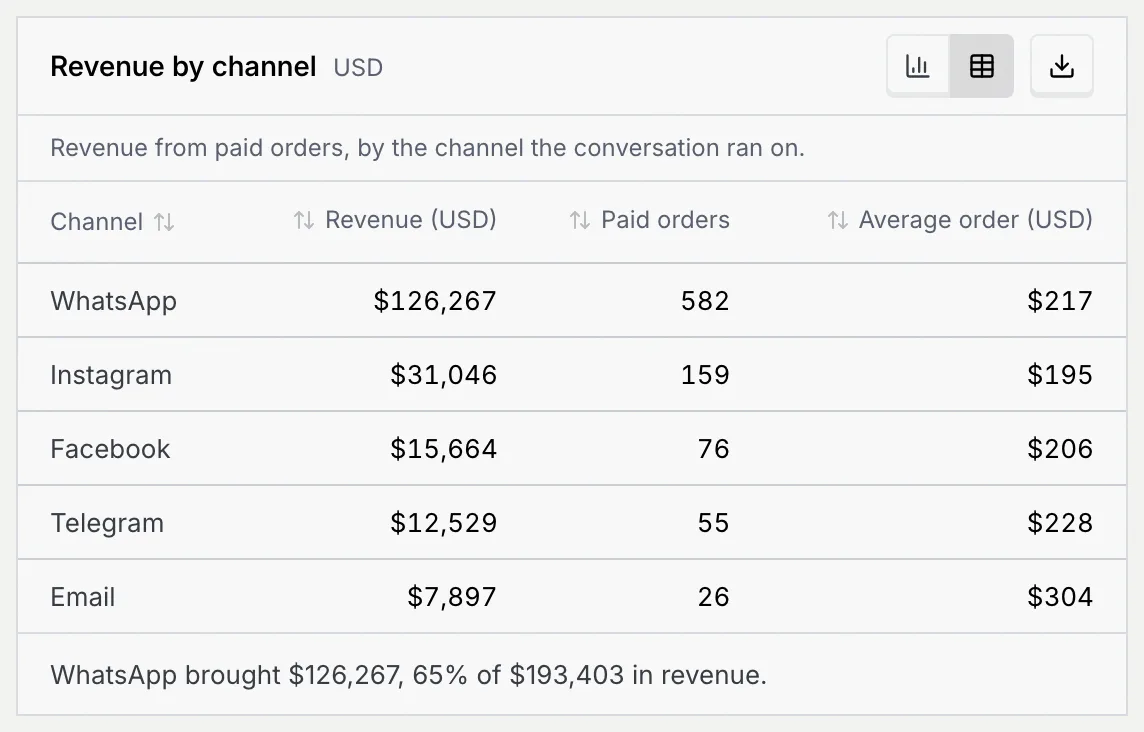
Long tables, such as a daily chart over 90 days, scroll inside the panel with the header row pinned. When a chart has nothing to show for the range, its table reads **No data to show.**
### Sort it [#sort-it]
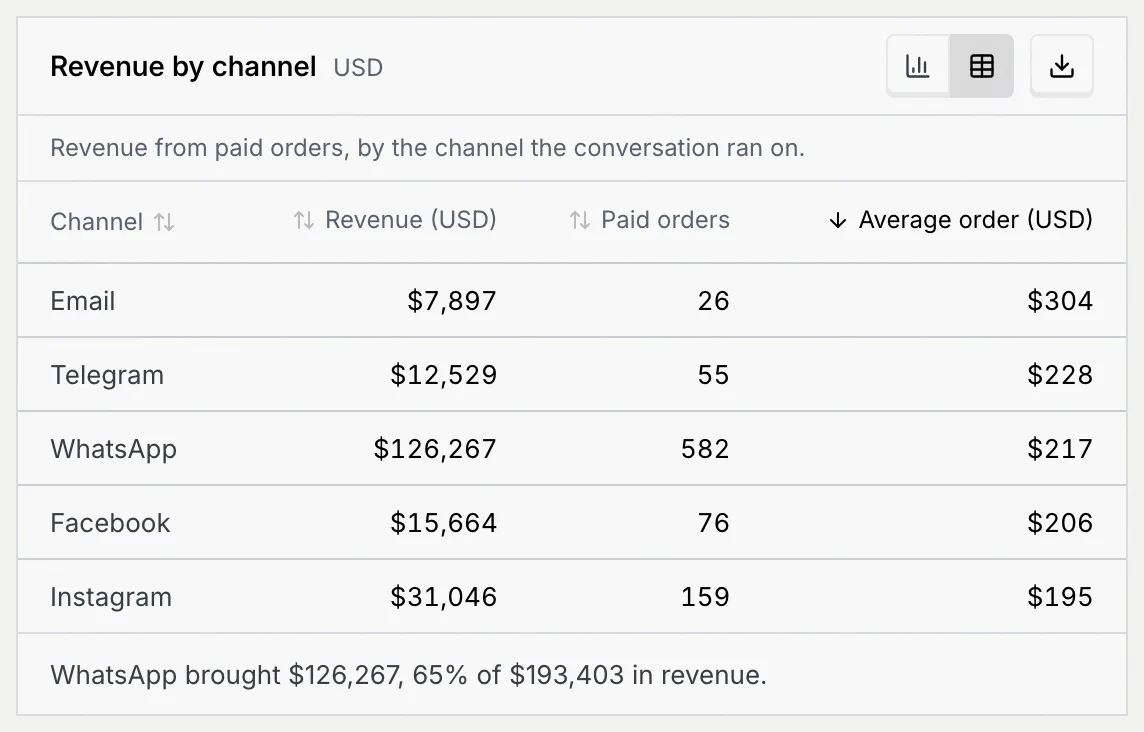
Click a column header to sort by it. An arrow beside the header shows the order.
| Column | First click | Second click | Third click |
|---|---|---|---|
| Numbers | Highest first | Lowest first | Back to the chart's order |
| Text, such as names | A to Z | Z to A | Back to the chart's order |
### Switch back to the chart [#switch-back-to-the-chart]
Click **Chart** (the bar chart icon). Each panel keeps its view while you stay on the tab; switching tabs shows every panel as a chart again.
## Download a chart or its data [#download-a-chart-or-its-data]
### Open the Export menu [#open-the-export-menu]
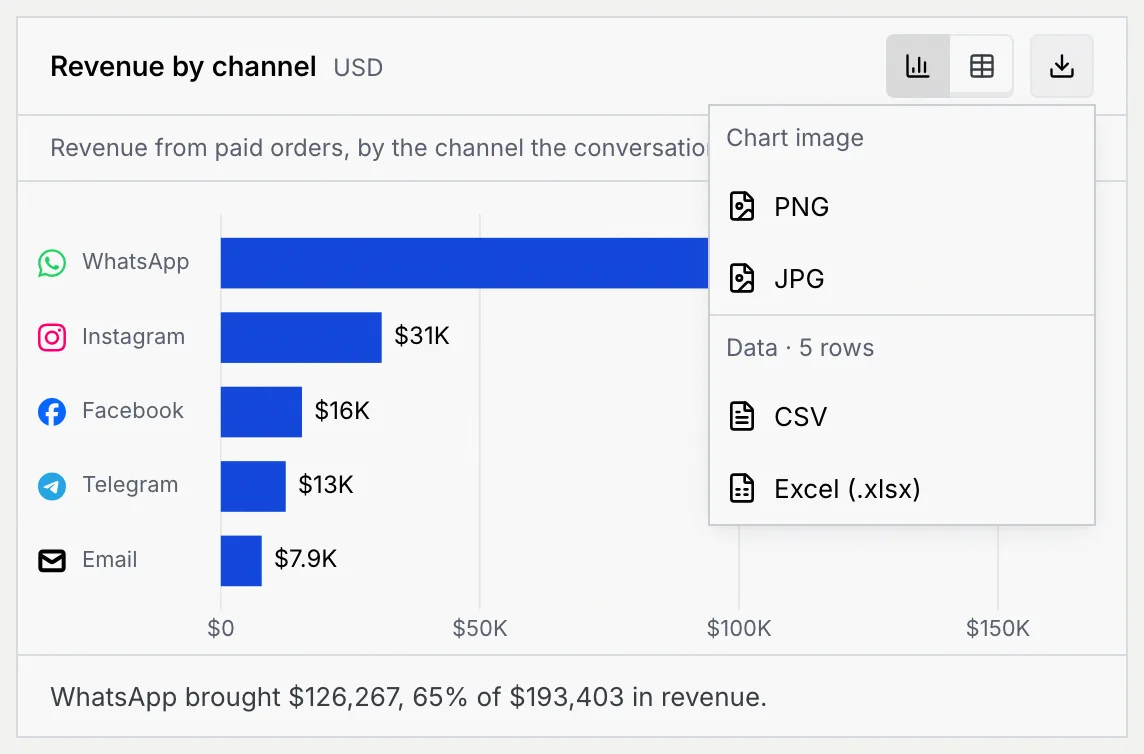
In the chart's header, click **Export** (the download icon at the right). The menu offers the chart as an image or its rows as data, and says how many rows the data holds, for example **Data · 5 rows**.
### Pick a format [#pick-a-format]
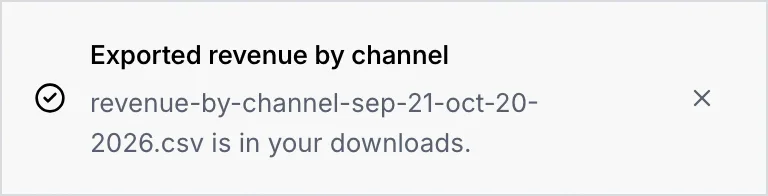
Click **PNG**, **JPG**, **CSV** or **Excel (.xlsx)**. The file downloads straight away and a message confirms it, with the file name.
### What each format holds [#what-each-format-holds]
| Format | What you get |
|---|---|
| **PNG** | The chart as an image at twice screen resolution, on the panel's own background. Good for slides and documents. |
| **JPG** | The same image as a smaller JPG file. |
| **CSV** | The table's rows with a header row, as plain text that any spreadsheet or BI tool opens. |
| **Excel (.xlsx)** | The same rows in an Excel workbook, on one sheet named after the chart, with the header row frozen. |
- **Images** always show the chart, even when you export from the table view. In dark mode, the image keeps the dark background you see.
- **Data files** hold full numbers, not the shortened labels on the chart: $65K on a bar is 65473 in the file. Rates are fractions (0.1045 for 10.4%), so you can format them as percentages in your spreadsheet. Money is in your workspace currency, named in the column header, for example **Revenue (USD)**.
- **File names** are the chart's name and the date range, for example `revenue-over-time-sep-21-oct-20-2026.png` for the **Revenue** chart. Files from the **Accounts** tab have no dates, because that tab is a snapshot of today: `accounts-revenue-and-retention.xlsx`.
## Who can export [#who-can-export]
Downloading charts and data needs the **Export reports** permission.
| Role | Open reports and switch to tables | Export |
|---|---|---|
| **Owner** | Yes | Yes |
| **Admin** | Yes | Yes |
| **Member** | Yes | No |
| **Viewer** | Yes | No |
| Custom roles | Yes | When the role has **Export reports** |
Without the permission, the **Export** button stays on every chart but is greyed out. Point at it, or move to it with Tab, to read why: "Your role, Member, can’t export reports. An owner or admin can change this in Settings → Members & roles." You can still switch any chart to a table and read every number.
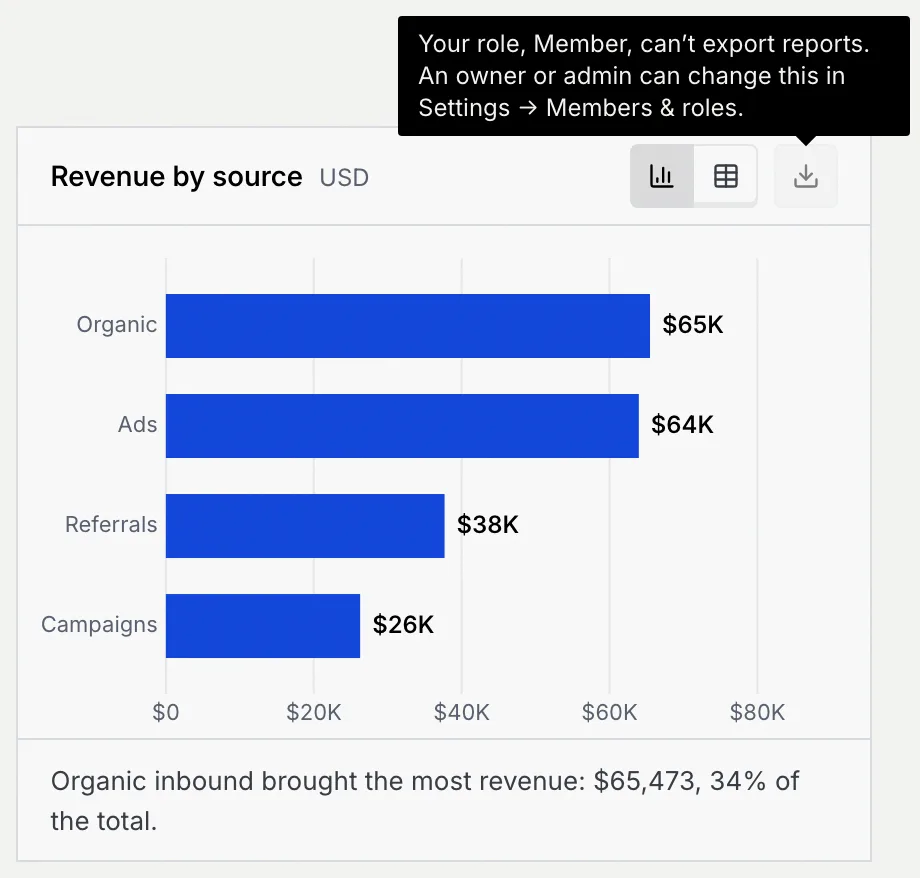
To let a teammate export, an owner or admin gives their role **Export reports** (under **Reports**) in [Roles and permissions](/docs/settings/roles), or moves them to a role that has it in [Members and invites](/docs/settings/members).
## Troubleshooting [#troubleshooting]
Your role doesn't have **Export reports**. Ask an owner or admin; see [Who can export](#who-can-export).
The chart image couldn't be drawn. Try again, or download the same numbers with **CSV** or **Excel (.xlsx)** instead.
The chart shortens values ($65K, 10.4%), while the file keeps the full figures (65473, 0.1045). They're the same numbers.
You sorted a column. Click the same header until the arrow disappears to go back to the chart's order.
## Next steps [#next-steps]