Your profile
Set the name, job title, avatar and time zone your team sees, and change the email you log in with.
Your profile is how you appear to your team: your name and title show next to the replies you send and the drafts you approve. It also holds your time zone and the email you log in with.
- Who can use it: Everyone, for their own profile. Nobody can change someone else's profile.
- Before you start: To change your login email, you need access to the inbox of the new address.
Edit your details
Open your profile
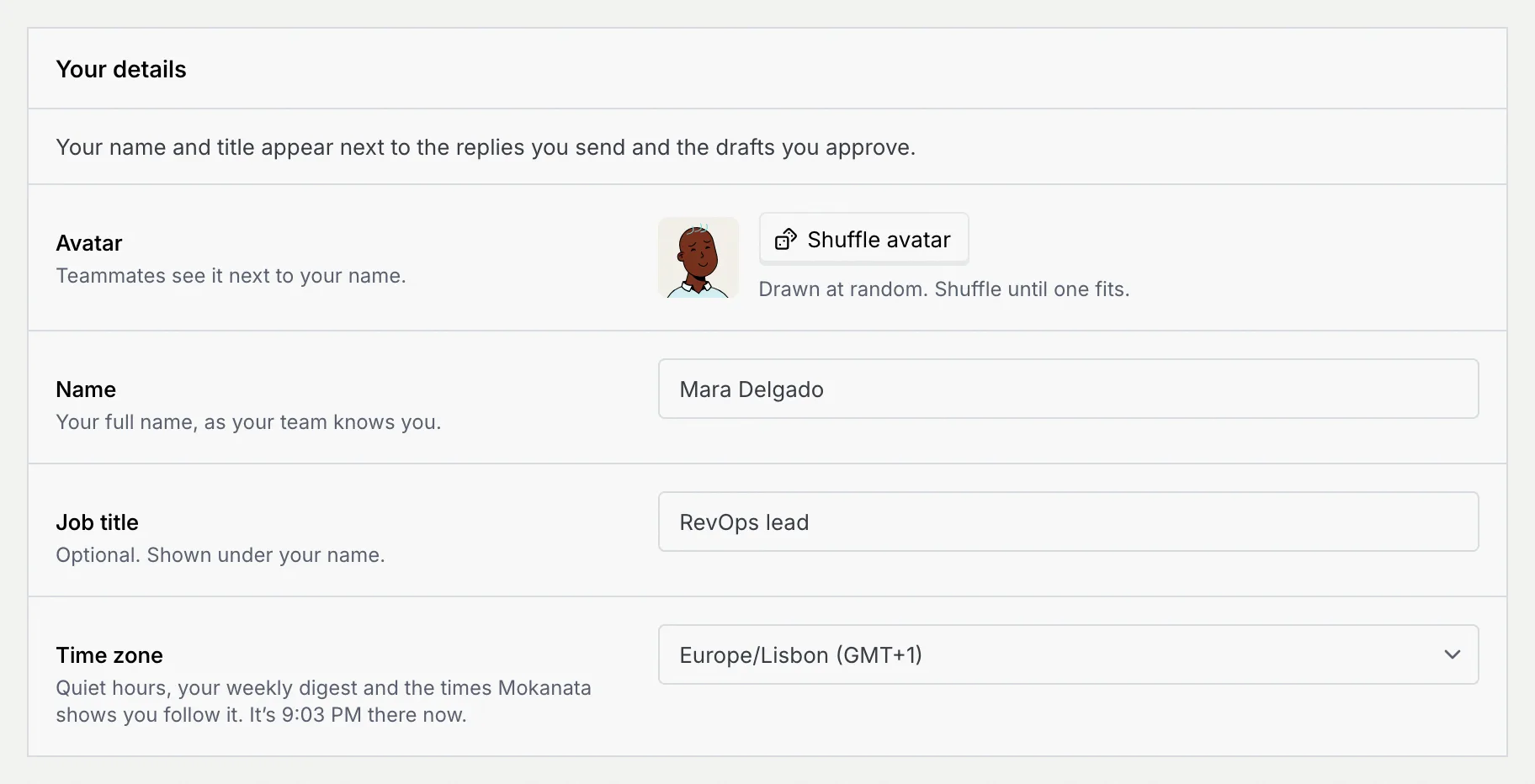
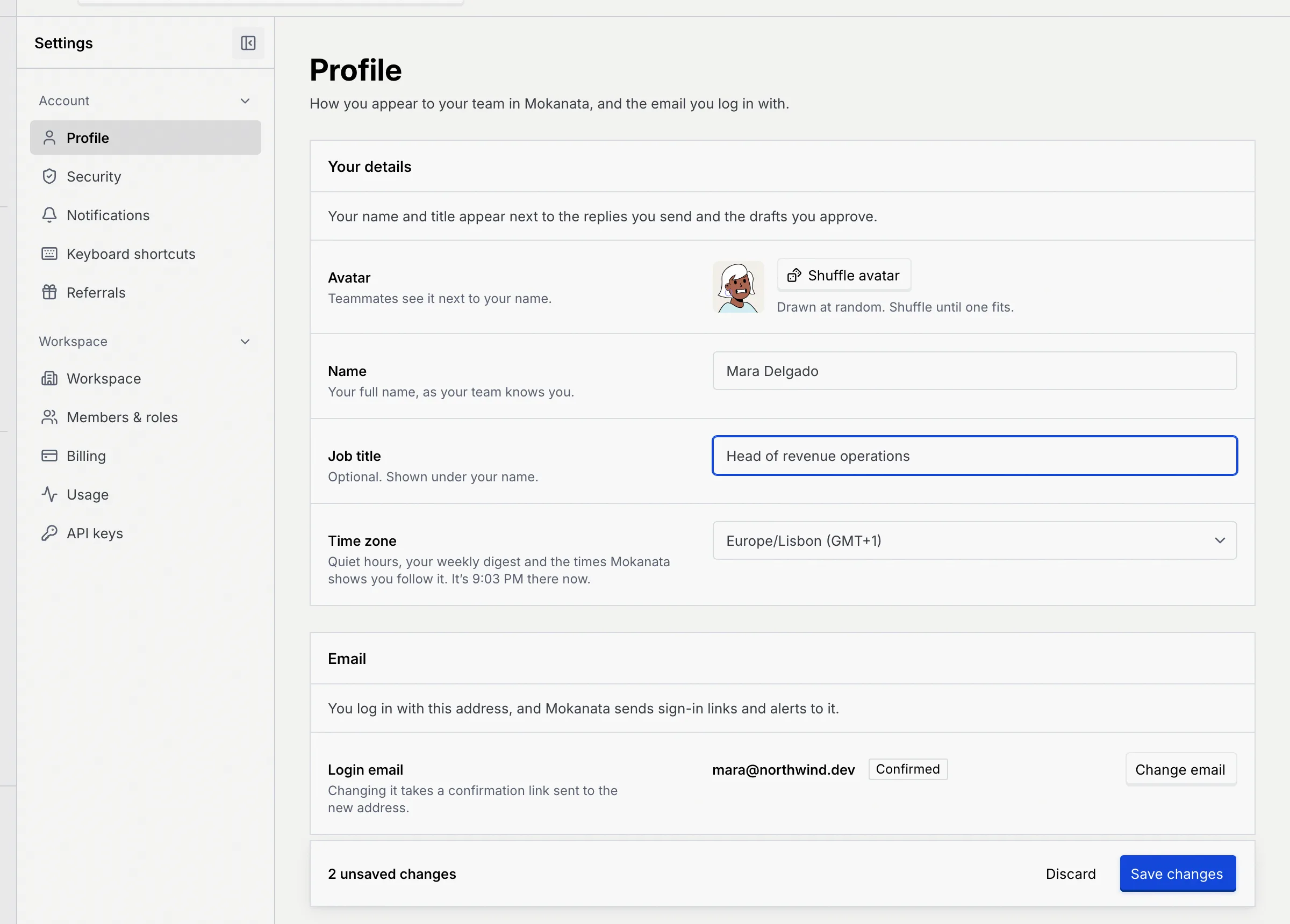
Click your name at the bottom of the sidebar and choose Profile. The Your details panel lists your avatar, name, job title and time zone.
Pick an avatar
Mokanata draws your avatar at random. Click Shuffle avatar until you see one you like. Until you shuffle, your avatar is drawn from your name, so it changes when you rename yourself.
Change your name and job title
Edit Name (your full name, 2 to 80 characters) and Job title (optional, up to 80 characters). Your job title shows under your name in the sidebar.
As soon as something differs from what's saved, a bar at the bottom of the page counts your changes.
Set your time zone
Click Time zone and type a city or region, such as "new york", then pick the time zone from the list. The help under it shows the time there now.
Your quiet hours and weekly digest settings follow your time zone, and so do the times Mokanata shows you.

Save
Click Save changes (or press Enter in a field). You see Profile saved, and your teammates see your new name and avatar everywhere. To undo your edits instead, click Discard.
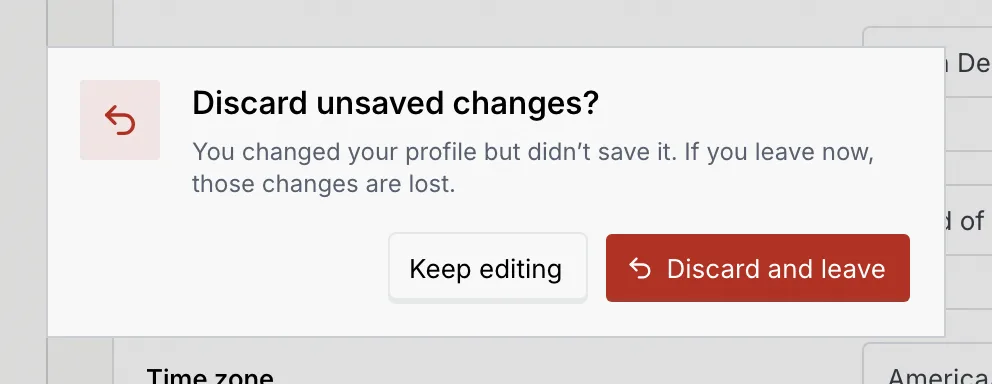
If you go to another page before saving, Mokanata asks Discard unsaved changes?. Choose Keep editing to stay, or Discard and leave.
Change your login email
Mokanata switches your login email only once you open a confirmation link sent to the new address, so a typo can't lock you out.
Enter the new address
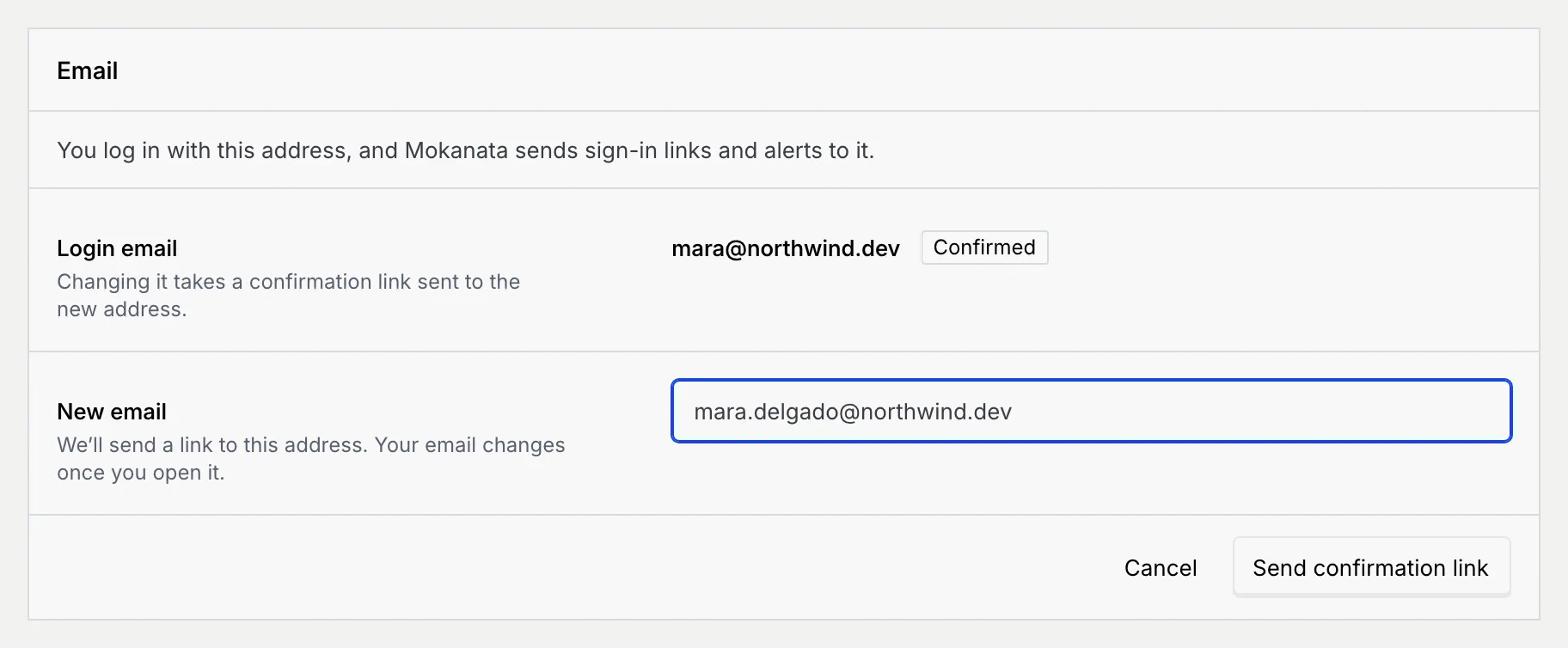
In the Email panel, your login email shows with Confirmed once it's verified (and Google sign-in if you also log in with Google). Click Change email, type the address in New email and click Send confirmation link.
Open the link in your email
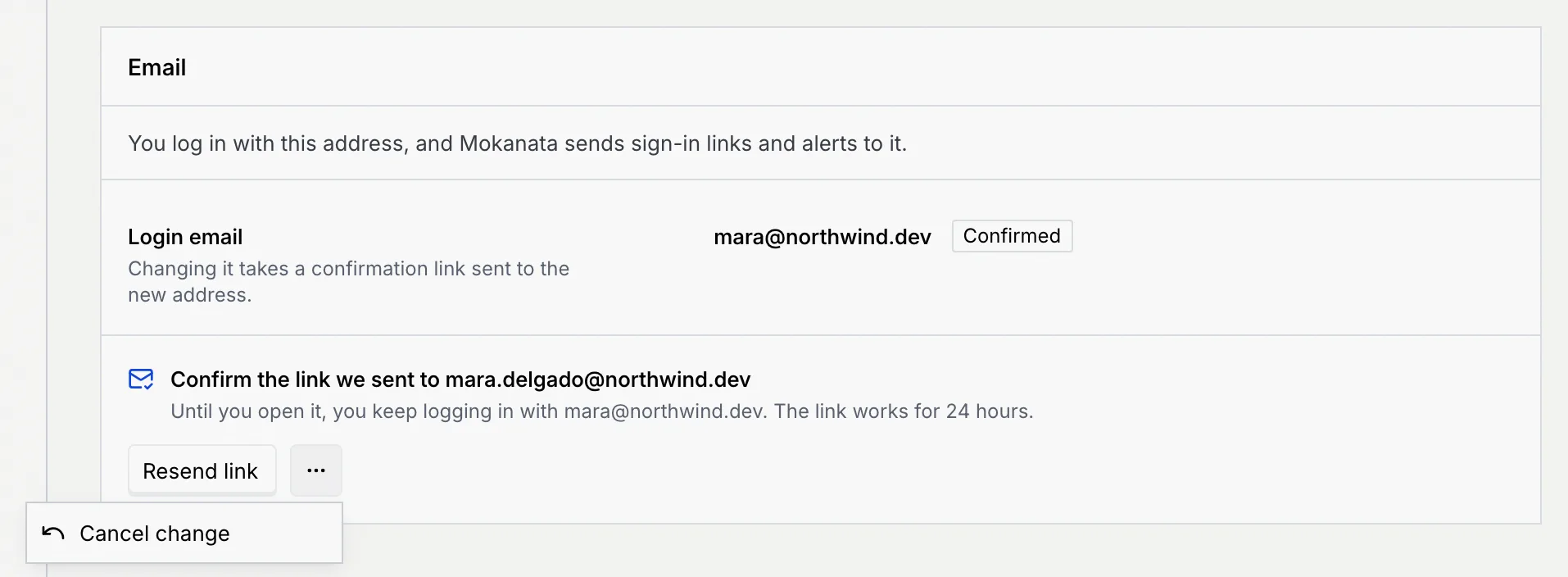
Mokanata sends Confirm your new Mokanata email to the new address. Until you open it, the panel says Confirm the link we sent to the new address, and you keep logging in with the old one. The link works for 24 hours.
- Didn't get it? Click Resend link. A new link replaces the old one, and you see New link sent. You can send one every 30 seconds; until then the button counts down.
- Changed your mind? Click the ⋯ menu and choose Cancel change. You keep your current email.
Log in with the new email
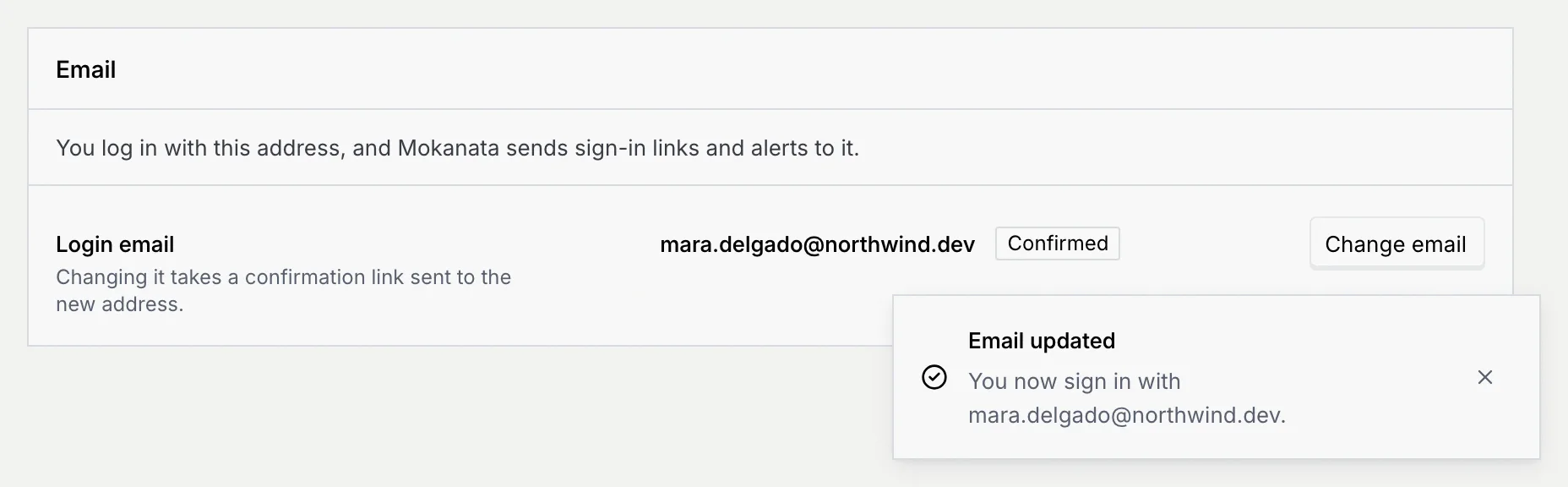
Click Confirm new email in the email. Mokanata opens your profile and shows Email updated: from now on you log in with the new address.
Your passkeys and authenticator stay the same
Changing your email doesn't change your passkeys or authenticator app, or sign you out of any device. Sign-in links now go to the new address.
Troubleshooting
Each email can belong to only one Mokanata account. Use a different address, or delete the other account first (see Delete your account).
The address you typed is the one you log in with now. Type the new address, or click Cancel.
Links work once, for 24 hours, and a newer link replaces older ones. Go back to Profile and click Resend link to get a fresh one.
The time zone has to be one from the list. Type part of a city or region name, such as "Lisbon", and click a result. If the list says No time zone matches, try a bigger city nearby in the same time zone.
Mokanata couldn't save the change, for example because the connection dropped. Click Retry in the message, or Save changes again.