Referrals
Share your referral link or invite teams by email, and track who signed up, who pays and the credit you earned.
Referrals let you give teams you know $50 in Mokanata credit. When a team you referred pays its first invoice, the workspace you're in gets $50 of credit too.
- Who can use it: Everyone, whatever their role. Your link and the people you referred are your own, not the workspace's.
- Before you start: Credit lands on the workspace named at the top of the page, the one you're in. Only owners and admins see credit on the Billing page, so if you're a member or viewer, they're the ones who'll see it.
Share your referral link
Open Referrals
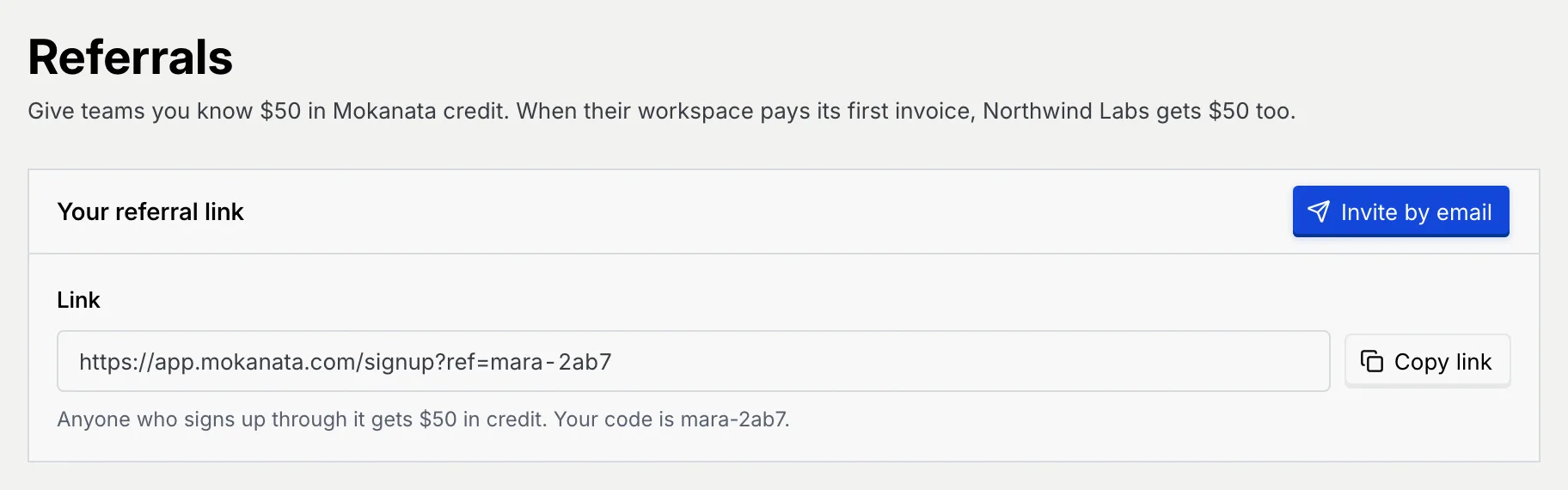
Go to Settings → Referrals. Your referral link shows your personal sign-up link and your code.
Copy the link
Click Copy link (it reads Link copied) and share it wherever you like. Anyone who signs up through it gets $50 in credit on their new workspace.
Invite people by email
Open the invite
In Your referral link, click Invite by email.
Add the addresses
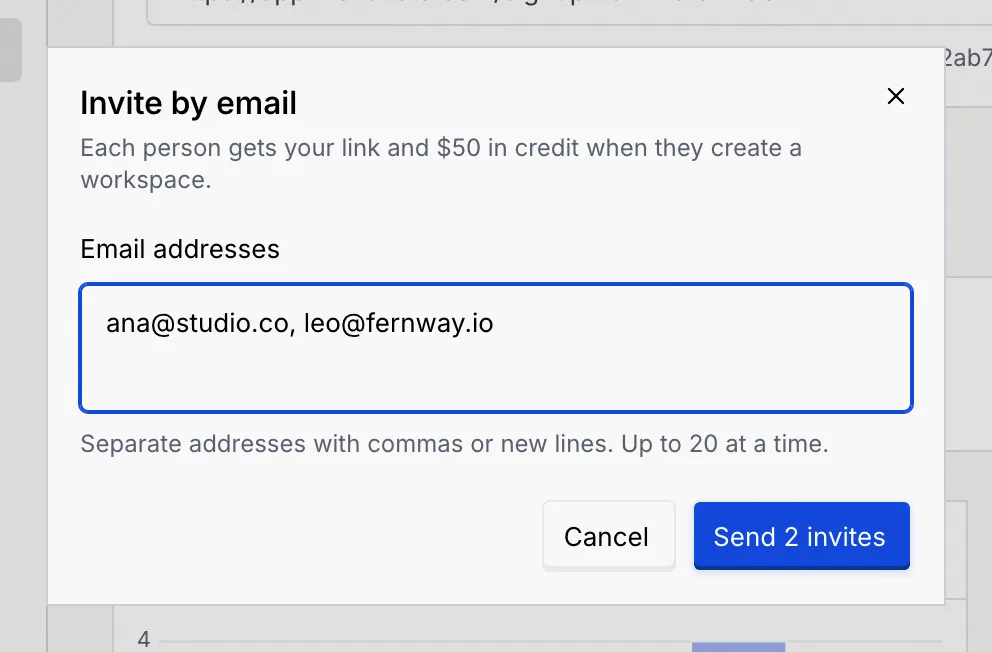
Type or paste the addresses in Email addresses, separated with commas or new lines. You can invite up to 20 people at a time, and not your own address.
Send
Click Send invite (or Send with the number of invites). Each person gets an email with your link and the $50 offer. You see Invite sent to the person, and they appear under People you referred as Invited. Anyone who already had an invite from you is skipped, and the message says so.
Track your referrals
Read the numbers
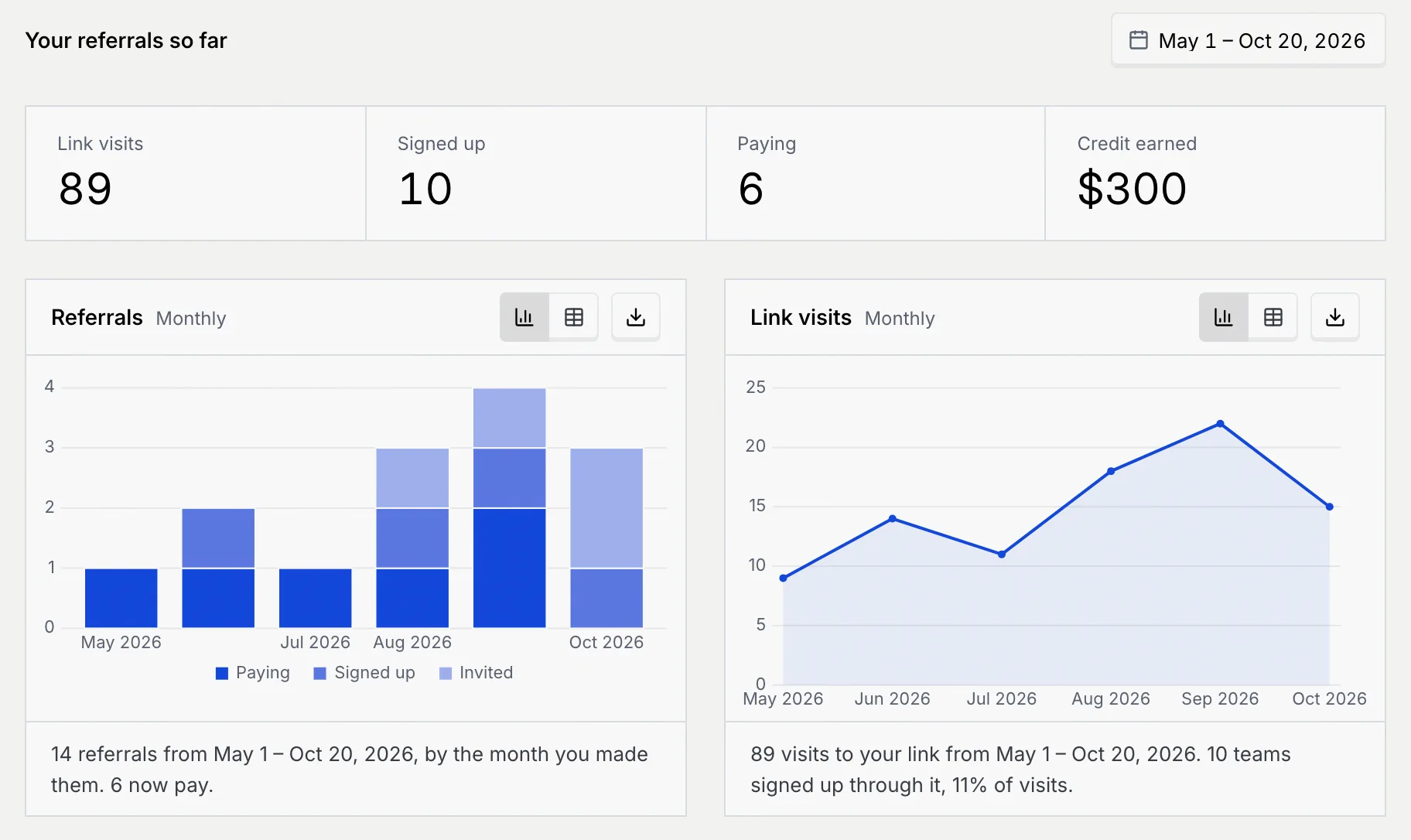
Under Your referrals so far, four numbers count what your link has brought in:
| Number | What it counts |
|---|---|
| Link visits | Times someone opened your link. |
| Signed up | Teams that created a workspace through your link or invite. |
| Paying | Of those, teams that have paid their first invoice. |
| Credit earned | $50 for each paying team. |
Below them, Referrals charts the people you referred by when you referred them, stacked by Paying, Signed up and Invited, and Link visits charts the visits to your link. A sentence under each chart sums it up, such as how many of the teams you referred now pay, and what share of visits led to a sign-up. Each chart can switch to a table, and the download button exports it as PNG, JPG, CSV or Excel.
Pick a date range
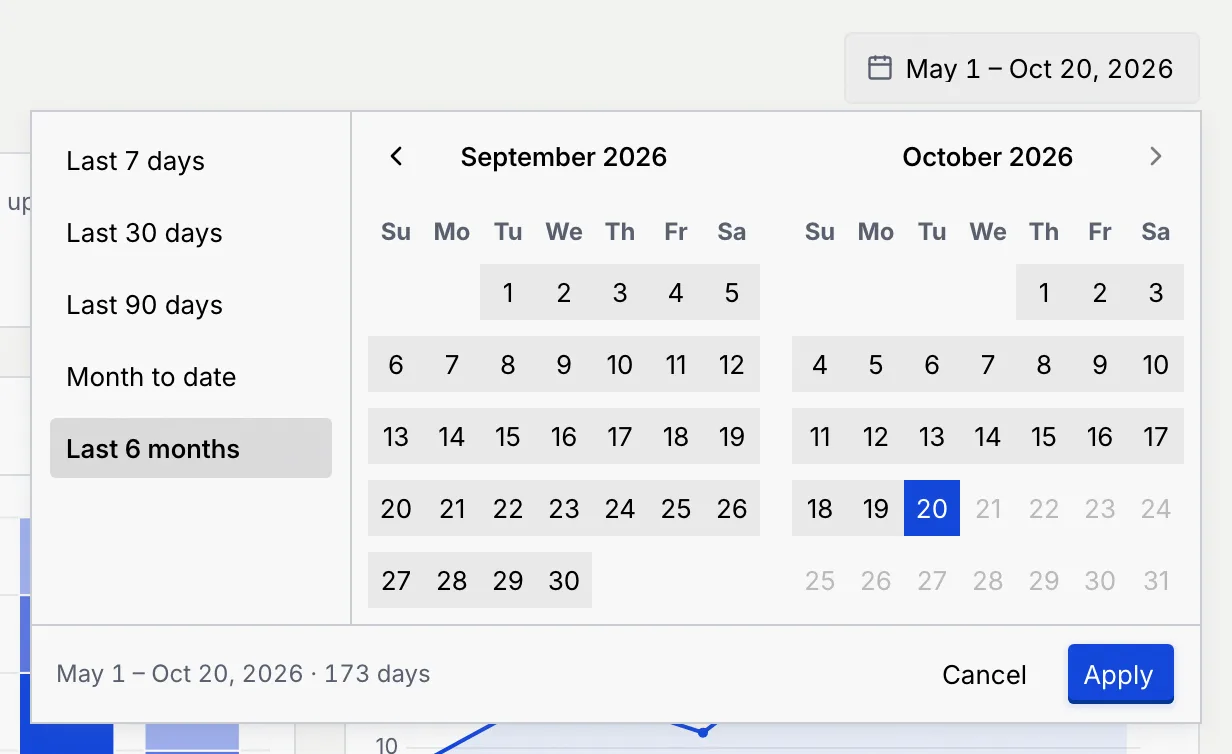
The numbers, charts and list start with the last 6 months. Click the date range at the top right and choose Last 7 days, Last 30 days, Last 90 days, Month to date or Last 6 months, or pick a start and end day on the calendar and click Apply. The heading changes to Your referrals, followed by the range.
The range resets when you leave the page.
Check the people you referred
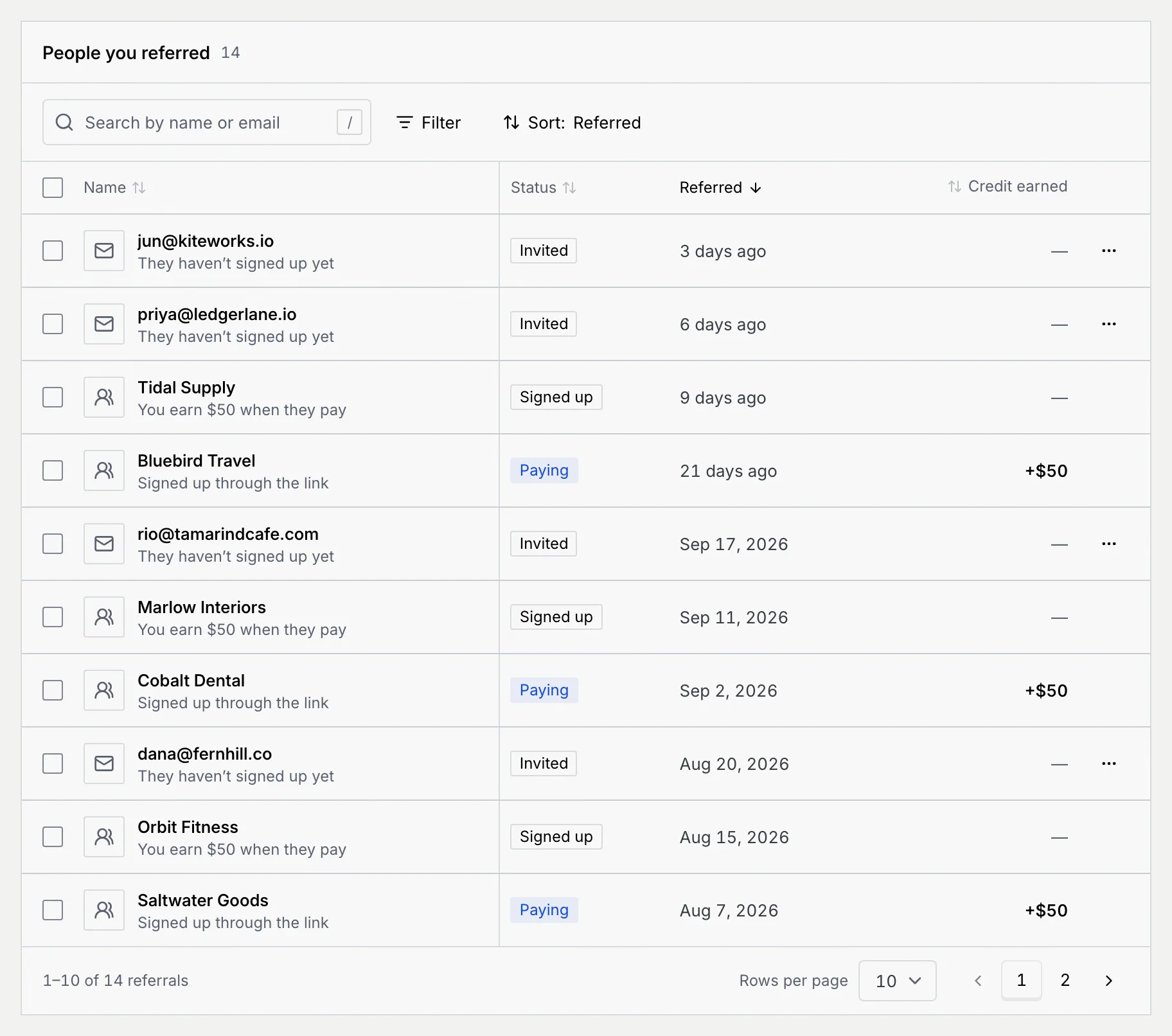
People you referred lists everyone you invited or who signed up through your link, newest first. The line under each name says where they are:
| Status | Under the name | Credit earned |
|---|---|---|
| Invited | They haven't signed up yet | — |
| Signed up | You earn $50 when they pay | — |
| Paying | Invited by email, or Signed up through the link | +$50 |
Search by name or email, use Filter for Status or How they came (Invited by email or Signed up through the link), and change the order with Sort (Name, Status, Referred or Credit earned). When the list is narrowed, a count such as "3 of 14" shows next to the tools. The list shows 10, 25 or 50 people per page.
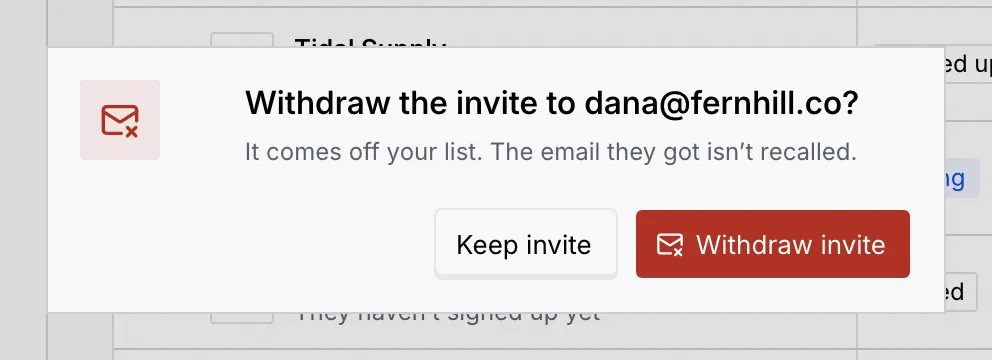
Withdraw an invite
You can withdraw an invite until the person signs up. The email they got isn't recalled, and the link in it still works if they find it later.
Open the row's menu
On an Invited row, click the ⋯ menu. Copy email copies their address; choose Withdraw invite.

Act on several people at once
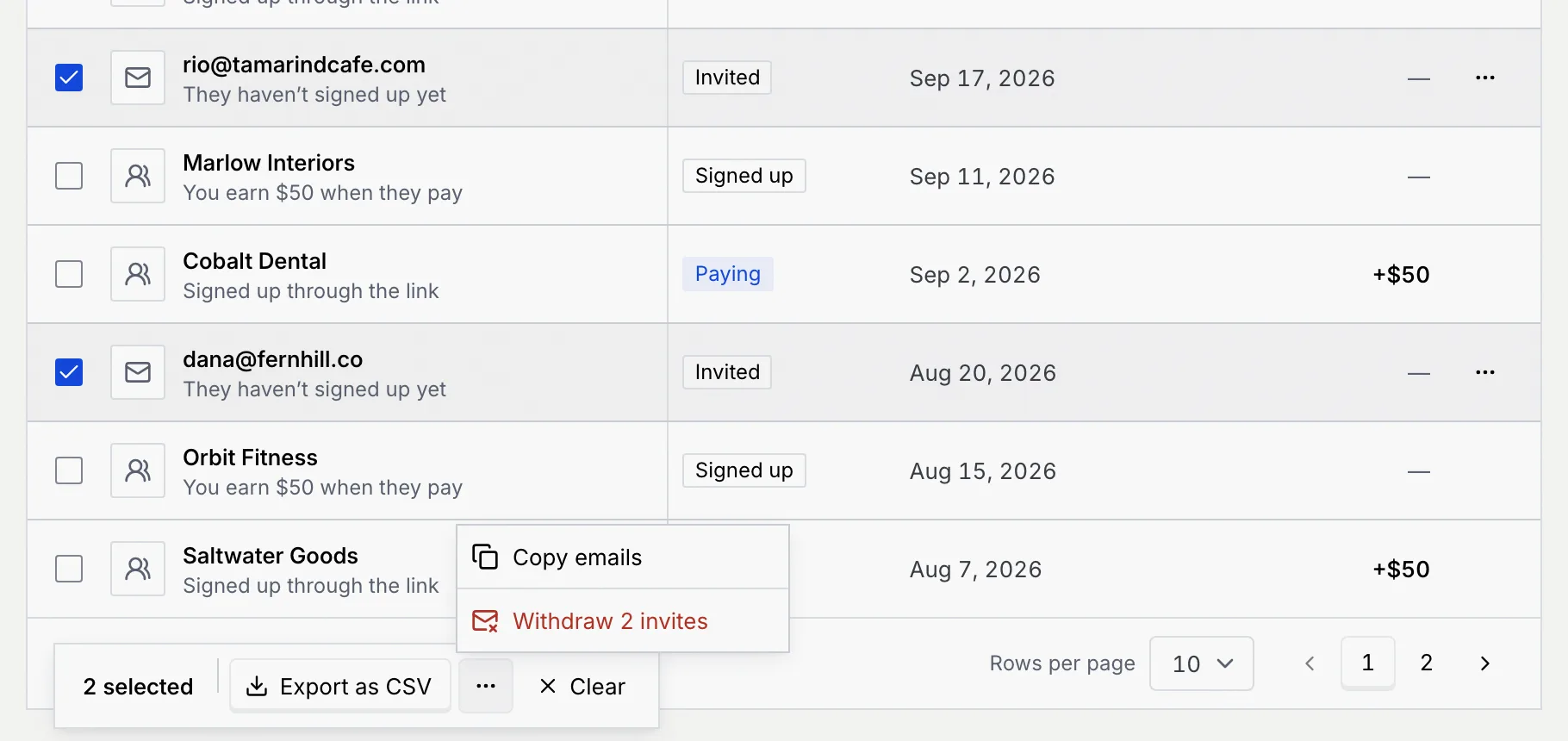
Tick the box at the start of each row (or the one in the header for the whole page). A bar at the bottom shows how many are selected:
- Export as CSV downloads
referrals.csvwith each person's name, email, how they came, status, when you referred them and the credit earned in US dollars. - In the ⋯ menu, Copy emails copies the addresses of the people you invited by email, and Withdraw withdraws the invites in your selection after you confirm. People who already signed up stay on the list.
- Clear unticks everyone.
How the credit works
The How it works panel at the bottom of the page sums up the rules:
- They get $50 in credit on a new workspace, on top of the Free plan.
- You get $50 in credit for the workspace you're in, once theirs pays its first invoice.
- Credit lasts 12 months, and comes off invoices before the card is charged.
- Doesn't count: your own address, or a workspace that already had an account.
Troubleshooting
Remove your own address from Email addresses and send again.
The message lists the ones that aren't. Fix or remove them; separate addresses with commas or new lines.
Nobody has signed up through your link or been invited by you yet. Share your link or invite someone by email: each team shows here, with what it earned.
Check the spelling, search by email instead, or click Clear filters.
Nothing was sent. The message in the dialog says why; check your connection and click Send invite again.
Nobody you referred falls in the dates you picked. Pick a longer range, such as Last 6 months.
Referral credit shows under Credits on the Billing page of the workspace named at the top of Referrals. Only owners and admins see credits there, so if you're a member or viewer, ask one of them.