# Referrals (/docs/settings/referrals)
Referrals let you give teams you know $50 in Mokanata credit. When a team you referred pays its first invoice, the workspace you're in gets $50 of credit too.
- **Who can use it:** Everyone, whatever their role. Your link and the people you referred are your own, not the workspace's.
- **Before you start:** Credit lands on the workspace named at the top of the page, the one you're in. Only owners and admins see credit on the [Billing](/docs/settings/billing) page, so if you're a member or viewer, they're the ones who'll see it.
## Share your referral link [#share-your-referral-link]
### Open Referrals [#open-referrals]
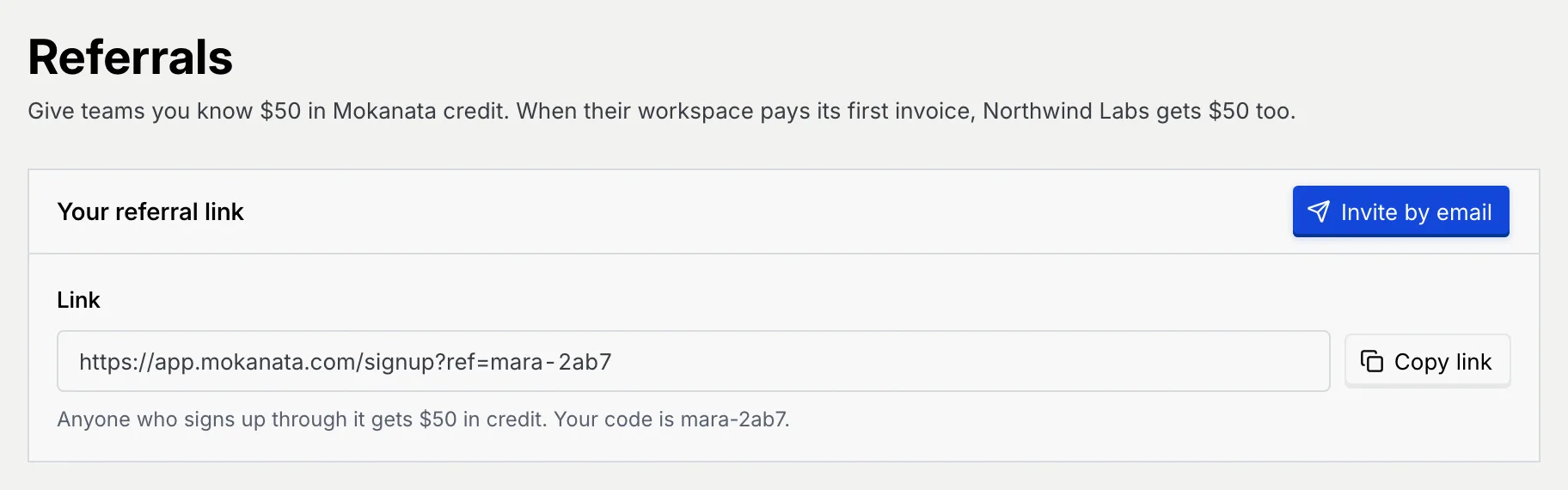
Go to **Settings** → **Referrals**. **Your referral link** shows your personal sign-up link and your code.
### Copy the link [#copy-the-link]
Click **Copy link** (it reads **Link copied**) and share it wherever you like. Anyone who signs up through it gets $50 in credit on their new workspace.
## Invite people by email [#invite-people-by-email]
### Open the invite [#open-the-invite]
In **Your referral link**, click **Invite by email**.
### Add the addresses [#add-the-addresses]
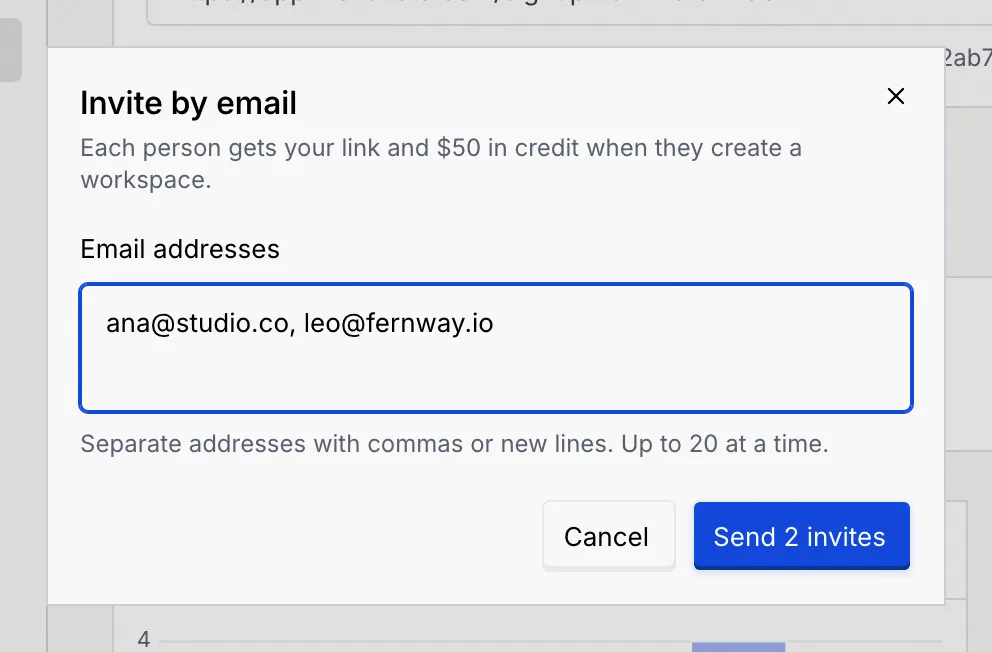
Type or paste the addresses in **Email addresses**, separated with commas or new lines. You can invite up to 20 people at a time, and not your own address.
### Send [#send]
Click **Send invite** (or **Send** with the number of invites). Each person gets an email with your link and the $50 offer. You see **Invite sent to** the person, and they appear under **People you referred** as **Invited**. Anyone who already had an invite from you is skipped, and the message says so.
## Track your referrals [#track-your-referrals]
### Read the numbers [#read-the-numbers]
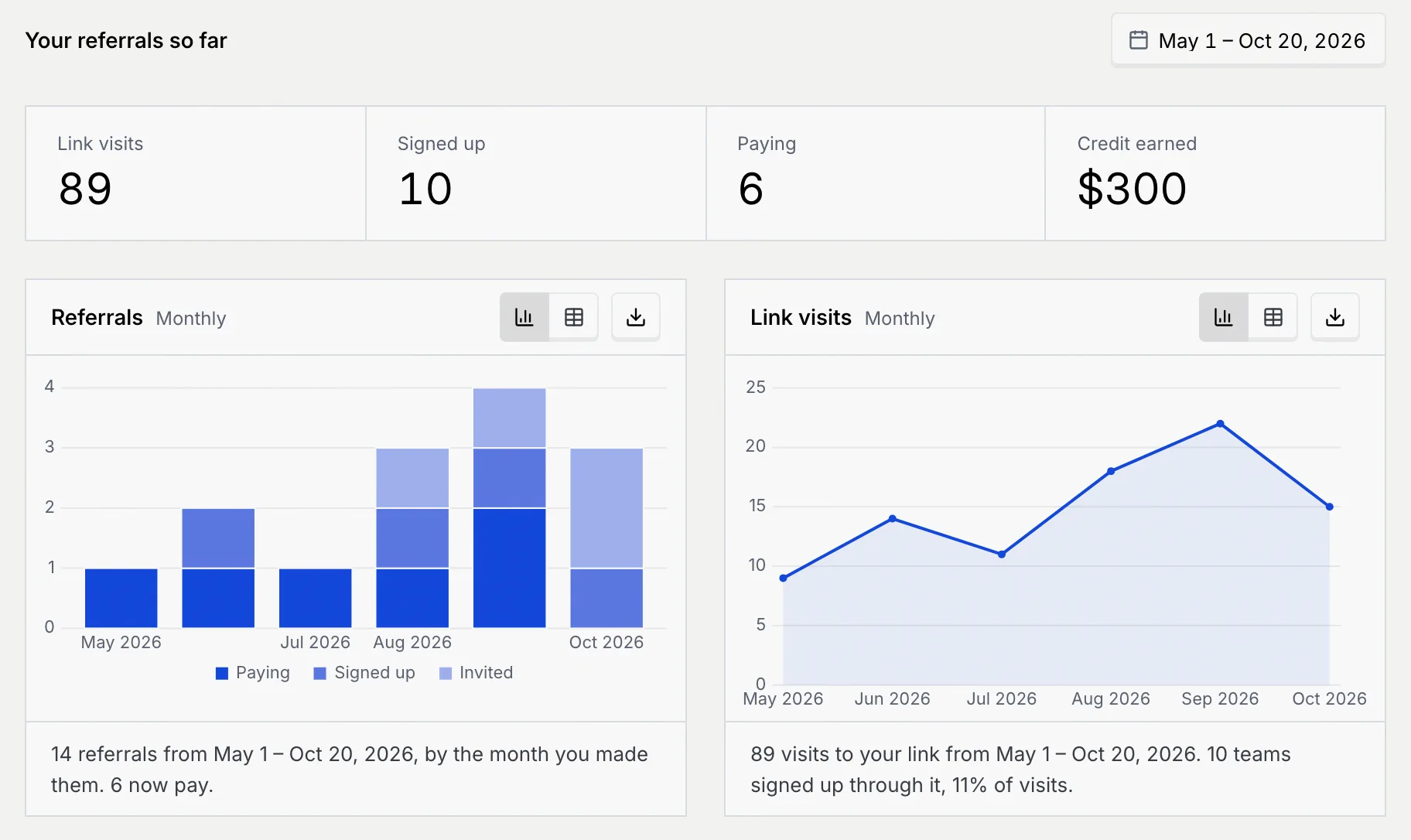
Under **Your referrals so far**, four numbers count what your link has brought in:
| Number | What it counts |
| --- | --- |
| **Link visits** | Times someone opened your link. |
| **Signed up** | Teams that created a workspace through your link or invite. |
| **Paying** | Of those, teams that have paid their first invoice. |
| **Credit earned** | $50 for each paying team. |
Below them, **Referrals** charts the people you referred by when you referred them, stacked by **Paying**, **Signed up** and **Invited**, and **Link visits** charts the visits to your link. A sentence under each chart sums it up, such as how many of the teams you referred now pay, and what share of visits led to a sign-up. Each chart can switch to a table, and the download button exports it as PNG, JPG, CSV or Excel.
### Pick a date range [#pick-a-date-range]
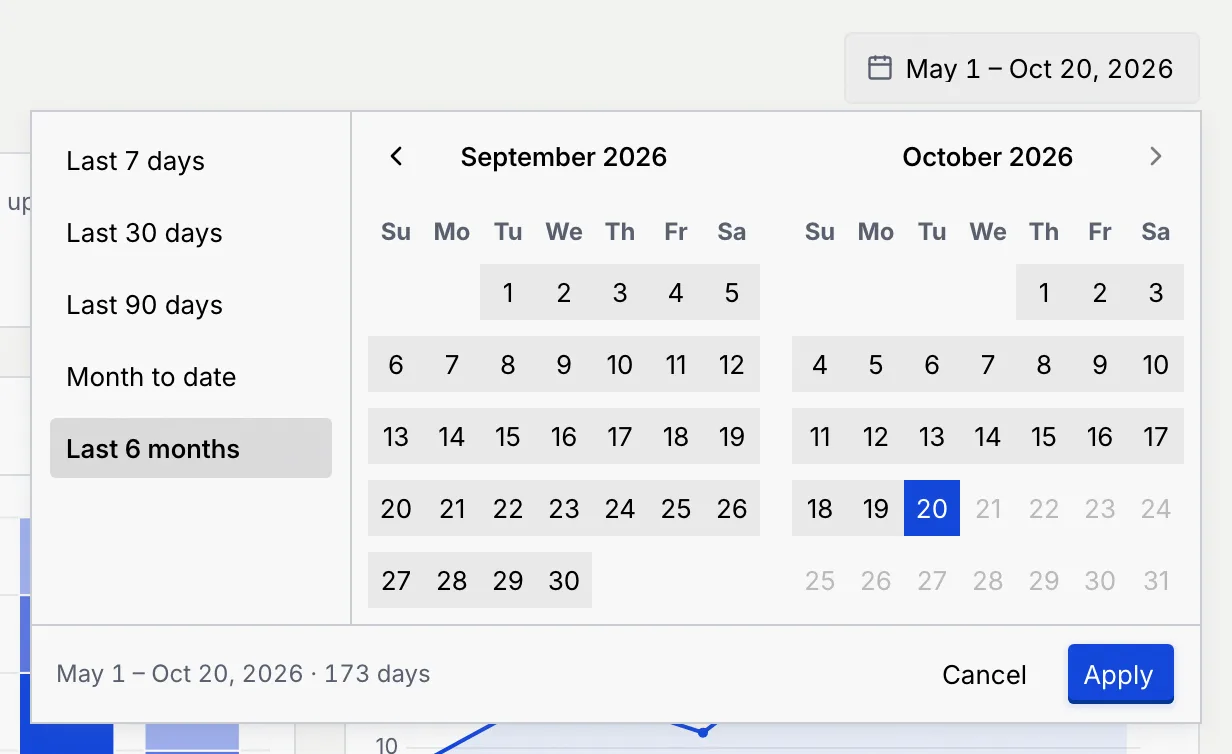
The numbers, charts and list start with the last 6 months. Click the date range at the top right and choose **Last 7 days**, **Last 30 days**, **Last 90 days**, **Month to date** or **Last 6 months**, or pick a start and end day on the calendar and click **Apply**. The heading changes to **Your referrals,** followed by the range.
The range resets when you leave the page.
### Check the people you referred [#check-the-people-you-referred]
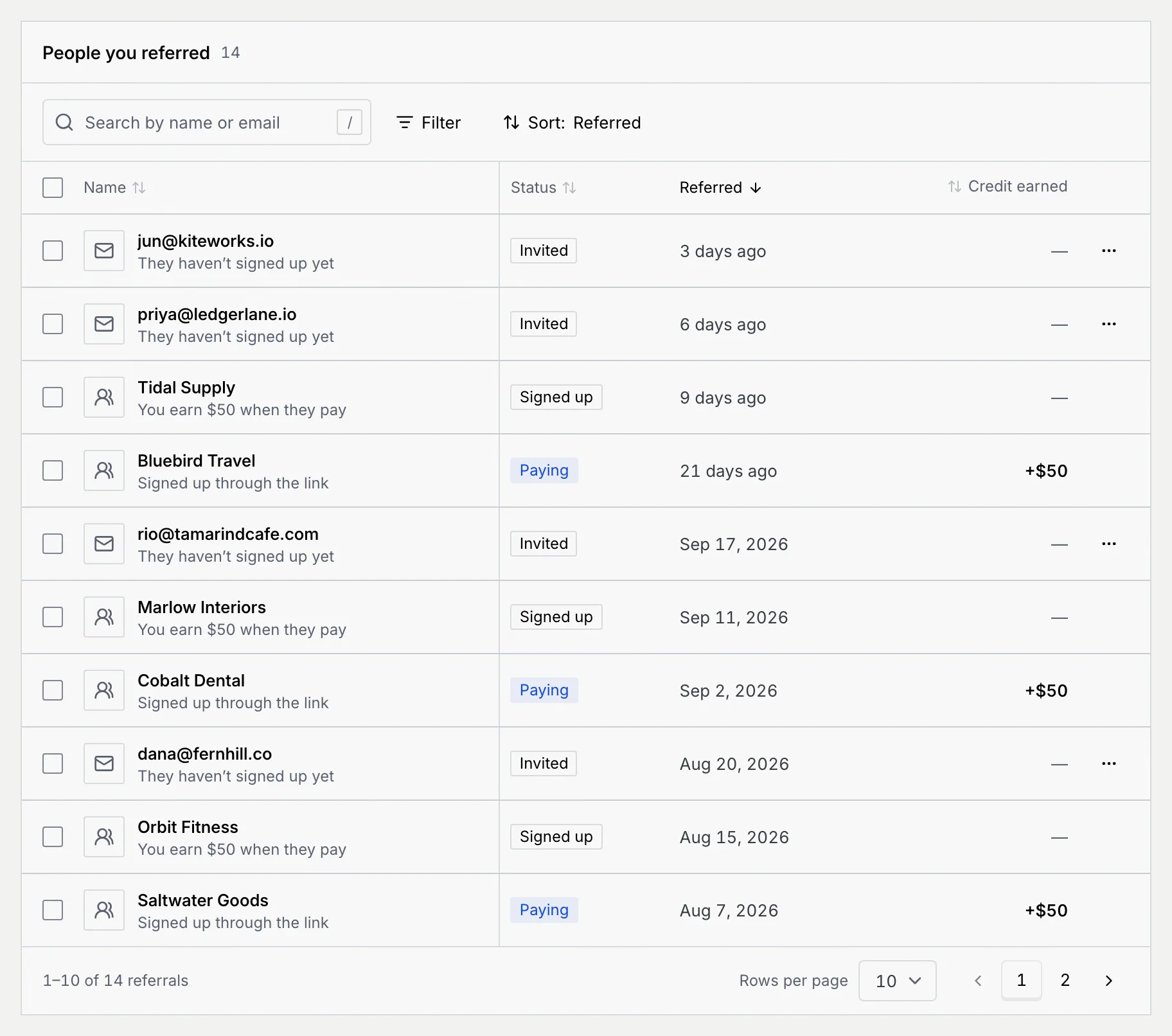
**People you referred** lists everyone you invited or who signed up through your link, newest first. The line under each name says where they are:
| Status | Under the name | Credit earned |
| --- | --- | --- |
| **Invited** | They haven't signed up yet | — |
| **Signed up** | You earn $50 when they pay | — |
| **Paying** | Invited by email, or Signed up through the link | +$50 |
Search by name or email, use **Filter** for **Status** or **How they came** (**Invited by email** or **Signed up through the link**), and change the order with **Sort** (Name, Status, Referred or Credit earned). When the list is narrowed, a count such as "3 of 14" shows next to the tools. The list shows 10, 25 or 50 people per page.
## Withdraw an invite [#withdraw-an-invite]
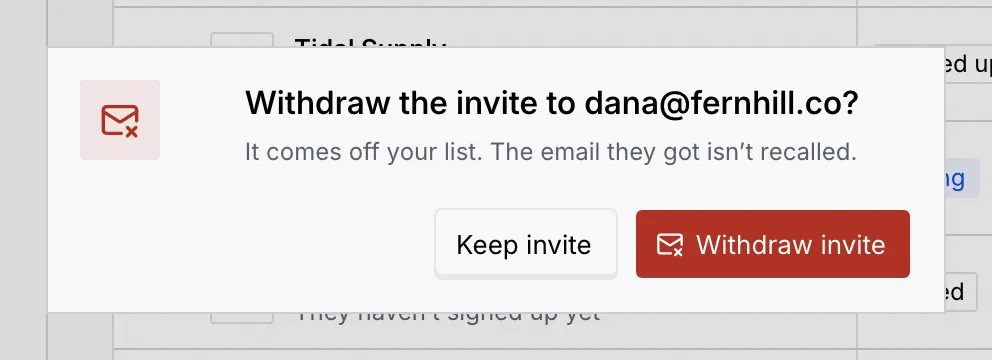
You can withdraw an invite until the person signs up. The email they got isn't recalled, and the link in it still works if they find it later.
### Open the row's menu [#open-the-rows-menu]
On an **Invited** row, click the **⋯** menu. **Copy email** copies their address; choose **Withdraw invite**.

### Confirm [#confirm]
Click **Withdraw invite**, or **Keep invite**. The person comes off your list.
## Act on several people at once [#act-on-several-people-at-once]
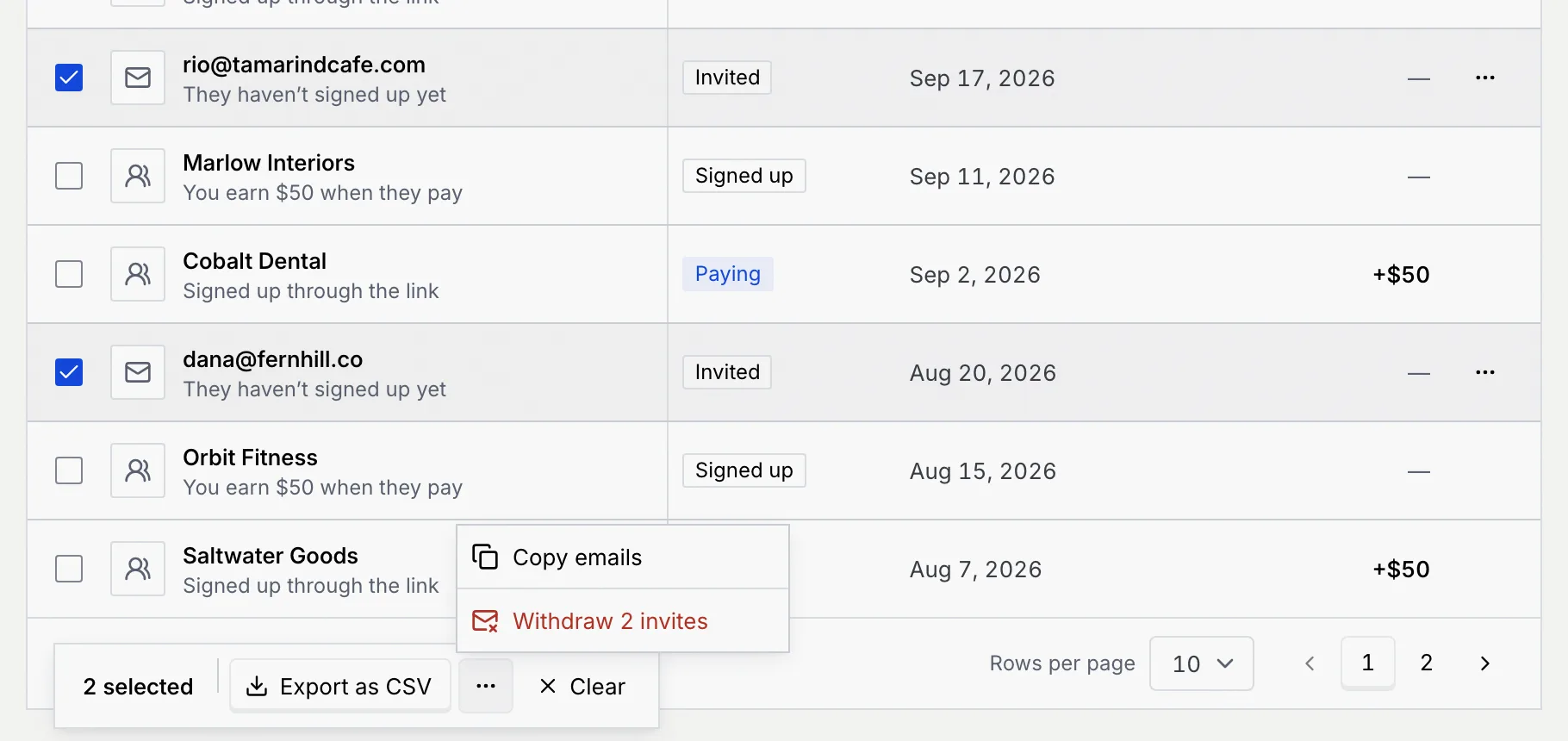
Tick the box at the start of each row (or the one in the header for the whole page). A bar at the bottom shows how many are selected:
- **Export as CSV** downloads `referrals.csv` with each person's name, email, how they came, status, when you referred them and the credit earned in US dollars.
- In the **⋯** menu, **Copy emails** copies the addresses of the people you invited by email, and **Withdraw** withdraws the invites in your selection after you confirm. People who already signed up stay on the list.
- **Clear** unticks everyone.
## How the credit works [#how-the-credit-works]
The **How it works** panel at the bottom of the page sums up the rules:
- **They get** $50 in credit on a new workspace, on top of the Free plan.
- **You get** $50 in credit for the workspace you're in, once theirs pays its first invoice.
- **Credit lasts** 12 months, and comes off invoices before the card is charged.
- **Doesn't count:** your own address, or a workspace that already had an account.
## Troubleshooting [#troubleshooting]
Remove your own address from **Email addresses** and send again.
The message lists the ones that aren't. Fix or remove them; separate addresses with commas or new lines.
Nobody has signed up through your link or been invited by you yet. Share your link or invite someone by email: each team shows here, with what it earned.
Check the spelling, search by email instead, or click **Clear filters**.
Nothing was sent. The message in the dialog says why; check your connection and click **Send invite** again.
Nobody you referred falls in the dates you picked. Pick a longer range, such as **Last 6 months**.
Referral credit shows under **Credits** on the [Billing](/docs/settings/billing) page of the workspace named at the top of **Referrals**. Only owners and admins see credits there, so if you're a member or viewer, ask one of them.
## Next steps [#next-steps]