Workspaces and roles
Switch between the workspaces you belong to, and see what the Owner, Admin, Member and Viewer roles can do.
A workspace holds one team's channels, conversations, contacts and agents. You can belong to several, with a different role in each. Your role decides what you can change; everything else you can still read.
- Who can use it: Everyone can switch between their own workspaces. Only owners and admins can change people's roles, in Settings → Members & roles.
- Before you start: To switch, you need to belong to more than one workspace (see Accept an invite).
Switch workspace
Open the workspace menu
Click the workspace name at the top of the sidebar. Under Workspaces, the menu lists every workspace you belong to, with your role in each; a check mark shows the one you're in.
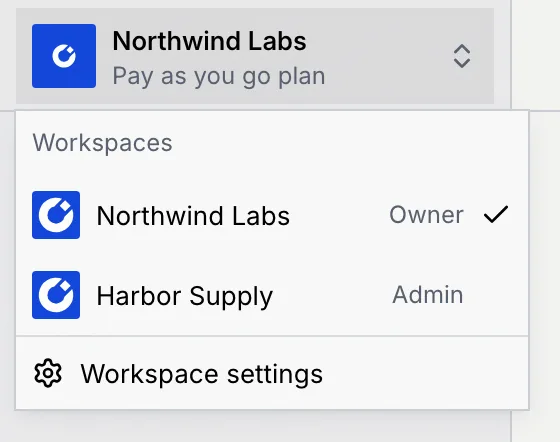
Pick a workspace
Click the workspace you want. While it switches, the top of the sidebar says "Switching…". Mokanata then opens that workspace's Command center and confirms "Switched to" followed by its name. The top of the sidebar now shows the new workspace and its plan.
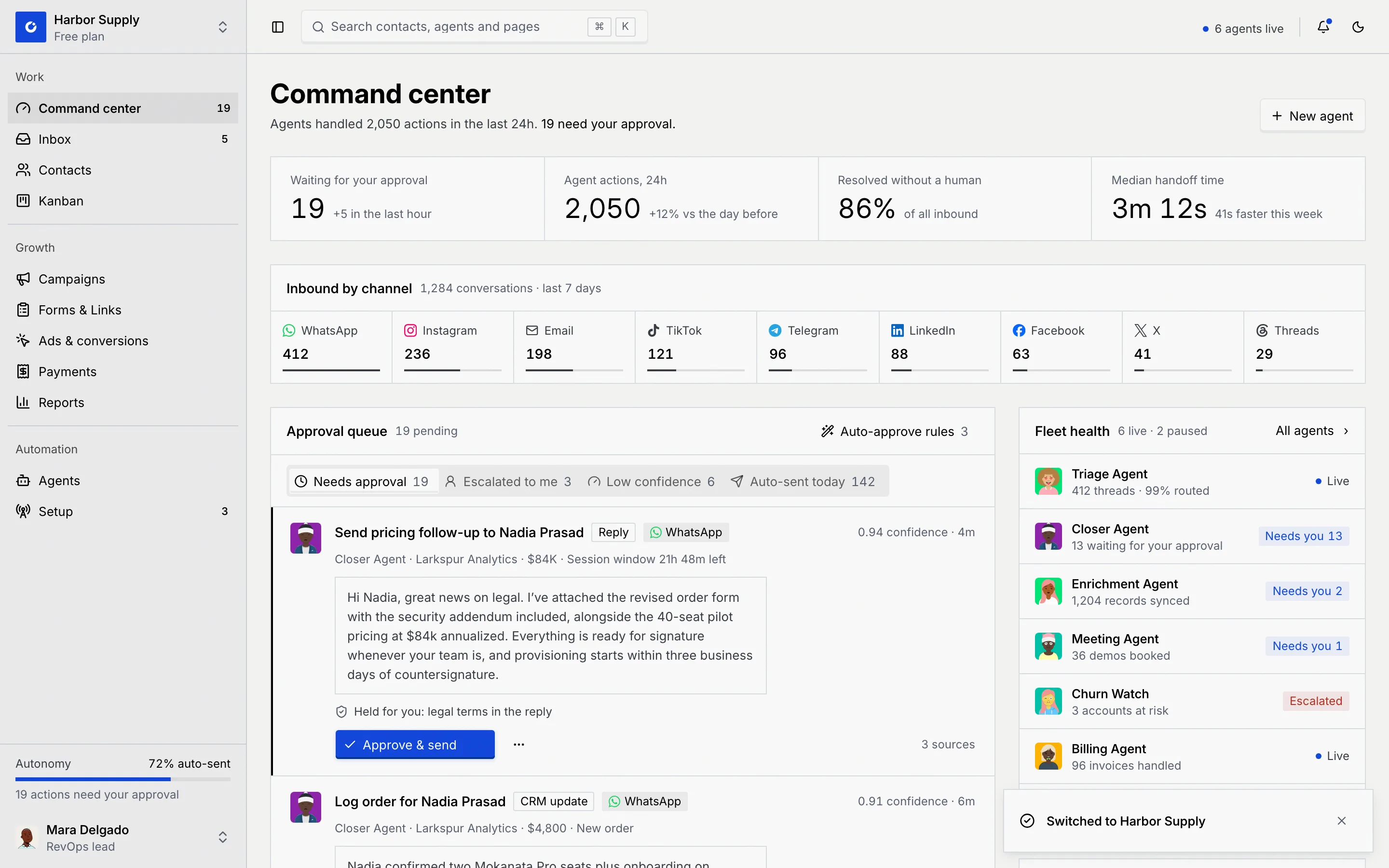
Workspace settings at the bottom of the menu opens the current workspace's name, address and logo (see Workspace). When you log in, Mokanata opens the workspace you used most recently.
To join another workspace, ask one of its owners or admins to invite you. To leave one, use the Danger zone. If you leave or are removed from the workspace you're in, Mokanata moves you to your most recently used other workspace.
The four roles
Every workspace has exactly one Owner (usually the person who created it) and any number of admins, members and viewers.
| Role | In short |
|---|---|
| Owner | Full access, including billing and deleting the workspace. |
| Admin | Manages members, channels, agents and billing. |
| Member | Works the inbox, approves drafts and edits contacts. |
| Viewer | Reads conversations and reports. Can't send or approve. |
What each role can do by default:
| Can… | Owner | Admin | Member | Viewer |
|---|---|---|---|---|
| Read conversations, contacts, boards, campaigns, agents and reports | Yes | Yes | Yes | Yes |
| Reply, approve or reject agent drafts, take over and resolve conversations | Yes | Yes | Yes | No |
| Add and edit contacts, kanban cards and boards | Yes | Yes | Yes | No |
| Build forms, short links and link in bio pages | Yes | Yes | Yes | No |
| Test agents | Yes | Yes | Yes | No |
| Create, edit, deploy and delete agents | Yes | Yes | No | No |
| Import, export, merge and delete contacts | Yes | Yes | No | No |
| Create and send campaigns and message templates | Yes | Yes | No | No |
| Connect and manage channels | Yes | Yes | No | No |
| Change workspace settings, members and roles, and billing | Yes | Yes | No | No |
| Transfer ownership or delete the workspace | Yes | No | No | No |
Owners and admins can change what the Admin, Member and Viewer roles allow; the Owner always has every permission. For the full list of permissions, see Roles and permissions.
A few rules hold for everyone:
- Nobody can change their own role.
- Only the owner can change or remove another admin.
- Nobody is invited as an owner: the owner hands over ownership with Transfer ownership in the Danger zone, and becomes an admin.
- The owner can't leave the workspace or be removed. They transfer ownership first, or delete the workspace.
Custom roles
Besides the four built-in roles, owners and admins can create up to 20 custom roles, such as "Sales lead". Each one starts from the Admin, Member or Viewer level, adds or removes permissions, and can be limited to certain channel accounts. Invites always use a built-in role; give someone a custom role once they've joined. See Roles and permissions and Channel access.
What you see when your role can't do something
You can open every page in the sidebar whatever your role. Where your role can only read:
- A View only notice under the page header says what your role can still do and who can change it.
- Buttons for things your role can't do are greyed out. Where a lock icon sits next to a control, point at it (or tap it) to read why, for example "Your role, Viewer, can't … An owner or admin can change this in Settings → Members & roles."
- Actions you can't take are left out of the command palette.
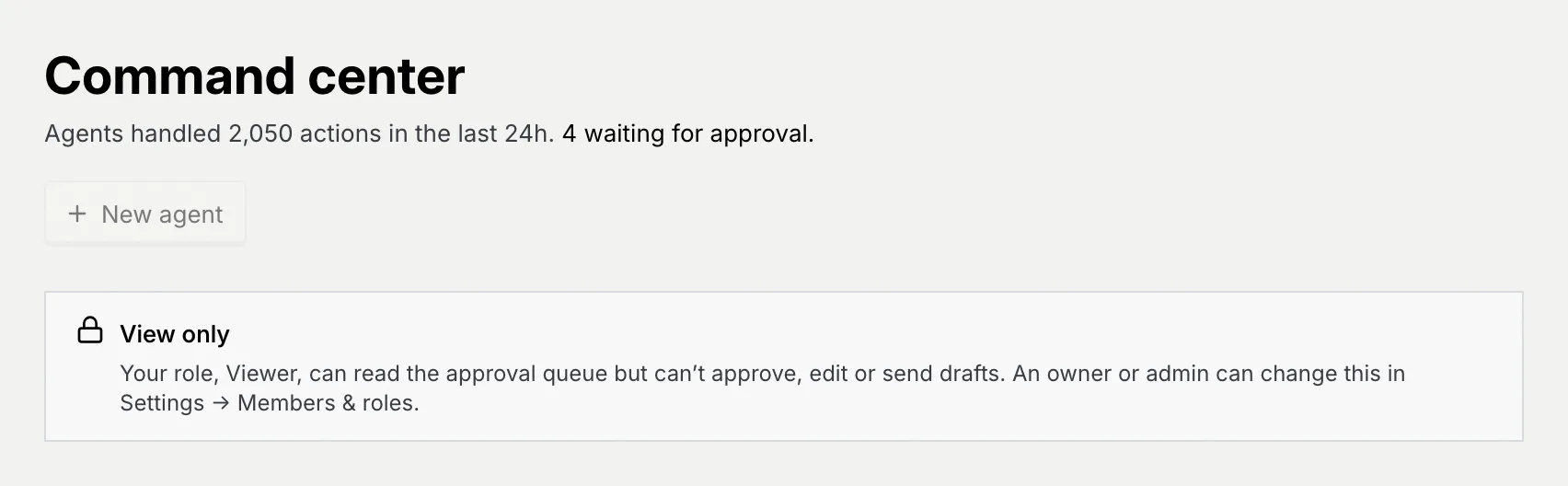
If you need more access, ask an owner or admin of the workspace to change your role.
Troubleshooting
You're not a member of it (yet). Check your email for an invite, or ask one of its owners or admins to invite you. If the menu says "Couldn't load your workspaces. Try again", click that line to reload the list.
Someone removed you from that workspace after the menu was opened. Ask an owner to invite you again.
Mokanata says "Couldn't switch to" followed by the workspace name, with Retry. Check your connection and try again; you stay in the current workspace until it works.
Next steps
Search and jump with ⌘K
Open any page, setting, agent or contact from the command palette, run quick actions, and search the page you're on with the / key.
Confirm destructive actions
Deleting, removing, disconnecting or revoking something asks for a current code from your authenticator app, so a stolen session alone can't destroy anything.