Sign-in and link problems
What to do when you've lost your authenticator app or a passkey, a link has expired, you hit a limit, or Mokanata can't be reached.
Most sign-in problems come down to a missing second factor, a link that has expired or been replaced, a limit that protects your account, or a dropped connection. This page covers each one. Mokanata has no passwords, so there's no password to reset: you always get in with a passkey, Google or an email link, plus a second step.
- Who can use it: Anyone.
- Before you start: Nothing.
Lost your authenticator app
After Google or an email link, Mokanata asks for a second step. Without your phone you still have these ways through:
- A code by email (after Google only): on the two-step check, ask Mokanata to email you a code and type it in. After an email link there is no email code, because your email already got you this far.
- A recovery code: type one of the recovery codes you saved when you set up your authenticator. Each one works once.
- A passkey: choose Use a passkey on the two-step check.
Or sign in with a passkey, which doesn't ask for a second step at all.
Once you're in, set up the authenticator on your new phone: in Settings → Security, reset it and add Mokanata to the new app. Then make new recovery codes if you used some of yours.
Lost a passkey
A passkey lives on your device or in your password manager. If it's gone (a lost phone, a reset laptop):
- Log in with an email link or Google, and confirm with your authenticator, a recovery code or a passkey (after Google, an email code too) (see Log in).
- In Settings → Security, add a passkey on the device you're using now, then remove the lost one.
If someone else might have the lost device, also sign it out under Where you're signed in.
No password reset
Mokanata doesn't use passwords, so there's no "Forgot password" and no reset email. Old links to the forgot-password or reset-password pages open the log-in page. If you used to log in with a password, use an email link or Google with the same address: your account and workspaces are unchanged.
Too many attempts
After 5 wrong two-step codes in 5 minutes, Mokanata stops checking codes for a while and shows a countdown. Wait for it to finish, or use another kind of code (a recovery code, or after Google an email code). The same limit applies to the authenticator code that confirms a destructive action.
Wait before asking again
To keep your inbox from filling up, Mokanata sends at most one email every 30 seconds, and five an hour, to the same address for each kind of email (sign-in links, two-step codes). Ask sooner and the page says Wait before asking again, with a countdown.
Sign-in links have their own limits: at most 3 per email address in 10 minutes, and after two links from one network Mokanata asks you to pass a robot check before sending another. A network is limited to 5 links in 10 minutes in all.
The email you already asked for is usually on its way: check your inbox and spam folder before asking again. When a new one arrives, use the newest email, because each new code or link replaces the one before.
Links that don't work
Every link Mokanata emails works for a limited time, and most work only once. Asking for a new one cancels the older ones.
| Link | Works for | When it no longer works | What to do |
|---|---|---|---|
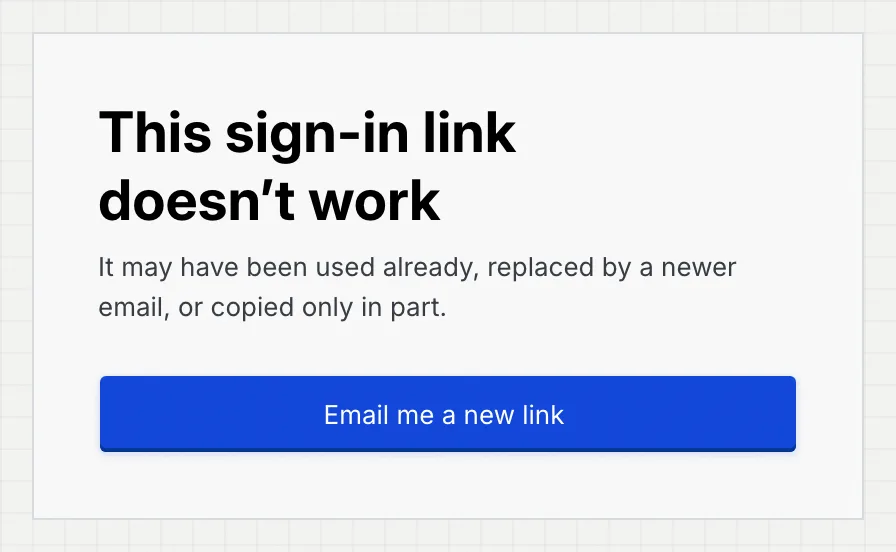
| Sign-in link | 15 minutes, once | This sign-in link has expired or This sign-in link doesn't work | Click Email me a new link. If you're already logged in, the page says so and offers Go to Mokanata. |
| New email address link (from your profile) | 24 hours | This link has expired or This link doesn't work | Change the address again in Profile. |
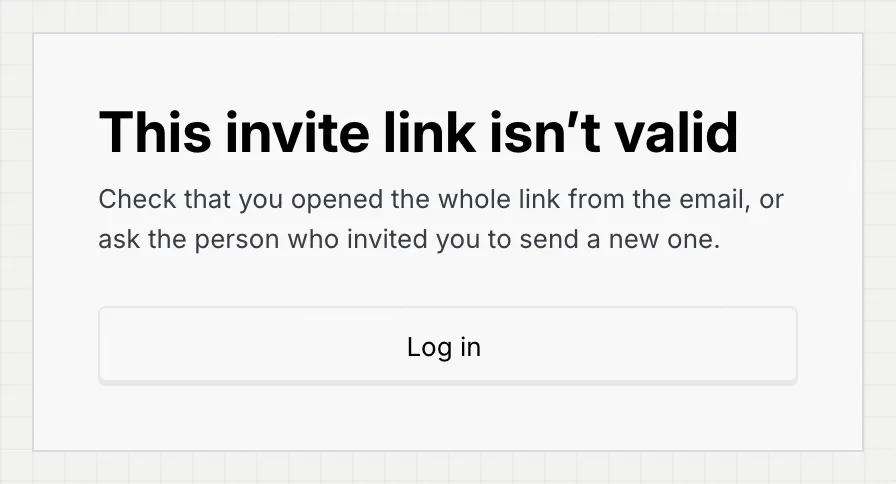
| Invite link | 7 days | This invite link isn't valid, This invite has expired, This invite was withdrawn or This invite was already used | See When an invite can't be used. |
A sign-in link that was already used or replaced:
An invite link that's incomplete:
Opening a new-address link from your profile switches your login email: Mokanata says Email updated ("You now sign in with" the new address) and opens your profile.
When a page says it couldn't check the link, Mokanata couldn't reach its servers. Click Try again; the link itself may be fine.
Google sign-in was cancelled
If you close Google's window without choosing an account, the page shows "Google sign-in was cancelled. Nothing was changed." under Continue with Google. No account was created or changed: click the button again to retry.
Mokanata can't be reached
When your connection drops while you log in, the page says Mokanata can't be reached. Reconnect and try again. If the problem is on Mokanata's side, the alert reads Something went wrong on our side instead; try again in a moment.
A page doesn't load
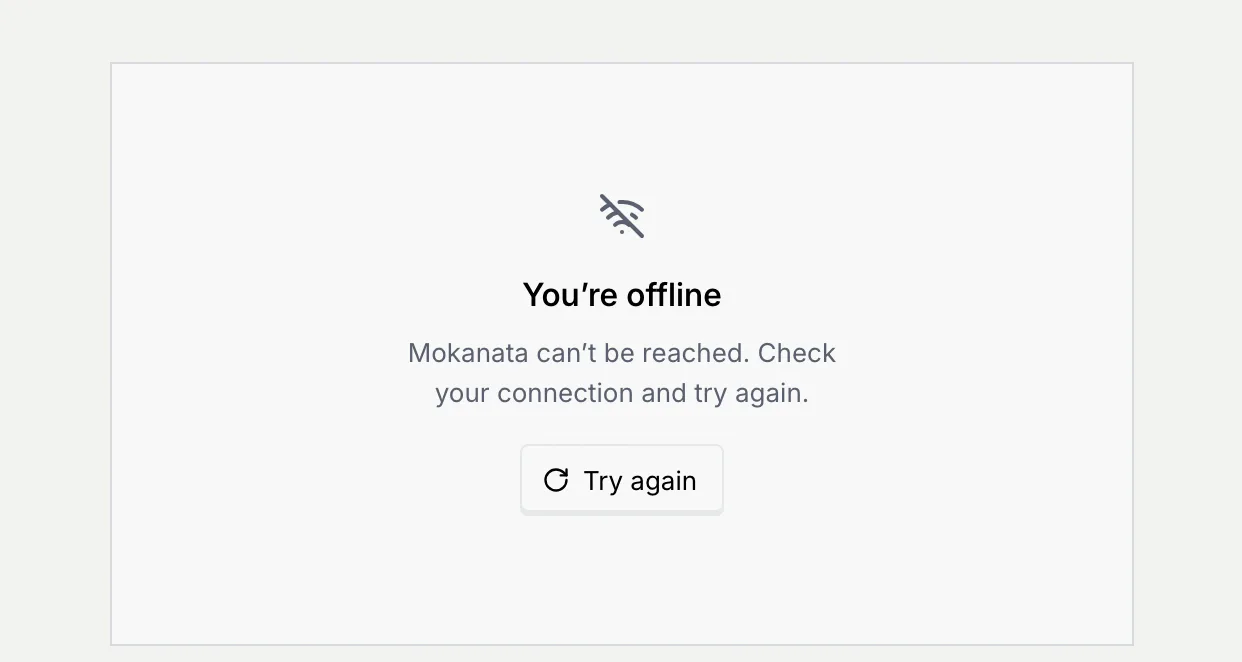
Inside the app, a page that can't load shows You're offline when your connection is down, or This page didn't load for other problems, with what went wrong and a Try again button. Nothing was changed. The sidebar and top bar keep working, so you can also go elsewhere.
More questions
- Check your spam or junk folder.
- Make sure the address is right. For safety, Mokanata answers the same way whether or not an address has an account.
- Wait 30 seconds and ask again; see Wait before asking again.
Sign in with a passkey, or contact Mokanata support. Once you're in, reset your authenticator and make new recovery codes.
Every account needs an authenticator app and at least one passkey before it can use Mokanata. Finish both steps; see Create your account.
Sessions last 30 days on each device. If you're logged out sooner, someone may have signed out this device from the Where you're signed in panel in Settings → Security. The log-in page says why; see Why you were logged out.
You're logged in as someone else. See If you're logged in as someone else.