Set up your workspace
The four setup steps after you sign up: create your workspace, connect a channel, invite your team and create your first agent.
Right after you confirm your email, Mokanata walks you through four steps: create your workspace, connect your first channel, invite your team and create your first agent. Only the first one is required. You can skip the rest and come back to them from the Command center (see Finish setup later).
- Who can use it: The person who signs up and creates the workspace. They become its Owner. People who join through an invite skip setup, because the workspace already exists.
- Before you start: A confirmed account (Create your account). For the channel step, the login for that channel (for WhatsApp, the business number registered for the WhatsApp Business API). For the invite step, your teammates' email addresses.
How setup works
The top of every step shows "Setting up Mokanata for" with your first name, and four steps across the page. The current step has a blue bar, finished steps a dark bar and a check mark, and skipped steps a skip mark. Once your workspace exists, you can click any step to go back to it. On a phone, the steps show as "Step 1 of 4".
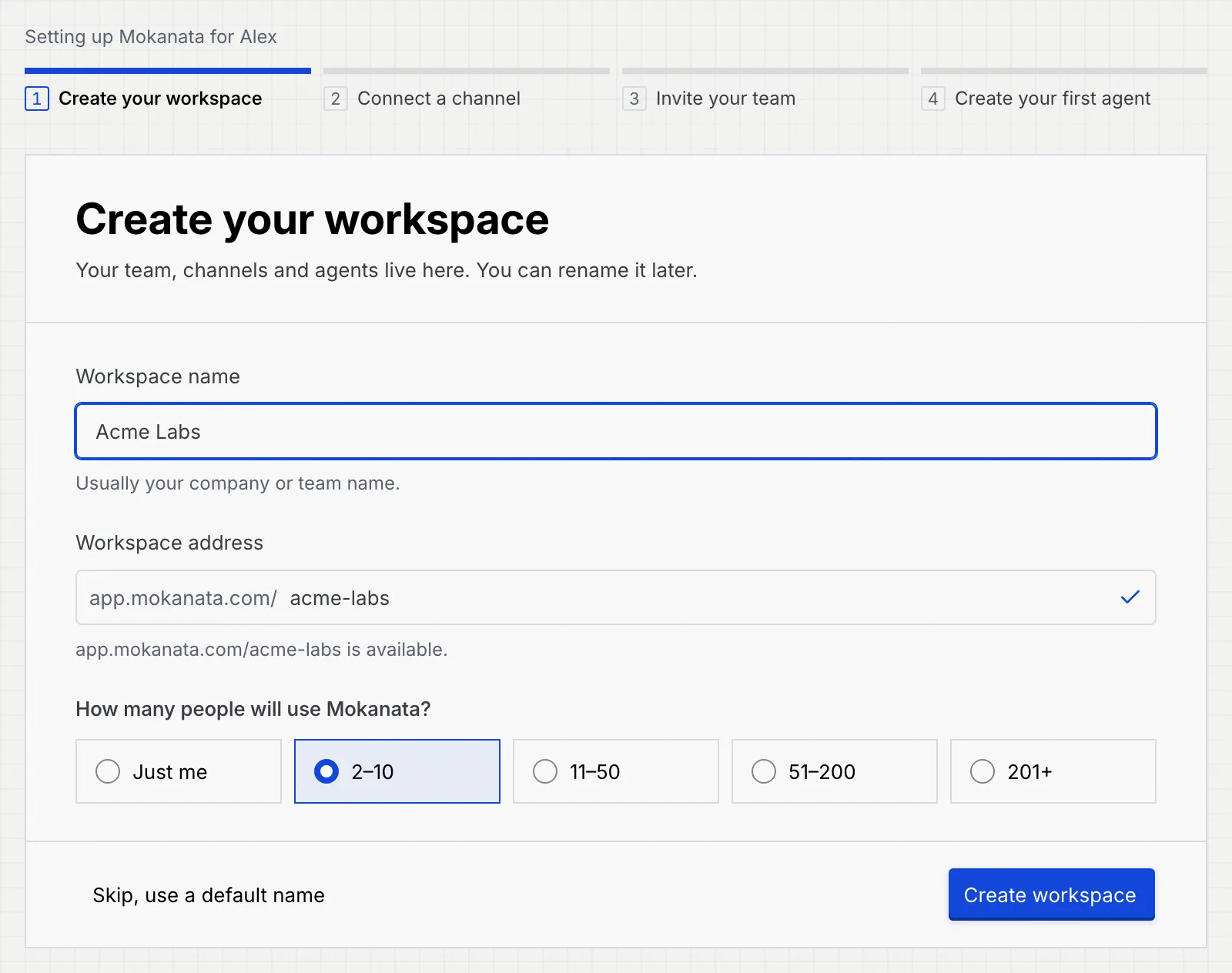
To stop and continue another time, click Log out at the top right. If you haven't created your workspace yet, you're back on step 1 the next time you log in. Once it exists, you land on the Command center, where the steps you haven't finished wait on a checklist.
Step 1: Create your workspace
Name your workspace
Workspace name is filled in from your email: a company address like alex@acme-labs.io gives "Acme Labs", and a personal address (Gmail, Outlook and similar) gives "Alex's team". Change it to your company or team name, up to 60 characters. You can rename it later in Settings → Workspace.
Check the workspace address
Workspace address is your workspace's web address, app.mokanata.com/ followed by what you type. It follows the name until you edit it yourself. Use 3 to 40 lowercase letters, numbers and single dashes. Mokanata checks it as you type: a check mark and "is available" when it's free, or "is taken. Try another." when another workspace uses it.

Pick your team size and create it
Under How many people will use Mokanata? choose Just me, 2–10, 11–50, 51–200 or 201+, then click Create workspace. You become the workspace's owner, on the plan you picked when you signed up (Free if you didn't pick one). The next step confirms it, for example "Acme Labs is ready."
If you'd rather not decide now, click Skip, use a default name. Mokanata creates a workspace named after you ("Alex's workspace"), marks the step as skipped and says so on the next step: "Created “Alex's workspace”. Rename it any time in Settings → Workspace." Saving a new name there marks the step done.
Step 2: Connect your first channel
Choose a channel
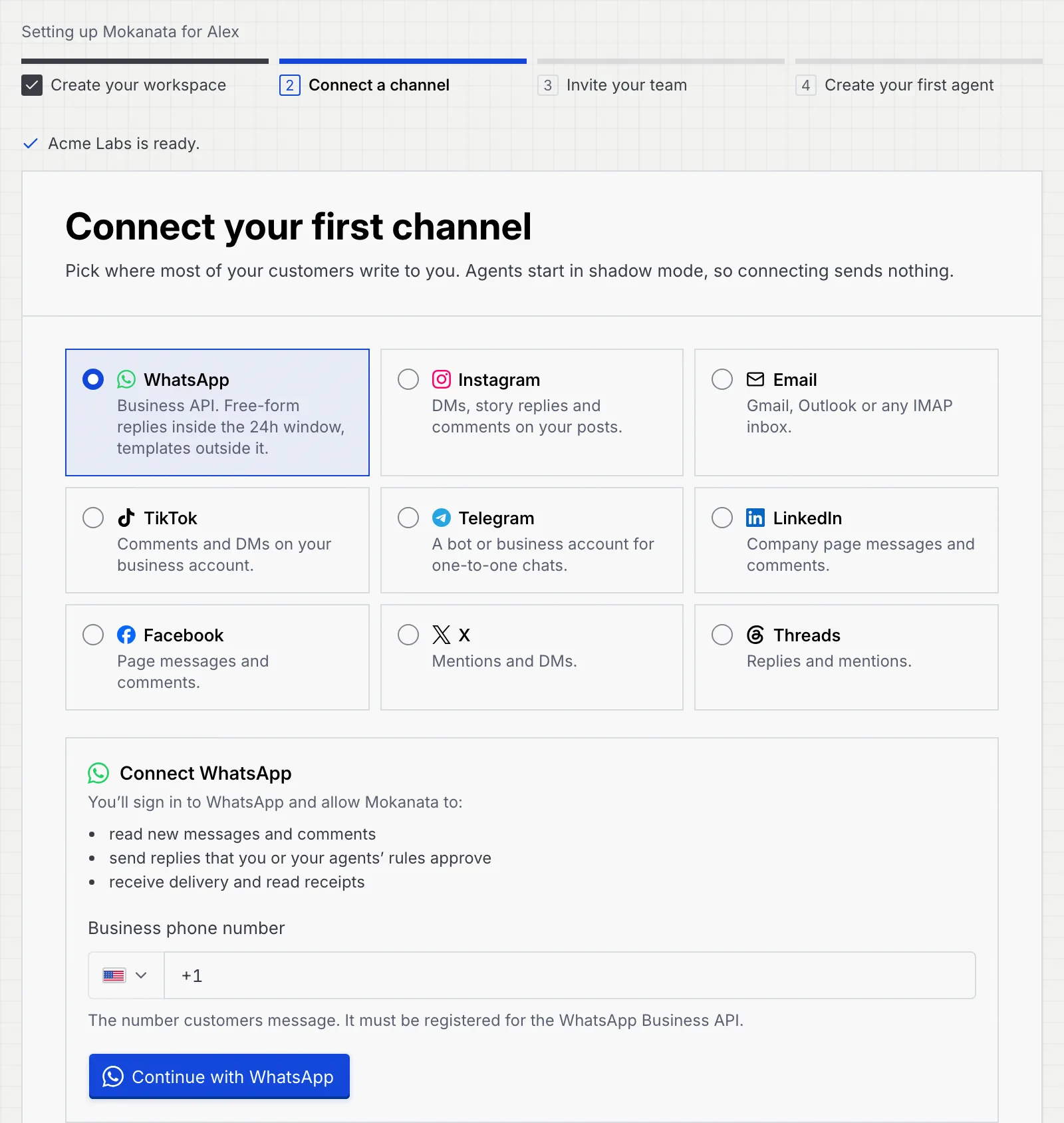
Pick where most of your customers write to you. WhatsApp, Facebook and Instagram connect with Facebook; they go live once Mokanata's Meta app is approved. The other cards are channels that are coming soon: each says it isn't available yet, and you can't connect it. Agents start in shadow mode, so connecting a channel doesn't send anything.
Sign in with Facebook
The panel under the cards lists what you allow: read new messages, send replies that you or your agents' rules approve, and receive delivery and read receipts. Click Continue with followed by the channel's name.
- For WhatsApp, Meta's sign-up opens: pick your business account and number (see Add a WhatsApp number). The next step reminds you to register the number with its two-step PIN in Setup → Channels before agents send from it.
- For Facebook or Instagram, sign in with Facebook and switch on the Pages and Instagram accounts agents reply from (see Connect a channel).
The next step confirms it, for example "Instagram connected. New conversations will show up in your inbox."
You can connect the other channels later from Setup (see Connect a channel). Skip for now moves on without connecting one.
Step 3: Invite your team
Add email addresses
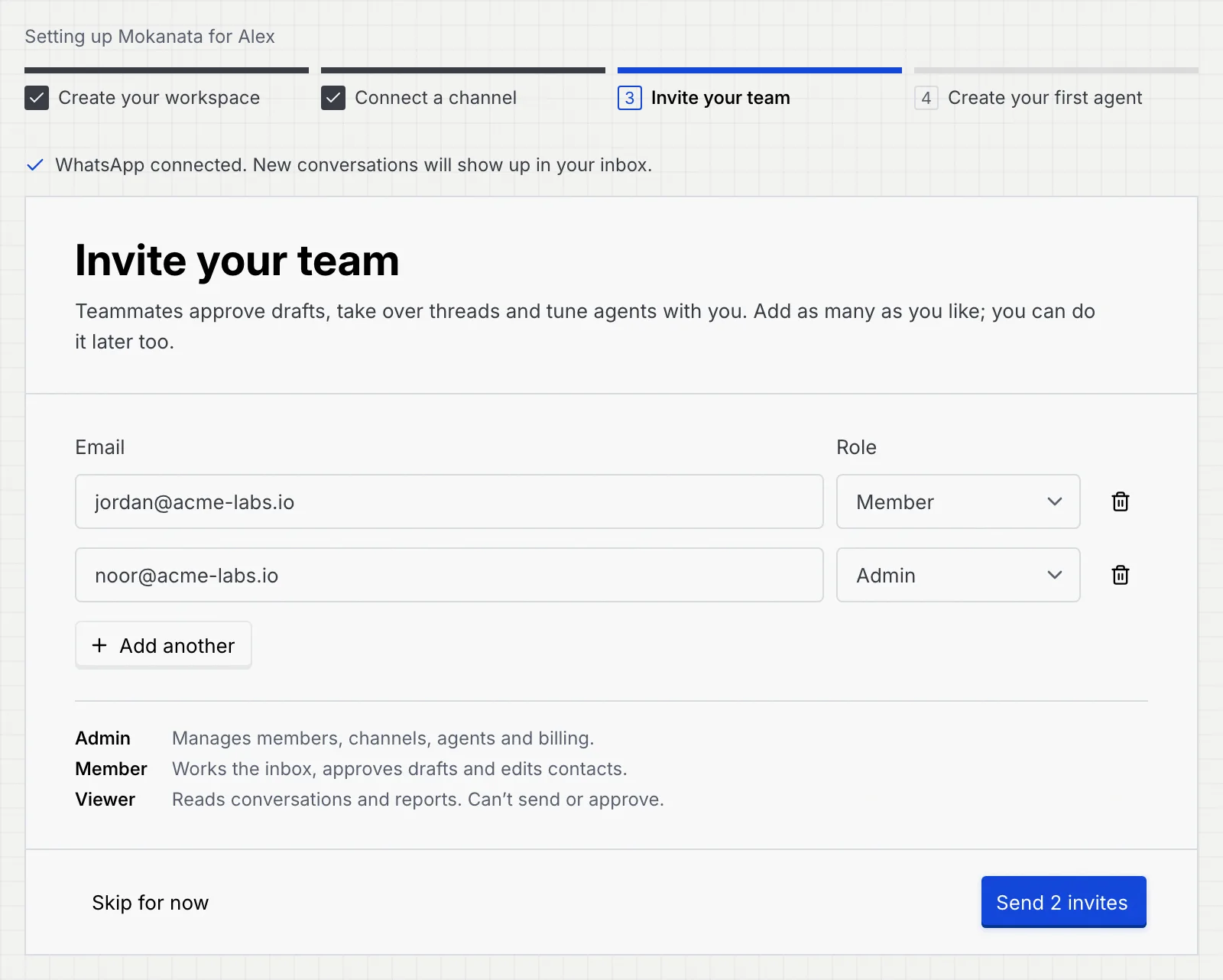
Type a teammate's Email in each row and pick their Role: Admin, Member (the default) or Viewer. The legend under the rows says what each role does. Add another adds a row (up to 10 at a time); the bin button removes one.
Mokanata checks each address as you type, and tells you if it's yours, already in the list or already in the workspace.
Send the invites
Click Send invite (or Send 2 invites, and so on). Each person gets an email with a link to join; invites last 7 days. Inviting the same address again replaces their earlier invite. See Accept an invite for what your teammates see.
Owners can't be invited: invite someone as an admin, then transfer ownership if you need to. Manage invites later in Settings → Members & roles. Skip for now moves on without inviting anyone.
Step 4: Create your first agent
Pick a starting point
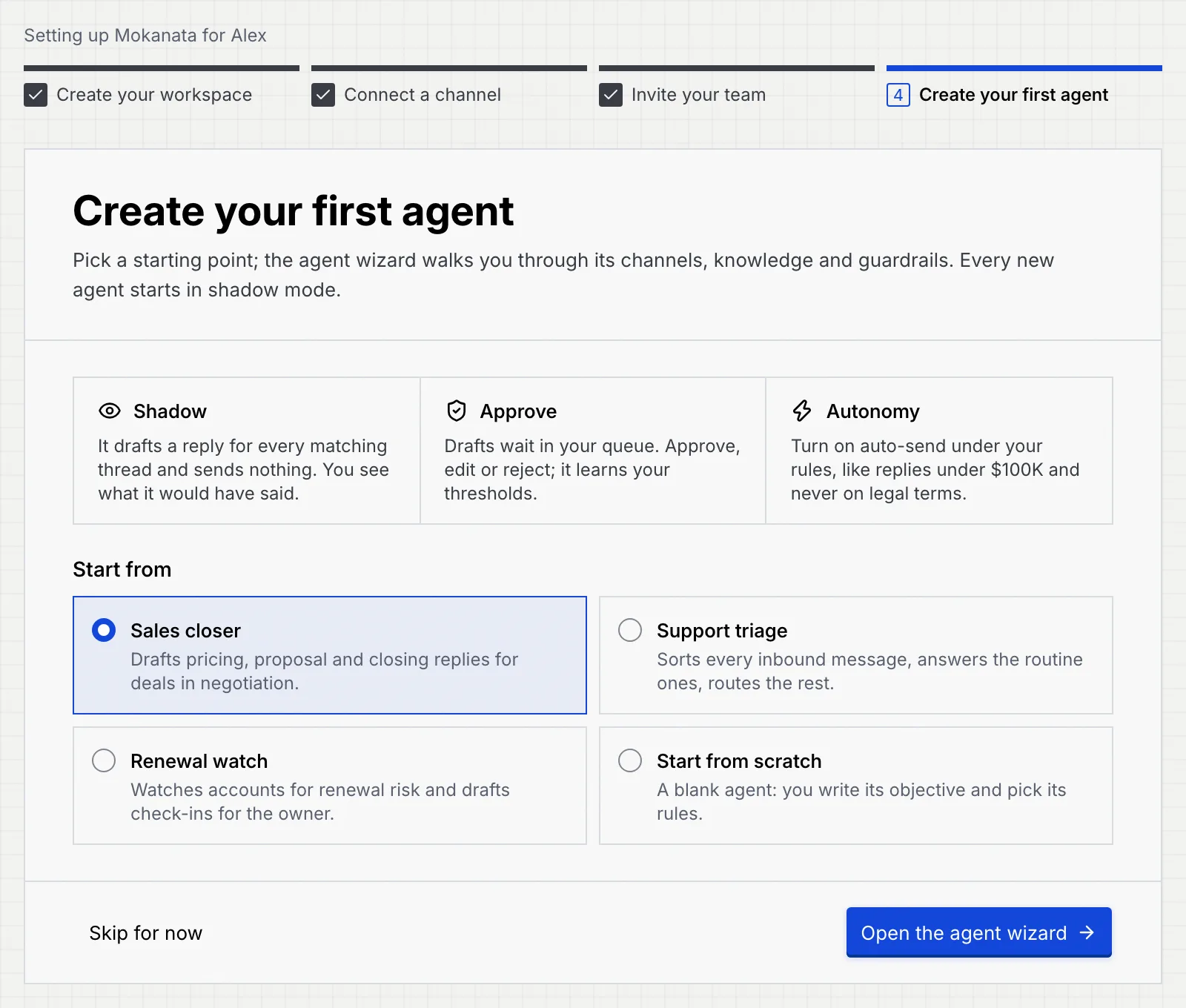
The step explains how an agent's autonomy grows: Shadow (it drafts and sends nothing), Approve (drafts wait in your queue) and Autonomy (it sends on its own under your rules). Under Start from, choose Sales closer, Support triage, Renewal watch or Start from scratch.
Finish the agent in the wizard
Click Open the agent wizard. The wizard opens with a banner, "Setup · Step 4 of 4", and walks you through the agent's channels, knowledge and guardrails (see Create an agent). An agent deployed from setup always starts in shadow mode.
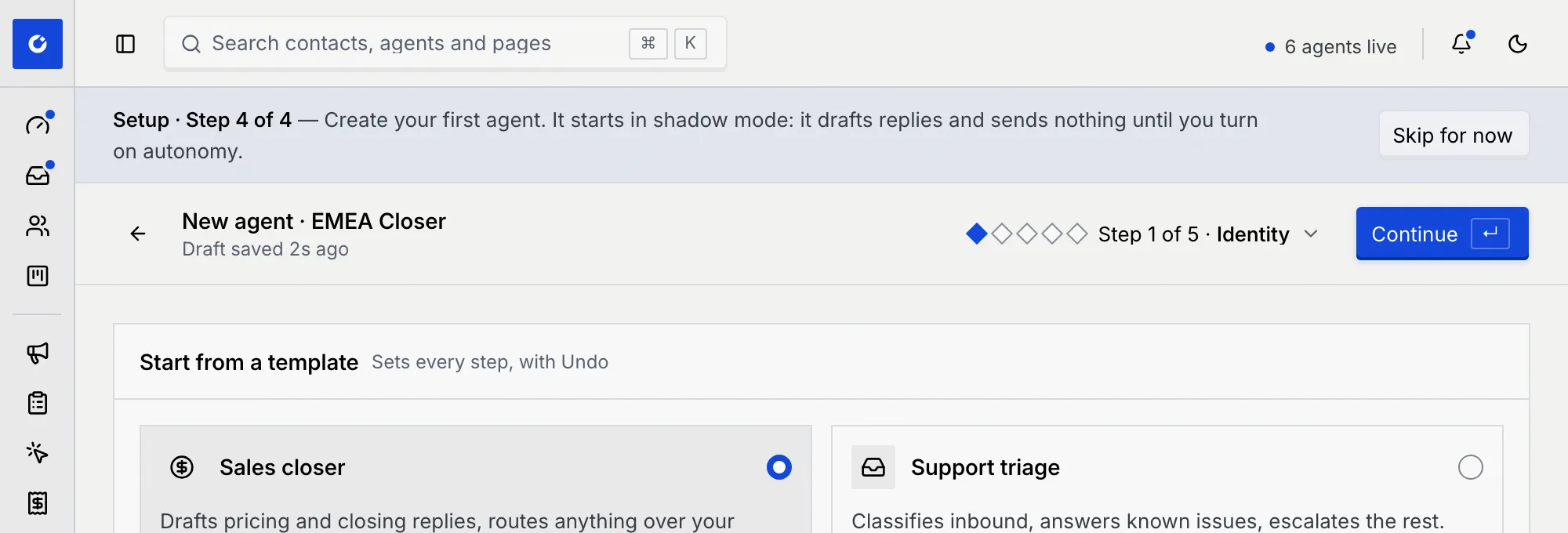
When you deploy it, Mokanata says the agent is in shadow on its channels, marks the step done and opens the setup summary. To leave the wizard without an agent, click Skip for now in the banner.
If you leave the wizard another way after making changes, Mokanata asks Leave without deploying?: Discard draft, Keep editing, or Leave, keep draft (the draft stays until you reload the page or log out). If the agent deploys but setup can't record it, the banner says the agent is deployed in shadow and offers Finish setup.
Finish setup
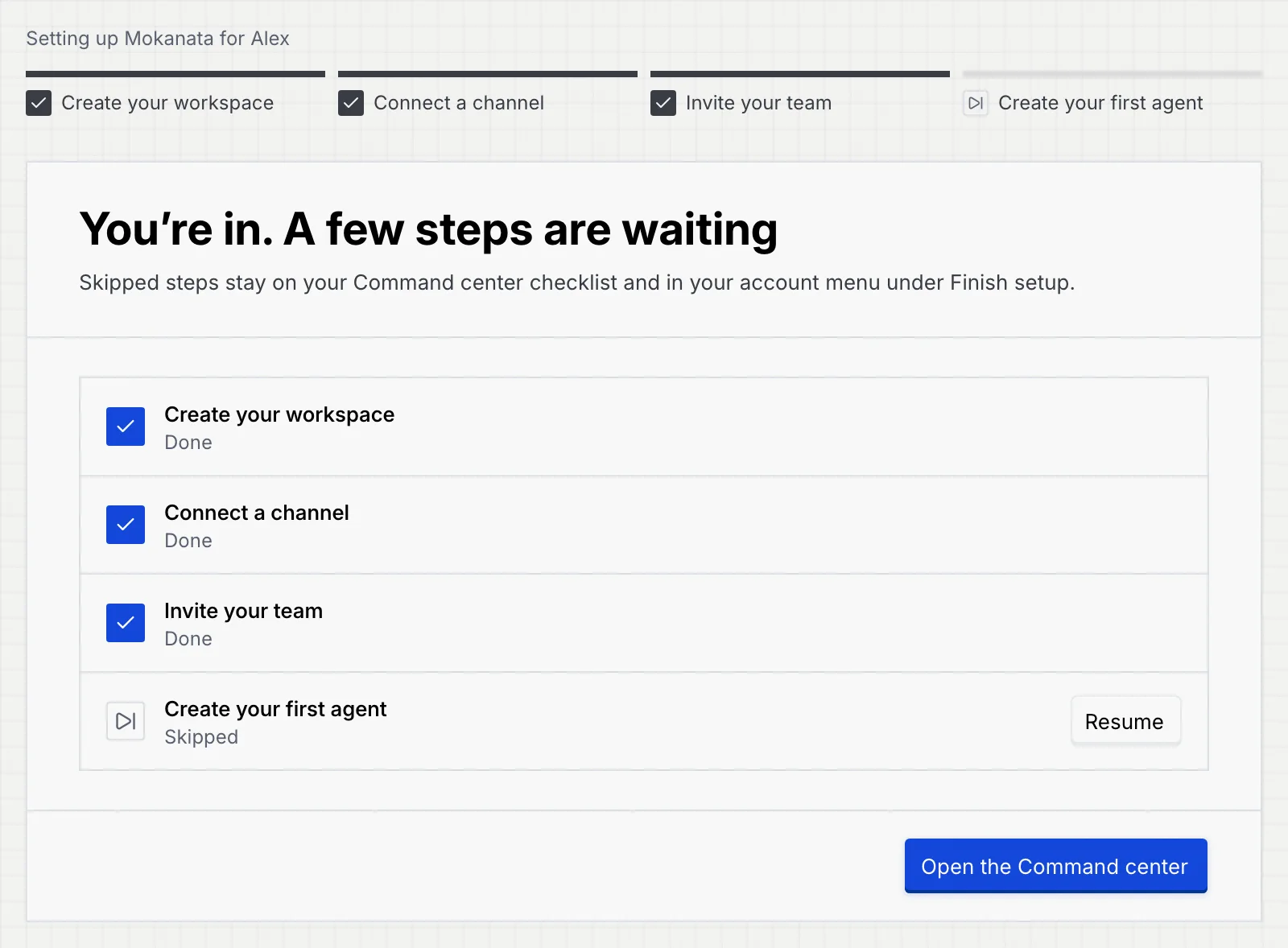
The last page sums up the four steps, each Done, Skipped or Not started.
- When all four are done, it reads You're all set.
- When some are open, it reads You're in. A few steps are waiting, with Start or Resume next to each open step.
Click Open the Command center to start working. Open steps wait on the Command center's checklist and under Finish setup in your account menu (see Finish setup later).
Go back to a finished step
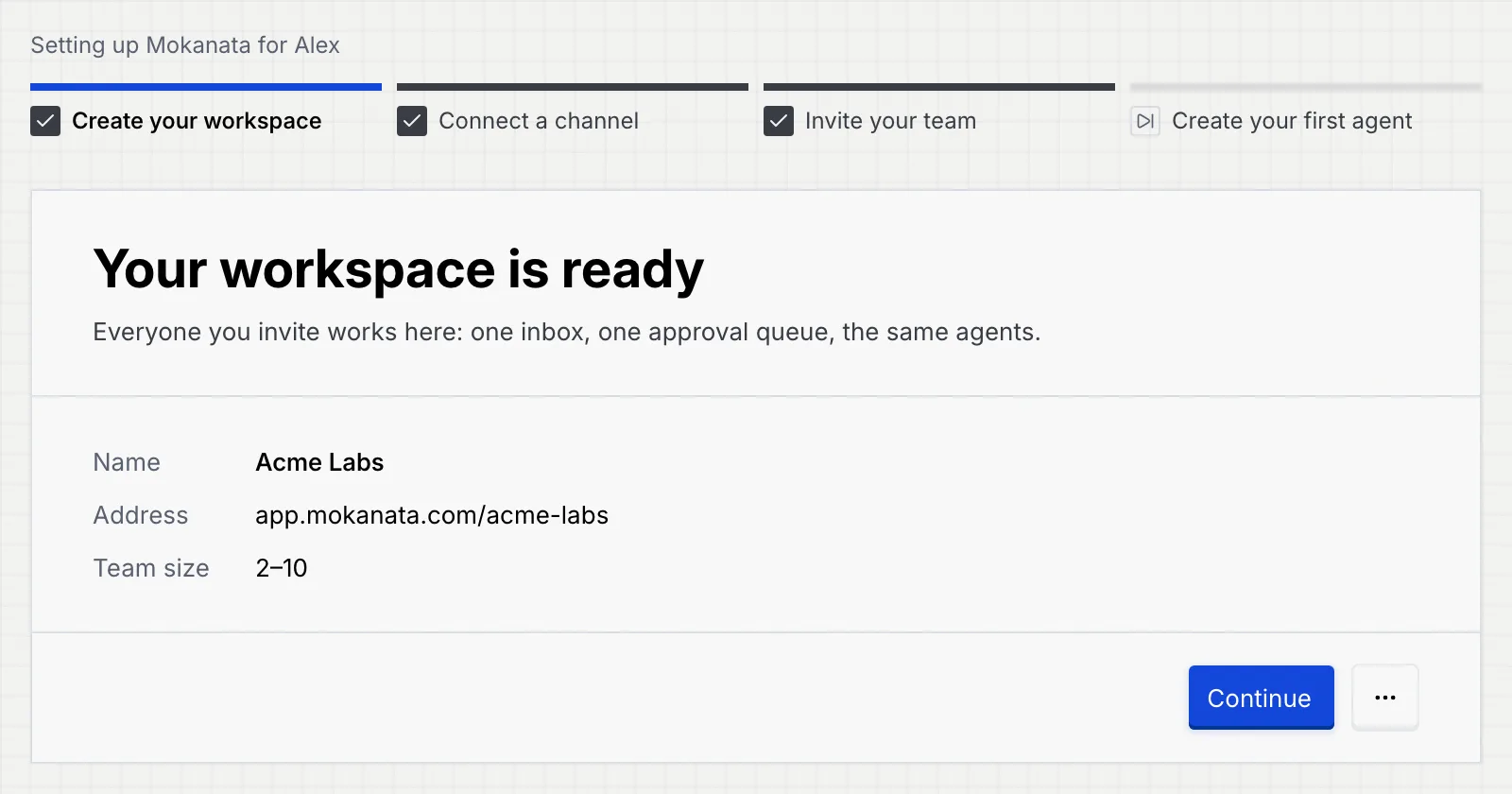
Click a finished step at the top to see what you set up. Each one shows a summary and Continue, with more in the ⋯ menu:
| Step | What it shows | In the ⋯ menu |
|---|---|---|
| Create your workspace | Your workspace is ready: name, address and team size. After a skip, Keep this name marks it done. | Rename in Settings |
| Connect a channel | The connected channel, marked Healthy. | Manage channels |
| Invite your team | The invites still waiting, with their roles, or "Everyone you invited has joined." | Invite more people |
| Create your first agent | Your first agent is in shadow: "Deployed in shadow mode." | See your agents |
Troubleshooting
Every workspace address is unique. Add your city, product or a short word (for example acme-labs-eu). You can change the address later in Settings → Workspace.
That person already joined. Change their role in Settings → Members & roles instead of inviting them again.
If you connected a channel or invited people outside setup, the checklist doesn't notice: it only ticks steps you finish from setup itself. Open the step from the checklist or your account menu and finish it there, or hide the checklist once you've done everything (see Finish setup later).