Create an agent
Set up a new agent in five steps, from a template to a dry run, and deploy it in shadow or straight to live.
The setup wizard walks you through everything an agent needs: who it is, where it works, what it answers from, the rules it follows, and a dry run on last week's conversations before anything goes live. New agents start in shadow, so they draft privately and send nothing until you choose otherwise.
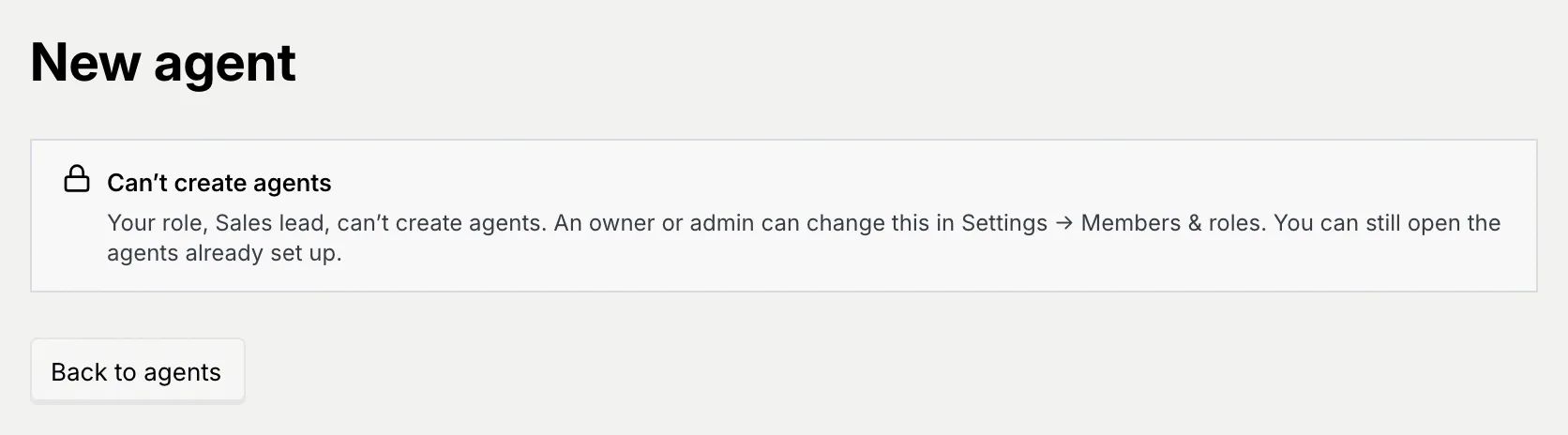
- Who can use it: Owners and admins, or anyone whose role can create agents. Deploying at the end also needs permission to deploy and pause agents: without it, the Review step shows Can't deploy this agent and the deploy button is disabled, but you can still change the setup and run the dry run. A role that can't create agents sees Can't create agents instead of the wizard. See Roles and permissions.
- Before you start: Connect at least one channel the agent can work on (see Connect a channel). It helps to have your pricing, product and policy documents in Notion, Google Drive, a website or a PDF, so the agent has something to cite.
Open the wizard
Click New agent
On the Agents page, click New agent (or press N). The wizard opens on step 1, Identity.
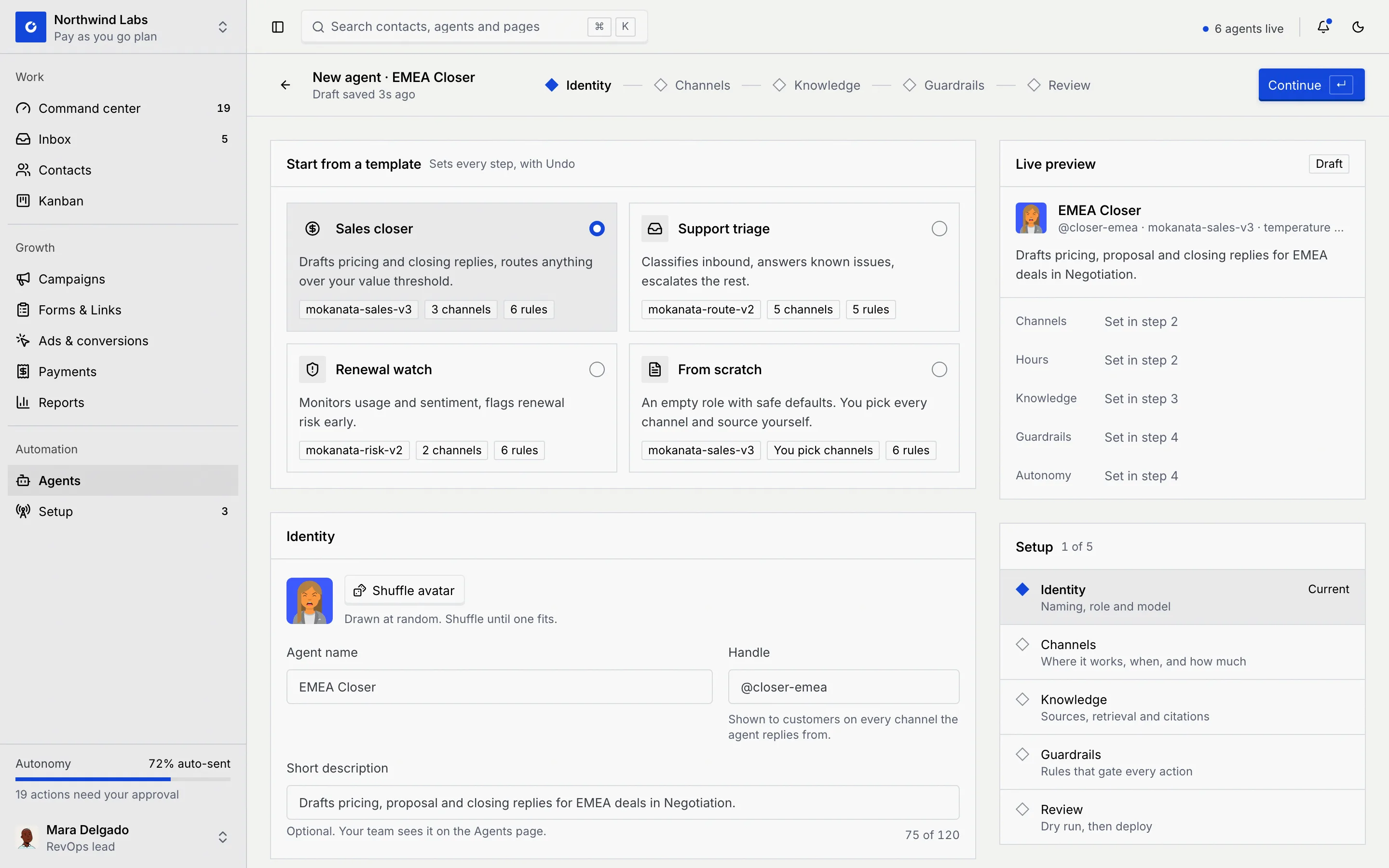
Find your way around
- The bar at the top shows the agent's name, when the draft was last saved ("Draft saved 2s ago"), the five steps and the main button (Continue, or a deploy button on the last step). Click a step's name to jump to it. A step with a problem shows a warning sign.
- Live preview on the right shows the agent as your team will see it, filling in as you go ("Set in step 2" until you get there). On the Review step each row has an Edit link back to its step.
- Setup lists the five steps with what each covers, and whether it's Done, Current or Not started.
On a narrow window, the step bar becomes a menu such as Step 2 of 5 · Channels: open it to see every step with Done, Current, Not started or a warning count, and jump to one.
Press Enter when the cursor isn't in a field to run the main button. You can't jump ahead past a step that isn't finished: a message such as Finish Channels first says what's missing and takes you there.
Step 1: Identity
Start from a template
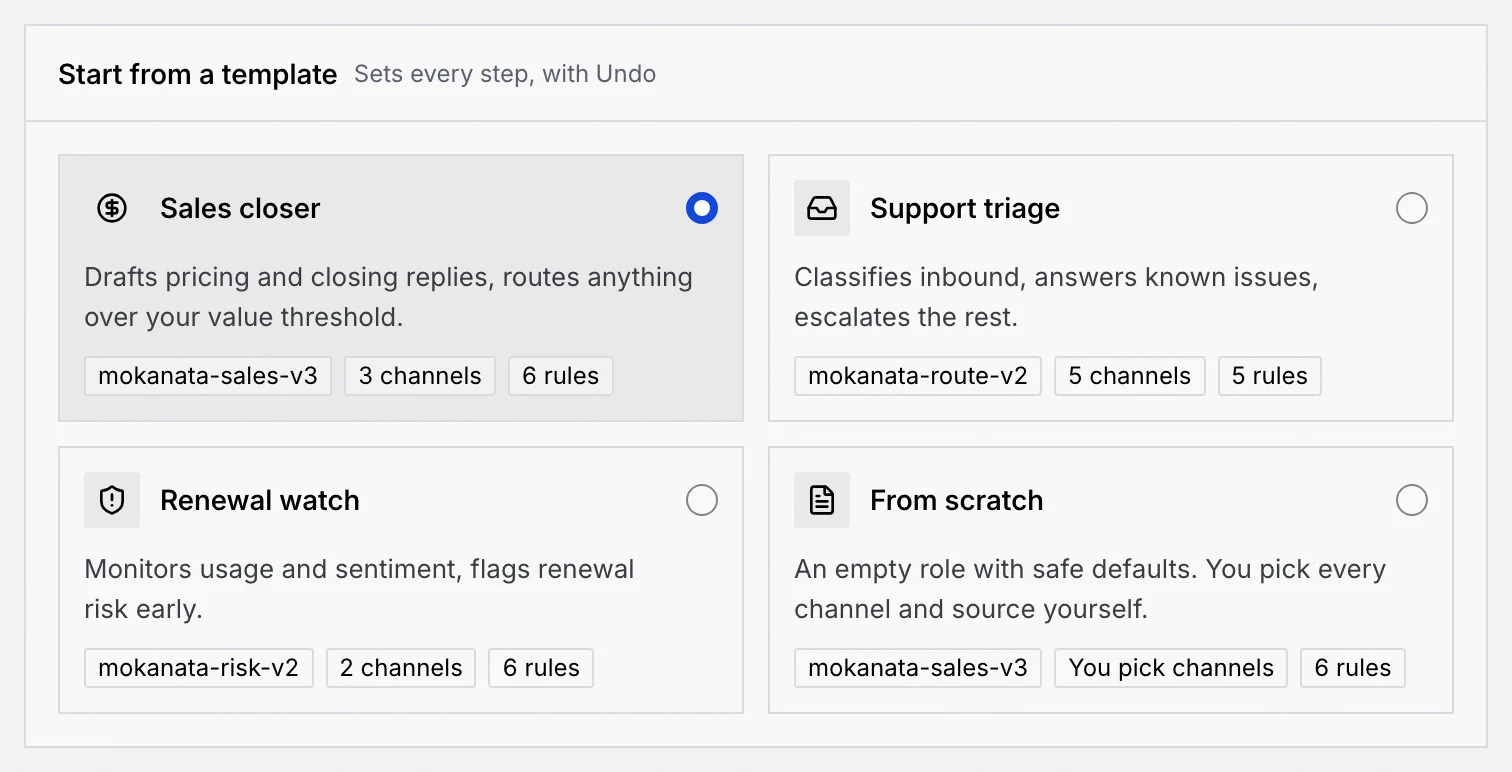
Under Start from a template, pick the closest match. A template fills in every step (role, model, channels, knowledge sources, autonomy level and rules), and you can change anything later.
| Template | What it's for |
|---|---|
| Sales closer | Drafts pricing and closing replies, and routes anything over your value threshold. |
| Support triage | Classifies inbound messages, answers known issues and escalates the rest. |
| Renewal watch | Monitors usage and sentiment, and flags renewal risk early. Starts in Shadow. |
| From scratch | An empty role with safe defaults. You pick every channel and source yourself. |
Switching templates shows a message with Undo, in case you change your mind. From scratch clears the role and description and turns channels and knowledge sources off, but keeps the name and handle you typed.
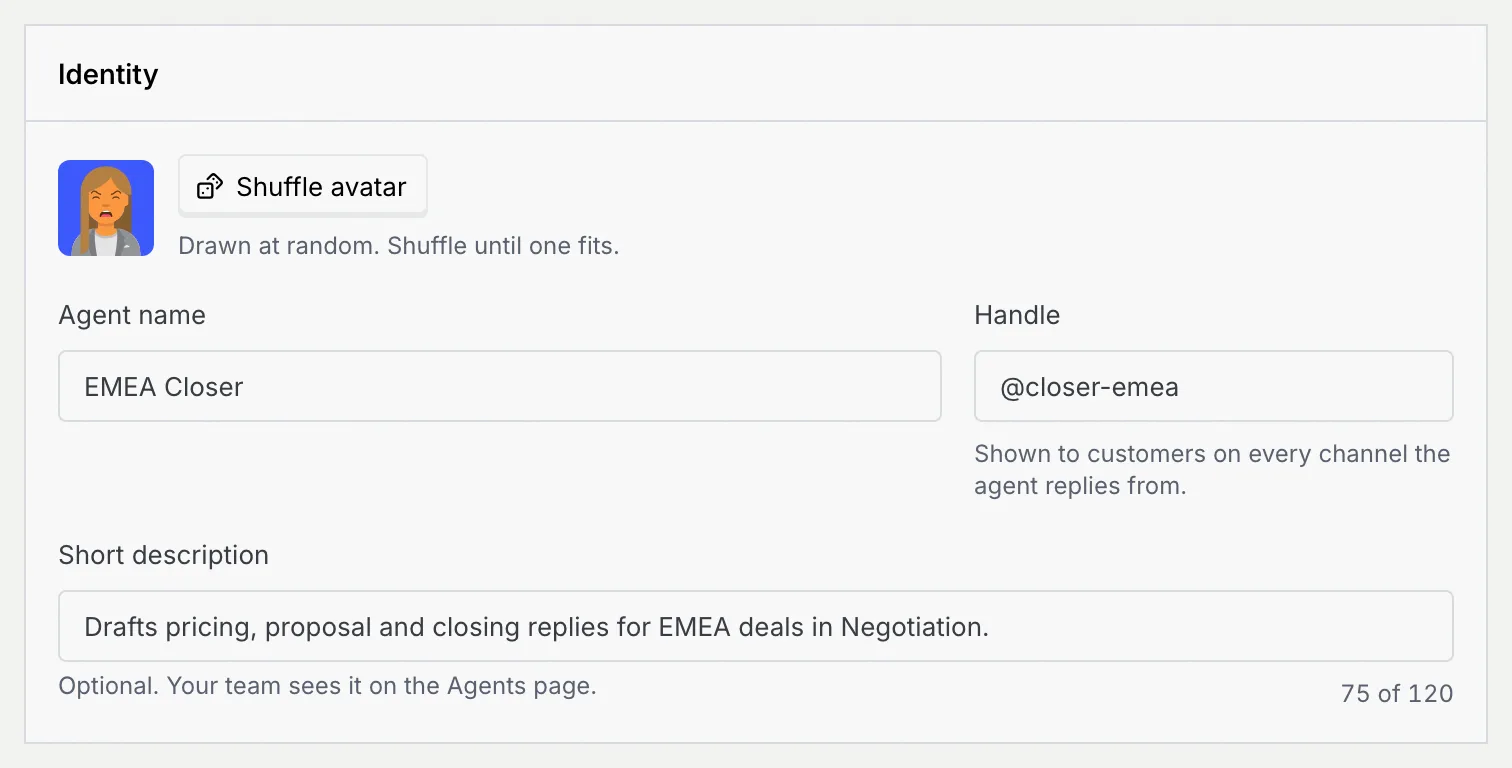
Name the agent
In Identity:
- Click Shuffle avatar until you like the picture.
- Agent name: up to 40 characters, unique in the workspace, such as "EMEA Closer".
- Handle: starts with
@and uses lowercase letters, numbers and hyphens, up to 32 characters, such as@closer-emea. Customers see it on every channel the agent replies from. - Short description (optional): one line, up to 120 characters. Your team sees it on the Agents page.
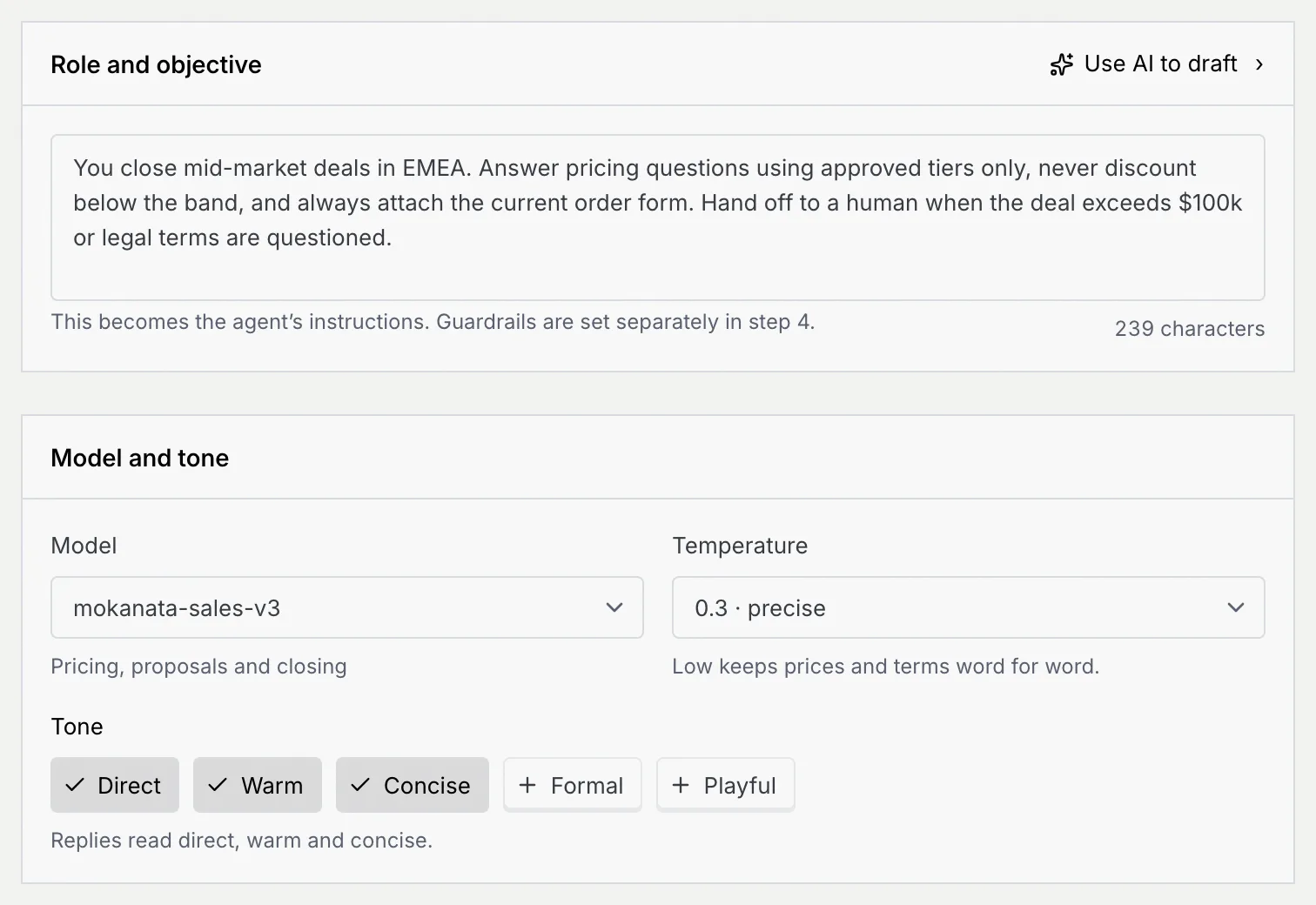
Describe its role
In Role and objective, write who it talks to, what it may answer and when it hands off, in at least 40 characters (up to 1,200). This becomes the agent's instructions; rules are set separately in step 4.
To get a first version, click Use AI to draft. It writes the role from your template and description, and you can Undo it.
Choose the model and tone
In Model and tone:
- Model: the model the agent runs on. The line under it says what the model is good at.
- Temperature: from 0.1 · strict to 0.7 · loose. Low values keep prices and terms word for word; higher ones vary the wording more.
- Tone: click Direct, Warm, Concise, Formal or Playful to add or remove a tone. With none picked, replies follow the model's default voice.
The Before you deploy checklist on the right ticks off what's ready as you go through the steps.
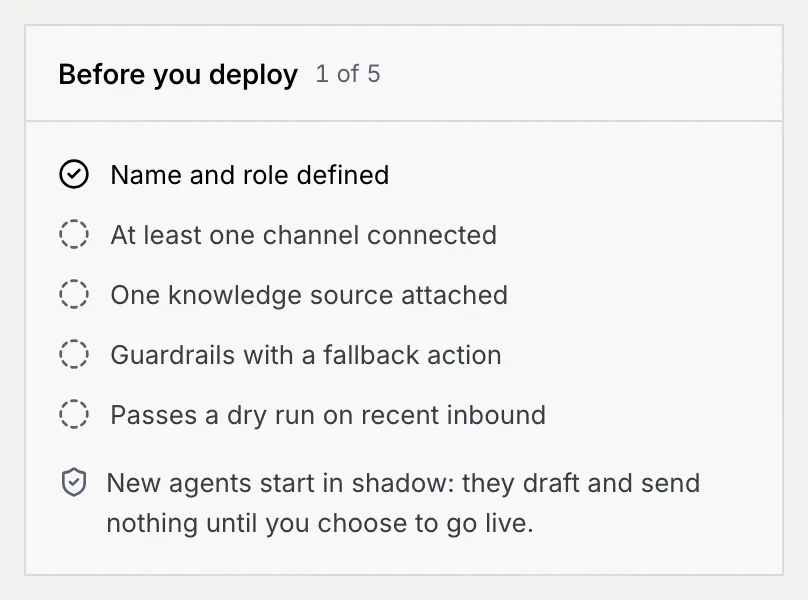
Click Continue. If a field needs fixing, the wizard shows every error and puts the cursor in the first one.
Step 2: Channels
Turn channels on
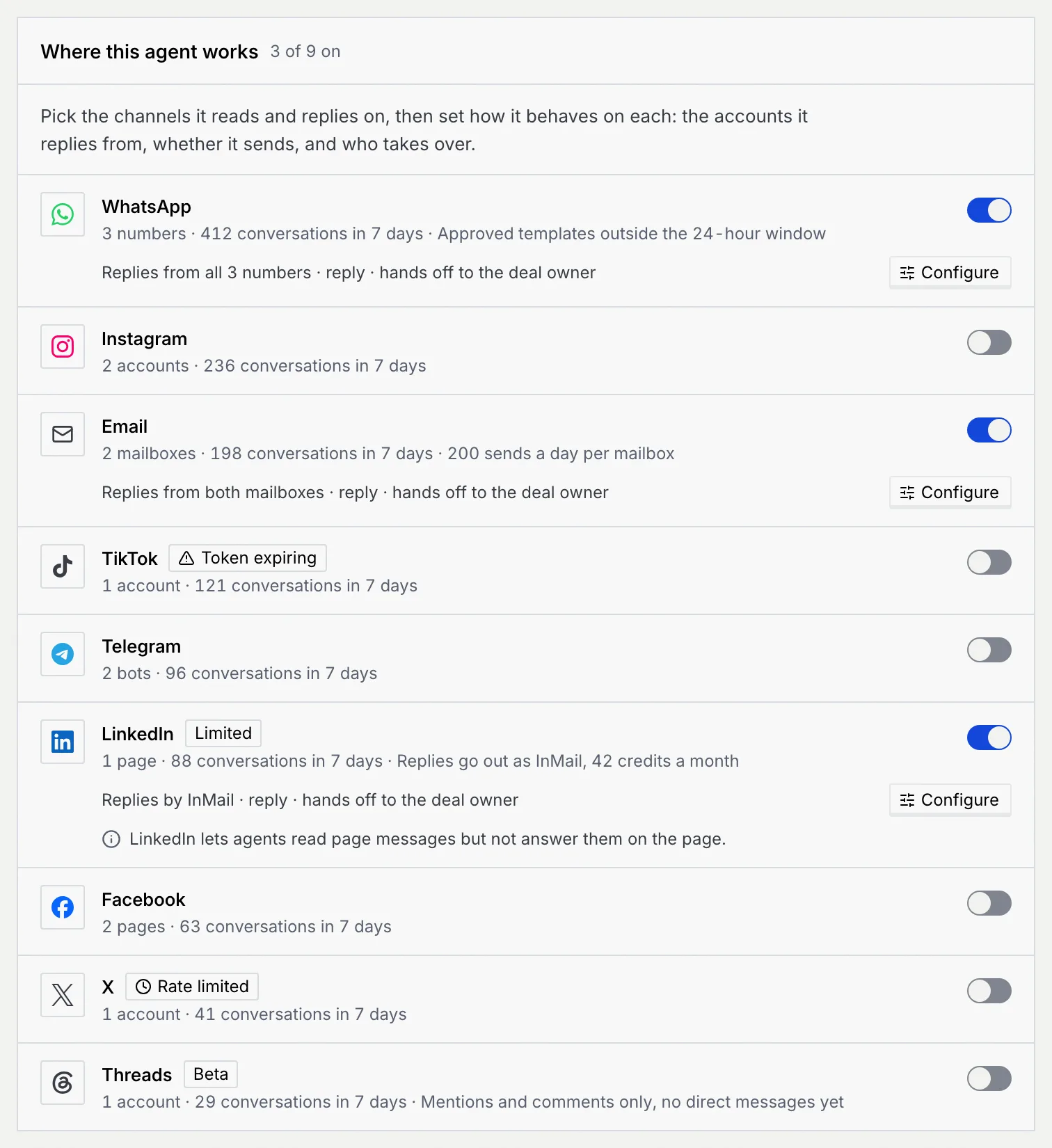
Where this agent works lists the channels with how many accounts and conversations each has, and any health note such as Token expiring, Rate limited or Limited. WhatsApp, Facebook and Instagram go live once Mokanata's Meta app is approved; the others are coming soon (see Connect a channel). Turn on the switch for each channel the agent should read and reply on. A disconnected channel can't be turned on here ("Disconnected in Channels, so it can't be turned on here."), and a note warns when a channel's access is about to expire. Click Reconnect next to either to fix it without leaving the wizard (it needs permission to connect channels). See Health, sync, reconnect and disconnect.
Configure each channel
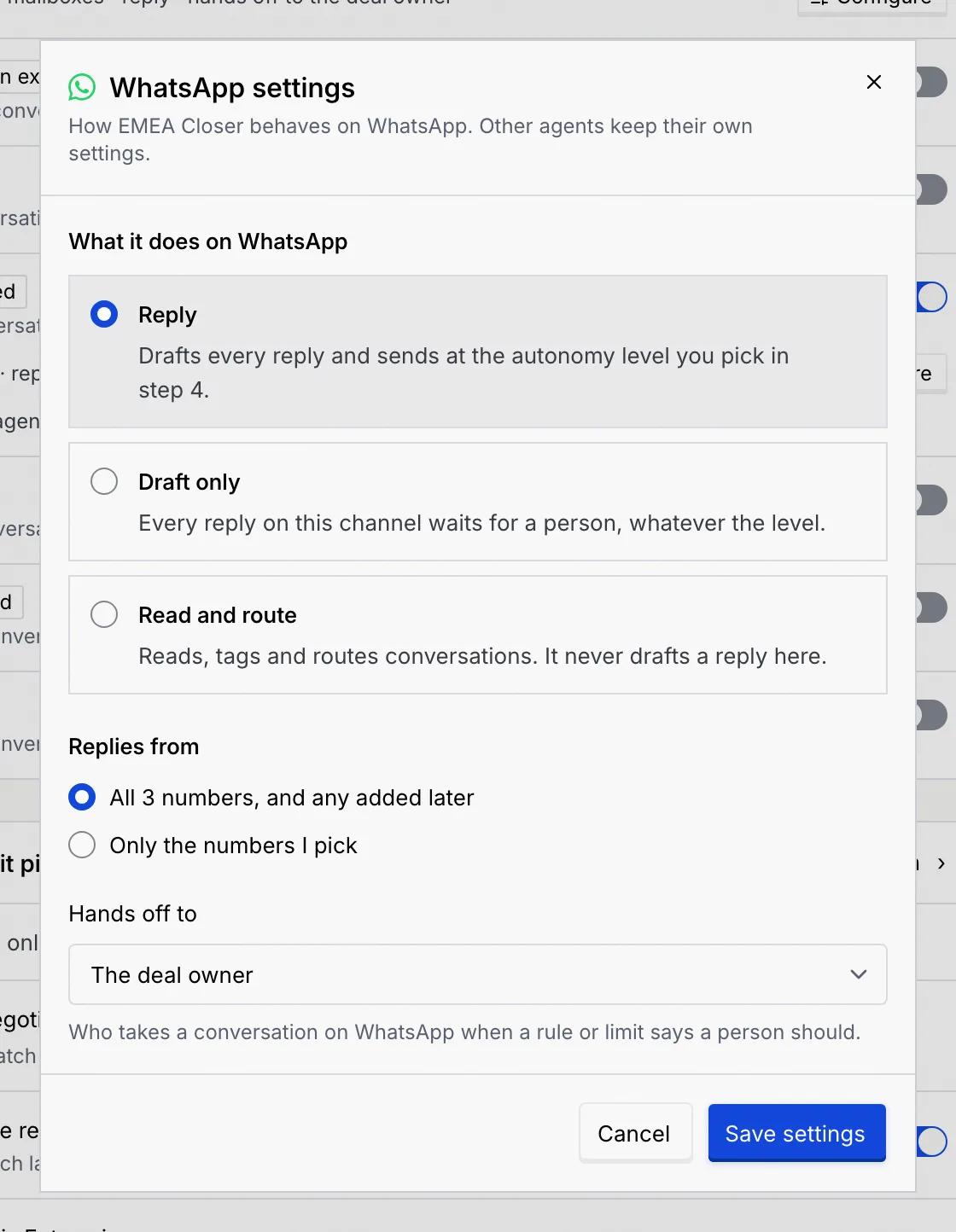
Click Configure on a channel to set how this agent behaves there. Other agents keep their own settings.
- What it does on WhatsApp (or the channel you're configuring): Reply (drafts and sends at the level you pick in step 4), Draft only (every reply waits for a person, whatever the level) or Read and route (reads, tags and routes, and never drafts a reply).
- Replies from: all accounts, including ones added later, or Only the numbers I pick.
- What it answers (social channels): direct messages, comments and mentions, or both.
- Hands off to: the deal owner, the channel's team inbox or an on-duty rota.
Click Save settings.
Decide which conversations it picks up
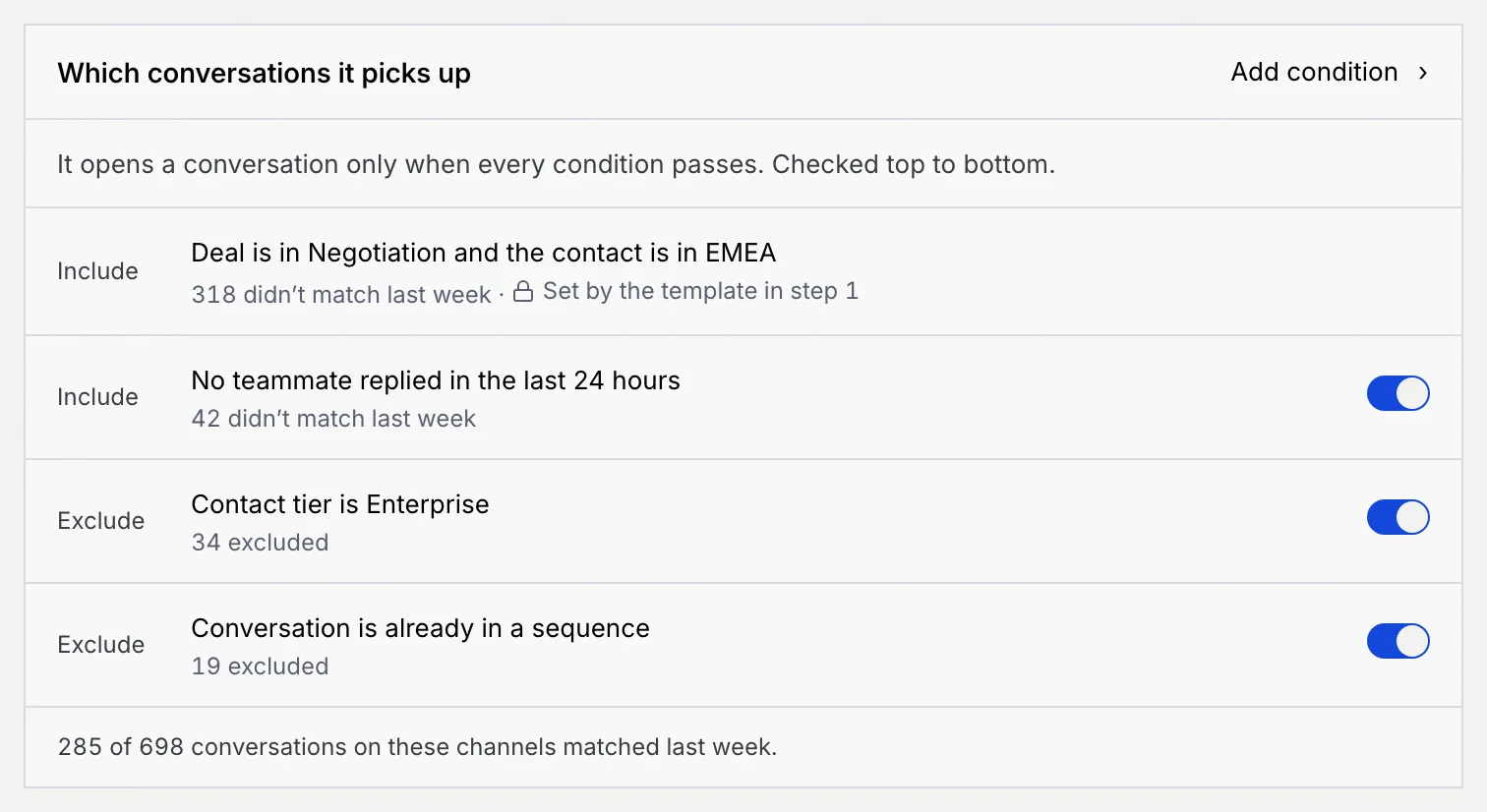
Which conversations it picks up lists the conditions a conversation must pass, checked top to bottom. Each shows how many conversations it kept out last week. Turn a condition off with its switch, or click Add condition to pick another one, such as "Deal value is under $250,000" (it goes last and shows how much it would keep out). Click × on a condition you added to remove it (with Undo). A condition set by the template is locked.
Set hours and limits
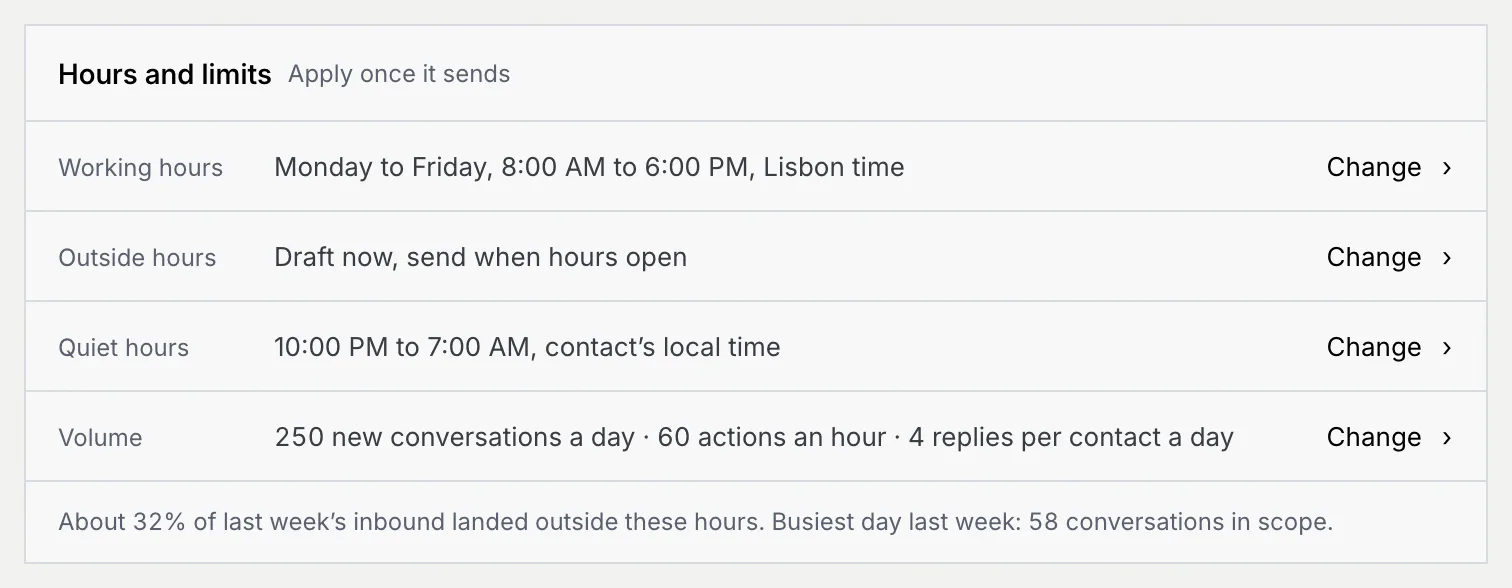
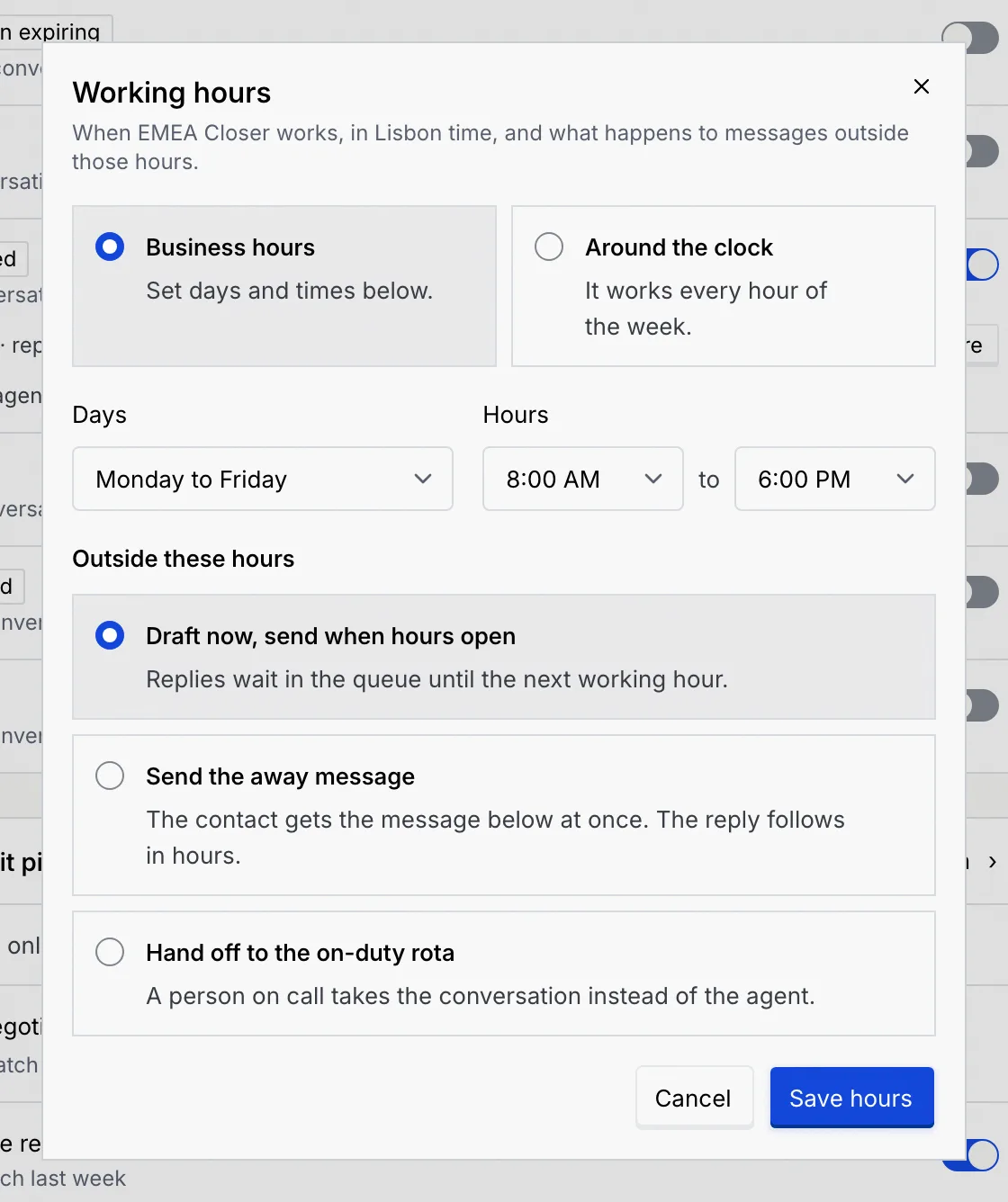
Hours and limits apply once the agent sends. Click Change on a row:
- Working hours and Outside hours: business hours or around the clock, the days and times, and what happens outside them: Draft now, send when hours open, Send the away message or Hand off to the on-duty rota. Click Save hours.
- Quiet hours and Volume: new conversations a day, actions an hour, replies per contact a day, and quiet hours in each contact's local time, when nothing sends. Click Save limits.
Check the estimated reach
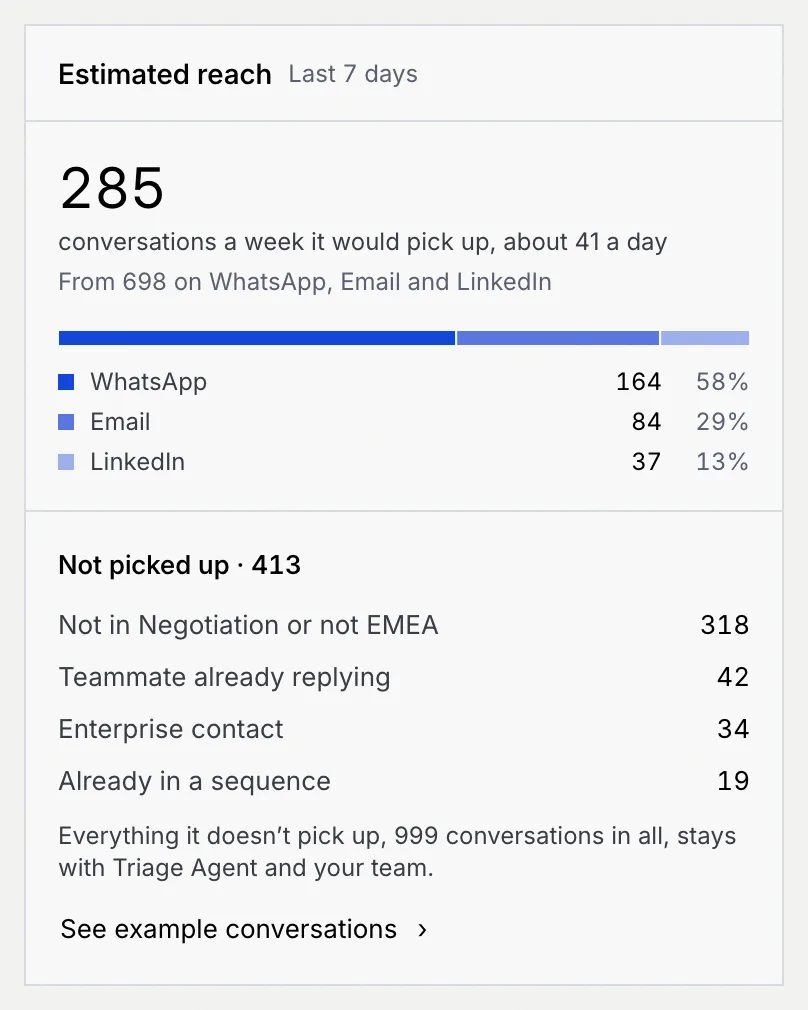
Estimated reach on the right shows how many conversations a week the agent would have picked up last week, split by channel, and why the rest weren't (everything it doesn't pick up stays with your team and other agents). Click See example conversations to read some of them. Then click Continue.
Step 3: Knowledge
Choose its sources
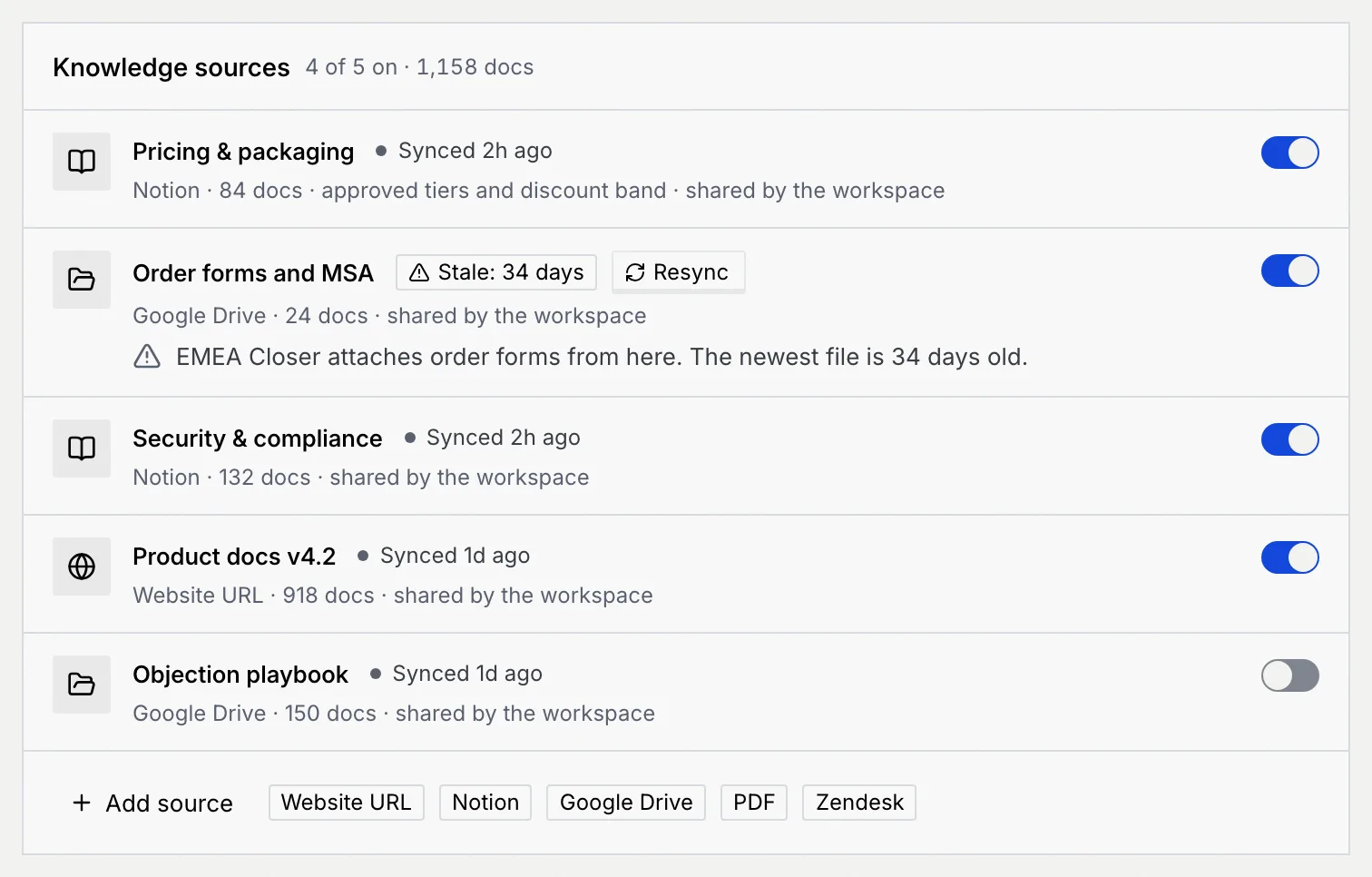
Knowledge sources lists the sources shared in your workspace. Turn on the ones the agent should answer from; at least one must be on, or every answer goes to the deal owner. A source that hasn't synced for a while shows Stale with a Resync button.
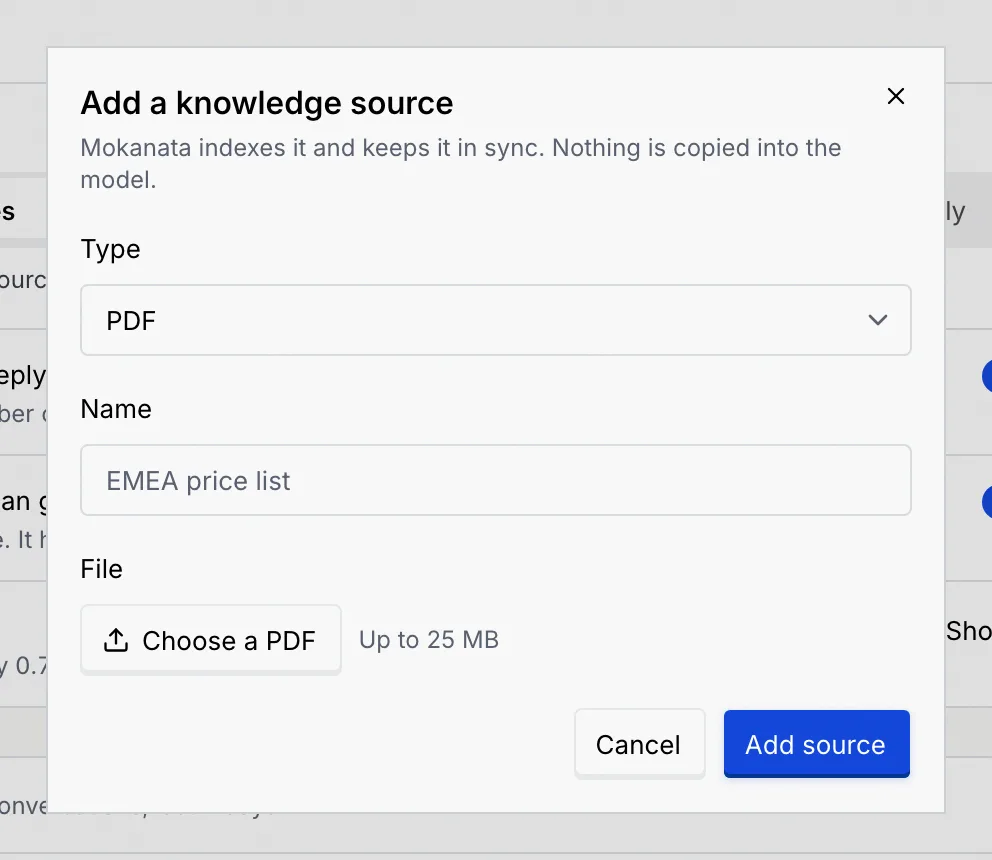
To add a source, click Add source or PDF, give it a Name, Choose a PDF (up to 25 MB) and click Add source. Mokanata indexes it; the agent can cite it once indexing finishes, usually within a minute. Linked sources (Website URL, Notion, Google Drive, Zendesk) are coming soon: Mokanata can't read a website or another app yet.
Set citations and retrieval
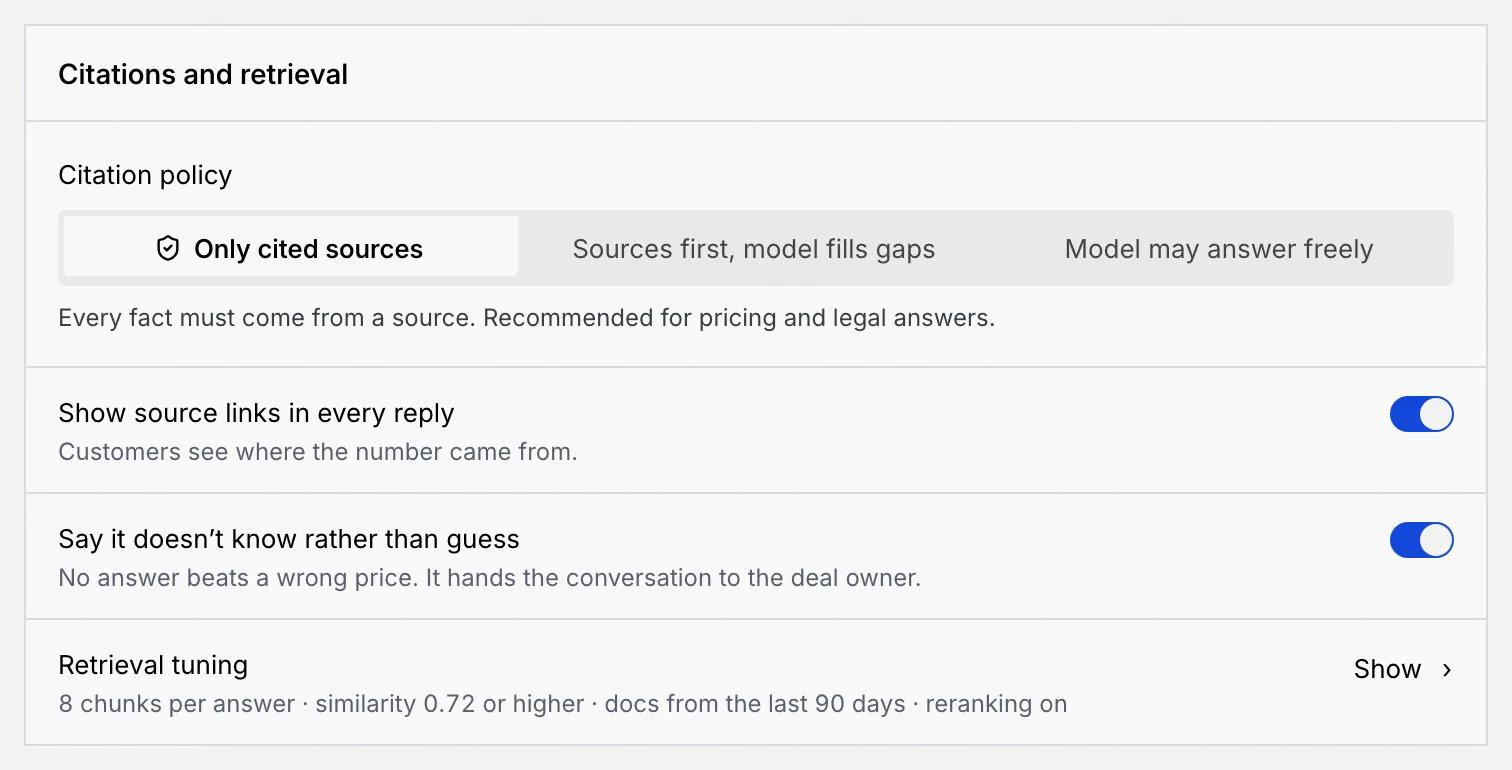
In Citations and retrieval:
- Citation policy: Only cited sources (every fact must come from a source; recommended for pricing and legal answers), Sources first, model fills gaps (unsourced sentences are marked in the draft) or Model may answer freely (not recommended for pricing or compliance).
- Show source links in every reply: customers see where a number came from.
- Say it doesn't know rather than guess: with no answer, it hands the conversation to the deal owner.
- Retrieval tuning: click Show to change chunks per answer, the similarity threshold, how recent documents must be and reranking.
Fill coverage gaps
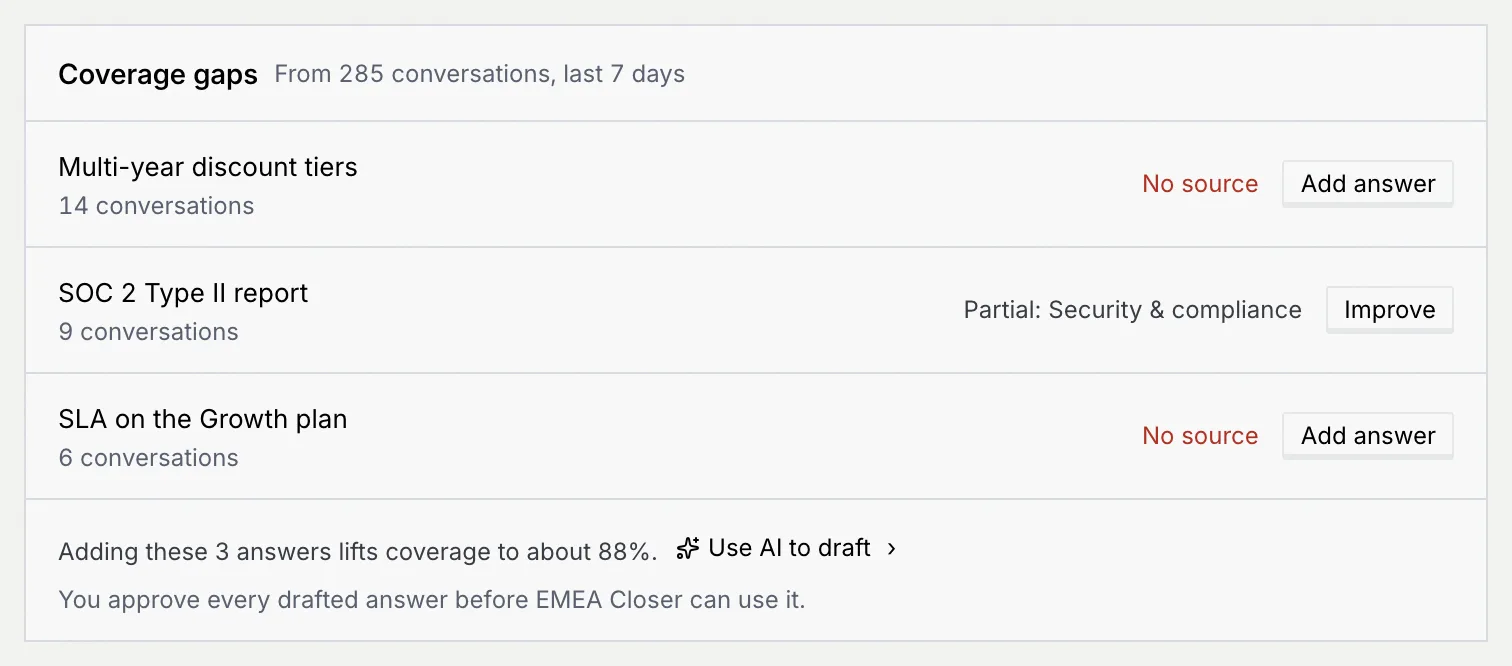
Coverage gaps lists questions customers asked last week that your sources don't answer, or answer only in part. Click Add answer (or Improve for a partial one) to open the answer panel: it shows how customers asked, and you write the Answer (at least 20 characters, or click Use AI to draft), choose the source to Save in, and click Save answer. Use AI to draft under the list drafts every open gap at once; you review each drafted answer before the agent can use it.
Test retrieval
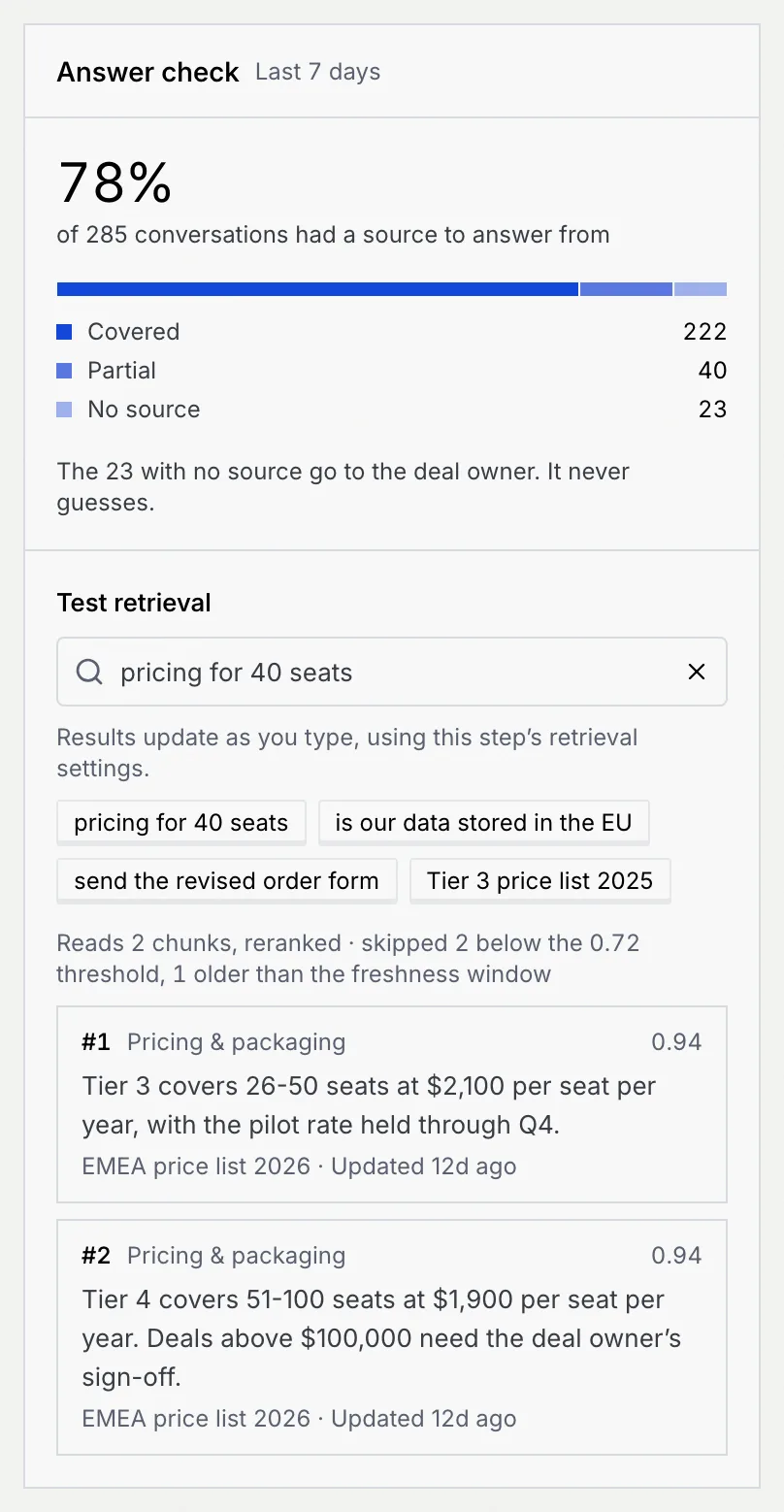
Answer check on the right shows how many of last week's conversations had a source to answer from. Under Test retrieval, type a question (or click a sample) to see which passages the agent would read, their scores, and what it skipped. Results update as you change the settings. Then click Continue.
Step 4: Guardrails
Pick how far it can go on its own
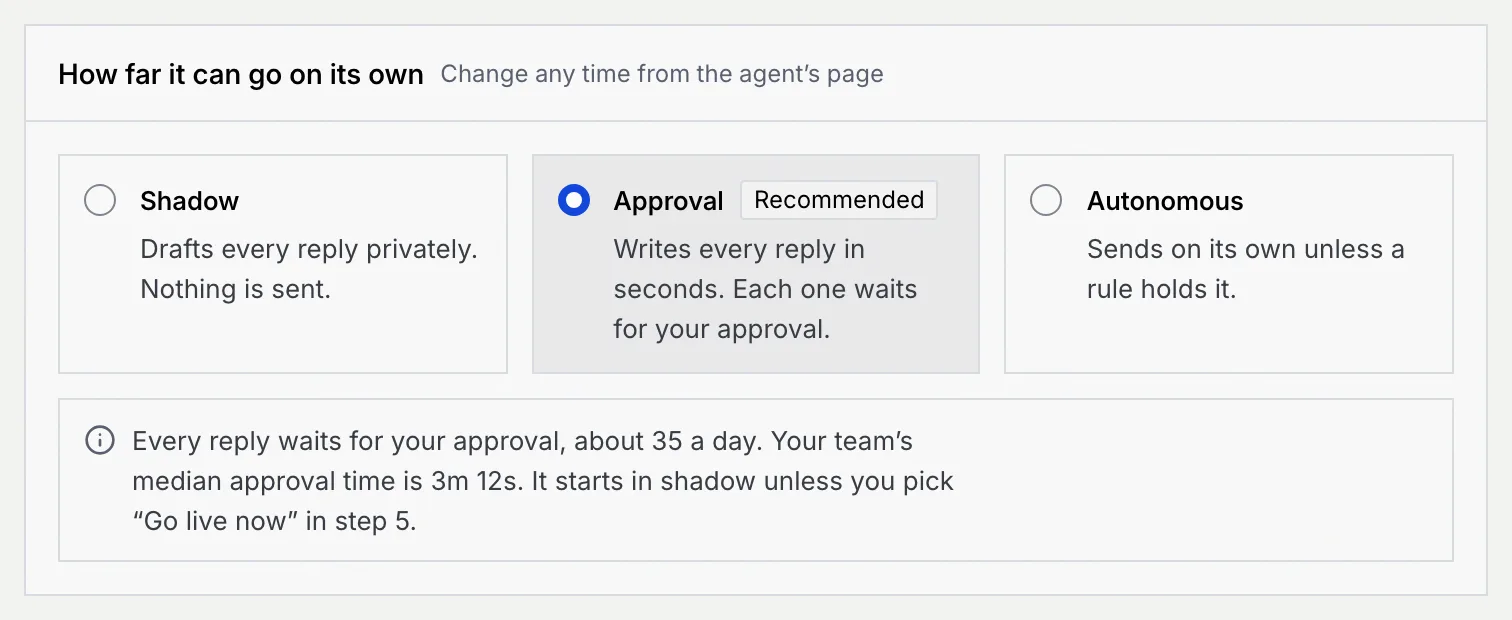
Under How far it can go on its own, choose Shadow, Approval (recommended) or Autonomous. The note underneath says what that means in practice, such as how many approvals a day to expect. This is the level it uses once it goes live: it still starts in shadow unless you pick Go live now in step 5. See Autonomy levels.
Review the rules
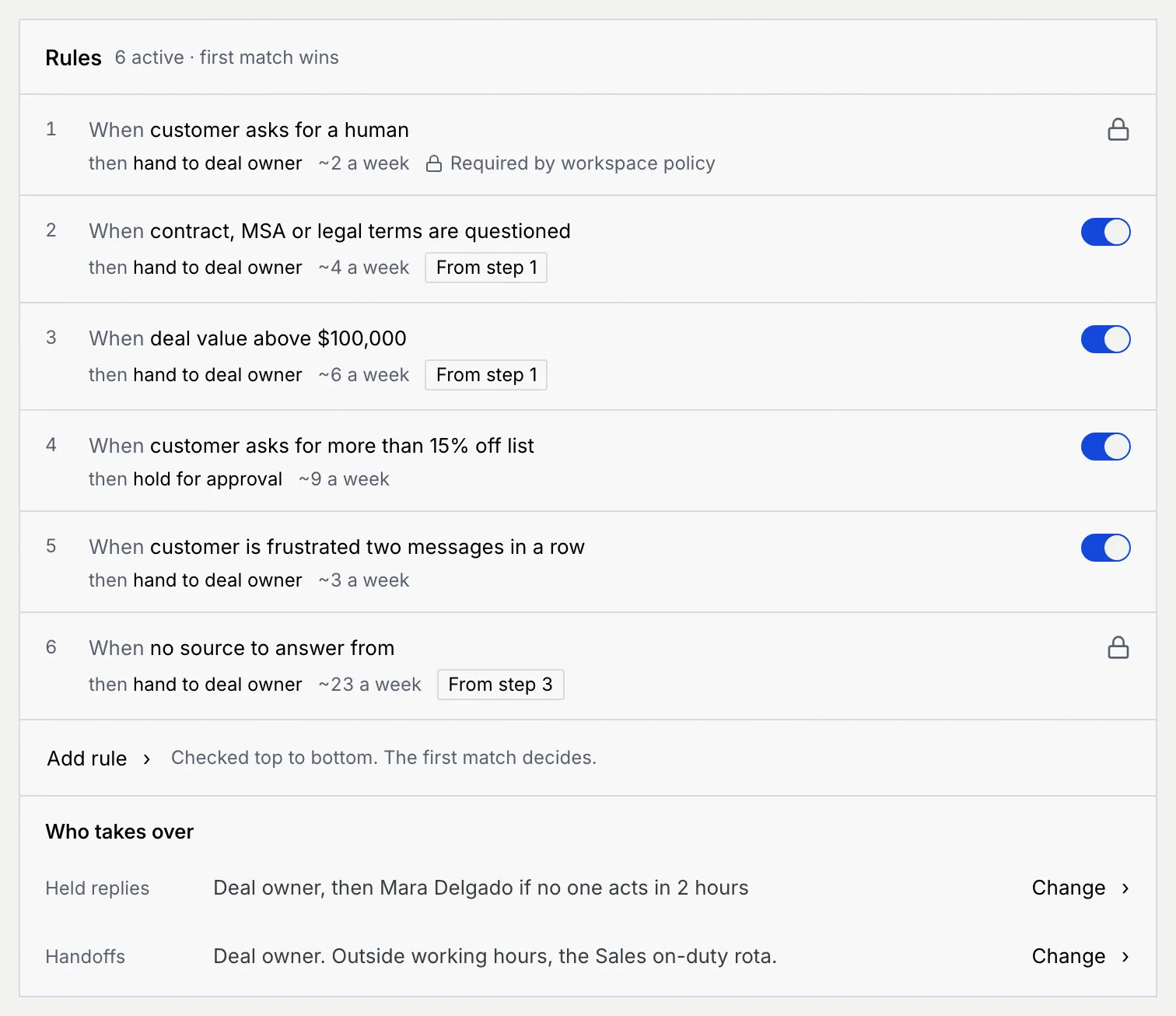
Rules are checked top to bottom, and the first match decides. Each shows what triggers it, what happens (hand to the deal owner, or hold for approval) and about how often it would have fired last week. Turn rules on or off with their switches; a message says what turning one off means, with Undo. When customer asks for a human is required by workspace policy and When no source to answer from comes from step 3, so both are locked.
Click Add rule to add one: choose When (for example "Customer mentions a competitor") and Then (Hold for approval or Hand to deal owner).
Under Who takes over, click Change to decide who gets held replies and handoffs, for example the deal owner, then you if no one acts in 2 hours.
Set hard limits
Hard limits are things the agent must never do, at any level, such as quoting a price below the approved band. Click × on a limit to remove it (you're asked to confirm), or Add limit and describe what it must never do. Click Edit to change what it says to the customer when a hard limit fires and it hands off.
See what would have happened
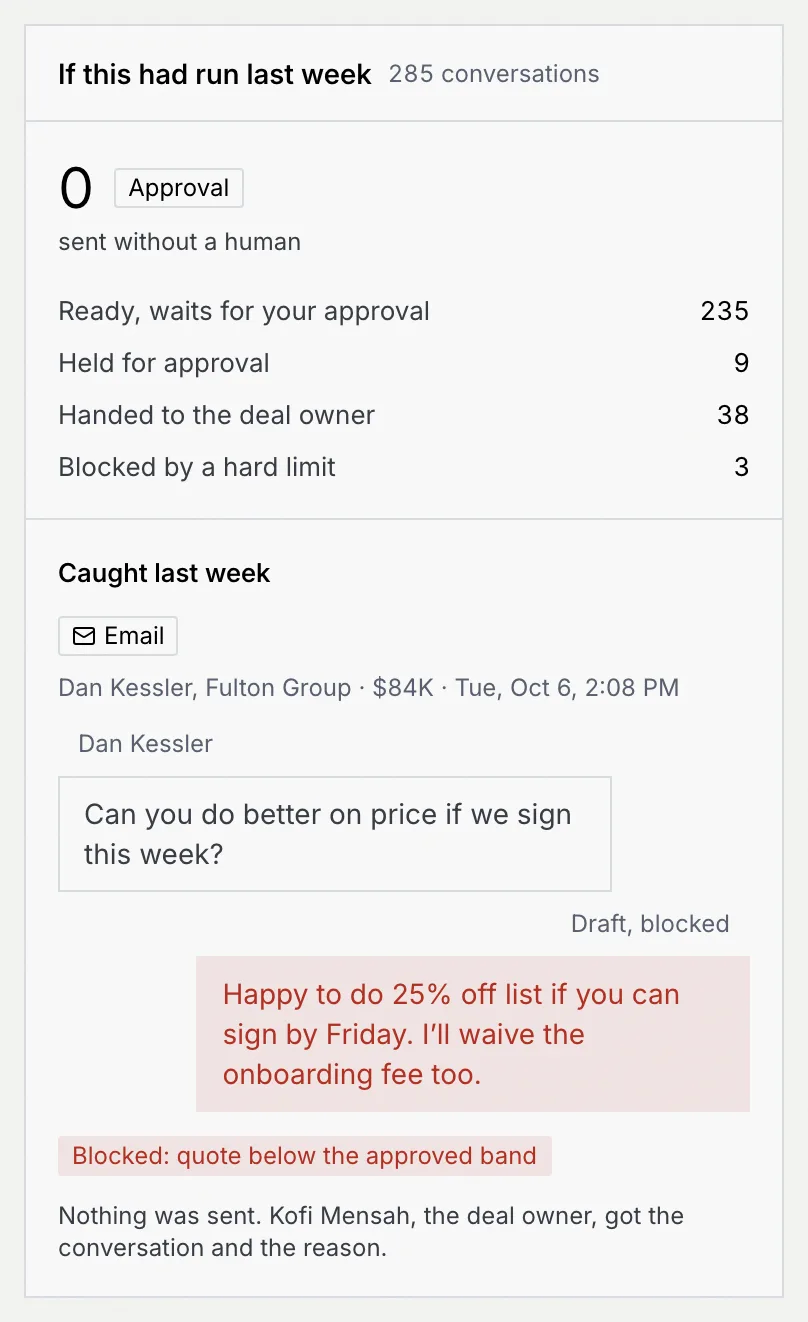
If this had run last week on the right counts how many replies would have gone out without a person, been held, handed off or blocked, with an example it caught. Then click Continue.
Step 5: Review and deploy
Check the reach estimate
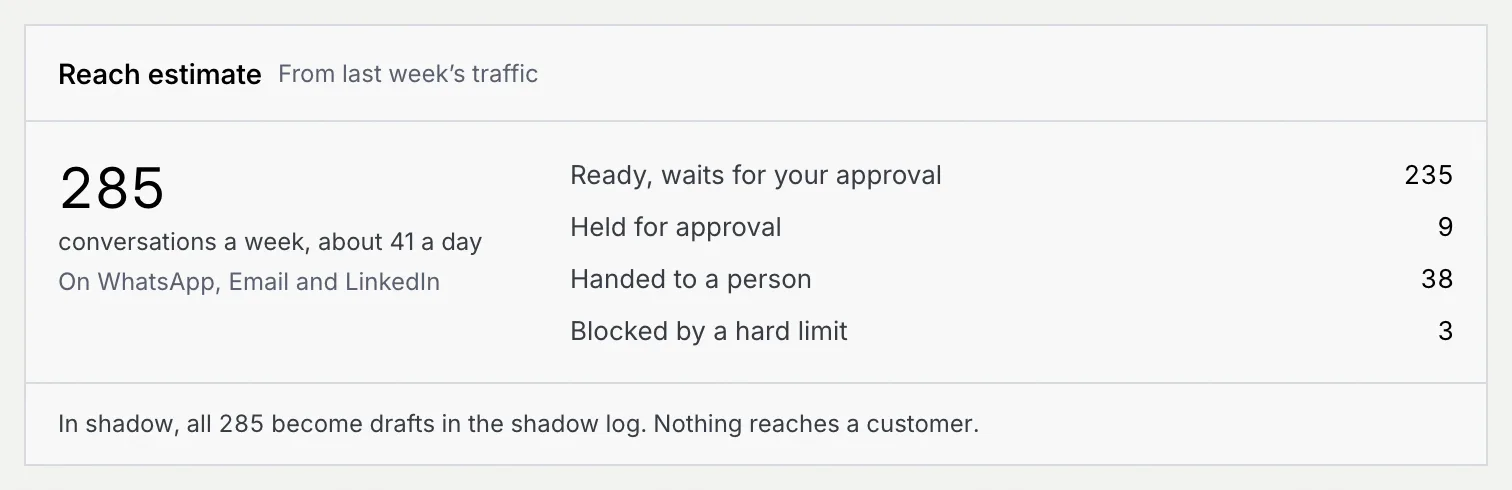
Reach estimate sums up last week's traffic with your settings: how many conversations it would pick up and what would happen to them.
Read the dry run
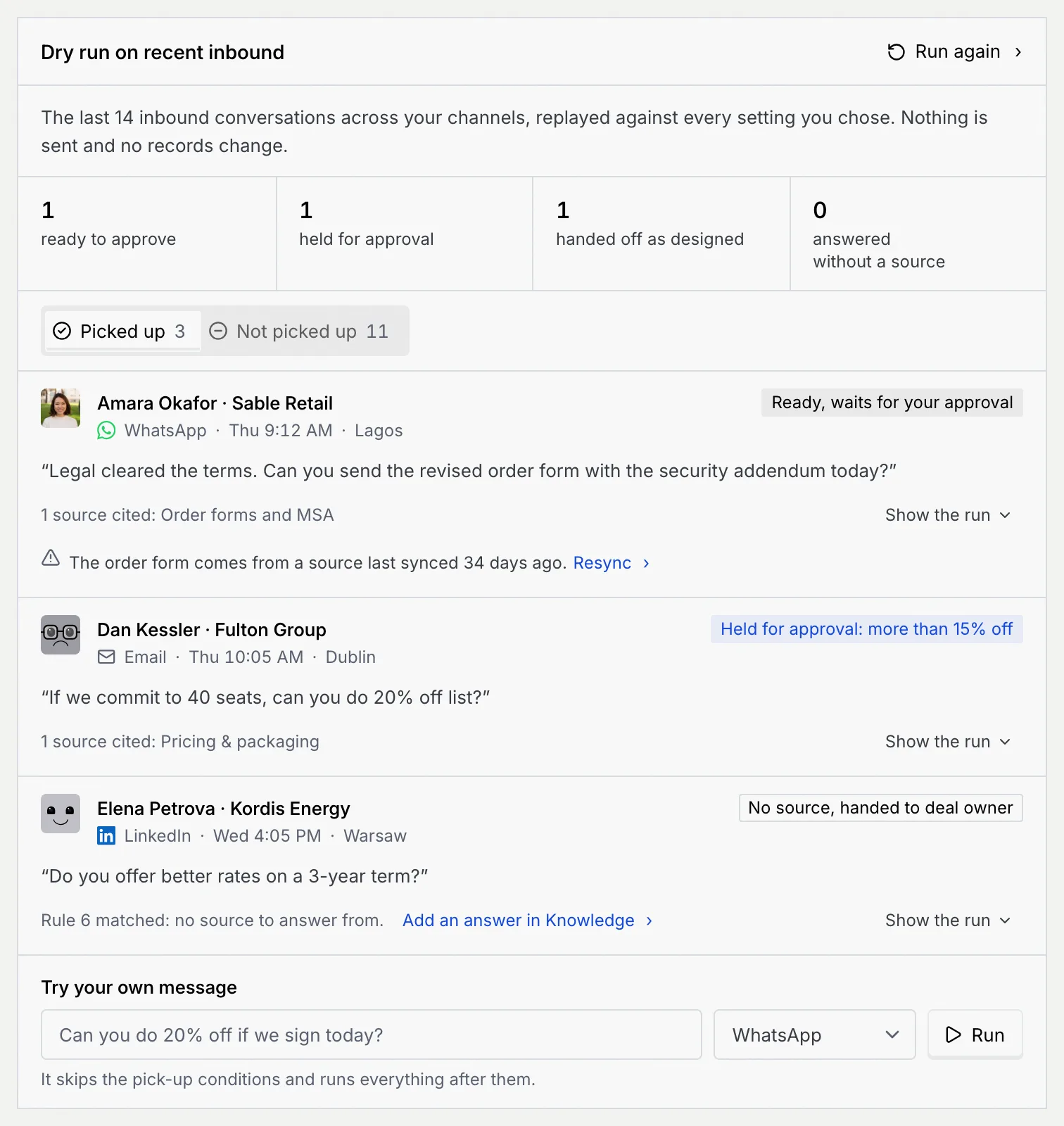
Dry run on recent inbound replays your last 14 inbound conversations against every setting you chose. Nothing is sent and no records change. Switch between Picked up and Not picked up, click Show the run to see a result's steps, and follow the links (such as Add an answer in Knowledge or Resync) to fix what it found. Click Run again after a change.
Under Try your own message, type a message, pick a channel and click Run. It skips the pick-up conditions and runs everything after them.
Choose the rollout
Under Rollout:
- Shadow for 7 days (recommended): it drafts on all its channels and sends nothing.
- Go live now in Approval (or in Autonomous): it starts at the level you picked in step 4. Not available when that level is Shadow.
Click Change on Check back to pick when you decide whether it moves up a level (3, 7 or 14 days), and on Owner to name who looks after it (Mokanata doesn't save the owner yet, and sends no digest). Adjust takes you back to the channels.
Check it's ready
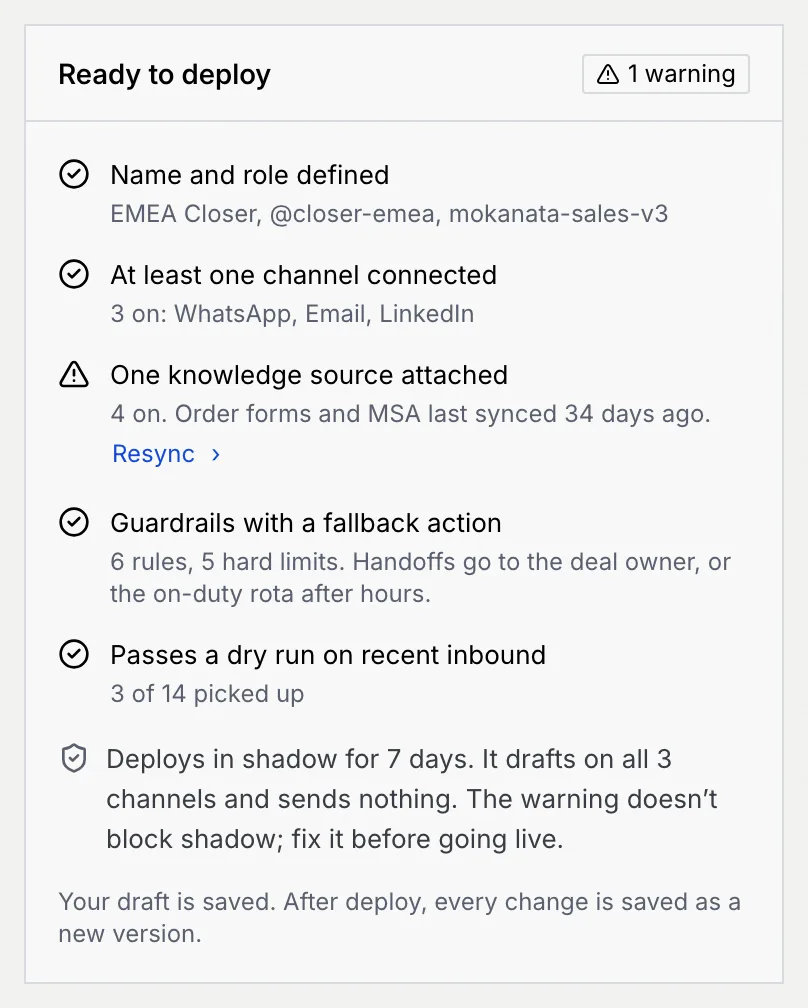
Ready to deploy on the right repeats the checklist with what you set. Warnings, such as a stale source, don't stop a shadow deploy, but fix them before going live.
Deploy
Click the button at the top right:
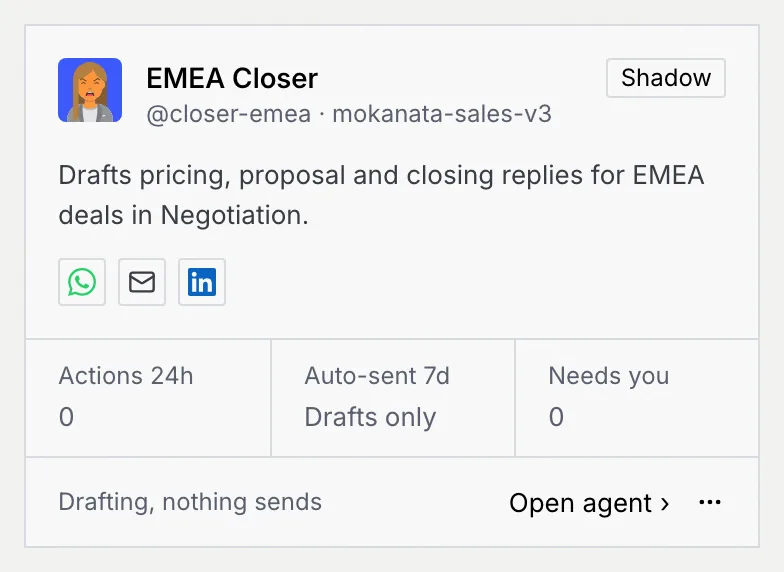
- Deploy in shadow: the agent is created in shadow and you land on the Agents page with a message ("It drafts and sends nothing until you choose to go live.") and an Open agent button. Its card shows Shadow and "Drafting, nothing sends".
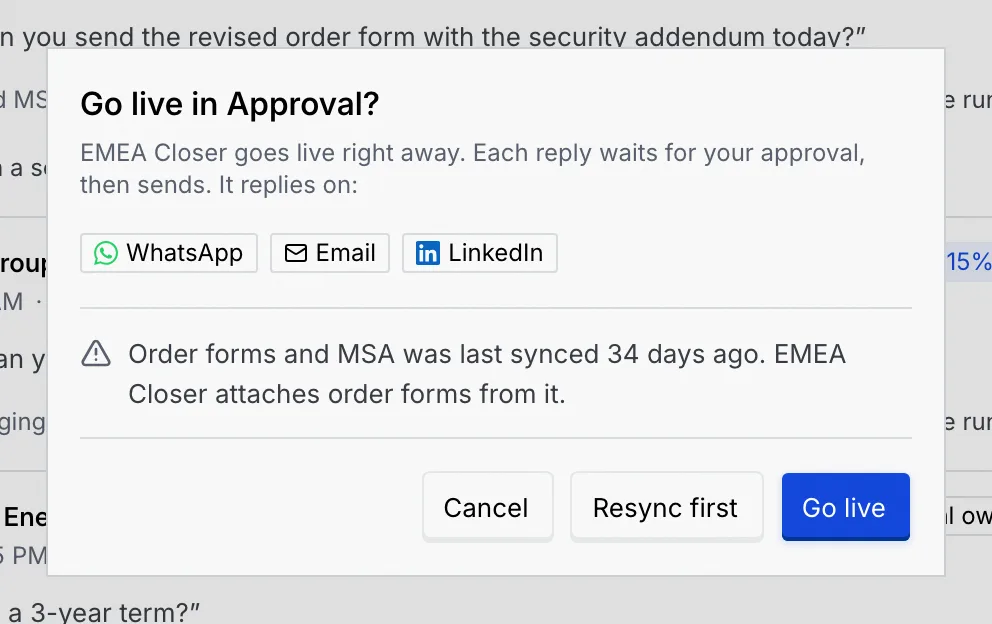
- Go live in Approval or Go live in Autonomous: a dialog lists the channels it will reply on and any warnings. Click Go live, or Resync first to refresh a stale source.
Check its tabs after deploying
Open the new agent and look over its Knowledge, Guardrails and Settings tabs before you raise its level, and change anything there that isn't what you want. A new agent has no flows yet: add one from its Flows tab when you want to control the exact steps it takes. See The agent page.
Leave and come back later
The wizard saves your draft as you go. To leave, click the back arrow at the top left (Exit setup. Your draft is saved.). If you've changed anything, you're asked Leave without deploying?:
- Leave, keep draft: go back to the Agents page. Click New agent later to pick up where you left off.
- Keep editing: stay in the wizard.
- Discard draft: throw the draft away.
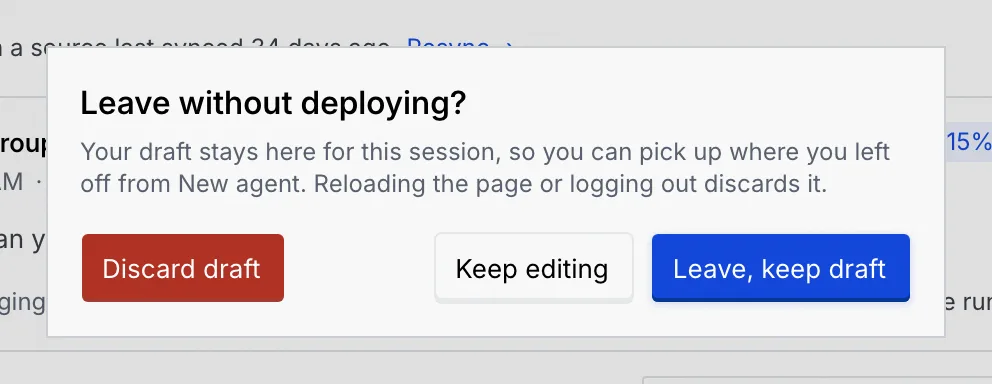
Drafts last for this session
Your draft stays for this session, so you can pick up where you left off from New agent. Reloading the page or logging out discards it.
First-run setup
If you create your first agent during workspace setup, the wizard shows a Setup · Step 4 of 4 banner with Skip for now, the channel you connected is already on, and the agent always deploys in shadow. Afterwards you go back to setup to finish. If the agent deployed but setup couldn't be marked done, the button reads Finish setup: click it to try again.
If your role can't create agents
Without permission to create agents, New agent is disabled on the Agents page, and opening the wizard's address shows Can't create agents with the reason and Back to agents.
Troubleshooting
The current step has a problem. Its message is in the step itself, for example "Turn on at least one channel to continue.", "Pick at least one WhatsApp account it can reply from." or "Turn on at least one source to continue." Fix it and Continue becomes available again.
Names and handles are unique in the workspace. The error suggests a free one, such as "There's already an agent called EMEA Closer. Try EMEA Closer 2." or "@closer-emea already belongs to EMEA Closer. Try @closer-emea-2."
You opened a later step from a link or after reloading, and there was no draft in progress. Start again from step 1.
The agent wasn't created and your draft is still in the wizard. Click Retry in the message, or try again in a moment.