Integrations: connect apps
Connect the apps, AI model keys and APIs your flows use, from Setup → Integrations, and keep those connections working.
Setup → Integrations is where your workspace connects other apps: CRMs, spreadsheets, calendars, payment providers, automation tools, AI models and your own APIs. Once an app is connected here, every flow can use it as a step. These are the same connections as the flow builder's Integrations sheet (see Apps and webhooks in flows), so connecting in either place connects it for both.
- Who can use it: Connecting, reconnecting, testing and removing apps needs Connect and remove apps, which owners and admins have by default. Everyone else can see which apps are connected and whether they're working, with a View only notice. See Roles and permissions.
- Before you start: The app's login, API key, token, password or webhook URL, depending on how it connects (see How each app connects).
Open Integrations
In the sidebar, click Setup, then the Integrations tab. The count on the tab is the number of connected apps, and the line under the title sums up: how many apps are connected, how many AI model keys you've added, and either "every flow can use them" or how many need reconnecting.
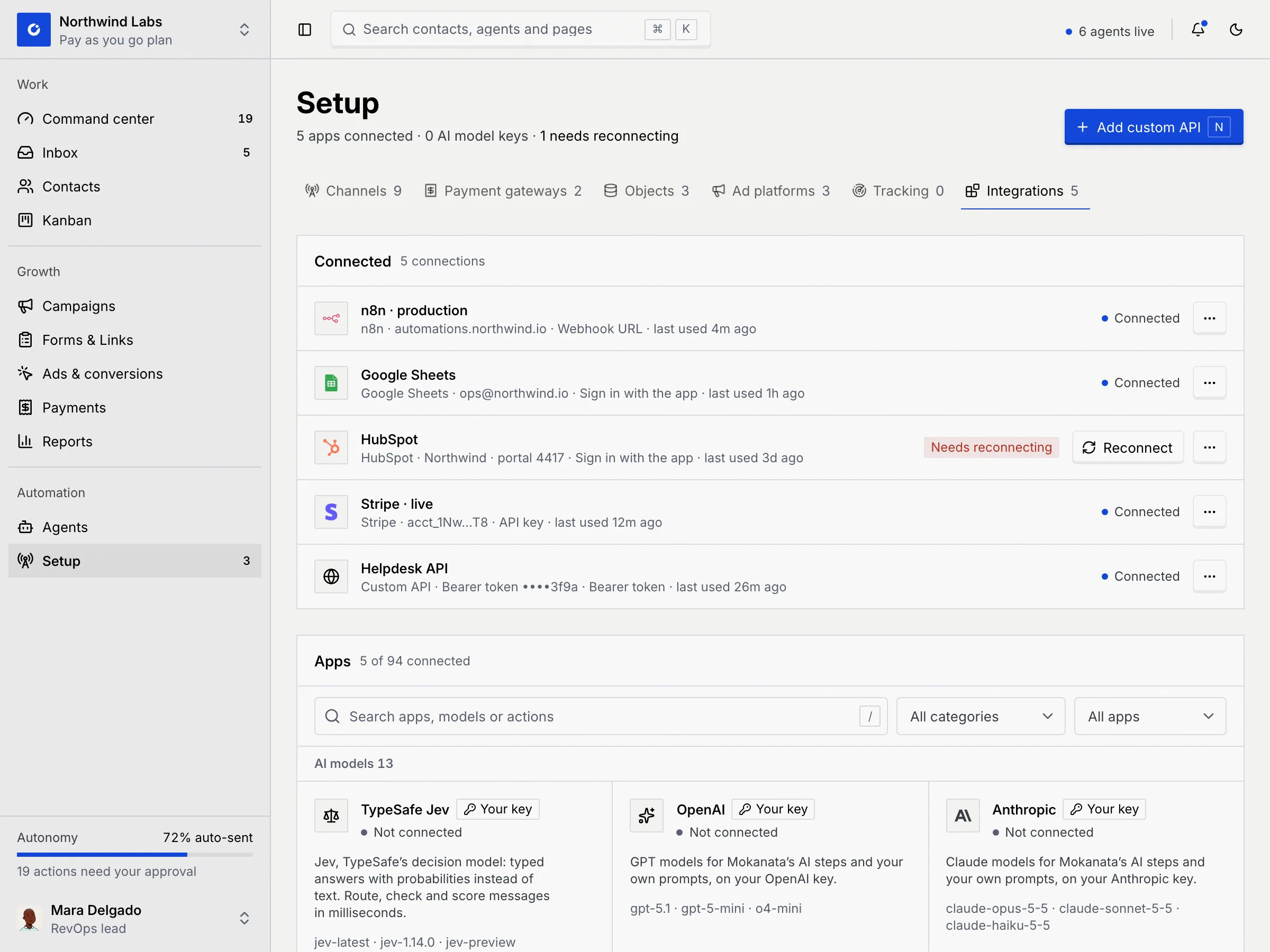
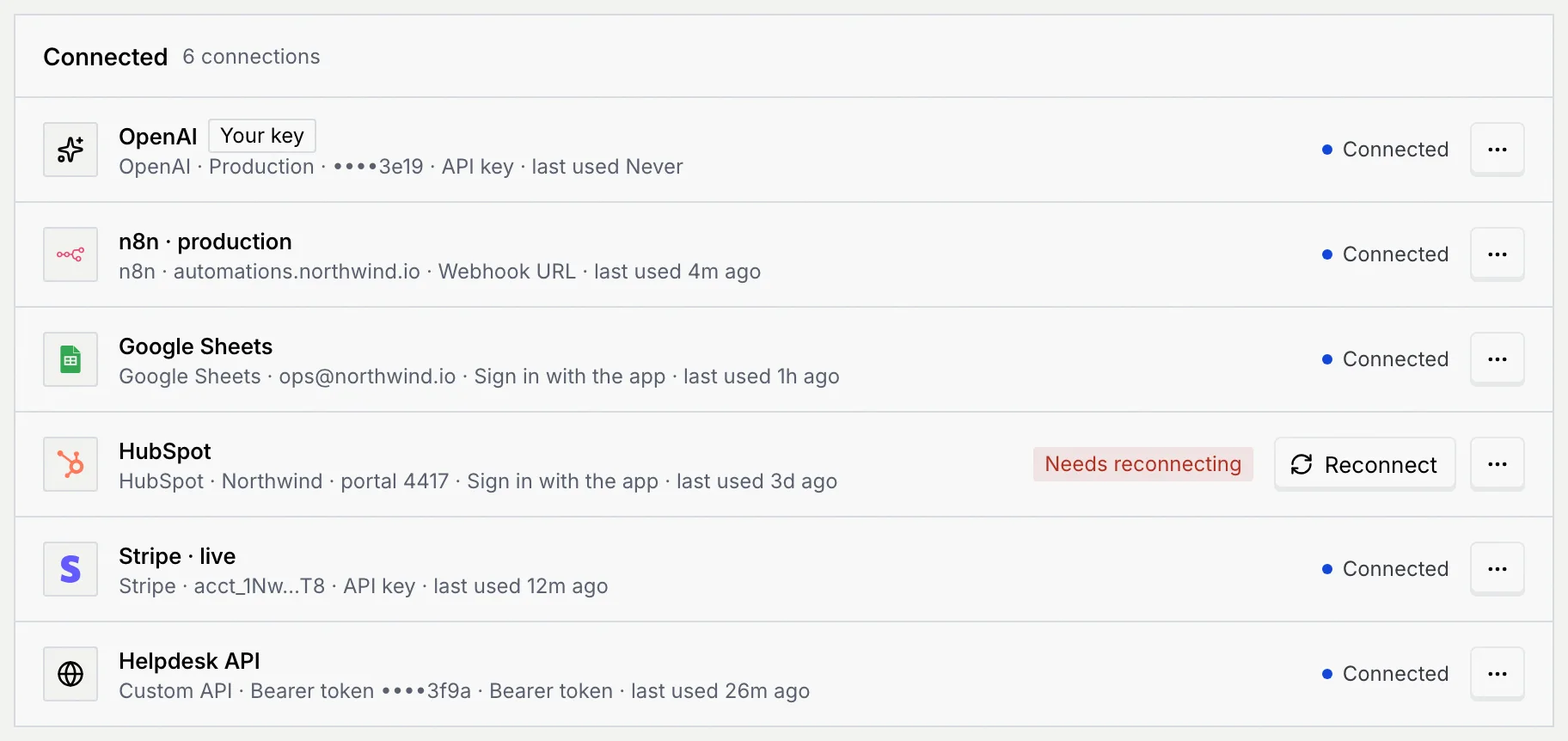
Connected lists every connection: its name, the app, the account or key label, how it signs in and when a flow last used it, then its state.
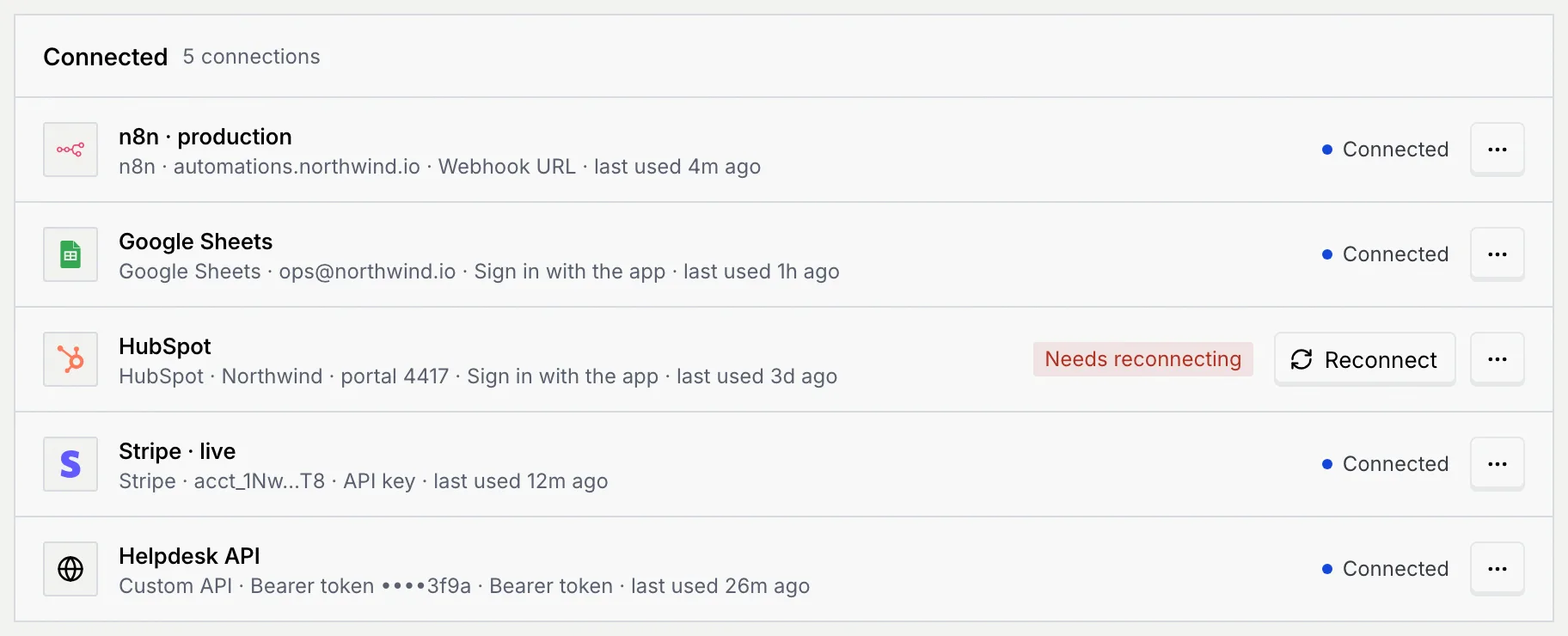
| State | Meaning |
|---|---|
| Connected | The credentials work. |
| Needs reconnecting | The sign-in or key stopped working. Flows that use it can't run that step until you click Reconnect. |
Before anything is connected, the panel says Nothing connected yet: connect an app below and every flow can use it as a step.
AI model connections carry a Your key badge: Mokanata's AI steps can run on your key instead of Mokanata's, and usage is billed to your account with that provider.
Find an app
Apps lists the 94 apps you can connect, grouped by category. Each card shows whether it's connected, what it's for, the models it offers or what flows can do with it ("In flows: Create a deal"), and how it connects.
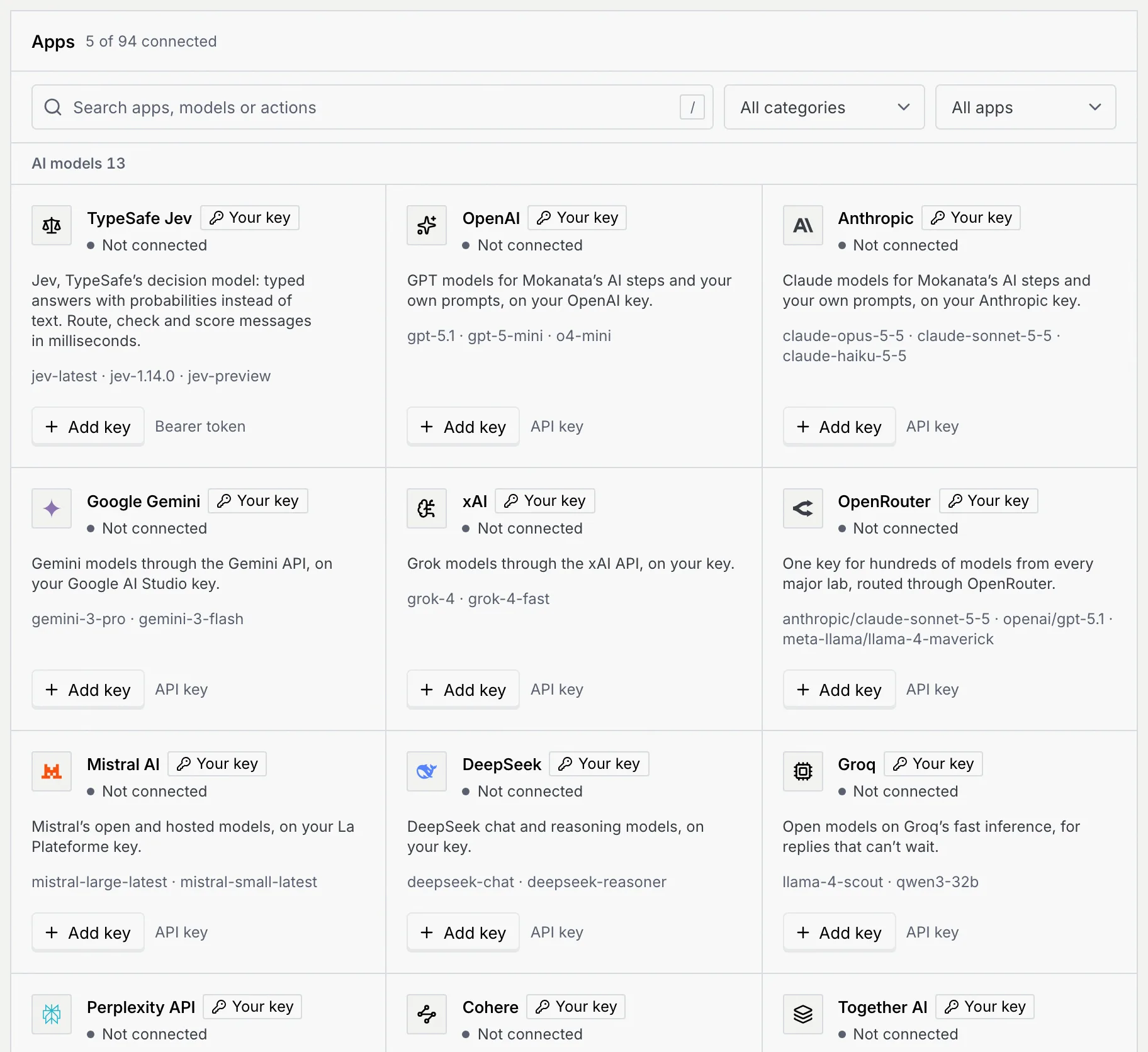
- Search apps, models or actions: matches app names, categories, descriptions, model names and flow actions. Press / to jump there.
- Filter by category: one of the 13 categories below.
- Filter by status: All apps, Connected, Not connected, Bring your own key (AI model keys) or Built for Indonesia (Xendit, Midtrans, Tokopedia, Shopee, KiriminAja, Biteship, RajaOngkir, GoSend and Jurnal).
Payment apps here, such as Stripe, Xendit, Midtrans and PayPal, are connections your flows can call with your own key. Taking customer payments through a payment gateway is coming soon; see Payment gateways and QRIS.
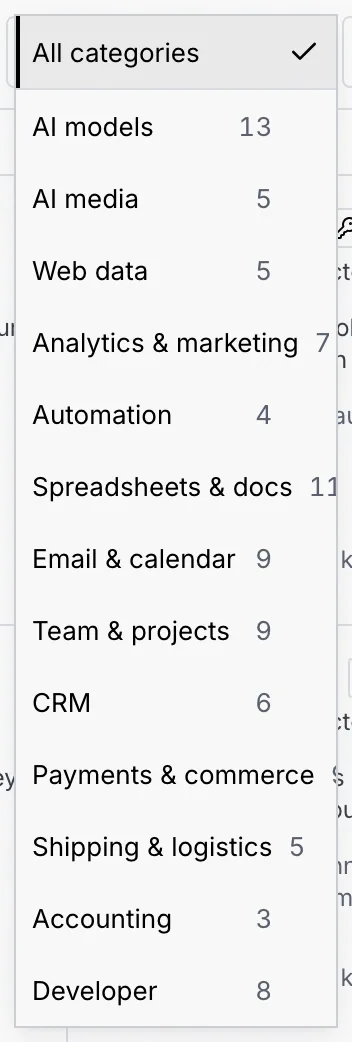
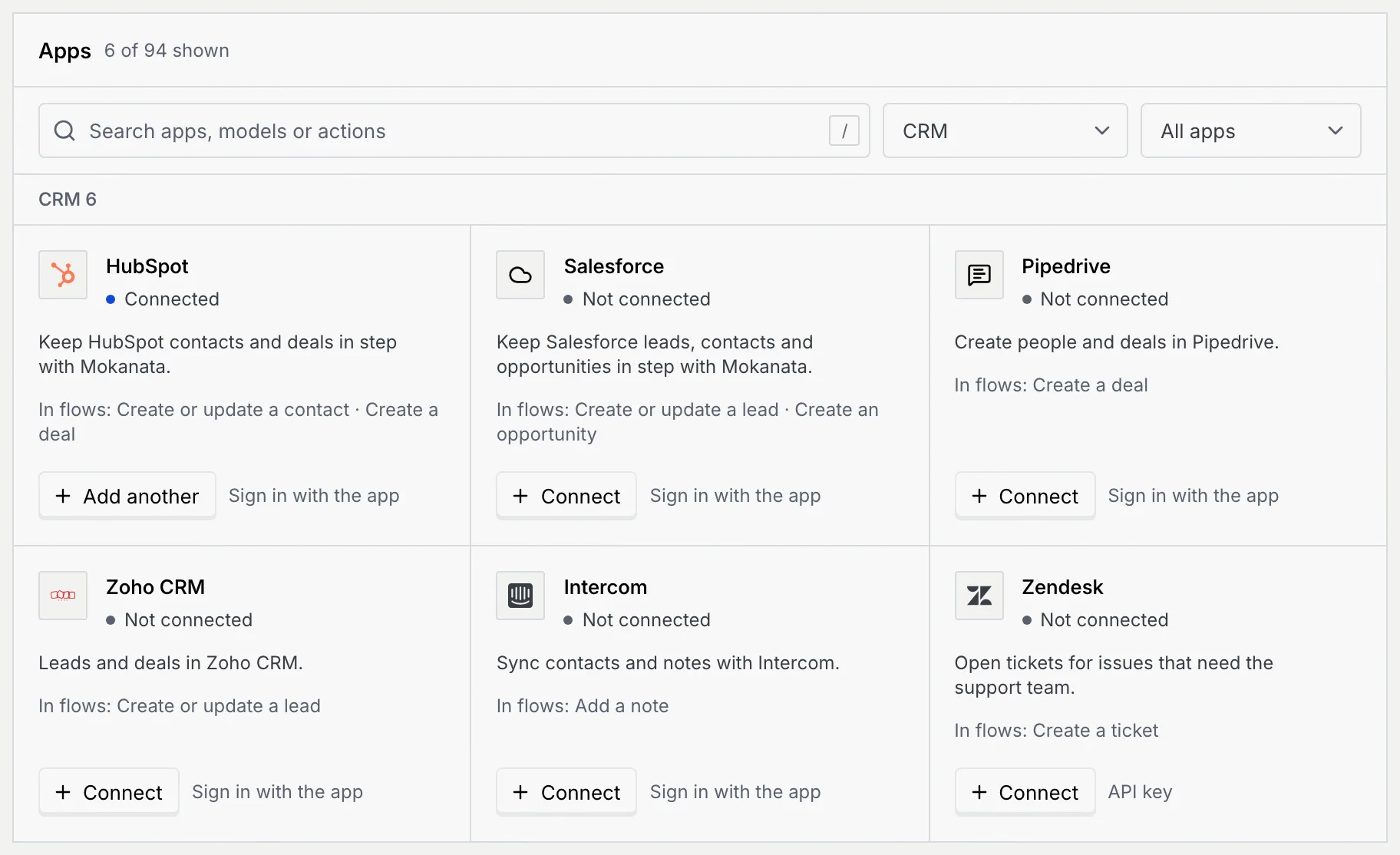
| Category | Some of the apps |
|---|---|
| AI models | TypeSafe Jev, OpenAI, Anthropic, Google Gemini, xAI, OpenRouter, Mistral AI, DeepSeek, Groq, Ollama |
| AI media | fal.ai, Replicate, Hugging Face, ElevenLabs, Deepgram |
| Web data | Firecrawl, Exa, Tavily, Apify, Jina AI |
| Analytics & marketing | Google Analytics, Google Tag Manager, Google Search Console, Mixpanel, PostHog, Hotjar, Semrush |
| Automation | n8n, Zapier, Make, Pipedream |
| Spreadsheets & docs | Google Sheets, Notion, Airtable, Typeform, Google Drive, Dropbox, Confluence, WordPress, Webflow |
| Email & calendar | Gmail, Google Calendar, Calendly, Mailchimp, Google Meet, Cal.com, Zoom, Resend, Brevo |
| Team & projects | Slack, Discord, Trello, Asana, ClickUp, Linear, Jira, Todoist, GitHub |
| CRM | HubSpot, Salesforce, Pipedrive, Zoho CRM, Intercom, Zendesk |
| Payments & commerce | Stripe, Shopify, WooCommerce, Xendit, Midtrans, PayPal, Lemon Squeezy, Shopee, Tokopedia |
| Shipping & logistics | KiriminAja, Biteship, RajaOngkir, GoSend, GrabExpress |
| Accounting | Xero, QuickBooks, Jurnal by Mekari |
| Developer | PostgreSQL, Custom API, MySQL, MongoDB, Supabase, Firebase, Redis, BigQuery |
If nothing matches, No apps match shows with Clear filters.
Connect an app
Open the app's dialog
On the app's card, click Connect (or Add key for an AI model, Add another for an app you've already connected). The dialog is titled Connect and the app's name.
Fill in the fields
Every dialog starts with Name: how flow steps list the connection, for example "Stripe · live". It starts as the app's name; change it when you'll have more than one connection to the same app. The other fields depend on how the app connects (see How each app connects).
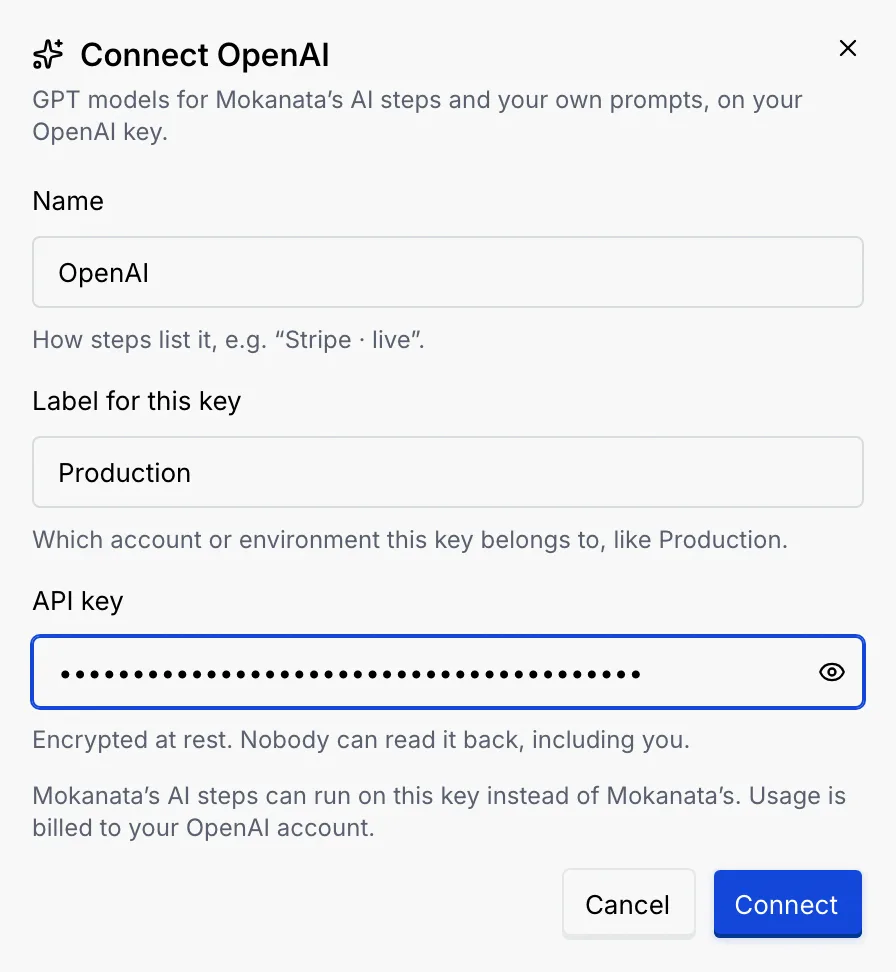
Keys, tokens and passwords are encrypted at rest. Nobody can read them back, including you.
Connect
Click Connect, or Continue with and the app's name for apps you sign in to. The dialog closes, the connection appears at the top of Connected and a toast says "Every flow can use it now".
If a field is missing, the dialog says which one when you click Connect ("Give this key a label, like Production", "Enter the username", "Enter a full address, like https://…"). If the app turns the connection down, It didn't connect shows the reason and the button becomes Try again.
How each app connects
The card shows how an app connects, under its button.
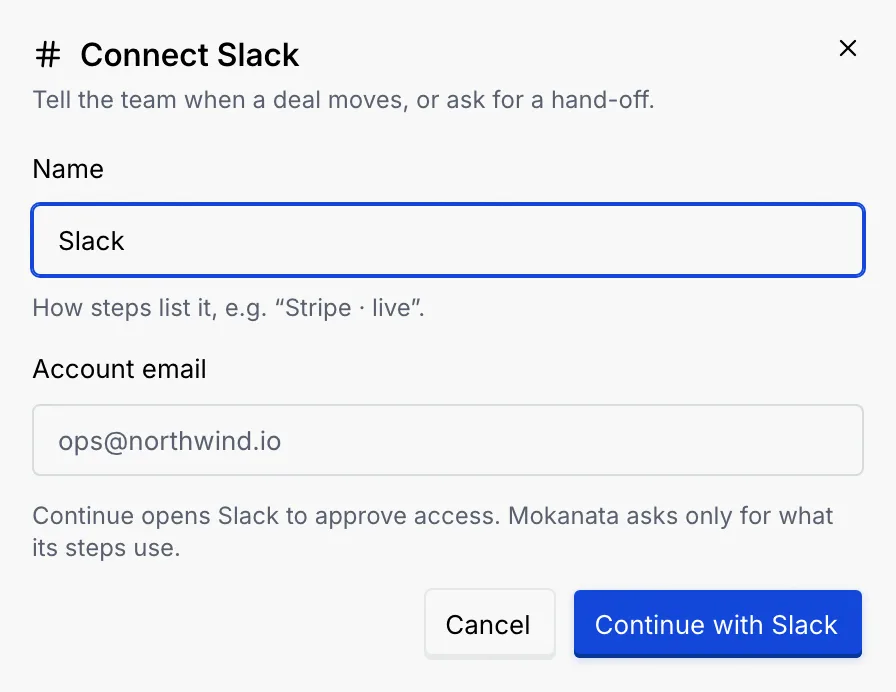
For apps like Google Sheets, Slack, HubSpot, Salesforce and Gmail. Enter Name and the Account email you'll sign in with, then click Continue with and the app's name. It opens the app to approve access; Mokanata asks only for what its steps use.
Keep connections working
Reconnect
When a connection shows Needs reconnecting, click Reconnect on its row. A toast confirms, and the row goes back to Connected. If it fails, a toast says it didn't reconnect, with Retry.

Test, add another or remove
Open a connection's ⋯ menu:
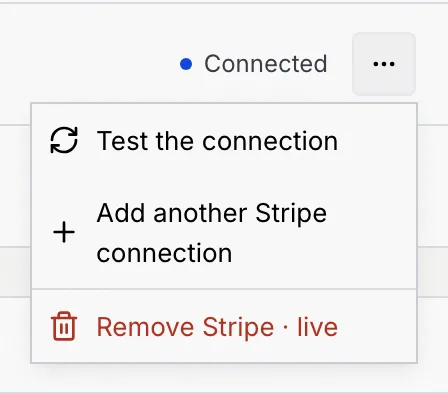
- Test the connection signs in with the saved credentials. "Stripe · live works: The credentials signed in." means it's fine; "didn't answer" means you should reconnect it.
- Add another connection to the same app, for example a test and a live account.
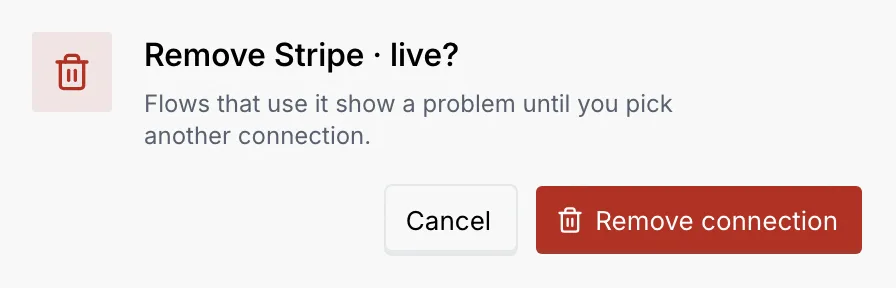
- Remove asks you to confirm.

Removing affects flows
Flows that use a removed connection show a problem until you pick another connection in their steps. The toast after removing has Undo.
What members and viewers see
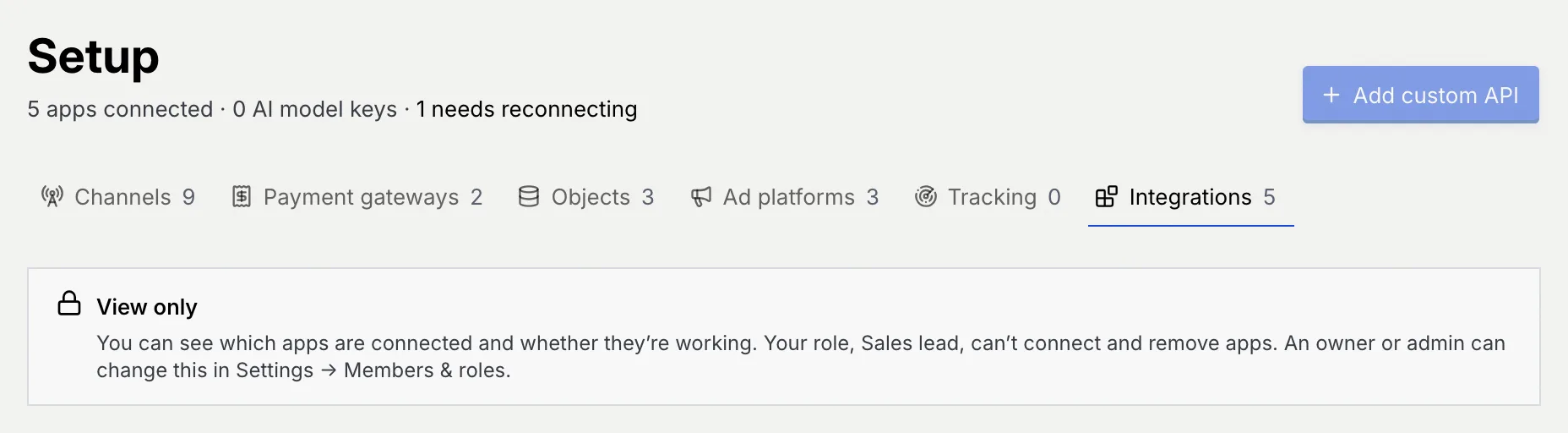
Without Connect and remove apps, a View only notice says you can see which apps are connected and whether they're working. Add custom API, Connect, Add key and Reconnect are disabled, the row menus are hidden, and N does nothing.
Troubleshooting
The connection was removed or needs reconnecting. Reconnect it here, or pick another connection in the step. See Apps and webhooks in flows.
The saved credentials no longer sign in, usually because the password, key or app access was changed or revoked. Click Reconnect, or remove the connection and connect it again with new credentials.
Keys, tokens and passwords are never shown again after you save them. The row shows only their last characters. To change one, add a new connection and remove the old one.
Next steps
Test, publish and version a flow
Run a flow's draft on a sample message, fix what stops it from publishing, publish a new version, and restore or discard versions.
Campaigns
Broadcast approved WhatsApp templates to pipeline stages and saved segments, follow delivery and reads, and manage campaigns in bulk.