Payment gateways and QRIS
Turn your static QRIS into a QRIS with each order's total filled in. Payment gateways for online payment links are coming soon.
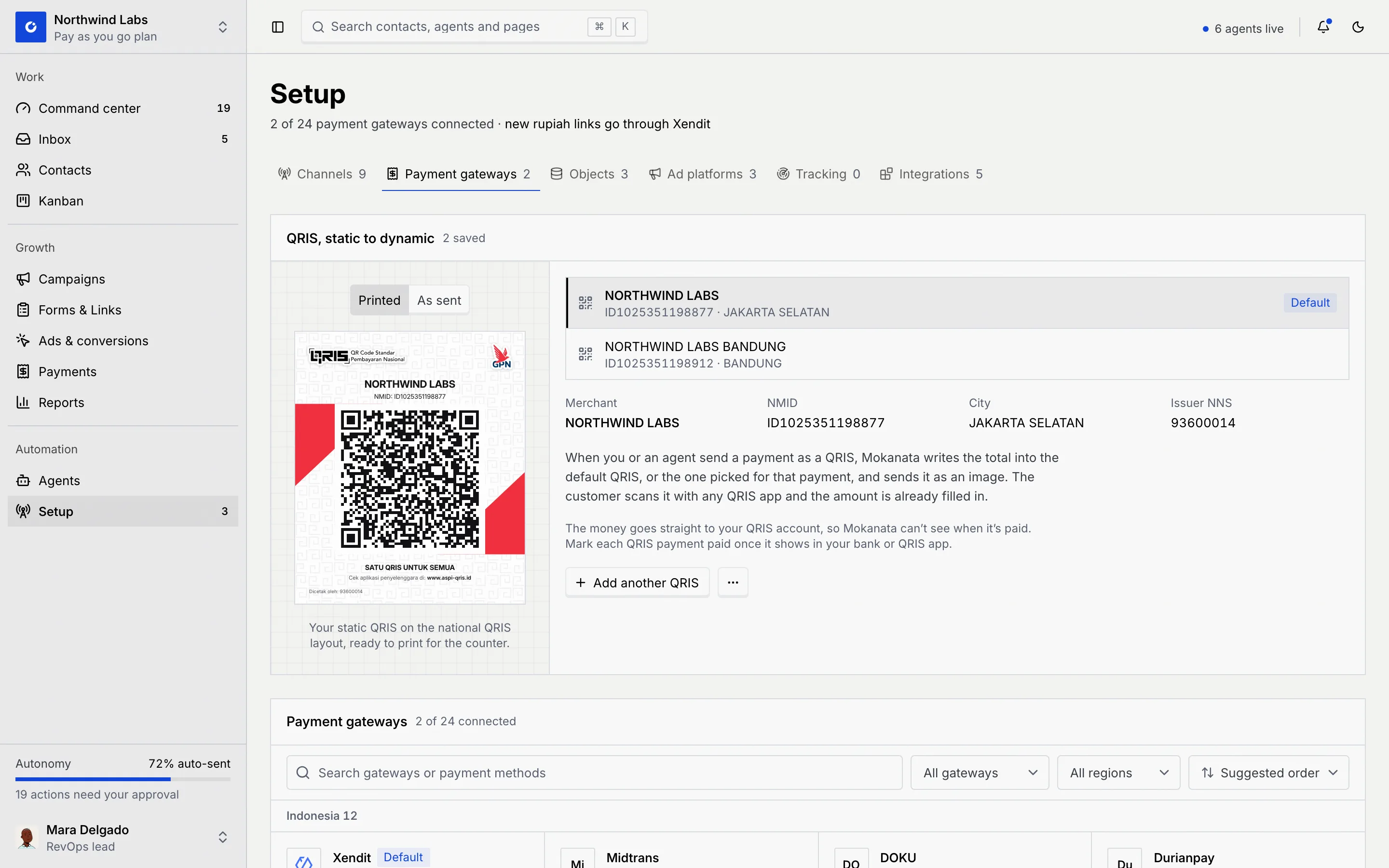
QRIS, static to dynamic uses the QRIS your bank or e-wallet printed for your business: Mokanata writes each order's total into it, so customers scan a QRIS with the amount already filled in, and the money goes straight to your account. It lives on Setup → Payment gateways.
Coming soon
Payment gateways aren't available yet: Mokanata can't connect Xendit, Midtrans, Stripe or any other gateway, so payment links can't be paid online yet. The gateway list on this tab says so. QRIS works today.
- Who can use it: Owners and admins (anyone with Manage gateways). Everyone else can see which QRIS accounts payments go to and download a QRIS to print, with a View only notice and the other buttons disabled or hidden. See Roles and permissions.
- Before you start: For QRIS, an image of your business's static QRIS (PNG, JPG or WebP), the one printed for your counter or shown in your bank or QRIS app.
Open Payment gateways
In the sidebar, click Setup, then the Payment gateways tab. You can also get here from Payment gateways on the Payments page's Link defaults tab.
Upload your static QRIS
Upload the image
In QRIS, static to dynamic, click Upload static QRIS (or Add another QRIS if you already have one) and choose a straight, well-lit image where the whole QR shows. Mokanata reads it and saves the QRIS with its merchant name, NMID and city. Add one QRIS for each outlet or bank account you take payments to.
Check the details
The panel shows your saved QRIS accounts (the Default one first) and, for the one you pick, its Merchant, NMID, City and Issuer NNS. Switch the preview between Printed (your static QRIS, ready to print for the counter) and As sent (the same QRIS with a payment's total written in).
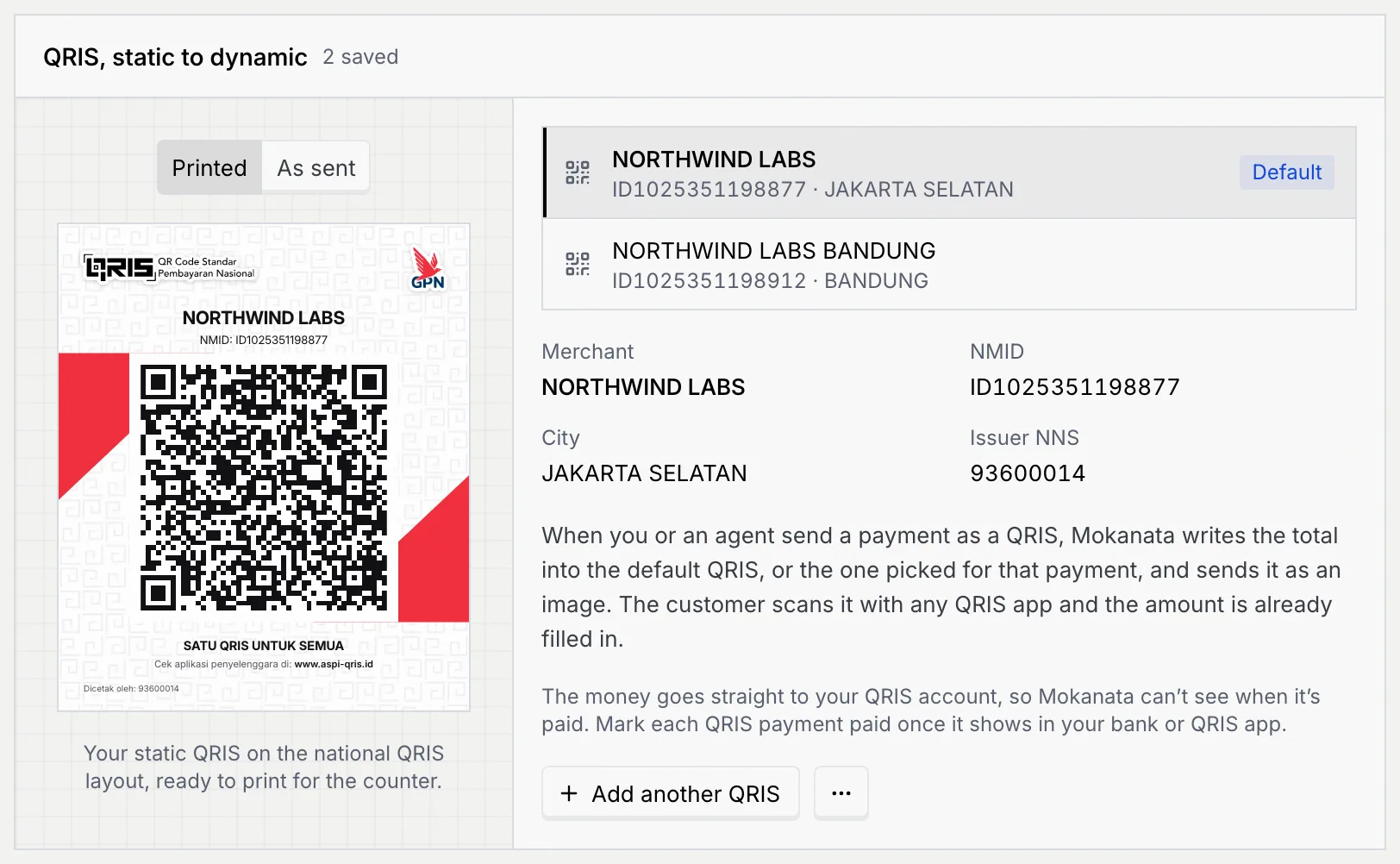
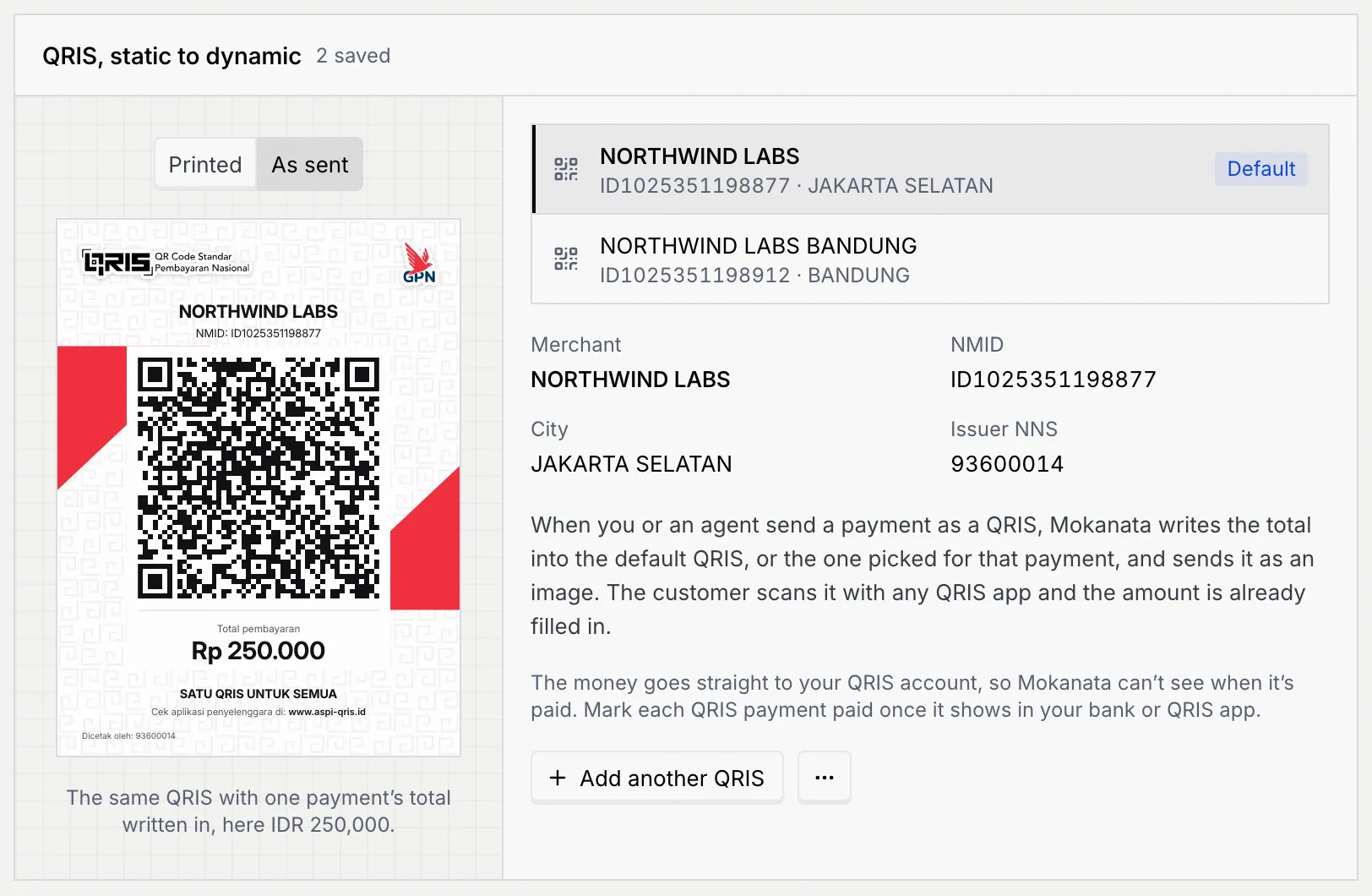
When you send a payment as a QRIS, Mokanata writes the total into the default QRIS (or the one picked for that payment) and sends it as an image. See Send a QRIS image.
Mark QRIS payments paid yourself
The money goes straight to your QRIS account, so Mokanata can't see when it's paid. Mark each QRIS payment paid once it shows in your bank or QRIS app (Mark a link paid).
Manage a saved QRIS
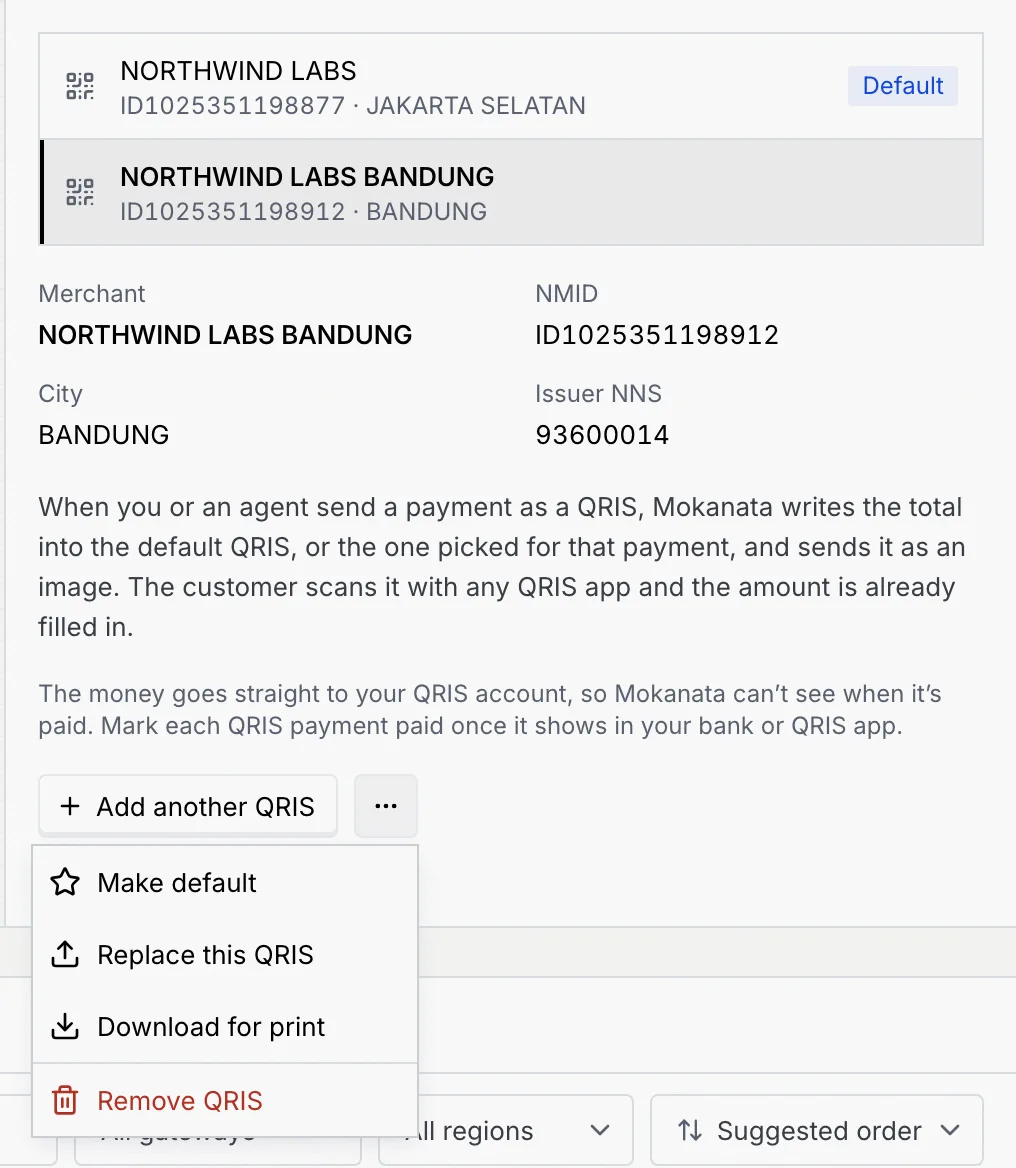
Pick a QRIS in the list, then open the ⋯ menu next to Add another QRIS:
- Make default: QRIS payments use it unless someone picks another.
- Replace this QRIS: upload a new image for the same account. New QRIS payments go to the new one.
- Download for print: save the QRIS on the national layout as an image to print.
- Remove QRIS: payments can't be sent to it any more (if it was the default, the next one becomes the default). QRIS payments already sent still work and still show on the Payments page.
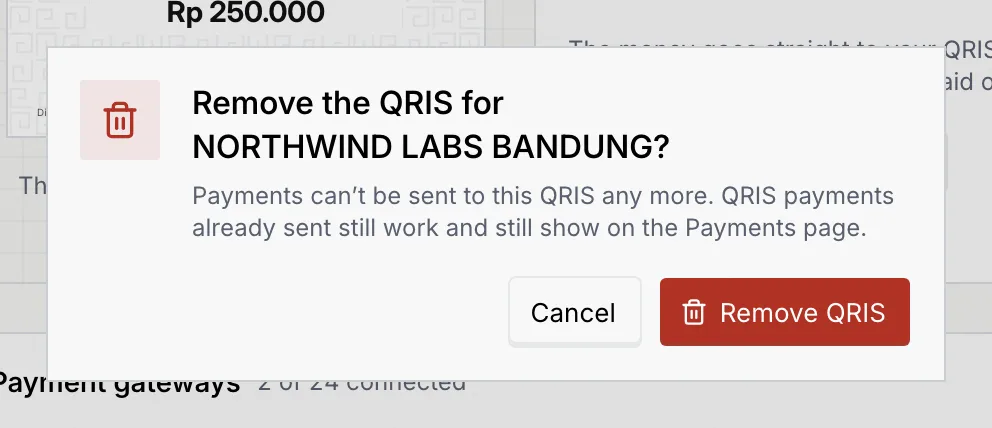
Payment gateways
Connecting a payment gateway, choosing the default one for rupiah links and disconnecting one are coming soon. Until then, send a QRIS for each payment and mark it paid once it shows in your bank or QRIS app.
Troubleshooting
| Message | What to do |
|---|---|
| Upload an image of the QRIS: PNG, JPG or WebP. | Use an image file in one of those formats. |
| No QR code found in that image. | Upload a straight, well-lit picture where the whole QR shows. |
| This QR isn’t a QRIS code. | Upload the QRIS your bank or e-wallet issued for the business. |
| The QR didn’t read cleanly. | Upload a sharper photo, or the original image from your QRIS app. |
| This is a dynamic QRIS with an amount already in it. | Upload the static QRIS printed for the business. |
| This QRIS isn’t set up for rupiah payments in Indonesia, so customers couldn’t pay it. | Use a QRIS for rupiah payments. |
| This QRIS is already saved. | It's already in the list. Upload a different one. |
No static QRIS is saved yet. Upload one here first.