The Setup page
Find every connected channel, check its health and open its details from the Channels tab on the Setup page.
Setup is where you connect Mokanata to the outside world: the messaging channels your customers write in on, your static QRIS, your own data, ad platforms, tracking tags and the apps your agents use. It opens on the Channels tab, which lists every connected account with its health, so you can see at a glance what's working and what needs you.
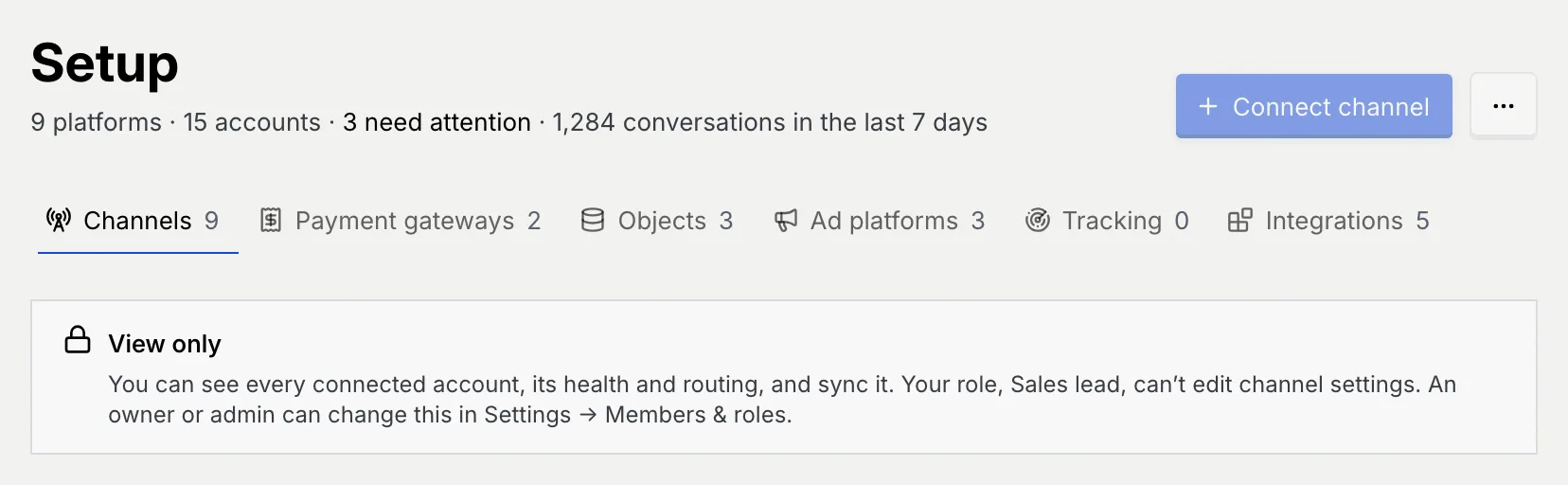
- Who can use it: Everyone in the workspace can open Setup, see every connected account and its health, and sync it. Owners and admins can also connect, reconnect and disconnect accounts and change their settings. Members, viewers and custom roles without those permissions see a View only notice and disabled buttons that say why. See Who can change channels.
- Before you start: Nothing. To add your first channel, see Connect a channel.
Coming soon
Messenger, Instagram and WhatsApp go live once Mokanata's Meta app is approved by Meta; the other channels are coming soon. Until then a new workspace has no connected accounts. The screenshots on this page show the sample workspace, whose accounts are sample data.
Open Setup
Go to Setup
In the sidebar, under Automation, click Setup (or press G then U anywhere). The number beside Setup in the sidebar counts the platforms that need attention.
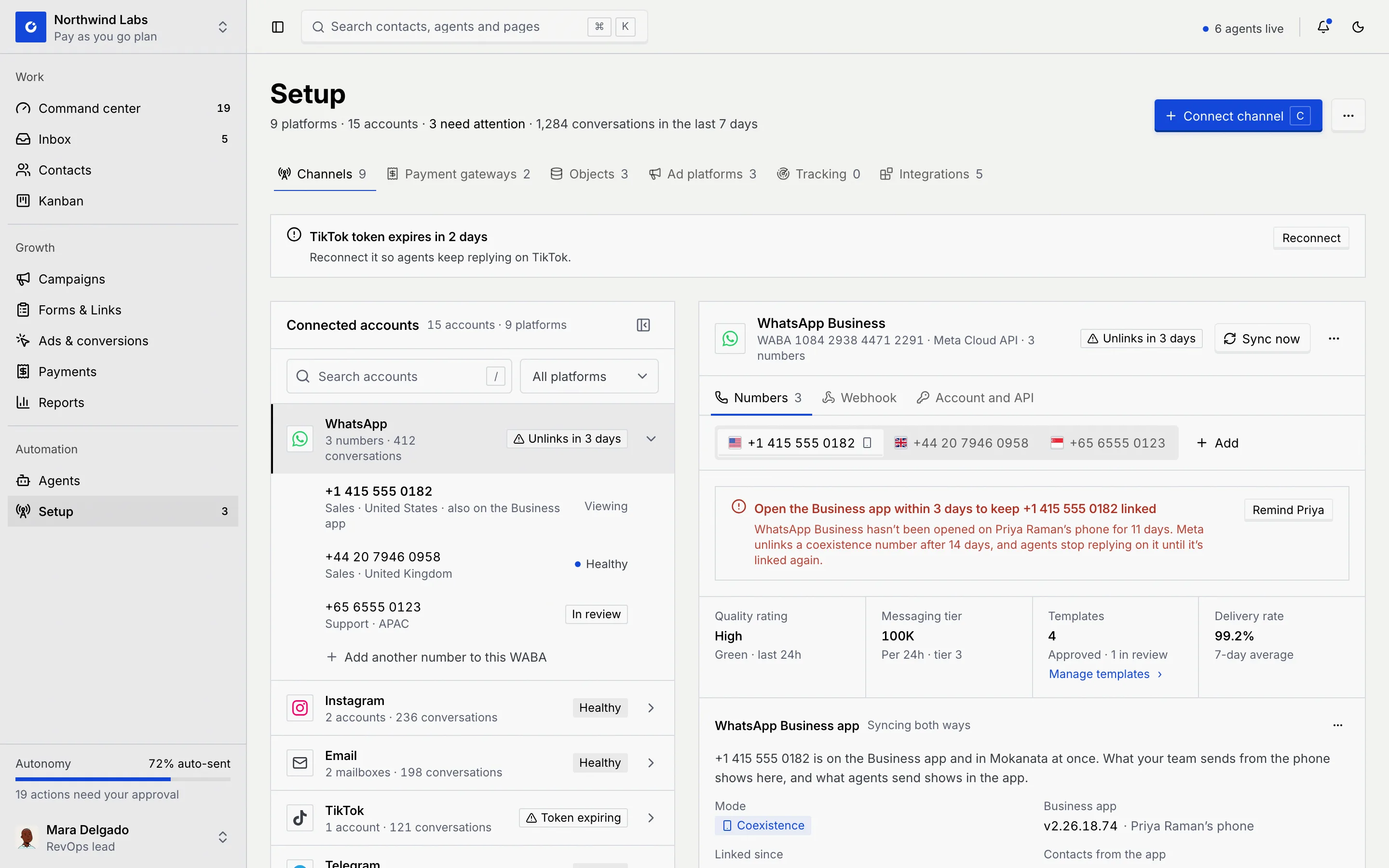
The Channels tab opens: the Connected accounts list on the left and the selected platform's details on the right.
Read the summary line
The line under the title counts what's connected and what needs a look: platforms, accounts, how many platforms need attention, and how many conversations came in over the last 7 days.

Check the alerts at the top
When Meta stops accepting a platform's access, an alert sits above the list with a Reconnect button. Renew it so agents can reply again. See Health, sync, reconnect and disconnect.
The six tabs
Each tab shows a count and has its own main action in the header. Switching tabs keeps the account you had selected on the Channels tab.
| Tab | What it holds | Main action | Guide |
|---|---|---|---|
| Channels | Messaging accounts: WhatsApp, Facebook (Messenger) and Instagram, with more channels coming soon. The count is the number of platforms that are connected. | Connect channel (C) | This section |
| Payment gateways | Your static QRIS. Payment gateways are coming soon. | None | Payment gateways and QRIS |
| Objects | Your own tables and ones synced from your database. | New object (N) | Objects |
| Ad platforms | Ad accounts Mokanata reads ads and spend from (signing in to an ad account is coming soon). | Connect ad platform (N) | Connect ad platforms |
| Tracking | Tracking tags on forms and short links. | Install Meta Pixel (N) | Tracking tags |
| Integrations | Apps and AI model keys your agents' flows use. | Add custom API (N) | Integrations |
The rest of this page covers the Channels tab.
Read the Connected accounts list
The Connected accounts panel has one row per platform, with how many accounts it has, its conversations in the last 7 days and its health on the right.
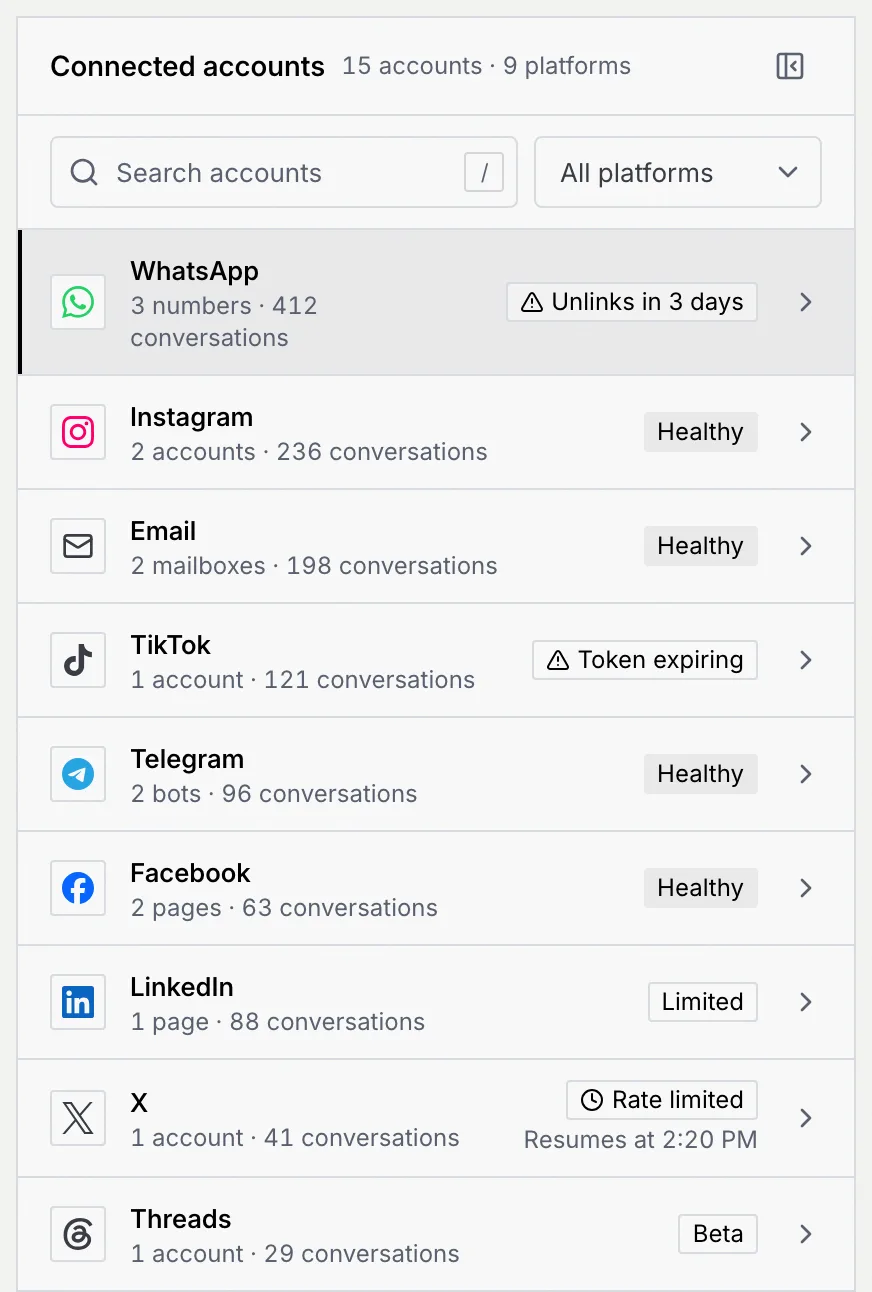
- Click a platform row to open its details on the right. The selected row has a shaded fill and a dark bar on its left edge.
- Click the arrow at the end of a row to show or hide that platform's accounts (numbers, Pages or Instagram accounts). Click an account to open it.
- Each account shows its own state on the right: Viewing for the one open on the right, a health badge such as Token expiring, Disconnected, In review for a WhatsApp number whose display name Meta is reviewing, or a blue dot with Healthy.
- The last row under a platform adds another account to it: Add another number to this WABA for WhatsApp, or Add another account or page for Instagram and Facebook.
The badge on a platform row is the worst state among its accounts. What each badge means, and what to do about it, is in Health statuses.
In a workspace with nothing connected yet, the panel says No accounts connected yet, with Connect channel for roles that can connect channels.
Find an account
Filter by health
Open the Show menu at the top of the list and pick Needs attention, Healthy, Limited or beta or Disconnected. All platforms shows everything again.
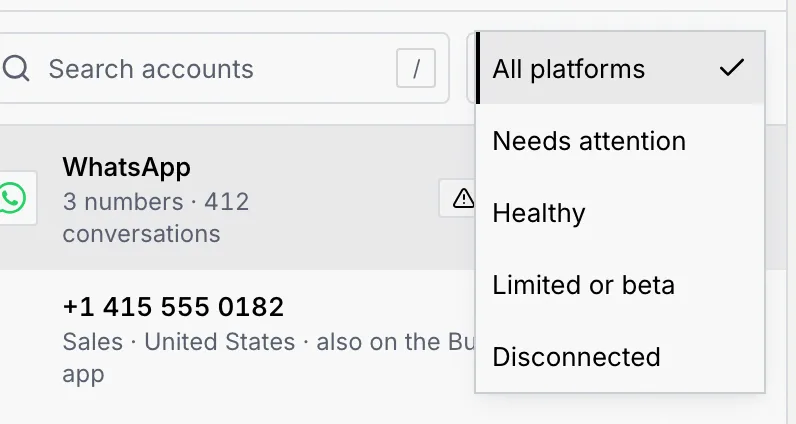
Needs attention keeps the platforms with an expiring token or a rate limit. The count next to the panel title changes to show how many platforms match, such as 1 of 3 platforms.
Search
Click Search accounts (or press /) and type part of a platform's name, an account's name or its label. A platform matched through one of its accounts shows Matches and the account's name under its row.
Clear the filters
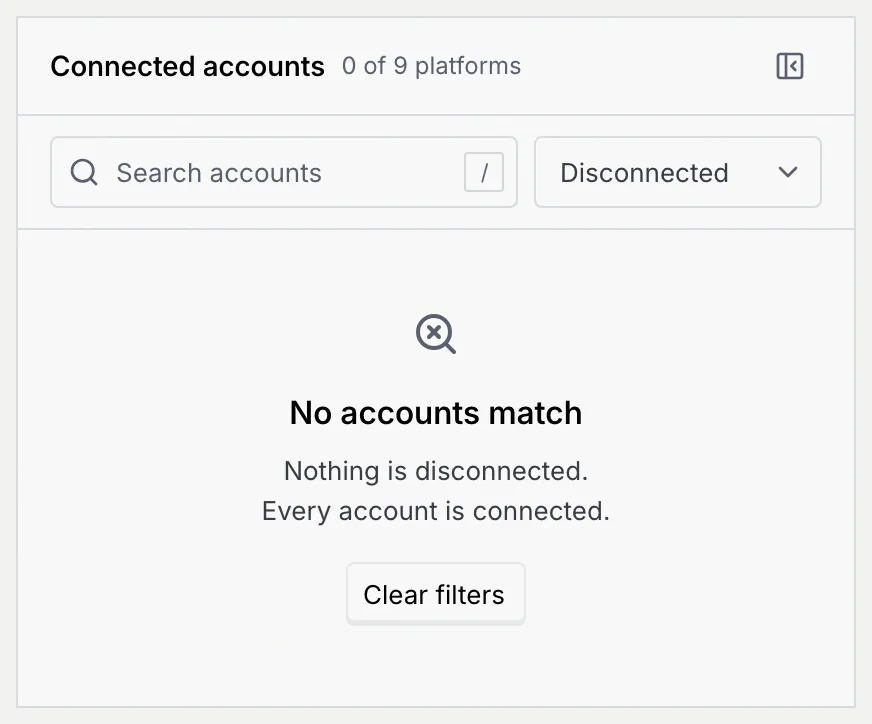
When nothing matches, the panel says No accounts match and why, for example "Nothing is disconnected. Every account is connected." Click Clear filters to empty the search and show every platform.
Open a platform's details
Pick a platform
Click a platform in the list. Its details open on the right: the platform's name, how many accounts it has and the API it connects through, its health, a Sync now button and a ⋯ menu with Add account (or Add page), Reconnect when needed, and Disconnect.
Under the header:
- At a glance: Conversations in the last 7 days, the number of accounts, and Health with when it last synced.
- A notice when the platform is limited or rate limited, saying what happened.
- Accounts (or Pages) with an Add account button.
- Assigned agents: the agents that work this platform, each linking to its page. When there are none, conversations wait in the inbox for a teammate.
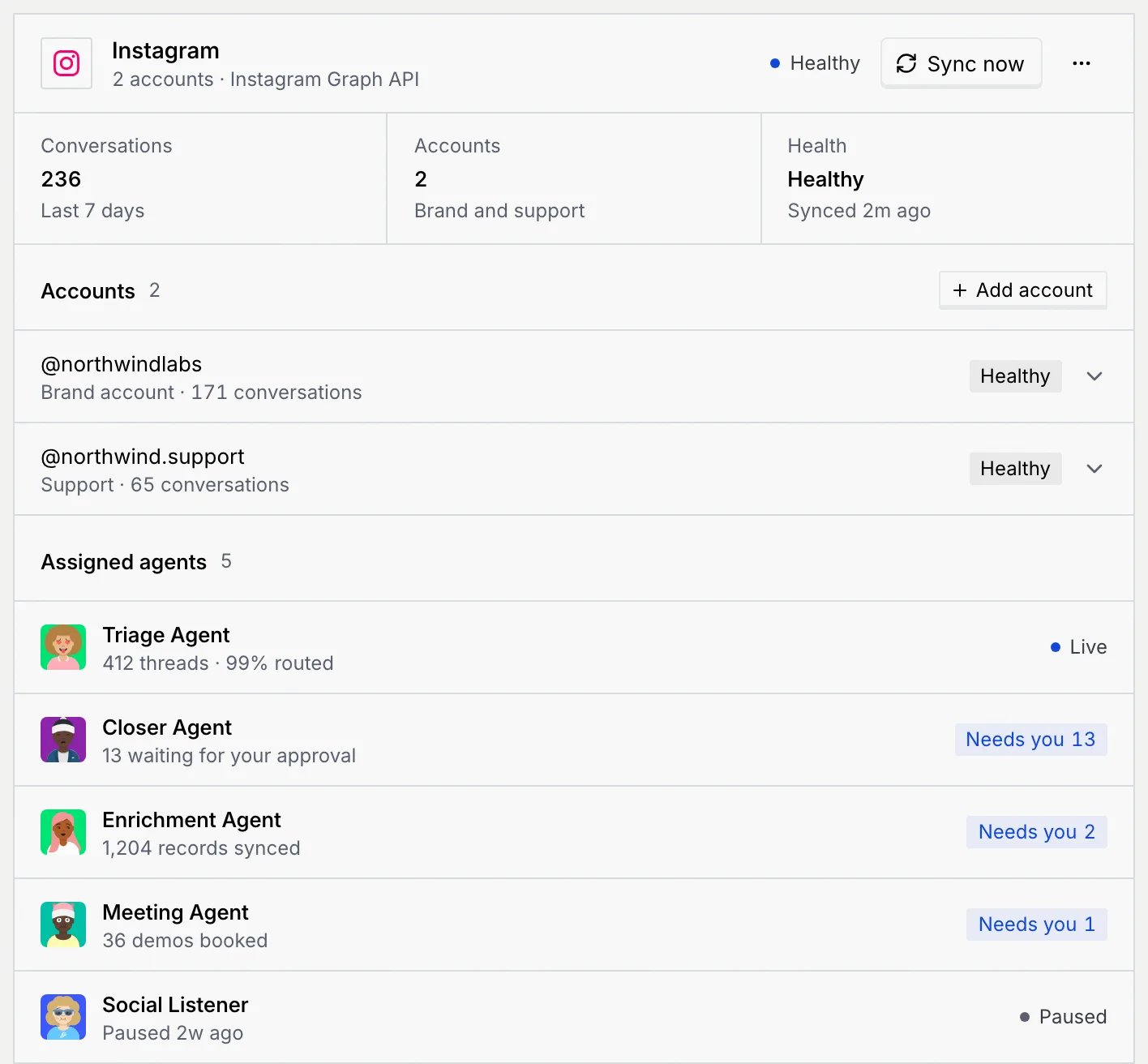
WhatsApp Business has its own layout with numbers, a webhook and the business account. See WhatsApp number health, limits and settings.
Open an account
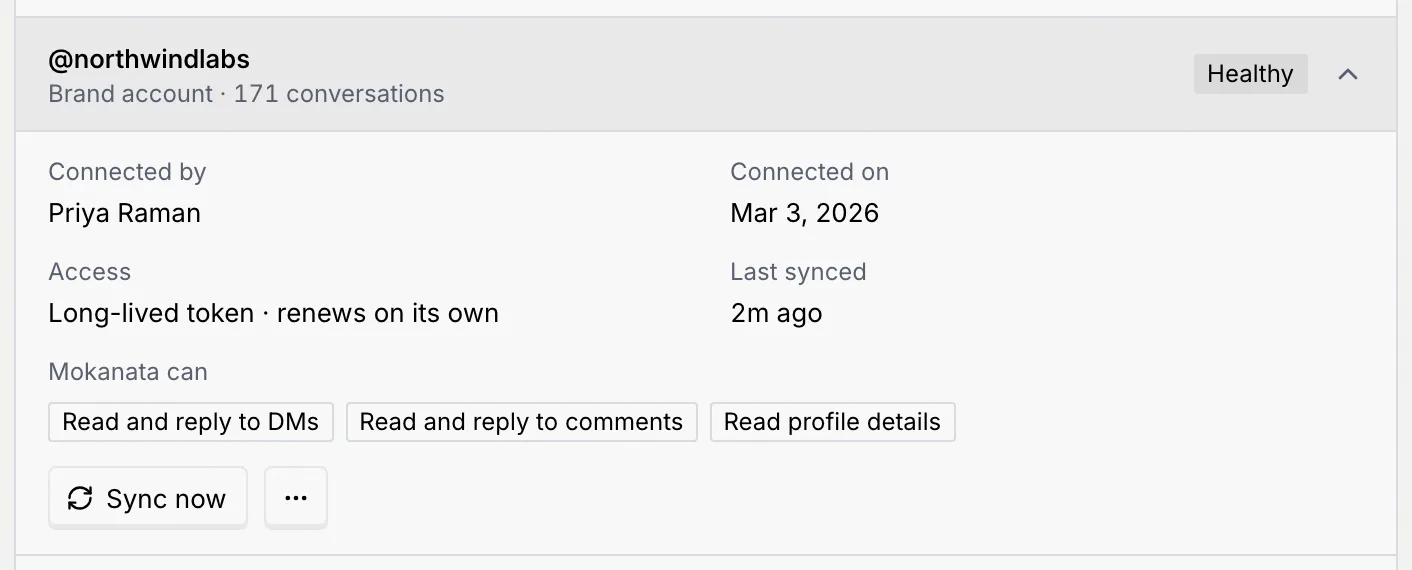
Click an account under Accounts to expand it. You see who connected it and when, the kind of access Mokanata holds (such as Long-lived token · renews on its own), when it last synced, and what Mokanata can do on it. The buttons at the bottom sync it, and the ⋯ menu disconnects it.
Links to an account
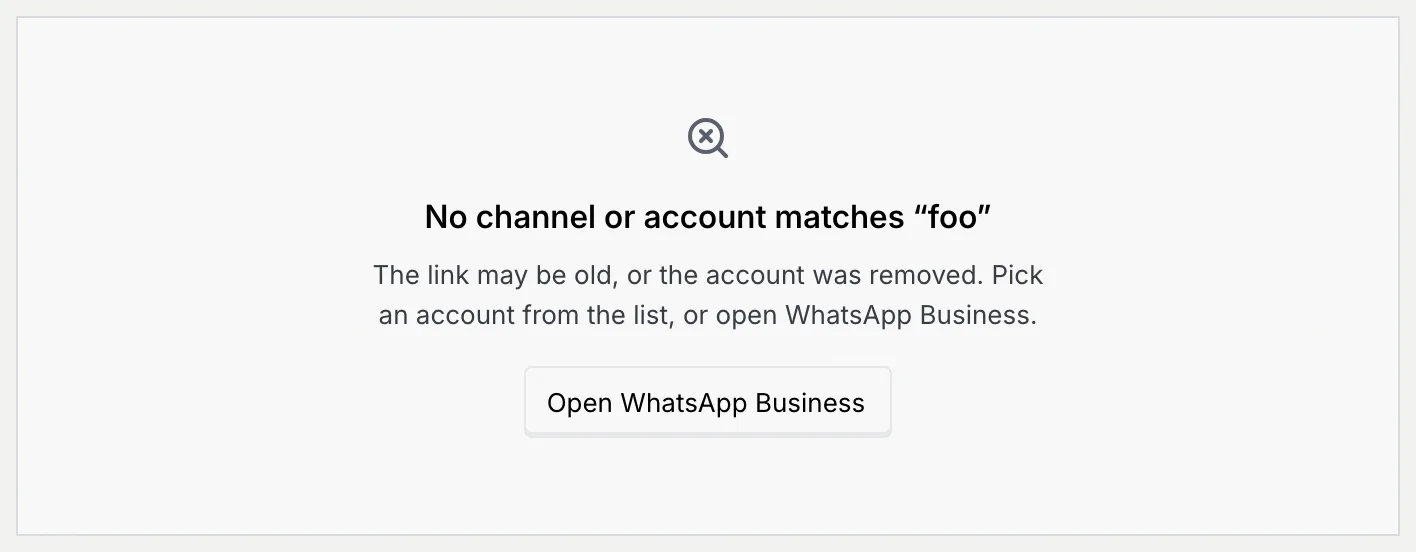
The address bar keeps the platform or account you have open, so you can bookmark it or send the link to a teammate. Dialogs such as Connect a channel are in the address too, so your browser's Back button closes them. Older links to Channels or Integrations open Setup. A link to an account that was removed shows No channel or account matches with an Open WhatsApp Business button.
Give the details more room
On wide screens (1280 pixels and wider), click the panel icon at the top right of Connected accounts (Collapse connected accounts). The list folds into a narrow rail of platform icons, and the details take the full width. A dot on an icon marks a platform that needs attention or is disconnected; hover an icon to see its name and health.
Click the icon at the top of the rail (Expand connected accounts) to bring the list back. Mokanata remembers your choice on this device.
Sync every account
Messages arrive as the platforms send them. To read your accounts' details from the platforms again right now:
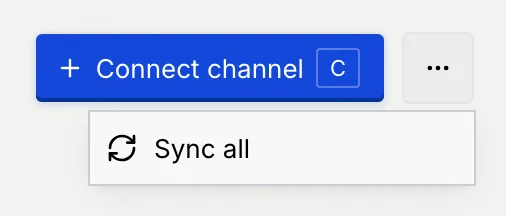
Read the result
A message says how many accounts synced, from what the platform returned, and names any that didn't, with why: a disconnected or rate-limited account is skipped, and one whose access ended needs a reconnect. Facebook Pages and Instagram accounts get everything as Meta sends it, so they have nothing to sync; when nothing else can sync, the message says Nothing to sync.
To sync a single platform or account, use its own Sync now button.
More channels
Under the list, More channels lists the platforms you can still connect and the ones on their way. Choosing a platform that isn't connected yet opens a panel that says so, with a button to connect it. YouTube, Google Business, Phone, Discord and Slack have Join waitlist. See Connect a channel, which also lists the channels that are coming soon.
The Your website panel holds the website chat, which is coming soon: see Website chat.
Who can change channels
Three permissions decide what someone can do on the Channels tab. You change them per role in Roles and permissions.
| Permission | What it allows | Owner | Admin | Member | Viewer |
|---|---|---|---|---|---|
| View channels | See connected accounts and their health. | Yes | Yes | Yes | Yes |
| Edit channel settings | Change routing and away messages for each account. | Yes | Yes | No | No |
| Connect and disconnect | Connect accounts and numbers, reconnect them, rotate tokens or disconnect them. | Yes | Yes | No | No |
Actions on an account that's already connected (reconnect, disconnect, routing, a WhatsApp number's PIN) also need Manage access to that account. A role can be limited to some accounts, or to View or Reply on them. See Channel access.
Anyone can open every account, read its health, routing and settings, use Sync now and Sync all, and copy IDs.
When your role can't change something:
- A View only notice at the top of the tab explains what you can still do and who can change it.
- Buttons such as Connect channel, Reconnect and Set PIN stay visible but disabled. Focus one to hear the reason with a screen reader.
- Menu items you can't use, such as Add account or Disconnect, are left out of the menu.
- Routing is read-only, and the WhatsApp policy switches are disabled.
- The C shortcut does nothing.
To get more access, ask an owner or admin to change your role in Members and invites or your role's channel access.
Keyboard shortcuts
| Keys | Where | What it does |
|---|---|---|
| G then U | Anywhere | Go to Setup |
| C | Channels tab | Connect a channel |
| N | Objects, Ad platforms, Tracking and Integrations tabs | The tab's main action |
| / | Channels tab | Search accounts |
| Esc | A dialog | Close it |
You can turn single-key shortcuts off or change them in Keyboard shortcuts.
Troubleshooting
The link points at an account that was removed, or the address was cut off. Pick the account from the Connected accounts list, or click Open WhatsApp Business.
Someone sent you a link that opens a dialog your role can't use, such as Connect a channel or Add a WhatsApp number. Mokanata opens the Setup page without the dialog and says which permission is missing. Ask an owner or admin to do it, or to change your role.
Mokanata couldn't load Setup. Check your connection and click Try again. Nothing was changed.
Mokanata couldn't reach the platforms. Nothing changed; click Retry in the message, or try again later.
It counts the platforms that need attention: an expiring token or a rate limit. Filter the list by Needs attention to see them.
Next steps
Sign-in and link problems
What to do when you've lost your authenticator app or a passkey, a link has expired, you hit a limit, or Mokanata can't be reached.
Connect a channel
Connect Facebook Pages and their Instagram accounts with Facebook, add a WhatsApp number, and see which channels are coming soon.