Objects and the data model
See every table in your workspace, from Contacts to your own objects and synced databases, on Setup → Objects.
Objects are the tables Mokanata keeps next to your contacts: orders, products, properties, vehicles, subscriptions, whatever your business tracks. Contacts is built in; you add your own objects or sync tables from your database, relate them to contacts and to each other, and agents read them as context when they work a conversation.
- Who can use it: Everyone in the workspace can open the Objects tab, every table and each object's fields. Only owners and admins can change the data model (create, edit and delete objects, fields and relations) and connect databases. This comes with Admin access, so it can't be given to other roles one by one. Everyone else sees the notice The data model is view only, a greyed-out New object button and View fields instead of Edit object. See Roles and permissions.
- Before you start: Nothing. Every workspace starts with the built-in Contacts object.
Open the Objects tab
Open Setup
In the sidebar, under Automation, click Setup. You can also press G then U from anywhere.
Choose Objects
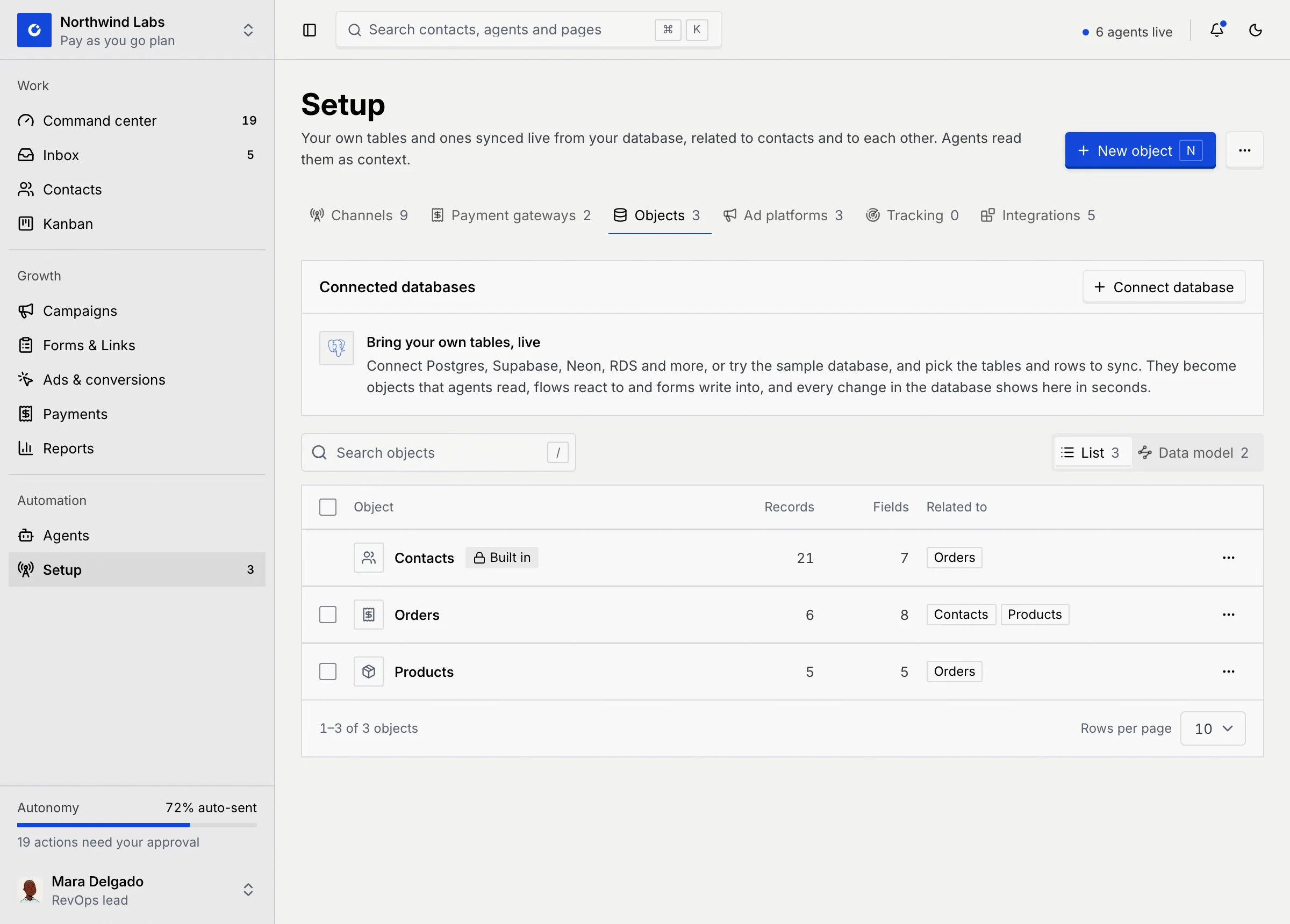
Click the Objects tab. Its count is the number of objects in the workspace. The tab has three parts: the Connected databases panel, the list of objects, and a switch between List and Data model on the right.
Read the objects list
Each row is one object. Click a row to open its table: Contacts opens the Contacts page, every other object opens its own records table (see Work with records).
| Column | What it shows |
|---|---|
| Object | The object's icon and name. Contacts carries a Built in badge. An object synced from a database carries a badge with the sync's name and a status dot (hover it for the table and status). |
| Records | How many records the object holds. |
| Fields | How many fields each record has, relation fields included. |
| Related to | The objects it's related to, or Nothing yet. See Relate objects. |
The footer shows the range, such as 1–3 of 3 objects, and Rows per page (10, 25 or 50). On a phone, the record and field counts and the related objects move under each object's name.
Find an object
- Search objects matches an object's singular and plural names, and the table name of a synced object. Press / to jump to it and Esc to clear it.
- Filter → Source appears once a database is connected. Pick Made in Mokanata or From a connected database to see only those objects. While the list is narrowed, a count such as 2 of 5 objects shows beside the toolbar.
When nothing matches you see No objects match with Clear search or Clear filters.
Object actions
Click ⋯ at the end of a row for that object's actions.
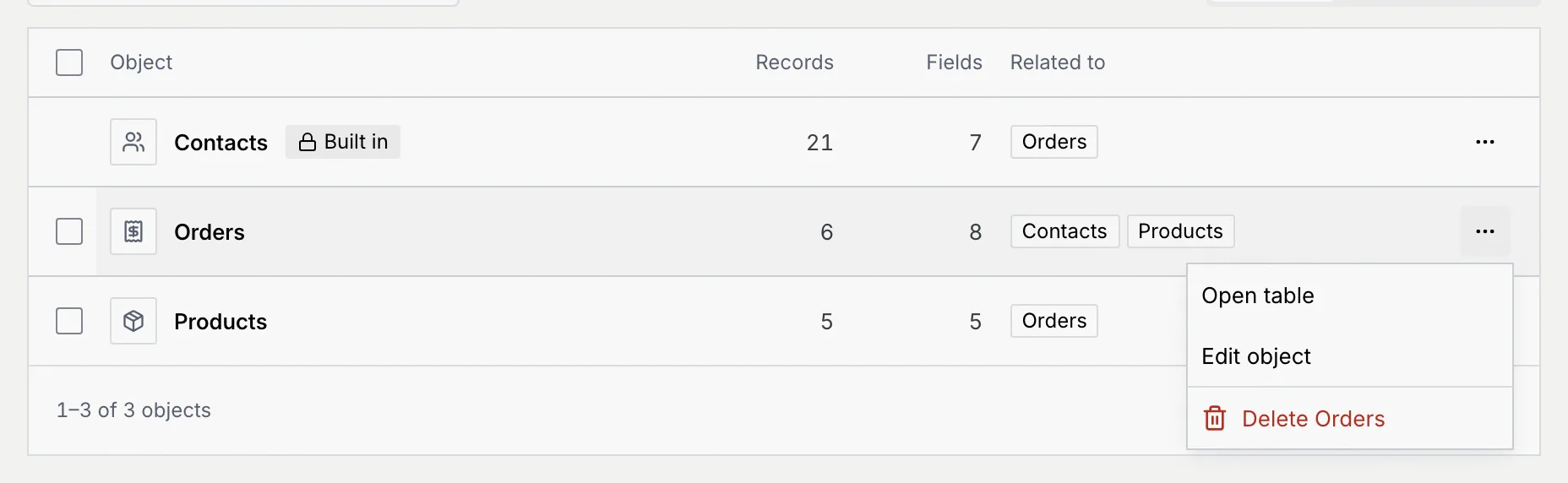
| Action | What it does | Who sees it |
|---|---|---|
| Open table | Opens the object's records table. | Everyone |
| Edit object | Opens the object sheet to change its name, icon, fields, relations and agent settings. See Create a custom object. | Owners and admins |
| View fields | Opens the same sheet read-only, with a Close button. | Everyone else |
| Sync settings | Opens the database sync the object comes from. See Tables, columns, row filters and sync status. | Synced objects only |
| Delete | Deletes the object, its records and its relations. | Owners and admins, not for Contacts or synced objects |
Delete objects
Deleting an object removes all its records and every relation it has. Objects related to it lose their side of each relation, and the links stored there.
Choose what to delete
For one object, open its ⋯ menu and click Delete followed by the object's name, for example Delete Orders.
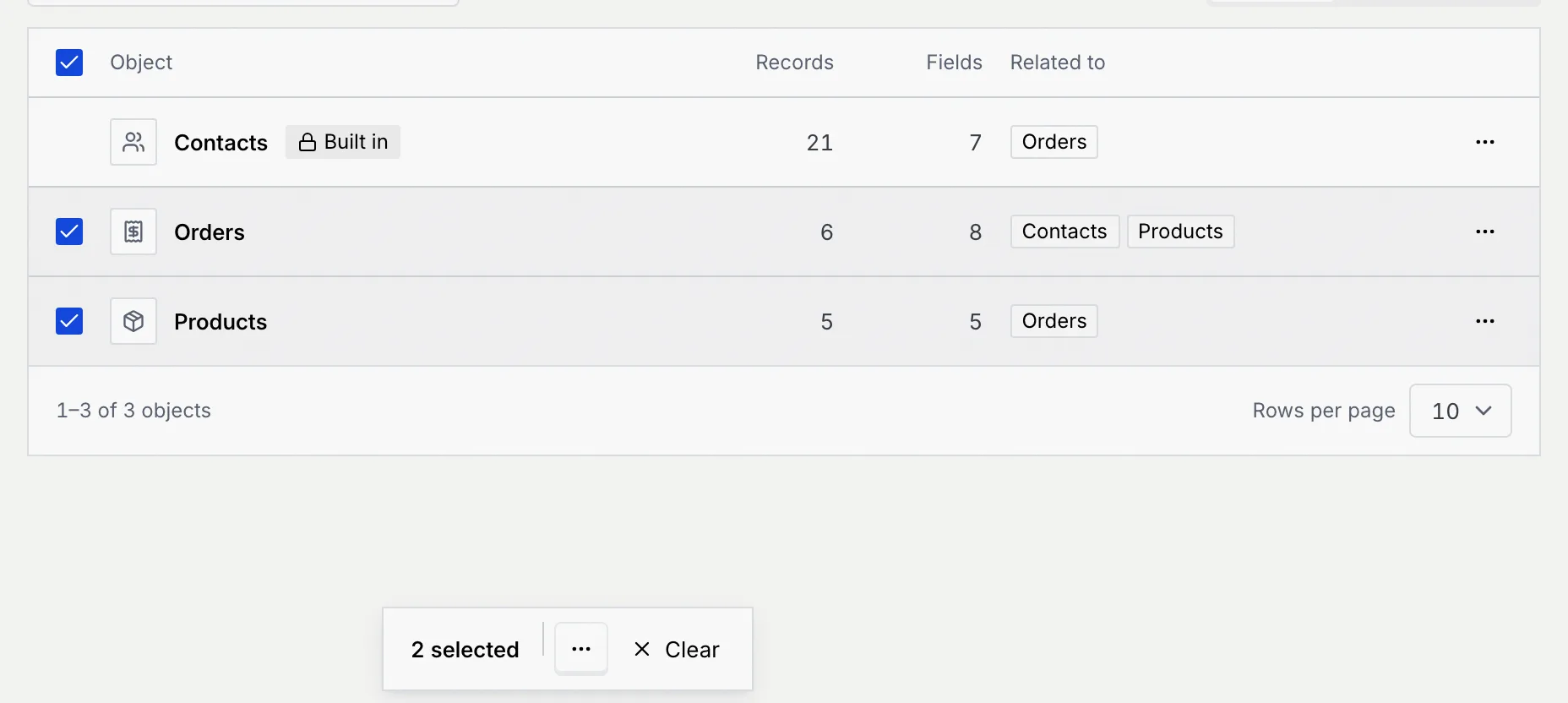
For several, tick the checkbox at the start of each row (or the header checkbox for the whole page). A bar appears at the bottom of the screen with the number selected. Contacts and synced objects have no checkbox.
Delete from the bar
In the bar, click ⋯, then Delete. Clear unticks everything instead.
Confirm
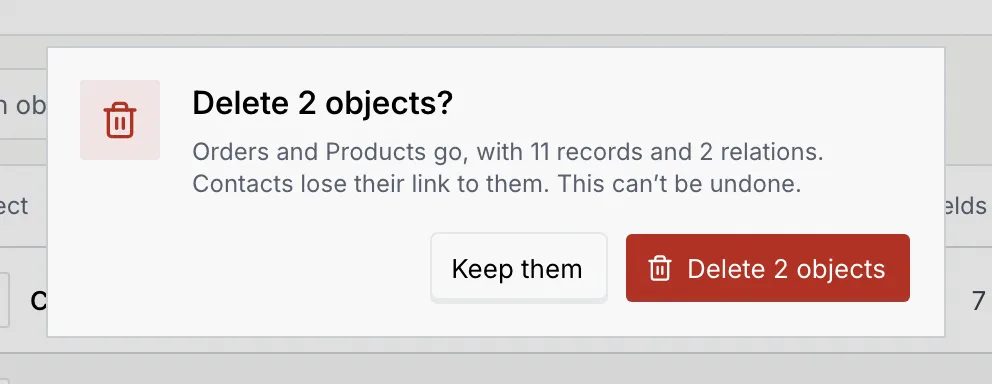
The confirmation counts what goes with the objects: their records and relations, and which other objects lose their link. Click Delete to go ahead, or Keep them (Keep followed by the name for one object) to stop.
There is no undo
Deleting an object, a field or a relation can't be undone. Records you delete one by one in a table can be brought back from the notice that follows, but a deleted object takes its records with it for good.
Switch to the data model view
Click Data model beside the search to see every object as a card and every relation as a line between them. Its count is the number of relations. Everything you do there you can also do from the list and the object sheet. See The data model canvas.
When the data model is view only
Members, viewers and custom roles see the same tables, but can't change the data model or connect databases.
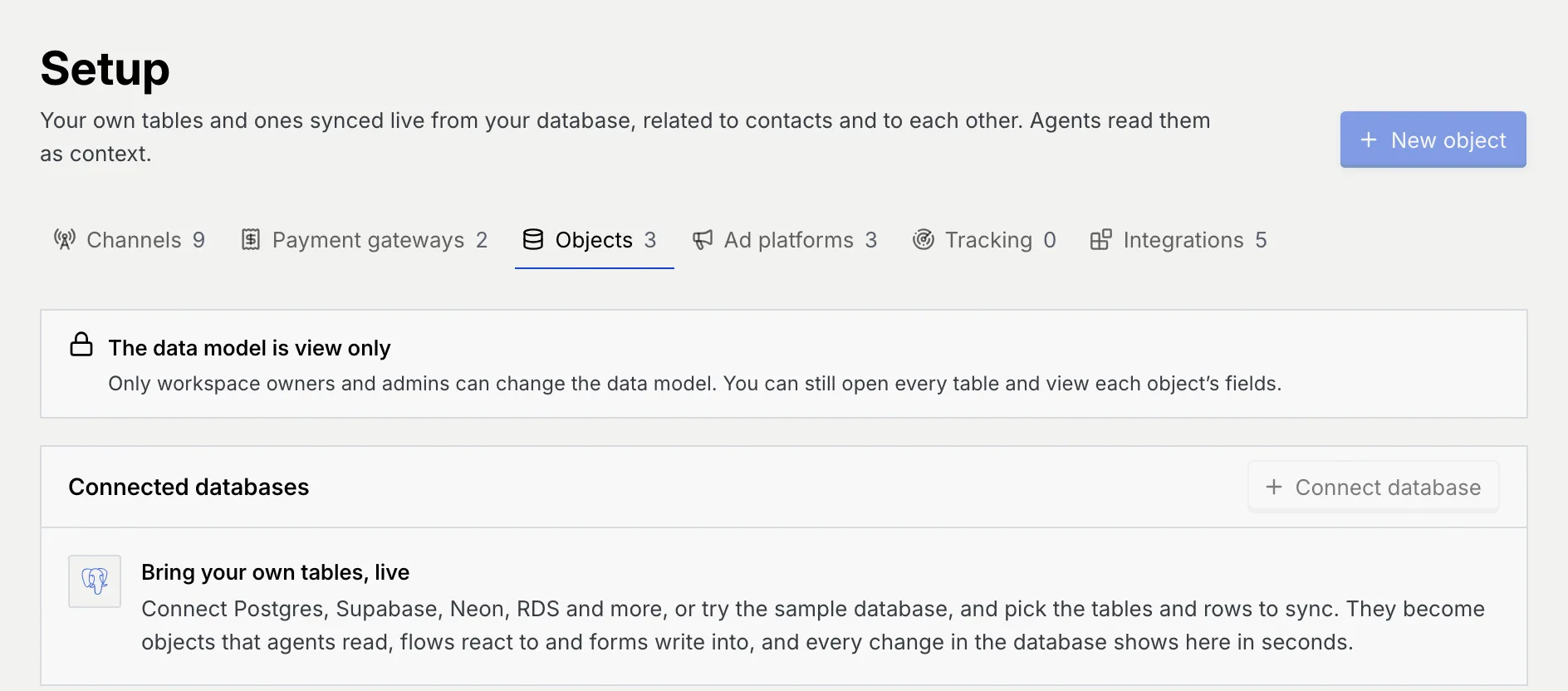
- New object and Connect database are greyed out. Hover them to see why, for example “Only workspace owners and admins can change the data model.”
- The row menu offers View fields instead of Edit object, and no Delete.
- On the data model canvas the cards don't move and clicking a card shows its fields.
Working with records is a separate set of permissions: by default members can add, edit and delete records, and viewers only read them. See Work with records.
Share a link
Every object's table and every record has its own address: copy it from your browser to send a teammate straight there. Sheets have addresses too. Opening New object, an object's fields, a relation or Connect a database adds to the address, and your browser's Back button closes the sheet again.
Someone who can't change the data model can still follow a link to an object's fields; it opens read-only. Links to the New object or Connect a database sheet just open the Objects tab for them.
Keyboard shortcuts
| Keys | What it does |
|---|---|
| G then U | Go to Setup |
| N | New object (on the Objects tab, for owners and admins) |
| / | Focus Search objects |
| Esc | Clear the search while it's focused |
You can change these in Keyboard shortcuts.
Troubleshooting
Contacts is built in and can't be deleted. You can still add your own fields and relations to it: see Custom fields on contacts.
A synced object goes when you untick its table in the sync, or disconnect the database. See Tables, columns, row filters and sync status.
Someone deleted the object after the link was shared. The objects list shows every object that's left.