Relate objects
Link objects one to one, one to many or many to many, then link their records from either side.
A relation connects two objects, such as orders and the contacts who place them, or orders and the products in them. It adds a field on both objects, so a link you make from either side shows on the other. Agents follow these links too: an agent working a conversation can see a contact's orders and what's in them.
- Who can use it: Owners and admins add, change and remove relations. Linking and unlinking records takes the Edit records permission, which owners, admins and members have by default. Viewers see every link, but Link is greyed out with the reason and there's no Unlink. See Roles and permissions.
- Before you start: Both objects must exist. To relate a new object, you can add the relation while you create it.
Kinds of relation
Under How they link, pick how many records can be on each side. The sentence under each choice spells it out for the objects you picked.
| How they link | What it means (orders and contacts) | Label on the canvas |
|---|---|---|
| Many to one | Each order belongs to one contact; each contact has many orders. | 1 — N |
| One to many | Each order has many contacts; each contact belongs to one order. | 1 — N |
| Many to many | Orders and contacts link freely. | N — N |
| One to one | Each order has one contact, and each contact one order. | 1 — 1 |
Many to one and One to many are the same relation seen from opposite ends. On the data model canvas both show as 1 — N.
Add a relation
Open the object sheet
On Setup → Objects, open the object's ⋯ menu and click Edit object (or start a new object). Under Relations, click Add relation. You can also draw a line between two cards on the data model canvas.
Choose the other object
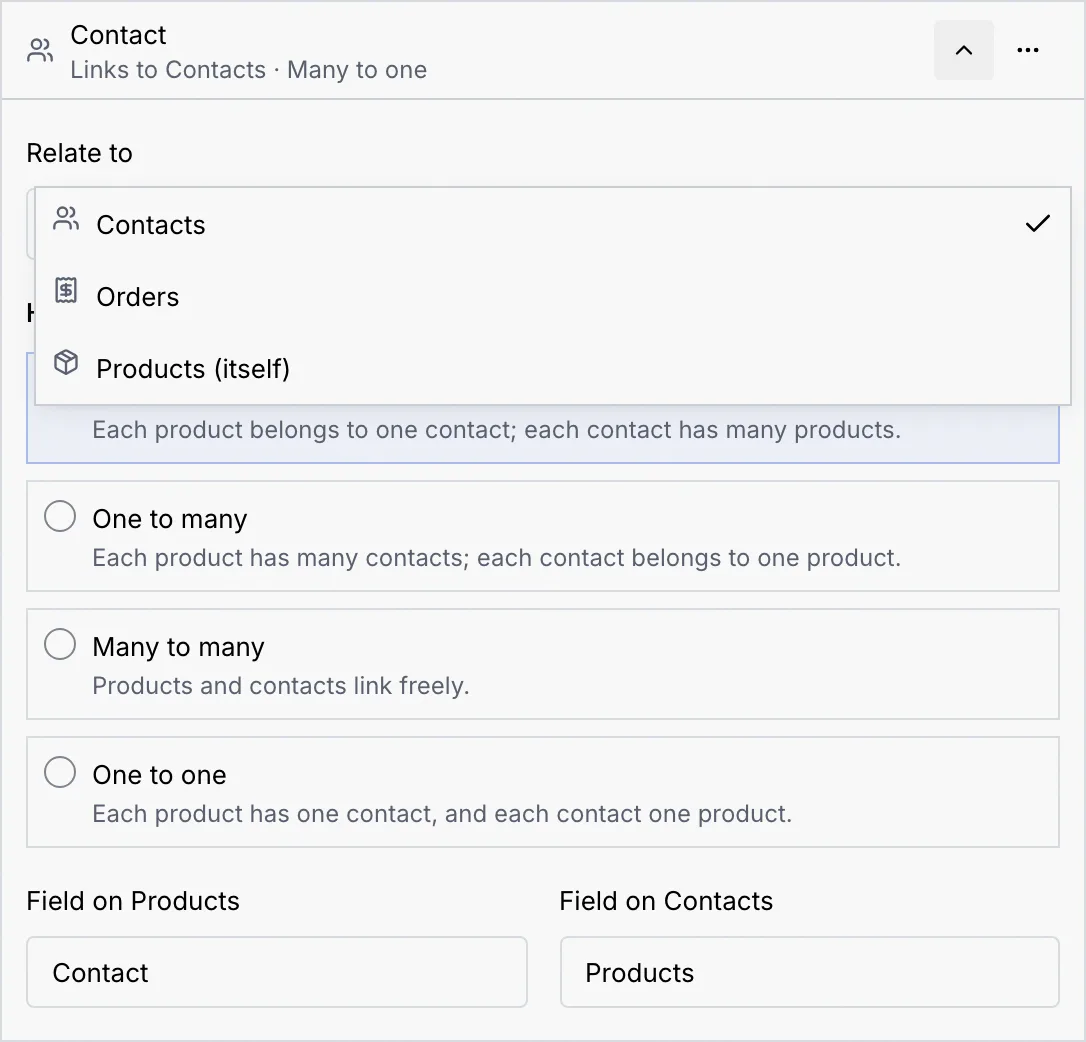
Under Relate to, pick the object to link to. Every object is listed, Contacts included. The object you're editing is listed as (itself), for relations such as a product's related products.
Name the field on each side
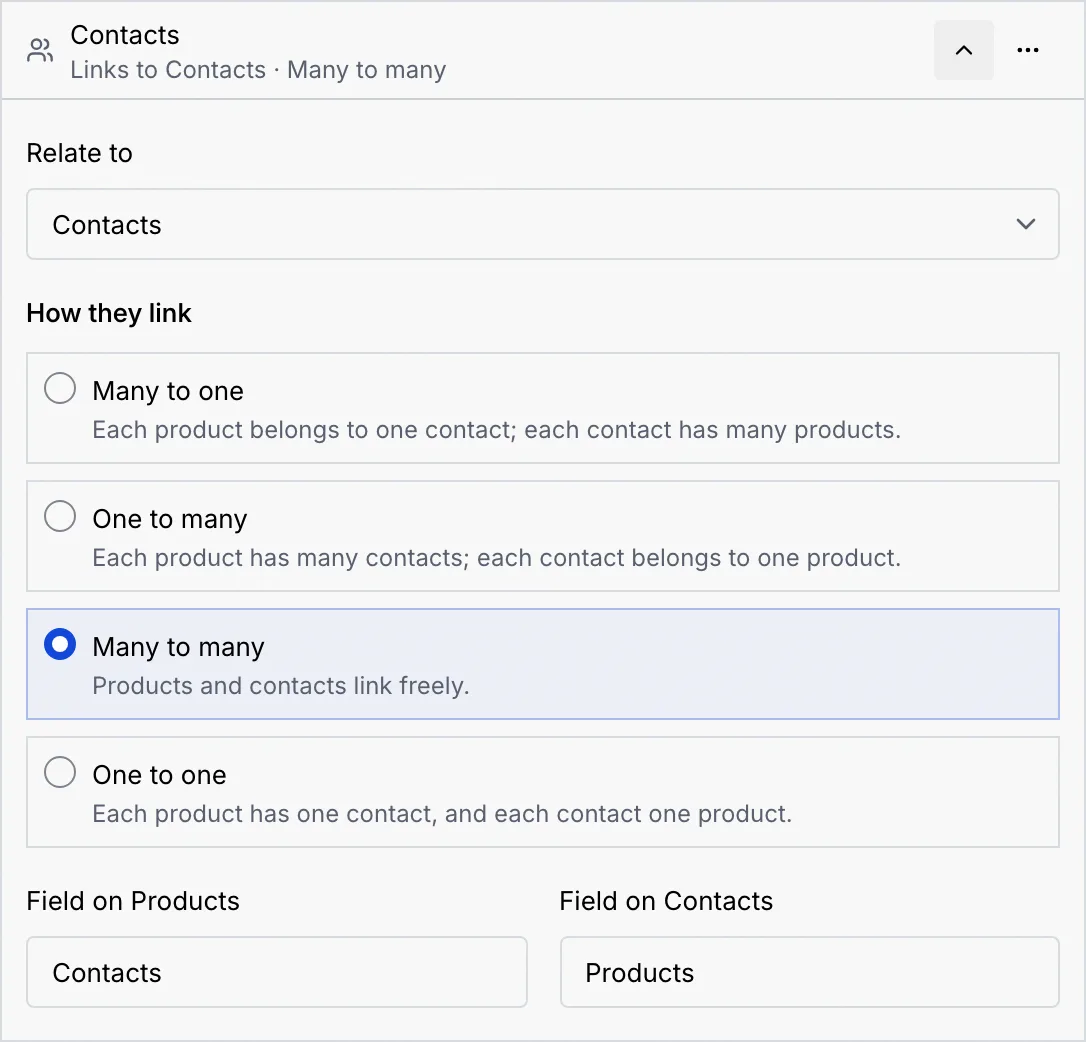
Field on each object names the field the relation adds there. Mokanata names each side after what it holds, singular when it holds one record: an order's link to its one contact is called Contact, a contact's link to many orders Orders. The names follow the objects and the kind you pick until you type your own, and each must differ from the other fields on its object.
Save
Click Save changes (or Create object for a new object). Both objects now have the new field, and the objects list shows them under each other's Related to.
Change or remove a relation
Open the object sheet and click the arrow on the relation to open it. On the canvas, clicking a relation's label opens it directly.
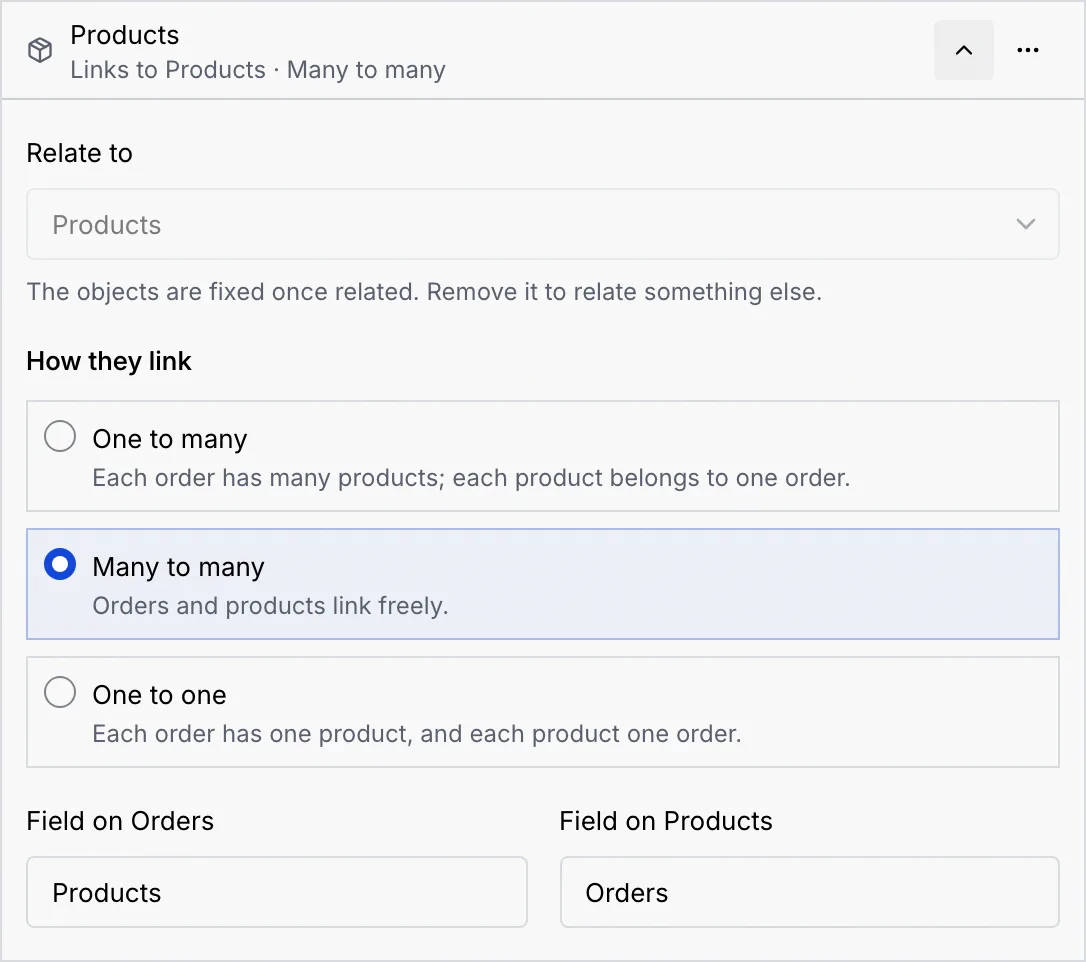
- The objects are fixed once related. To relate something else, remove the relation and add a new one.
- The direction is fixed too, so a saved relation offers three of the four choices under How they link.
- Links that wouldn't fit stop the change. Making a side hold only one record fails while records on that side link to more than one, for example “2 Orders link to more than one Product. Unlink them first…”. Unlink the extra records first, or keep the current kind.
- You can rename either field at any time.
To remove a relation, open its ⋯ menu and click Remove relation, then Save changes. Mokanata asks first (Save and delete what you removed?) and counts the links that go with it. Both objects lose their field, and every link between their records is deleted. This can't be undone.
Link records
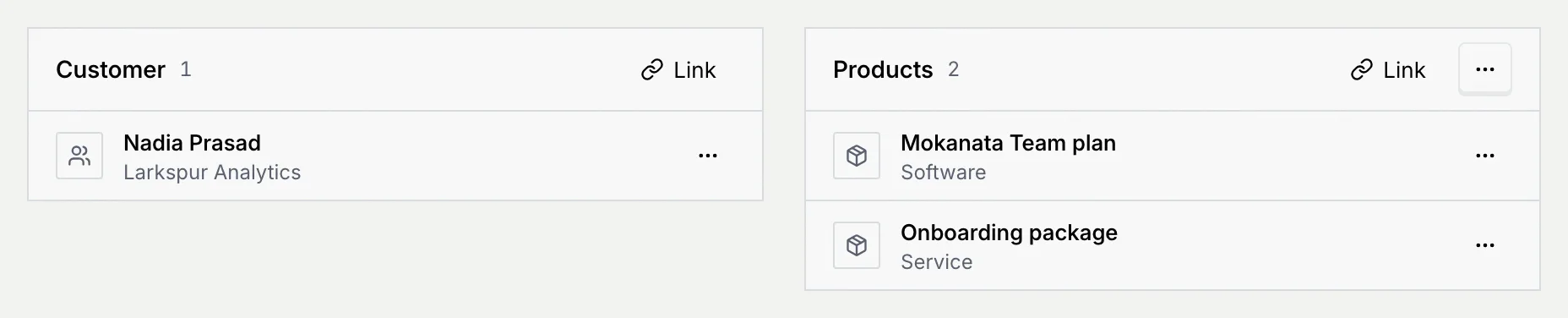
Each relation shows as a panel on the record page, titled with the relation's field name and the number of linked records. Contacts show the same panels on the contact record.
Open a record
Open the object's table and click a record's name. The panels sit next to the record's details, or under them in a narrower window.
Click Link
On the panel, click Link. The dialog lists the records you can link: type to narrow them and pick one or more. The link shows on both records.
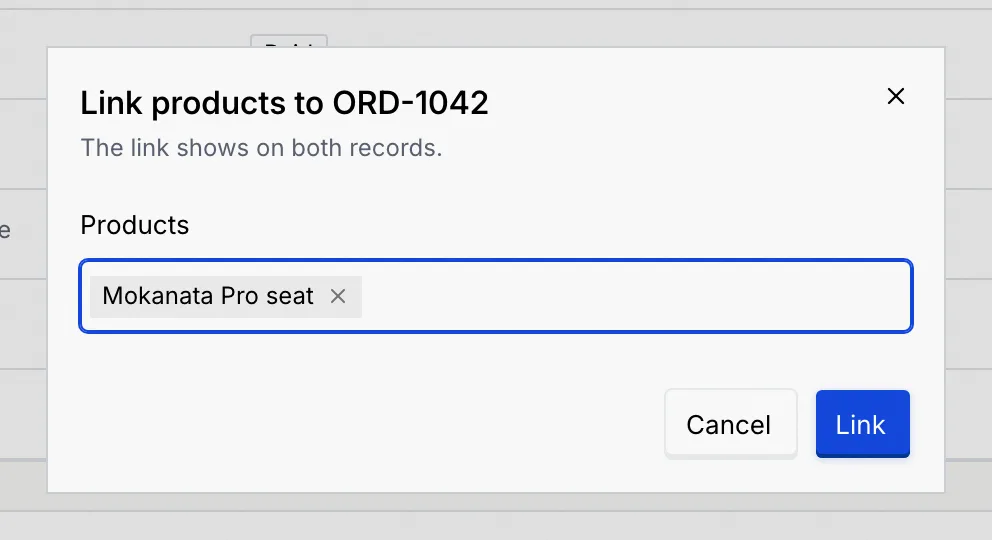
When a side can hold only one record, the dialog says what happens:
- “… can have one …, so this replaces …”: the record already has a link, and the button reads Replace.
- “Each … has one …, so one linked elsewhere moves here.”: picking a record that's linked elsewhere moves its link to this record.
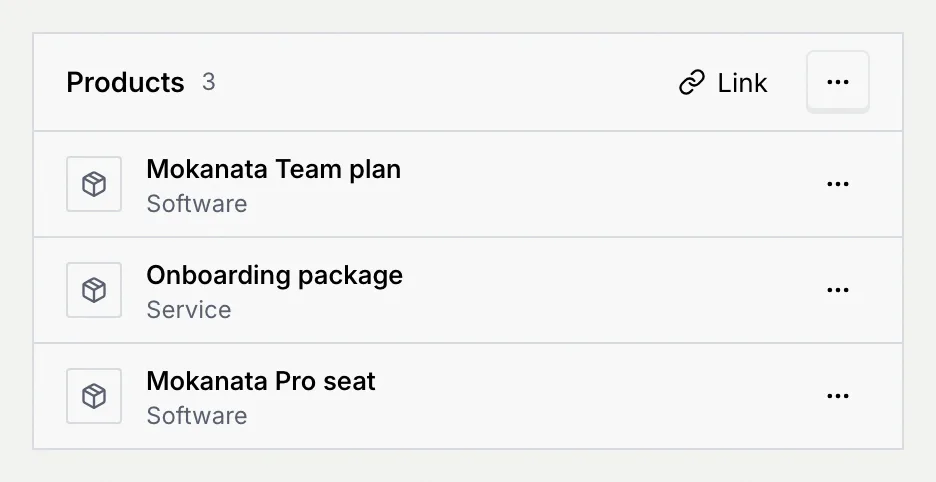
To create a record that starts linked, open the panel's ⋯ menu and click New followed by the record type, for example New product. It's there when you can both create and edit records, and never for Contacts (add contacts from the Contacts page).
Unlink records
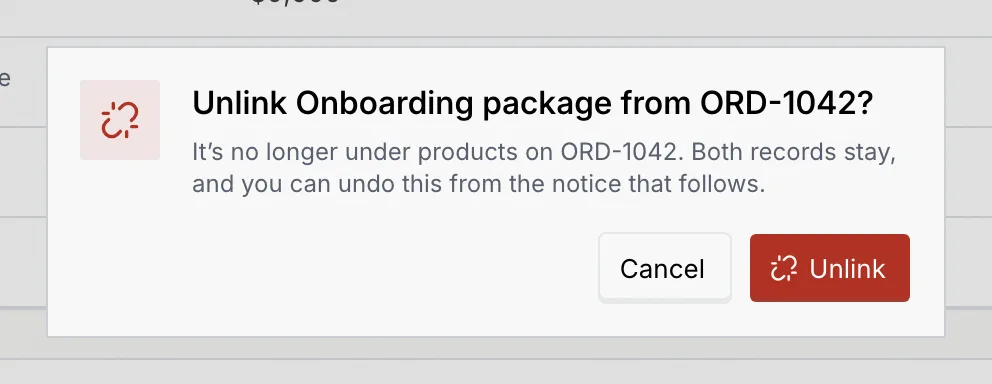
On the record's panel, open the ⋯ menu of the linked record and click Unlink. Mokanata asks first; both records stay. Click Unlink to confirm. Undo in the notice that follows brings the link back.
Where links show
- On both records' pages, in the relation's panel.
- In the object's table, as a column of linked records: the first two as badges, then + the number of others, or None.
- On the contact record and in the contact panel beside an inbox conversation, for relations to Contacts. See Custom fields on contacts and Contact details beside the thread.