Work with records
Add, find, edit, link and delete the records in an object's table, and review the ones agents create.
Every object other than Contacts has its own table of records: one row per order, product or vehicle. You add records from the table, edit any value in place, open a record to see everything linked to it, and delete what you no longer need. Agents can propose records too, and each one waits for your approval.
- Who can use it: Three permissions decide what you can do: Create records, Edit records and Delete records. Owners, admins and members have all three by default; viewers only read. Without Edit records, values show Read only when you hover them and Link is greyed out; without Create records, the New button is greyed out with the reason; without Delete records there are no checkboxes and no Delete. See Roles and permissions.
- Before you start: The object must exist. See Create a custom object. Contacts have their own page: see Contacts.
Open an object's table
Find the object
Go to Setup → Objects and click the object's row, or its name. The table opens under Objects › the object's name.
Read the table
The first column is the primary field, which links to each record's page. Then comes one column per field and one per relation; linked records show as badges you can click. The lead under the title counts the records.
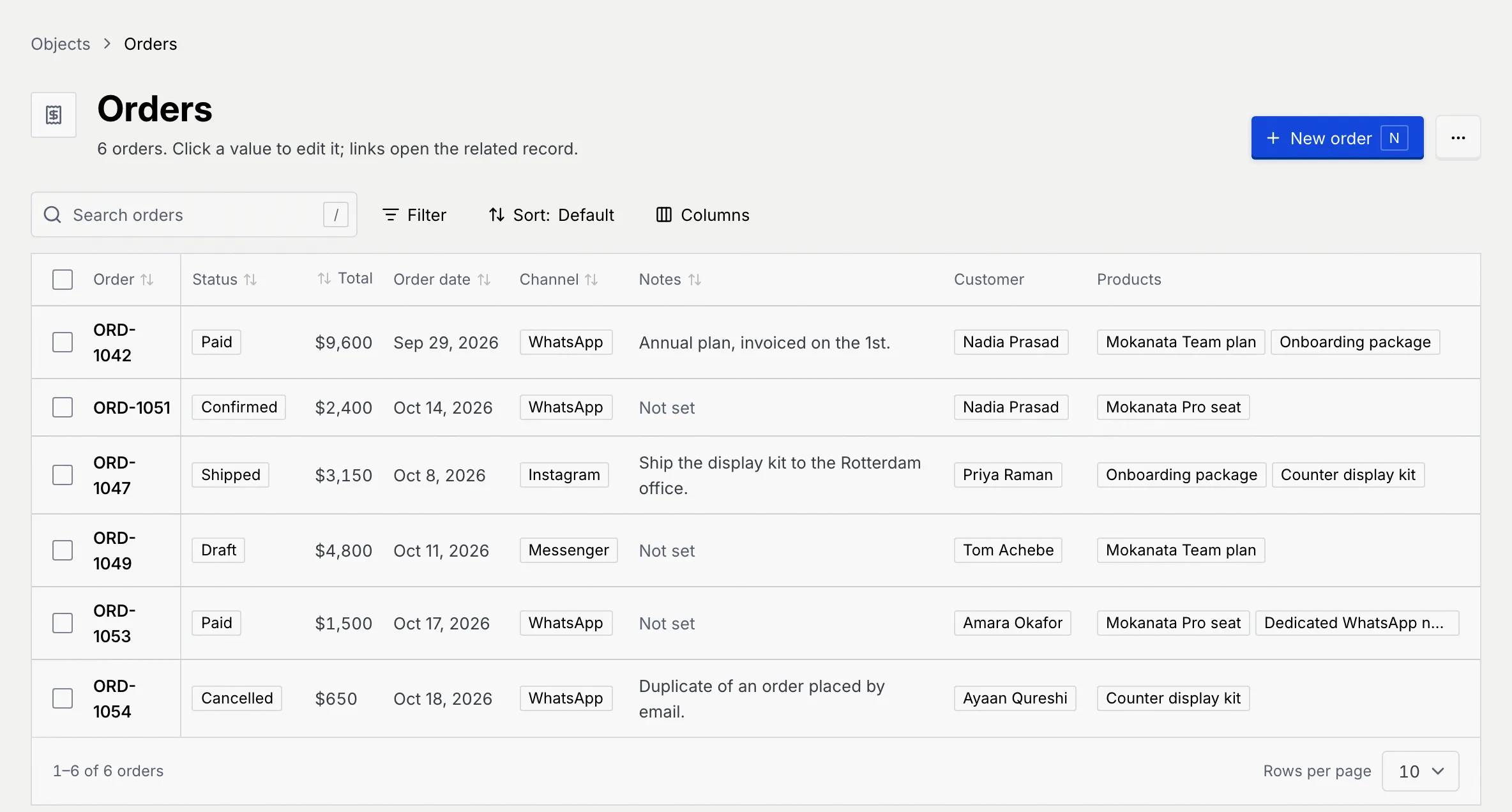
The footer shows the range, such as 1–6 of 6 orders, and Rows per page (10, 25 or 50).
Find records
- Search (for example Search orders) looks through text, long text, email, phone, link, choice and teammate fields. Press / to jump to it and Esc to clear it.
- Filter lists each choice and checkbox field. Pick a field, then the values to keep; Not set finds records with no value. Each filter shows as a chip under the toolbar: click it to change it, or × to remove it.
- Sort orders the table by any field except relations, ascending or descending (A to Z or Z to A for the primary field). Sort: Default shows the current order; you can also click a column header.
- Columns shows or hides columns. Your choice is kept for you on this table.
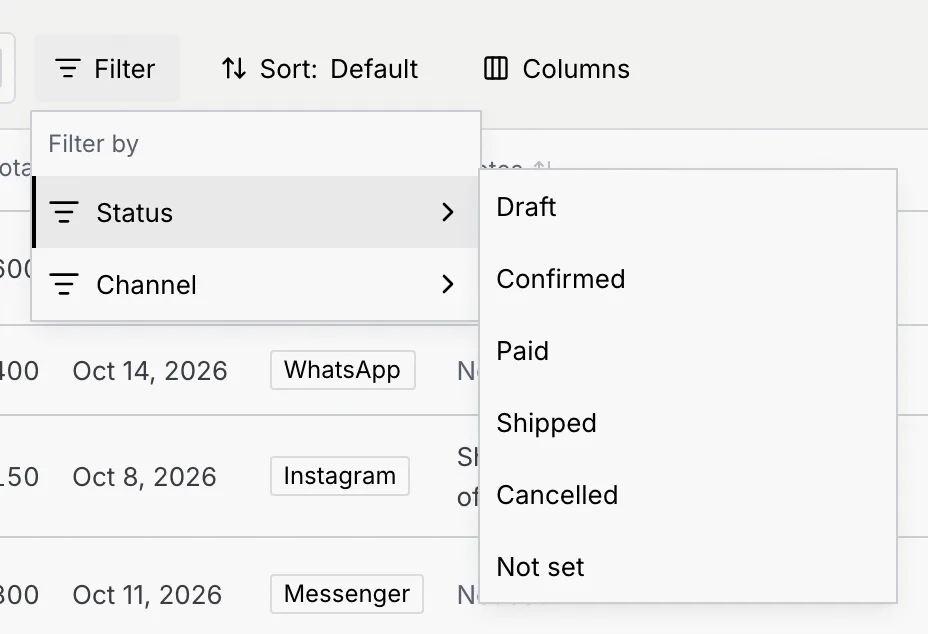
While the table is narrowed, a count such as 2 of 6 orders shows beside the toolbar. When nothing matches, Clear search or Clear filters puts everything back.
Edit a value
Click the value
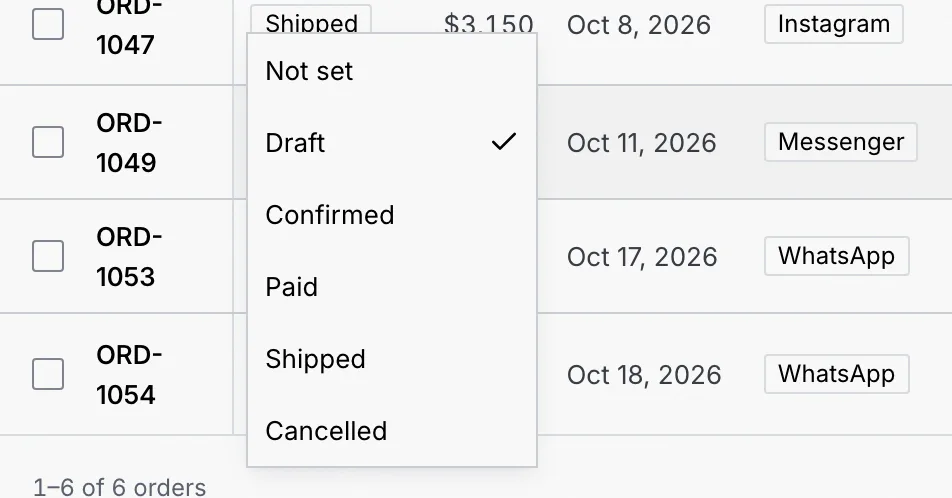
Click any value in the table (or on the record page), or move to it with Tab and press Enter. Its editor opens in place: a text box, a list of options, a date picker, a checkbox and so on. See Field types.
Save it
Press Enter or click away to save; Esc cancels. Choices and checkboxes save as soon as you pick them. In a long text field, Enter starts a new line and ⌘ Enter (Ctrl Enter on Windows and Linux) saves.
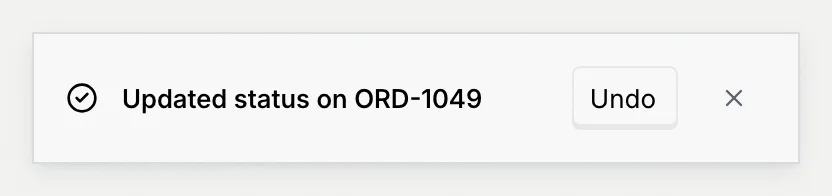
A notice confirms the change, with Undo.
If the value can't be saved, the editor stays open with the reason, such as “Enter a number, like 4800.” or “Total is required.”
Add a record
Open the New dialog
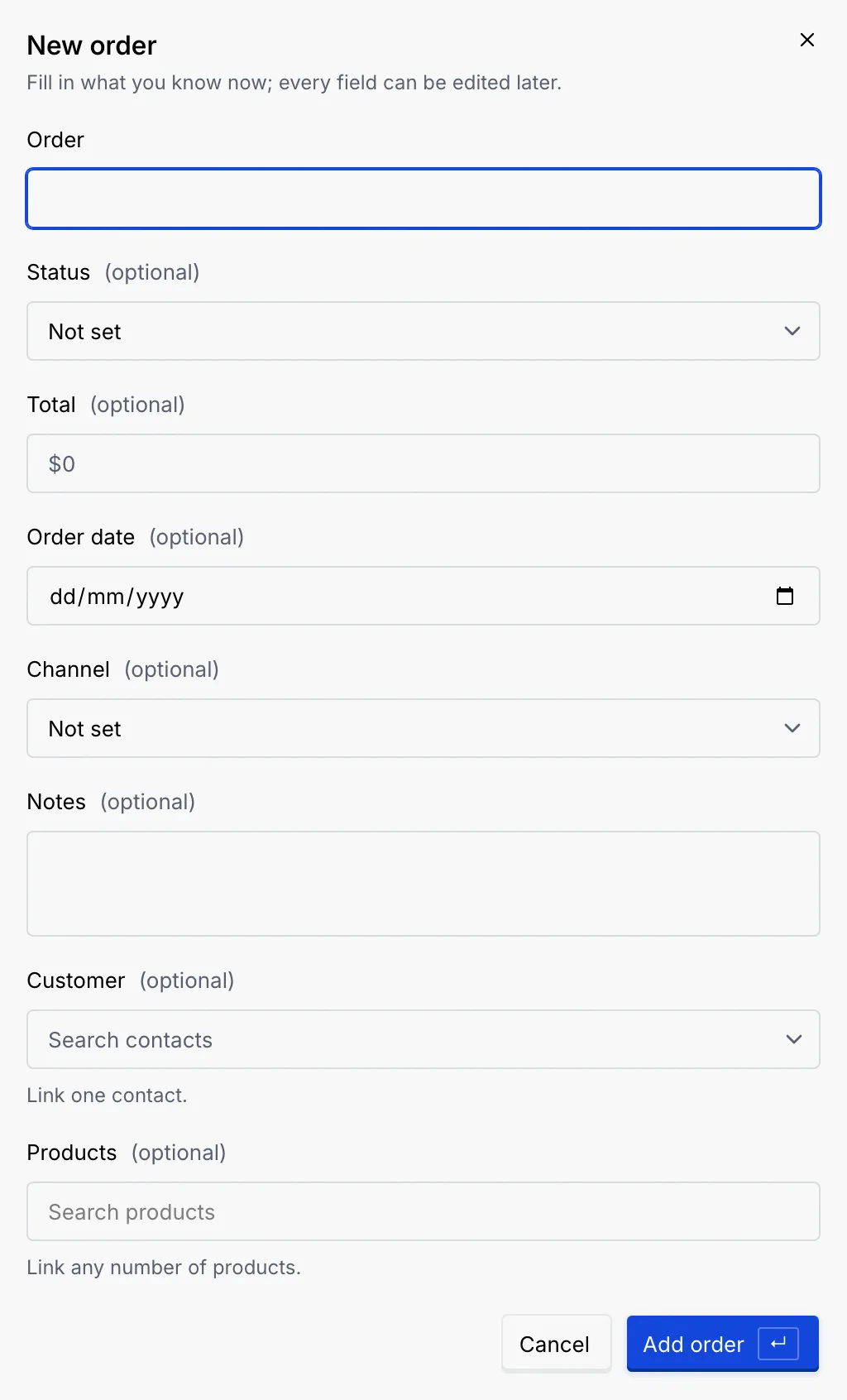
Click New followed by the record type, for example New order, or press N on the table. The dialog lists every field, required ones first; the rest are marked (optional). Under the fields, a picker per relation links the new record straight away: “Link one contact.” or “Link any number of products.”
Fill in what you know
Every field can be edited later, so fill in what you know now. To link a related record, click its picker, type to narrow the list and pick one.
Add it
Click Add followed by the record type, for example Add order, or press Enter. A notice confirms it, with Undo, and the new record's page opens. If a required field is empty or a number can't be read, the message shows under that field.
Open a record
Click a record's primary value in the table to open its page.
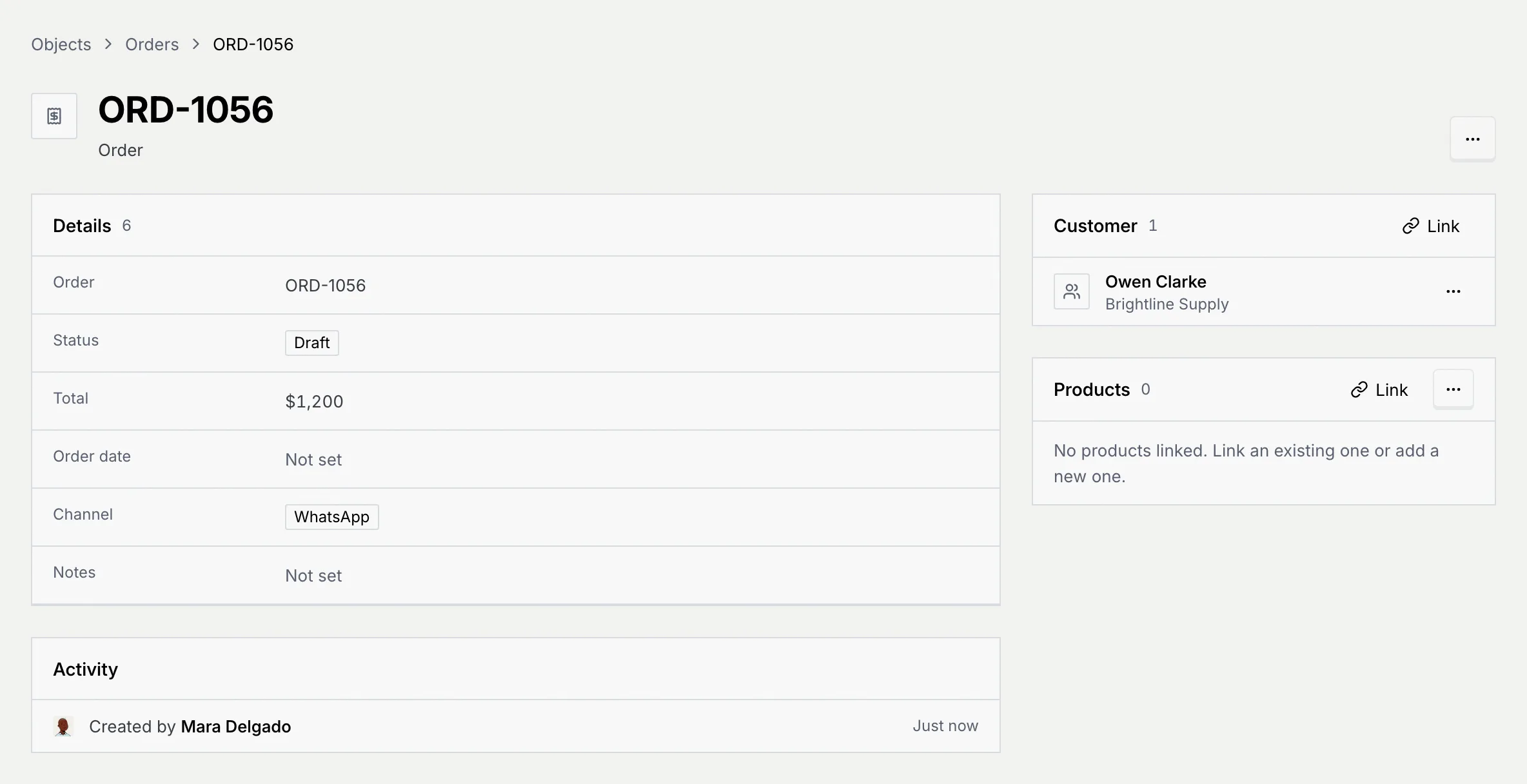
- Details lists every field. Click a value to edit it, as in the table.
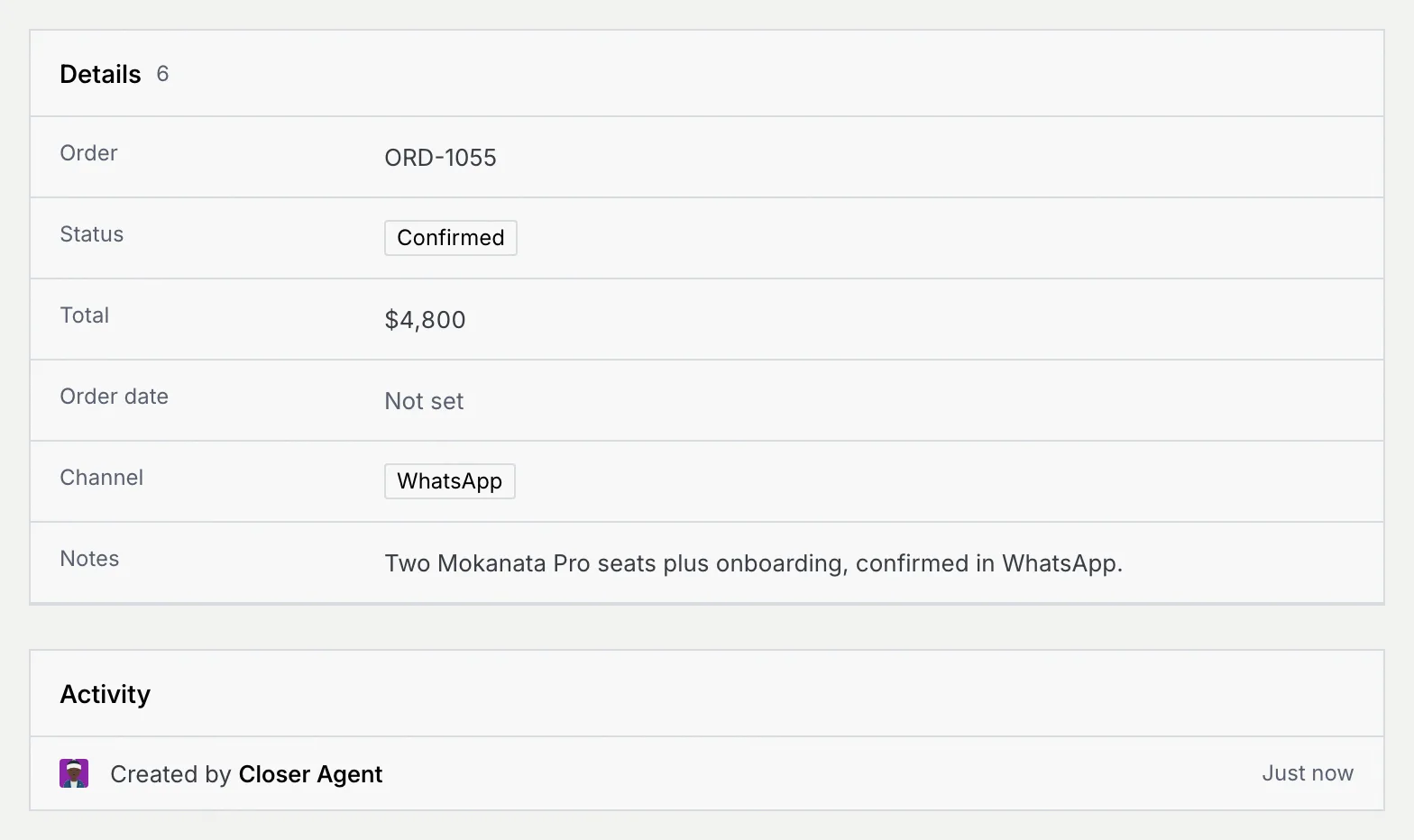
- Activity shows who created the record and who last edited it, and when. An agent's name shows here when an agent created it.
- Next to the details (under them in a narrower window), one panel per relation lists the linked records, with Link and Unlink. See Relate objects. An object with no relations shows Related records instead, with a note to add one from Edit object.
- The ⋯ menu at the top has Delete followed by the record type.
The breadcrumb at the top leads back to the table and to Objects.
Delete records
Choose the records
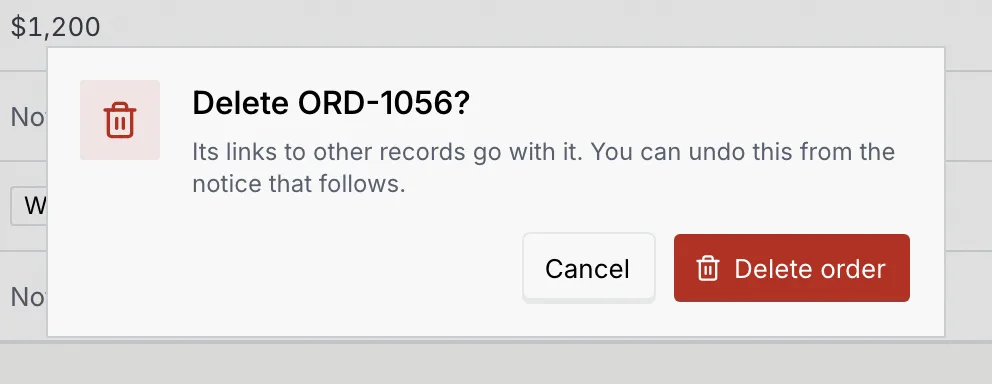
On a record's page, open the ⋯ menu and click Delete followed by the record type, such as Delete order.
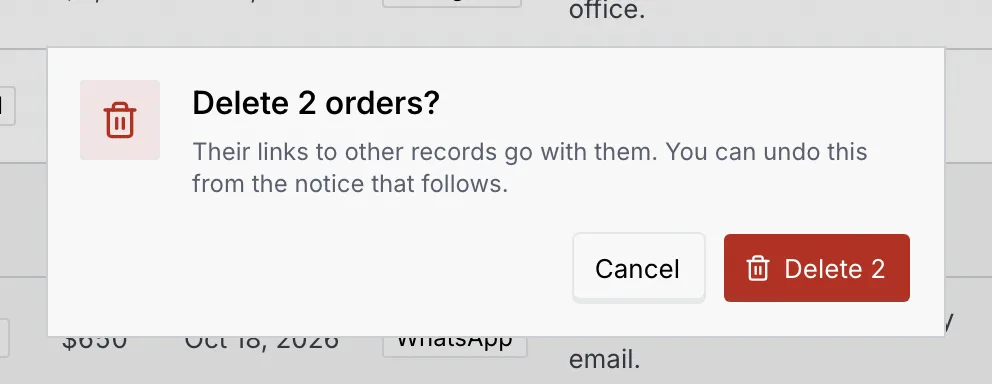
In the table, tick the checkbox of each row (or the header checkbox for the whole page; Select all then reaches every matching row). In the bar at the bottom, click ⋯, then Delete.
Confirm
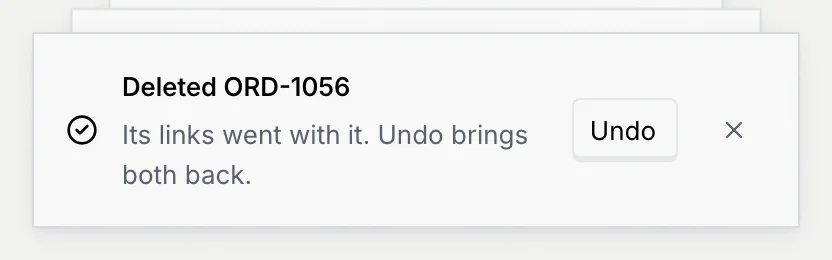
Mokanata asks first. The records' links to other records go with them. From a record's page:
From the table:
Undo if you need to
The notice that follows has Undo, which brings the records back with their links. After deleting from a record's page you return to the table.
Records agents create
When an object has Agents can create switched on (see Create a custom object), an agent can propose a new record while it works a conversation, such as logging an order a customer confirmed in WhatsApp. The proposal waits in the approval queue as a CRM update until someone clicks Approve update. Agents only fill in fields with Agents can fill this in switched on.
Once approved, the record appears in the table and its Activity names the agent:
If the change can't be applied, a notice says why, for example that agents can't create records of that object.
When you can't edit

- View only: you can read every record and open the records it links to, but not change them. Your role's name and who can change it are in the notice.
- You can add …, not edit them: your role can create records but not edit them. New works; existing values are read only.
Keyboard shortcuts
| Keys | What it does |
|---|---|
| N | New record on the open table |
| / | Focus the search |
| Enter | Open the focused value for editing, then save it |
| Esc | Cancel an edit, or clear the search |
Troubleshooting
The record comes from a connected database and the column can only be set there (a key, a timestamp or structured data). See Tables, columns, row filters and sync status.
The object was deleted from the data model. Back to objects shows every object that's left.
The record was deleted, or (for a synced object) it no longer matches its sync's filters. Search its table to find the one you're after.
The object has no records yet. Click New in the empty table to add the first one, or wait for agents to propose some.