# Work with records (/docs/contacts/records)
Every object other than Contacts has its own table of records: one row per order, product or vehicle. You add records from the table, edit any value in place, open a record to see everything linked to it, and delete what you no longer need. Agents can propose records too, and each one waits for your approval.
- **Who can use it:** Three permissions decide what you can do: Create records, Edit records and Delete records. Owners, admins and members have all three by default; viewers only read. Without Edit records, values show **Read only** when you hover them and **Link** is greyed out; without Create records, the **New** button is greyed out with the reason; without Delete records there are no checkboxes and no **Delete**. See [Roles and permissions](/docs/settings/roles).
- **Before you start:** The object must exist. See [Create a custom object](/docs/contacts/create-object). Contacts have their own page: see [Contacts](/docs/contacts/contacts).
## Open an object's table [#open-an-objects-table]
### Find the object [#find-the-object]
Go to **Setup → Objects** and click the object's row, or its name. The table opens under **Objects** › the object's name.
### Read the table [#read-the-table]
The first column is the primary field, which links to each record's page. Then comes one column per field and one per relation; linked records show as badges you can click. The lead under the title counts the records.
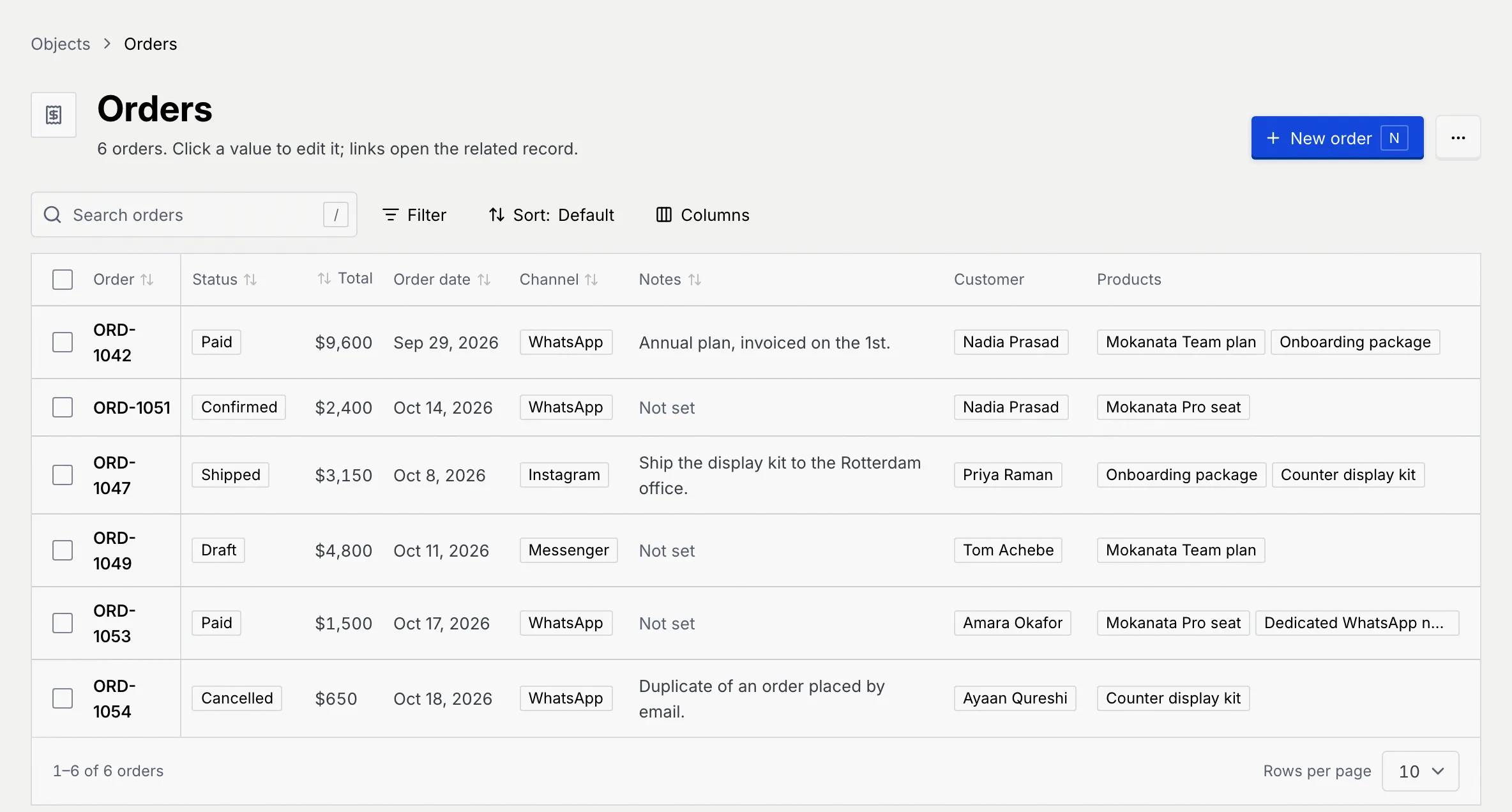
The footer shows the range, such as **1–6 of 6 orders**, and **Rows per page** (10, 25 or 50).
## Find records [#find-records]
- **Search** (for example **Search orders**) looks through text, long text, email, phone, link, choice and teammate fields. Press / to jump to it and Esc to clear it.
- **Filter** lists each choice and checkbox field. Pick a field, then the values to keep; **Not set** finds records with no value. Each filter shows as a chip under the toolbar: click it to change it, or **×** to remove it.
- **Sort** orders the table by any field except relations, ascending or descending (**A to Z** or **Z to A** for the primary field). **Sort: Default** shows the current order; you can also click a column header.
- **Columns** shows or hides columns. Your choice is kept for you on this table.
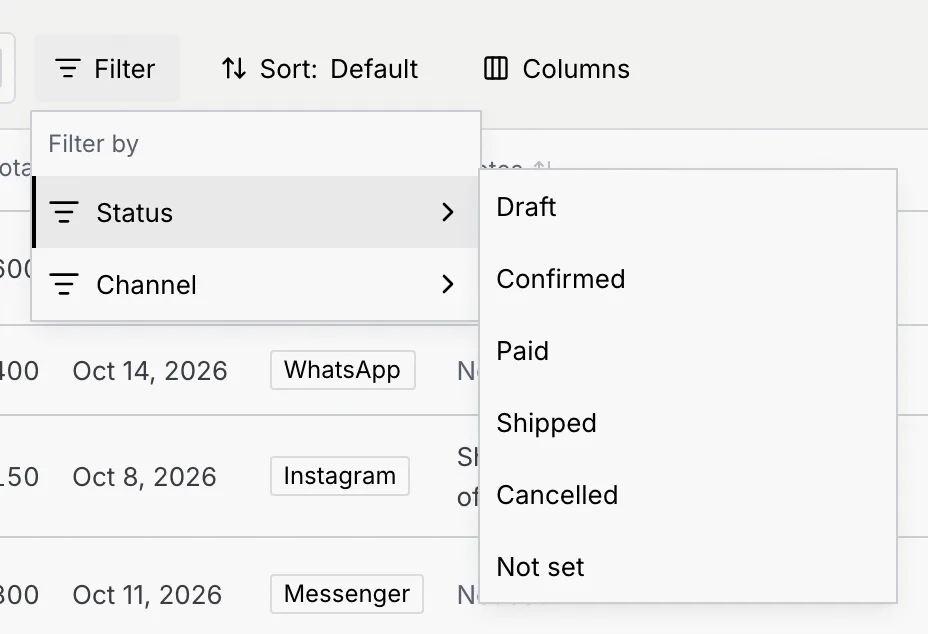
While the table is narrowed, a count such as **2 of 6 orders** shows beside the toolbar. When nothing matches, **Clear search** or **Clear filters** puts everything back.
## Edit a value [#edit-a-value]
### Click the value [#click-the-value]
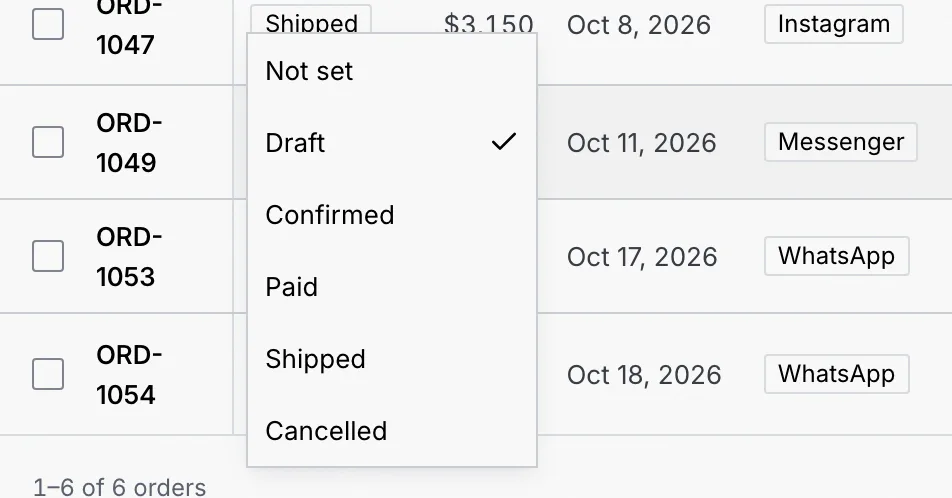
Click any value in the table (or on the record page), or move to it with Tab and press Enter. Its editor opens in place: a text box, a list of options, a date picker, a checkbox and so on. See [Field types](/docs/contacts/field-types).
### Save it [#save-it]
Press Enter or click away to save; Esc cancels. Choices and checkboxes save as soon as you pick them. In a long text field, Enter starts a new line and ⌘ Enter (Ctrl Enter on Windows and Linux) saves.
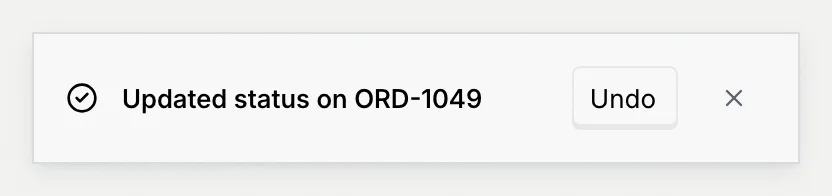
A notice confirms the change, with **Undo**.
If the value can't be saved, the editor stays open with the reason, such as “Enter a number, like 4800.” or “Total is required.”
## Add a record [#add-a-record]
### Open the New dialog [#open-the-new-dialog]
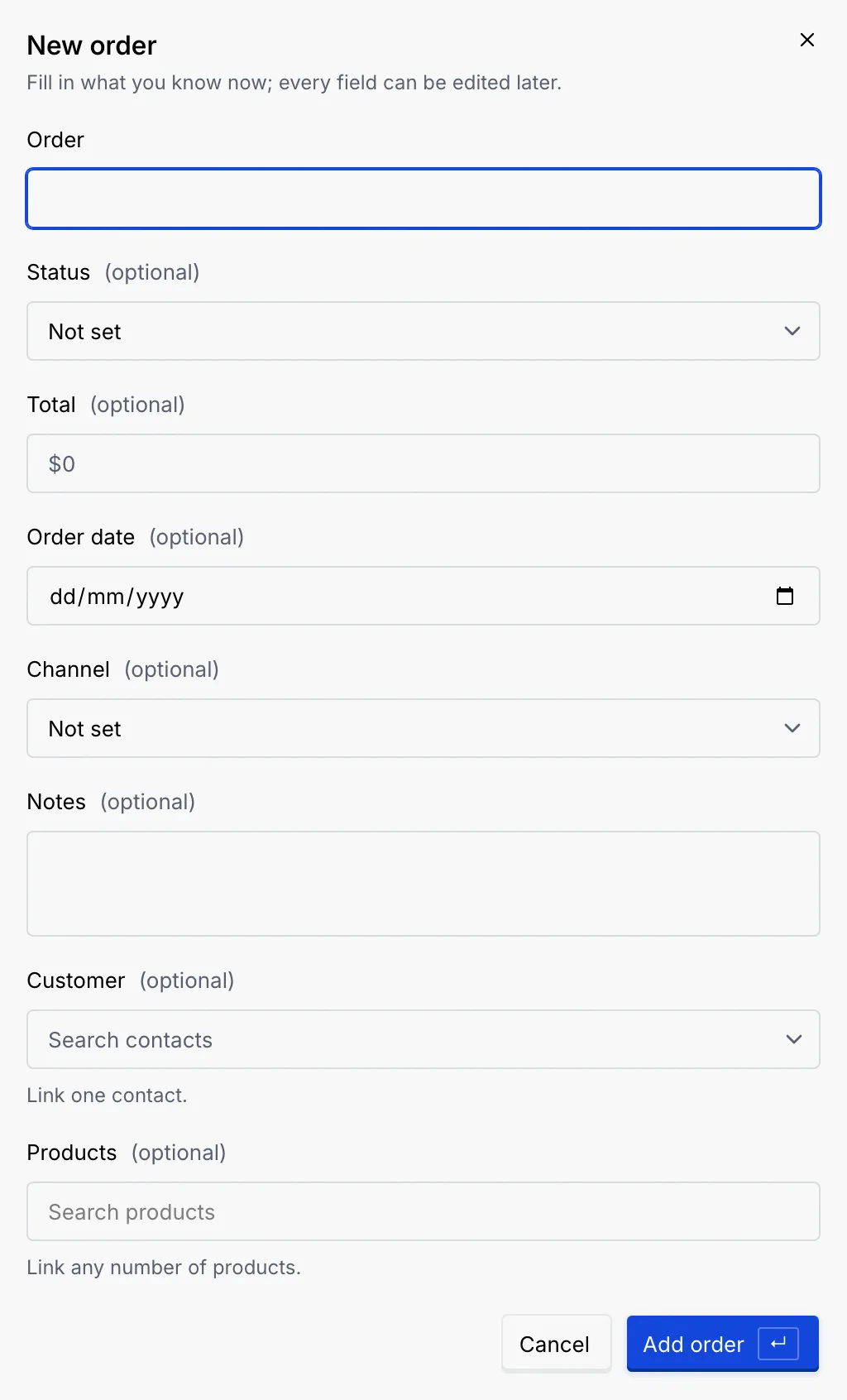
Click **New** followed by the record type, for example **New order**, or press N on the table. The dialog lists every field, required ones first; the rest are marked **(optional)**. Under the fields, a picker per relation links the new record straight away: “Link one contact.” or “Link any number of products.”
### Fill in what you know [#fill-in-what-you-know]
Every field can be edited later, so fill in what you know now. To link a related record, click its picker, type to narrow the list and pick one.
### Add it [#add-it]
Click **Add** followed by the record type, for example **Add order**, or press Enter. A notice confirms it, with **Undo**, and the new record's page opens. If a required field is empty or a number can't be read, the message shows under that field.
## Open a record [#open-a-record]
Click a record's primary value in the table to open its page.
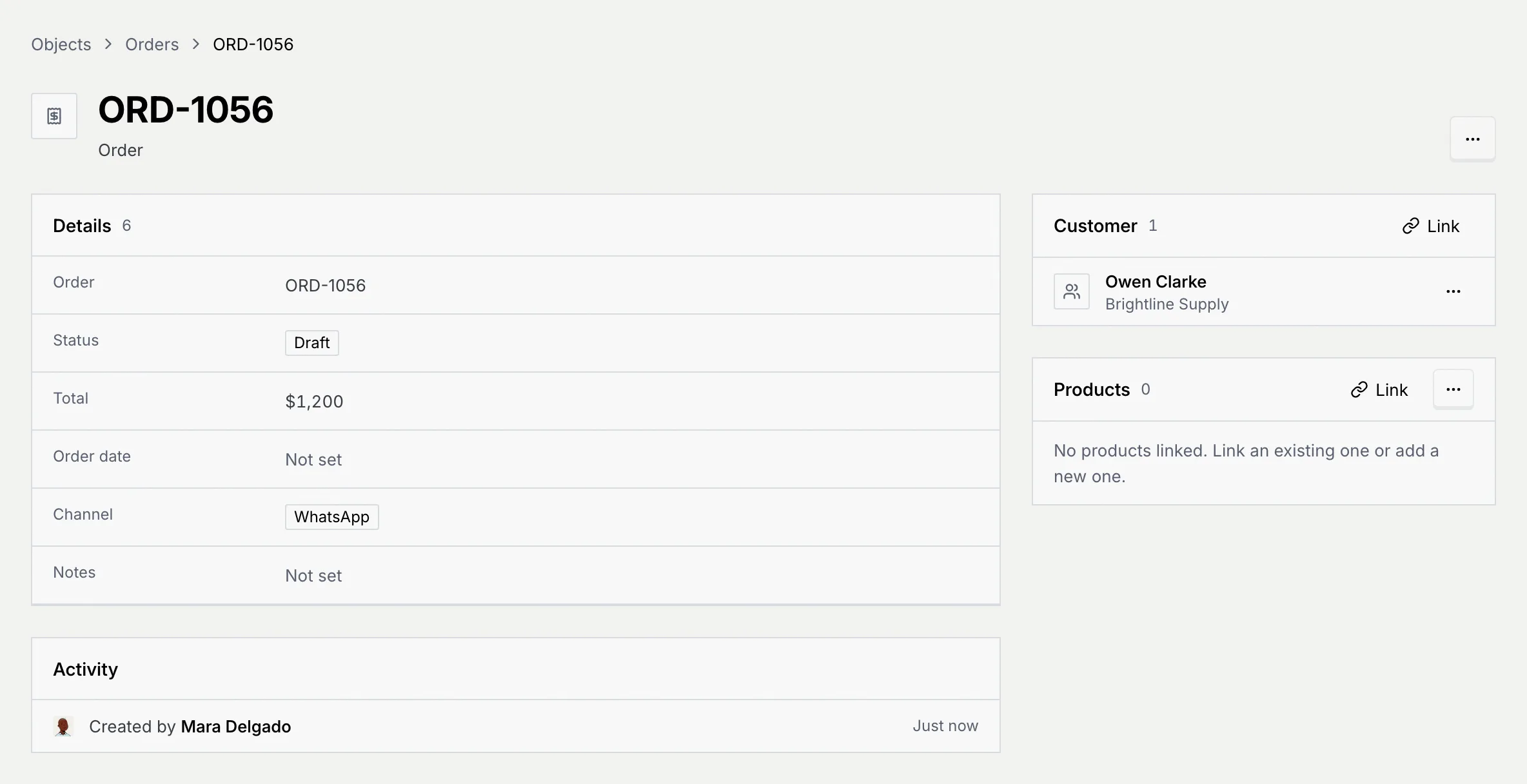
- **Details** lists every field. Click a value to edit it, as in the table.
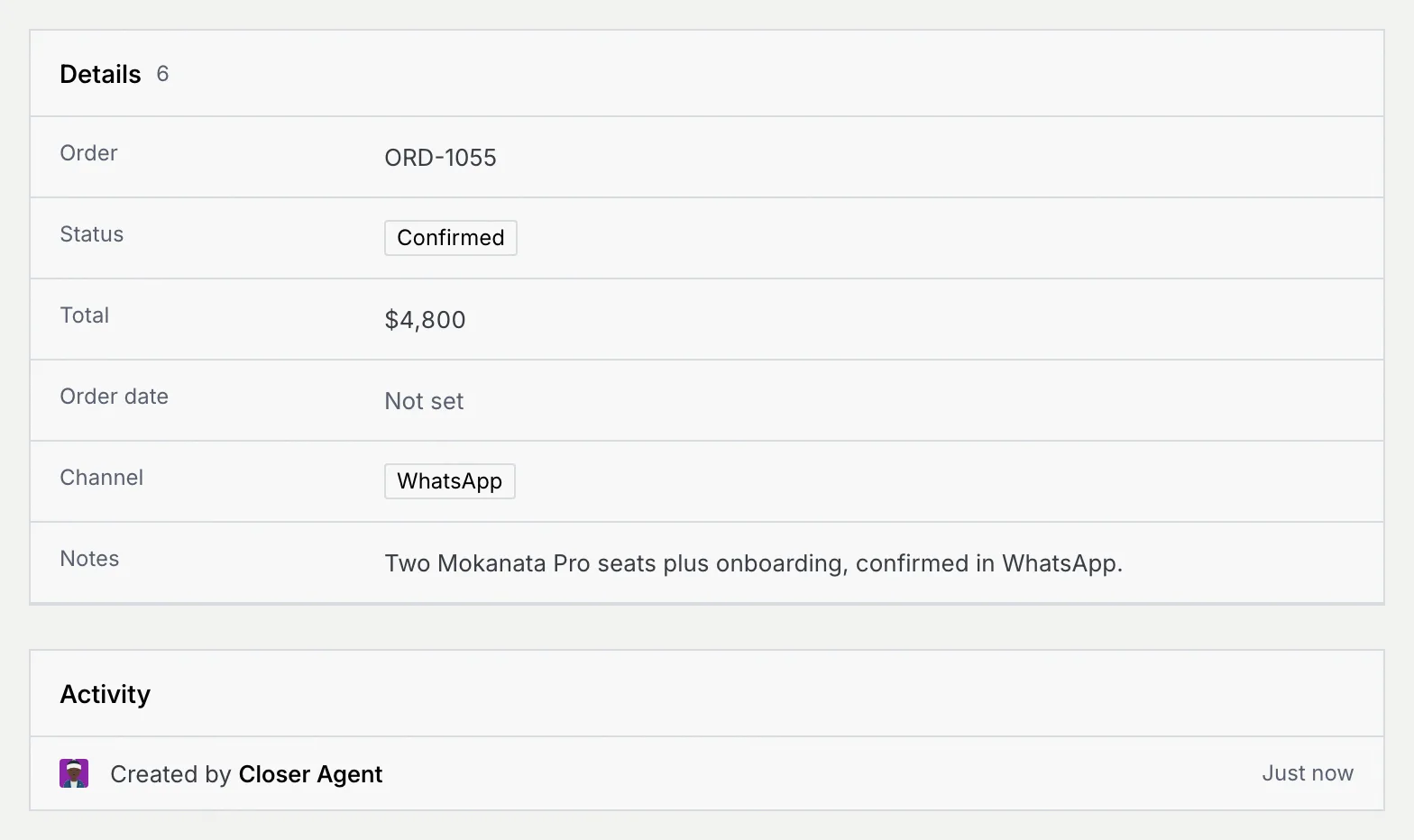
- **Activity** shows who created the record and who last edited it, and when. An agent's name shows here when an agent created it.
- Next to the details (under them in a narrower window), one panel per relation lists the linked records, with **Link** and **Unlink**. See [Relate objects](/docs/contacts/relations#link-records). An object with no relations shows **Related records** instead, with a note to add one from **Edit object**.
- The **⋯** menu at the top has **Delete** followed by the record type.
The breadcrumb at the top leads back to the table and to **Objects**.
## Delete records [#delete-records]
### Choose the records [#choose-the-records]
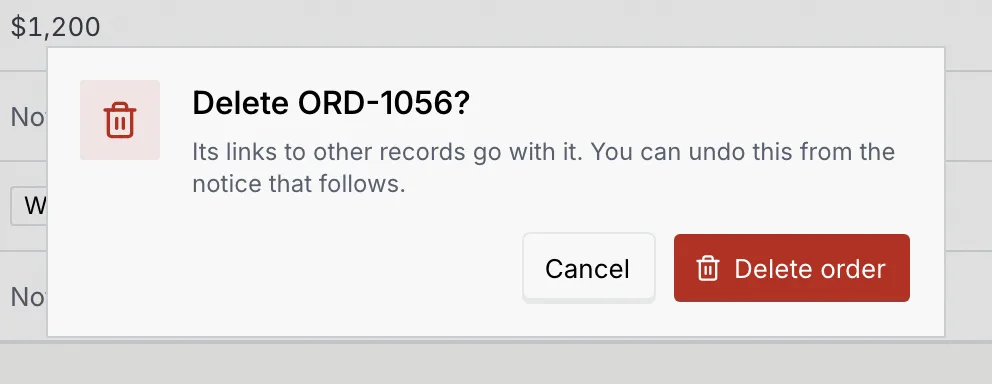
On a record's page, open the **⋯** menu and click **Delete** followed by the record type, such as **Delete order**.
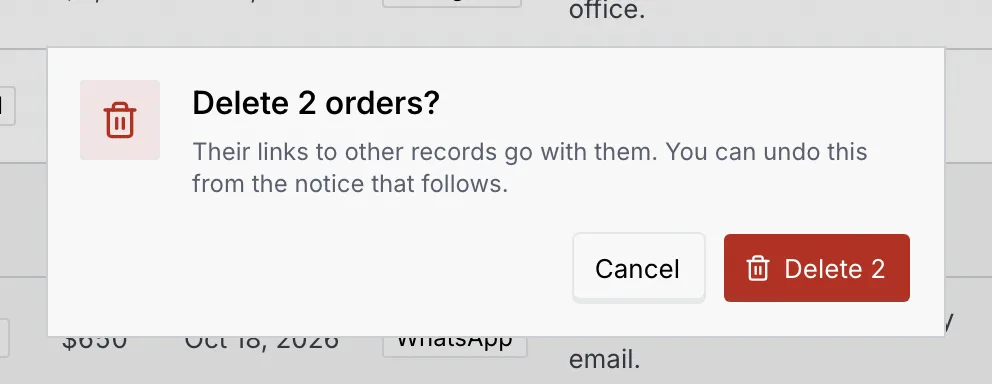
In the table, tick the checkbox of each row (or the header checkbox for the whole page; **Select all** then reaches every matching row). In the bar at the bottom, click **⋯**, then **Delete**.
### Confirm [#confirm]
Mokanata asks first. The records' links to other records go with them. From a record's page:
From the table:
### Undo if you need to [#undo-if-you-need-to]
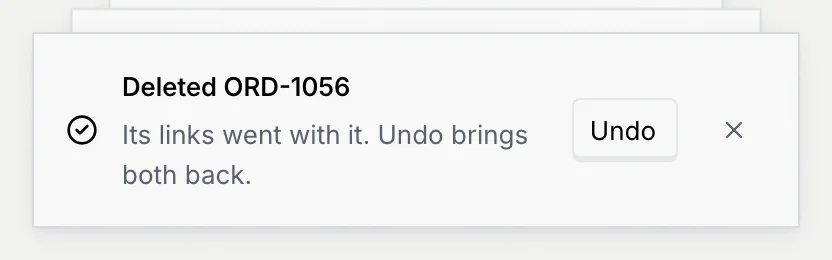
The notice that follows has **Undo**, which brings the records back with their links. After deleting from a record's page you return to the table.
## Records agents create [#records-agents-create]
When an object has **Agents can create** switched on (see [Create a custom object](/docs/contacts/create-object)), an agent can propose a new record while it works a conversation, such as logging an order a customer confirmed in WhatsApp. The proposal waits in the [approval queue](/docs/inbox/approval-queue) as a **CRM update** until someone clicks **Approve update**. Agents only fill in fields with **Agents can fill this in** switched on.
Once approved, the record appears in the table and its **Activity** names the agent:
If the change can't be applied, a notice says why, for example that agents can't create records of that object.
## When you can't edit [#when-you-cant-edit]

- **View only**: you can read every record and open the records it links to, but not change them. Your role's name and who can change it are in the notice.
- **You can add …, not edit them**: your role can create records but not edit them. **New** works; existing values are read only.
## Keyboard shortcuts [#keyboard-shortcuts]
| Keys | What it does |
| --- | --- |
| N | New record on the open table |
| / | Focus the search |
| Enter | Open the focused value for editing, then save it |
| Esc | Cancel an edit, or clear the search |
## Troubleshooting [#troubleshooting]
The record comes from a connected database and the column can only be set there (a key, a timestamp or structured data). See [Tables, columns, row filters and sync status](/docs/contacts/database-sync#edit-synced-records).
The object was deleted from the data model. **Back to objects** shows every object that's left.
The record was deleted, or (for a synced object) it no longer matches its sync's filters. Search its table to find the one you're after.
The object has no records yet. Click **New** in the empty table to add the first one, or wait for agents to propose some.
## Next steps [#next-steps]