Try the sample database
Connect a ready-made online store with live orders, leads and tickets to see how a database sync works, with no setup.
The sample database is a small online store, Northwind Commerce, that you can connect in a few clicks to see a live database sync before you connect your own. It works like a Postgres database with streaming turned on: you pick its tables, they become objects, new orders and leads arrive every few seconds, and your edits are written back to it.
- Who can use it: Owners and admins, like any database connection. See Roles and permissions.
- Before you start: Nothing. There's no connection string to enter and no database to prepare.
What's in it
Eight tables in four schemas, all with primary keys:
| Table | Rows | What it holds |
|---|---|---|
public.customers | 48 | Name, email, phone, company, city, plan, lifetime value, marketing opt-in |
public.leads | 30 | Full name, phone, email, source, budget, status, notes |
public.orders | 120 | Customer, total, status, channel, date placed |
public.products | 10 | SKU, name, category, price, stock, active |
billing.subscriptions | 25 | Customer, plan, monthly revenue, status, renewal date |
billing.invoices | 64 | Invoice number, customer, amount, status, due and paid dates |
support.tickets | 26 | Customer, subject, priority, status, channel |
analytics.page_views | 900 | Path, referrer, visitor, time viewed |
While it's connected, something changes every few seconds: a new order comes in, an order moves from pending to paid or from paid to shipped, a new lead arrives, a ticket moves from open to pending or solved, or a product's stock drops.
The sample store starts fresh each time you open Mokanata, so changes you make to it don't carry over to your next visit.
Connect it
Choose Sample database
Go to Setup → Objects, click Connect database in the Connected databases panel, then click Sample database (marked Try it).
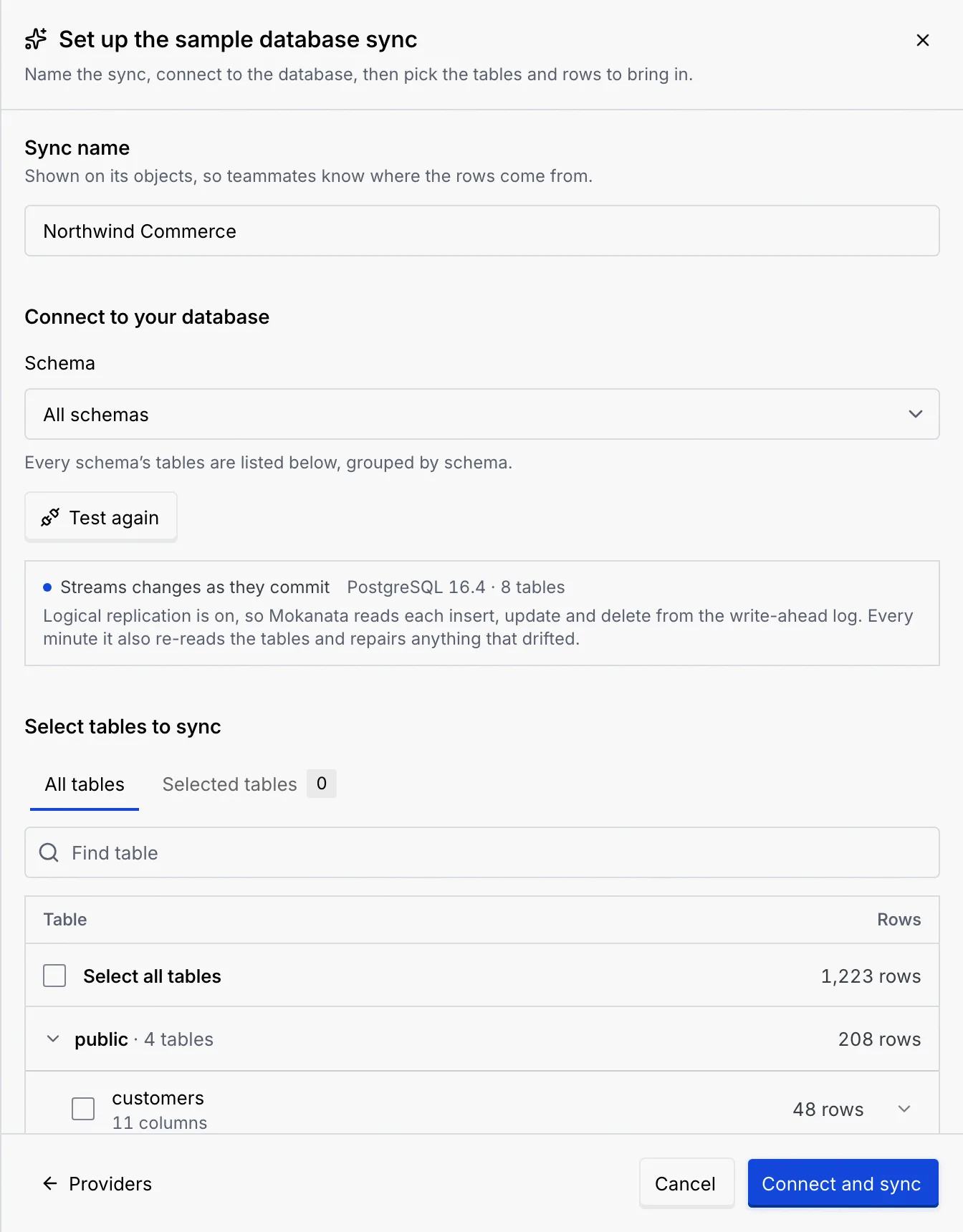
The setup opens with the sync named Northwind Commerce, All schemas chosen, and the connection already tested: Streams changes as they commit, with the Postgres version and 8 tables.
Pick some tables
Under Select tables to sync, tick the tables you want, for example customers, orders and tickets. The tables are grouped by schema; click a schema's name to fold or unfold it. Select all tables ticks every table at once.
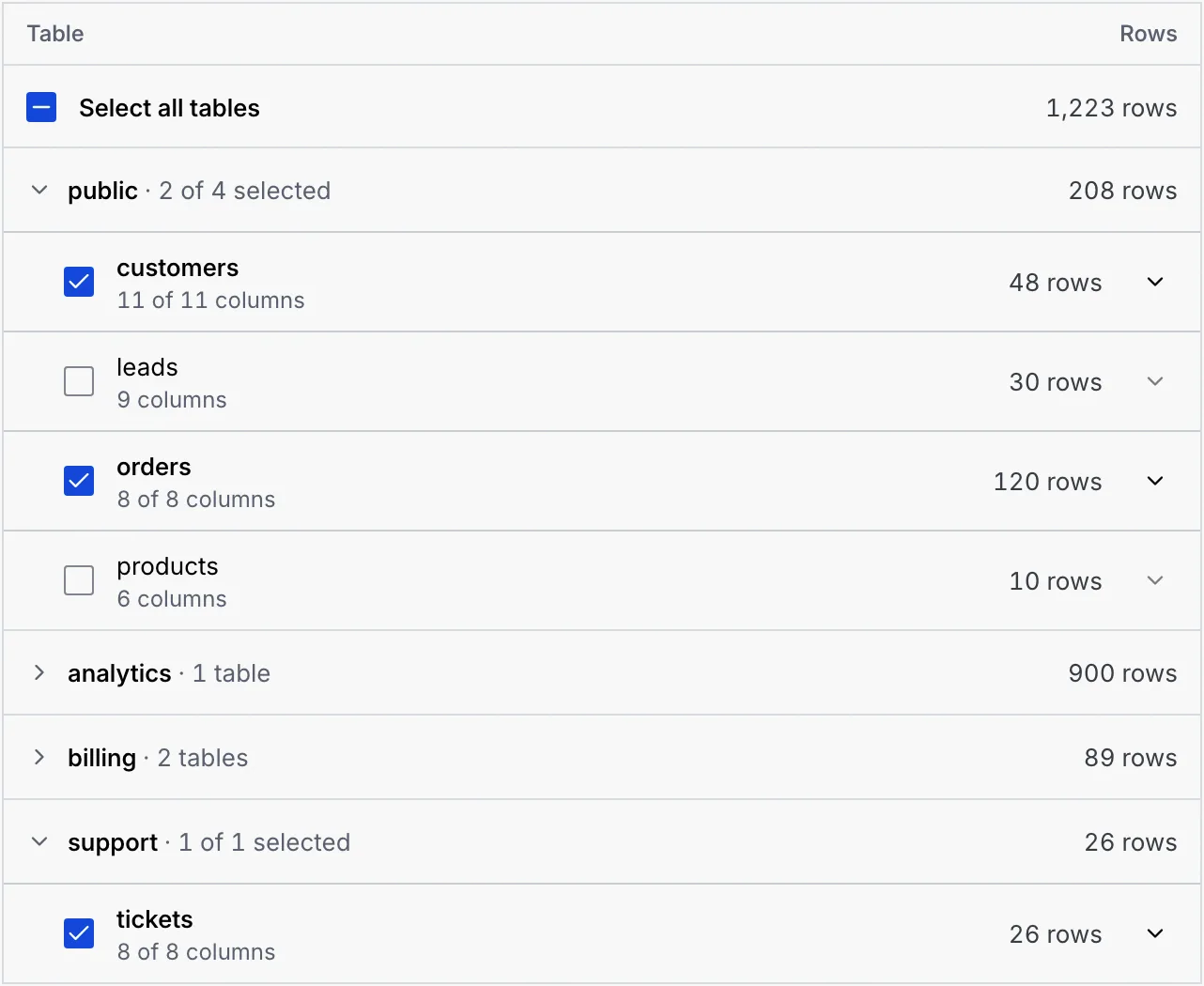
You can open a table to choose its columns and filter its rows; see Tables, columns, row filters and sync status.
Sync them
Click Sync 3 tables. A notice confirms Connected Northwind Commerce — “3 tables sync live into objects.” The Connected databases panel now shows the sync Live · streaming, with how many rows it holds, the changes it has received during this visit and when the last one arrived. Under it, a badge per table leads to its object.

Find the new objects
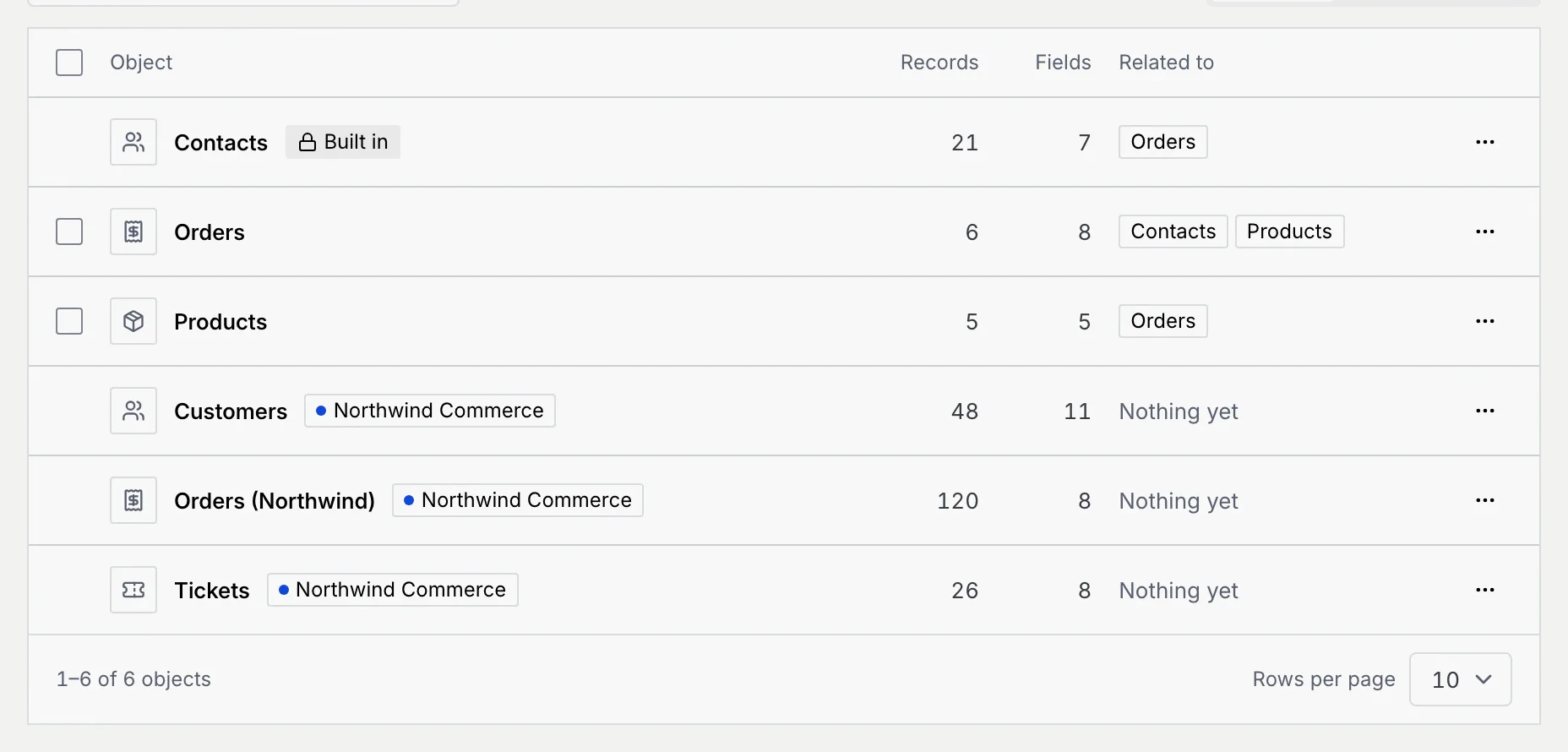
The tables are now objects in the list, each with a Northwind Commerce badge and a status dot. A table whose name is already taken gets the sync's first word, which is why the store's orders are called Orders (Northwind) next to your own Orders.
Open a synced table
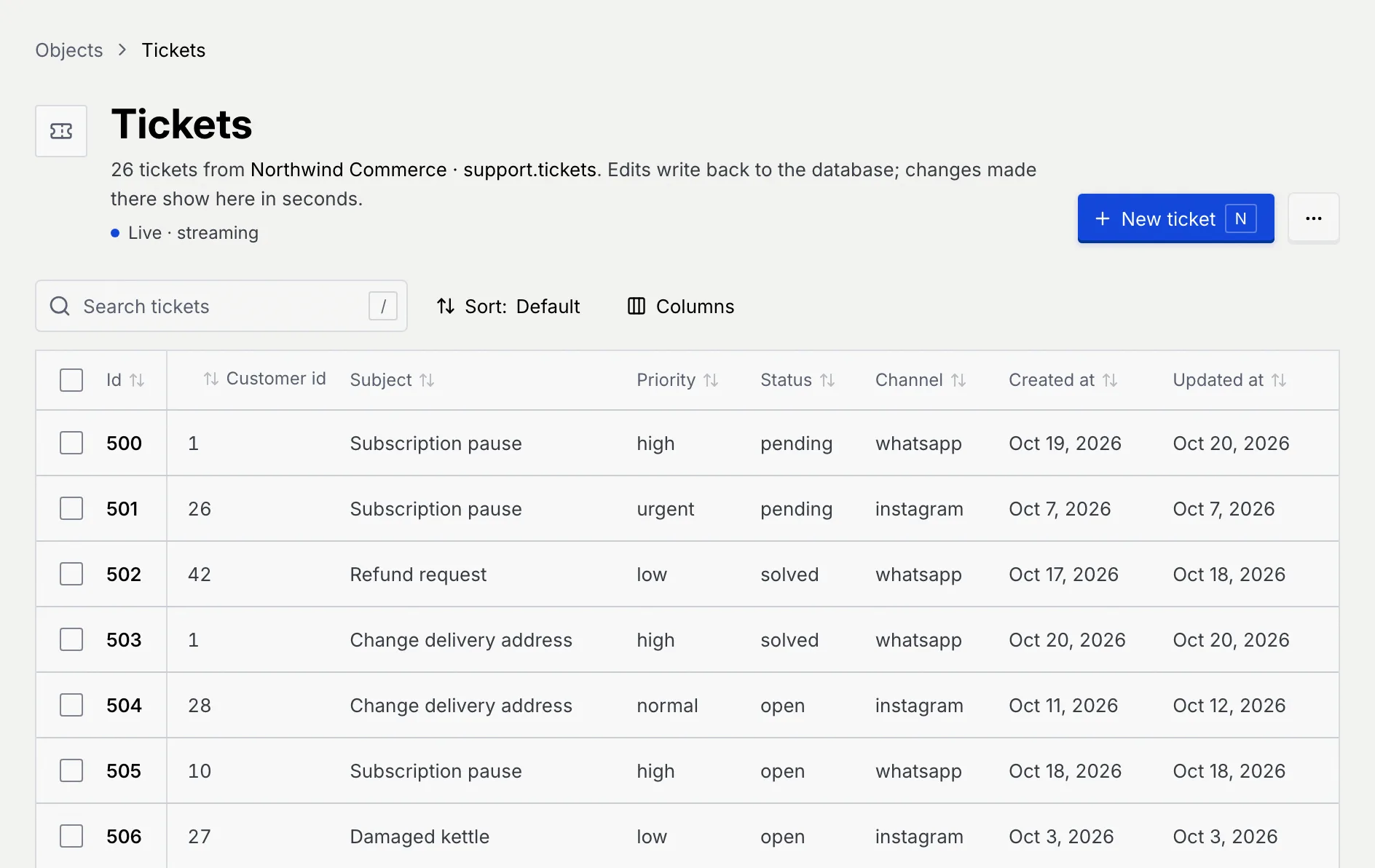
Click Tickets. The lead says where the rows come from (Northwind Commerce · support.tickets), that edits write back to the database, and the sync's status. Leave it open for a minute and you'll see tickets change status on their own.
Things to try
- Edit a ticket's Status or a customer's City in the table. The change is written back to the store, the same way it would be to your database.
- Add a row with New ticket, or delete one; both go to the store too.
- Open the sync with Tables and filters and filter
orderstostatus is paid, then watch orders join the object as they're paid. See Tables, columns, row filters and sync status. - Relate a synced object to Contacts or to your own objects (see Relate objects), or open the data model canvas to see it beside them.
- Pause syncing and Resume syncing from the sync's ⋯ menu.
When you're done, open the sync's ⋯ menu and click Disconnect. Its objects go from Mokanata.