Agents on a contact
See which agents are on an account, record its assigned agent, pause one on this contact only, or take it off.
Each contact can have one assigned agent: the agent meant to work this person. Assigning one records it on the contact; Mokanata doesn't hand the contact's messages to it on its own yet. Other agents can be on the account too: one that enriched the record, one waiting on your approval. The Agents on this account panel on the record shows them all, and lets you change the assignment without touching the agent's other accounts.
- Who can use it: Owners, admins and members can assign, change, pause, resume and remove agents on a contact. Without permission to edit contacts, the panel only reports: Assign or Change is disabled with the reason on hover, and an agent's menu only offers Open agent. See Roles and permissions.
- Before you start: The agent must be live: paused agents, drafts and agents in shadow mode can't be assigned. See Deploy, pause and set autonomy.
See who works the account
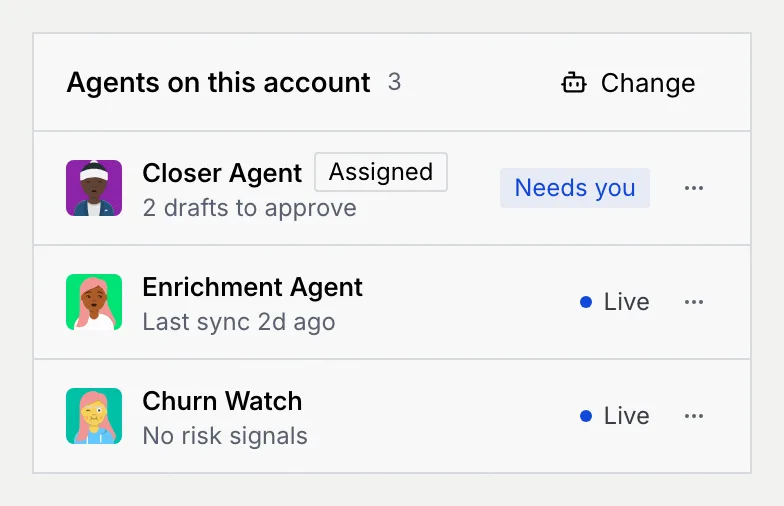
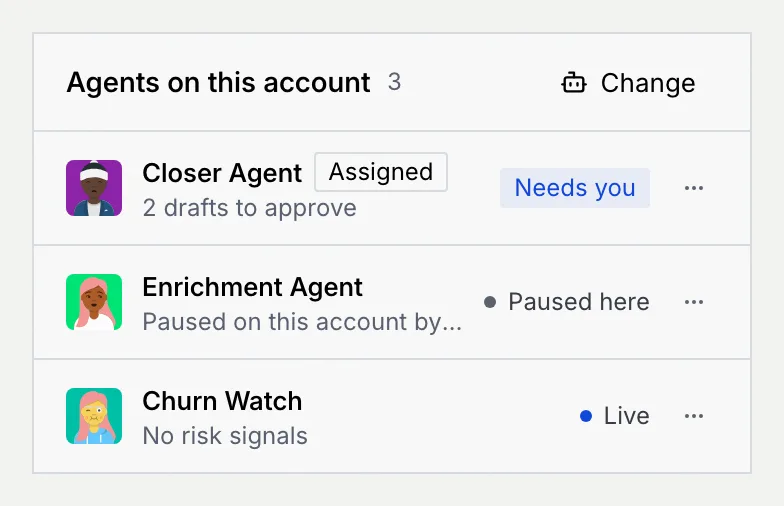
On the contact's record, find Agents on this account in the side panels. Each row shows the agent, an Assigned badge on the contact's assigned agent, a note on what it's doing here, and its status.
| Status | Meaning |
|---|---|
| Live (blue dot) | The agent is live. |
| Needs you | It's waiting on your approval for this contact. The note says how many drafts or record updates. |
| Escalated | It handed this contact's conversation to a person. |
| Paused here (grey dot) | You paused it on this contact only. It keeps working its other accounts. |
| Paused | It's paused for every account, from its agent page. |
| Draft | It isn't deployed yet, so it doesn't act here. |
Click an agent's name to open its page; see The agent page.
Assign or change the agent
Open the menu
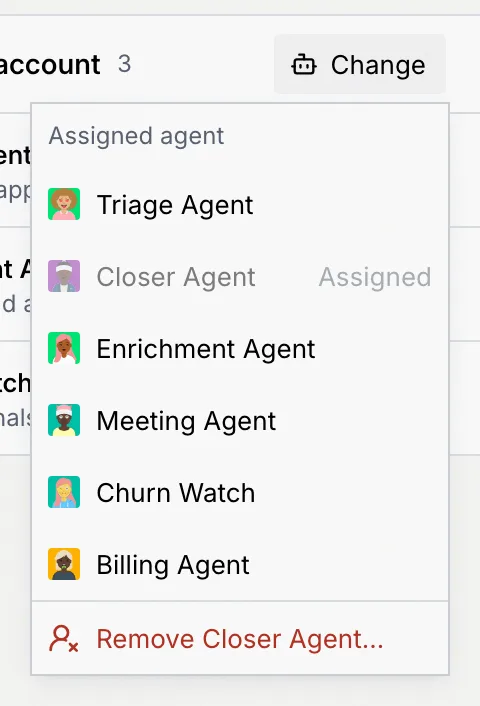
In the panel's header, click Change (or Assign when the contact has no agent). The Assigned agent menu lists the live agents; the current one is greyed out and marked Assigned.
Pick an agent
Click the agent. It becomes the assigned agent: a notice confirms it, with Undo, and the change goes on the timeline. The assignment is a record of who works the contact; the agent doesn't pick up their messages on its own yet.
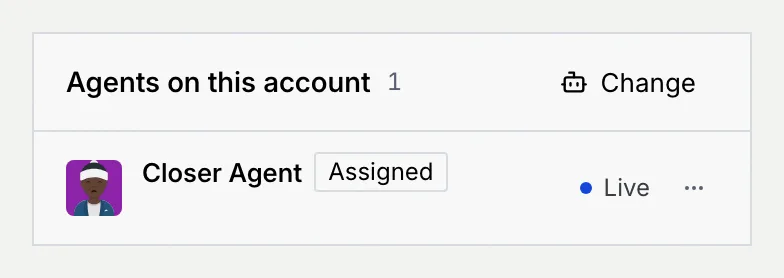
A contact with no agent says No agent is assigned to this account. New contacts start with no agent assigned. Click Assign and pick an agent, and the panel lists it with the Assigned badge.
To give many contacts the same agent, select them in the list and use Assign agent; see Change many contacts at once.
Pause an agent on this contact
Pausing on one contact marks the agent paused for this person only. Its other accounts aren't affected.
Pause it
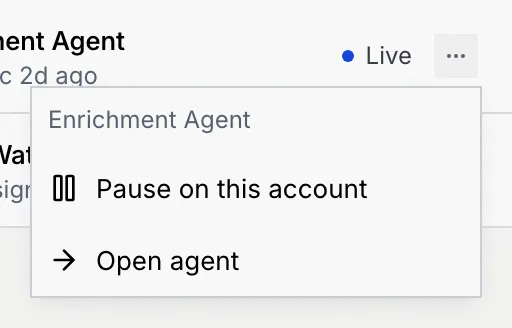
Click Pause on this account. The row shows Paused here, and the notice confirms that other accounts aren't affected. When it's the assigned agent, the contact list shows paused here next to its name.
Resume it
Open the same menu and click Resume on this account.
When an agent is paused for every account, or isn't deployed yet, Pause on this account is greyed out and the menu says why. Resume or deploy it from its agent page.
Remove the assigned agent
Choose Remove
In the panel's header, click Change, then Remove with the agent's name. You can also click Remove from this contact… in the assigned agent's ⋯ menu.
Confirm
Click Remove agent. The agent is taken off the contact's record, and the contact has no agent assigned. The notice offers Undo.
Troubleshooting
Only live agents can be assigned. A paused agent, a draft or an agent in shadow mode appears once it's deployed; see Deploy, pause and set autonomy.
Agents that worked the account, such as one that enriched the record or one with a draft waiting on you, are listed even when they aren't the assigned agent. Pause one here to mark that it shouldn't act for this person.
Your role can't edit contacts. Hover the button to see why, and ask an owner or admin to change your role.
Next steps
Channel identities and duplicates
Keep one record per person across every channel by linking their handles, choosing the primary one and merging duplicates agents find.
Objects and the data model
See every table in your workspace, from Contacts to your own objects and synced databases, on Setup → Objects.