Search, filter, sort, export and bulk changes
Narrow the contact list, save the view as a link, change many contacts at once and download a CSV.
The toolbar above the contact list narrows it down: search by name or company, filter by stage, channel, agent or owner, sort, and pick the columns you want. Select rows to move their stages, assign agents and owners, export or delete them in one go.
- Who can use it: Everyone can search, filter, sort and choose columns. Moving stages, assigning agents and owners, and removing agents in bulk need permission to edit contacts (owners, admins and members). Export CSV and Delete are for owners and admins by default, and an owner or admin can grant them to other roles. Actions your role can't take are left out of the menu, and Move to stage stays disabled with the reason on hover. A Viewer has no row checkboxes. See Roles and permissions.
- Before you start: Open Contacts on the Table view.
Search
Type a name or company
Click Search contacts in the toolbar, or press /, and type part of a name or a company. The list narrows as you type, and the footer counts the matching contacts.
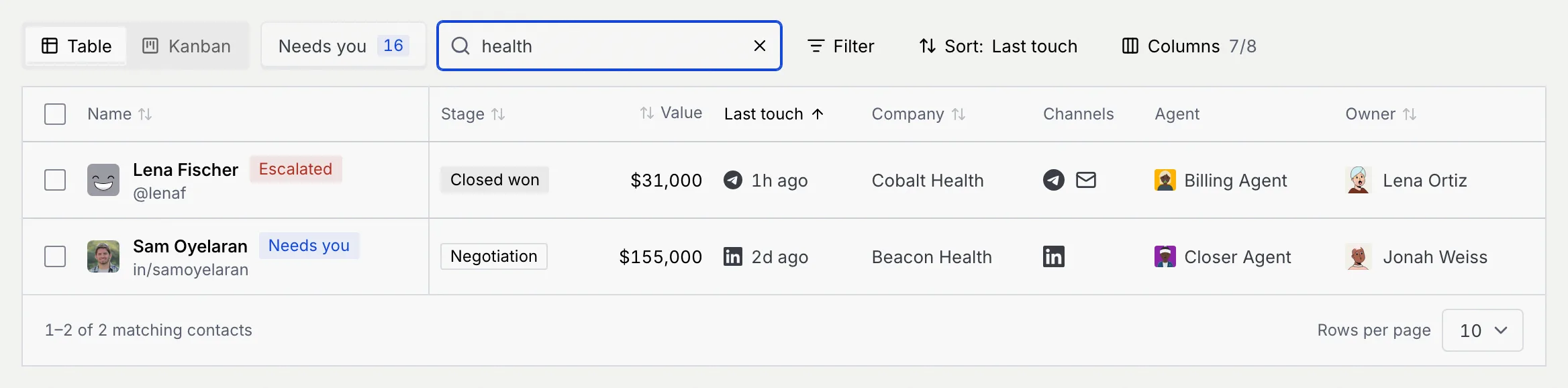
Clear the search
Click × in the field, or press Esc while you're in it.
Search only looks at names and companies. To find someone by phone number or email, use the command palette (⌘ K, or Ctrl K on Windows and Linux); see Search and jump.
Filter the list
Pick a field and its values
Click Filter, point to a field, and tick the values you want. Each value shows how many contacts have it. Tick more than one value to see contacts that match any of them.
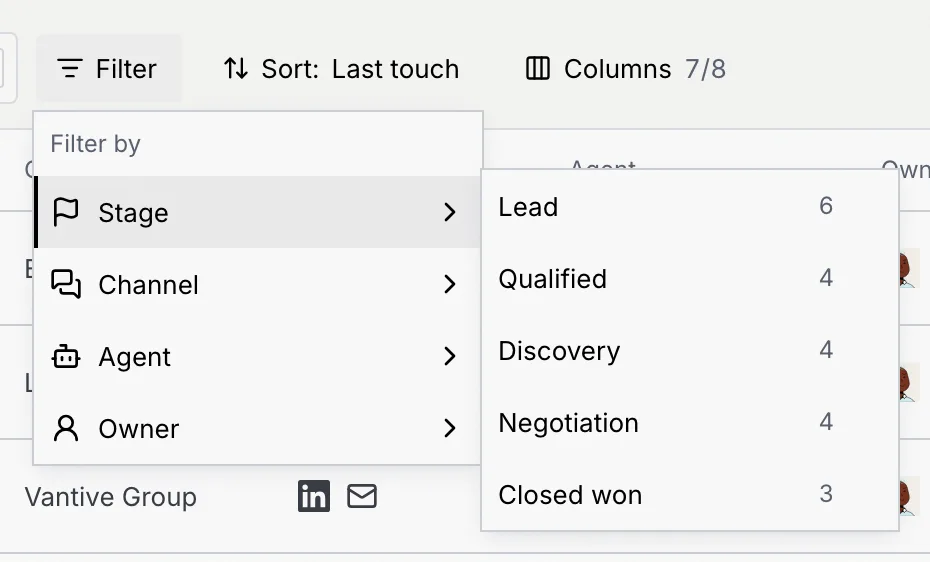
| Field | Values |
|---|---|
| Stage | Lead, Qualified, Discovery, Negotiation, Closed won. Not offered on the board, where the columns are the stages. |
| Channel | WhatsApp, Facebook and Instagram, plus the channels that are coming soon (see Connect a channel). |
| Agent | Has an agent, No agent, then each agent by name. |
| Owner | You, then each teammate who can own deals. |
Read the filters in force
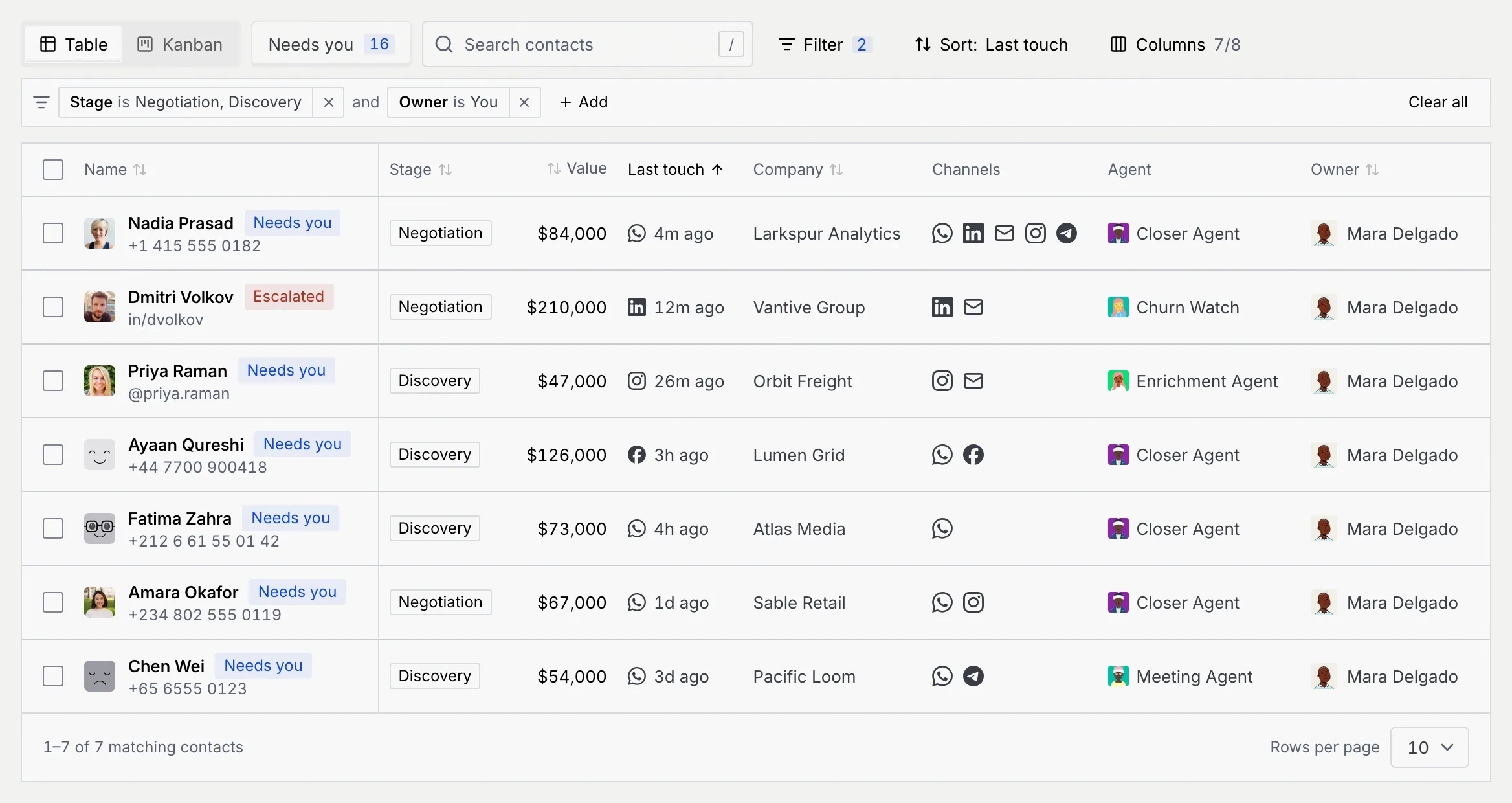
Each filter shows as a chip under the toolbar, such as Stage is Negotiation, Discovery, joined with and: a contact has to match every chip. With more than two values, the chip says how many are selected. Filter shows a count of the filters that are on.
Change or remove a filter
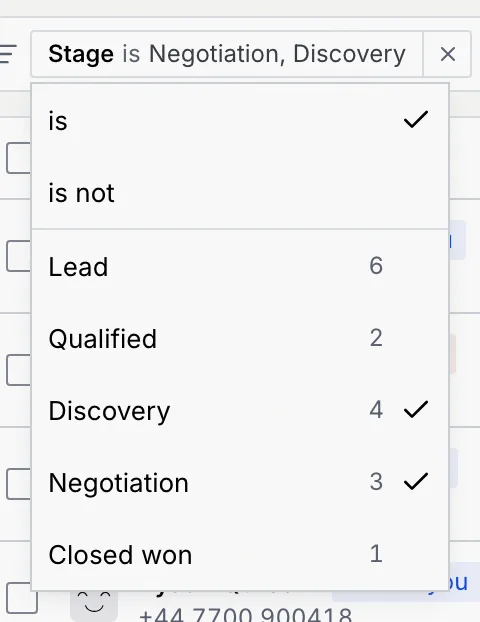
Click a chip to switch between is and is not, or to tick other values. Click × on a chip to remove it, + Add to filter by another field, or Clear all to remove every filter.
Needs you in the toolbar is a filter too: it shows only contacts that have something waiting on your team. See Contacts.
Sort the list
Choose what to sort by
Click Sort, which shows the current order (Last touch to start with), and pick a field under Sort by. Then pick the direction under Order. You can also click a column header to sort by it.
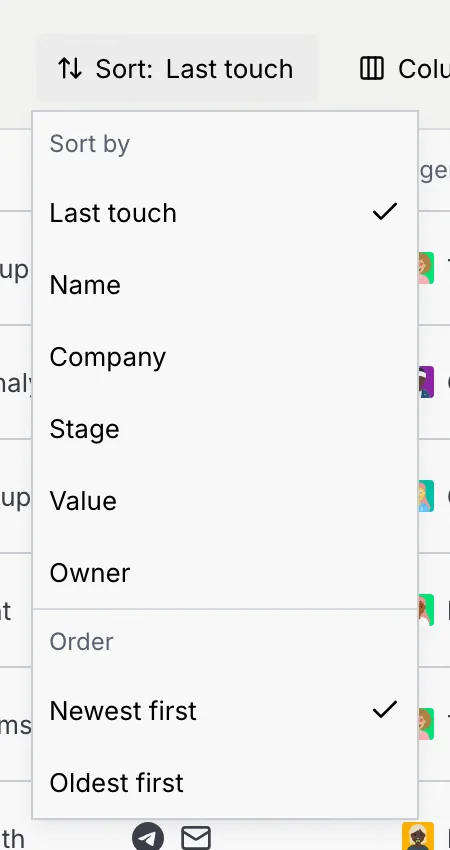
| Sort by | Order |
|---|---|
| Last touch | Newest first or Oldest first |
| Name, Company, Owner | A to Z or Z to A |
| Stage | Earliest stage first or Latest stage first |
| Value | Lowest first or Highest first |
Choose columns
Show or hide columns
Click Columns and tick the columns you want to see. Name always shows. Your workspace's custom fields and relations on Contacts are listed too (here, Orders), and start hidden. While some columns are hidden, the button shows how many are on, such as 7/8; click Show all columns to bring them all back.
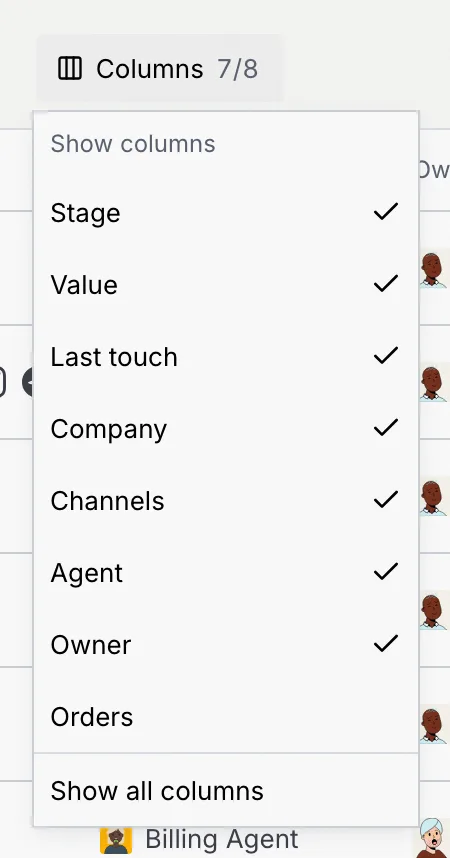
Columns are your own choice: they don't change what teammates see.
Share a view
The address bar holds the view you're looking at: table or board, search, filters, sort, page and rows per page. Bookmark it, or copy the address and send it to a teammate, and they open the same list. A link filtered to Owner is You shows each person their own deals.
Change many contacts at once
Select the contacts
Tick the box at the start of each row you want. A bar appears at the bottom of the screen with the number selected.
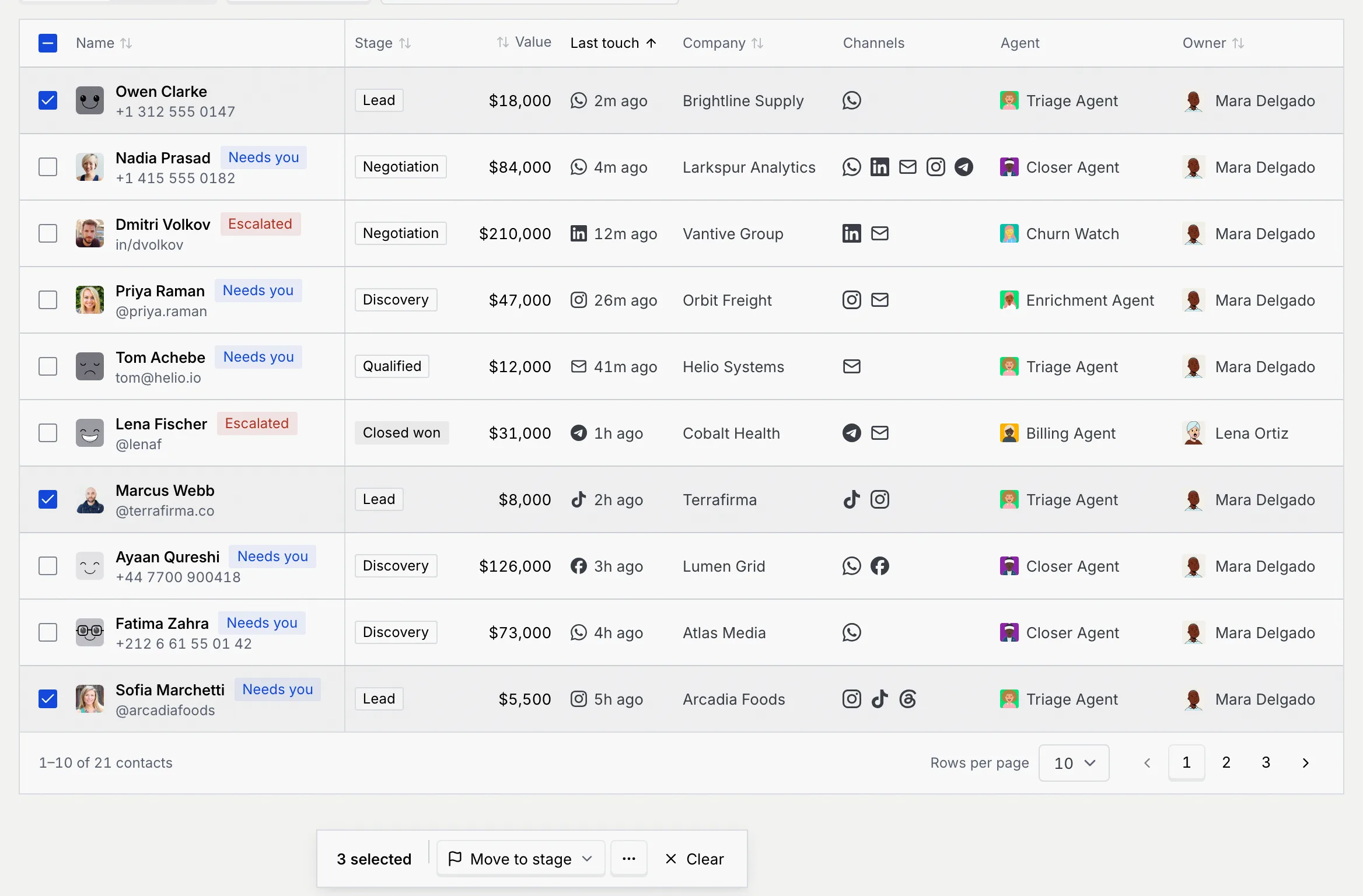
To select a whole page, tick the box in the header row. When more contacts match than fit on the page, the bar offers Select all with the total; click it to select every matching contact, or Select this page only to go back.

Move them to a stage
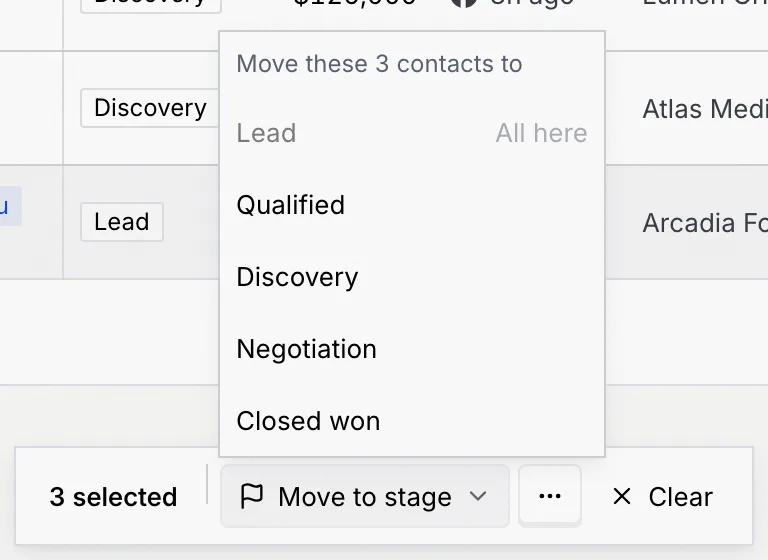
Click Move to stage and pick a stage. A stage every selected deal is already in is greyed out (Current or All here). The move happens at once, with Undo in the notice. Moving deals into or out of Closed won asks you to confirm first; see Deals, stages and owners.
Use the other actions
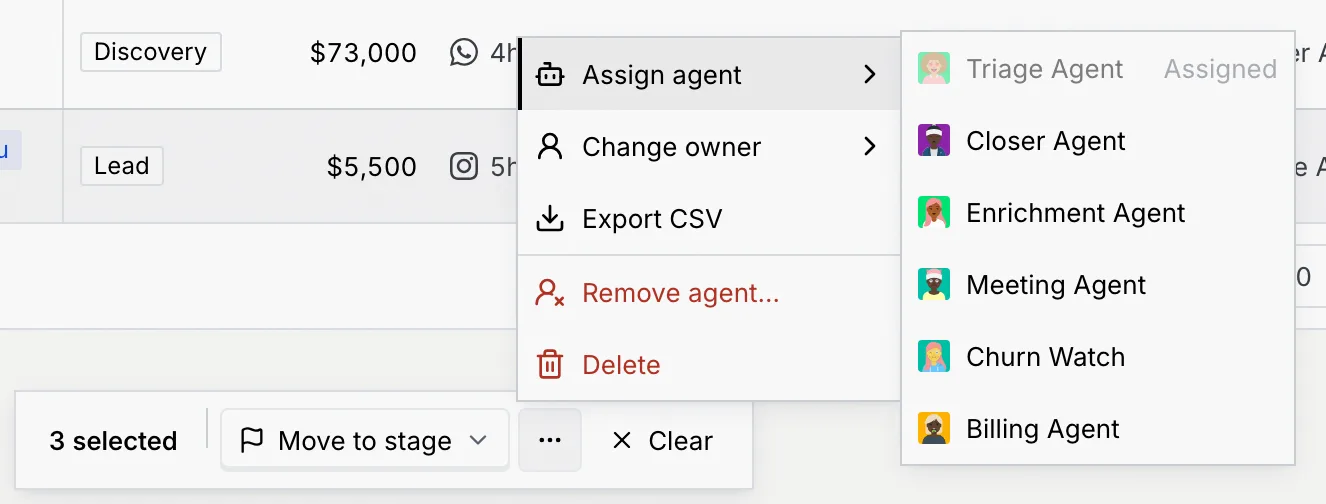
Click ⋯ next to Move to stage for the rest:
| Action | What it does |
|---|---|
| Assign agent | Gives every selected contact the agent you pick. Only live agents are listed; one that every selected contact already has is marked Assigned. |
| Change owner | Makes the teammate you pick the deal owner. Owners and admins also see Manage members, which opens Settings to invite someone. |
| Export CSV | Downloads the selection; see Export contacts. |
| Remove agent… | Takes the agent off the selected contacts after you confirm, so they have no agent assigned. Greyed out with None assigned when no selected contact has an agent. |
| Delete | Deletes the selected contacts after you confirm. |
Stage, agent and owner changes go on each contact's timeline, and every change except an export shows a notice with Undo.
Delete contacts
Choose Delete from the menu. The confirmation says what goes with them: their timeline, tasks and files, their deal value from the pipeline, and any approvals waiting on them. Click Delete with the number to confirm, or Cancel.
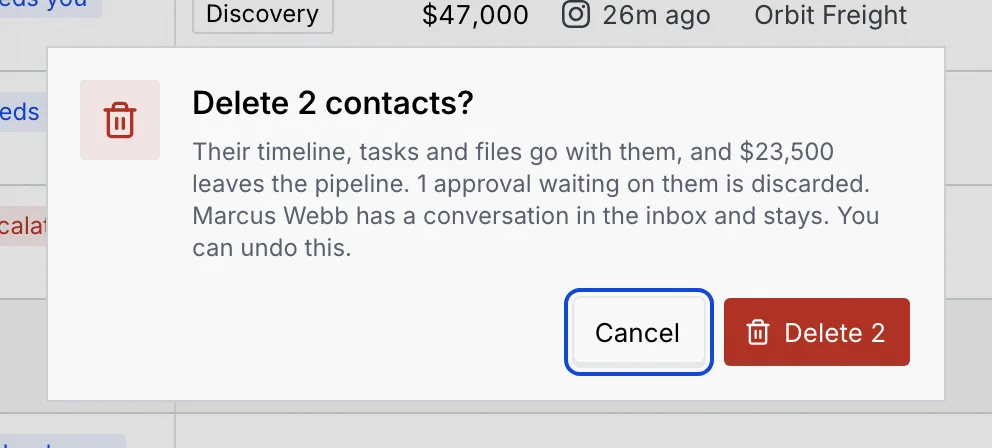
Contacts with a conversation in the inbox can't be deleted, so the thread keeps its person: they stay, and the confirmation names them. When every selected contact has one, Delete is greyed out with In the inbox. Click Undo in the notice that follows to bring deleted contacts back.
Clear the selection
Click Clear in the bar. Searching or filtering also clears the selection, so an action never reaches contacts you can't see.
Deleting removes the record
A deleted contact leaves every list, with their timeline, tasks and files, and the approvals waiting on them are discarded. Use Undo in the notice right away if you deleted the wrong people. To delete one contact from their record, where you can also restore them, see Delete or restore a contact.
Export contacts
Select who to export
Select the rows you want, or tick the header box and click Select all with the total to take every contact that matches your search and filters.
Download the CSV
Click ⋯ in the bar, then Export CSV. The file mokanata-contacts.csv lands in your downloads, and a notice says how many contacts it holds.
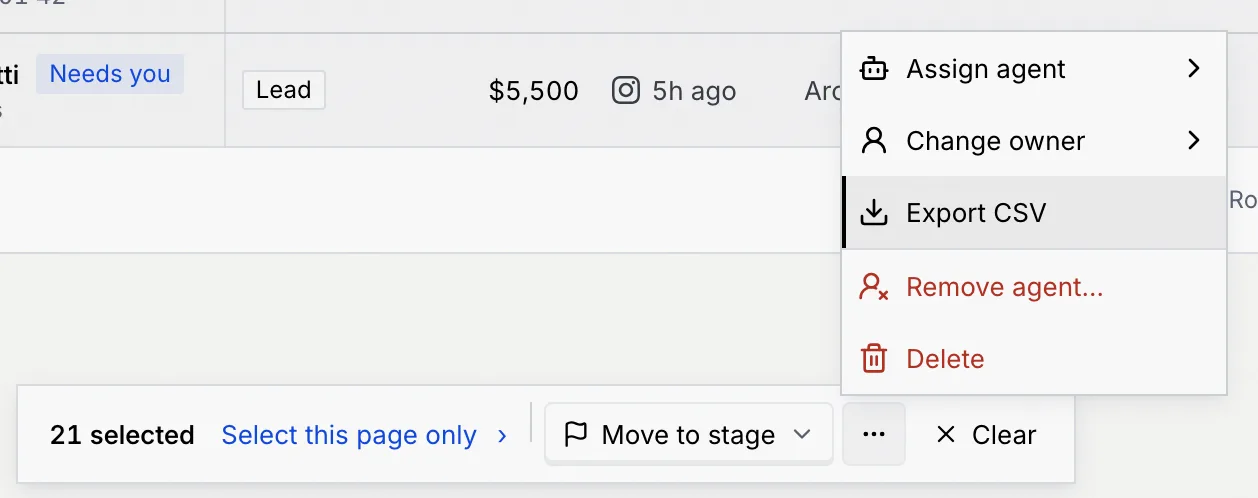
The file has one row per contact and these columns: Name, Company, Handle, Channels, Stage, Value, Close date, Owner, Agent and Last touch.
Troubleshooting
Rows can only be selected when your role can edit, export or delete contacts. A Viewer can't select rows. Ask an owner or admin to change your role; see Roles and permissions.
Exporting and deleting contacts are for owners and admins by default. An owner or admin can give your role Export contacts or Delete contacts in Settings → Members & roles.
Every contact you selected has a conversation in the inbox. A contact with an inbox conversation can't be deleted, so the conversation never loses its person. Select contacts without one, or leave these in place.
Changing the search or filters clears the selection, so a bulk action only reaches contacts you can see. Narrow the list first, then select.
Only live agents can take on contacts. Paused agents, drafts and agents in shadow mode aren't listed until they're deployed; see Deploy, pause and set autonomy.