The data model canvas
See every object as a card and every relation as a line, arrange them, and draw new relations by dragging.
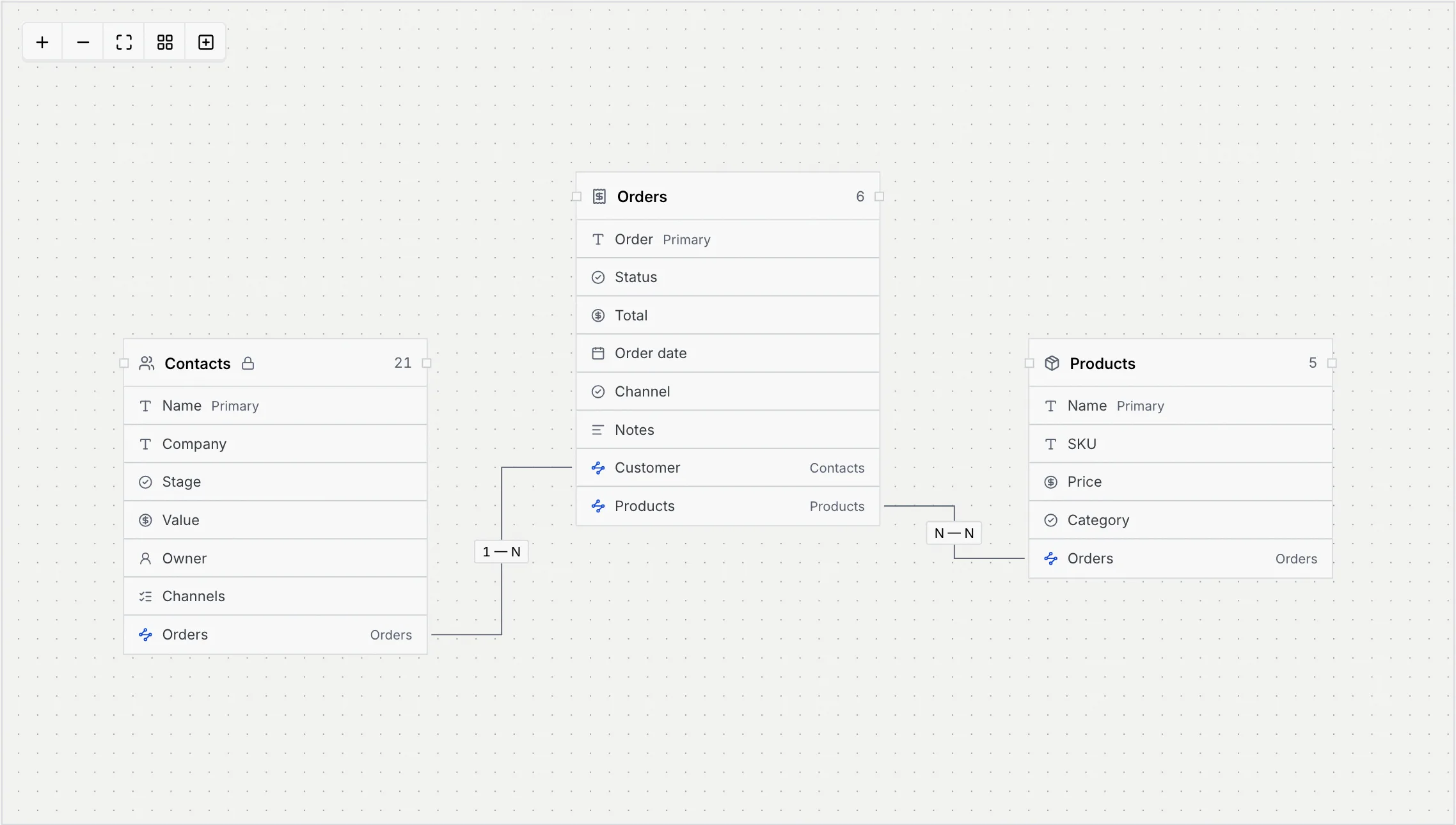
The data model canvas draws your whole data model at once: each object is a card listing its fields, and each relation is a line between the fields it adds. It's the quickest way to see how contacts, orders, products and your synced tables fit together, and owners and admins can relate objects by drawing a line from one card to another.
- Who can use it: Everyone can open the canvas, zoom and click a card to see its fields. Owners and admins can also move cards, tidy the layout, draw relations and edit or delete objects from it. For everyone else Tidy layout and New object are greyed out with the reason, and cards don't move. See Roles and permissions.
- Before you start: Nothing. Everything on the canvas can also be done from the objects list and the object sheet, without dragging.
Open the canvas
Switch to Data model
Go to Setup → Objects and click Data model beside the search. Its count is the number of relations in the workspace.
Read the cards and lines
Each card has the object's icon, name and record count in its header (Contacts carries a lock, as it's built in), then one row per field with its type icon. The primary field is marked Primary. A relation field has a blue icon and names the object it links to.
Lines join the relation fields of two cards. The label on each line says how they link: 1 — 1 (one to one), 1 — N (one to many) or N — N (many to many). See Relate objects.
Move around
The controls at the top left of the canvas:
| Control | What it does |
|---|---|
| Zoom in / Zoom out | Zoom one step. |
| Fit to screen | Zoom so every card fits. |
| Tidy layout | Lays the cards out in a grid, the most related objects first, and keeps that layout. Owners and admins only. |
| New object | Opens the New object sheet. Owners and admins only. |
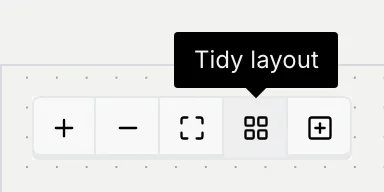
You can also zoom with a pinch on a trackpad, or hold ⌘ (Ctrl on Windows and Linux) and scroll. Scrolling on its own scrolls the page. Drag the dotted background to move the whole diagram.
Arrange the cards
Owners and admins can drag a card by its header to move it. The new position is saved, so everyone in the workspace sees the same layout. Tidy layout puts every card back on a grid.
From the keyboard, press Tab to reach a card, Space to select it, then the arrow keys to move it.
Draw a relation
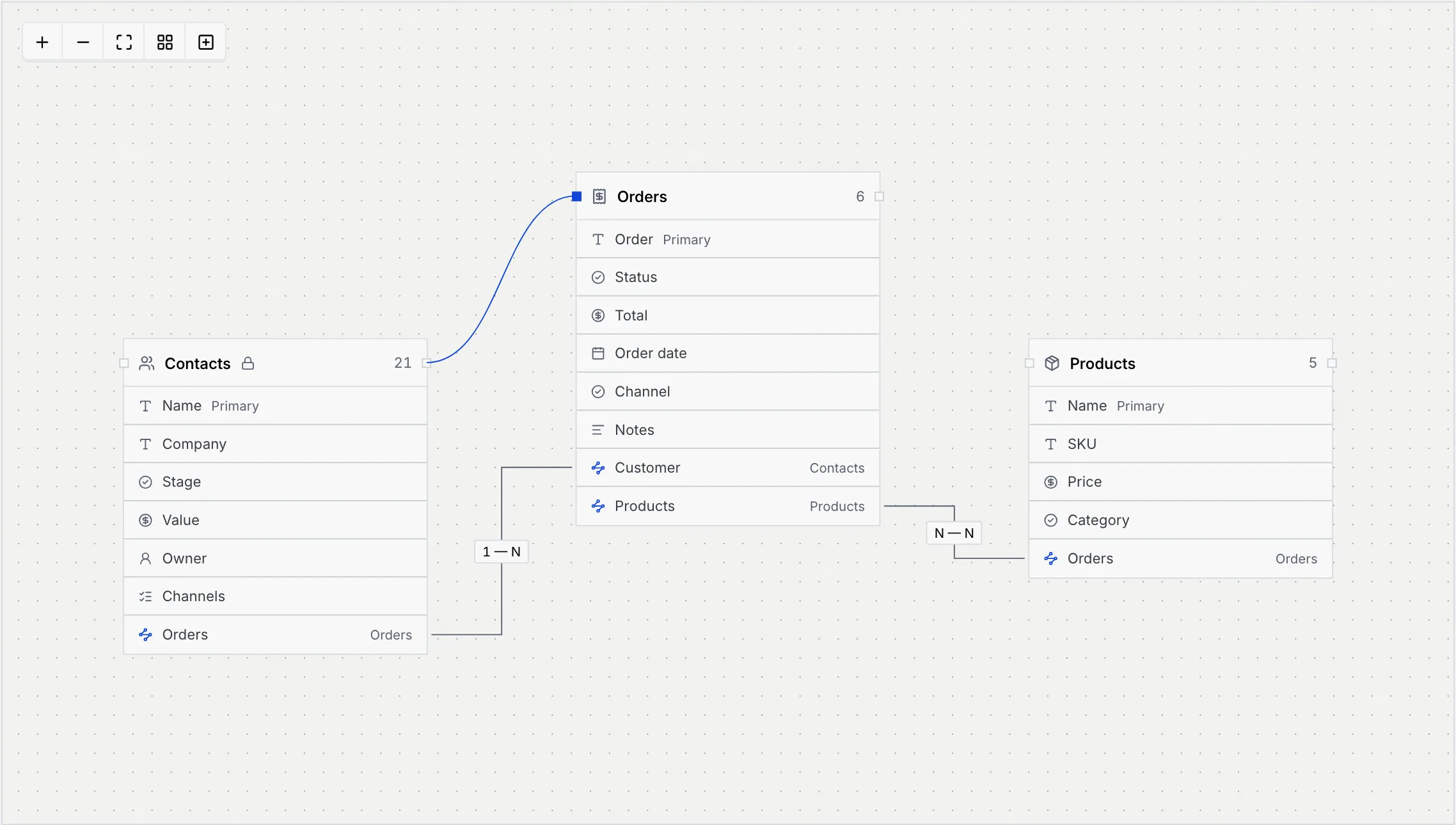
Drag from one card to another
Each card's header has a small square handle on its left and right edges. Press on a handle and drag to another card, then let go over it.
Finish it in the sheet
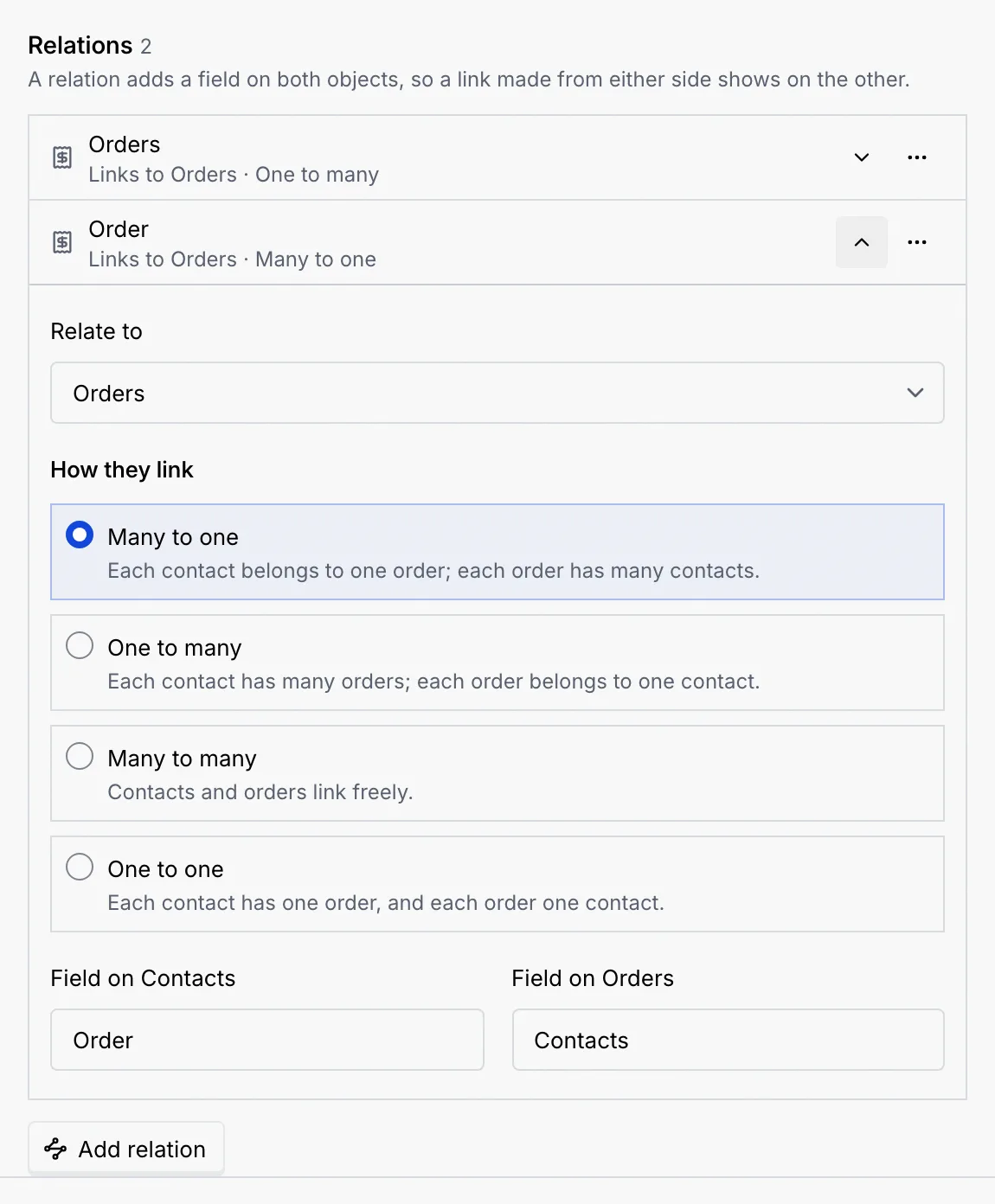
The sheet of the card you started from opens with a new relation to the other object, open and ready: by default Many to one, with each side's field named after the other object. Choose How they link, adjust the names and click Save changes. If you change your mind, click Cancel: nothing is saved.
Edit from the canvas
- Click a card (or press Enter on a selected card) to open its object sheet. Owners and admins can edit it there; everyone else sees its fields with a Close button.
- Click a line's label, such as N — N, to open that relation in its object's sheet, ready to change. Owners and admins only.
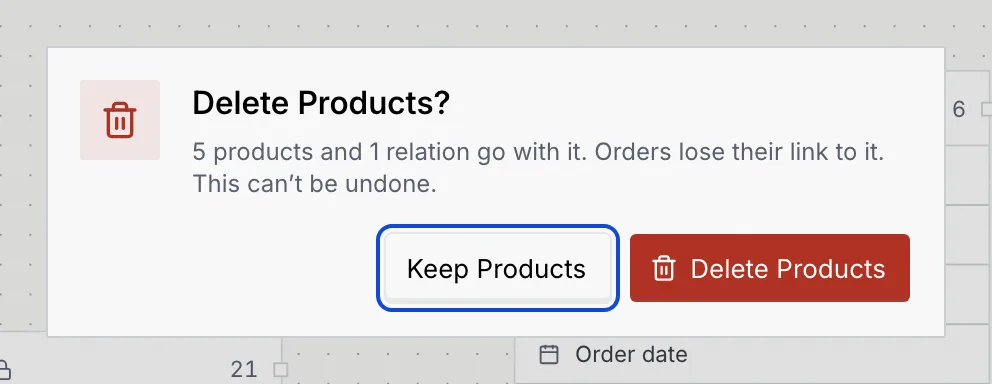
- Delete an object by selecting its card and pressing Delete or Backspace. The same confirmation as in the list counts the records and relations that go with it. Contacts can't be deleted.
To delete a relation, click its label and use Remove relation in the sheet (see Relate objects).
Troubleshooting
Only owners and admins can move cards. For everyone else the canvas is view only: click a card to see its fields. See Roles and permissions.
Press on the small square handle on the left or right edge of the card's header, not on the card itself. Dragging the card moves it instead.