Log activity, notes, tasks and files
Keep calls, meetings, emails, notes, tasks and documents on a contact's record, where your team and its agents can use them.
Messages on connected channels land on a contact's record by themselves. Everything else your team does, such as a phone call, a meeting, an email from your own inbox or a note, you log on the record. Agents on the account read it before their next reply, and they can cite the files you upload.
- Who can use it: Owners, admins and members can log activity, write and delete notes, add, complete and delete tasks, and upload and remove files. Without permission to edit contacts, you can read all of it, but Log activity is disabled (hover it to see why) and the add and remove controls aren't shown. See Roles and permissions.
- Before you start: Open the contact's record; see The contact record.
Log a call, meeting, email or note
Open Log activity
On the record, click Log activity or press L. When something is waiting on you, the main button is a review button instead, and Log activity is in the ⋯ menu (L still works).
Choose the type and write what happened
Pick the Type: Call, Meeting, Email or Note. Under Notes, write what happened. The box suggests what to cover for each type, such as what you talked about and what happens next for a call. Notes are required, up to 1,000 characters.
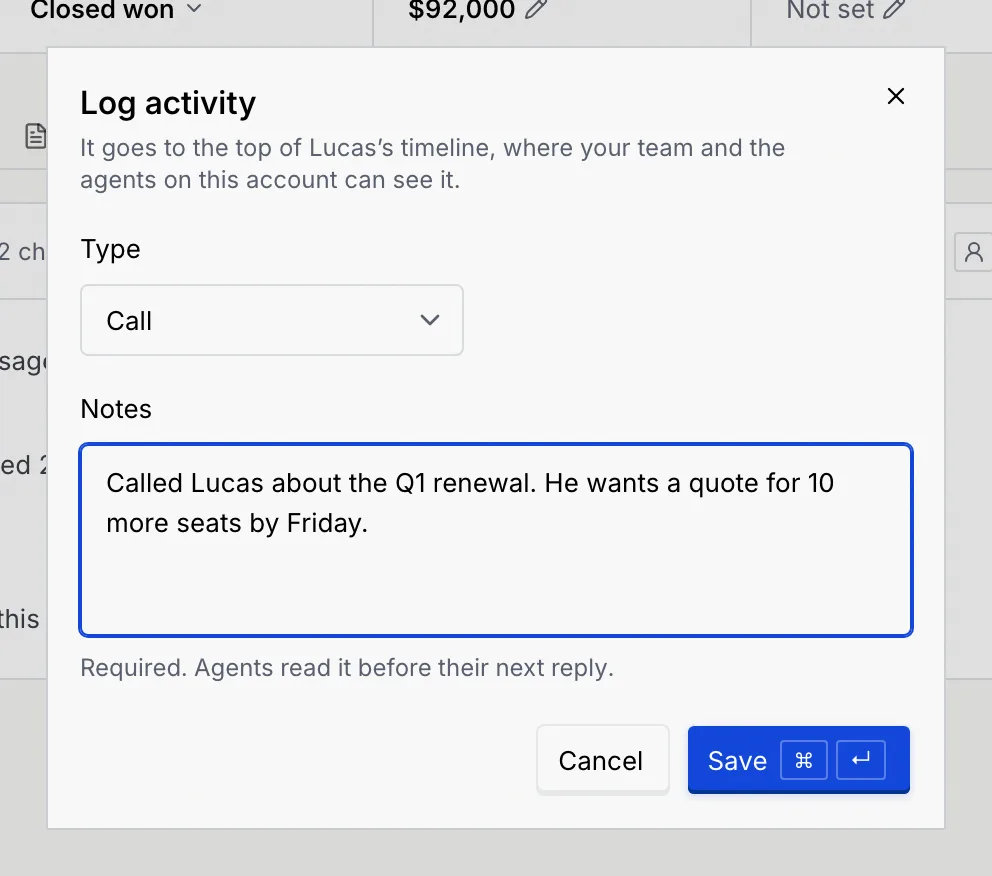
Save
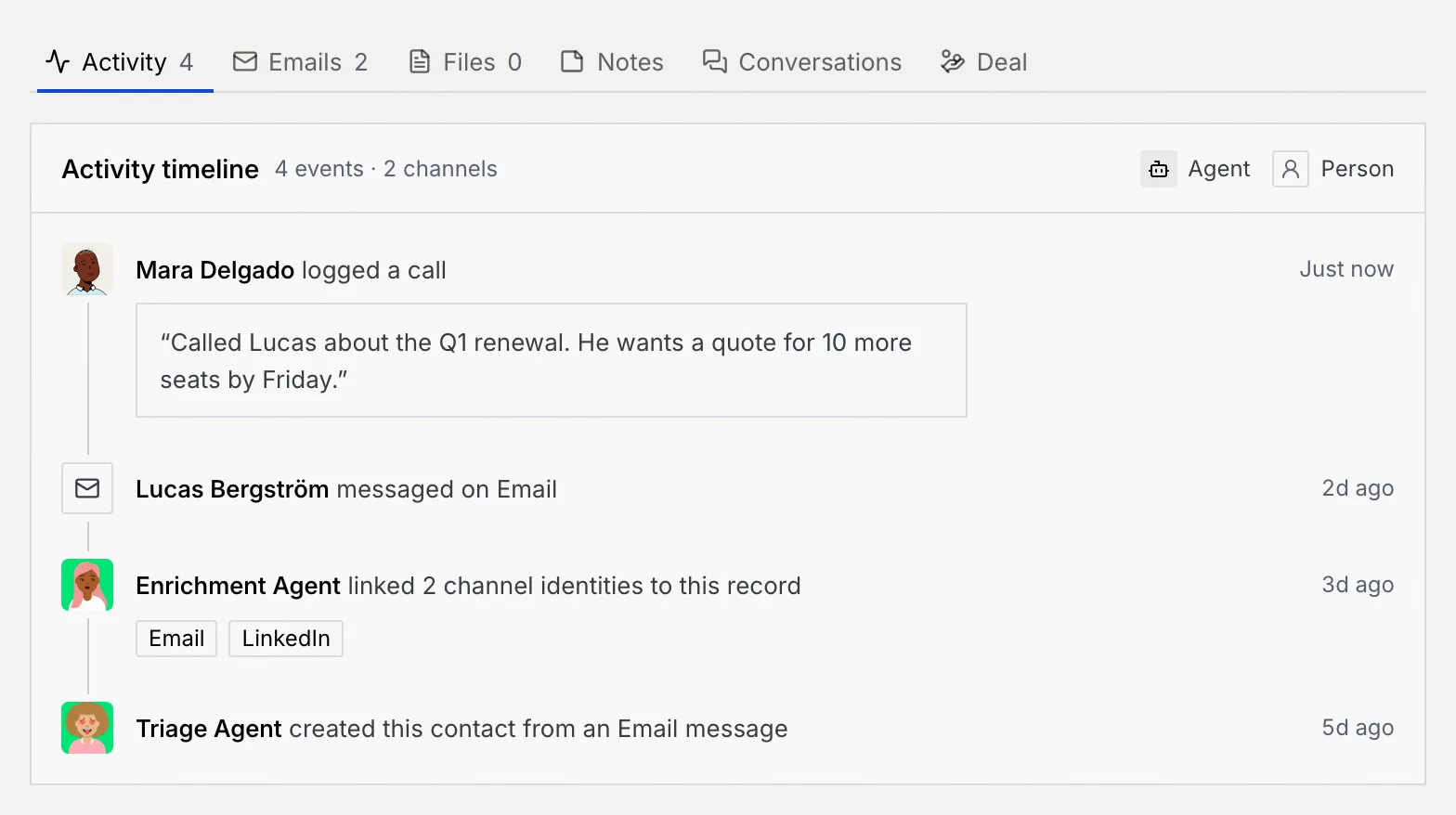
Click Save or press ⌘ Enter (Ctrl Enter on Windows and Linux). The entry goes to the top of the contact's timeline, marked Just now, and the notice (such as Call logged) offers Undo.
If you close the dialog after typing, Mokanata asks before throwing away what you wrote: Keep editing or Discard.
Log an email
Emails to and from the contact show on the Emails tab, with the ones agents send. To add one you sent from your own inbox, open the Emails tab and click Log email: the Log activity dialog opens with Email picked.
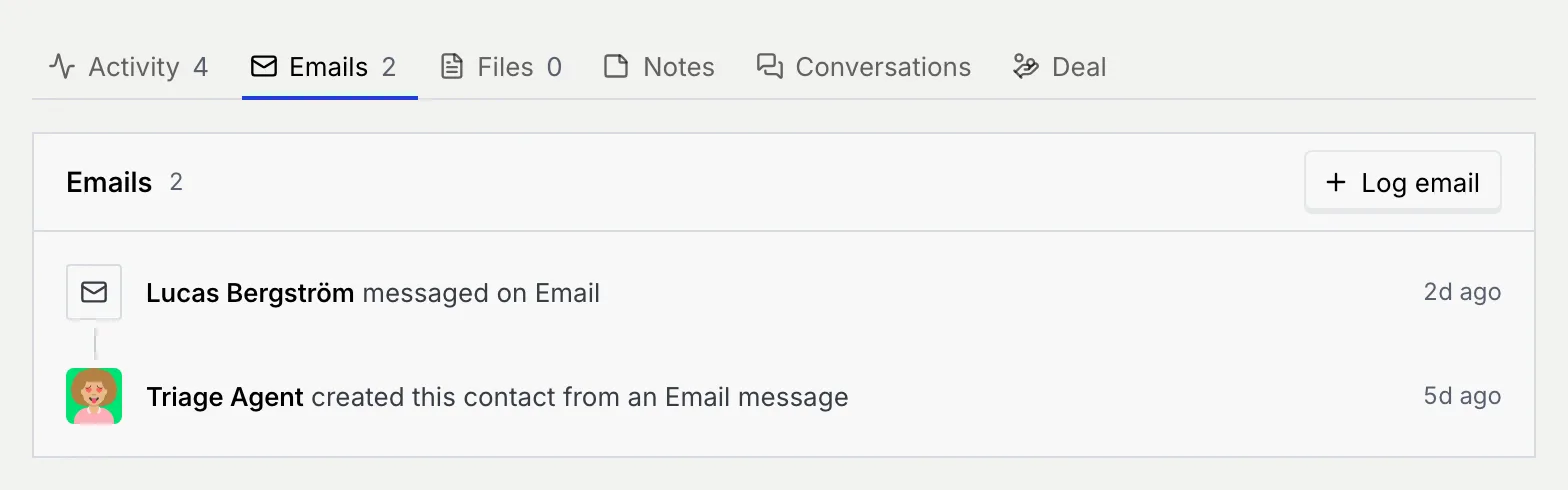
When there are no emails yet, the tab says No emails with Lucas yet (with the contact's first name) and offers Log an email. If the contact has no email address on their record, it offers Link an email address instead; see Channel identities and duplicates.
Add notes
Open the Notes tab
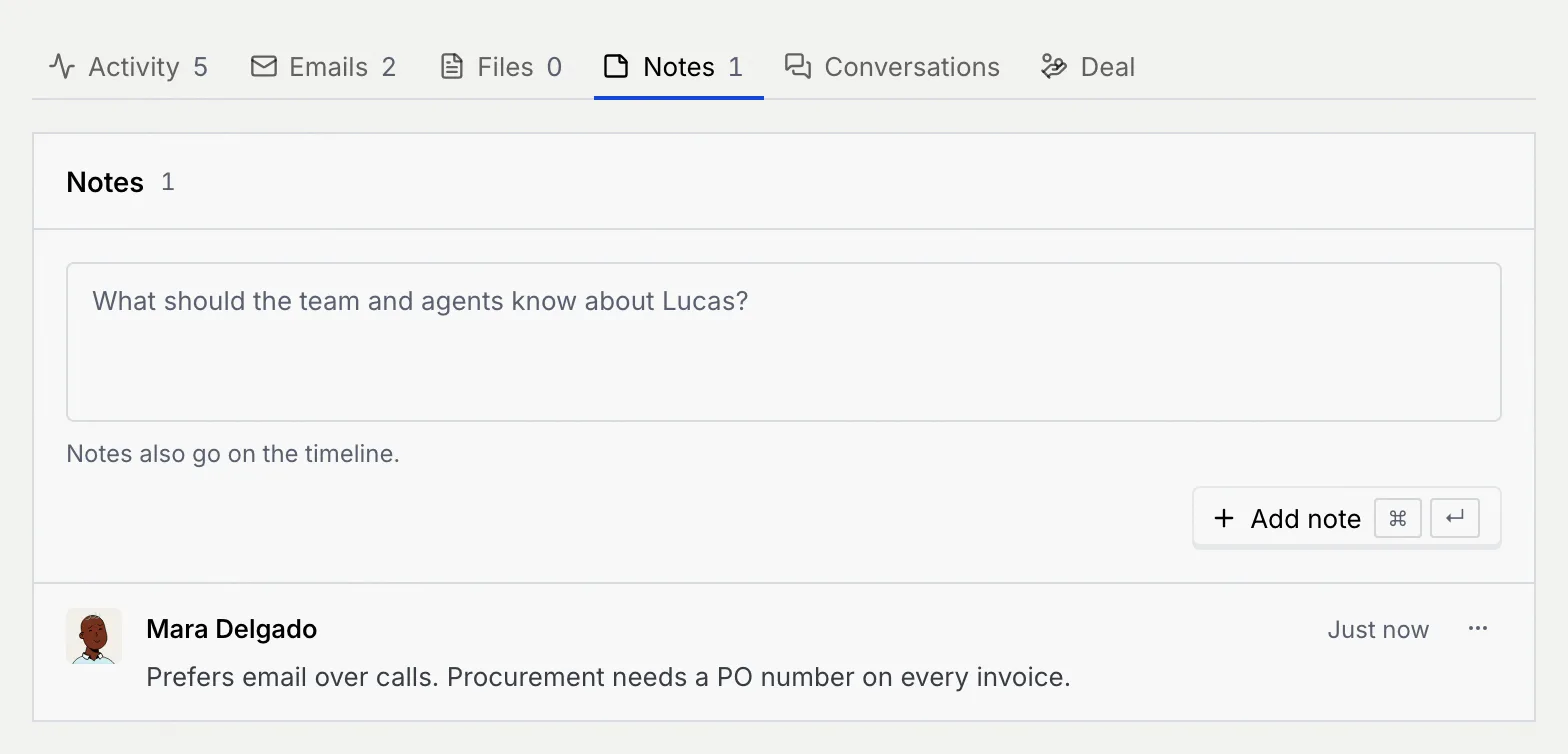
On the record, click Notes. The tab lists the notes your team added here or logged as a Note.
Write the note
In the box (it asks what the team and agents should know about the contact), write the note and click Add note or press ⌘ Enter (Ctrl Enter). Notes go on the timeline too, and agents read them before they reply.
Delete a note
Open the note's ⋯ menu, click Delete note and confirm. It leaves the record and the timeline, and agents stop reading it. The notice offers Undo.
Manage tasks
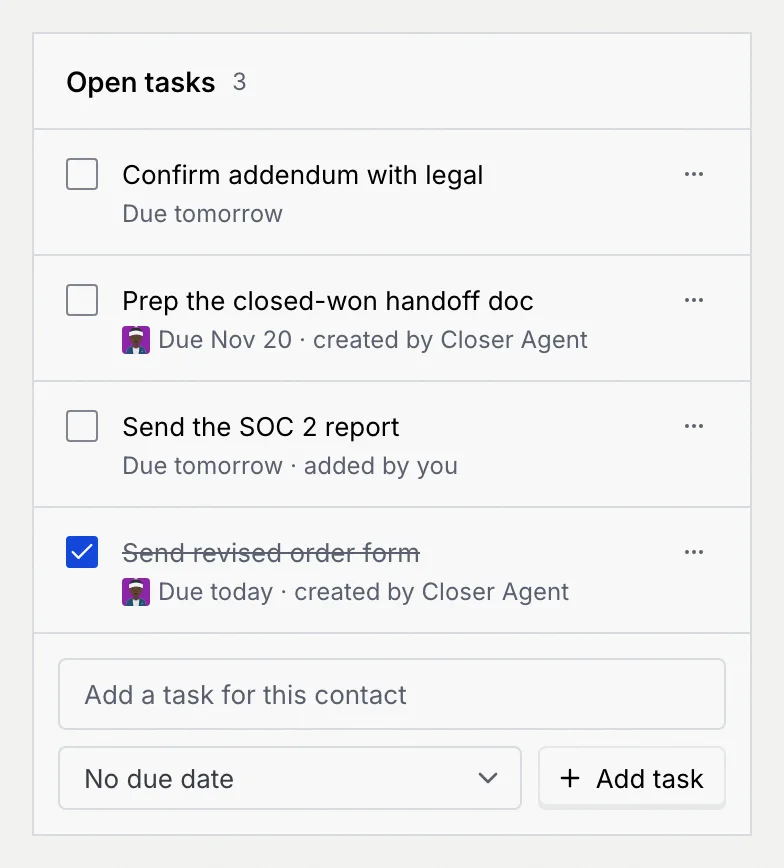
The Open tasks panel beside the tabs holds what needs doing for this contact. Agents create tasks from what they read in conversations; you and your teammates add your own.
Add a task
Under the task list, type the task in Add a task for this contact (up to 140 characters), pick when it's due (No due date, Today, Tomorrow, This week or Next week) and click Add task.
Complete a task
Tick its box. A done task is struck through and moves to the bottom, and the panel's count only includes open tasks. Untick it to reopen it.
Delete a task
Open the task's ⋯ menu, click Delete task and confirm. The notice offers Undo.
Each task says when it's due and who created it, such as Due today · created by Closer Agent or added by you. With no tasks, the panel says No open tasks.
Upload and remove files
Open the Files tab
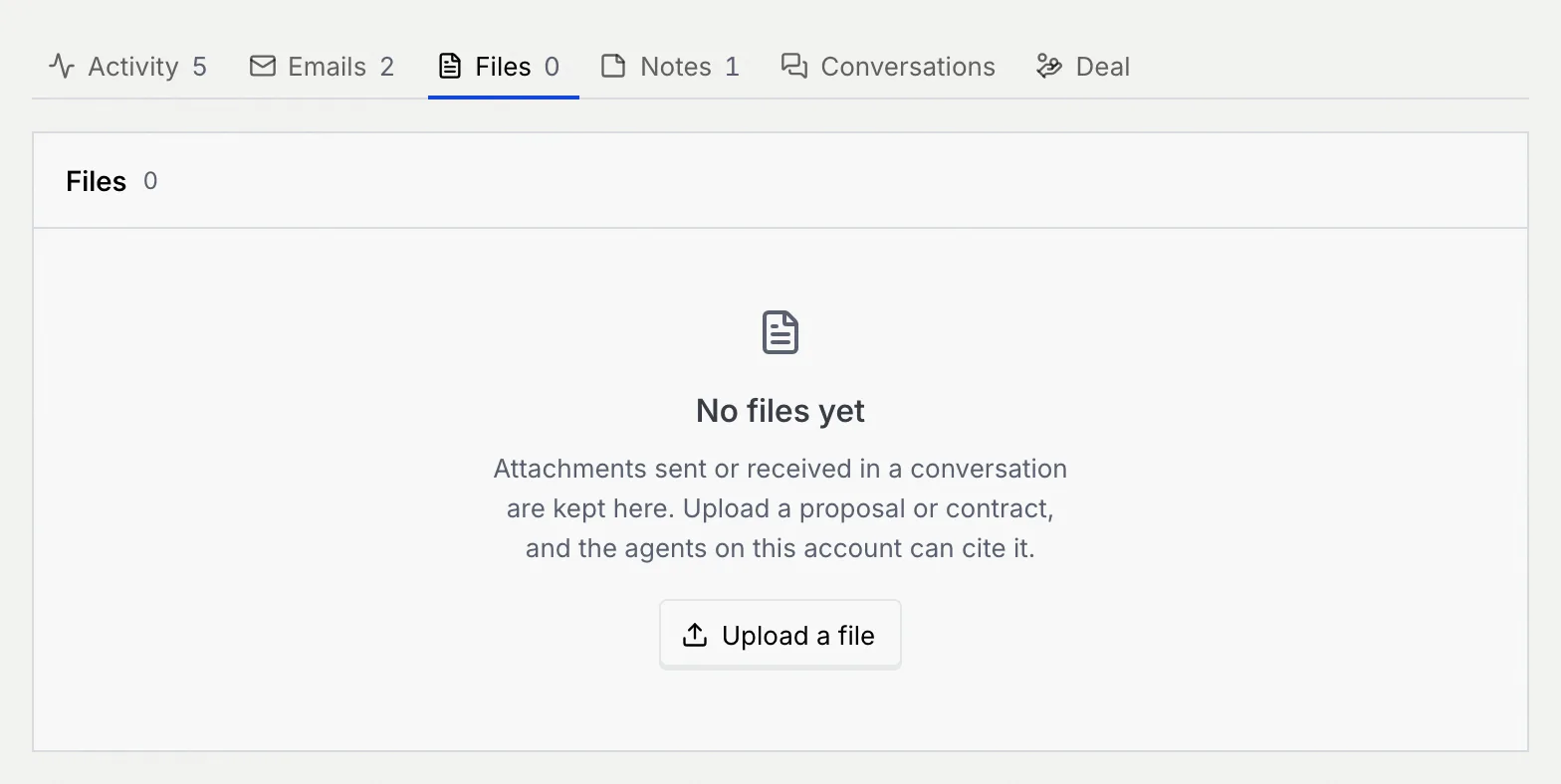
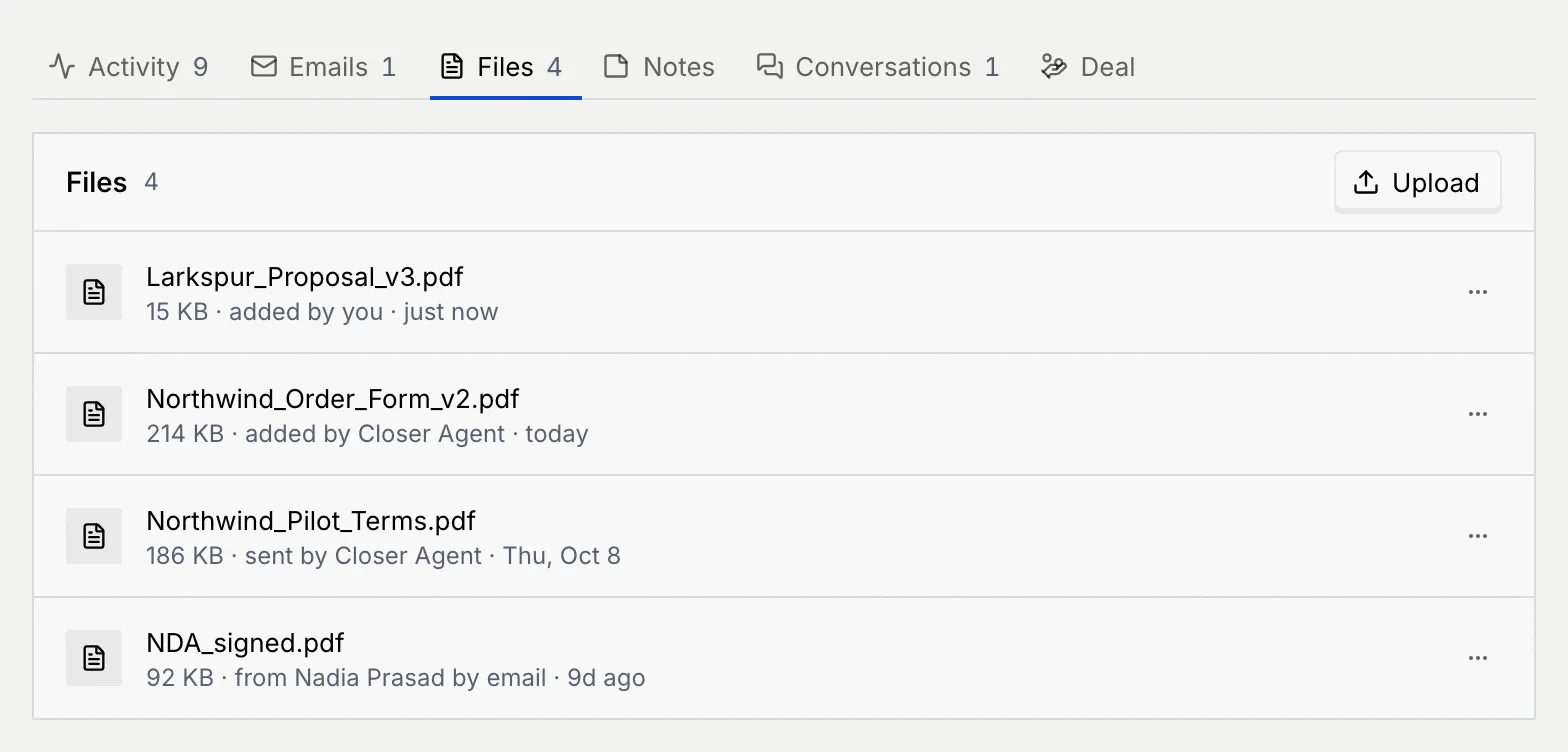
On the record, click Files. It lists attachments sent or received in the contact's conversations and files your team uploaded, each with its size, who added it and when.
Upload
Click Upload (or Upload a file when the tab is empty) and choose one or more files, up to 25 MB each. Agents on this account can read and cite them, so it's a good place for proposals and contracts.
Remove a file
Open the file's ⋯ menu, click Remove file and confirm. It leaves the record, and agents on this account stop citing it. The notice offers Undo.
Troubleshooting
Log activity needs at least a few words of notes. Write what happened and what comes next.
Shorten the notes, or log the rest as a second entry.
Files can be up to 25 MB each. Other files you chose at the same time are still added. Compress the file or split it, then upload again.
Your role can't edit contacts. Hover the button to see why, and ask an owner or admin to change your role.
Next steps
Deals, stages and owners
Set a deal's owner, stage, value and close date, move it through the pipeline, and see what Closed won changes.
Channel identities and duplicates
Keep one record per person across every channel by linking their handles, choosing the primary one and merging duplicates agents find.