Knowledge sources
Choose the documents an agent answers from, add and sync sources, turn them off, and require a citation for every claim.
Knowledge sources are the documents an agent cites when it states a fact: your pricing sheets, security answers, product docs and playbooks, uploaded as files or written as answers in Mokanata. Sources are shared across the workspace, and each agent answers only from the ones turned on for it.
Coming soon
Linked sources aren't available yet: Mokanata can't read a website, Notion, Google Drive, Confluence or Zendesk yet, so adding one or syncing one says website crawling isn't available yet. Upload files (such as a PDF) or write answers instead.
- Who can use it: Everyone can see an agent's sources. Adding, syncing, turning off and removing sources, and changing the citation setting, need permission to edit agents (owners and admins by default). Without it, the switches are read-only and Add source and Sync now are disabled. See Roles and permissions.
- Before you start: To add a new source, have the file at hand (PDF, Word, text, Markdown, CSV, JSON or HTML).
Read the sources
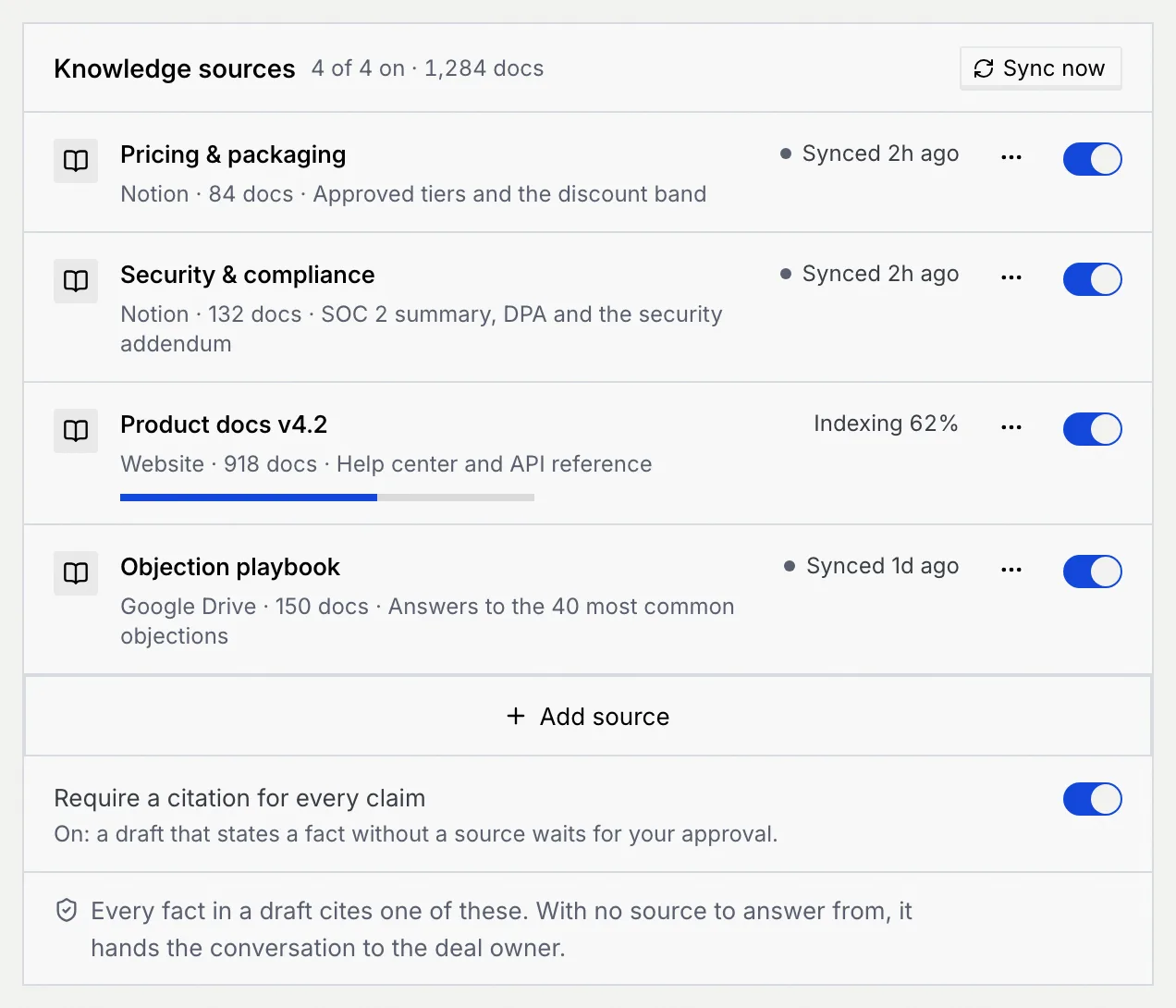
On the agent's page, click the Knowledge tab. The panel title shows how many sources are on and how many documents they hold, such as "4 of 4 on · 1,284 docs". Each source shows where it lives, how many documents it has, what it covers and its state:
| State | What it means |
|---|---|
| Synced with a time | Up to date as of that time. |
| Indexing with a percentage and a bar | Being read. Drafts use what's ready so far. |
| Stale with an age | Not synced for a long time. Sync it so drafts don't cite old documents. |
| Syncing | A sync is running now. |

Add a source
Open Add source
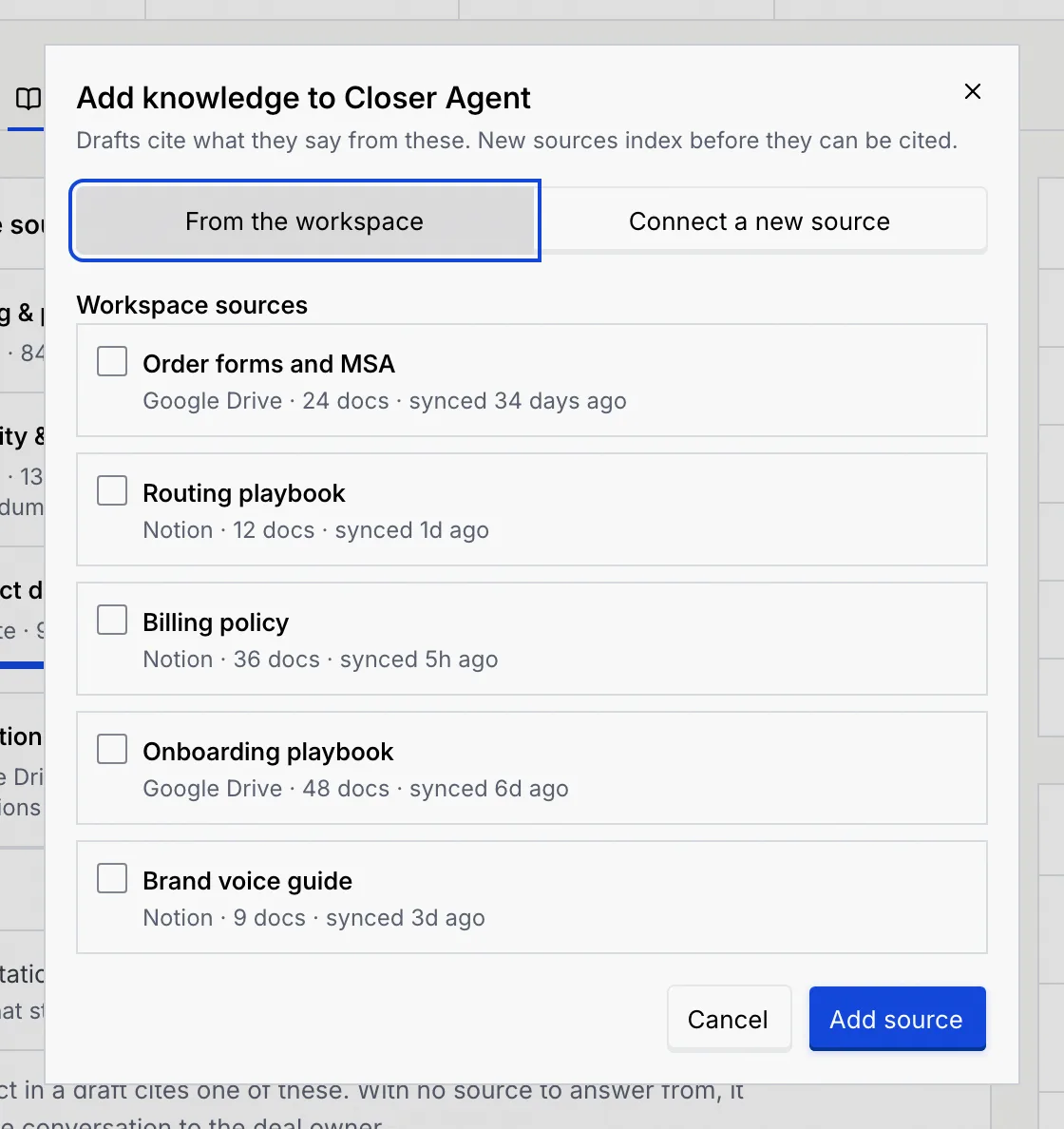
Click Add source under the list. A dialog named after the agent opens, for example Add knowledge to Closer Agent.
Pick from the workspace
With From the workspace selected, tick the sources other agents already use. Each shows where it lives, how many documents it has and when it last synced. Click Add source (or Add 2 sources, and so on).
If the agent already answers from every workspace source, the dialog says so: connect a new one instead.
Or connect a new source
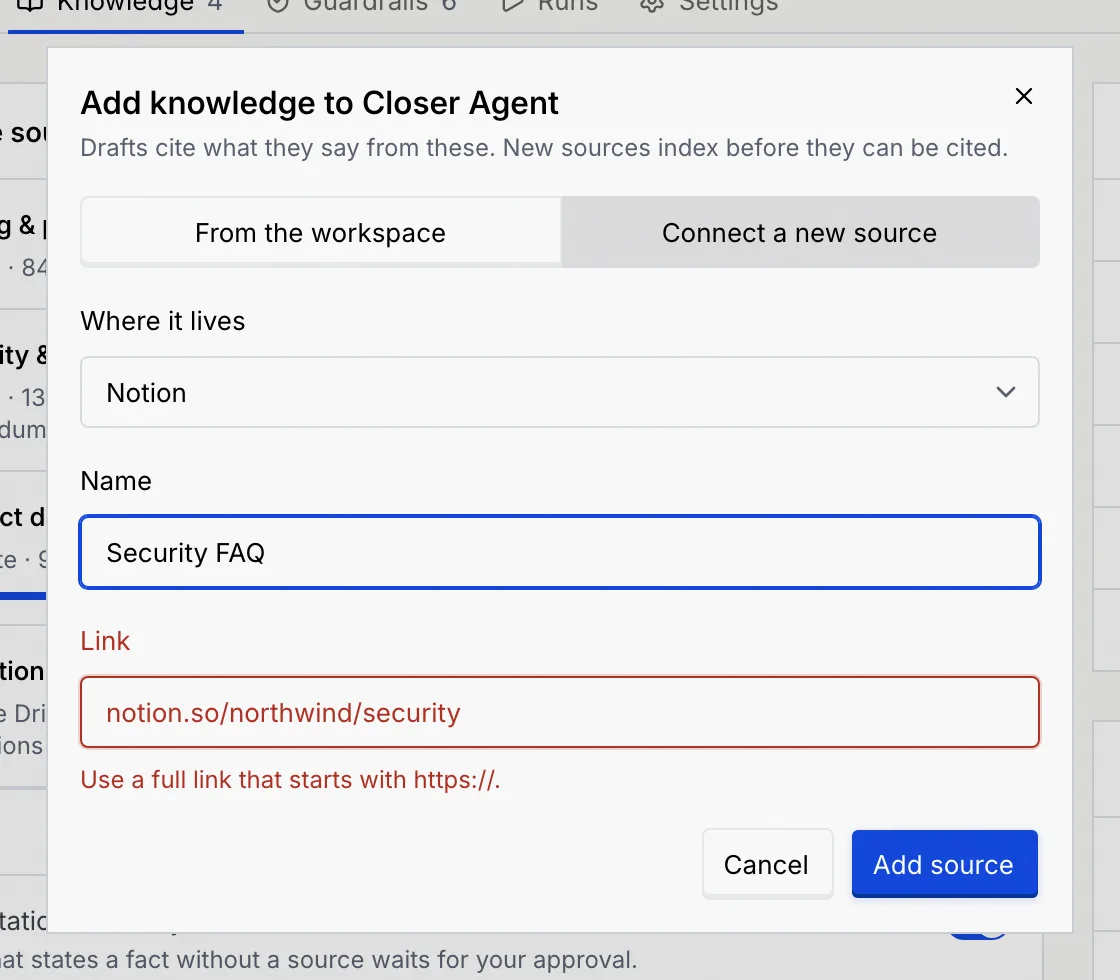
Click Connect a new source, then fill in:
- Where it lives: a file you upload, or an answer you write. Notion, Google Drive, Website and Confluence links are coming soon.
- Name: what your team calls it, such as "Security FAQ" (up to 60 characters, unique in the workspace).
- Link (for a linked source, once those are available): the full link to the page, folder or site, starting with
https://.
If the link doesn't start with https://, the Link field says "Use a full link that starts with https://." and the source isn't added until you fix it.
Click Add source. The new source shows Indexing 0% and the agent can cite it once indexing finishes.
Turn a source off or on
Turn off the switch on a source's row to stop the agent citing it. New drafts won't cite it, and nothing else changes: the source stays in the workspace and other agents keep using it. Turn it back on and new drafts can cite it right away. A message confirms each change, with Undo.
Sync sources
Syncing re-reads a linked source, so it comes with linked sources: coming soon. Files and written answers have nothing to re-read; to change one, upload or write it again.
- Click Sync now at the top of the panel to sync every source of this agent.
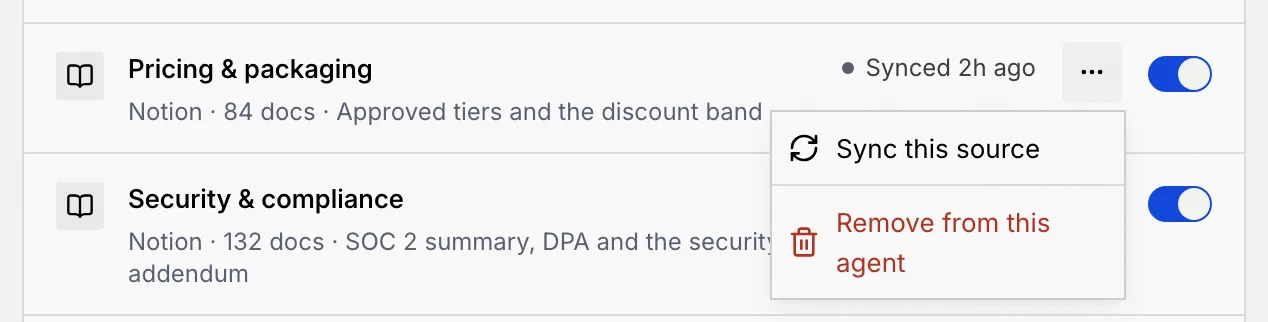
- Or click ⋯ on a source, then Sync this source.
A message such as 3 sources synced confirms it, and names any source that's still indexing: it keeps going, and drafts use what's ready.
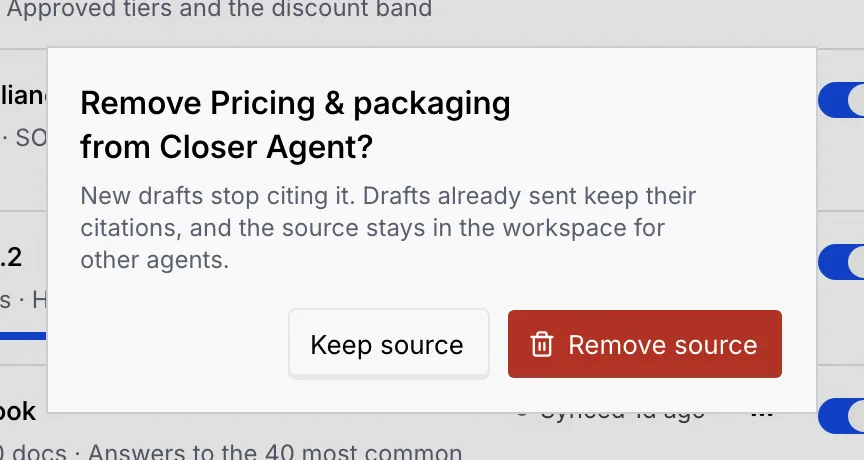
Remove a source from the agent
Confirm
New drafts stop citing it. Drafts already sent keep their citations, and the source stays in the workspace for other agents. Click Remove source, or Keep source to cancel. The message that follows has Undo.
Require a citation for every claim
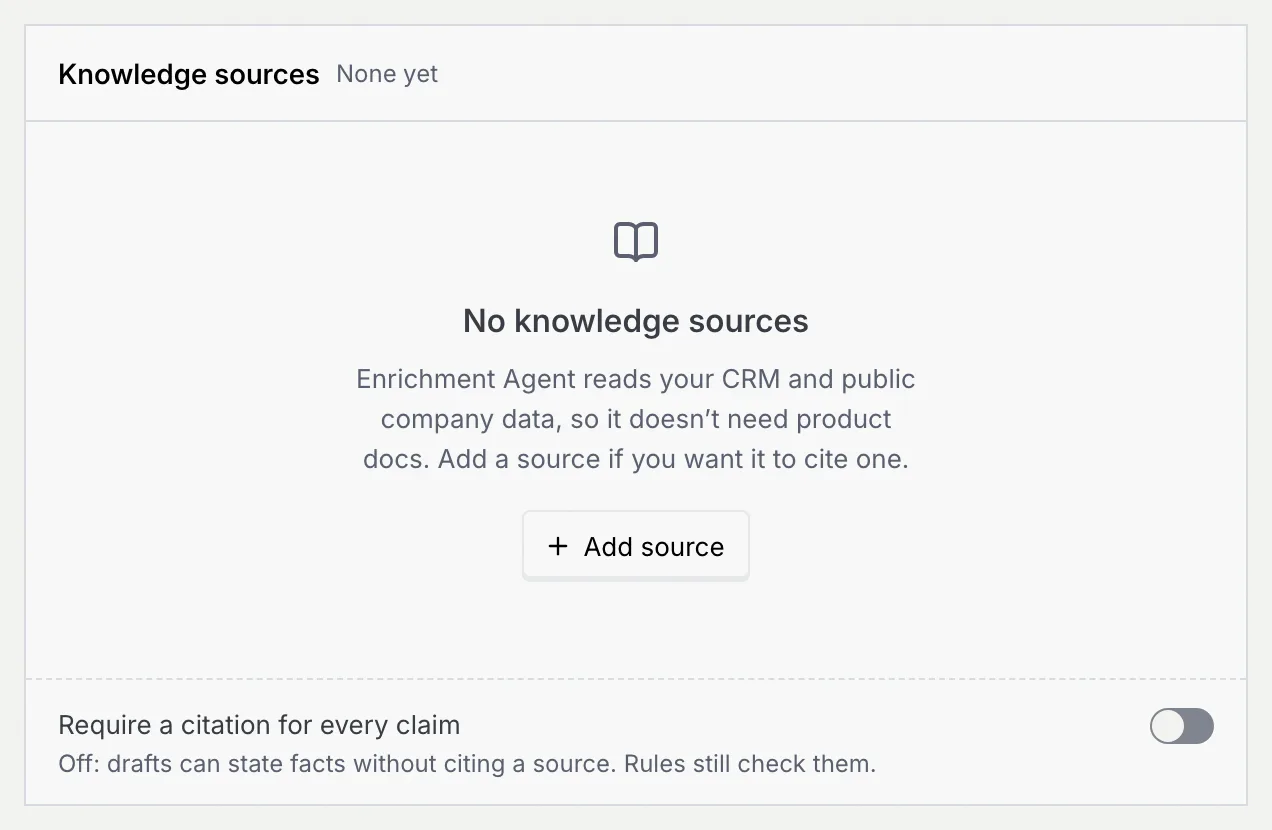
The Require a citation for every claim switch at the bottom of the panel decides what happens when a draft states a fact without a source:
- On: the draft waits for your approval. Every fact in a draft cites one of the sources, and with no source to answer from, the agent hands the conversation to the deal owner.
- Off: drafts can state facts without citing a source. Guardrails still check them.
To hold drafts for other reasons, see Guardrails and rules.
An agent with no sources
An agent without sources shows No knowledge sources, with a note on why that may be fine (for example, an enrichment agent reads your CRM and public company data, so it doesn't need product docs). Click Add source to give it one.
Troubleshooting
Click ⋯ on it, then Sync this source. If it keeps going stale, check the workspace's connection to where it lives.
The sync didn't finish. Click Try again in the message.
Source names are unique in the workspace. Pick it from From the workspace instead, or give the new one another name.