Edit a flow as code
Read, edit, copy and download a flow as YAML, apply your edits to the draft and fix problems line by line.
The Code view shows the whole flow as a YAML file: every step, its block, its settings, its paths and conditions, and the guardrail rules it checks. It's handy for reviewing a flow at a glance, making many changes at once, copying a flow's steps into another one, or keeping a copy outside Mokanata.
- Who can use it: Owners and admins can edit and apply code. Members and viewers can open the Code view to read, copy and download it, but the editor is read-only and there's no Apply. See Roles and permissions.
- Before you start: Open the flow in the builder. See Flow builder basics.
Open the Code view
Click Code (the </> icon) in the builder's top bar. The flow appears as a file named after it, such as pricing-follow-up.flow.yaml, with line numbers. Blocks is hidden while you're in Code, and the side panel shows Reference and the Assistant.
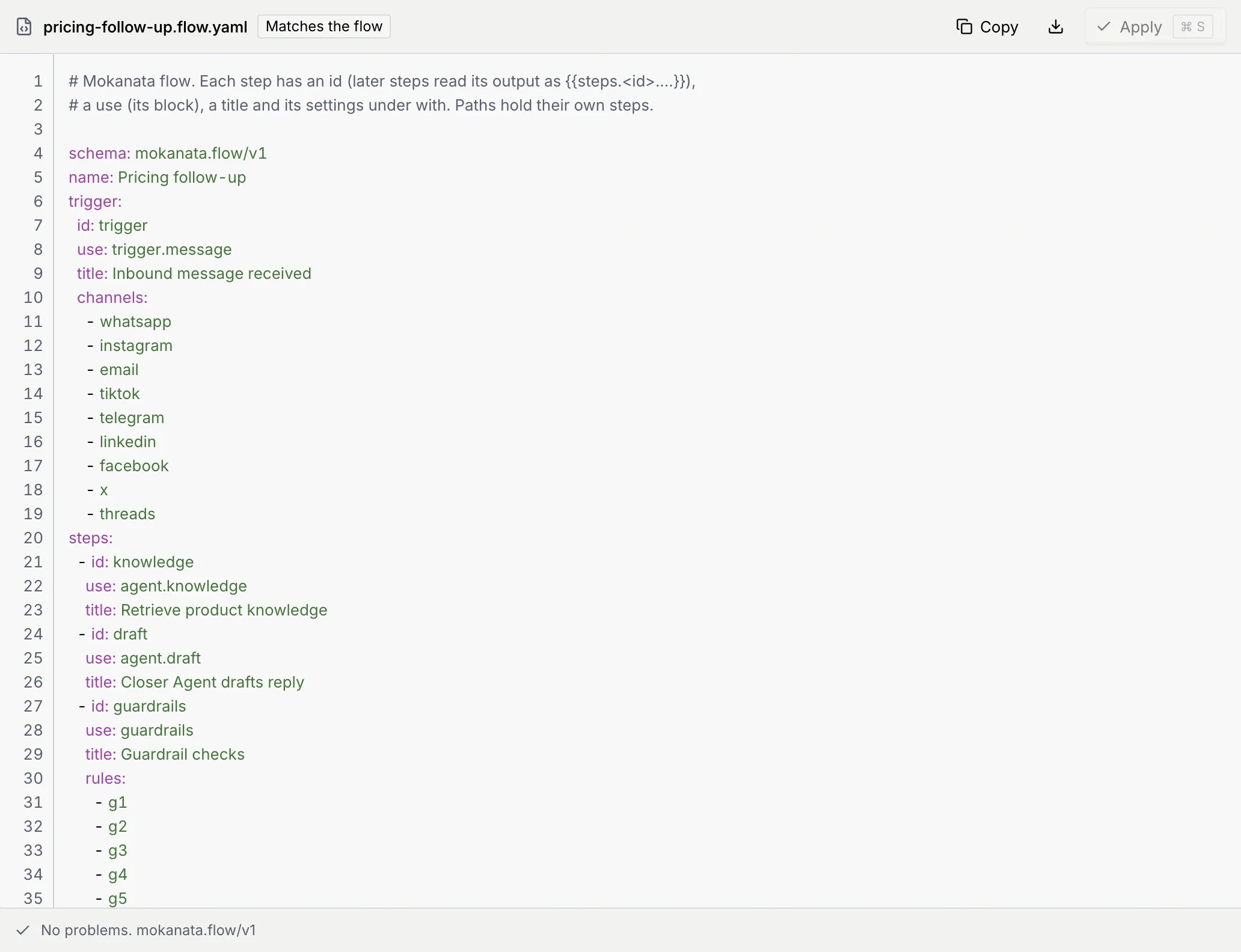
The badge next to the file name says where the code stands:
| Badge | What it means |
|---|---|
| Matches the flow | The code is the flow as it is. |
| Not applied | You've edited the code, and the flow doesn't have those edits yet. |
| 1 problem, 2 problems … | The code has problems that stop it from applying. |
While code edits are waiting, the Code button in the view switch shows a dot ("Code · edits not applied yet"), even from the Canvas or List view.
How the file is laid out
schema: mokanata.flow/v1
name: Pricing follow-up
trigger:
  id: trigger
  use: trigger.message
  title: Inbound message received
steps:
  - id: draft
    use: agent.draft
    title: Closer Agent drafts reply
  - id: big_deal
    use: logic.branch
    title: If the deal is over 5000
    paths:
      - name: Big deal
        when:
          all:
            - deal.value greater-than 5000
        steps:
          - id: notify_owner
            use: message.notify
            title: Tell the deal owner
            with:
              notifyWho: owner
              message: "{{contact.name}} has a big deal"
      - name: Otherwise
steps: []| Key | What it holds |
|---|---|
id | The step's reference name. Later steps read its outputs as {{steps.<id>.…}}. |
use | The block, such as ai.classify, logic.wait or app.google-sheets. The Reference tab lists every one. |
title | The step's name on the canvas. |
with | The step's settings. |
paths | An If / else or Switch's paths, each with a name, its when conditions and its own steps. The last path, with no when, is the fallback. |
when | all: or any:, then one check per line: the variable, the operator, then the value, such as contact.stage not-equals closed-won. |
rules | On a guardrail step, the rules it checks; at the end of the file, each rule's title and whether it's on. |
knowledge | Whether citations are required and which knowledge sources are on. |
Operators are equals, not-equals, contains, not-contains, starts-with, one-of, greater-than, less-than, is-empty, is-not-empty, is-true and is-false. You can also write ==, !=, > and <.
Edit and apply
Edit the YAML
Click in the editor and type. Tab indents. To leave the editor with the keyboard, press Esc, then Tab. As soon as the code differs from the flow, the badge says Not applied and Discard edits appears.
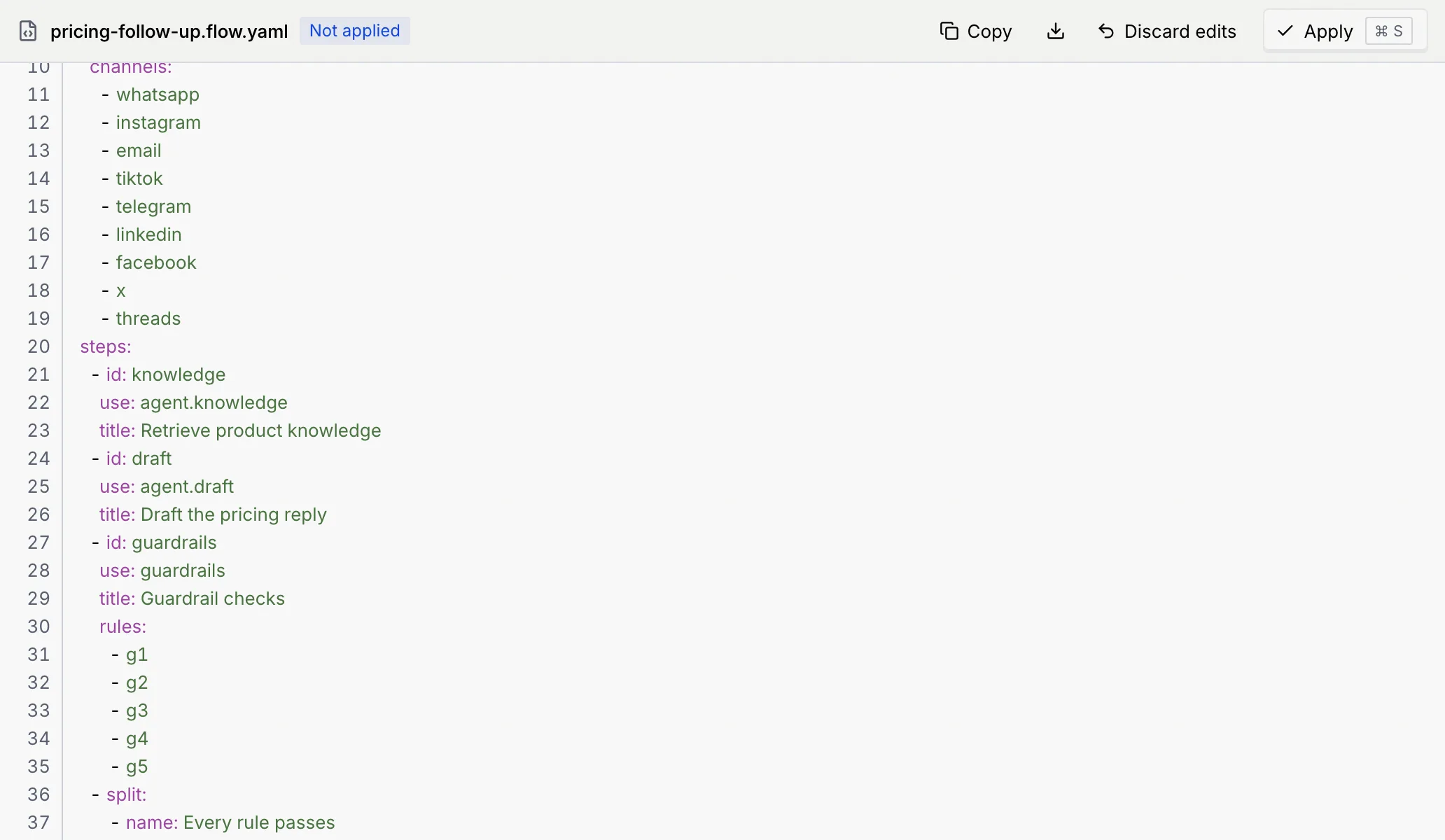
Apply it
Click Apply or press ⌘ S or ⌘ Enter (Ctrl on Windows and Linux). Switching to the Canvas or List view applies it too. A toast says what changed, such as "Edited 1 step. Publish to make it live." Its Undo puts the flow back as it was.
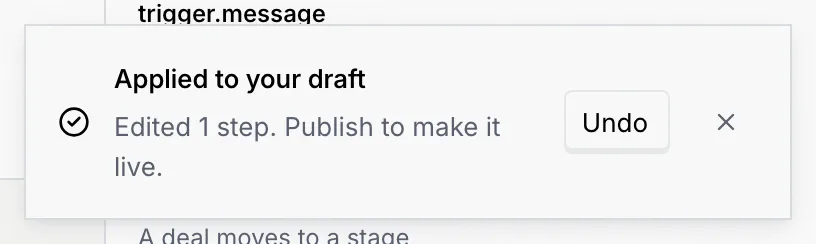
Applying changes your draft, not the live flow. Publish to make it live. If nothing changed, the toast says "Nothing to change".
To throw your edits away instead, click Discard edits. The code goes back to the flow as it is, and the toast's Undo brings your edits back.
Renaming a flow
On a new flow, name sets the flow's name. On a flow that's already been published, changing name isn't applied, and the Problems list shows a warning on that line.
Fix problems
The Problems bar under the editor counts what's wrong: how many problems stop the code from applying, how many must be fixed before publishing, and how many warnings there are. Each line says where (Line 25) and what, such as "agent.drafts isn't a block. See Reference for every use value." Click a problem to jump to its line. Hide and Show fold the list.
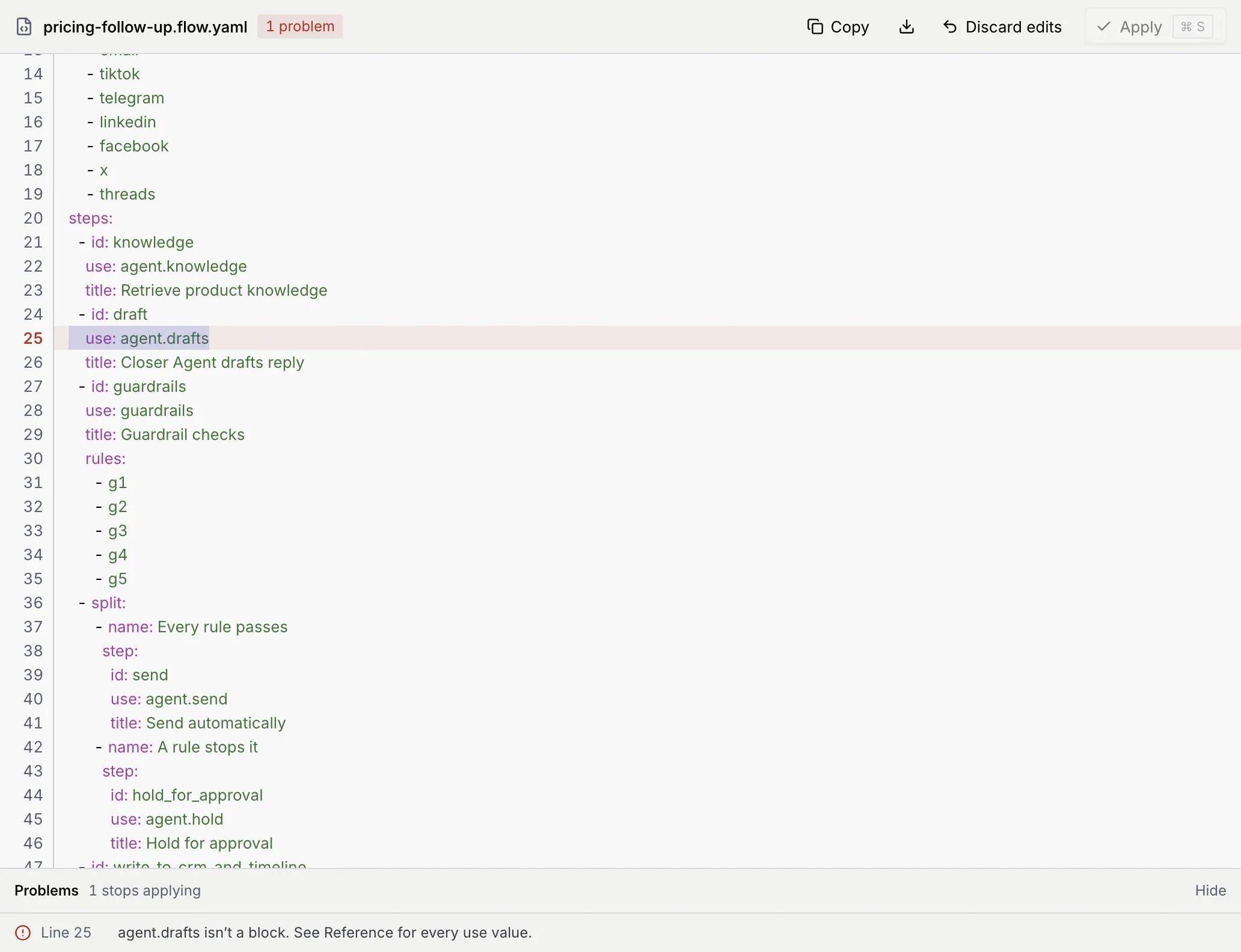
| Kind | What happens |
|---|---|
| Stops applying | The YAML can't become a flow (a typo in a use, a setting that doesn't exist, a condition that doesn't parse). Apply is off until you fix it. |
| To fix before publishing | The code applies, but the flow can't publish yet, for example a send without a guardrail. The same checks as publishing. |
| Warning | Worth a look, but nothing is stopped. |
With no problems, the bar says "No problems. mokanata.flow/v1".
If you switch views while the code has problems, your edits aren't applied: a toast says so, and they wait in Code until you fix or discard them. If the flow changes while your code edits are waiting (for example, you apply a suggestion from the assistant), a banner says The flow changed after you started editing: applying replaces the flow with your code, and Discard edits shows the flow as it is now.
You can't publish while code edits are waiting: Publish says "Apply or discard your code edits first" and takes you to the Code view.
Look up blocks and settings
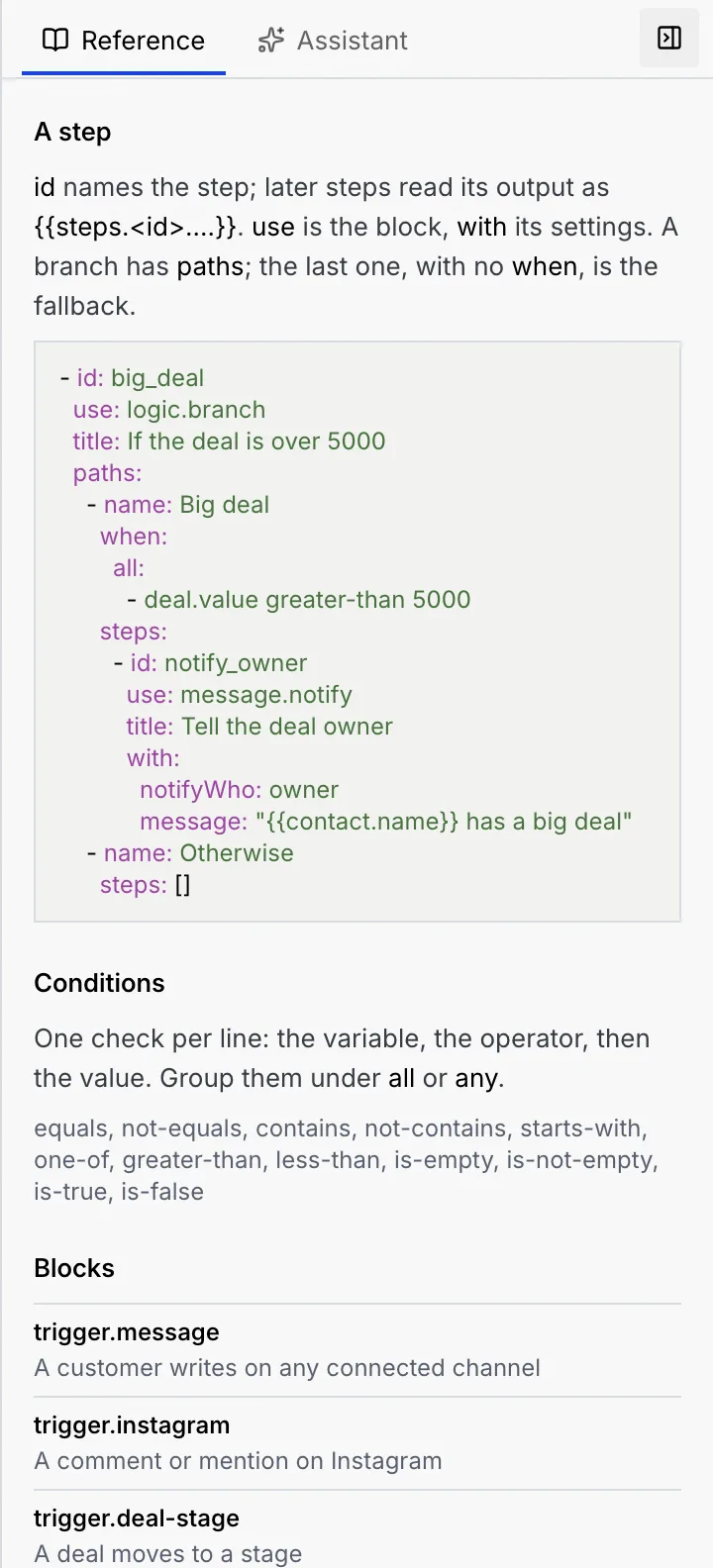
In the Code view, the side panel's Reference tab explains the file: A step (an example with a branch), Conditions (how checks are written and every operator) and Blocks (every use value with a one-line description).
Copy or download the flow
Click Copy to copy the whole file ("Copied"), or the download icon to save it as a .flow.yaml file, for a review or a backup outside Mokanata.
Next steps
Apps and webhooks in flows
Connect apps and APIs, set up outgoing destinations flows post to (incoming webhooks that start flows are coming soon), without leaving the flow builder.
The flow assistant
Describe a change to a flow in plain words, review the steps the assistant proposes, then apply them to your draft or open them in Code.