Apps and webhooks in flows
Connect apps and APIs, set up outgoing destinations flows post to (incoming webhooks that start flows are coming soon), without leaving the flow builder.
Flows reach outside Mokanata through Integrations: connected apps and APIs (n8n, Google Sheets, HubSpot, Stripe, your own API) and outgoing destinations a flow posts data to. Incoming webhooks that start a flow are Coming soon. You manage them from the flow builder, and every flow in the workspace can use them. Credentials stay with the connection, never in a flow.
- Who can use it: Anyone who can open the builder can see what's connected and whether it works. Connecting, testing and removing apps, and creating, testing or deleting outgoing destinations, need the Connect and remove apps permission, which owners and admins have by default. See If your role can't change integrations.
- Before you start: For an app, have its account, API key or token ready. The same integrations also appear on the Setup page; see Integrations: connect apps.
Open Integrations
In the flow builder, click Integrations (the plug icon) in the top bar. You can also click Manage next to Integrations in Flow details, next to Apps in Blocks, or Manage webhooks in a Send webhook step's settings.
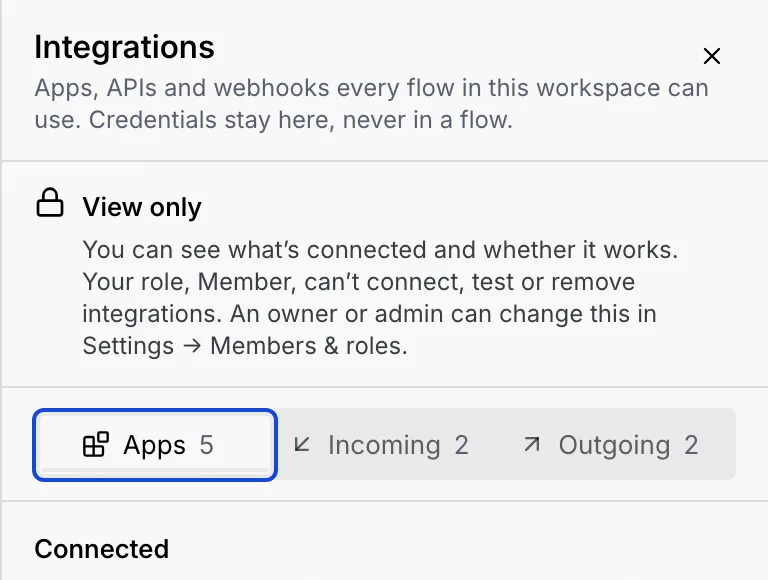
The Integrations sheet has three tabs, each with a count: Apps, Incoming (coming soon, see below) and Outgoing.
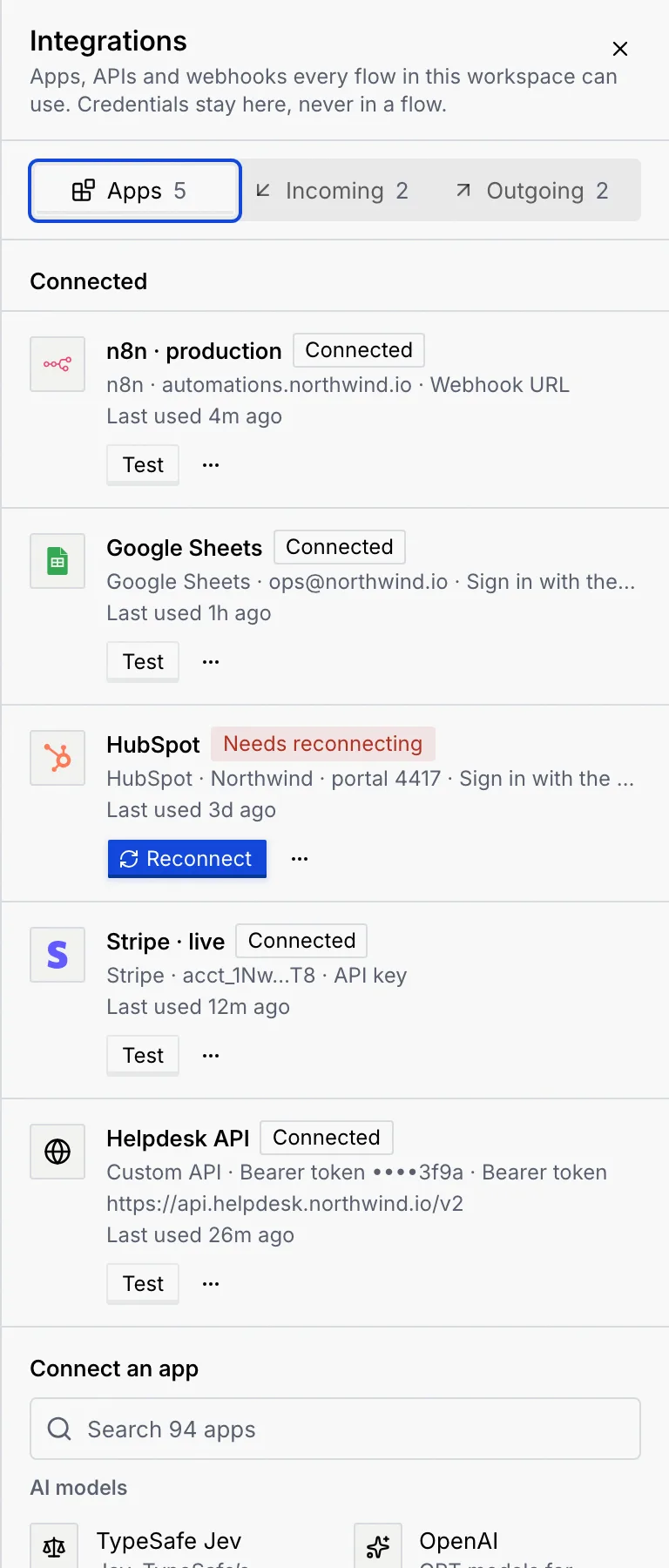
Connect an app
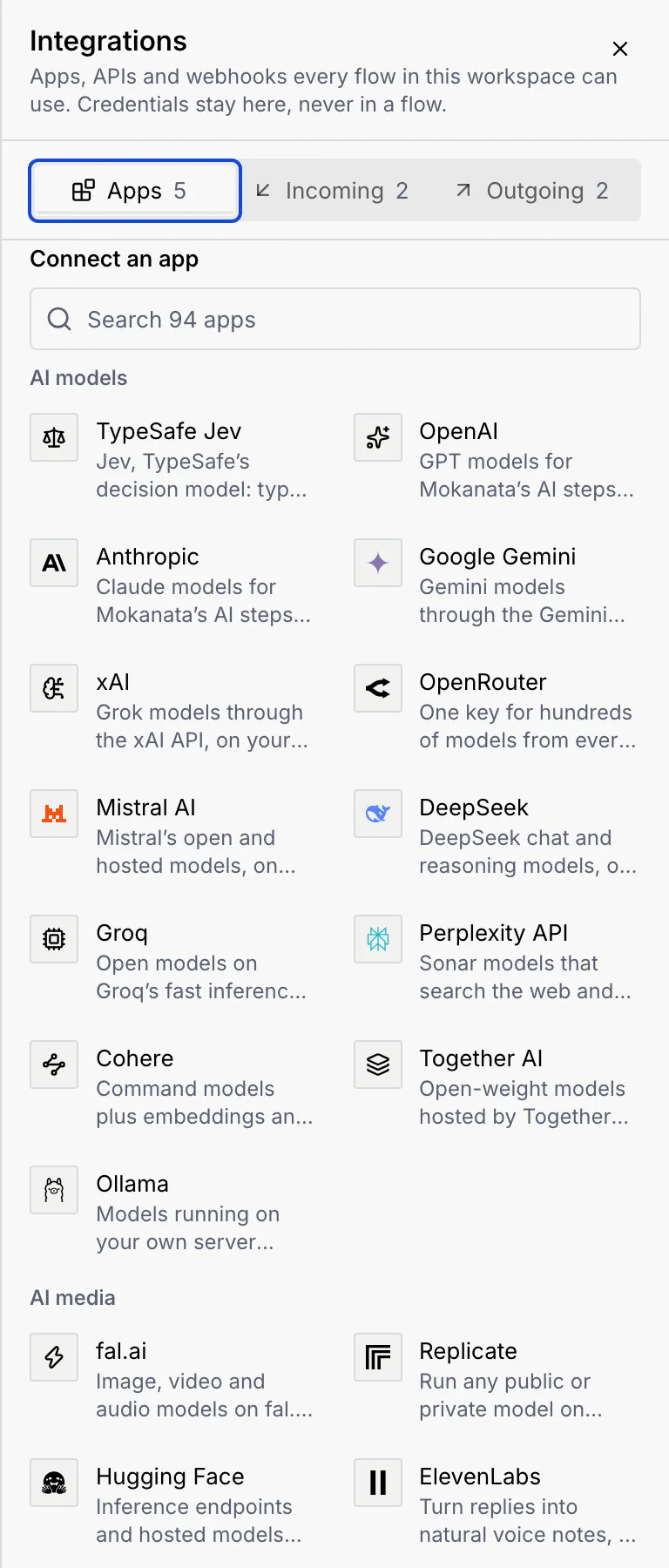
Find the app
On the Apps tab, scroll to Connect an app. Type in Search 94 apps or browse the categories: AI models, AI media, Web data, Analytics & marketing, Automation, Spreadsheets & docs, Email & calendar, Team & projects, CRM, Payments & commerce, Shipping & logistics, Accounting and Developer. Apps you've already connected say how many connections they have, such as "· 1 connected".
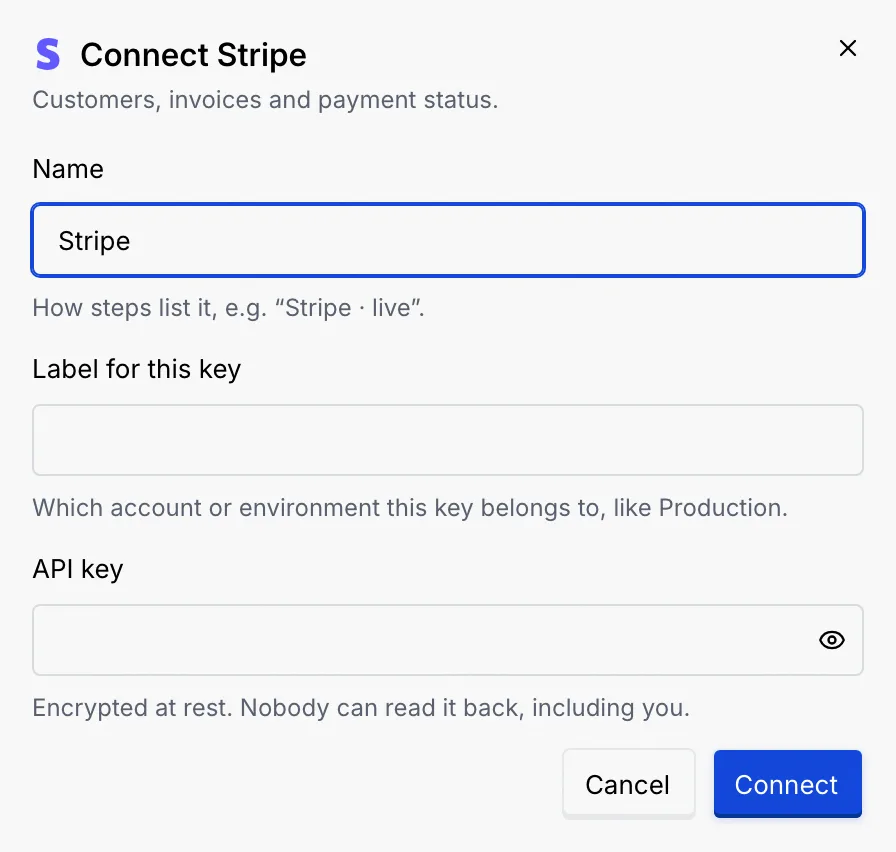
Fill in the connection
Click the app. The Connect dialog asks for what that app needs:
| Field | What to enter |
|---|---|
| Name | How steps list it, such as "Stripe · live". Useful when you connect the same app twice. |
| Account email, Username, Instance or workspace or Label for this key | Which account or environment this is, such as Production. The label depends on how the app signs in. |
| A URL, such as Webhook URL | For apps you reach at your own address (n8n, Zapier, Make, a custom API). Enter the full address. |
| API key, Bearer token or Password | The secret. It's encrypted at rest, and nobody can read it back, including you. |
For AI model providers, the dialog notes that Mokanata's AI steps can run on your key instead of Mokanata's, billed to your account with that provider.
Connect
Click Connect. For apps you sign in to (such as Google Sheets or HubSpot), the button says Continue with the app: it opens the app so you can approve access, and Mokanata asks only for what its steps use. When it works, a toast says the app is connected and that every flow can use it now. If it doesn't, the dialog says It didn't connect with the reason, and the button becomes Try again.
The new connection appears under Connected, and the app appears in the Apps group of Blocks. See Apps.
Check, reconnect or remove a connection
Each connection under Connected shows its status, the app and account, how it signs in, its base URL if it has one, and when a flow last used it.
| Status or action | What it means |
|---|---|
| Connected | It works. |
| Needs reconnecting | Its sign-in expired. Steps that use it fail until you click Reconnect and sign in again. |
| Test | Checks the credentials. The toast says the connection works, or that it didn't answer, in which case reconnect it. |
| … › Remove | Asks "Remove the connection?" first. Flows that use it show a problem until you pick another connection. The toast's Undo brings it back. |
Start a flow from a webhook
Coming soon
Starting a flow from an incoming webhook isn't available yet. Flows don't run on the server yet, and the webhook address doesn't exist yet, so the Incoming tab and the Webhook received trigger can't start anything. Outgoing destinations, below, are built.
Post data to another app
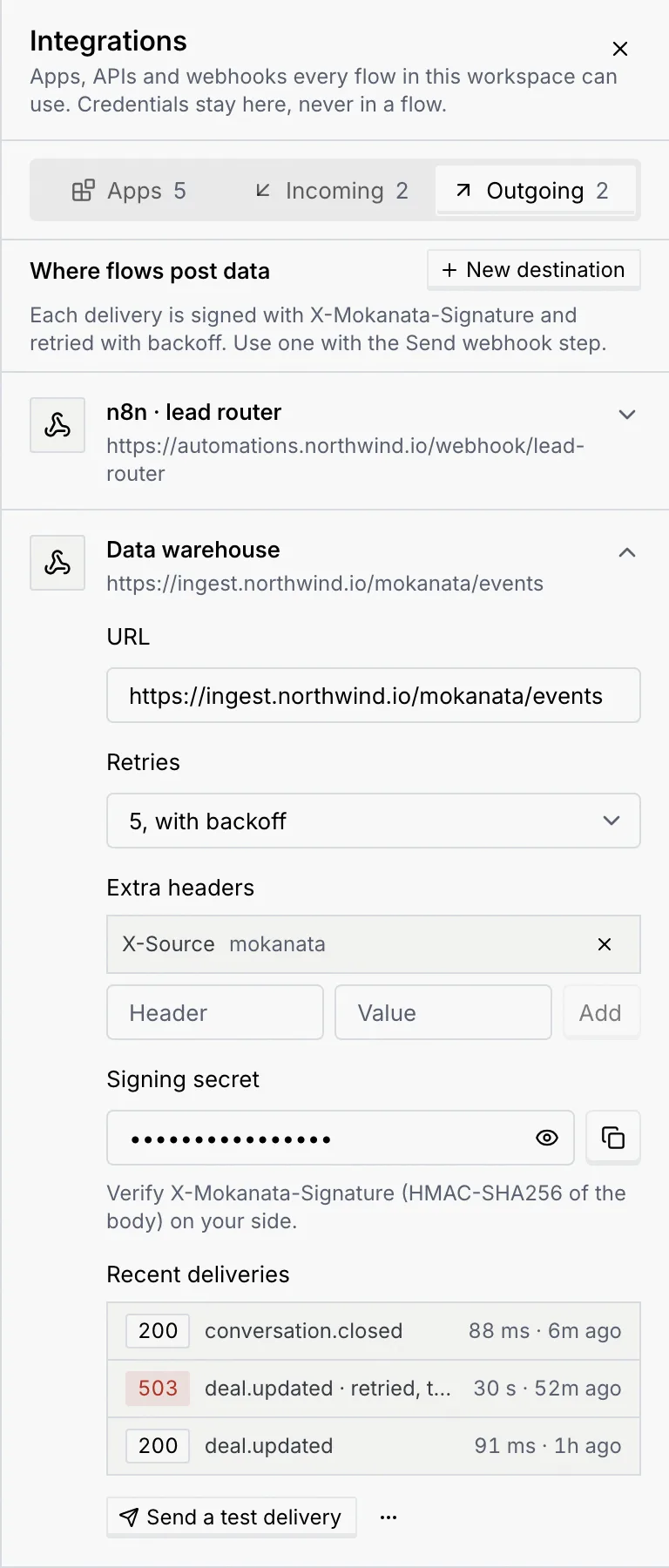
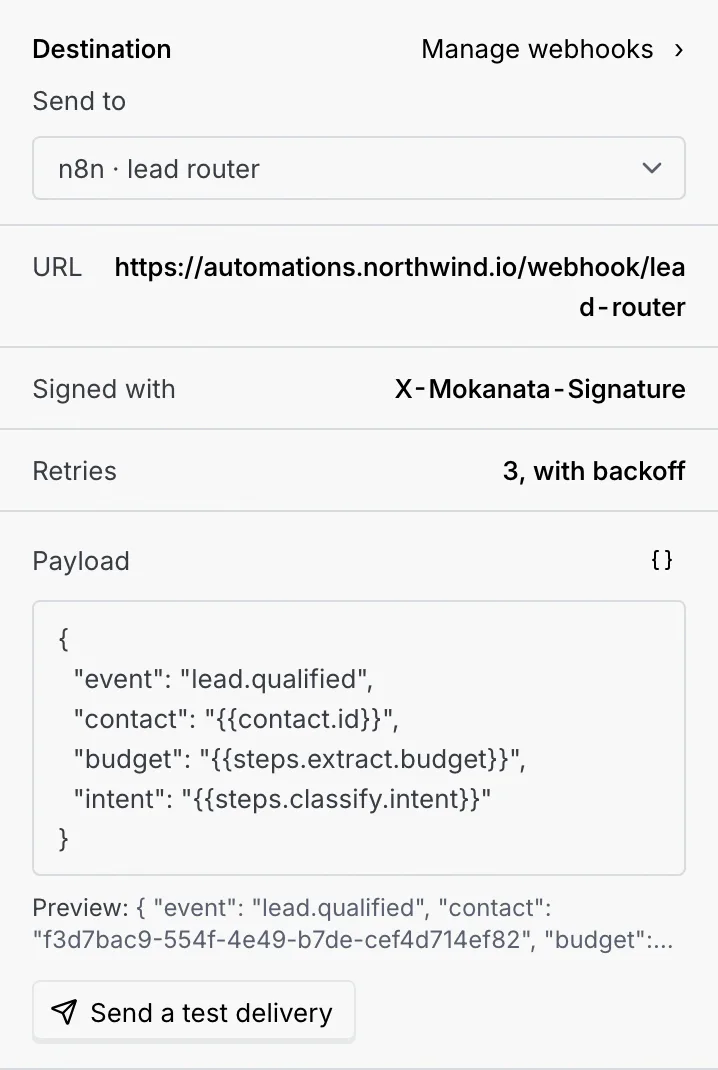
An outgoing destination is an address flows post data to with the Send webhook step. Every delivery is signed with X-Mokanata-Signature and retried with backoff.
Add a destination
On the Outgoing tab ("Where flows post data"), click New destination. Enter a Name, such as "Make · order sync", and the URL (a full https:// address), then click Add destination.
Set retries and headers
Click the destination to open it:
| Setting | What it does |
|---|---|
| URL | Where deliveries go. |
| Retries | Don't retry, or 1, 3, 5 or 8 tries with backoff when a delivery fails. |
| Extra headers | Headers sent with every delivery, such as an API key the other app expects. Type a Header name and a Value, then click Add. Adding a header that's already there replaces its value; remove one with its X. |
| Signing secret | Verify X-Mokanata-Signature (an HMAC-SHA256 of the body) on your side with this secret. |
| Recent deliveries | The last deliveries with their status code, event, time taken and when. |
Test it
Click Send a test delivery. The toast says whether the destination answered 200 OK or rejected the test. A destination whose last delivery failed shows Failing.
Use it in a flow
Add a Send webhook step, pick the destination in Send to and write the Payload in JSON, with variables from the run. Send a test delivery in the step tries it too.
To delete a destination, use … › Delete on it. Flows stop posting to it, and Send webhook steps that use it show a problem.
Call an API from a step
To call an API that isn't in the app catalogue, connect it as a custom API on the Apps tab (with its base URL and a bearer token, API key or password), then add an HTTP request step and choose the connection in Authentication. See Integrations in the Blocks reference.
If your role can't change integrations
Without Connect and remove apps, the sheet shows a View only notice: "You can see what's connected and whether it works. Your role, Member, can't connect, test or remove integrations. An owner or admin can change this in Settings → Members & roles." Statuses, URLs and recent calls stay readable; Test, Reconnect, the apps in the catalogue, New destination and the test buttons are off, and secrets are hidden.
Troubleshooting
The connection needs reconnecting. Open Integrations, find it under Connected (it says Needs reconnecting) and click Reconnect.
A step uses a destination or connection that was deleted or removed. Open the step and pick another one, or create one in Integrations.
"… is already set. Use that spelling to change its value." means the header exists with different capitals; type it the same way to replace its value. "… are the same header. Remove one." means two headers differ only in capitals.