Test, publish and version a flow
Run a flow's draft on a sample message, fix what stops it from publishing, publish a new version, and restore or discard versions.
A flow has a draft, which you edit, and published versions, which live runs use. Test the draft on a sample message to see what each step would do, publish it when it's right, and use the version history to go back if you need to.
- Who can use it: Test runs need the Test agents permission (owners, admins and members by default). Publishing needs Edit agents and Deploy and pause agents (owners and admins). Restoring and discarding versions needs Edit agents. Viewers can open the version history but not change anything. See Roles and permissions.
- Before you start: Open the flow in the builder. See Flow builder basics.
Test the draft
A test runs the draft as it is now, unpublished changes included. Nothing is sent, no records change, and apps and webhooks aren't called.
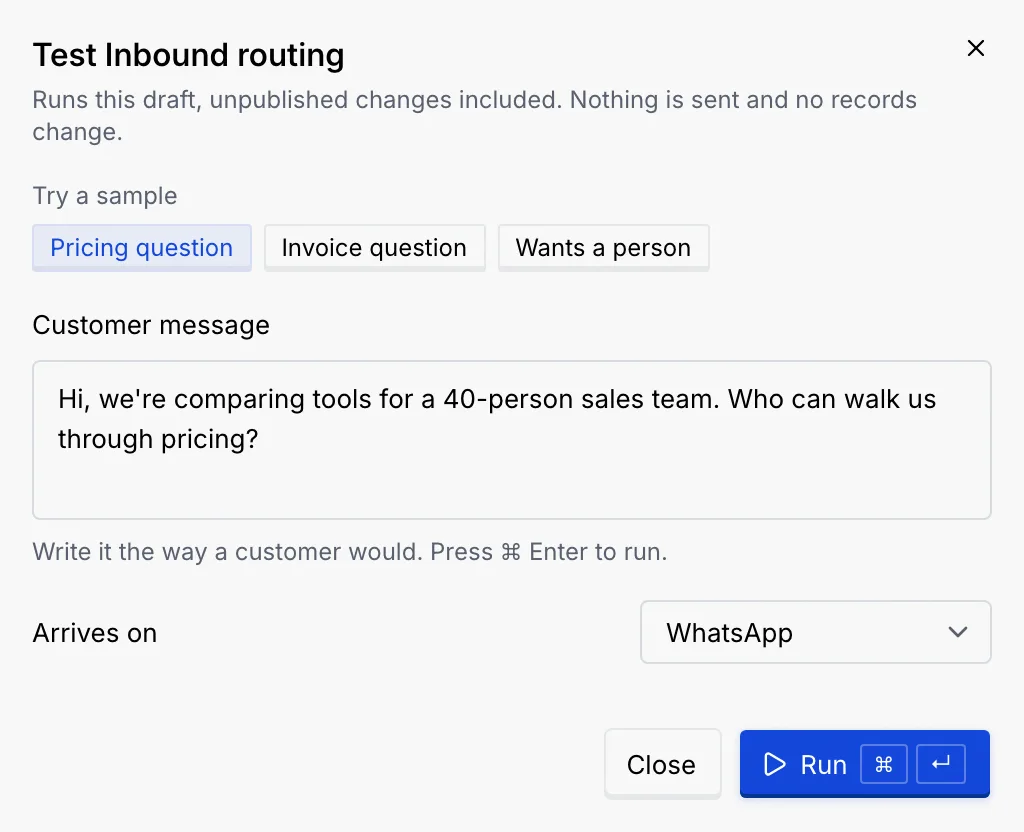
Choose a message
Click a sample under Try a sample (it runs straight away), or write your own in Customer message the way a customer would. Choose the channel it Arrives on.
Run it
Click Run or press ⌘ Enter (Ctrl Enter on Windows and Linux). The result shows the customer's message, the agent's draft with how long it took and how confident it was, the outcome, which sources it cited and, for flows that check drafts, Rules checked.
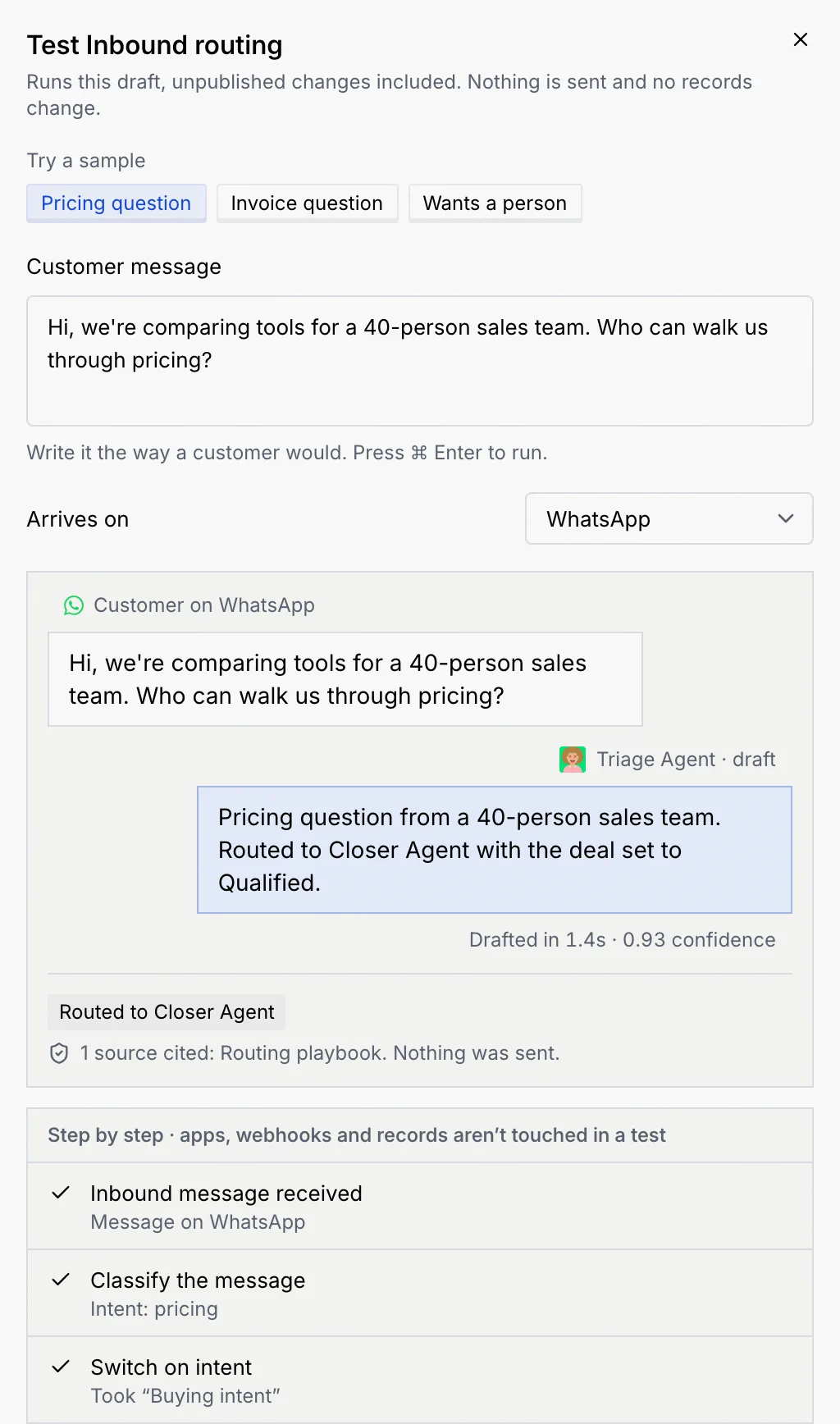
Read it step by step
Under the result, Step by step lists every step of the flow and what it did with this message. Steps on a path are indented under their condition.
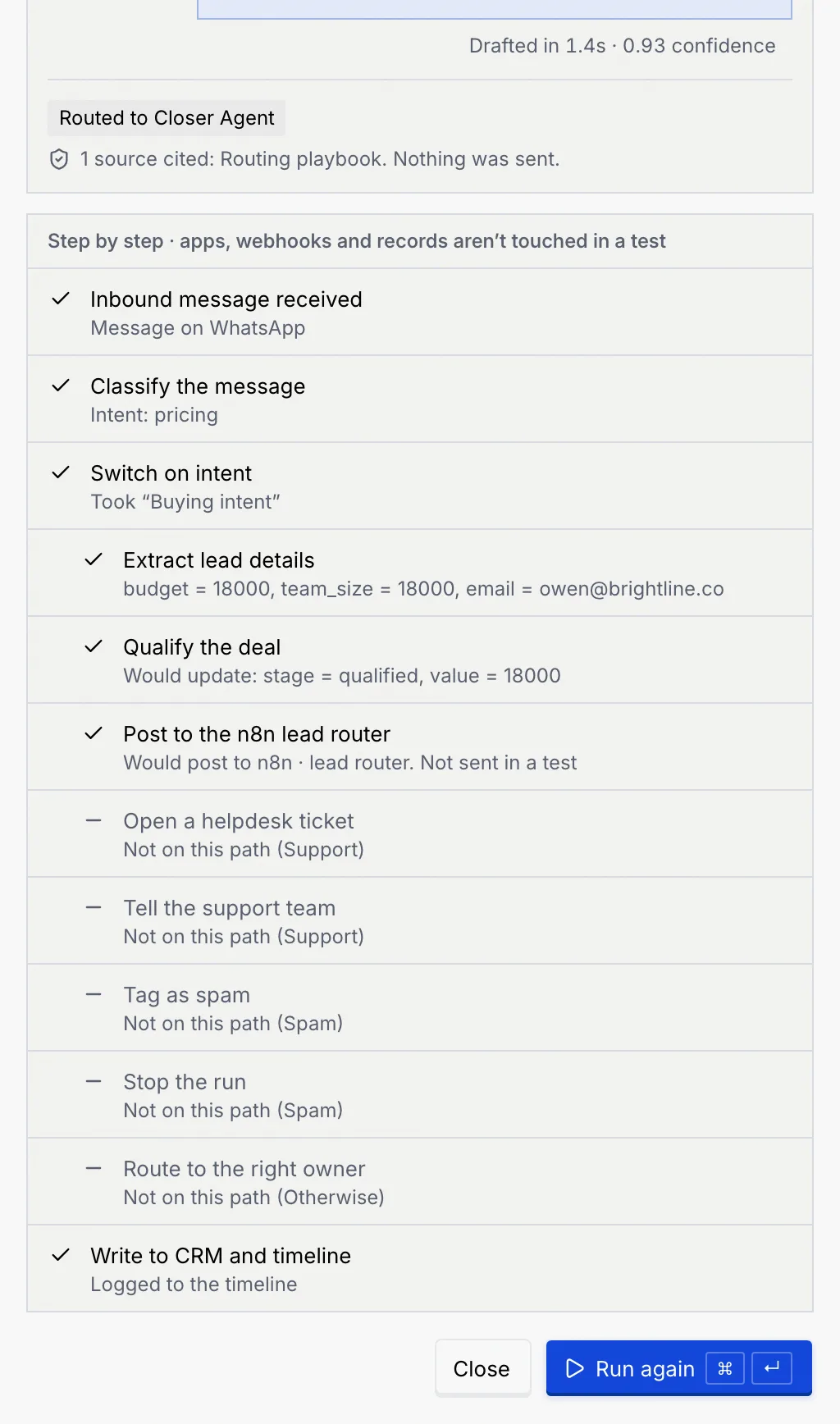
Click Run again to try another message, or Close. The dialog remembers your last message and result while you work.
What the steps say
| Mark | State | Examples |
|---|---|---|
| Check mark | Passed | "Intent: pricing", "Took “Buying intent”", "Would update: stage = qualified", "Would call POST … Not called in a test", "Would post to n8n · lead router. Not sent in a test" |
| Hand | Held | A rule held the draft for approval, or a Filter stopped the run ("Didn't match, so the run stops here"). |
| Cross (red) | Failed | A guardrail rule failed, with the rule and why. |
| Dash | Skipped | "Not on this path (Support)", "Not reached: a rule stopped the draft", "Turned off" |
What the outcome says
The outcome badge sums up what would have happened, given the agent's autonomy level:
| Outcome | What it means |
|---|---|
| Would send on its own: every check passed | An autonomous agent would have sent the reply. |
| Ready, waits for your approval | The agent is on Approval, so the reply would wait in the approval queue. |
| Drafted in shadow: nothing sends | The agent is in shadow, so nothing would be sent. |
| Held for approval, Handed to the deal owner, Blocked by a hard limit | A guardrail rule stopped the draft; the rule's name follows. |
| Drafted and handed to a person, as designed | The flow ends with a handoff, not a send. |
| Drafted. This flow has no send step yet. | The flow drafts but never sends. |
If the flow sends without a guardrail, the result notes "Nothing in this flow checks the draft before it sends." For the rule results, see Test an agent.
Publish the flow
Click Publish
Click Publish in the top bar, or press P. If the flow has problems, a banner lists them instead; see Fix what stops publishing. If you have unapplied edits in the Code view, apply or discard them first.
Confirm the version
The dialog Publish version 13? (the next version number) says what happens and sums up what changed since the last version, such as "Turned citations on". Warnings that don't stop publishing are listed too.
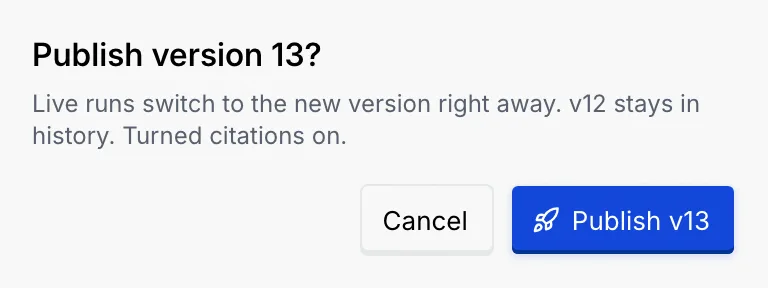
Publish
Click Publish v13. A toast confirms it, and the Unpublished changes badge goes away. If publishing fails, the dialog says It didn't publish with the reason, and the button becomes Try again.
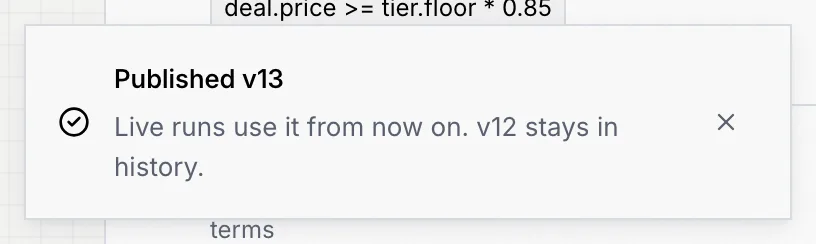
What happens when you publish depends on the flow:
| Flow | What publishing does |
|---|---|
| A live flow | Live runs switch to the new version right away. The previous version stays in history. |
| A new flow | It goes live for the agent right away and starts picking up new conversations ("Discount requests is live"). The builder moves to the flow's own address. |
| A flow of an agent that hasn't been deployed yet | It's saved as the new version and goes live when you deploy the agent. See Deploy, pause and set autonomy. |
| A paused flow | It's saved as the current version; the flow stays paused until someone resumes it on the agent's Flows tab. |
Fix what stops publishing
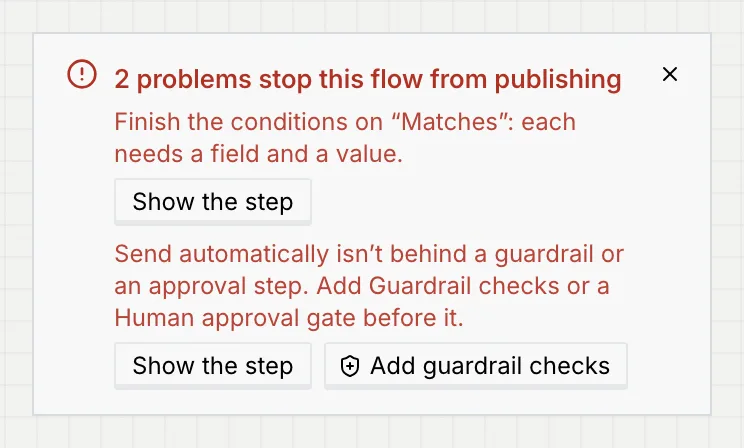
When you click Publish on a flow with problems, a red banner above the flow says how many problems stop it from publishing and lists each one, with a button to go to it: Show the step, Choose a trigger or Go to the name. Add guardrail checks adds a gate before the send in one click. Close the banner with its X. Each problem also shows at the top of the step's settings, under Fix before publishing.
| Problem | How to fix it |
|---|---|
| Name the flow before you publish it. | Type a name in Name this flow. |
| Add a trigger. / Move the trigger to the top. | Pick a trigger from Blocks; nothing can run above it. |
| Add at least one step after the trigger. | Add a step. |
| Add a Draft reply step before … | A send needs a draft to send. Add Draft reply above it. |
| … isn't behind a guardrail or an approval step. | Click Add guardrail checks, or add Human approval gate from Blocks before the send. |
| … has no rules. / Every rule in … is off. | Add or turn on a rule in the gate's settings, or remove the gate. |
| "…" has a condition that doesn't parse. | Edit the rule. See Guardrails and rules. |
… uses {{…}}, which isn't available at this step. | Pick a variable from the { } list instead. |
| Another step is also called "…". | Give the step its own Reference name. |
| Finish the conditions on "…" | Every condition row needs a field and a value. See Conditions and paths. |
| A step is missing a setting | For example: choose the webhook or destination, map at least one field, write the prompt, choose an approved WhatsApp template, set the payment amount, enter the URL (starting with https:// or a variable), fix the JSON body, choose the flow to run, choose an app, or connect it in Integrations. |
Warnings, such as "… only warns. Nothing it checks can hold a reply.", "No knowledge sources are on, so drafts can't cite your docs." or "Every path of … is empty, so it changes nothing.", show in the publish dialog but don't stop you.
Version history
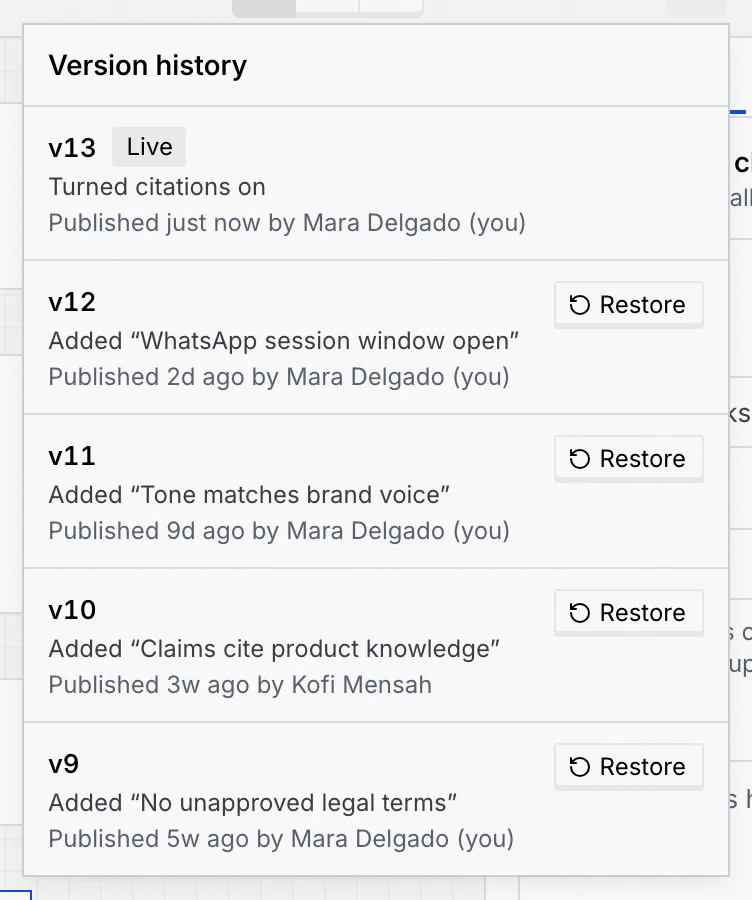
Click Version history (the clock icon) in the top bar. It lists every published version, newest first, with what changed, when and who published it. The newest is marked Live (or Current for a paused flow).
Restore an older version
Choose the version
In Version history, click Restore next to it.
Confirm
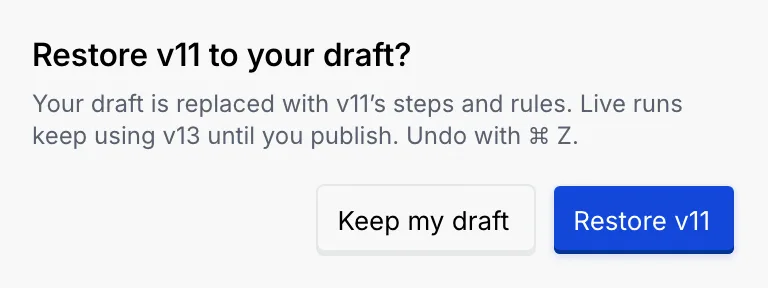
Restore v11 to your draft? explains that your draft is replaced with that version's steps and rules (including any unpublished changes you have now), and that live runs keep using the current version until you publish. Click Restore v11, or Keep my draft to cancel.
Publish it
The restored version is now your draft. Test it, then publish it to make it live again. Until then, ⌘ Z or the toast's Undo brings your previous draft back.
Discard unpublished changes
When the draft differs from the live version, Version history starts with an Unpublished changes row. Click Discard, then Discard changes to put the draft back to the published version. Undo in the toast brings the changes back.
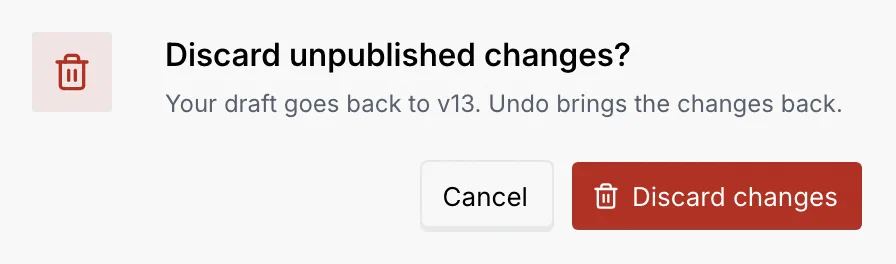
On a new flow that's never been published, the row is Unpublished draft and the button is Start over: Clear this draft? removes its name and steps (and Undo brings them back). A flow with no published versions says "Not published yet. Publishing creates v1."
Troubleshooting
Your role doesn't have Test agents. Hover over the button to see why. An owner or admin can change it in Roles and permissions.
If it's greyed out, hover over it: either nothing changed since the current version, or your role can't publish. If clicking it shows a banner, fix the problems listed. If a toast says "Apply or discard your code edits first", go to the Code view and click Apply or Discard edits.
The test couldn't complete, for example because the connection dropped. Click Try again.
That's on purpose: in a test, HTTP requests, webhooks, app steps and record changes say what they would do ("Would call …", "Not called in a test") without doing it. To check a connection, use its Test button in Integrations, or Send a test request in an HTTP request step.