Triage the approval queue
Approve, edit, reassign, snooze or discard the replies, escalations and CRM updates agents are waiting on, one by one or in bulk.
The approval queue in the Command center holds everything agents want to do but need a person for, across every channel and contact, including items that have no conversation in the inbox. Work through it from the top: each card has what you need to decide, and the keyboard takes you from one to the next.
- Who can use it: Every built-in role can read the queue. Approving, editing, reassigning, snoozing and discarding need Approve agent drafts (Owner, Admin and Member by default) and Reply or Manage access on the item's channel. Other roles see the buttons greyed out (the View only notice at the top of the Command center says why), and the card menu only opens the item. Items on channels your role doesn't work in aren't listed, and the queue says Showing the channels your role works in. See Roles and permissions.
- Before you start: Open the Command center.
Read the queue
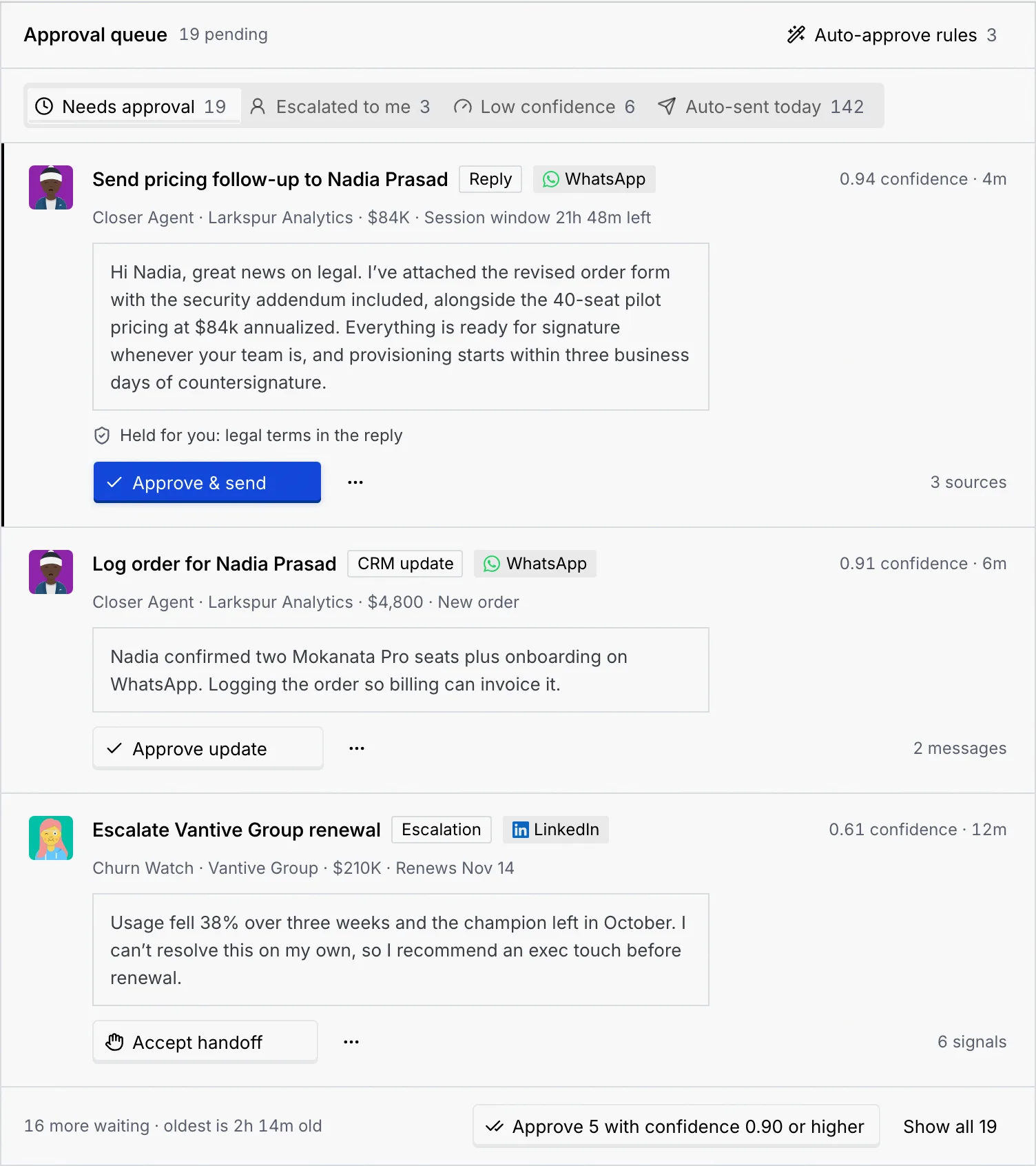
The queue shows how many items are pending, and four tabs:
| Tab | What it lists |
|---|---|
| Needs approval | Every waiting item, most urgent first. |
| Escalated to me | Conversations agents handed to a person. |
| Low confidence | Items below 0.80 confidence, escalations included. |
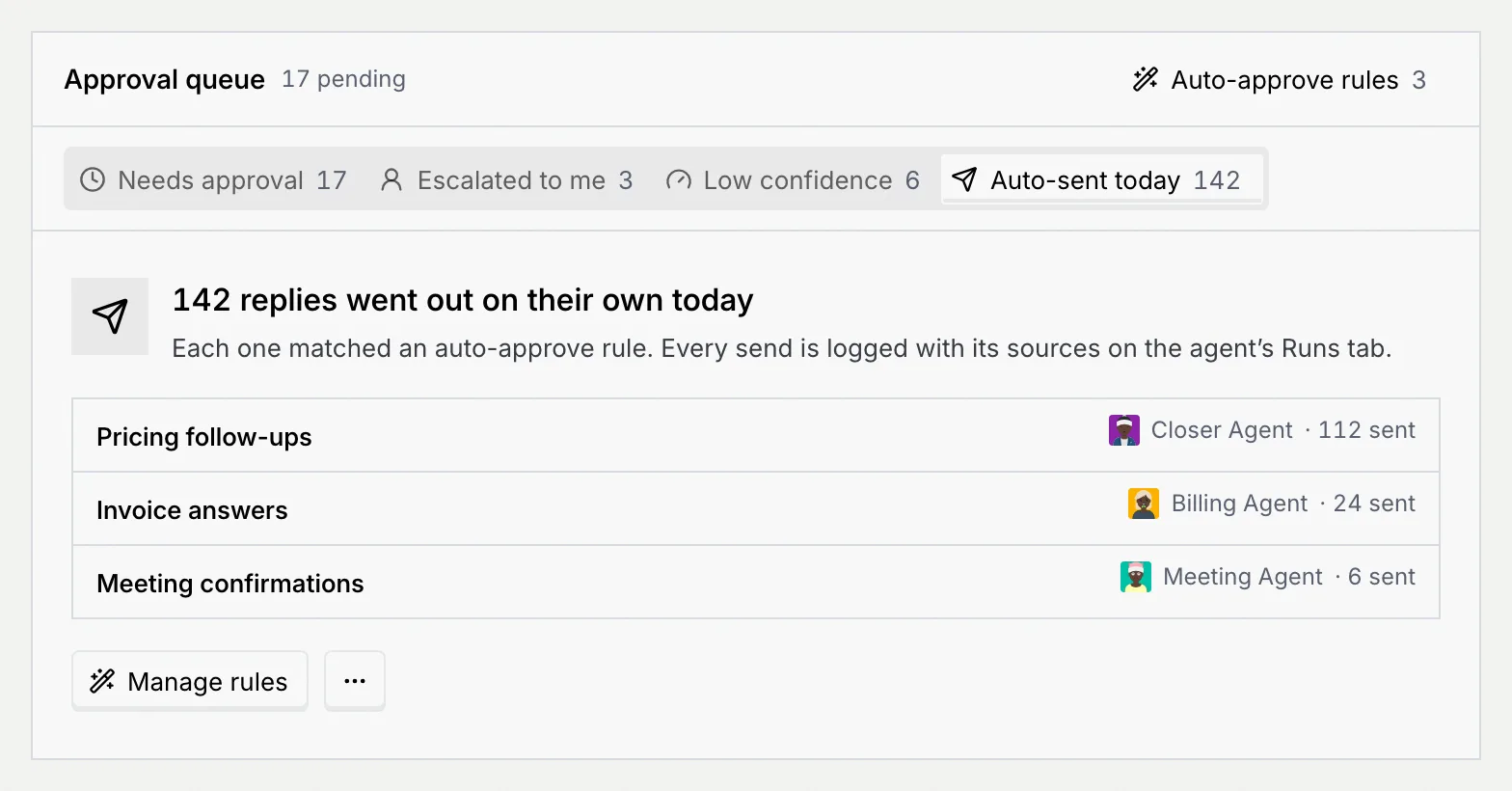
| Auto-sent today | Not a list: how many replies auto-approve rules sent today, and which rules sent them. |
The first three cards show. The footer says how many more wait and how old the oldest is; click Show all n to see them all, and Show fewer to fold them again.
Read a card
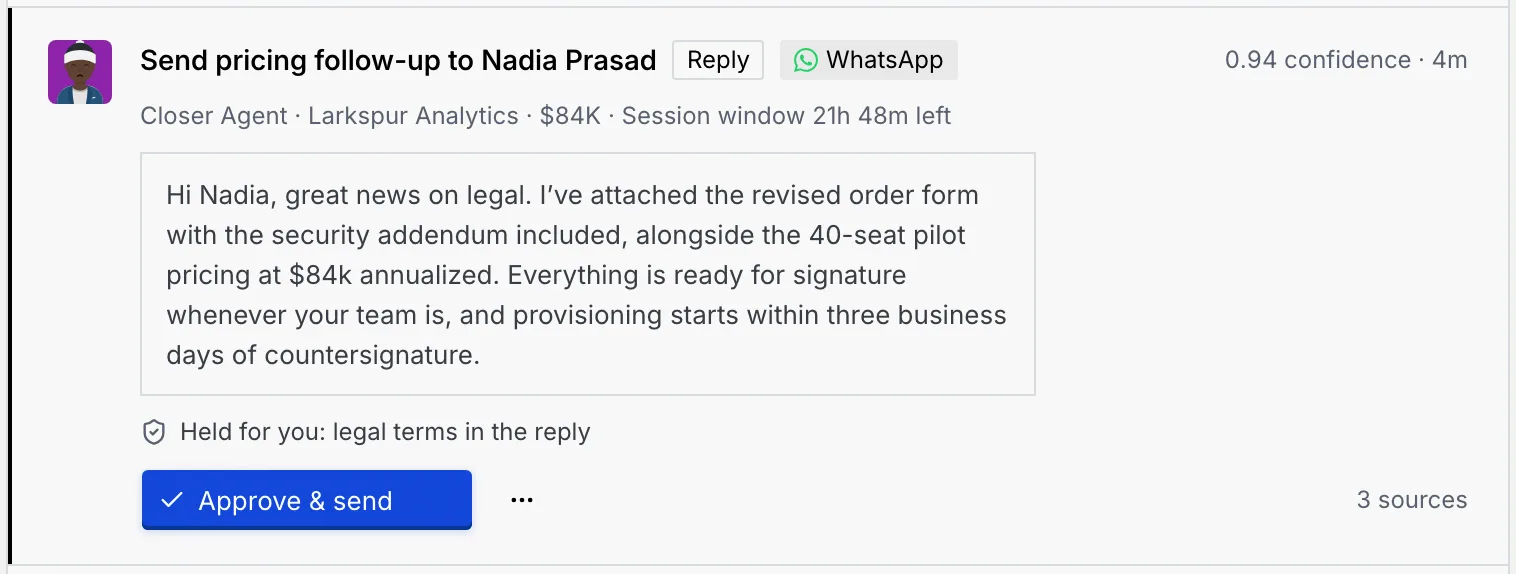
- Title, with the contact's name as a link to their record.
- Kind: Reply, Escalation or CRM update, and the channel.
- Confidence and age, for example "0.94 confidence · 4m".
- Who and what: the agent, the company, the deal's value, and details such as how long WhatsApp's session window stays open.
- The draft or the evidence, quoted.
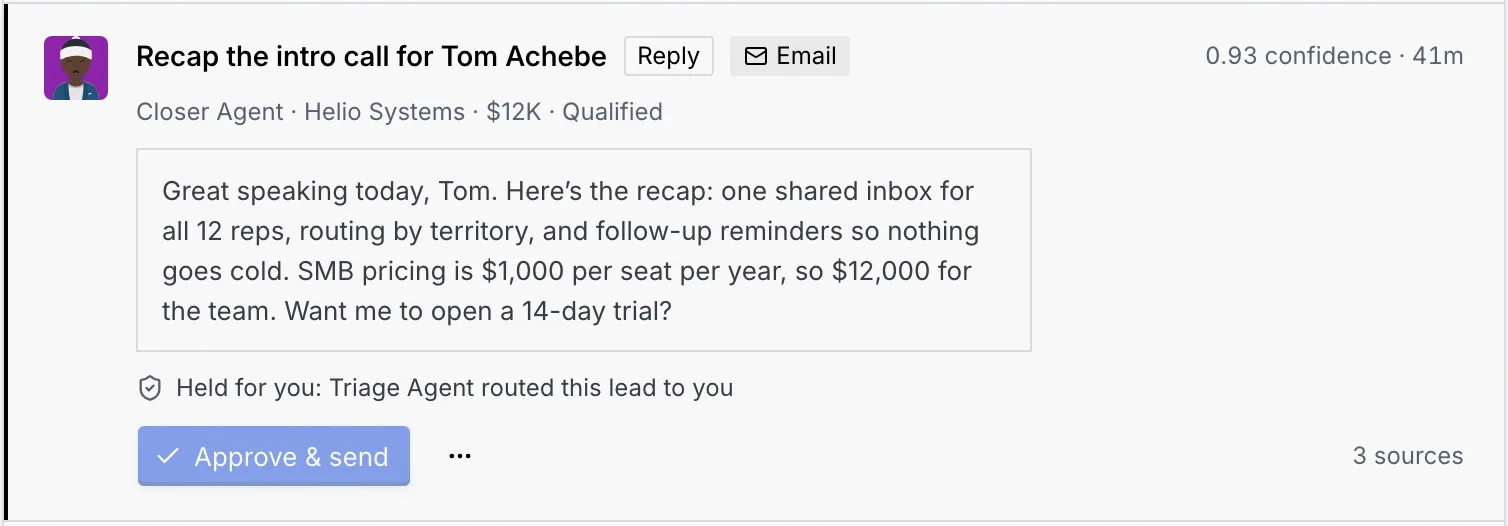
- Held for you: and the reason, when a guardrail needs a person. Edited by you. It sends as you see it here. when you've changed it. A countdown when an auto-approve rule will send it.
- The main button: Approve & send, Accept handoff or Approve update. It's blue on the card you're on and outlined on the others.
- How much evidence it rests on, such as "3 sources" or "6 signals".
Approve an item
Click the card's main button:
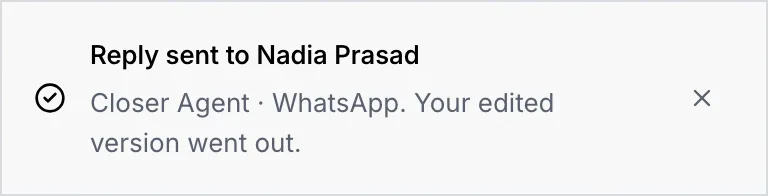
- Approve & send sends the reply on its channel. A notice says Reply sent to name (and "Your edited version went out." if you changed it). The sent message says Approved in the Command center in the thread.
- Accept handoff makes the conversation yours: the agent won't contact the person until you hand it back. Undo on the notice reverses it.
- Approve update lets the agent apply the change on its next sync. Undo on the notice reverses it.
The card leaves the queue and the next card's button gets focus, so you can keep going. A quick second click is ignored, so a double-click never approves twice.
Move through the queue with the keyboard
| Key | What it does |
|---|---|
| J / K | Next / previous card |
| A | Approve the focused card (send, accept or approve) |
| E | Edit the focused draft; on an escalation or update, open its thread or record |
The keys act on the card that holds keyboard focus. They don't fire while you're typing or while a menu or dialog is open. See Keyboard shortcuts to change them.
Edit a draft before it goes
Change the reply
The Edit draft to name dialog shows who wrote it and with what confidence, the channel, any hold, and the reply. Under the text, a counter shows how many characters the channel allows, for example 4,096 on WhatsApp. Reset to the agent's draft undoes your changes.
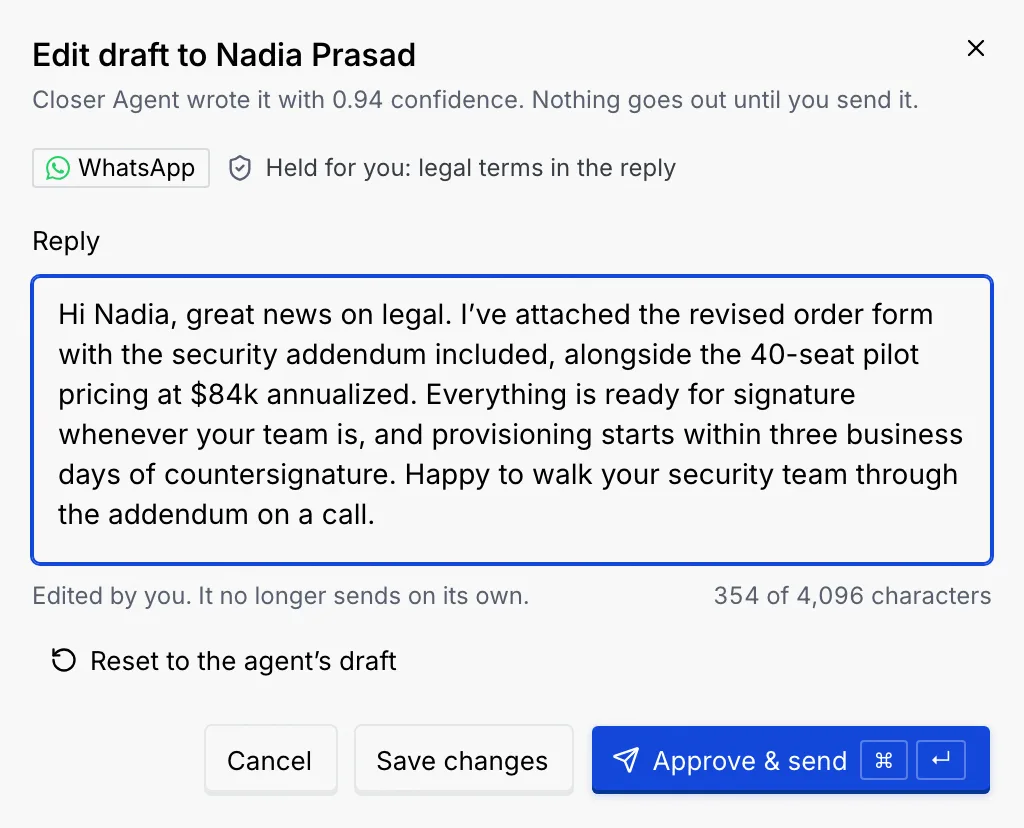
Save or send
- Save changes keeps the edited draft in the queue, marked "Edited by you". An edited draft no longer sends on its own under a rule.
- Approve & send (⌘ Enter, or Ctrl Enter on Windows and Linux) sends it now.
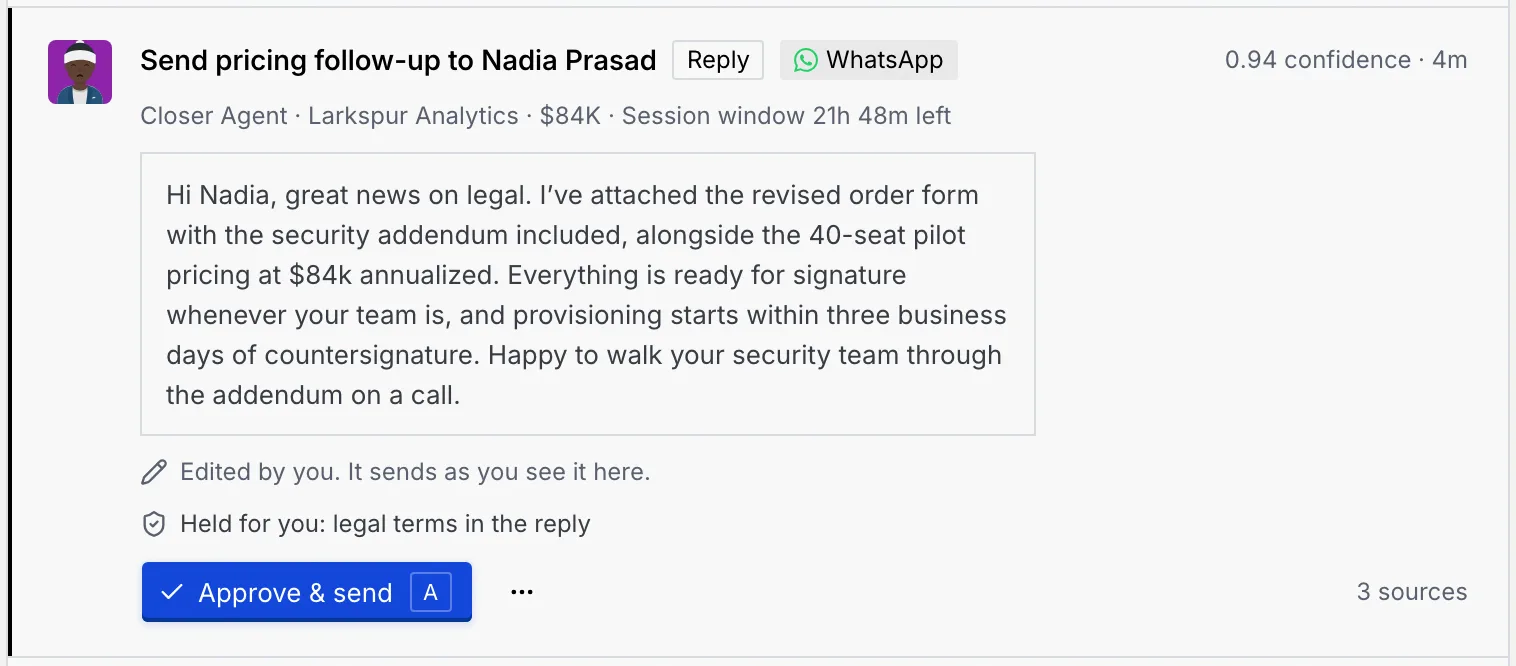
The reply can't be empty ("Write a reply before you save or send it.") or longer than the channel allows ("WhatsApp delivers up to 4,096 characters. Shorten it by …").
If you close the dialog with unsaved changes, it asks Discard your changes to this draft?: choose Keep editing or Discard changes. Edits you make here also show in the inbox thread's draft, and the other way round.
| Channel | Longest reply |
|---|---|
| 4,096 characters | |
| 2,000 | |
| 1,000 |
Other channels are coming soon (see Connect a channel).
Reassign to a teammate
Open Reassign
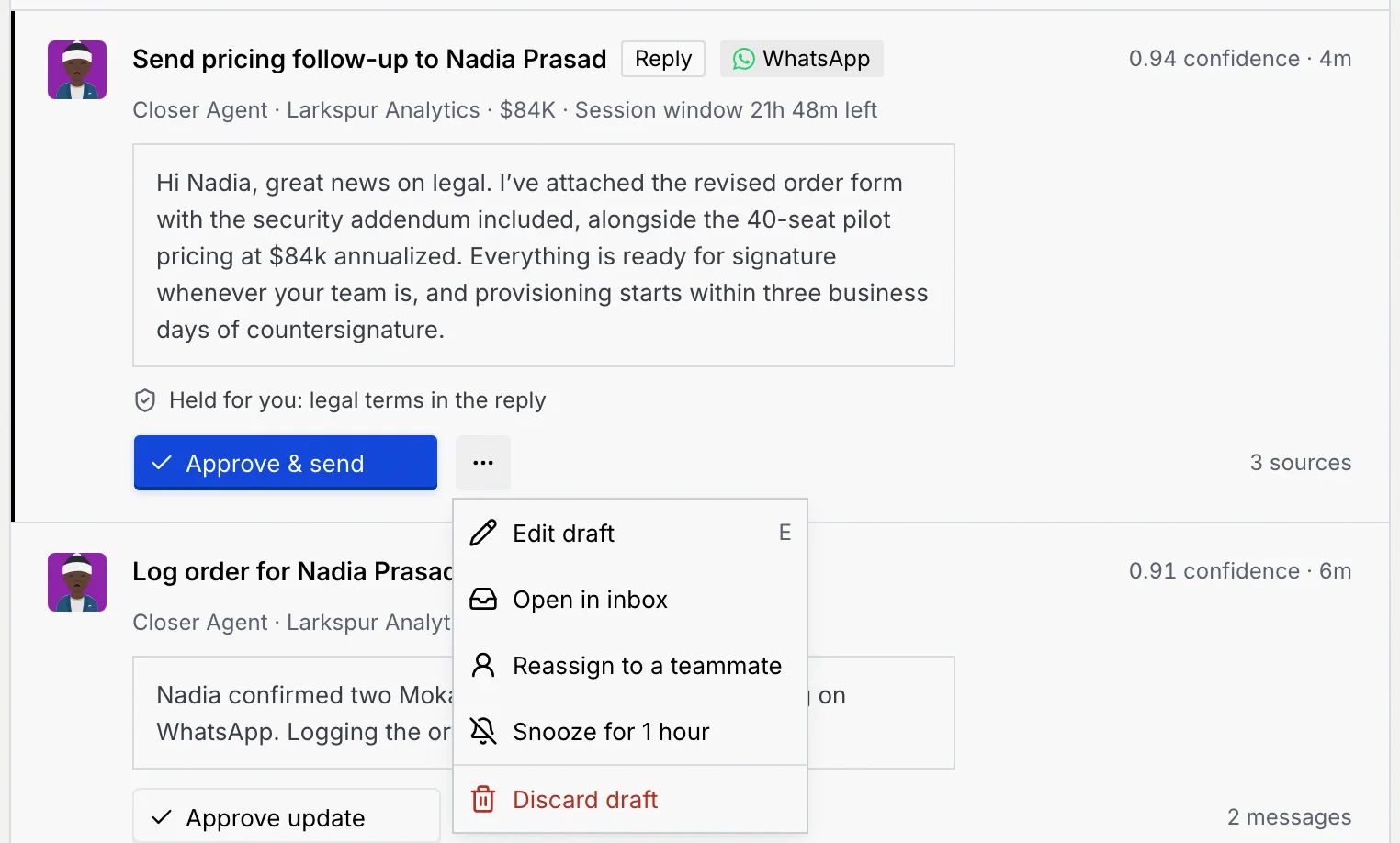
Open the card's More actions (…) and choose Reassign to a teammate.
Pick who handles it
Choose a teammate. Each one shows their role and email; viewers can't be picked, because they can't approve drafts. Add a Note (optional), such as why you're handing it over or what to watch for (up to 280 characters).
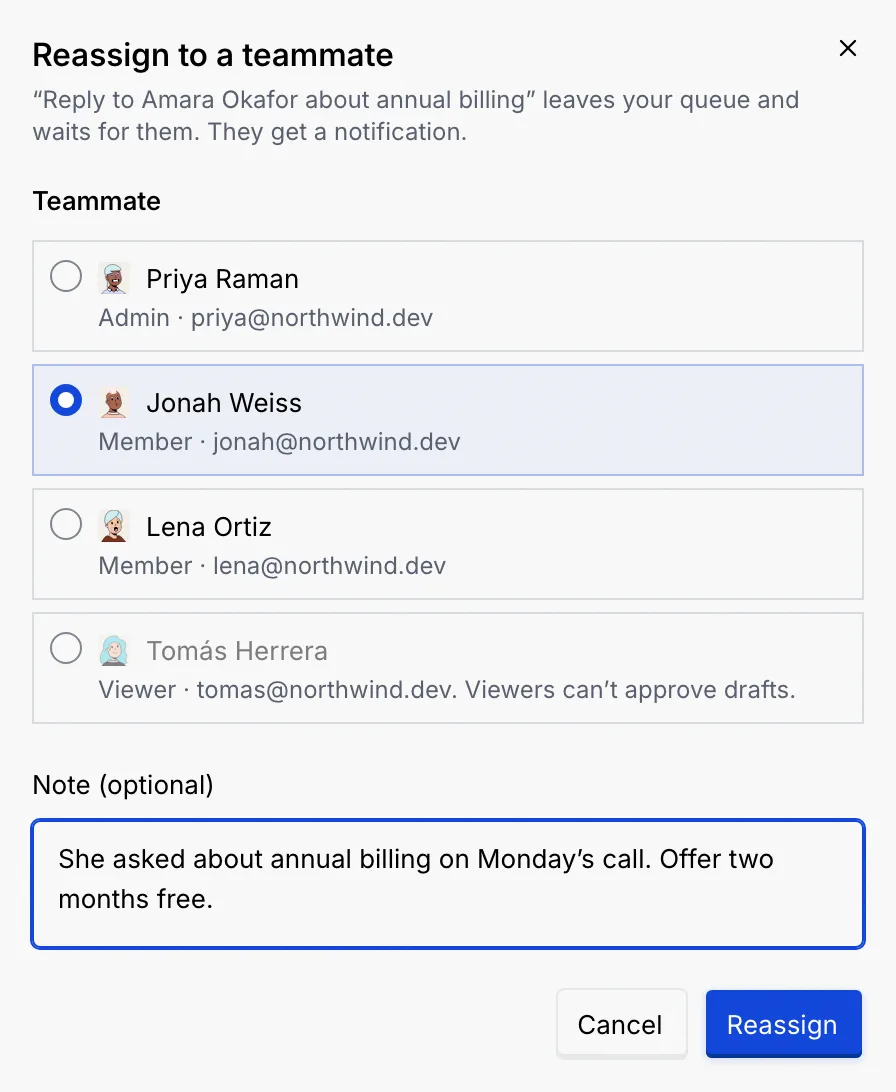
Reassign it
Click Reassign. The item leaves your queue and waits for them, and they get a notification with your note. Undo on the notice brings it back.
If you're the only person in the workspace, or everyone else is a viewer, the dialog says so; invite a teammate or change a role in Members first.
Snooze an item
Open the card's More actions (…) and choose Snooze for 1 hour. The item leaves the queue, and the notice says when it comes back. After an hour it returns with a notice, Back from snooze; a draft with an auto-send countdown gets a fresh review window. Undo on the notice brings it back now.
Discard or dismiss an item
Choose discard
Open the card's More actions (…) and choose Discard draft, Dismiss escalation or Dismiss update.
Confirm
Confirm in the dialog. Nothing is sent, and the item leaves your queue. Undo on the notice brings it back.
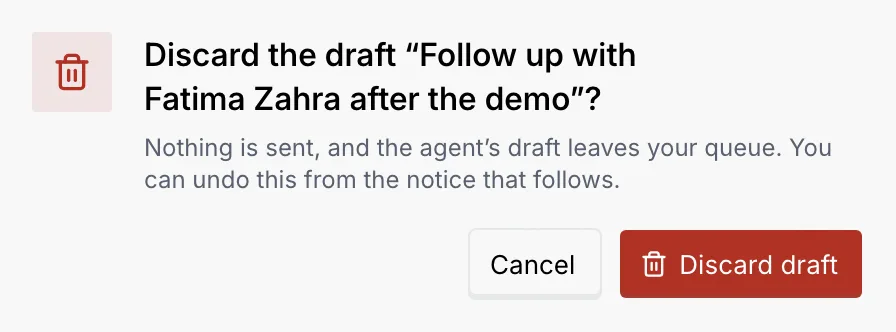
| Kind | Confirm button | What happens |
|---|---|---|
| Reply | Discard draft | Nothing is sent. |
| Escalation | Dismiss escalation | It leaves your queue without a handoff. |
| CRM update | Dismiss update | The record stays as it is. |
Approve confident replies in bulk
Start bulk approve
At the bottom of the queue, click Approve n with confidence 0.90 or higher. It counts replies at 0.90 or above that no guardrail holds, on channels you can reply on.
Check the list and send
The dialog lists each reply with its confidence. Drafts held for you, like legal terms or deals above $100K, stay in the queue. Click Send n replies, or Keep reviewing to go back.
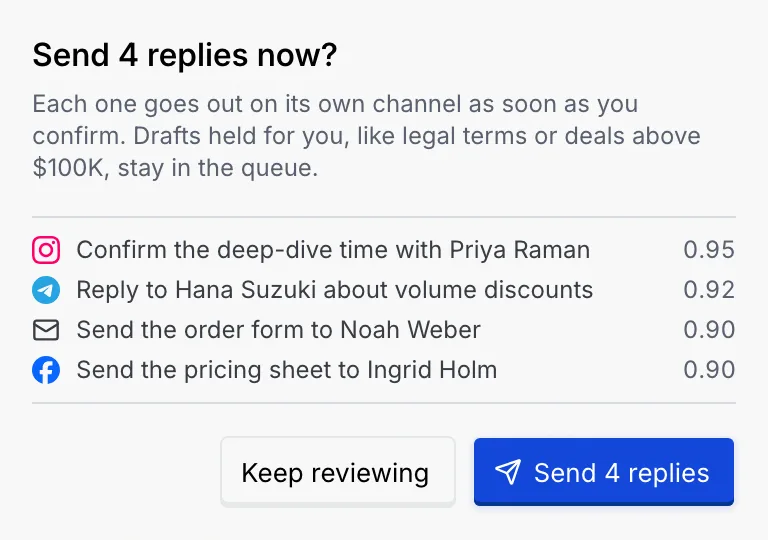
Each reply goes out on its own channel at once, and a notice confirms how many were sent.
Open an item's thread or record
The card's More actions has Open in inbox when the item belongs to a conversation, or Open record otherwise. The contact's name in the title also opens their record.
Links to a single item, such as Review draft on a contact's record, open the Command center on that card: the queue switches to a tab that holds it, shows all items if needed, and focuses it. If the item is no longer waiting, a notice, That item isn't waiting anymore, says what happened to it and when, for example that you approved it and the reply went out. If the link doesn't match any item, or the item is on a channel your role doesn't work in, the notice says that instead.
Look at a tab
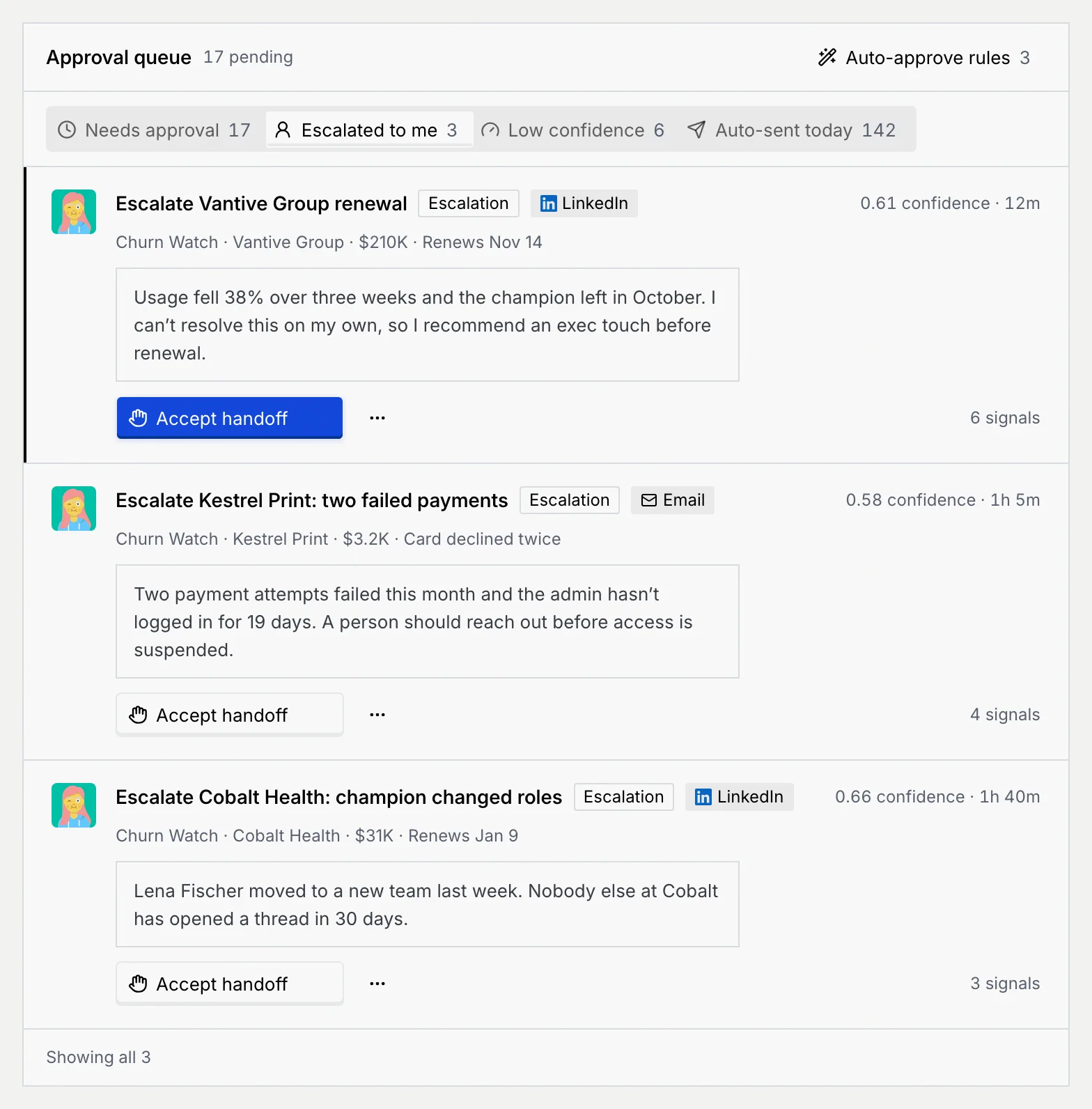
Escalated to me lists only escalations, with Accept handoff on each.
Auto-sent today shows how many replies rules sent today and which rules sent them, for example "Pricing follow-ups · Closer Agent · 112 sent". Manage rules (or View rules for roles that can't change them) opens the rules; the menu next to it opens the agent's runs.
When a tab is empty, it says so: You're all caught up, No escalations or No low-confidence drafts. Show all n waiting goes back to Needs approval, and Review auto-approve rules opens the rules.
When your role can't approve
The cards still show everything, but the main button is greyed out, the menu only opens the item, bulk approve is off, and the rules open read-only. The View only notice at the top of the Command center explains why (see When your role can only read); screen readers also announce the reason with each button.
Troubleshooting
Bulk approve leaves out drafts a guardrail holds (legal terms, deals above $100K, leads routed to you), replies under 0.90 confidence, and replies on channels you can't reply on. Review those one by one.
Someone already handled it: the notice says how and when. The queue opens without it.
Nothing changed and the item is still in the queue. Click Retry on the notice.
The Reassign dialog couldn't fetch the member list. Click Try again in the dialog.
You can't reassign to yourself, and viewers can't be picked because they can't approve drafts. Change their role in Members if needed.
Next steps
The Command center
What waits for your approval, what your agents sent in the last day, how each agent is doing, and what's happening right now.
Auto-approve rules and auto-send
Let confident agent replies go out without waiting for you, with a review window to stop them and guardrails that always hold.