Conversation states reference
Every state, label, delivery status and reply window a conversation can show, and how a thread moves from one state to the next.
This page lists everything a thread can say about itself: its state in the list and header, what sits at the bottom of the thread, how each message was sent and delivered, and which reply windows are open. Use it when a label isn't clear.
- Who can use it: Everyone who can open the inbox sees these states. What you can do about them depends on your role; see Roles and permissions.
- Before you start: Nothing.
Thread states
Each thread shows one state in its row and in the thread's header.
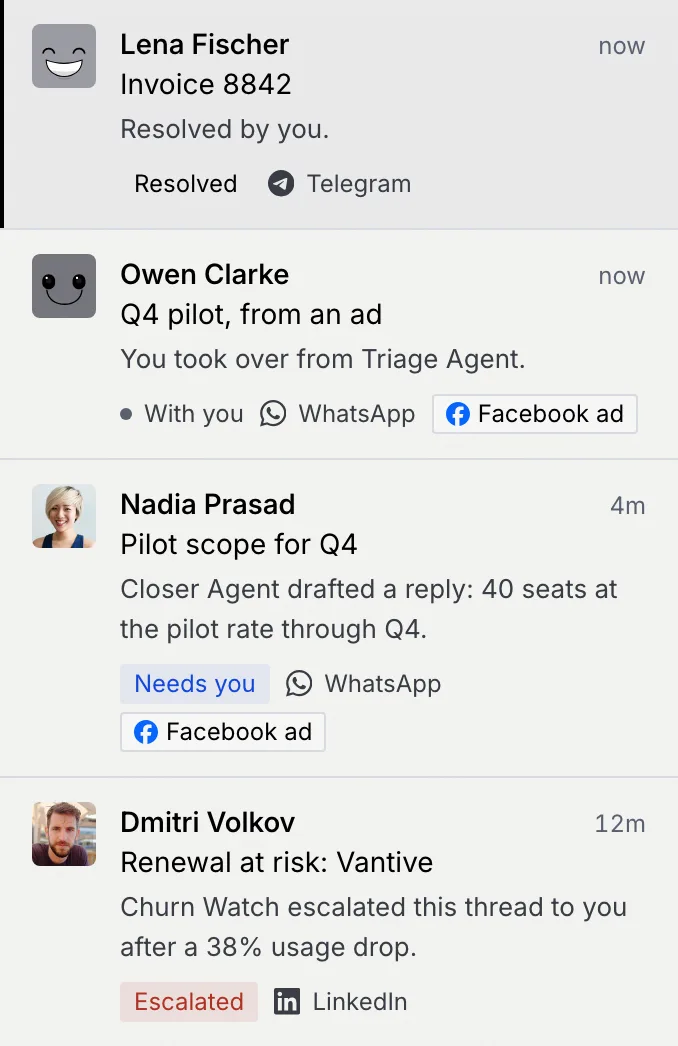
| State | How it looks | What it means | At the bottom of the thread |
|---|---|---|---|
| Needs you | Blue label | An agent's draft reply or suggested CRM update is waiting for a person's approval. | The draft (Approve & send) or the suggested update (Approve update) |
| Escalated | Red label | An agent handed the conversation to a person and stopped messaging the contact. | The escalation (Accept handoff) |
| Agent working | Blue dot | An agent is running the conversation. Nothing waits on you. | The agent's status: "… is working this thread" (Take over) |
| Auto-sent | Grey label | An agent handled the conversation on its own. | The agent's status: "… handled this thread" (Take over) |
| With you | Grey dot | You took the thread over or accepted a handoff, and haven't replied yet. No agent replies. | Your reply box: You're handling this thread |
| Waiting on reply | Grey dot | The thread is yours and your reply went out. | Your reply box: Waiting for name |
| Resolved | Grey label | Someone marked the thread resolved. Anything that was waiting for approval is set aside. | You resolved this thread (Reopen) |
| Snoozed | No label: the thread is hidden from every view | Someone snoozed the thread. Anything waiting for approval is set aside. | Snoozed for 1 hour (Unsnooze) |
Needs you and Escalated follow the approval queue: a thread needs you while the Command center's queue holds a draft, update or escalation for the same contact on the same channel. An escalation outranks everything else. That's why a snoozed or resolved thread shows up on Needs you again when something new waits on it.
Other marks on a thread
| Mark | Where | Meaning |
|---|---|---|
| Assigned to you | Header | You get a notification for every reply. Taking over and accepting a handoff assign the thread to you. See Assign a thread to yourself. |
| Held for you: reason | Draft | A guardrail needs a person: legal terms in the reply, a deal above $100K, or a lead routed to you. Rules never send held drafts. |
| Auto-sends in time under rule | Draft | An auto-approve rule sends the draft when the countdown ends. See Auto-approve rules and auto-send. |
| You discarded agent's draft | Your reply box | You threw the draft away. The thread keeps its state until you send, restore the draft or ask for a new one. |
| Facebook ad / Instagram ad | Row | The conversation started from a click-to-WhatsApp ad. |
How a thread moves between states
| From | What happens | To |
|---|---|---|
| Agent working | The agent drafts a reply it can't send, or suggests a CRM update | Needs you |
| Agent working | The agent escalates the conversation | Escalated |
| Needs you | You approve the last waiting item while the agent runs the thread | Agent working |
| Needs you | You approve a draft on a thread that's yours | Waiting on reply |
| Agent working or Auto-sent | You take over | With you |
| Escalated | You accept the handoff, in the thread or the Command center | With you |
| With you | You send a reply or a template | Waiting on reply |
| With you or Waiting on reply | You hand the thread back | Agent working |
| Any | You mark it resolved | Resolved |
| Resolved | You reopen it | The state it had before; anything set aside comes back |
| Any | You snooze it | Hidden (snoozed) |
| Snoozed | You unsnooze it | The state it had before; anything set aside comes back |
Taking over, handing back, accepting a handoff, resolving and snoozing can each be undone with Undo on the notice that confirms them.
What sits at the bottom of a thread
The bottom of a thread always shows the one thing to do next, in this order of priority:
- Escalation, when an agent handed the thread to you.
- Draft reply, when an agent's draft waits for approval.
- Suggested update, when an agent's CRM update waits for approval.
- Thread status, when the thread is snoozed or resolved and nothing waits on it.
- Your reply, when the thread is yours or you discarded the agent's draft.
- Agent status, when an agent runs the thread.
Docks with something to read can be minimized to one line with the arrow at their top right; your choice holds as you move between threads. Status docks and drafts that are counting down stay open.
How a message was sent
Under each message your side sent, the footer says how it went out.
| Label | Meaning |
|---|---|
| Auto-sent | An agent sent it on its own. |
| Auto-sent under "rule" | An agent's draft went out under an auto-approve rule. |
| Approved by you | You approved the agent's draft as written. |
| Edited and approved by you | You changed the draft, then approved it. |
| Approved in the Command center | Someone approved it from the approval queue. |
| Template · name | You sent an approved WhatsApp template. |
Messages from people carry a chip next to the sender's name: Customer (with the channel's icon), AI agent, You or Teammate.
Delivery status

| Status | Mark | Meaning |
|---|---|---|
| Sending | Clock | On its way to the channel. |
| Sent | One check | The channel accepted it. |
| Delivered | Two checks | It reached the contact's device. |
| Read | Two checks, in blue | The contact opened it. |
| Not delivered | Red alert | It didn't arrive. The reason and the channel's error code show under the message. On WhatsApp outside the 24-hour window, send an approved template instead. |
Reply windows
Some channels limit when you can write freely.
WhatsApp's 24-hour session window
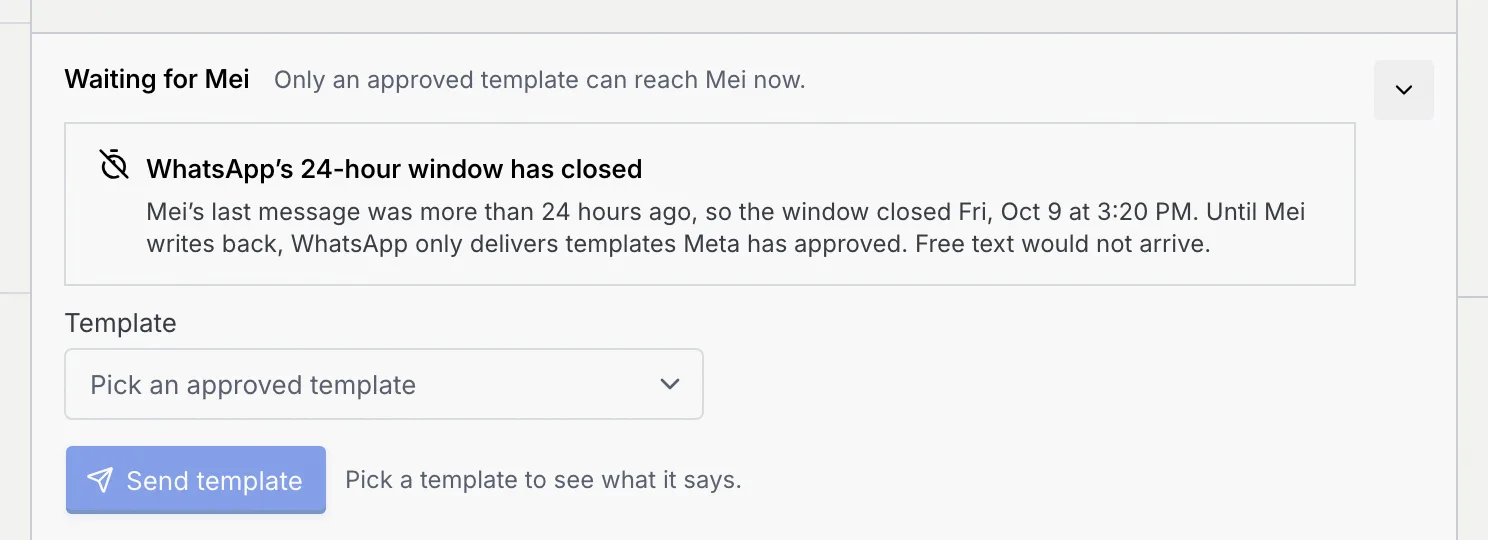
You can send free text on WhatsApp for 24 hours after the customer's last message. While the window is open, the reply box shows how long is left.

Once it closes, the box says WhatsApp's 24-hour window has closed and offers only templates Meta has approved, with the caption "Only an approved template can reach … now." When the customer writes back, the window opens again. See Send a template.
Messenger and Instagram: 24 hours, then 7 days for a person
On Facebook (Messenger) and Instagram, anyone can reply for 24 hours after the customer's last message. After that, for up to 7 days, only a reply you send or approve yourself goes out, as a human agent reply; an auto-approve rule's send stops at 24 hours ("More than 24 hours have passed since their last message. Auto-send stops here; approve the reply yourself within 7 days to send it as a human agent."). Past 7 days nothing can be sent until the customer writes again. Messenger, Instagram and WhatsApp go live once Mokanata's Meta app is approved.
The free 72-hour window for ad conversations
When a conversation starts from a click-to-WhatsApp ad, Meta opens a free 72-hour window. A marker under the first message says Free 72-hour window open · ends date, and later Free 72-hour window ended. See Conversations that started from an ad.
Reply box states
| What you see | When |
|---|---|
| You're handling this thread | You took over or accepted a handoff. |
| Waiting for name | Your reply went out; write again any time. |
| You discarded agent's draft | You discarded the draft. Restore draft and Ask agent for a new draft are in the box's menu. |
| Template picker | WhatsApp's 24-hour window has closed. |
| View only | Your role can read this conversation but not reply on its channel. The reason follows. |
| A greyed-out button with a lock line | Your role can't take that action, for example "Your role, Viewer, can't approve agent drafts." |
| You're offline banner | Your connection dropped. Replies and approvals wait until you reconnect; what you wrote stays in the box. |
See every state in one place
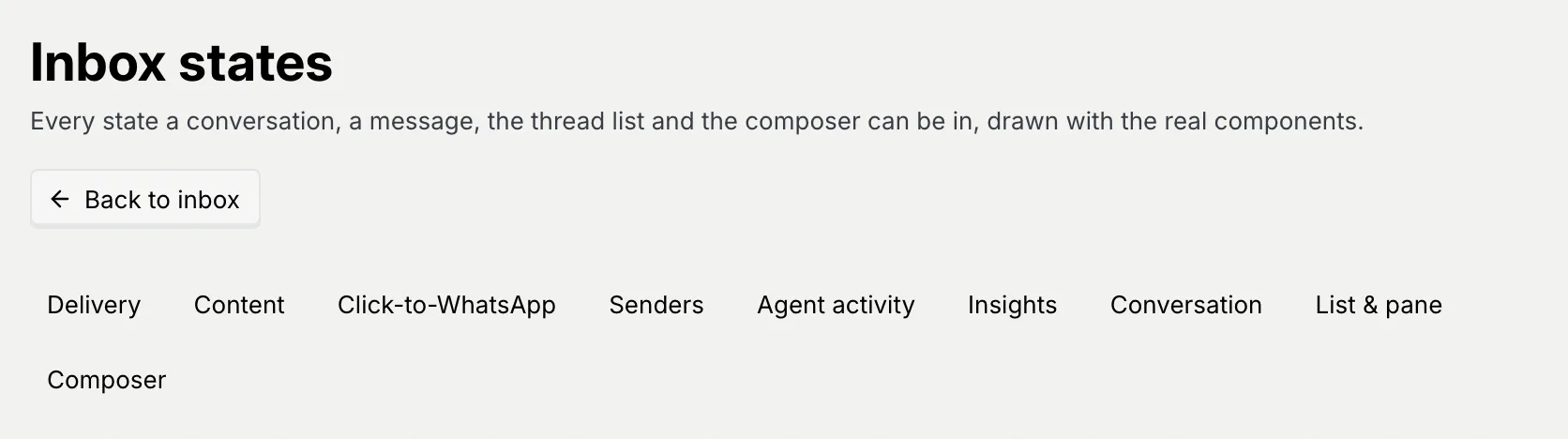
The Inbox states page shows each state a conversation, a message, the thread list and the reply box can be in, drawn with the inbox's own parts and grouped into Delivery, Content, Click-to-WhatsApp, Senders, Agent activity, Insights, Conversation, List & pane and Composer. It isn't in the sidebar: open /inbox/states in the dashboard (for example app.mokanata.com/inbox/states), click a section name to jump to it, and click Back to inbox when you're done.
A reference, not your conversations
Everything on the page is a sample. Some of it shows things the inbox doesn't do today, such as typing indicators, reactions, voice notes, pinned or unread rows and scheduled sends, so rely on the sections above for what your inbox actually shows.
Next steps
Contact details beside the thread
The contact, their deal, channels, ad source, the agent's reasoning, its recent work and the account's autonomy, next to the conversation.
The Command center
What waits for your approval, what your agents sent in the last day, how each agent is doing, and what's happening right now.