Reply to a conversation
Write your own reply, quote a message, attach files, let an agent write it, send a WhatsApp template or add a payment link.
Most replies are written by agents and approved by you (see Review agent drafts). When you want to answer in your own words, you write in the reply box at the bottom of the thread. It sends from the same channel and address the contact wrote to.
- Who can use it: Roles with Reply and send (Owner, Admin and Member by default) on a channel where the role has Reply or Manage access. Write with AI and Reply with AI also need Reply with AI, and payment links need Create payment links. A Viewer, or a role that only reads a channel, sees a View only notice instead of the reply box: "You can read this conversation." followed by the reason. See Roles and permissions and Channel access.
- Before you start: The thread has to be yours. If an agent is running it, take it over first. If an agent has a draft waiting, you can edit and approve that draft instead, or discard it to write your own.
Write and send a reply
Open your reply box
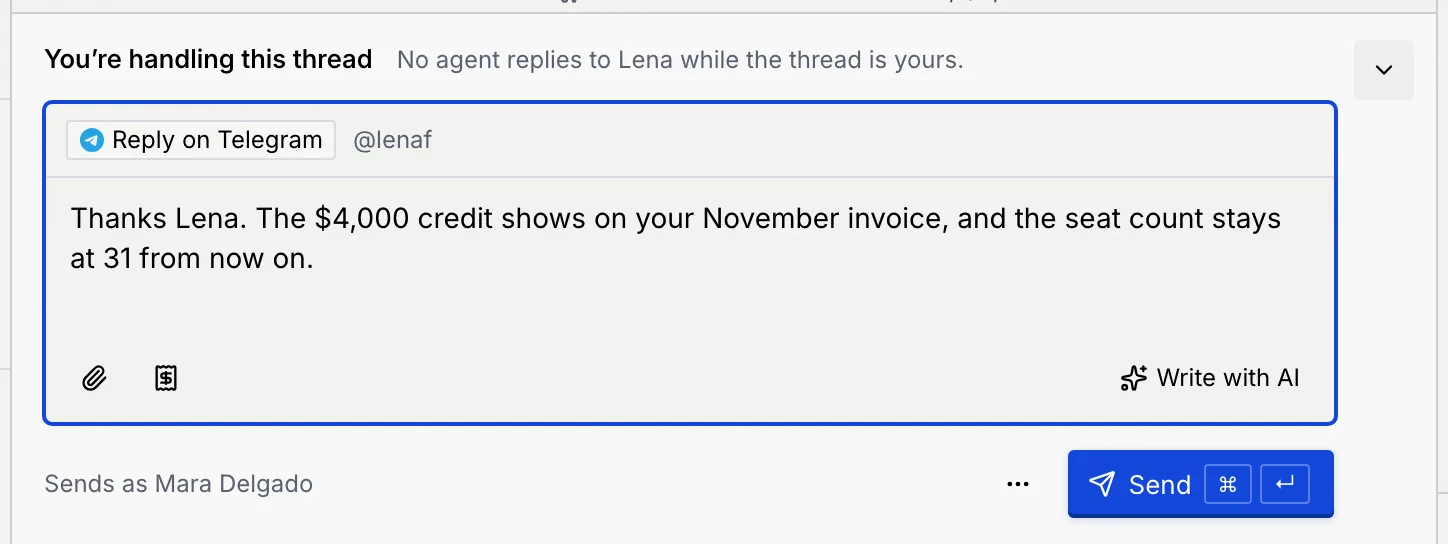
Open the thread. The reply box shows at the bottom when the thread is yours: after you take over, accept a handoff, reply, or discard an agent's draft. Its heading says why, for example You're handling this thread ("No agent replies to Lena while the thread is yours"), Waiting for name after you've replied, or You discarded agent's draft.
Press R to jump into the box from anywhere in the inbox.
Write your reply
Click Write to name on channel (or by email) and type. On WhatsApp, the line above the box shows how long the 24-hour session window stays open; on email it shows the address the reply sends from.
Send it
Click Send, or press ⌘ Enter (Ctrl Enter on Windows and Linux). Your message shows in the thread as Sending, then Sent, and a notice confirms: Reply sent to name.
The thread moves to Waiting on reply and the box stays open, so you can write again. No agent replies while the thread is yours; to let one take over again, see Hand a thread back.
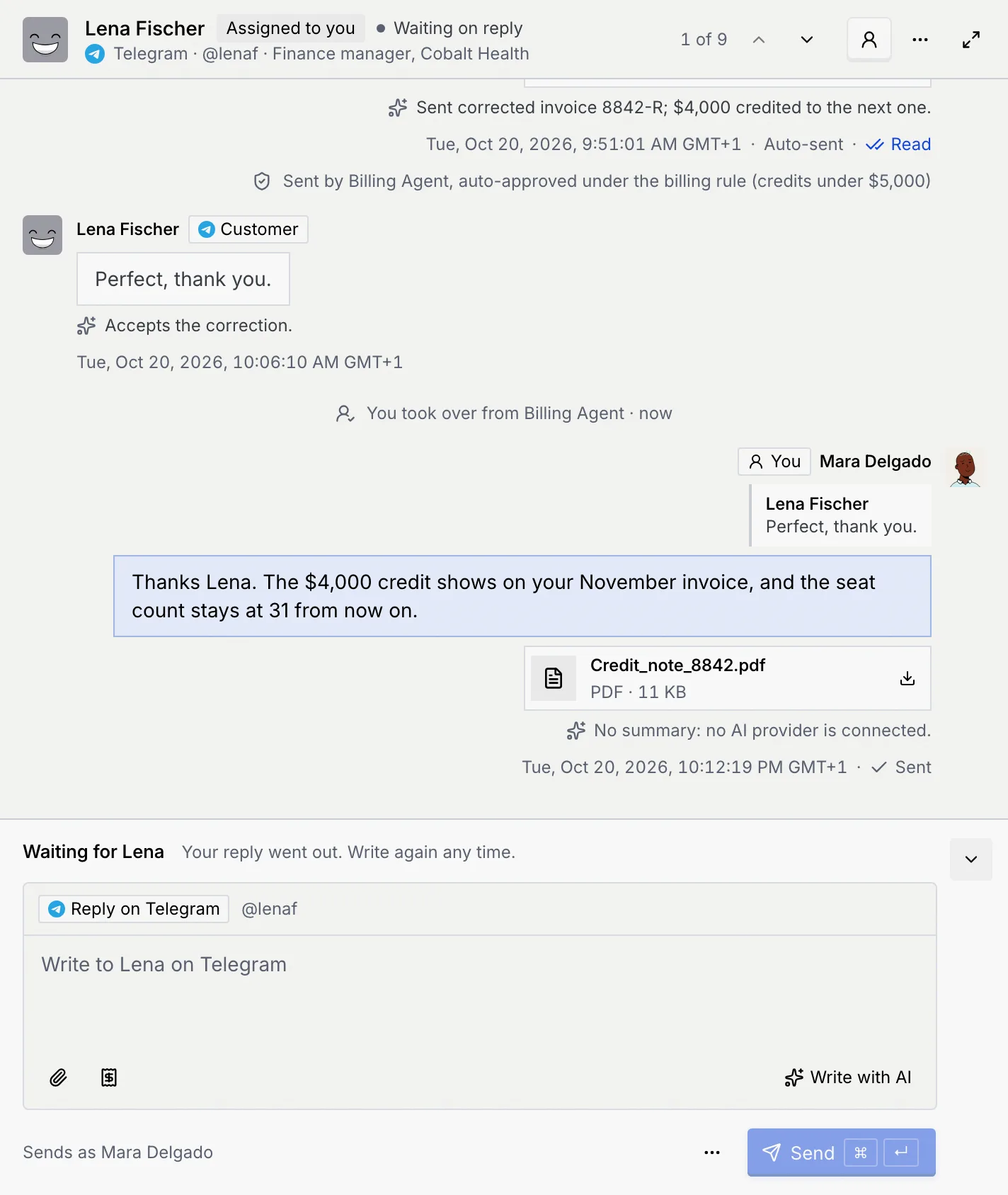
Under the box, Sends as shows the name your reply goes out under. Press Esc to leave the box without losing what you wrote; it stays there when you move to another thread and come back.
Quote a message
Pick the message
Hover over the message you're answering and click Reply (the curved arrow), or open its … menu and choose Reply.
Write and send
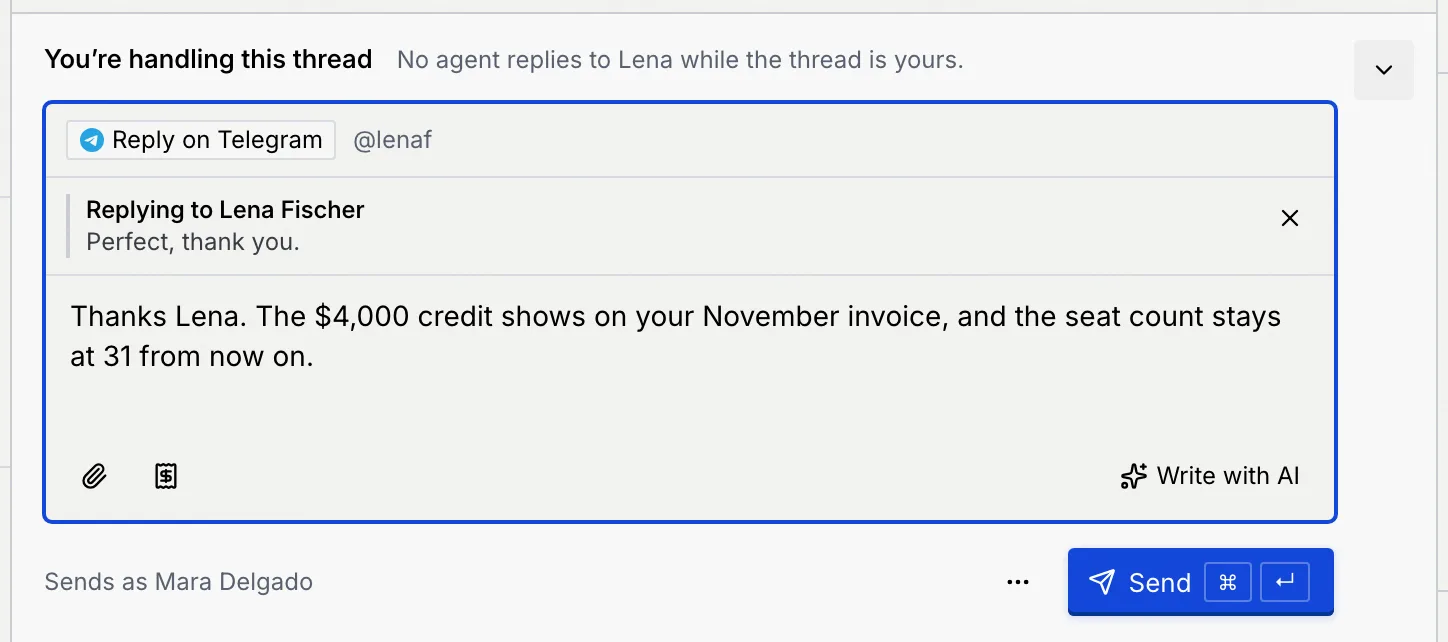
A Replying to line above the box shows who and what you're quoting. Write your reply and send it. In the thread, the quote shows above your message; clicking it scrolls to the original. To stop quoting, click the × on the Replying to line.
Attach files
Pick the files
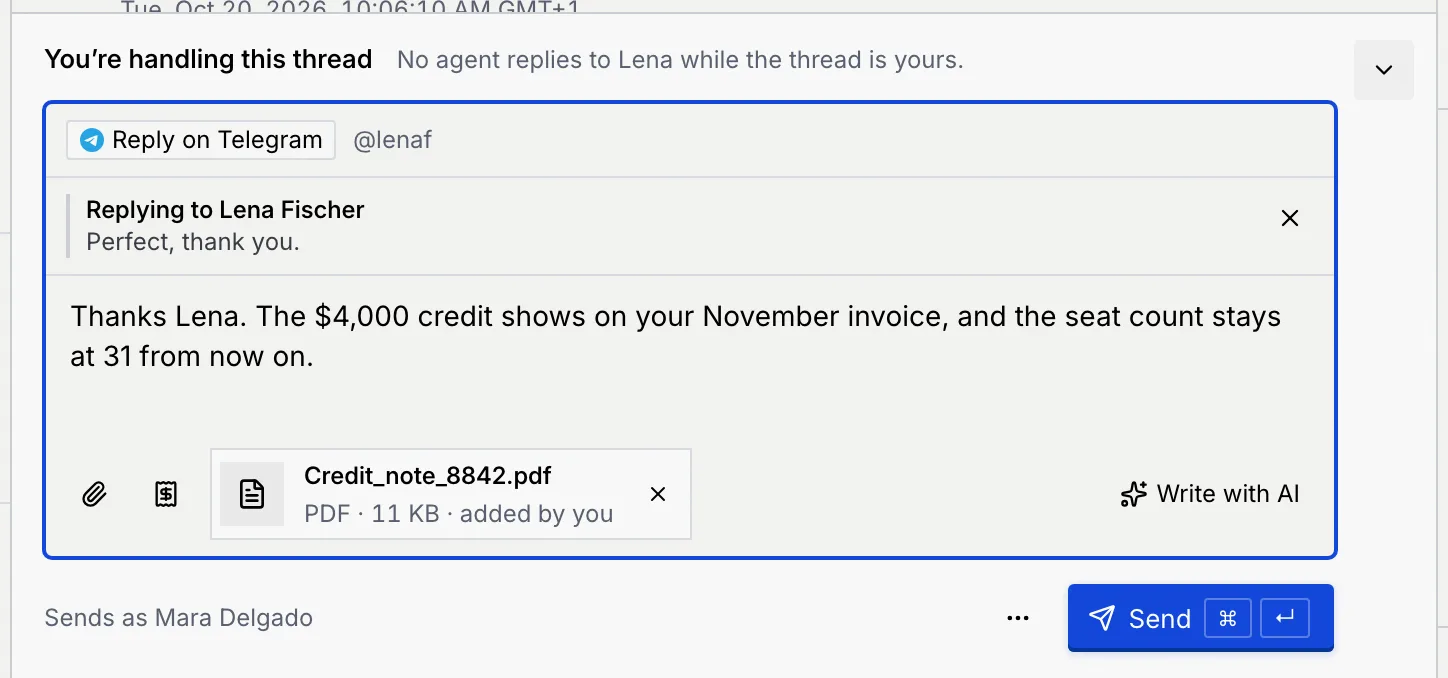
Click Attach a file (the paperclip) under the box and choose one or more files. Each one shows as a chip marked added by you; click its × to remove it.
Add a few words and send
A reply needs text to go out with its files: with files and no text, the box says Add a few words to send the files with.
Each channel has its own size limit per file. A file over the limit isn't added, and a notice says it's too large; share a link to it instead.
| Channel | Largest file |
|---|---|
| 16 MB | |
| Instagram, Facebook | 10 MB |
Other channels are coming soon (see Connect a channel).
A file with the same name as one already on the reply is skipped.
Let an agent write your reply
You can have the thread's agent write the answer to a customer's message for you, then check it and send it yourself.
Ask for the reply
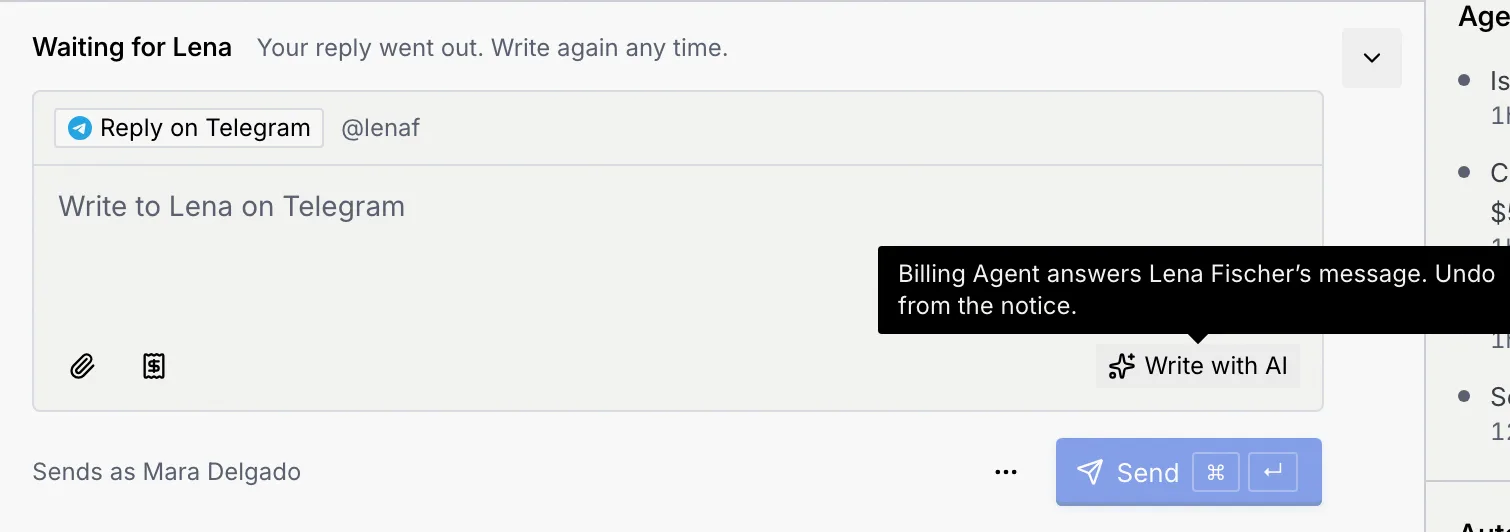
Click Write with AI at the end of the row under the box to answer the customer's latest message. Its tooltip says which agent writes and what it answers. To answer a specific message instead, hover that message and click Reply with AI (the sparkles), or choose Reply with AI from its … menu.
Review it
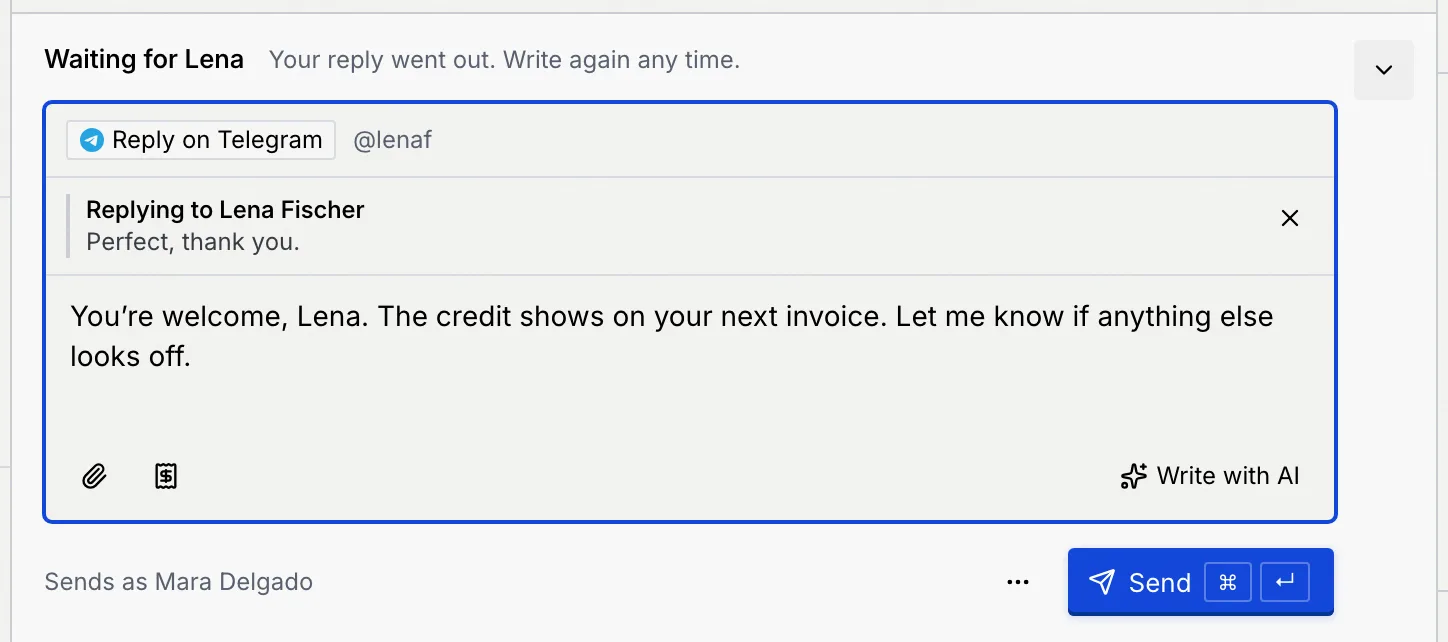
While the agent writes, the box shows … is writing a reply. The answer then fills the box, quoting the message it answers, and a notice says … wrote a reply to name's message. It replaces what was in the box: click Undo on the notice to get your text back.
Edit and send
Change anything you like, then click Send. Nothing goes out until you do.
Writing a reply with AI needs an AI provider connected to your workspace. Without one, you see No AI reply for this message: write the reply yourself, or ask an admin to connect a provider.
Send a template when the 24-hour window has closed
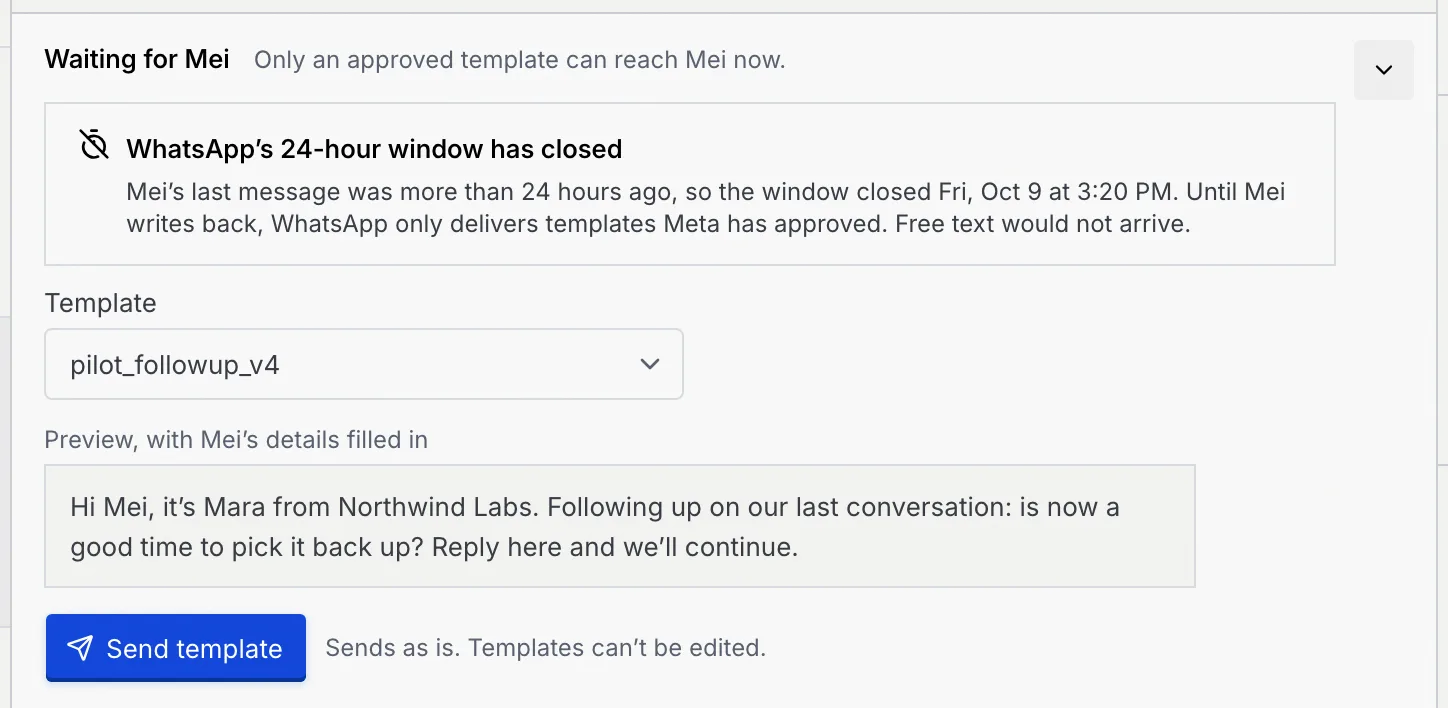
WhatsApp only delivers free text within 24 hours of the customer's last message. After that, the reply box offers only templates Meta has approved, and says WhatsApp's 24-hour window has closed with the date it closed.
Pick a template
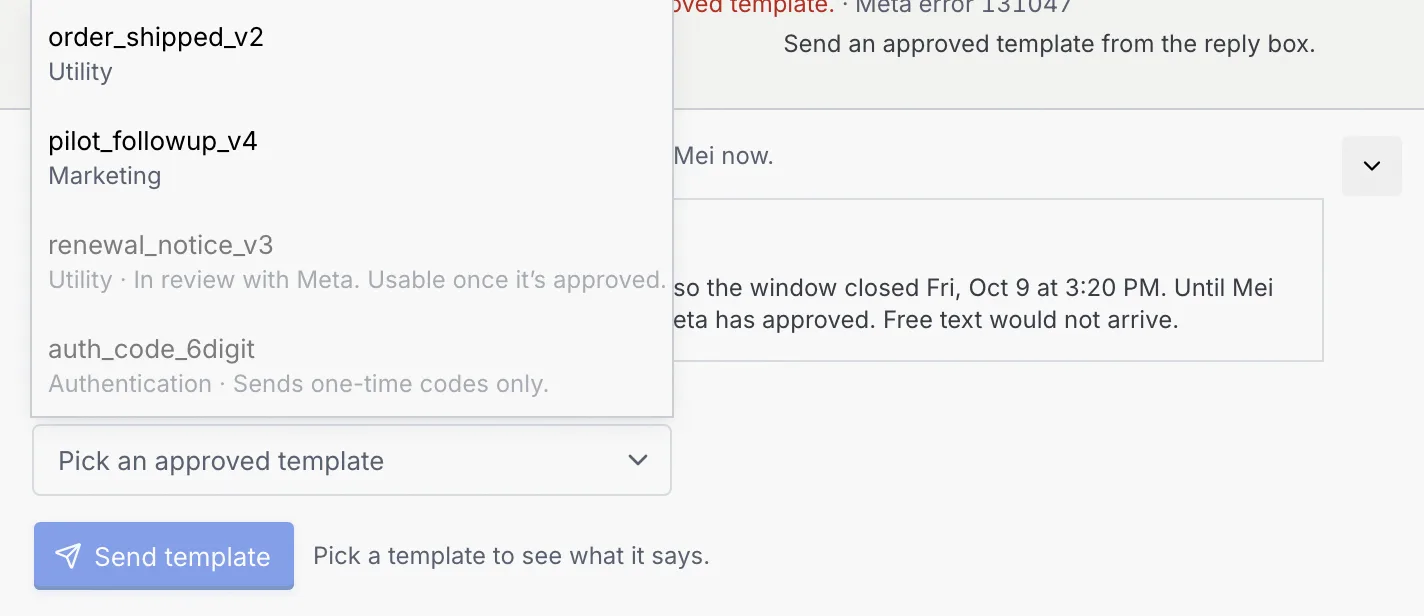
Open Template (Pick an approved template). Each template shows its category: Utility, Marketing or Authentication. Templates still in review with Meta, and one-time-code templates, are listed but can't be picked.
Check the preview
The preview shows the template with the contact's details filled in. Templates go out exactly as written; you can't edit them.
Send it
Click Send template. A notice confirms: Template sent to name. When the customer writes back, the window opens again and you can send free text.
To add or edit templates, see WhatsApp message templates.
Add a payment link
You can ask for a payment right in the conversation: build an order, and Mokanata adds a QRIS code and how to pay to your reply (or to the agent's draft you're about to approve).
Open a payment request
Under the reply box, click Payment link (the receipt icon). The New payment request dialog opens for the contact you're writing to.
Build the order
Send as is QRIS image (when a static QRIS is set up); Payment link stays disabled while payment gateways are coming soon (see Payment gateways and QRIS). Give it a Title, add products from the catalog (Search products or SKUs) or a Custom item such as a delivery or setup fee, and set a discount, the currency, how long it stays valid (Expires after) and a note to the customer if you like. The Summary shows the total with tax, and a preview shows how the request looks to the customer.
Add it to your reply
Click Create and add to reply. A sentence saying how to pay the amount with any QRIS app is added to the end of your text, and the QRIS image is attached. There's no link for the customer to open. A notice confirms it was added and that you can track it on the Payments page.
Send the reply
Send your reply, or approve the draft. A card under the sent message shows the payment's status as it changes, for example once you mark it paid.
If you close the dialog after adding items, it asks Discard this payment request? The order isn't saved anywhere. For everything a payment link can do, see Create and send a payment link.
Troubleshooting
Your role can read this conversation but not reply on its channel. The notice says why. An owner or admin can change it in Settings → Members & roles.
An agent is running the thread. Click Take over to make it yours. See Take over, hand back and handoffs.
The reply is empty, or the agent is still writing. Files alone can't be sent: add a few words.
Nothing was sent and your text stays in the box. Click Retry on the notice. If you're offline, a You're offline banner shows in the thread: send again once you're back online.
The customer hasn't written on WhatsApp for more than 24 hours. Send an approved template; once they answer, free text works again.