Create and send a payment link
Build an order from your catalog or custom items, add a discount, preview it, and send the customer its details and a QRIS image.
A payment request is an order for one contact: products from your catalog or custom items, an optional discount and tax on rupiah orders. Send it as a QRIS image: the customer gets the order's details (its reference, title, items and total) with your own QRIS, the total filled in, paid straight to your account. There's no payment page and no link to open, so mark the request paid when the money arrives (Mark a link paid).
Coming soon
Payment gateways aren't available yet: Mokanata can't take card, e-wallet or bank payments online, so Payment link can't be picked under Send as. Send a QRIS image instead.
- Who can use it: Owners, admins and members (anyone with Create payment links). For a viewer, New payment link is disabled. See Roles and permissions.
- Before you start: A QRIS image needs your static QRIS uploaded on Payment gateways and QRIS. Products come from the catalog, and new requests start with your link defaults.
Send a payment link from Payments
Open a new payment request
On Payments, click New payment link, or press N on any Payments tab. New payment request opens. The order builder is on the left; the Summary and a preview of the message are on the right.
Choose how to send it
Under Send as, choose QRIS image (see Send a QRIS image). Payment link stays disabled while payment gateways are coming soon.
Pick the contact and title
Choose the Contact the request is for, and type a Title: an order number or what it's for (up to 60 characters). If you leave the title empty, it's called "Order #…".
Add the items
Under Items, search the catalog by product name or SKU and click Add next to a product. Use + and − to change the quantity; you can't add more than the stock. Products that are out of stock can't be added. The catalog shows only products priced in the order's currency.
For anything not in the catalog, type a Custom item (like a delivery or setup fee, or a deposit), its price, and click Add item.
Set the discount, currency and expiry
- Discount: None, a percentage (%, up to 100), or a fixed amount in the order's currency (no more than the subtotal).
- Currency: IDR, USD, SGD or MYR. Changing it removes catalog products priced in another currency and asks you to check the custom item prices.
- Expires after: 1 hour, 24 hours, 3 days, 7 days or 30 days. After that the request shows as Expired.
Add a note (optional)
Note to the customer goes above the order's details in the message (up to 300 characters). Mokanata doesn't collect a shipping address: ask for it in the conversation.
Check the summary and preview
Summary lists each item, the subtotal, the discount, tax and the Total. Tax (PPN) is added to rupiah orders only, at the rate in your link defaults. How it looks on WhatsApp shows the message the customer gets: your note, the QRIS image, and the order's reference, title, items and total with how long it stays open.
Send it
The line at the bottom says who it goes to and the total. Click Create and send QRIS. The new request appears at the top of the list as Awaiting payment, and Mokanata confirms it was sent and when it expires.
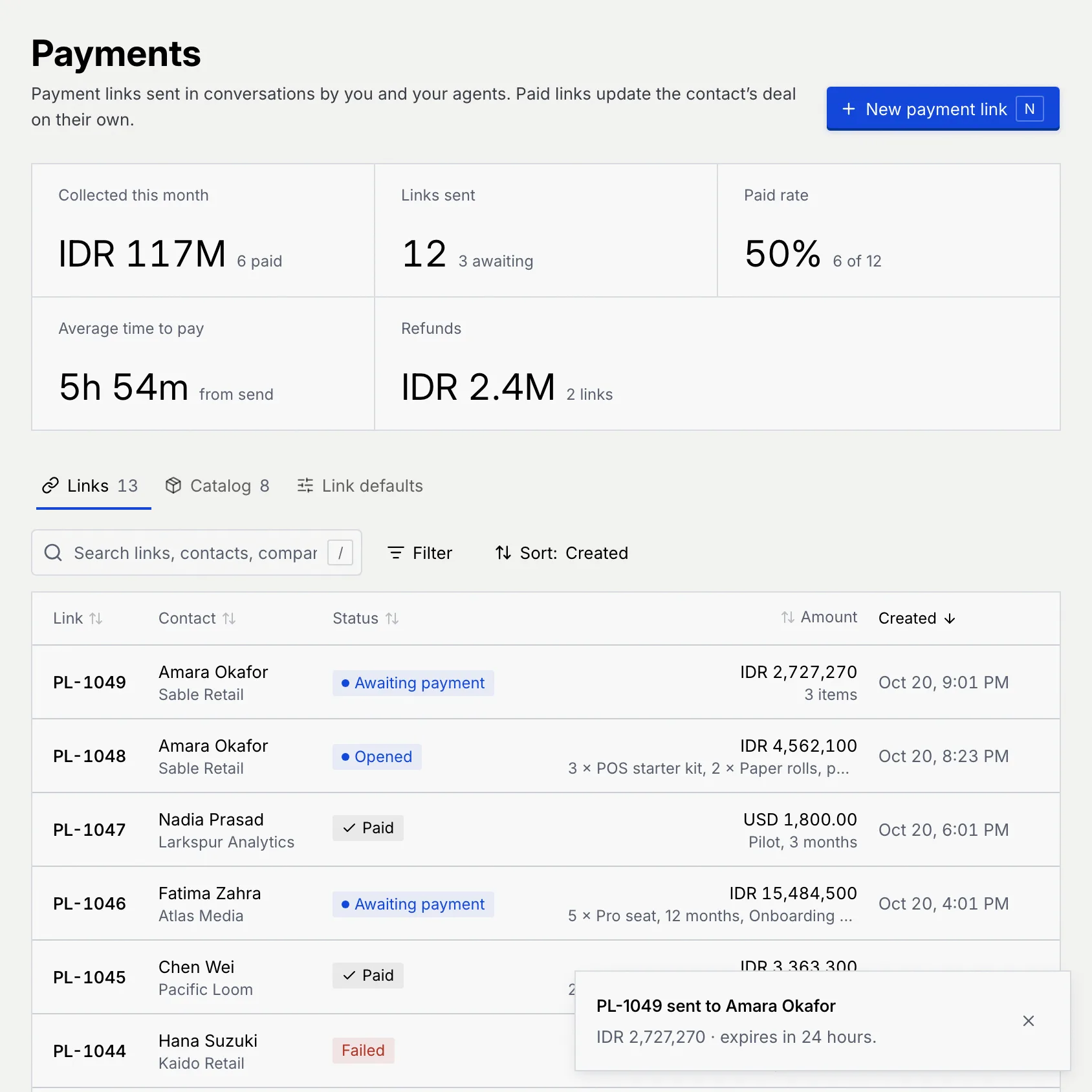
If something's missing when you send, the dialog points to it: pick a contact, and add at least one product or custom item.
Send a QRIS image
A QRIS image is your business's static QRIS with the order's total written in, so the customer scans it with any QRIS app and the amount is already filled in. The money goes straight to your QRIS account, so Mokanata can't see when it's paid: mark it paid once it shows in your bank or QRIS app.
Choose QRIS image
In New payment request, click QRIS image. If you've saved more than one QRIS, choose the QRIS account (your default is first).
QRIS only takes rupiah, so the currency switches to IDR and can't be changed.
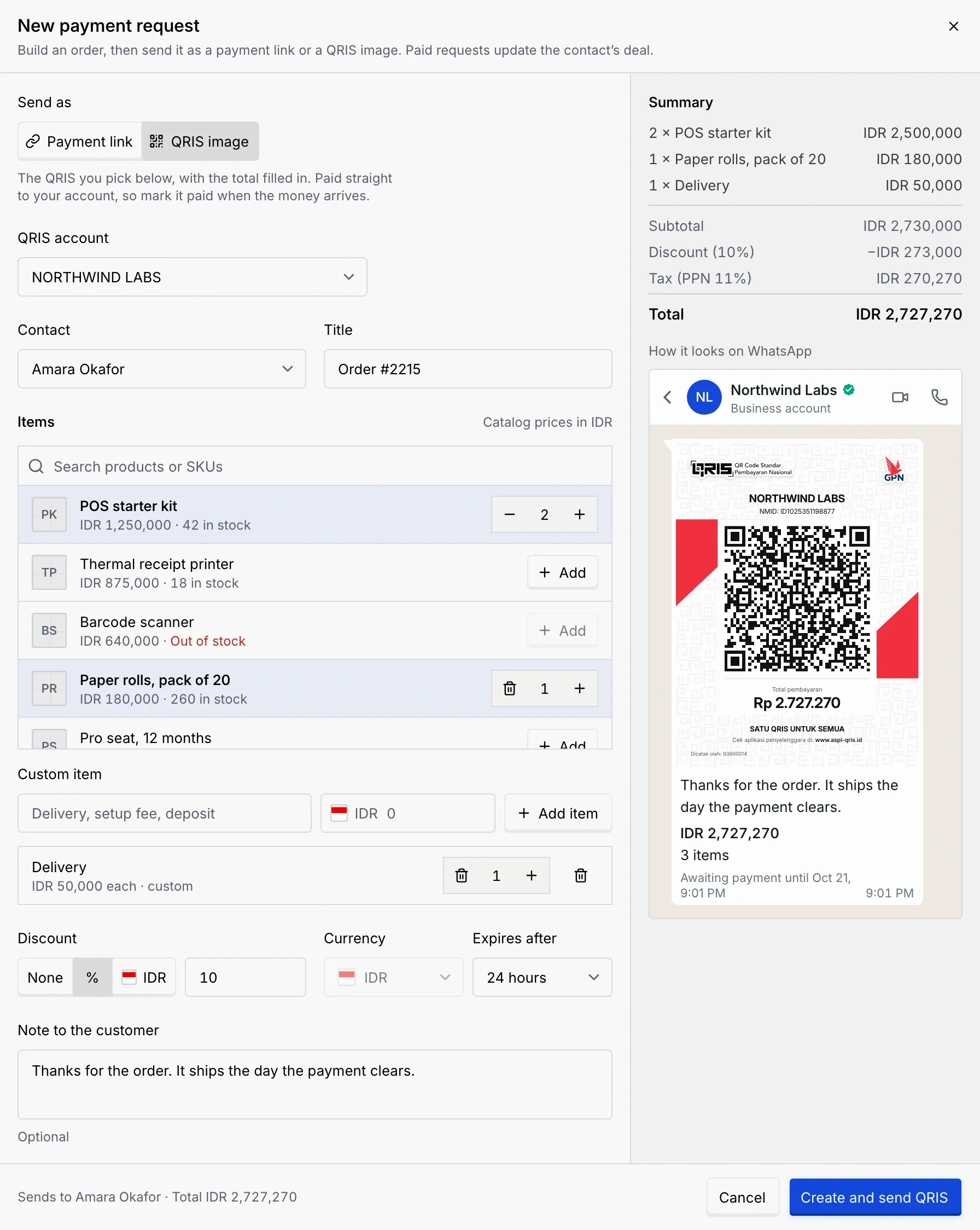
Send it
Build the order as above and click Create and send QRIS. The customer gets the QRIS image with your note and the order's details.
No QRIS yet?
If you haven't uploaded a static QRIS, QRIS image is disabled with a link to Add it on Setup. See Payment gateways and QRIS.
Send a payment request in a conversation
You can also build a payment request while replying to a customer: it goes into your reply instead of being sent on its own, and it shows up on the Payments page like any other link. The dialog is the same, except the contact is already chosen and the button reads Create and add to reply. On a channel that can't send images, QRIS isn't available. See Reply to a conversation.
Close without sending
Click Cancel, × or press Esc. If you've started building an order, Mokanata asks first, because the order isn't saved anywhere: Discard closes it, Keep editing goes back.
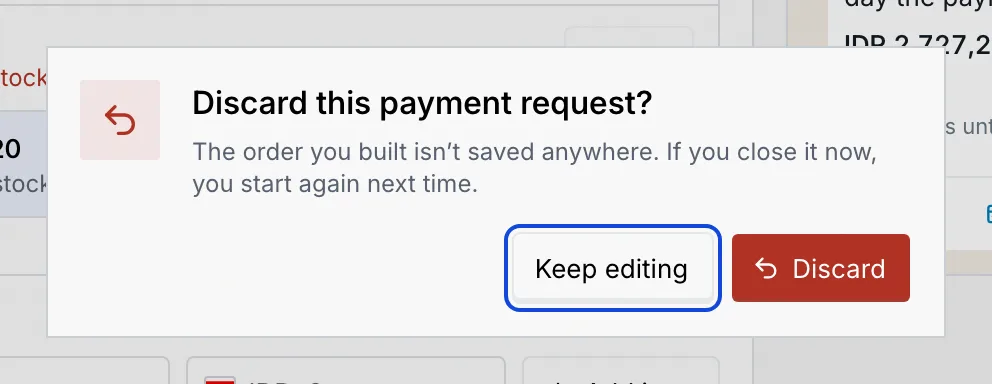
Troubleshooting
| Message | What to do |
|---|---|
| Pick who the link is for. | Choose a contact. |
| Add a product or a custom item. | Add at least one item. |
| Name the item, so the customer knows what they’re paying for. | Type the custom item's name. |
| Enter a price above zero in … | Type the custom item's price. |
| Add “…” to the order with Add item, or clear it. | You typed a custom item but didn't add it. |
| Enter a number, like 10. / A percent discount goes up to 100. / The discount can’t be more than the subtotal. | Fix the discount. |
| Keep it under 300 characters. | Shorten the note. |
The catalog only shows products priced in the order's currency. Switch the currency, add a custom item instead, or add the product in that currency to the catalog.
Switch the currency to IDR. If the message says the QRIS was removed from Setup, pick another QRIS account and try again.
Your role can't create payment links. Ask an owner or admin.