Manage payment links
Open a payment link to read its items and timeline, then copy its details, resend it, mark it paid, record a refund or cancel it.
Every payment link has a detail panel with its items, a timeline of what happened to it, who paid and how, and the actions its status still allows.
- Who can use it: Everyone can open a link and read it. Copying a link's details and downloading a QRIS work for everyone. Sending a draft needs Create payment links; resending and marking paid need Manage payment links (owners, admins and members). Cancelling needs Cancel payment links and refunding needs Refund payments (owners and admins by default). Actions your role can't use are left out of the menu. See Roles and permissions.
- Before you start: Nothing. Open Payments from the sidebar (Payments).
Open a link
Click the link
On the Links tab, click a link's reference (like PL-1048) or its row. The link opens in a panel on the right, and its row stays highlighted.
Read the link
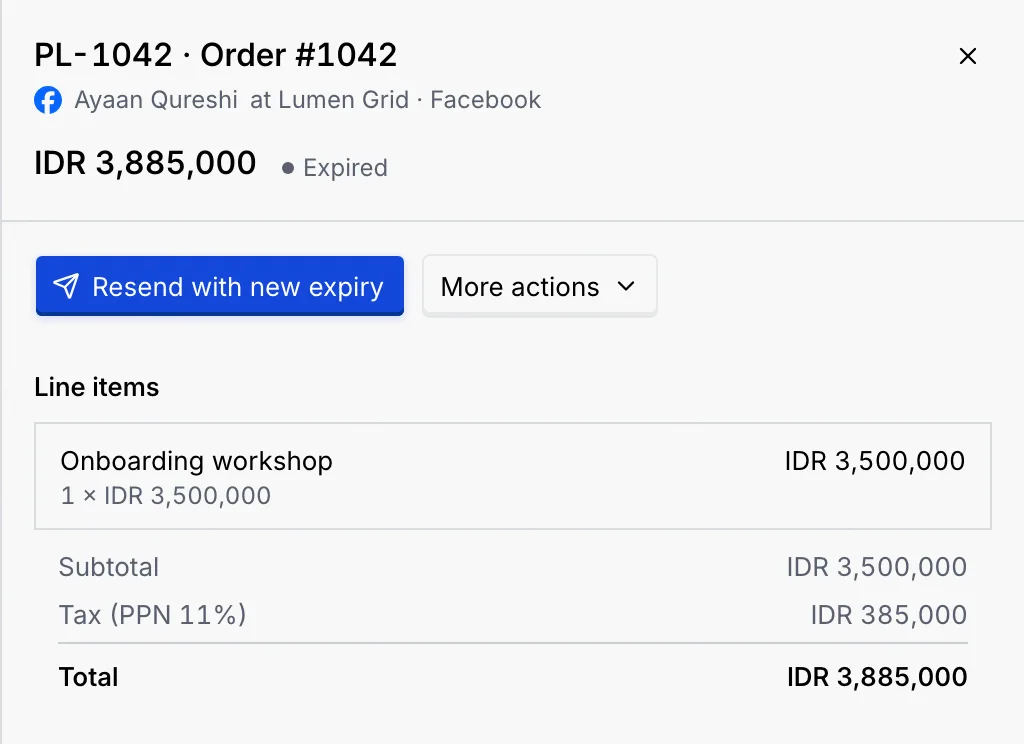
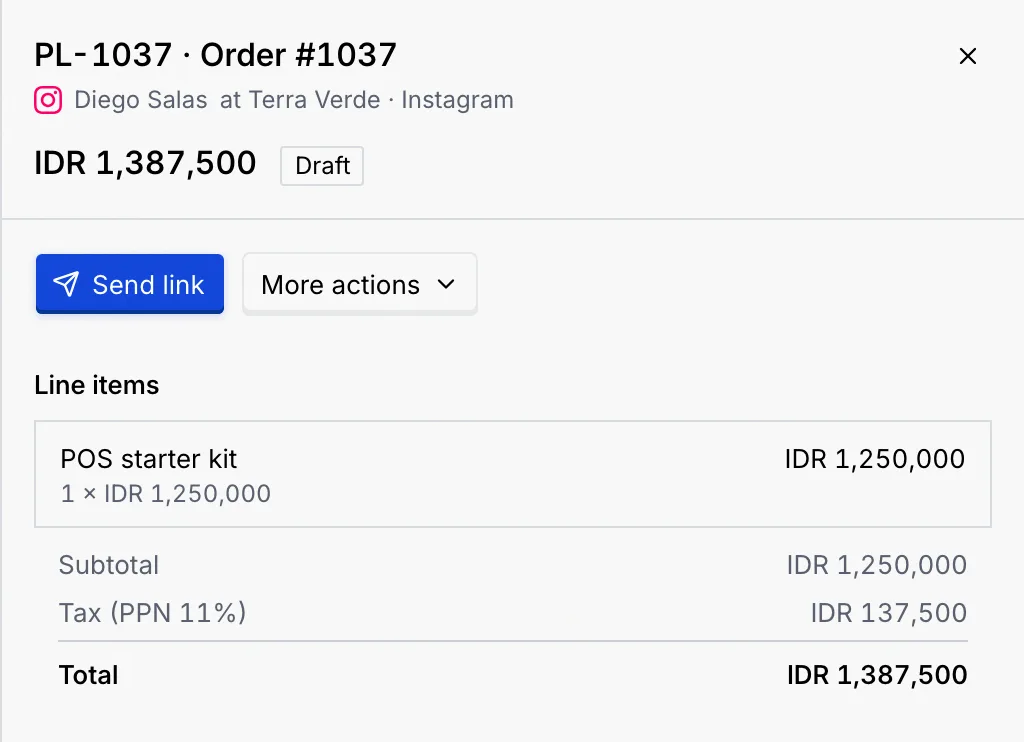
- The top shows the reference and title, the contact (a link to their record), their company, the channel it was sent on, the total and the status.
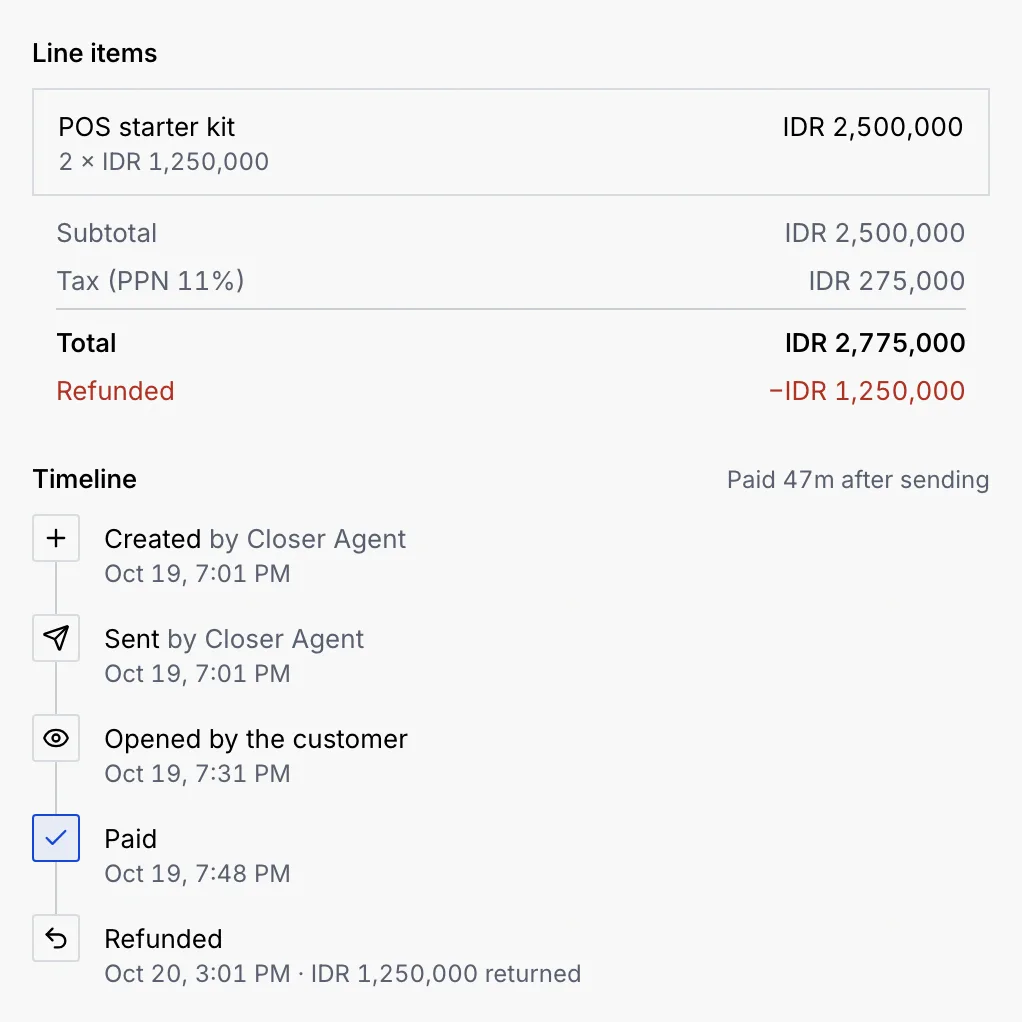
- Line items lists each item with its quantity and price, the subtotal, any discount, tax, the Total, and what was refunded.
- Timeline shows each step with who did it and when: Created, Sent, Paid, Refunded, Expired or Cancelled. Steps still to come are greyed out, like Waiting for payment · open until …. Once paid, it says how long after sending.
- Payer shows who paid and how once it's marked paid.
- Processor shows where the money went (your QRIS, or Manual for one marked paid another way), the reference (with a copy button), who created the link and any note.
Use the actions
The main button depends on the status (see What each status allows): Download QRIS for a QRIS payment, Copy details for other links that are open or paid, Send link for a draft, or Resend with new expiry for an expired link. Everything else is under More actions.
Copy or resend a link
- Download QRIS saves the QRIS image the customer got, to send again from somewhere else.
- Copy details copies what the customer got: the reference, title, items and total, and how long it stays open (or that it's paid, expired or cancelled). There's no payment page, so there's no address to copy.
- Resend (in More actions) sends the link to the contact again, on the same channel. QRIS payments can't be resent: download the QRIS instead.
- On an expired link, Resend with new expiry sends it again with a fresh expiry from your link defaults.
- On a draft, Send link sends it for the first time; the expiry starts then.
Mark a link paid
Use this when the customer paid another way (a bank transfer, cash, a cheque) or paid your QRIS, which Mokanata can't see.
Open Mark as paid
Open the link, then More actions → Mark as paid.
Say how they paid
Choose How they paid (Bank transfer, Cash, Cheque or Other) and, if you like, a Reference such as the transfer number or receipt. Click Mark as paid.
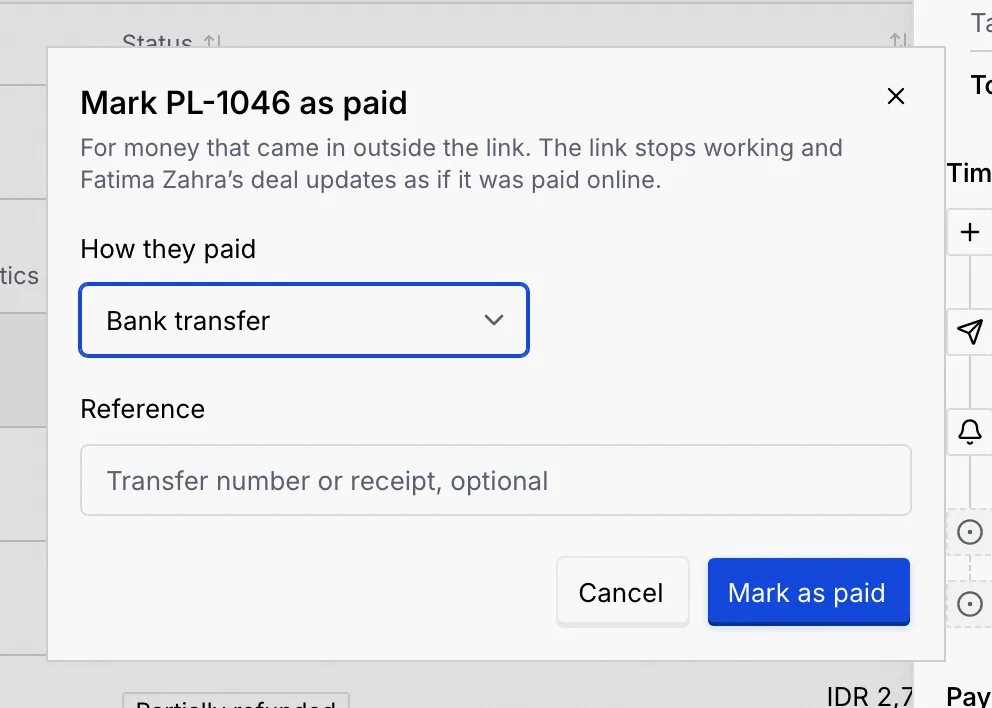
The link's status becomes Paid, and it counts toward what Payments collected. It's also sent as a conversion to any ad platforms you've connected. The contact's deal stays as it is: move it yourself if you need to.
Refund a payment
Mokanata only sends money back for a payment it took through a payment gateway, and payment gateways are coming soon. For a link marked paid by hand, record the refund once you've returned the money; for a QRIS payment, refund it from your bank or QRIS app.
Coming soon
The Refund steps below are for payments taken through a payment gateway, which are coming soon. Today every payment is QRIS or marked paid by hand: record a refund you made yourself instead.
Open Refund
Open a paid or partially refunded link, then More actions → Refund.
Enter the amount
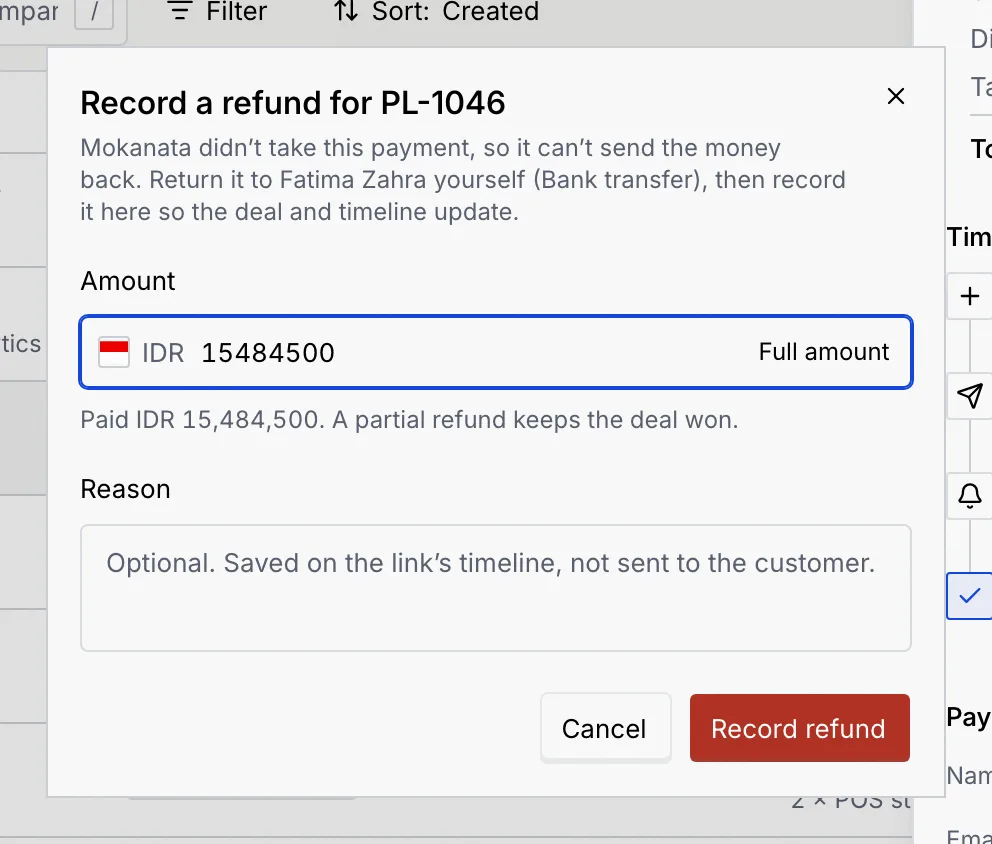
Amount starts with what's left to refund; click Full amount to fill it again. A partial refund keeps the deal won. Add a Reason if you like: it's saved on the link's timeline and isn't sent to the customer.
Record a refund you made yourself
If the link was marked paid by hand, Mokanata never held the money, so it can't send it back. More actions shows Record a refund instead: return the money yourself, then record it here so the link's status and timeline show it.
QRIS payments can't be refunded here
A QRIS payment went straight to your account, so refund it from your bank or QRIS app.
Cancel a link or discard a draft
Cancel the link
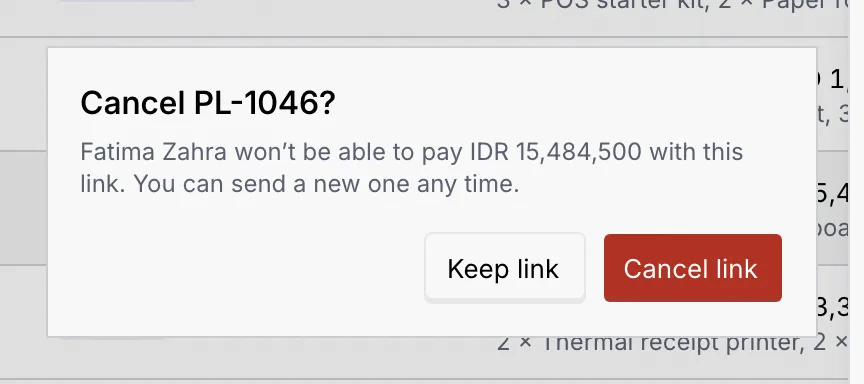
Open the link, then More actions → Cancel link (or Discard draft for a draft).
Confirm
Click Cancel link to confirm, or Keep link to back out. Its status becomes Cancelled, and its details say so if you copy them. Mokanata doesn't message the customer about it, so tell them in the conversation if they might still pay. You can send a new link any time. A discarded draft moves to Cancelled; it was never sent, so nobody saw it.
What each status allows
| Status | Send | Resend | Mark as paid | Refund | Cancel |
|---|---|---|---|---|---|
| Draft | Yes | Yes (Discard draft) | |||
| Awaiting payment | Yes (not QRIS) | Yes | Yes | ||
| Paid, Partially refunded | Record a refund for one marked paid by hand (not QRIS); gateway refunds are coming soon | ||||
| Expired | Yes, with a new expiry (not QRIS) | Yes | |||
| Failed | Yes | ||||
| Refunded, Cancelled |
A link that's no longer payable still keeps a way to copy its details (or download its QRIS) from More actions.
Troubleshooting
Only a payment through a payment gateway can fail, and gateways are coming soon. If the customer paid another way, mark it paid. Otherwise send them a new request.
The address pointed at a link that isn't there. Payments shows the full list instead.
Nothing was refunded. Check the amount (whole numbers for IDR, at most 2 decimals for USD, SGD and MYR, and no more than what's left), then try again.
The link wasn't sent. Try again from the link's panel.