# Manage payment links (/docs/payments/manage-payment-links)
Every payment link has a detail panel with its items, a timeline of what happened to it, who paid and how, and the actions its status still allows.
- **Who can use it:** Everyone can open a link and read it. Copying a link's details and downloading a QRIS work for everyone. Sending a draft needs **Create payment links**; resending and marking paid need **Manage payment links** (owners, admins and members). Cancelling needs **Cancel payment links** and refunding needs **Refund payments** (owners and admins by default). Actions your role can't use are left out of the menu. See [Roles and permissions](/docs/settings/roles).
- **Before you start:** Nothing. Open **Payments** from the sidebar ([Payments](/docs/payments/payments)).
## Open a link [#open-a-link]
### Click the link [#click-the-link]
On the **Links** tab, click a link's reference (like **PL-1048**) or its row. The link opens in a panel on the right, and its row stays highlighted.
### Read the link [#read-the-link]
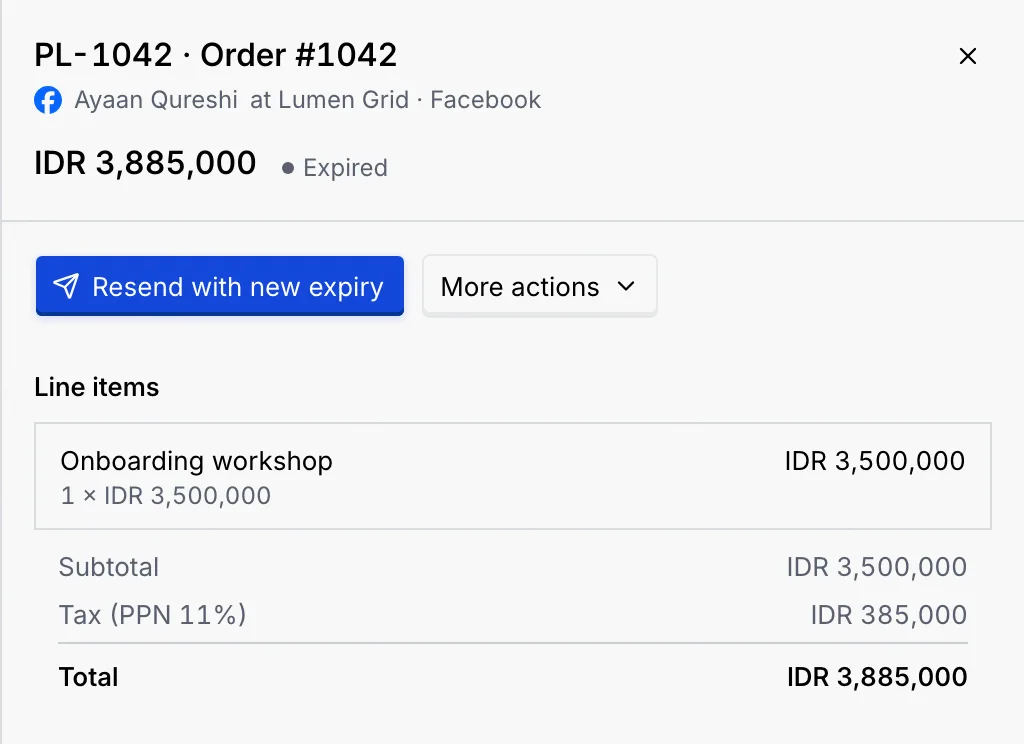
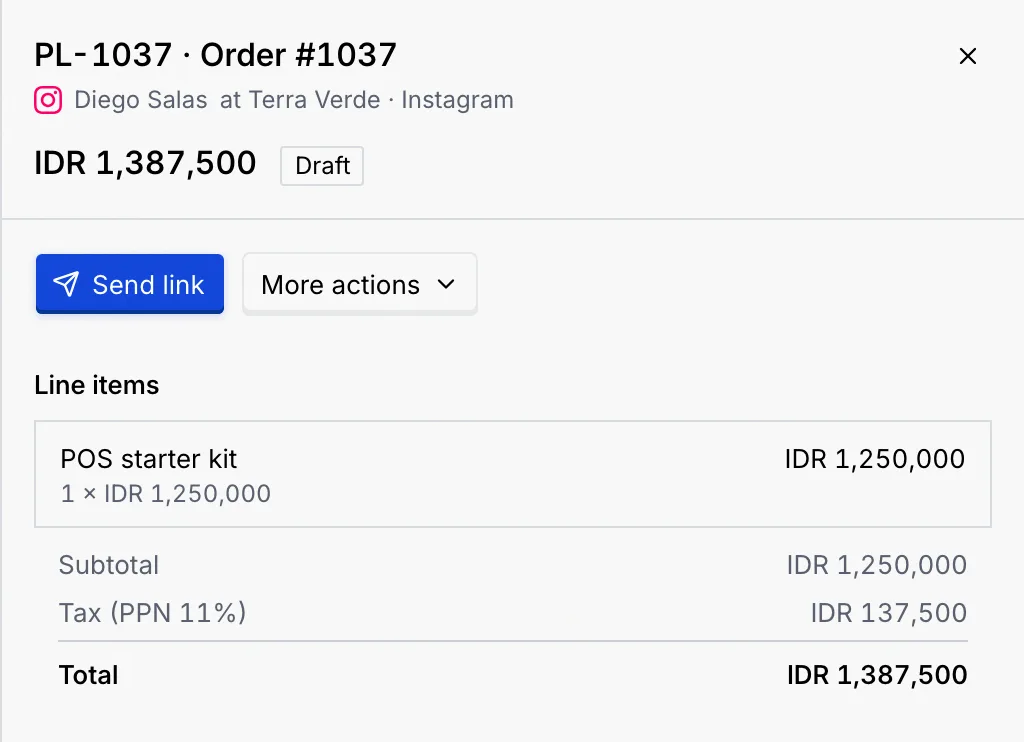
- The top shows the reference and title, the contact (a link to their record), their company, the channel it was sent on, the total and the status.
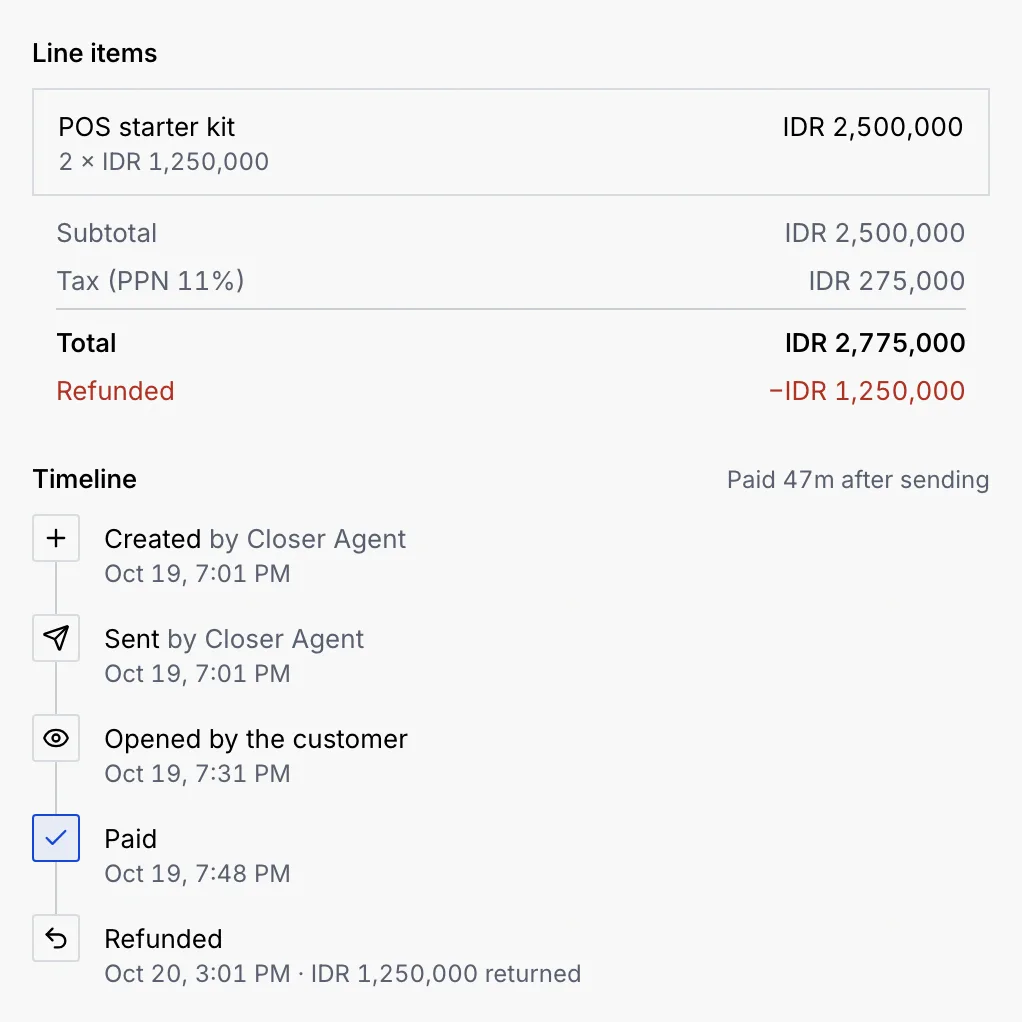
- **Line items** lists each item with its quantity and price, the subtotal, any discount, tax, the **Total**, and what was refunded.
- **Timeline** shows each step with who did it and when: **Created**, **Sent**, **Paid**, **Refunded**, **Expired** or **Cancelled**. Steps still to come are greyed out, like **Waiting for payment · open until …**. Once paid, it says how long after sending.
- **Payer** shows who paid and how once it's marked paid.
- **Processor** shows where the money went (your QRIS, or **Manual** for one marked paid another way), the reference (with a copy button), who created the link and any note.
### Use the actions [#use-the-actions]
The main button depends on the status (see [What each status allows](#what-each-status-allows)): **Download QRIS** for a QRIS payment, **Copy details** for other links that are open or paid, **Send link** for a draft, or **Resend with new expiry** for an expired link. Everything else is under **More actions**.
## Copy or resend a link [#copy-or-resend-a-link]
- **Download QRIS** saves the QRIS image the customer got, to send again from somewhere else.
- **Copy details** copies what the customer got: the reference, title, items and total, and how long it stays open (or that it's paid, expired or cancelled). There's no payment page, so there's no address to copy.
- **Resend** (in **More actions**) sends the link to the contact again, on the same channel. QRIS payments can't be resent: download the QRIS instead.
- On an expired link, **Resend with new expiry** sends it again with a fresh expiry from your link defaults.
- On a draft, **Send link** sends it for the first time; the expiry starts then.
## Mark a link paid [#mark-a-link-paid]
Use this when the customer paid another way (a bank transfer, cash, a cheque) or paid your QRIS, which Mokanata can't see.
### Open Mark as paid [#open-mark-as-paid]
Open the link, then **More actions** → **Mark as paid**.
### Say how they paid [#say-how-they-paid]
Choose **How they paid** (**Bank transfer**, **Cash**, **Cheque** or **Other**) and, if you like, a **Reference** such as the transfer number or receipt. Click **Mark as paid**.
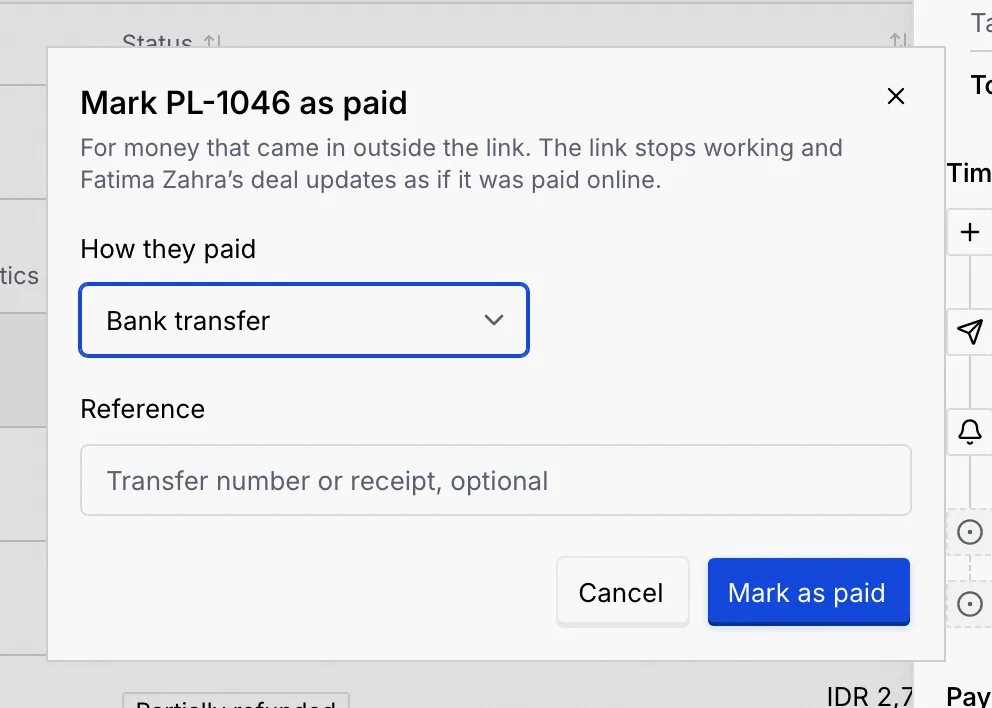
The link's status becomes **Paid**, and it counts toward what Payments collected. It's also sent as a conversion to any [ad platforms](/docs/ads/conversion-destinations) you've connected. The contact's deal stays as it is: move it yourself if you need to.
## Refund a payment [#refund-a-payment]
Mokanata only sends money back for a payment it took through a payment gateway, and payment gateways are coming soon. For a link marked paid by hand, [record the refund](#record-a-refund-you-made-yourself) once you've returned the money; for a QRIS payment, refund it from your bank or QRIS app.
The **Refund** steps below are for payments taken through a payment gateway, which are coming soon. Today every payment is QRIS or marked paid by hand: [record a refund you made yourself](#record-a-refund-you-made-yourself) instead.
### Open Refund [#open-refund]
Open a paid or partially refunded link, then **More actions** → **Refund**.
### Enter the amount [#enter-the-amount]
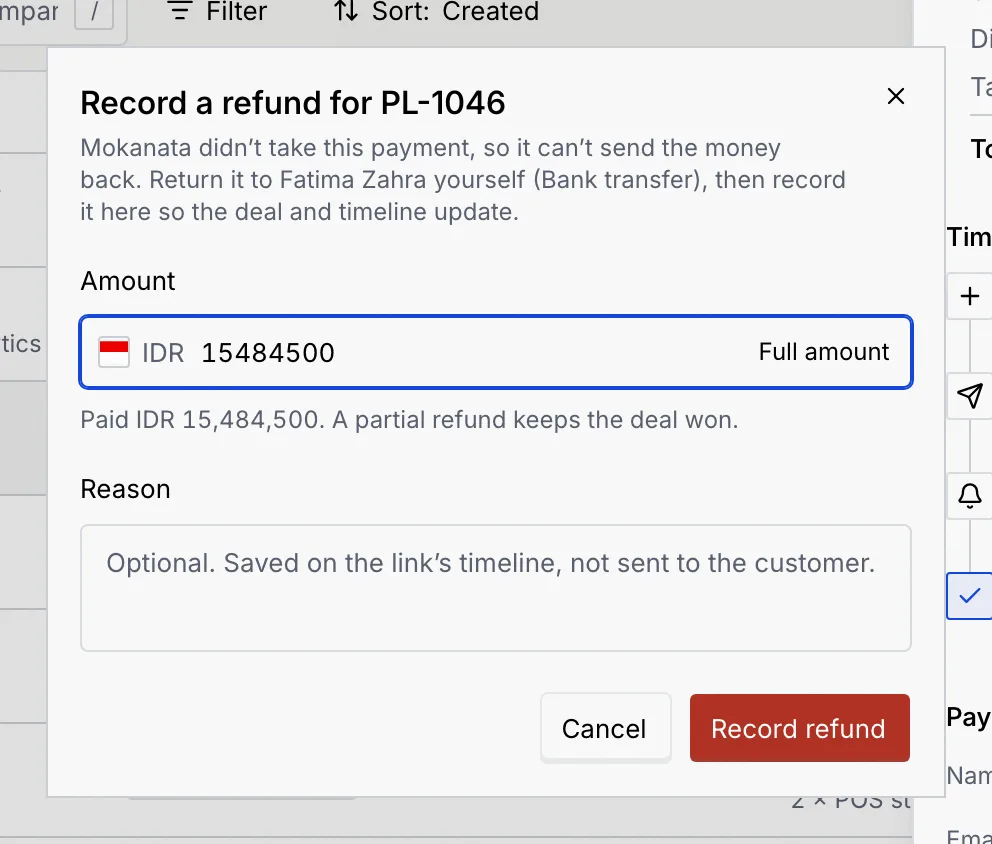
**Amount** starts with what's left to refund; click **Full amount** to fill it again. A partial refund keeps the deal won. Add a **Reason** if you like: it's saved on the link's timeline and isn't sent to the customer.
### Confirm [#confirm]
Click **Refund**. The link becomes **Refunded** or **Partially refunded**.
### Record a refund you made yourself [#record-a-refund-you-made-yourself]
If the link was marked paid by hand, Mokanata never held the money, so it can't send it back. **More actions** shows **Record a refund** instead: return the money yourself, then record it here so the link's status and timeline show it.
A QRIS payment went straight to your account, so refund it from your bank or QRIS app.
## Cancel a link or discard a draft [#cancel-a-link-or-discard-a-draft]
### Cancel the link [#cancel-the-link]
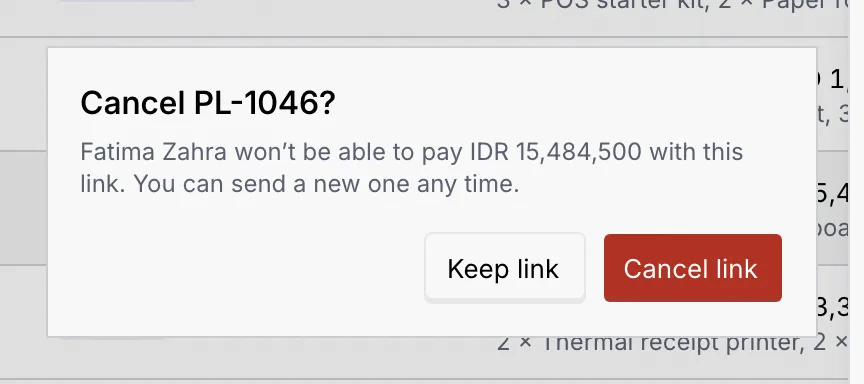
Open the link, then **More actions** → **Cancel link** (or **Discard draft** for a draft).
### Confirm [#confirm-1]
Click **Cancel link** to confirm, or **Keep link** to back out. Its status becomes **Cancelled**, and its details say so if you copy them. Mokanata doesn't message the customer about it, so tell them in the conversation if they might still pay. You can send a new link any time. A discarded draft moves to **Cancelled**; it was never sent, so nobody saw it.
## What each status allows [#what-each-status-allows]
| Status | Send | Resend | Mark as paid | Refund | Cancel |
|---|---|---|---|---|---|
| **Draft** | Yes | | | | Yes (**Discard draft**) |
| **Awaiting payment** | | Yes (not QRIS) | Yes | | Yes |
| **Paid**, **Partially refunded** | | | | **Record a refund** for one marked paid by hand (not QRIS); gateway refunds are coming soon | |
| **Expired** | | Yes, with a new expiry (not QRIS) | Yes | | |
| **Failed** | | | Yes | | |
| **Refunded**, **Cancelled** | | | | | |
A link that's no longer payable still keeps a way to copy its details (or download its QRIS) from **More actions**.
## Troubleshooting [#troubleshooting]
Only a payment through a payment gateway can fail, and gateways are coming soon. If the customer paid another way, mark it paid. Otherwise send them a new request.
The address pointed at a link that isn't there. Payments shows the full list instead.
Nothing was refunded. Check the amount (whole numbers for IDR, at most 2 decimals for USD, SGD and MYR, and no more than what's left), then try again.
The link wasn't sent. Try again from the link's panel.
## Next steps [#next-steps]