Conditions and paths
Branch a flow with If / else and Switch, stop runs with a Filter, and compare values from the message, the contact and earlier steps.
Conditions let one flow handle different cases: send buying questions down one path and support questions down another, or stop a run when the deal is already won. You set them up in the step's settings and try them on sample values before you publish.
- Who can use it: Owners and admins can add and change conditions. Members and viewers can open a condition and read its paths, but every field, including Try it, is read-only. See Roles and permissions.
- Before you start: The flow needs a trigger. See Flow builder basics.
Choose the right block
All three are in the Logic group of Blocks.
| Block | Use it to | How it decides |
|---|---|---|
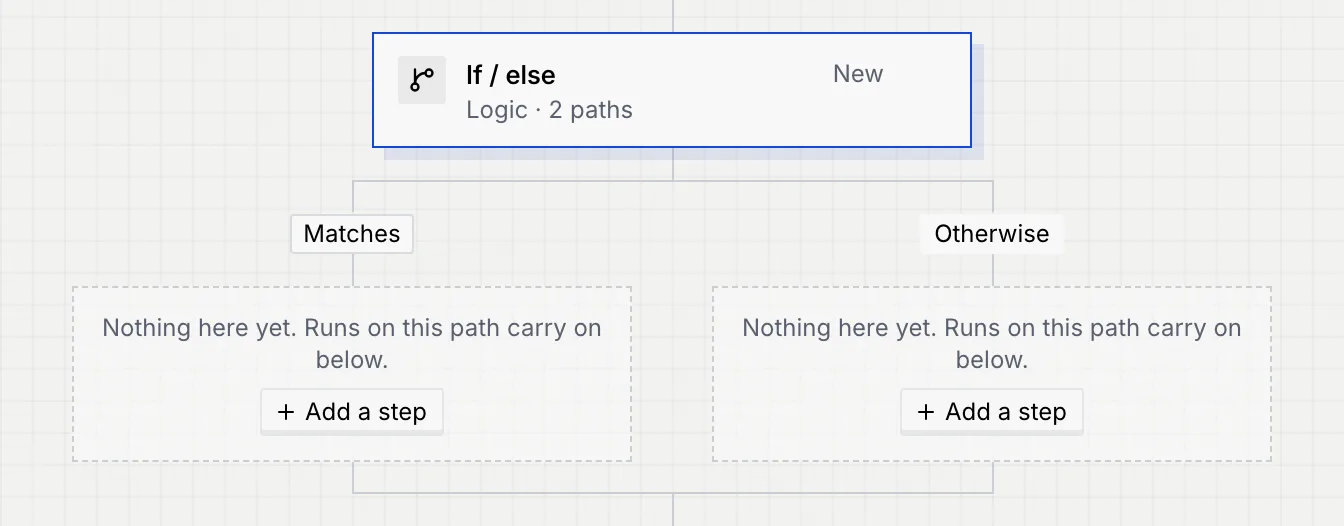
| If / else | Do one thing when something is true and another when it isn't. | Two paths, Matches and Otherwise. |
| Switch | Pick one of several paths, such as one per intent or per channel. | One path per value, checked top to bottom, plus Otherwise for everything else. |
| Filter | Let only some runs carry on. | One set of conditions. Runs that don't match stop there and count as filtered, not failed. |
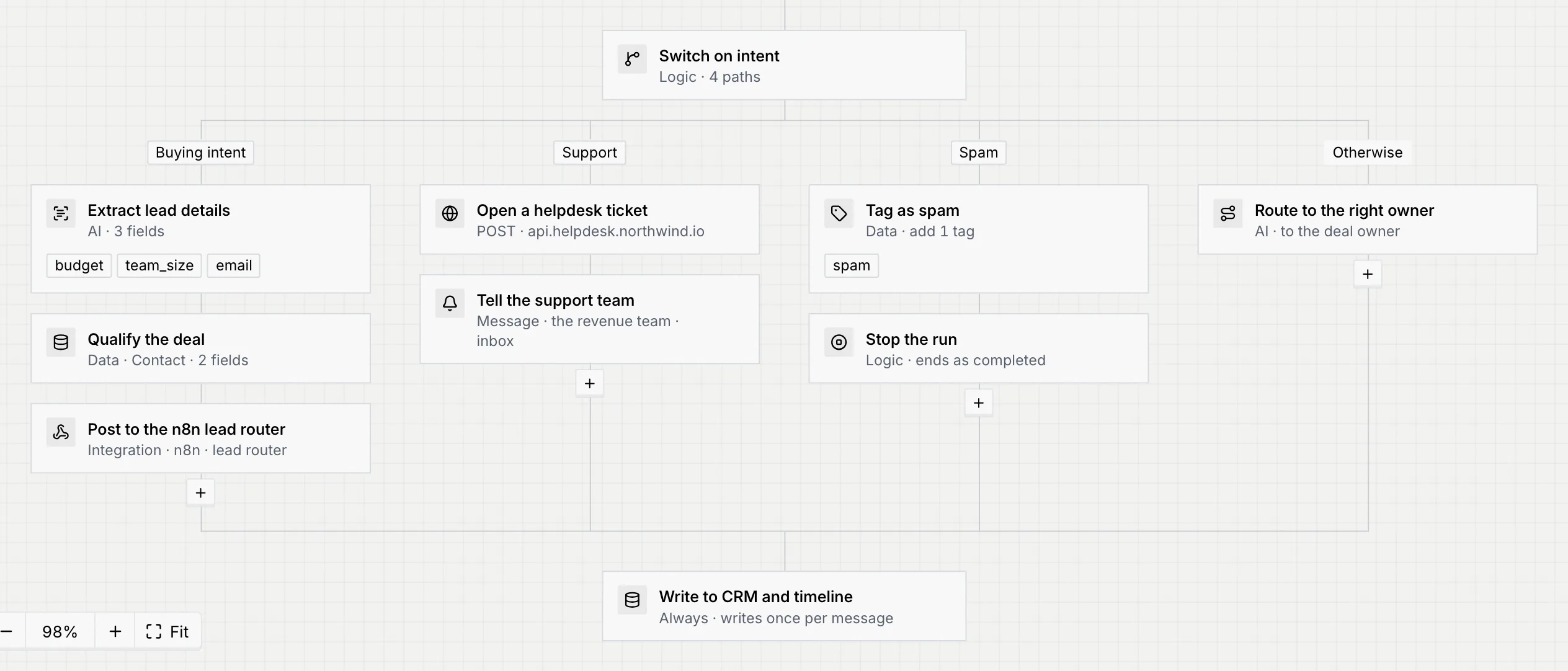
Here, Triage Agent's Inbound routing classifies each message, then a Switch sends it down one of four paths. After the paths, the flow carries on with Write to CRM and timeline whichever path the run took.
Add an If / else or Switch
Select where it goes
Click the step the condition should come after. Conditions can't go inside another condition's path; if the selected step is on a path, the condition goes after the paths merge.
Add the block
In Blocks, click If / else or Switch. The toast says how many paths it has, for example "2 paths. Set the conditions in the step settings, then add steps to each path."
A Switch added after a Classify message step starts as Switch on intent, with a path for each of the first two labels. In a flow started by a message but without a classifier, it starts as Switch on channel, with paths that check the channel; rename them and set each one's value. Otherwise its paths start empty, for you to fill in.
Set each path's conditions
The condition's settings open in the side panel, under Paths. See the next section.
Write a path's conditions
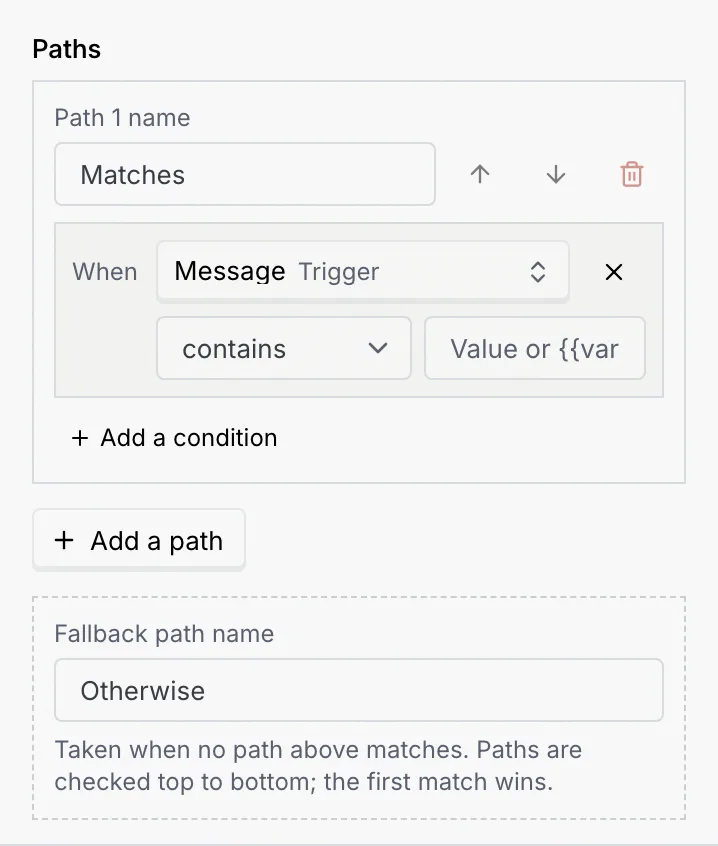
Each path in Paths has a name, its conditions and buttons to reorder or remove it.
Name the path
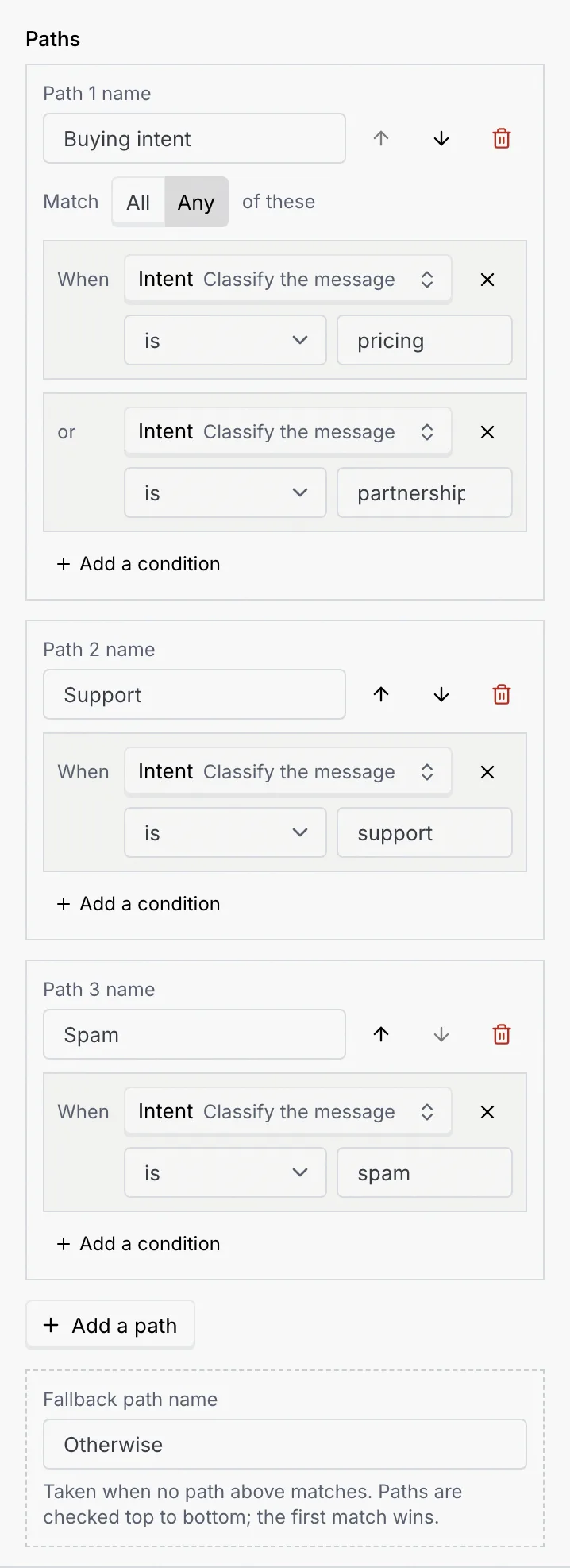
Type in Path 1 name (and so on). The name shows on the canvas above the path's steps, in tests and in runs, so make it say what the path is for, such as "Buying intent".
Choose a field
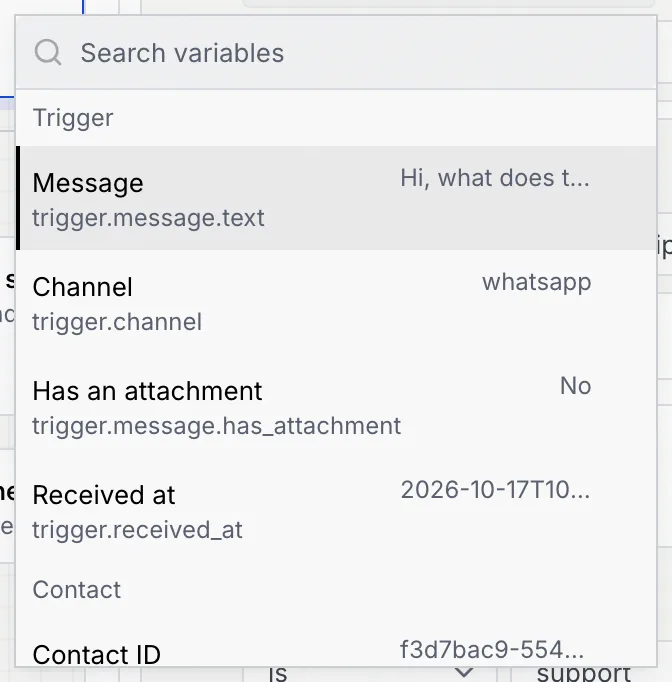
Click the field button after When (it says Choose a field on a new row). Pick a variable from the list or type in Search variables. Each one shows its path, such as trigger.message.text, and a sample value.
Choose how to compare
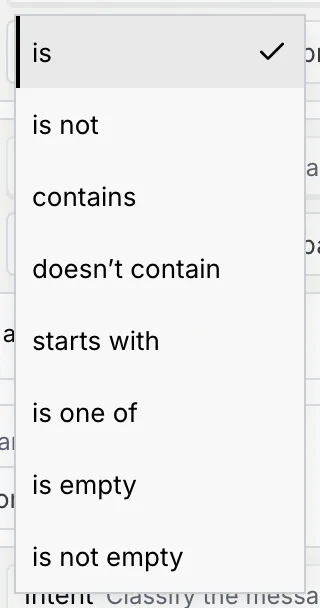
Pick a comparison. The list depends on the field's type; see Comparisons below.
Enter the value
Type the value in Value or {{variable}}. You can compare with another variable by typing it in double braces, such as {{deal.value}}. For a classifier's intent, a deal stage or a channel, the box suggests the values it can take. is one of takes a comma-separated list.
Comparisons that need no value (is empty, is yes and so on) have no value box.
Add more conditions
Click Add a condition for another row. With two or more rows, choose Match All of these (every row must match) or Any (one is enough). The rows then read When, and or or. Remove a row with its X.
Comparisons
| Field type | Comparisons |
|---|---|
| Text | is, is not, contains, doesn't contain, starts with, is one of, is empty, is not empty |
| Number | is, is not, is more than, is less than, is empty, is not empty |
| Date | is, is more than, is less than, is empty, is not empty |
| Yes / no | is yes, is no |
| List (such as tags) | contains, doesn't contain, is empty, is not empty |
| Object | is empty, is not empty |
Text comparisons ignore upper and lower case.
Fields you can compare
The field picker lists what this step can see, in groups:
| Group | Fields |
|---|---|
| Trigger | What started the run: for a message, Message, Channel, Has an attachment and Received at; for other triggers, the payment, record, tag, stage or schedule details, or the webhook's payload fields. |
| Contact | Contact ID, Name, First name, Email, Phone, Company, Job title, Country, Stage, Tags, Owner, Created, plus your custom contact fields. |
| Deal | Deal value, Deal stage, Close date, Likelihood. |
| Conversation | Channel, Language, Transcript, Minutes since a teammate replied, Open threads. |
| Run | Today, Time, Weekday, Run ID. |
| Earlier steps | The outputs of every step above this one, under the step's name, such as Intent from Classify the message. See Blocks reference. |
| Variables | Values named in a Set variables step. |
Order the paths and the Otherwise path
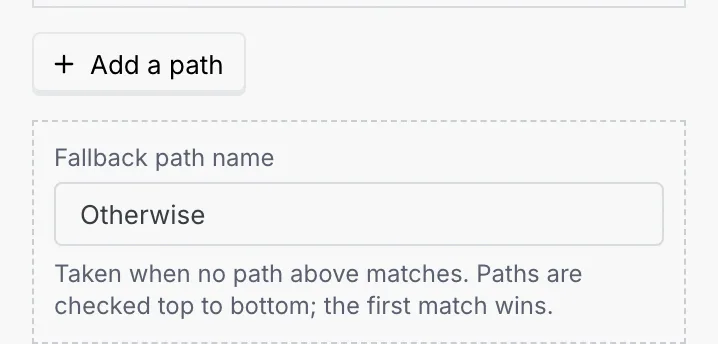
Paths are checked top to bottom, and the first one that matches wins. Use Check this path earlier and Check this path later (the arrows beside a path's name) to change the order. Add a path adds another one above Otherwise.
Otherwise (the fallback path) is taken when no path above matches. You can rename it in Fallback path name. If a condition has no Otherwise path, click Add an Otherwise path; without one, a run that matches nothing simply carries on below the condition.
To remove a path, click its bin icon. A path that has steps says how many go with it ("Remove this path and its 2 steps"). A condition needs at least one path with conditions, so the last one can't be removed.
Add steps to a path
A path's steps run only on runs that take that path. To put steps on a path:
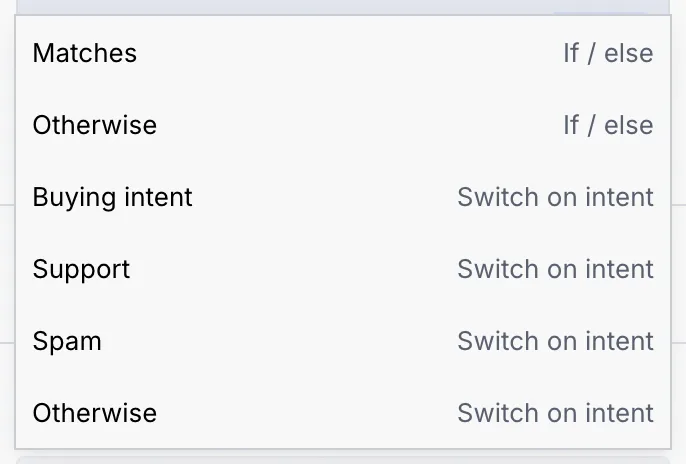
- Click Add a step in an empty path, or the + under a path's last step ("Add a step to …"), then click a block. The Blocks header says where it goes, such as "Adds to Matches".
- Select a step on the path, then click a block: it goes after that step.
- Drag a block or a step onto a drop slot inside the path.
- Select a step outside the paths and choose a path from Move into a path at the bottom of its settings.
To take a step off a path, click Move up on the path's first step (it lands just above the condition) or Move down on its last step (it lands below, where the paths merge), or drag it out. Paths hold steps, not triggers or other conditions.
Try it
Under Paths, Try it lists every field your conditions use, filled in with sample values. Change them to see which path a run like that would take: that path is marked Taken. If nothing matches and there's no Otherwise path, it says the run carries on below.
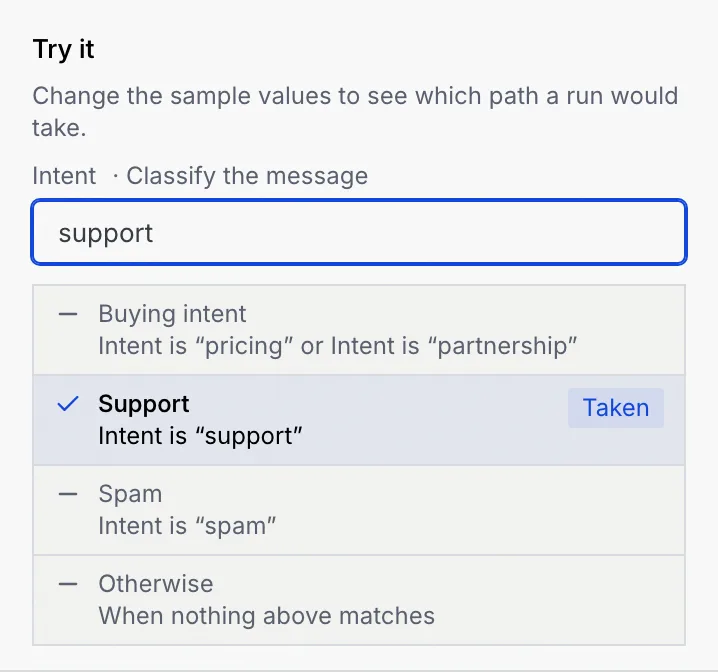
Try it doesn't change the flow or save the values you type. To run the whole flow on a sample message, use Test run.
Stop runs with a Filter
Add a Filter
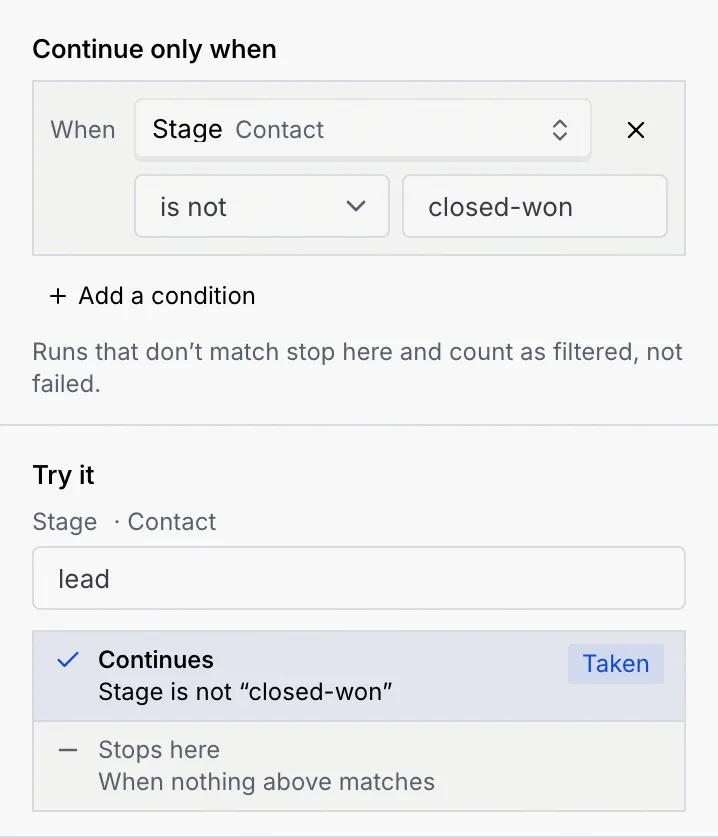
Select the step it should come after and click Filter in Blocks. It starts as Only continue when contact stage is not closed-won; change it to what you need.
Set the conditions
Under Continue only when, set the rows the same way as a path's conditions, with Match All or Any. Runs that don't match stop here and count as filtered, not failed.
Remove a condition
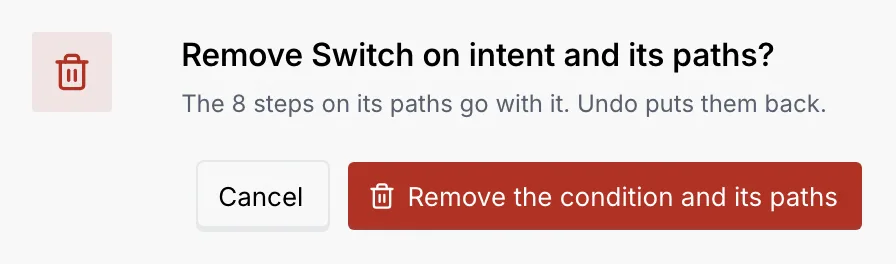
Select the condition and click Remove the condition and its paths at the bottom of its settings (or press Delete while it has focus). If any path has steps, you're asked first, with how many steps go with it. Undo in the toast puts everything back.
To keep a condition but stop using it for now, turn off Run this step: every run skips the condition and all its paths.
Troubleshooting
A path has a row without a field or without a value. Click Show the step in the problems banner, then fill in or remove the row.
The condition has no steps on any path. Add steps to its paths, or remove it. It's a warning, so you can still publish.
The condition compares a variable this step can't see, for example one from a step that was removed, renamed or moved below it. Choose another field.
Paths are checked top to bottom and the first match wins. Open Try it with the run's values to see which path matches first, then reorder the paths or tighten their conditions.
Next steps
Blocks reference
Every block you can add to a flow, grouped as in the Blocks dock, with what it does and the settings it takes.
Apps and webhooks in flows
Connect apps and APIs, set up outgoing destinations flows post to (incoming webhooks that start flows are coming soon), without leaving the flow builder.