Blocks reference
Every block you can add to a flow, grouped as in the Blocks dock, with what it does and the settings it takes.
Blocks are the building pieces of a flow. Each one you add becomes a step on the canvas, and its settings open in the side panel. This page lists every block in the order the Blocks dock shows them, with what it does and what you can set.
- Who can use it: Owners and admins can add blocks and change their settings. Members and viewers can open any step and read its settings, but the fields are read-only and the Blocks dock is hidden. See Roles and permissions.
- Before you start: Open a flow in the builder. See Flow builder basics.
Settings every step has
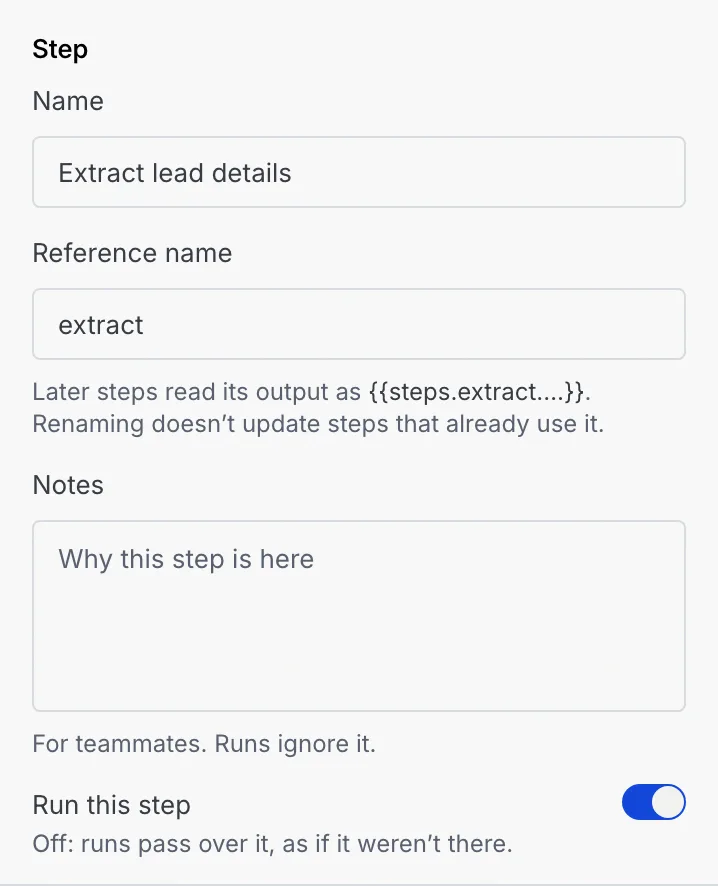
Whatever its type, a selected step's settings start with a Step section:
| Setting | What it does |
|---|---|
| Name | What the step is called on the canvas, in runs and in tests. |
| Reference name | The short name later steps use to read this step's results, as {{steps.<name>.…}}. Lowercase letters, numbers and underscores, starting with a letter, and unique in the flow. Renaming it doesn't update steps that already use the old name. Triggers don't have one. |
| Notes | For teammates: why the step is here. Runs ignore it. |
| Run this step | Off: runs pass over the step as if it weren't there, and its card shows Off. On an If / else or Switch, every run skips the condition and all its paths. Triggers can't be switched off. |
Below the step's own settings:
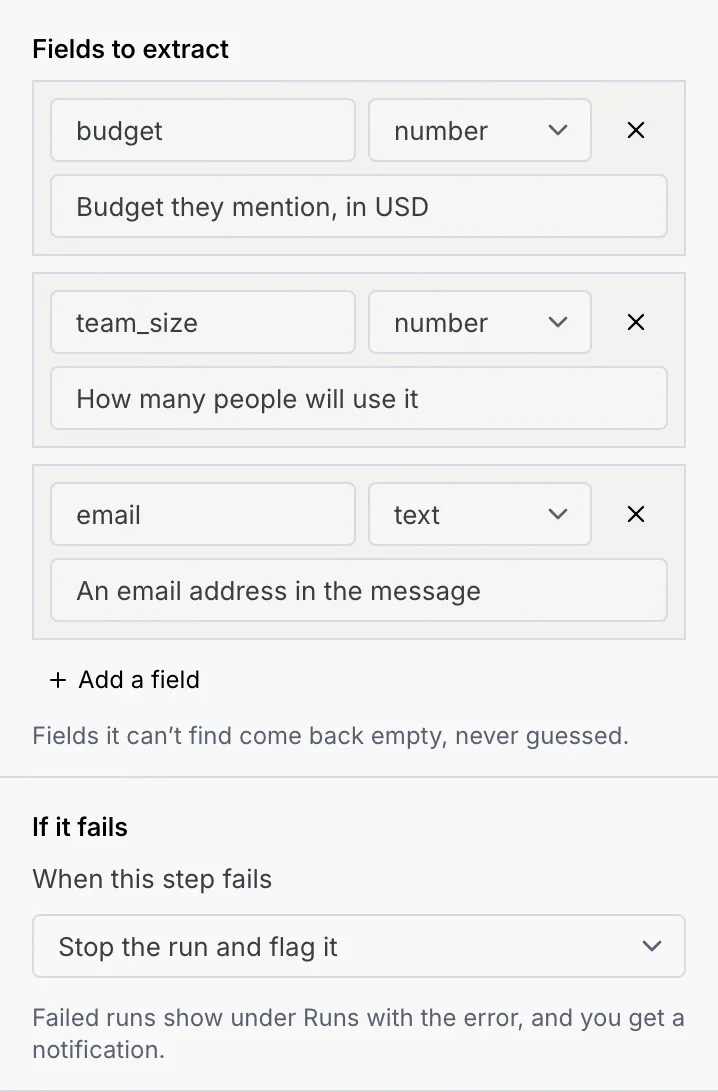
- If it fails (on steps that call out or change data: AI, message, data, integration and app steps, and Run another flow): choose Stop the run and flag it (the default), Retry, then stop (with Tries: 1, 2, 3 or 5 more, and First wait: 5s, 30s, 1m or 5m) or Carry on to the next step. The agent's run log, where failed runs will show, is coming soon. When a step carries on after failing, later steps see its outputs as empty, so check them with an If / else.
- Last 7 days: how the step did in published runs, such as "142 passed · 18 held", or "New in this draft. It runs once you publish."
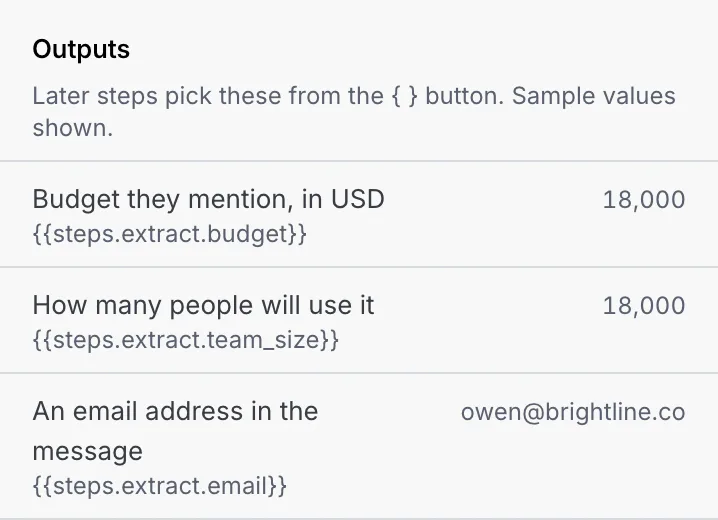
- Outputs: the values later steps can read from this step, with sample values.
- Move up, Move down, Move into a path and Remove this step. See Select, move and remove steps.
Use values from earlier steps
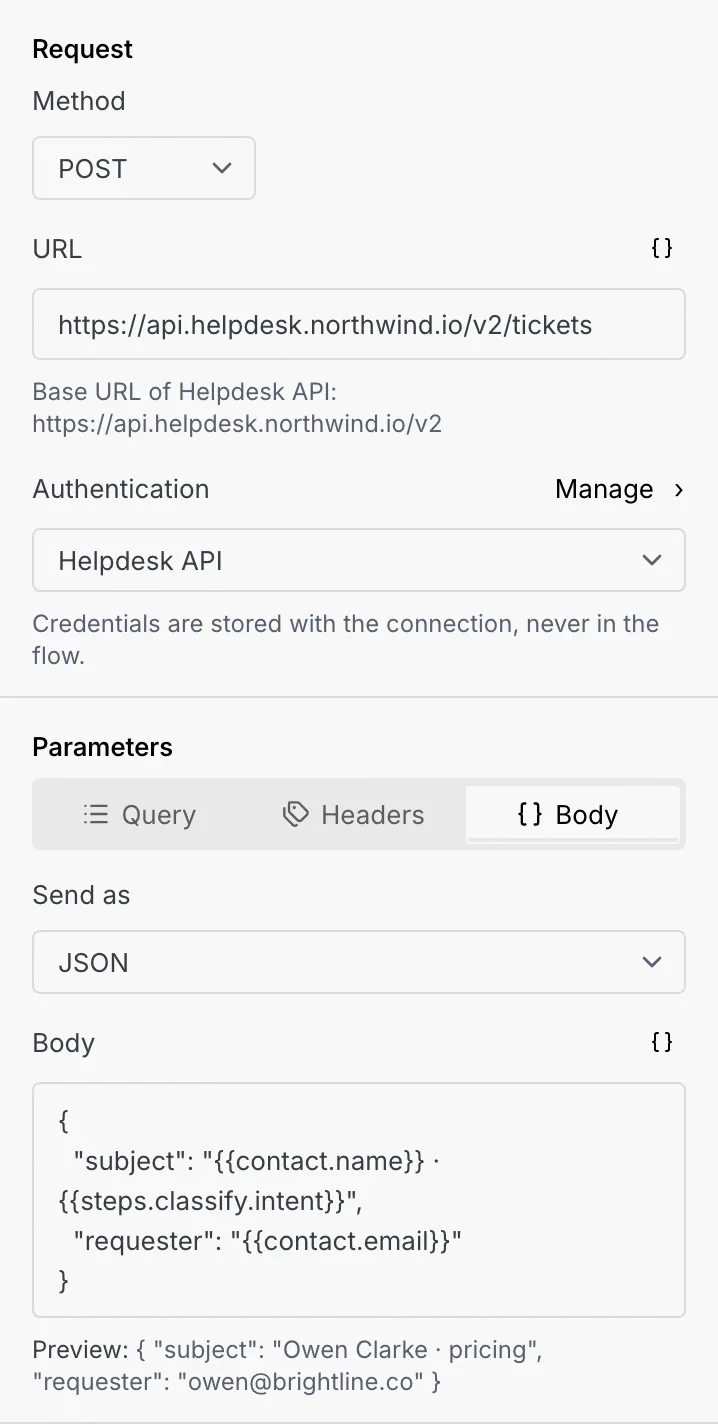
Text settings that take values from the run (a message, a URL, a payload, a field value) have a { } button beside their label. Click it to pick a variable: the trigger's data, the contact and deal, and the outputs of every step above this one. It's inserted where your cursor is, as {{contact.name}}, {{steps.classify.intent}} and so on. Under the field, Preview shows the text with sample values filled in.
If a setting uses a variable this step can't see (it comes from a later step, a step on another path, or a step that was removed or renamed), the field turns red with "… isn't available at this step", and the flow can't publish until you fix it.
Triggers
Every flow starts with exactly one trigger. Picking another one replaces it. See Choose a trigger.
| Block | Starts a run when | Settings |
|---|---|---|
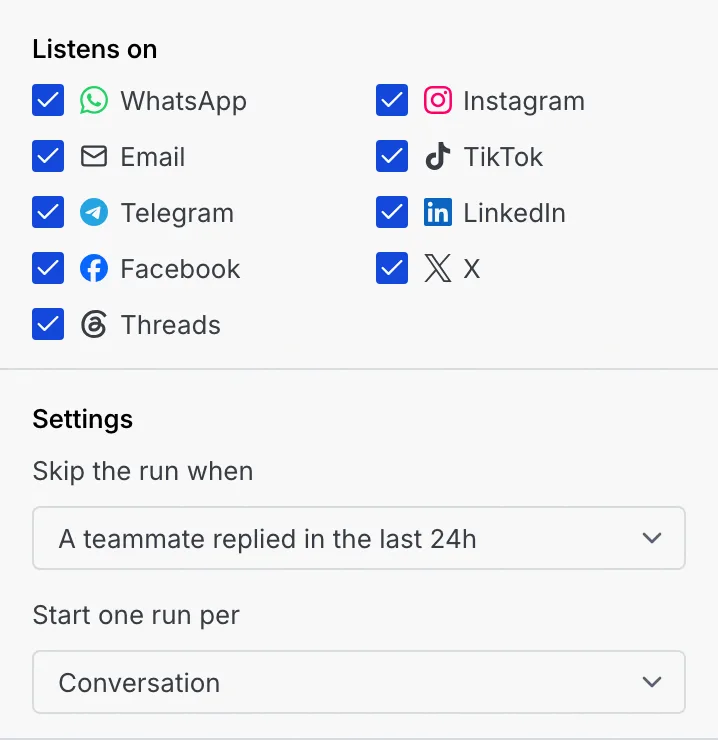
| Any channel message | A customer writes on any connected channel. The step is called Inbound message received. | Listens on: the channels to listen to (at least one). Skip the run when: Never skip, or a teammate replied in the last hour, 24 hours (the default) or 3 days. Start one run per: Conversation (the default) or Message. |
| Instagram comment | Someone comments on or mentions your Instagram account. | Listens on Instagram, plus the same Skip the run when and Start one run per settings. |
| Deal stage change | A deal moves from one stage to another. Later steps read the stages as {{trigger.from_stage}} and {{trigger.to_stage}}; add a Filter to act on one stage only. | Skip the run when, Start one run per. |
| Schedule | Every weekday at 09:00. Later steps read the time as {{trigger.scheduled_at}}. | Skip the run when, Start one run per. The timetable itself can't be changed. |
| Webhook received | Coming soon. Another app (n8n, Zapier, a form, your backend) will post to a Mokanata webhook URL. Flows don't run on the server yet and the webhook address doesn't exist yet, so this trigger can't start a flow today. | See Start a flow from a webhook. |
| Payment received | A payment link is paid, fails or is refunded. | When a payment link is: Paid, Failed or Refunded. Covers every payment link and gateway on the Payments page. |
| Record created or updated | A contact or a custom object record changes. | Object, and When a record is: Created, Updated or Created or updated. Changes made by this flow don't start it again, so it can't loop. For a table synced from your database, changes made in the database itself start it too. |
| Tag added | A contact gets a tag, from a person, an import or another flow. | Tag. |
Agent actions
The agent's own work on a conversation. These steps use the agent's model, voice, knowledge and channels from its setup.
| Block | What it does | Settings |
|---|---|---|
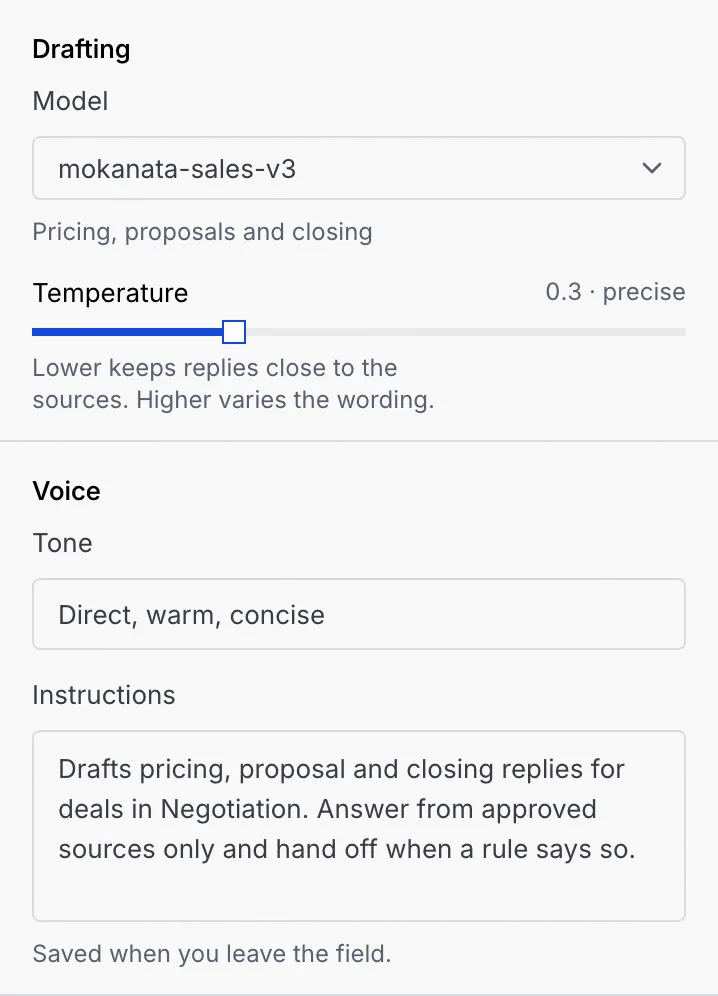
| Draft reply | The agent writes a reply from your sources. The step is called "Agent drafts reply". | Drafting: Model and Temperature (lower keeps replies close to the sources, higher varies the wording). Voice: Tone and Instructions (saved when you leave the field). |
| Send reply | Sends the draft on the customer's channel and logs it to the contact's timeline. The step is called Send automatically. | Wait out quiet hours: holds messages during the agent's quiet hours, in each contact's time. Change the hours on the agent's Settings tab. |
| Hand to a person | A teammate takes the conversation. The customer sees nothing until a person replies. | Goes to: The deal owner, you, or The revenue team. If no one acts within: 30m, 2h, 4h or 1d, after which it moves to you (or, if it's already yours, shows as overdue). |
| Book meeting | Finds time on both calendars and books a meeting. | Only the settings every step has. |
A Send reply must come after a Draft reply, and behind a guardrail gate or an approval step, or the flow can't publish. See Guardrails.
AI
Steps that read the message or the record and hand their results to later steps. Each has a Model setting.
| Block | What it does | Settings | Outputs |
|---|---|---|---|
| Classify message | Sorts the message into one of the labels you choose. It also detects the language and urgency. | Sort each message into one of: labels such as pricing, support, partnership, spam (Add a label). | Intent, Confidence, Language, Urgency |
| Extract fields | Pulls values such as a budget, an email or a date out of the text. Fields it can't find come back empty, never guessed. | Fields to extract: for each, a name, a type (text, number, yes / no, date) and what to look for. Add a field. | One per field |
| Generate text | Runs your own prompt, for example a two-sentence summary for the deal owner. | Instructions (the prompt, with variables), Model, Temperature. | Generated text |
| Score lead | A 0 to 1 fit score from the record and the thread. | Model. | Score, Reason |
| Enrich contact | Company, size and role from public sources. | Model. | Company, Industry, Employees, Role |
| Route to owner | Assigns the right teammate or team. | When it can't tell, assign to: The deal owner, The revenue team, in turn, or you. Model. | Owner, Team |
Messages
| Block | What it does | Settings |
|---|---|---|
| Send template | Sends an approved WhatsApp template, any time of day, including outside WhatsApp's 24-hour window. | WhatsApp template, then a value for each of its placeholders. Only approved templates send; the step says when the one you chose isn't. See WhatsApp message templates. |
| Send payment link | Creates a payment link with your default gateway and sends it (payment gateways are coming soon). A paid link starts any Payment received flows. | Amount (a number or a variable such as {{deal.value}}), Currency, What it's for. See Payments. |
| Notify a teammate | Tells a teammate something. The customer never sees it. | Notify: The deal owner, The revenue team or you. Through: Mokanata inbox, Email or Mobile push. Message. |
Logic
| Block | What it does | Settings |
|---|---|---|
| If / else | Two paths: one when its conditions match, one when they don't. | Paths and Try it. See Conditions and paths. |
| Switch | One path per value, plus a fallback. After a Classify message step it starts with a path per label. | Paths and Try it. |
| Filter | Stops the run unless its conditions match. Stopped runs count as filtered, not failed. | Continue only when and Try it. |
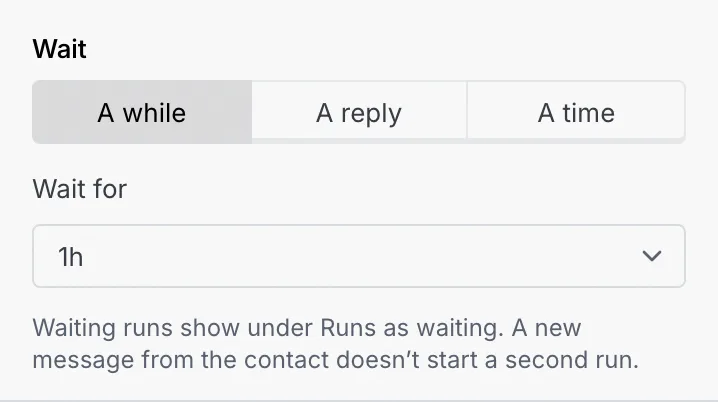
| Wait | Pauses the run. A new message from the contact doesn't start a second run meanwhile. | What to wait for: A while (Wait for 5m to 7d), A reply (Give up after 5m to 7d, then carry on with "They replied" set to no) or A time (Wait until, such as "09:00 next business day", or a date variable). The step's name follows these settings until you rename it. |
| Set variables | Names values for later steps, read as {{vars.name}}. Setting one again replaces it. | Variables: a name and a value for each (Add a variable). |
| Run another flow | Hands the run's contact and variables to another flow of the same agent. | Run (the flow), Wait for it to finish (off: start it and carry on straight away). |
| Stop | Ends the run here. | End the run as: Completed, or Failed, so it shows under Runs. Reason. |
Data
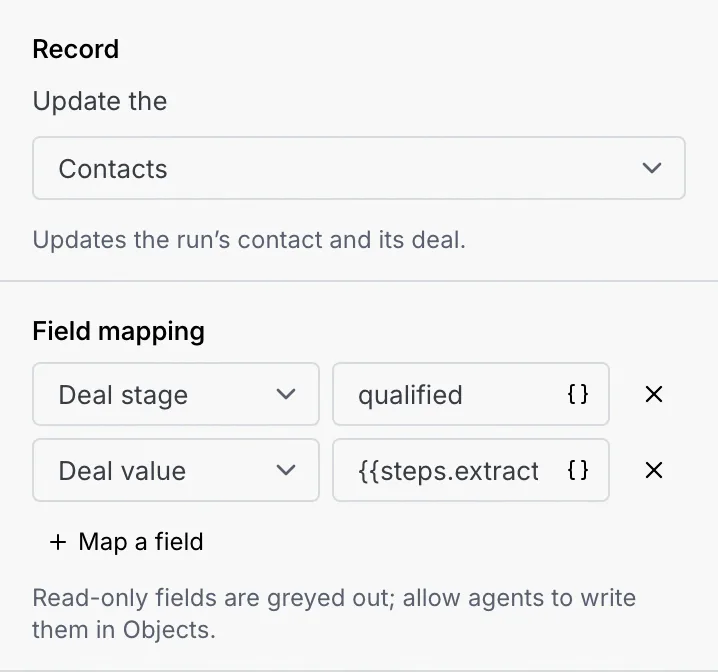
Steps that change records. Fields marked read-only in the data model are greyed out; allow agents to write them in Objects.
| Block | What it does | Settings |
|---|---|---|
| Update CRM record | Writes values onto the run's contact and its deal, or onto a record of another object. | Update the: the object. For objects other than contacts, Find it by and Matching pick the record. Field mapping: a field and a value for each (Map a field). |
| Create record | Adds a record to any object, such as an Order. | Create a: the object (objects flows can't create are marked). Field mapping; required fields are marked with an asterisk. |
| Find record | Looks up a record for later steps. | Find a: the object. Where: the field to match. Matches: the value. Create one when nothing matches (off: "Found" is no, and later steps can branch on it). |
| Change deal stage | Moves the contact's deal to a stage. It never moves a deal backwards. | Move the deal to: Lead, Qualified, Discovery, Negotiation or Closed won. |
| Add or remove tags | Tags the contact, or removes tags. | Add or Remove, then Tags. |
| Map data | Reshapes values into the field names another step needs, such as a webhook payload. | Output fields: a name and a value for each. Later steps read them as {{steps.<name>.field_name}}. |
Integrations
| Block | What it does | Settings |
|---|---|---|
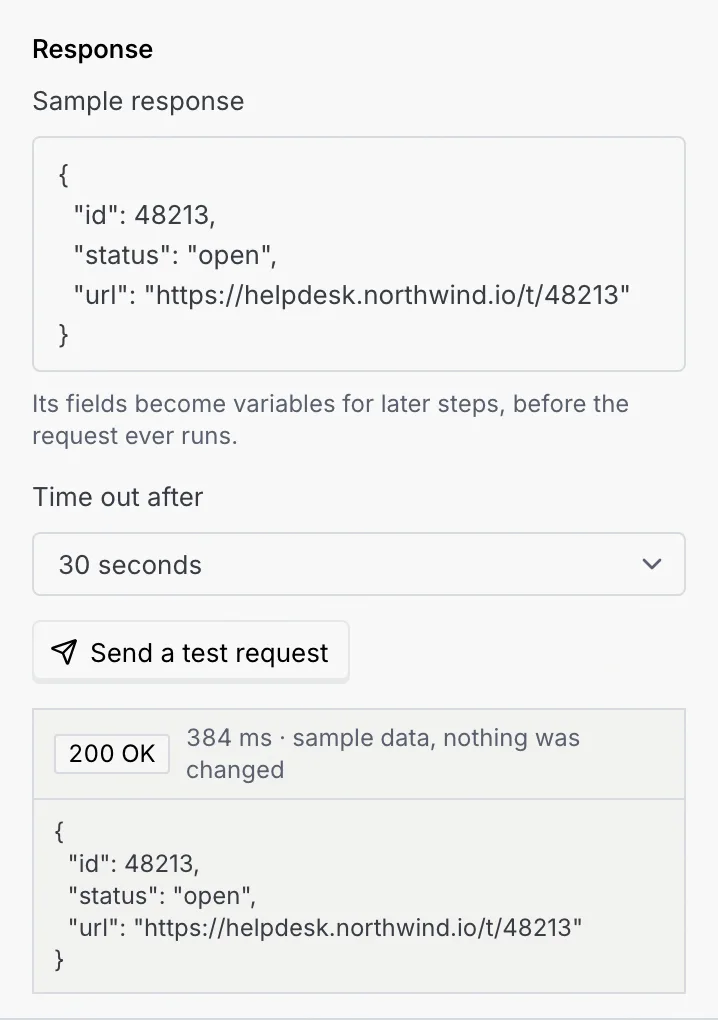
| HTTP request | Calls any REST API. | Request: Method (GET, POST, PUT, PATCH, DELETE), URL (https, or a variable) and Authentication (None, or a saved API connection; credentials stay with the connection, never in the flow). Parameters: Query, Headers and Body tabs (Send as JSON, Form fields or No body). Response: a Sample response whose fields become variables before the request ever runs, and Time out after (10 to 120 seconds). |
| Send webhook | Posts the run's data to a saved destination, signed with X-Mokanata-Signature and retried with backoff. | Send to: one of your outgoing destinations. Payload (JSON, with variables). Send a test delivery. See Post data to another app. |
Send a test request at the bottom of an HTTP request shows 200 OK with the sample response and how long it took, marked "sample data, nothing was changed". It needs the Test agents permission.
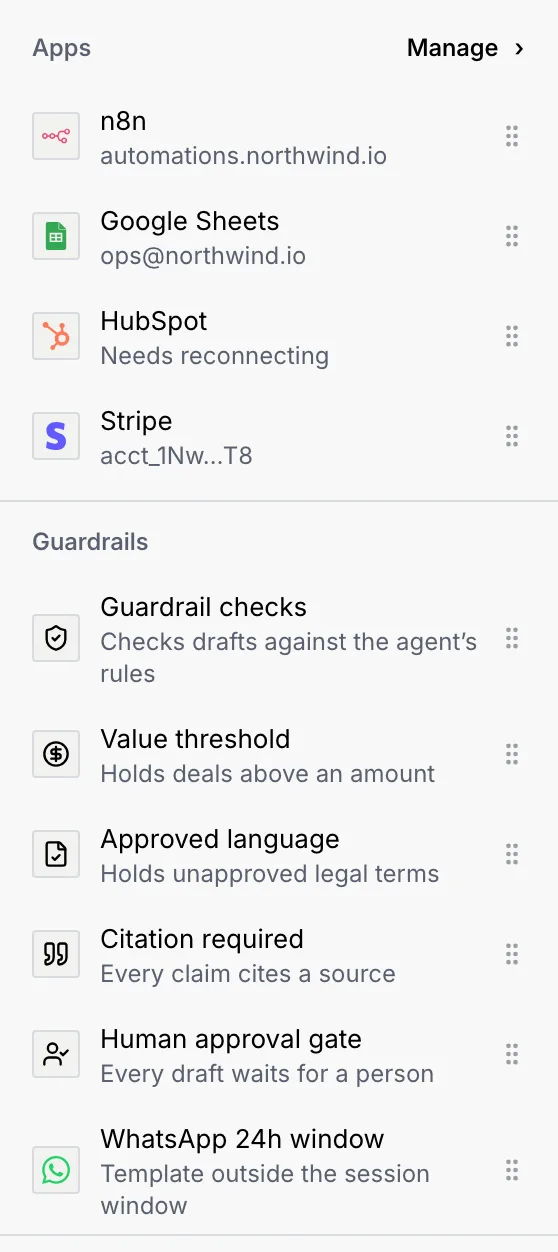
Apps
One block for each app connected in Integrations, such as n8n, Google Sheets, HubSpot or Stripe, with its account under the name. An app whose sign-in expired says Needs reconnecting. Manage opens Integrations. With nothing connected, the group says "No apps connected. Connect n8n, Sheets, HubSpot and more in Integrations."
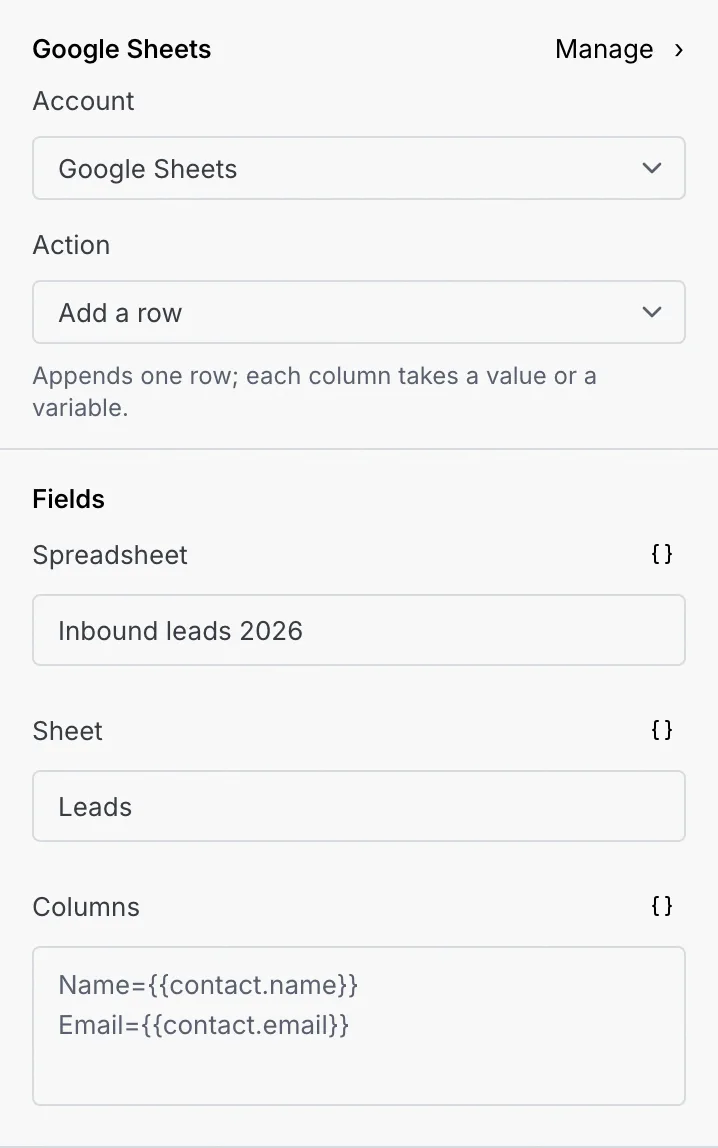
An app step's settings:
| Setting | What it does |
|---|---|
| Account | Which connection of that app to use. |
| Action | What to do, depending on the app: for example Add a row or Look up a row in Google Sheets, Run a workflow in n8n, or Create or update a contact and Create a deal in HubSpot. |
| Fields | The action's own fields; required ones turn red while empty. |
If the app isn't connected any more, the step says so with a Connect it button; if its sign-in expired, reconnect it in Manage.
Guardrails
A guardrail gate checks every draft against rules before anything sends. Without one (or a Human approval gate), a flow with a send step can't publish.
| Block | What it adds |
|---|---|
| Guardrail checks | A gate with all of the agent's rules, placed before the first send or handoff. |
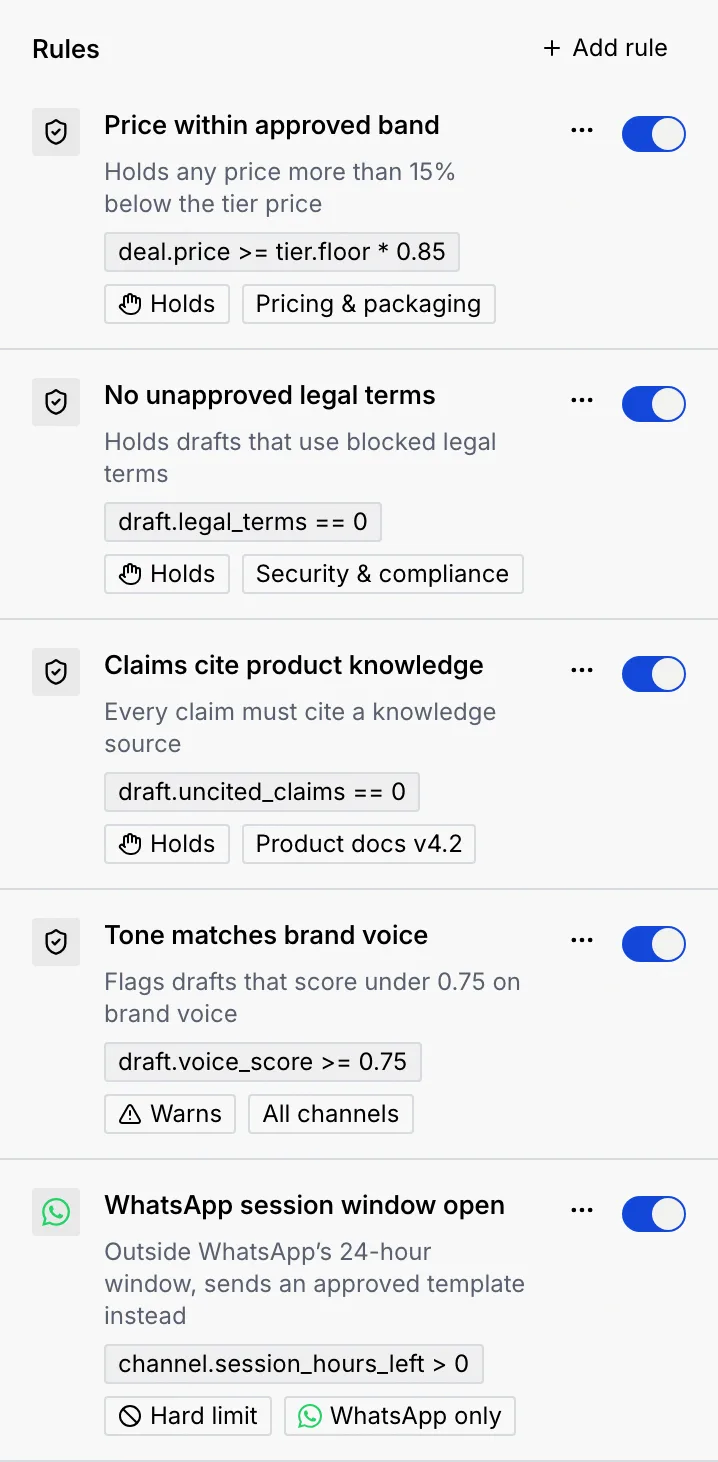
| Value threshold | The rule "Deal value under $100,000": holds any deal of $100,000 or more. |
| Approved language | The rule "Uses approved language only": warns on wording outside the approved list. |
| Citation required | The rule "Claims cite product knowledge": every claim must cite a knowledge source. |
| Human approval gate | The rule "Every reply waits for approval". |
| WhatsApp 24h window | The rule "WhatsApp session window open": outside WhatsApp's 24-hour window, it sends an approved template instead (a hard limit, WhatsApp only). |
The rule blocks go into the selected gate (or the flow's first gate). If the flow has no gate yet, they make one. If the gate already checks that rule, a toast says so; its switch is in the step's settings.
A Guardrail checks step's settings:
- Rules: each rule with its switch. Use the … menu to Edit rule or Delete rule (which only takes it off these checks; it stays on the agent's Guardrails tab). Add rule writes a new one or starts from a template.
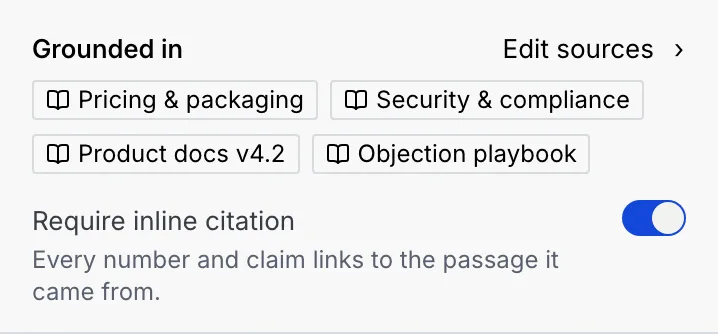
- Grounded in: the knowledge sources claims are checked against (Edit sources jumps to the knowledge step) and Require inline citation: every number and claim links to the passage it came from.
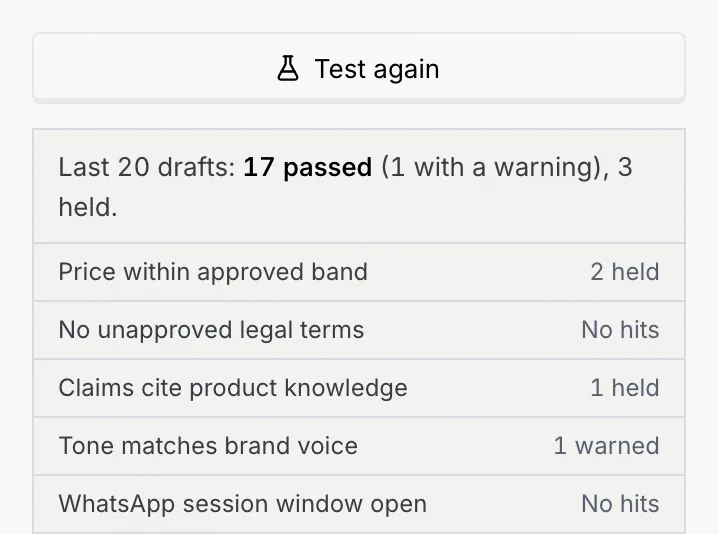
- Test these checks on the last 20 drafts: replays the rules on recent drafts and shows how many would have passed, been held, handed off or blocked, rule by rule. It needs the Test agents permission. For an agent in shadow, held drafts only show in its digest.
For what each rule outcome means and how to write a rule, see Guardrails and rules.
Steps from the agent's setup
Flows built with the agent also contain steps that aren't in Blocks. You can open, rename, move, switch off and remove them like any other step.
| Step | What it does | Settings |
|---|---|---|
| Retrieve product knowledge | Finds the passages the draft answers from. | Sources: switch each of the agent's sources on or off for this flow. Retrieval: Passages per answer (4, 8, 12 or 16), Match strictness (higher cites fewer, closer passages; lower answers more often) and Use docs updated in the last 30 days, 90 days, 1 year or any age. |
| Hold for approval | The draft waits for a teammate to approve it. | Goes to, If no one acts within, as for Hand to a person. |
| Every rule passes / A rule stops it | The two branches after a guardrail gate: when every rule passes, the next step (usually Send automatically) runs; when a rule stops the draft, the other one (usually Hold for approval) does. Moving or removing one branch moves or removes both. | Each branch's step has its own settings. |
| Write to CRM and timeline | Writes a summary, deal fields and an event after every outcome, once per message even on a retry. It stays at the end of the flow. | None. |
| Signals, CRM read, Match, Merge, Billing and similar | The agent's own pipeline steps, for example reading product usage or merging duplicate records. | Only the settings every step has. |
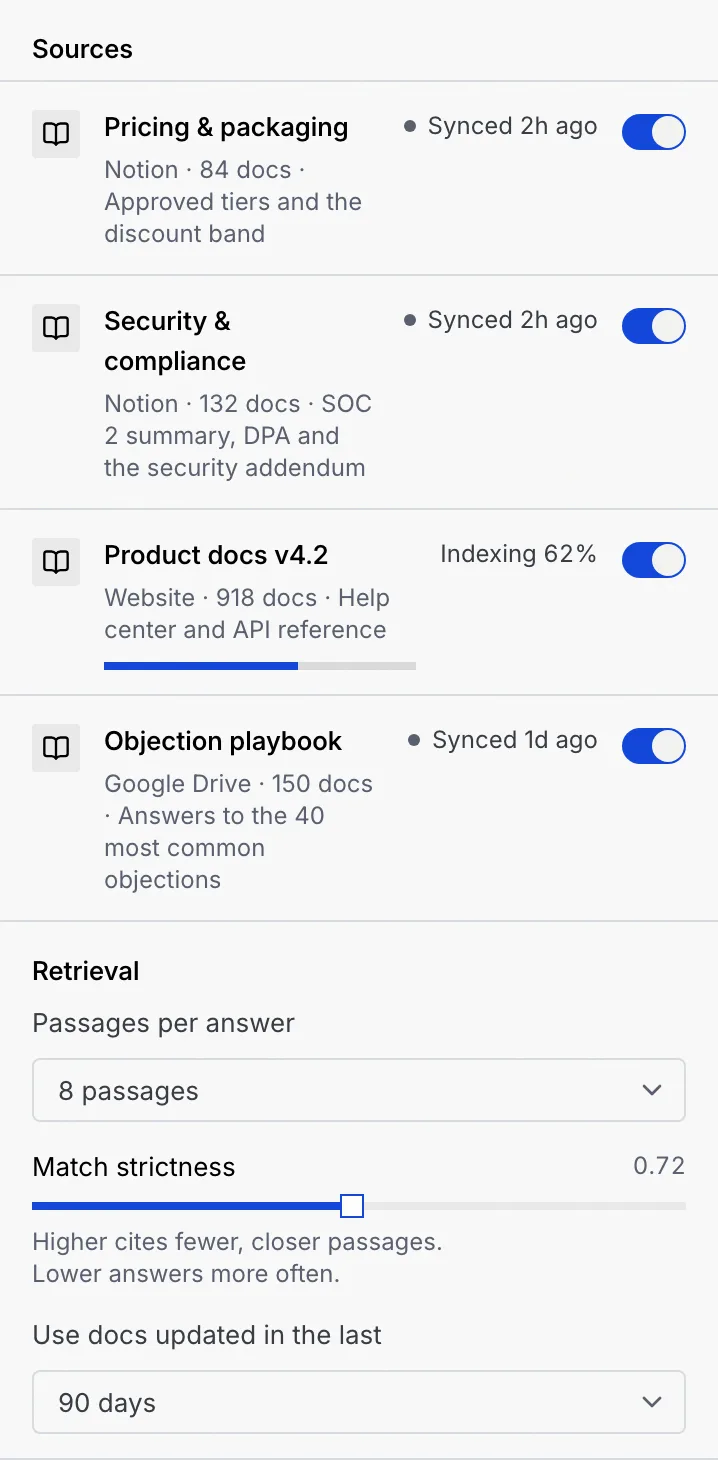
At the bottom of Blocks, the agent's knowledge (such as Closer Agent's knowledge) lists the agent's sources with their document counts and sync state, and how many are ready. Sync now syncs them; it needs the Edit agents permission. To add or remove sources, use the agent's Knowledge tab.