The agent page
Read an agent's status, numbers and notices, and reach its flows, knowledge, guardrails and settings.
Each agent has its own page. The top tells you what state it's in and how it's doing; the tabs below hold everything it's made of: its flows, knowledge sources, guardrails and settings. Its run log is coming soon.
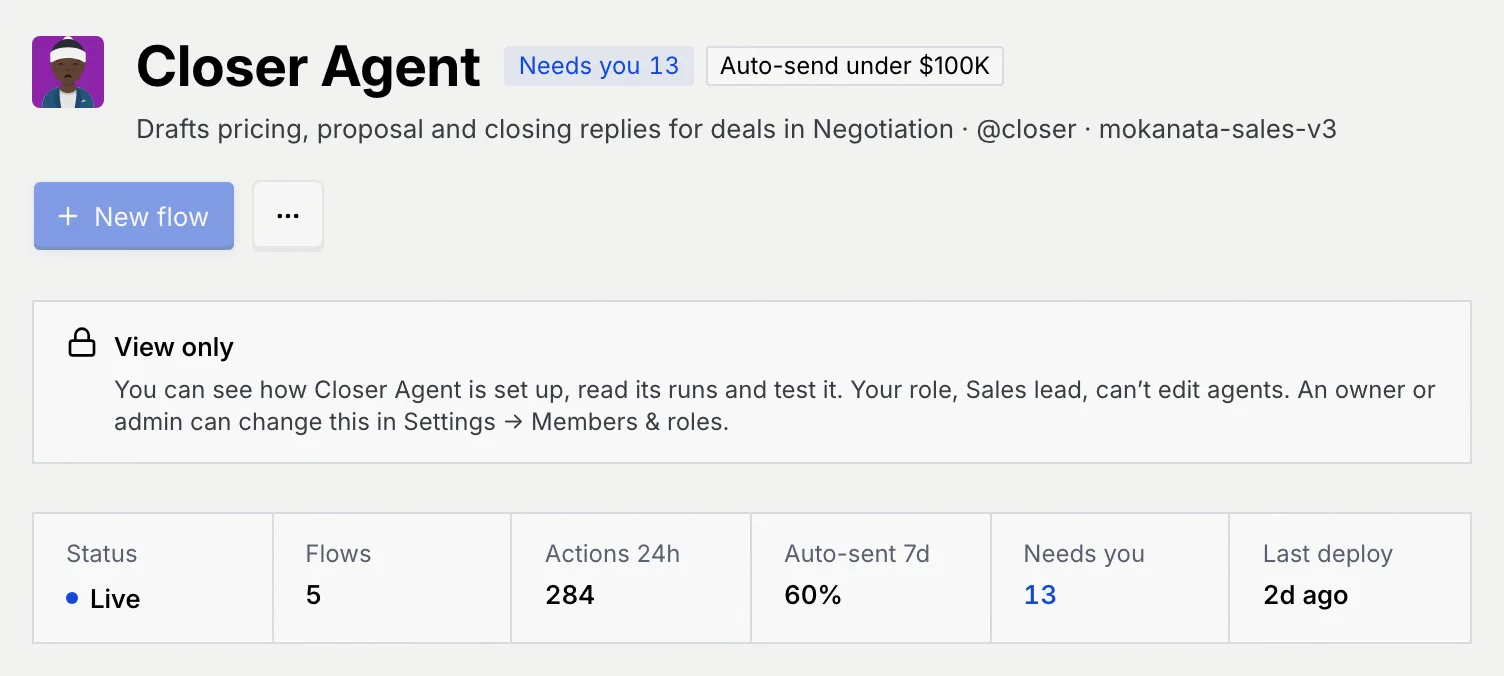
- Who can use it: Everyone in the workspace can open an agent's page and read it. Changing anything needs permission to edit agents (owners and admins by default). A role without it sees a View only notice under the header that says why, and the buttons it can't use are disabled. See Roles and permissions.
- Before you start: Nothing.
Open an agent
Go to its page
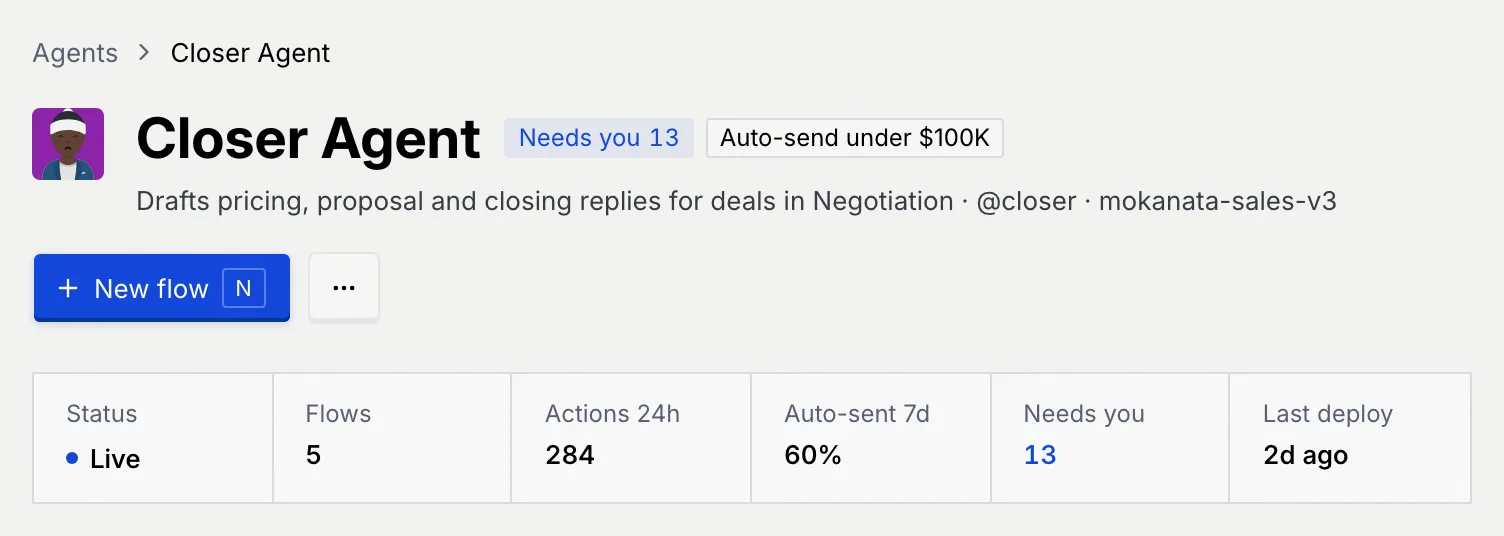
On the Agents page, click an agent's card or row. You can also search for it with ⌘ K (Ctrl K on Windows and Linux). The breadcrumb at the top (Agents › Closer Agent) takes you back to the list.
Read the header
The header shows the agent's avatar and name, then its badges:
- Needs you with a number: items of this agent waiting in your approval queue.
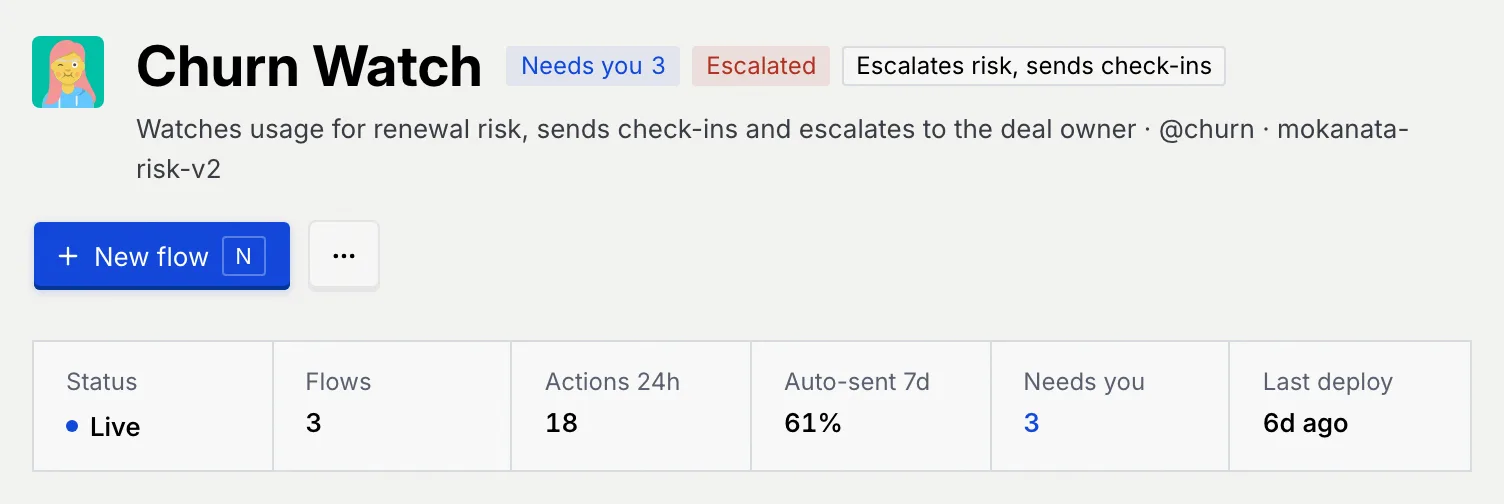
- Escalated (red): it escalated a conversation to a person.
- Draft or Shadow: it hasn't been deployed yet, or it drafts privately.
- An outline badge describing how it sends, such as Auto-send under $100K or Each reply waits for your approval. A paused agent doesn't show one, since nothing sends while it's paused.
The line under the name reads "what it does · handle · model".
Read the summary
The strip under the header shows:
| Number | What it shows |
|---|---|
| Status | Live, Paused, Shadow or Draft. |
| Flows | How many flows the agent has. |
| Actions 24h | Its agent actions in the last 24 hours: replies it sent (approved by a person or sent by a rule) and record changes a person approved. Drafts nobody sent don't count. |
| Auto-sent 7d | Of the replies it sent in the last 7 days, the share a rule sent without a person; or Drafts only, Not deployed or Not live. |
| Needs you | Its items waiting for approval. Click the number to review them in the Command center. |
| Last deploy | When it was last deployed. |
Use the header actions
The main button changes with the agent's state:
| Agent is | Main button | Shortcut |
|---|---|---|
| Running, needs you, escalated or in shadow | New flow: opens the flow builder on a new flow | N |
| Paused | Resume | |
| A draft copy | Deploy | D |
Click ⋯ (More actions) for the rest:
- Test run: try the agent on a customer message without sending anything (T). See Test an agent.
- New flow: shown here while the agent is paused, when Resume takes the main button's place.
- Duplicate: make a draft copy and open it.
- Pause: stop the agent (not shown for drafts or paused agents).
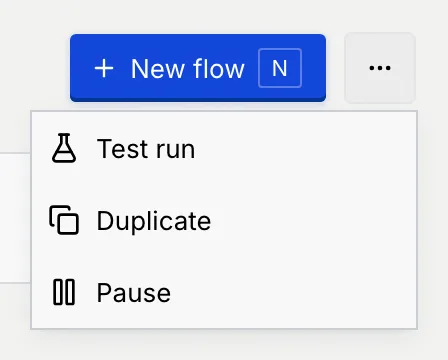
Each item only shows if your role allows it. Pausing, resuming and deploying are covered in Deploy, pause and set autonomy.
Read the notices
Some states add a notice under the summary:
An agent with an escalation shows the red Escalated badge next to its Needs you count. Open the Command center to handle it.
Performance and recent runs
On a wide screen, two panels sit on the right of every tab. On a narrower screen they move under the tab's content. Mokanata doesn't record their figures yet:
- Performance (7 days) says Performance figures aren't recorded for the agent, and points to its actions and auto-sent share in the summary.
- Recent runs says Run history isn't recorded yet. See Runs (coming soon).
Use the tabs
| Tab | What's on it | Guide |
|---|---|---|
| Flows (count) | The agent's flows, their status and performance trends. | Manage an agent's flows |
| Knowledge (count) | The sources it cites and whether citations are required. | Knowledge sources |
| Guardrails (count) | The rules every draft is checked against. | Guardrails and rules |
| Runs | Coming soon: it says run history isn't recorded yet. | Runs (coming soon) |
| Settings | Identity, model, autonomy, channels, limits and deletion. Shows Unsaved while you have changes. | Agent settings |
The open tab is kept in the page address, so you can bookmark or share a link straight to an agent's Settings.
What a read-only role sees
Without permission to edit agents, a View only notice under the header says what you can still do, such as see how the agent is set up and test it. New flow is disabled, switches and fields on the tabs are read-only, and the menus leave out what your role can't do.
Keyboard shortcuts
| Keys | Action |
|---|---|
| T | Test run the open agent |
| N | New flow on the open agent |
| D | Deploy a draft agent |
Troubleshooting
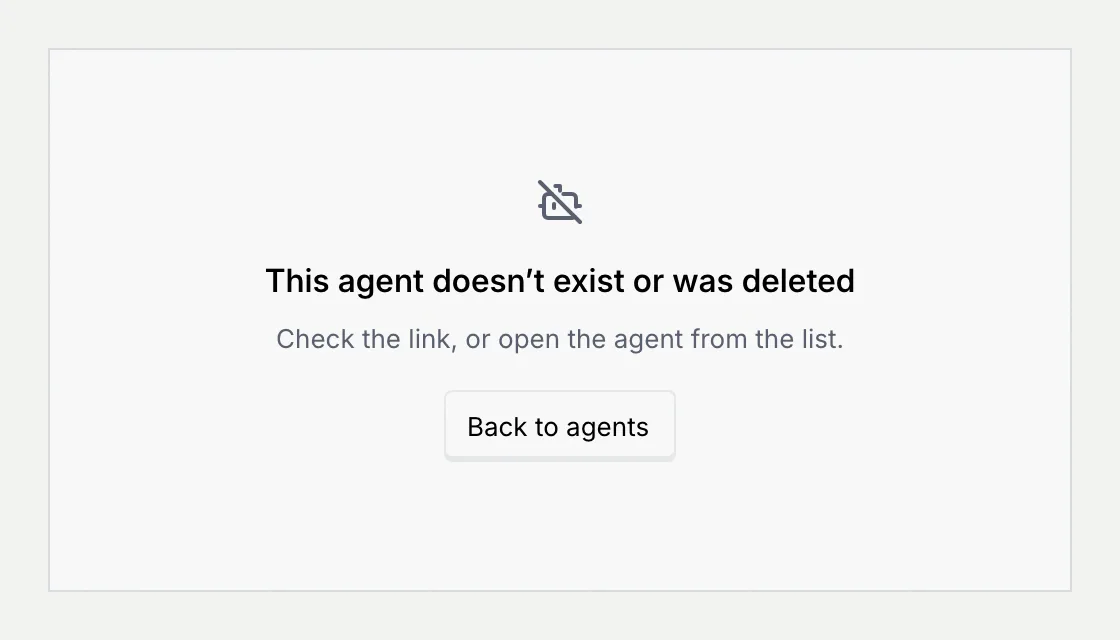
The link points to an agent that was deleted, or was never there. Check the link, or click Back to agents and open the agent from the list.
Your role can't edit, deploy or resume agents. Ask an owner or admin to change your role in Settings → Members & roles. See Roles and permissions.