Channel identities and duplicates
Keep one record per person across every channel by linking their handles, choosing the primary one and merging duplicates agents find.
People reach you on more than one channel: WhatsApp one day, Instagram or Messenger the next. A channel identity is one of those handles on a contact's record. Messages from any linked handle land on the same record, and agents on the account can reply there.
A record can also keep a handle on a channel that's coming soon, such as an email address or a LinkedIn profile from an import. Mokanata can't message those until the channel is available (see Connect a channel); messages come in and go out on WhatsApp, Facebook and Instagram once they go live. When an agent spots a record that looks like the same person on another channel, it suggests merging them.
- Who can use it: Owners, admins and members can link, unlink and change the primary identity. Merging duplicates is for owners and admins by default, and an owner or admin can grant it to other roles; without it, Merge is disabled with the reason on hover. Without permission to edit contacts, an identity's menu only offers to copy the handle. See Roles and permissions.
- Before you start: Open the contact's record; see The contact record.
See a contact's identities
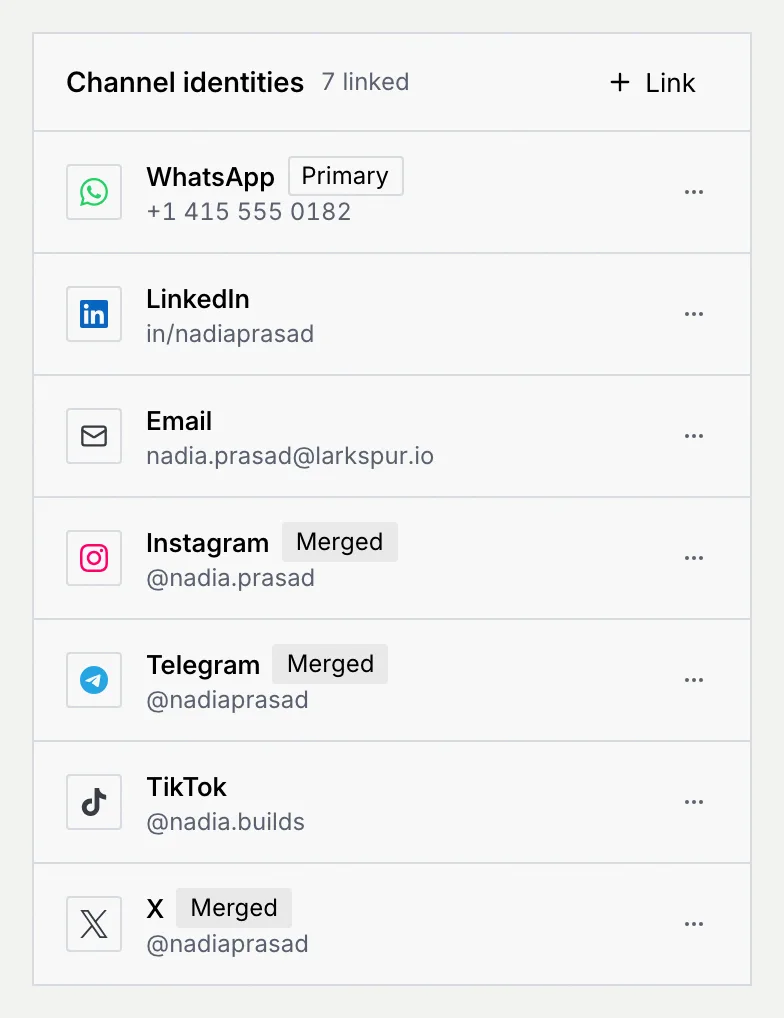
On the record, the Channel identities panel lists every linked handle, with the count of linked identities in its header.
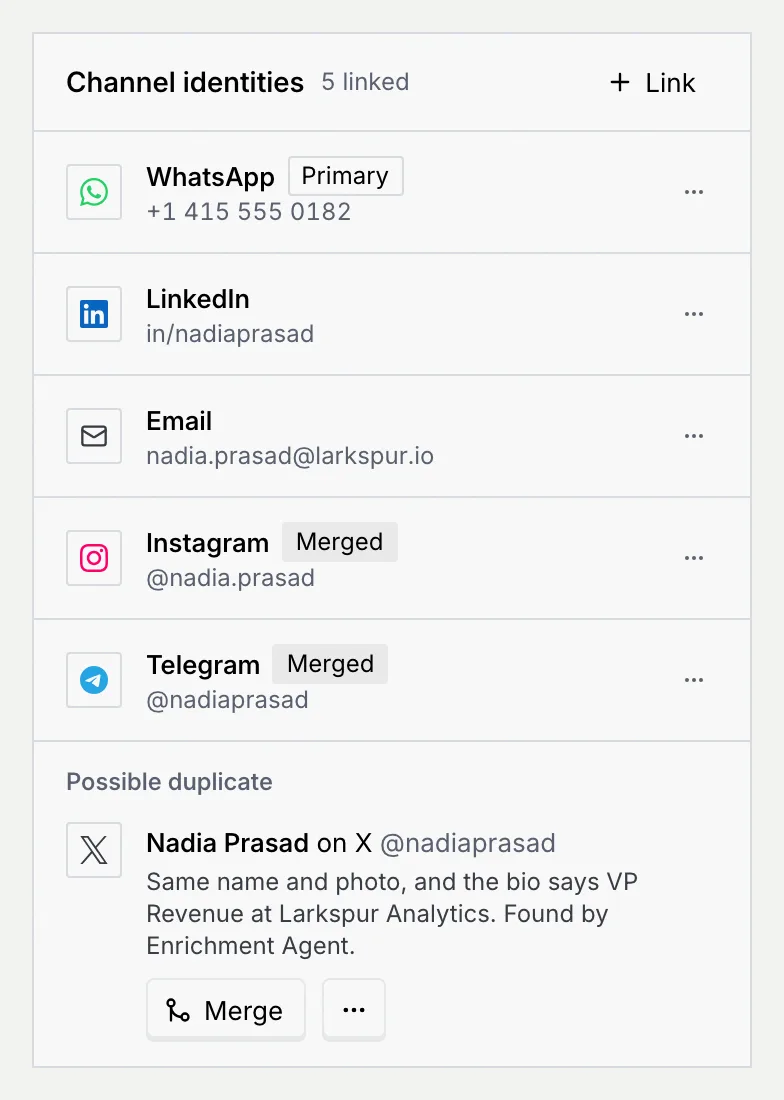
| Badge | Meaning |
|---|---|
| Primary | The first identity. Agents reply to the contact there first, and the record's header shows it as the primary channel. |
| Merged | The handle came from a duplicate record that was merged into this one. |
Link another handle
Open Link a channel identity
In the Channel identities panel, click Link.
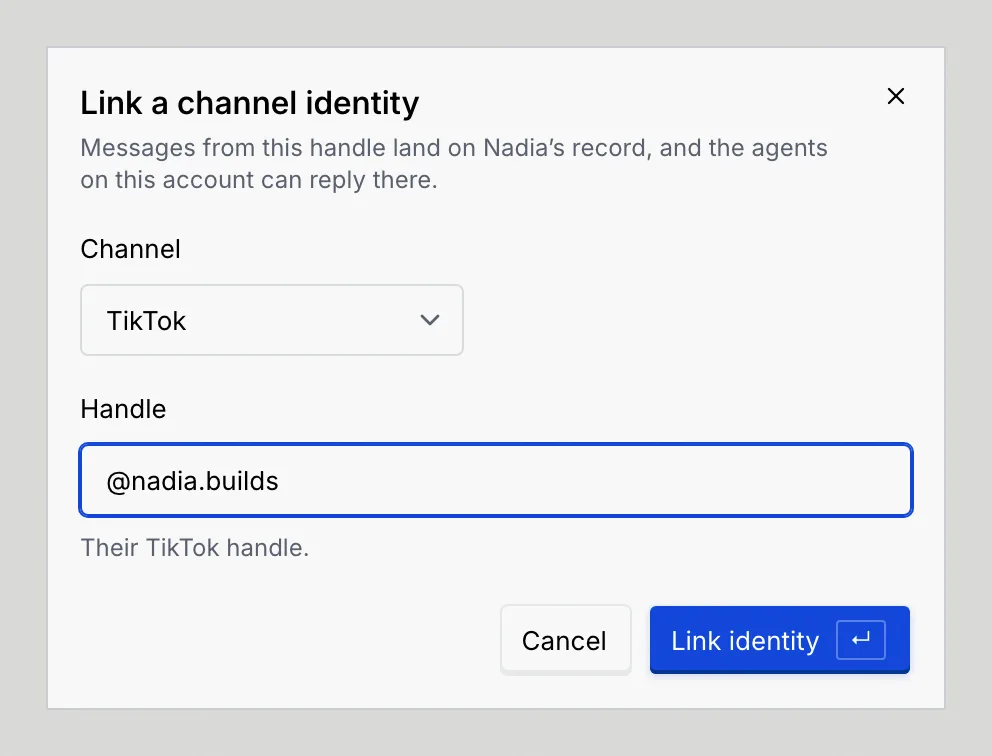
Pick the channel and enter the handle
Choose the Channel and enter the Handle (or Address for email). The same rules apply as when you add a contact: a phone number with its country code for WhatsApp, an @ handle for Instagram, TikTok, X and Threads, and so on; see Add and import contacts.
Link it
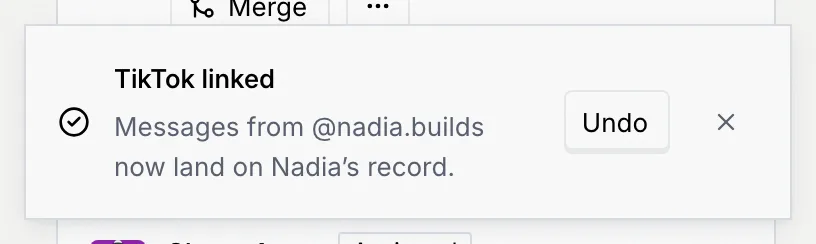
Click Link identity or press Enter. The handle joins the list, and the notice confirms that messages from it now land on this record.
If the handle is already linked to this contact, or someone else already uses it, the dialog says so and names who. When that other contact is the same person, merge the records instead of linking the handle twice.
Make a handle primary, copy or unlink it
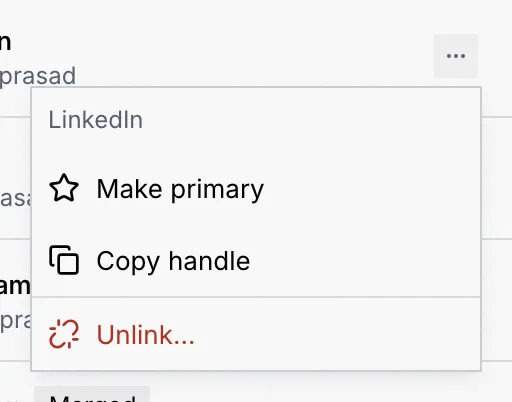
Open an identity's ⋯ menu:
| Item | What it does |
|---|---|
| Make primary | Moves the handle to the top. Agents reply to the contact there first. |
| Copy handle (Copy address for email) | Copies it to your clipboard. |
| Unlink… | Takes the handle off the record after you confirm. Agents stop replying there, and the next message from that handle starts a new contact. |
Confirm an unlink
Choose Unlink…, read what happens, then click Unlink, or Keep it linked to leave it.
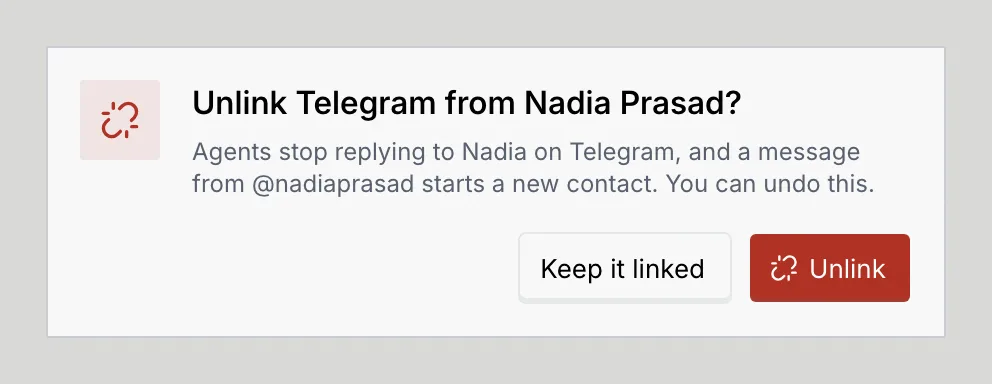
A contact always needs one way to reach them, so you can't unlink their only identity: the menu says to link another channel first. If you unlink the primary identity, the next one becomes primary. Every change shows a notice with Undo and goes on the timeline.
Merge a duplicate
Agents look out for records that belong to someone you already have. When one looks like the same person on another channel, it shows under Possible duplicate on the record, with the reason and the agent that found it.
Check the suggestion
Read the reason, such as the same name and photo, or a bio that matches the job and company. If it isn't the same person, open the suggestion's ⋯ menu and click Not the same person: the suggestion goes away and the agent won't suggest that match again.
Merge
Click Merge. The confirmation explains that the other record becomes part of this one and agents treat them as one person.
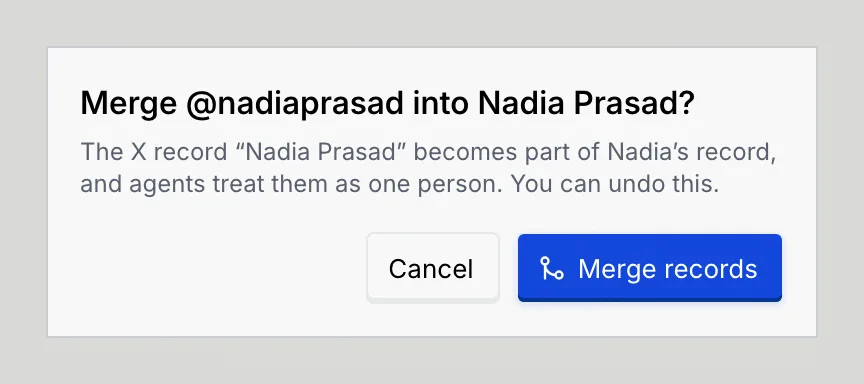
Confirm
Click Merge records. The handle joins the list with a Merged badge, and the notice offers Undo.
Merging only comes from suggestions
You merge records from the suggestions agents make on a record. To keep one person on one record in the meantime, link their other handles yourself as described above.
Troubleshooting
The handle belongs to another contact. If they're the same person, merge from the duplicate suggestion when one appears. If not, check the handle: a handle can only belong to one contact.
It's already in the list. Use its ⋯ menu to make it primary if that's what you wanted.
It's the contact's only identity, and a contact needs one. Link another channel first.
Your role can't merge duplicates. Hover Merge to see why, and ask an owner or admin; see Roles and permissions.
Your browser blocked the clipboard. Select the handle in the panel and copy it yourself.